
Learn how to program MIDI melodies in the Cubase 11 Key Editor, from creating an instrument track and drawing notes with the Pencil tool to adjusting timing and pitch and using Scale Assistant. This beginner tutorial covers the full workflow, including grid settings, zooming, Solo Editor mode, and keyboard editing, so you can enter melodies accurately and efficiently.
In this tutorial, we use a melody as an example to explain how to draw MIDI notes in the Key Editor with the Pencil tool.
Video: Programming MIDI in the Key Editor
Preparing to enter notes
First, create an instrument track for the melody and choose a sound.
Here, we have selected a lead sound in HALion Sonic SE.
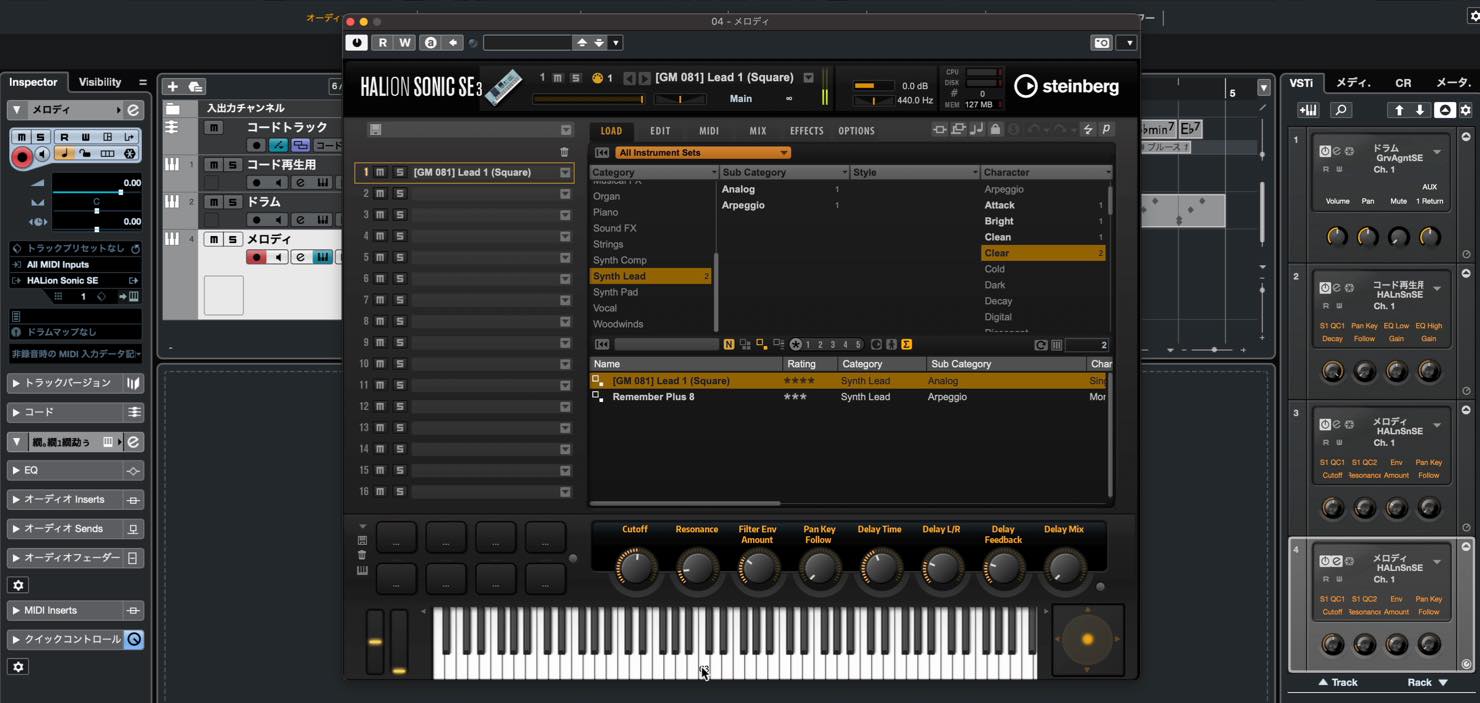
Choose a sound you like, preferably one that does not overlap too much with the instruments used for the accompaniment.
As we discussed when programming drums, you first need an event to hold the notes.
Use the Pencil tool to draw an event on the track. Its length is up to you: four bars, a chorus, or a verse can be a convenient starting point. You can change the length whenever needed.
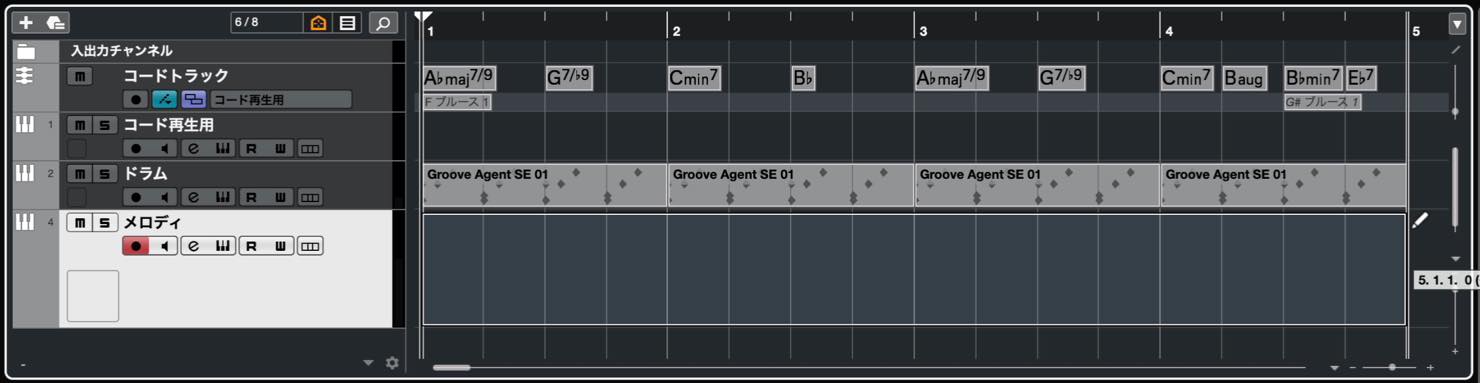
If the editor is not already displayed in the Lower Zone, double-click the event to open it.
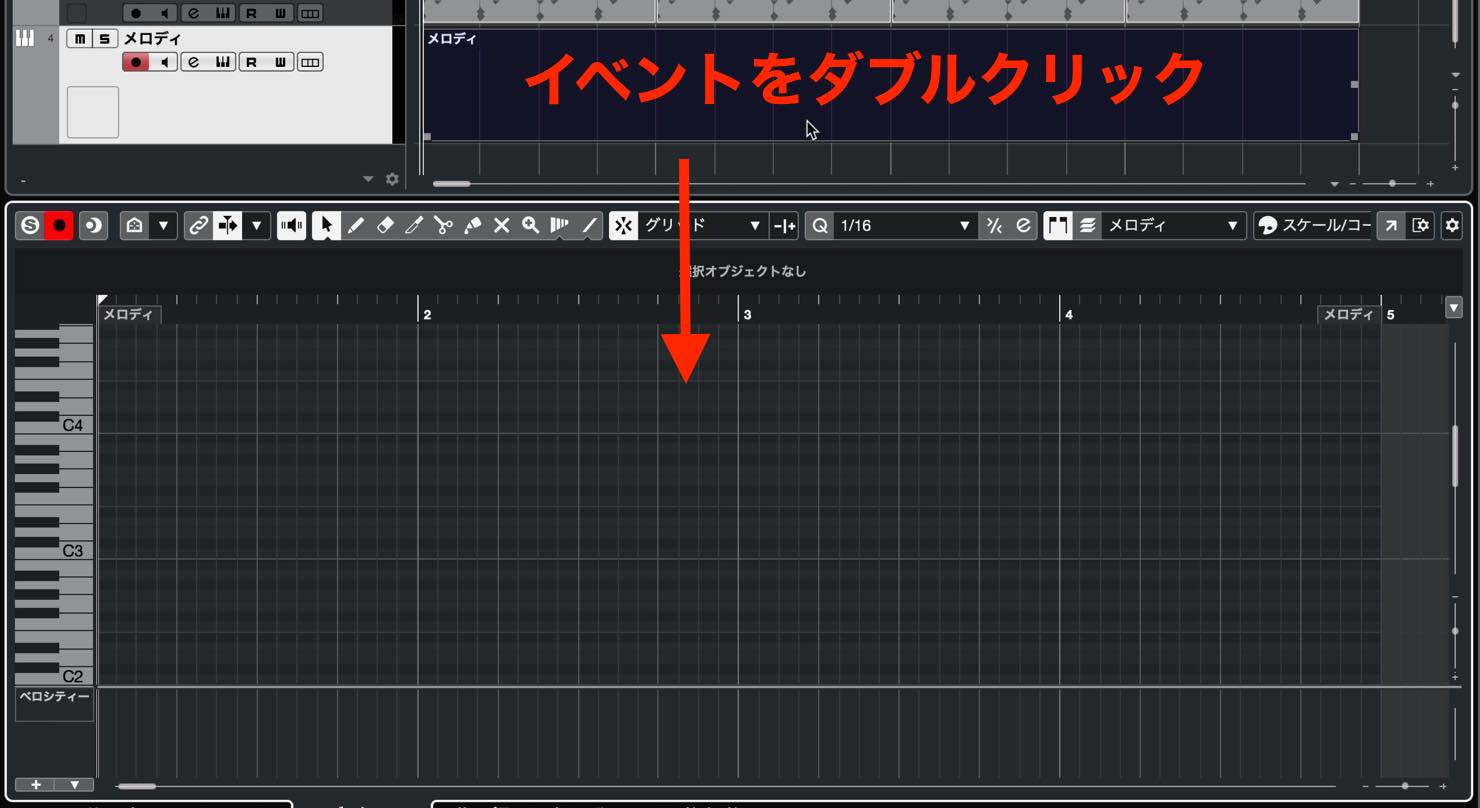
We used the Drum Editor for drums. For a melodic instrument with pitched notes and note lengths, we use the default Key Editor.
The vertical axis is a piano keyboard, and the grid is shaded to correspond to the white and black keys.
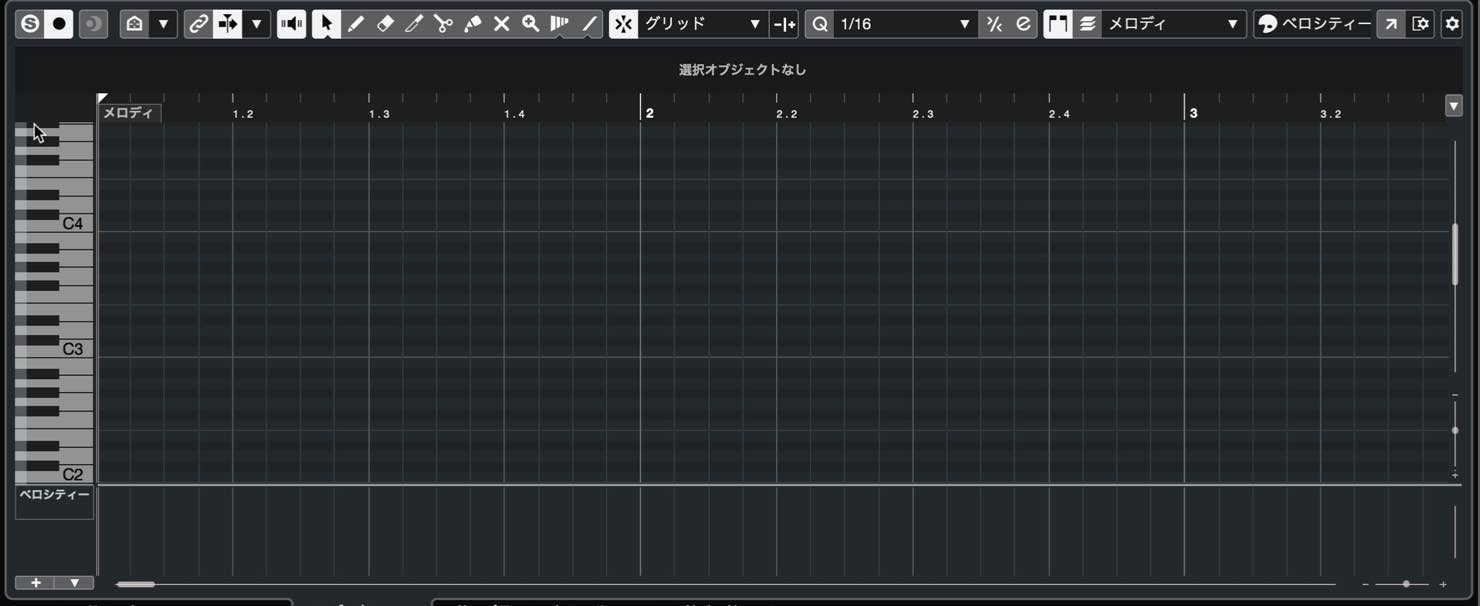
Adjust the zoom to make note entry easier. As before, press G to zoom out and H to zoom in.
These shortcuts require the editor to have focus.
The white border around the editor indicates the zone that currently has focus.
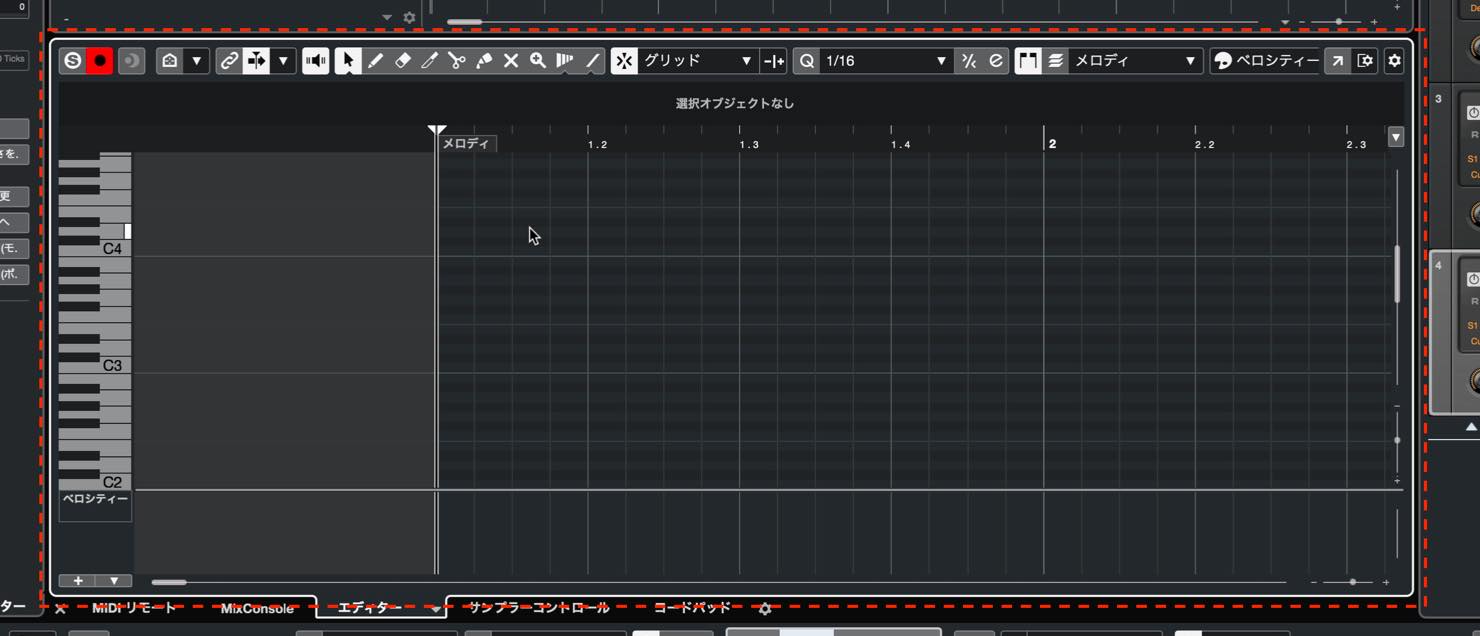
If you click in the Project window, it gains focus, so the zoom shortcuts apply there instead.
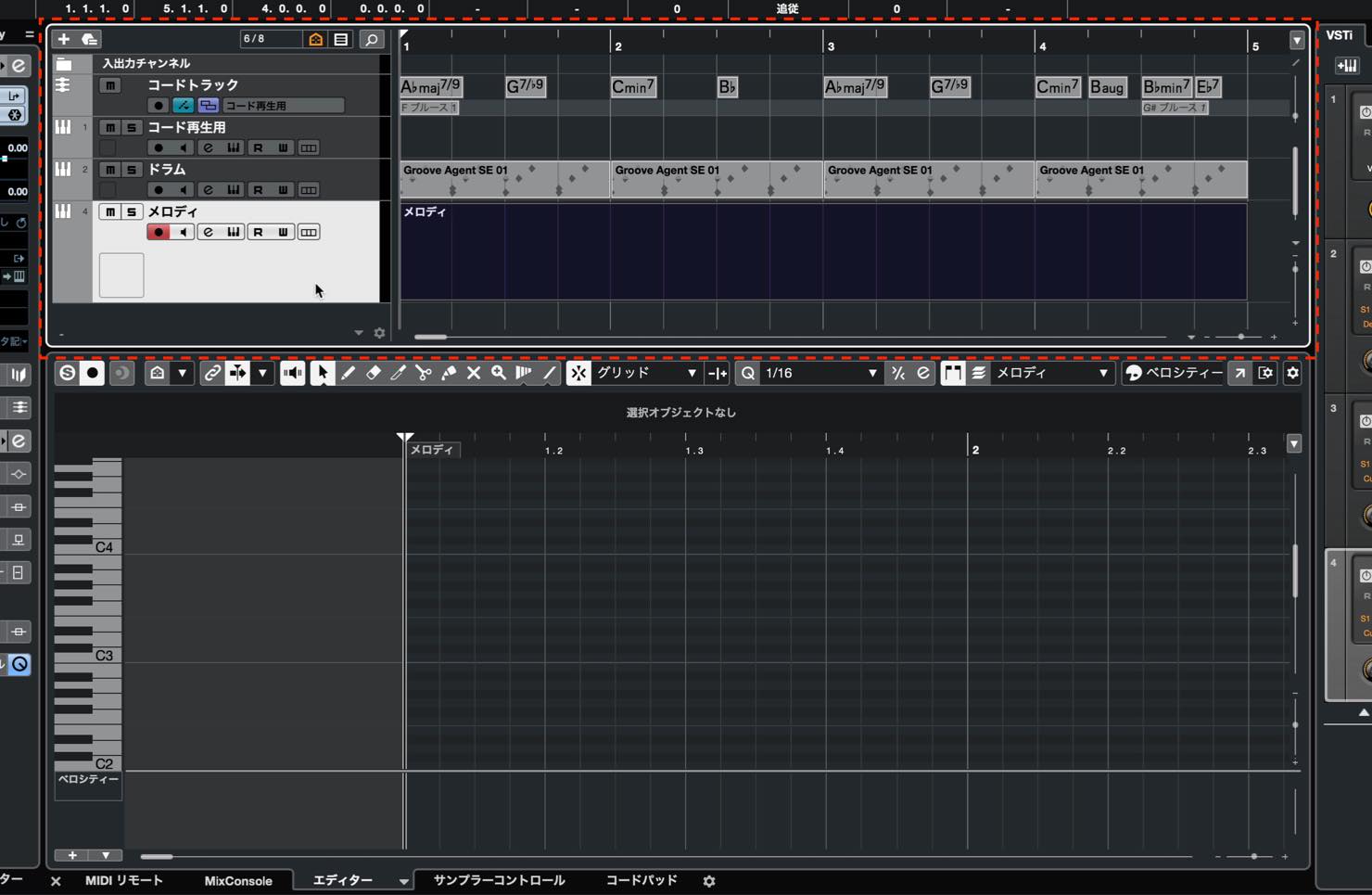
To return focus to the editor, click anywhere inside it.
You can also adjust the zoom by dragging up or down on the ruler at the point you want to enlarge. Drag down to zoom in and up to zoom out.
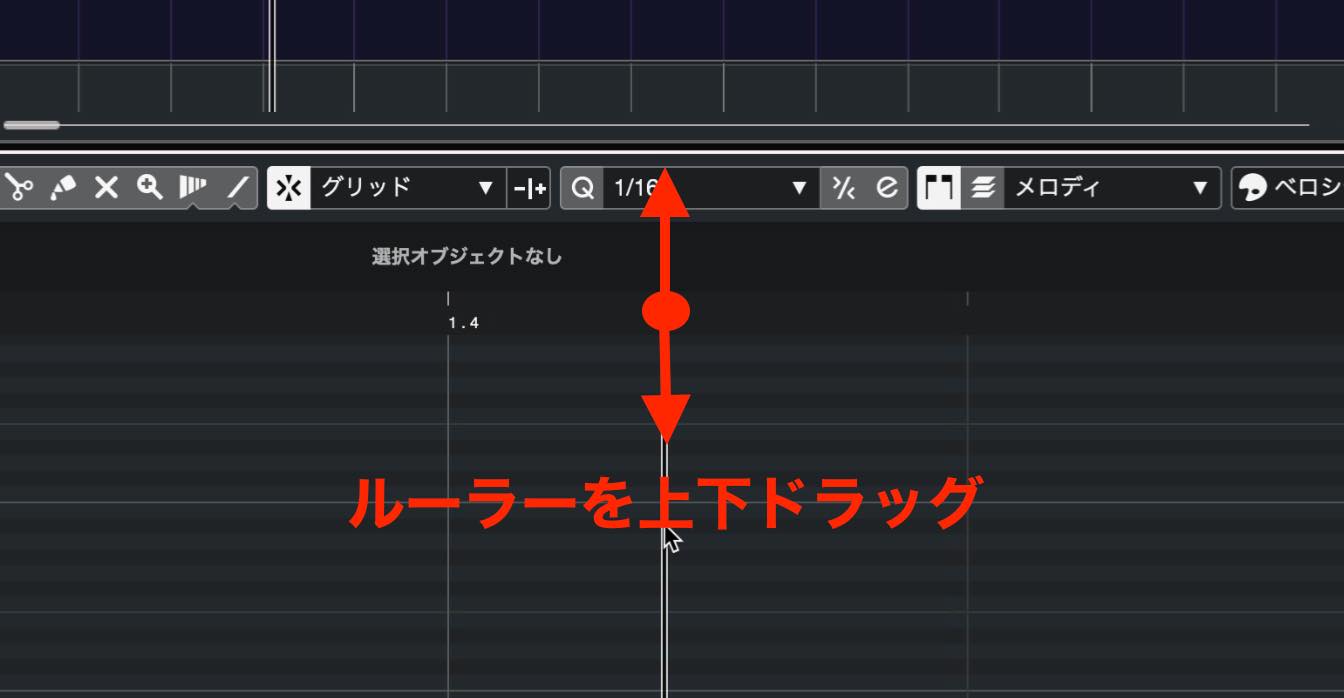
This is useful when you want to zoom around a particular point.
Entering notes
Let's enter some notes.
Select the Pencil tool, or temporarily switch to it from the Object Selection tool by holding Option on Mac or Alt on Windows.
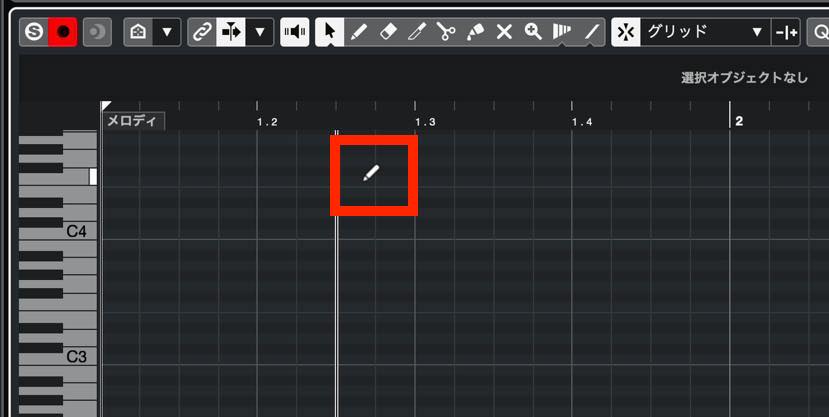
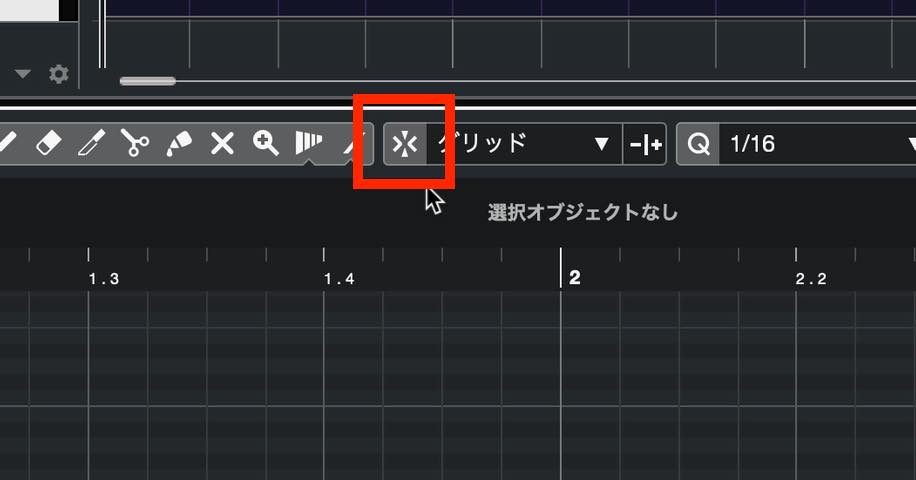
Before you start, check the Snap button shown here. Make sure it is enabled and lit up.
We will explain Snap in more detail later.
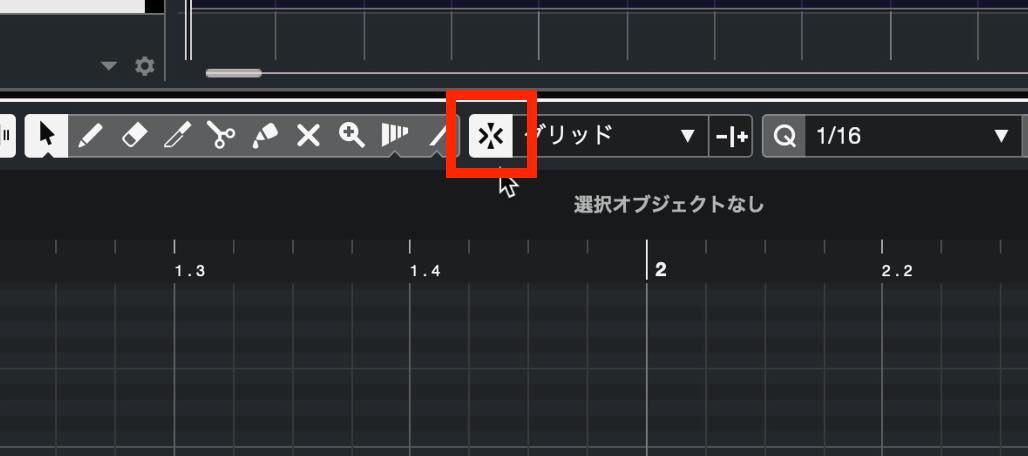
Click at the desired position to draw a note. Drag as you draw to set its length.
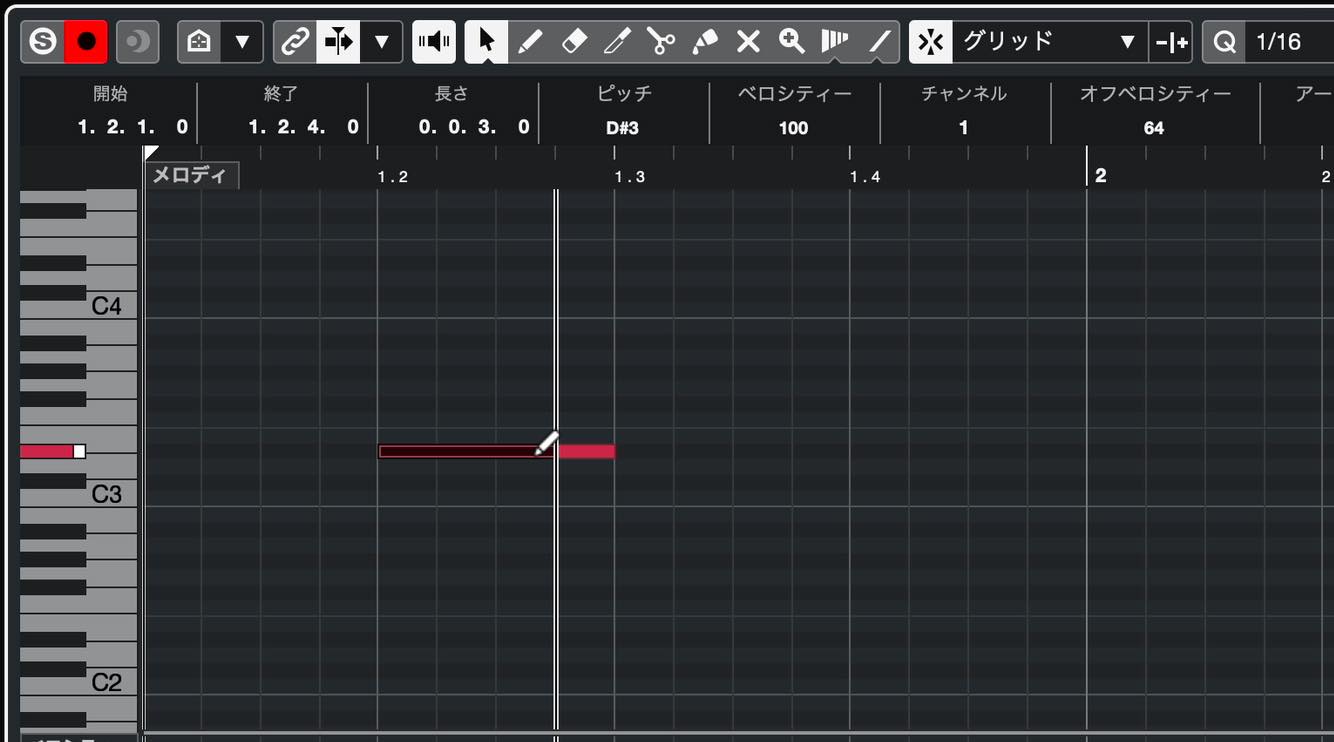
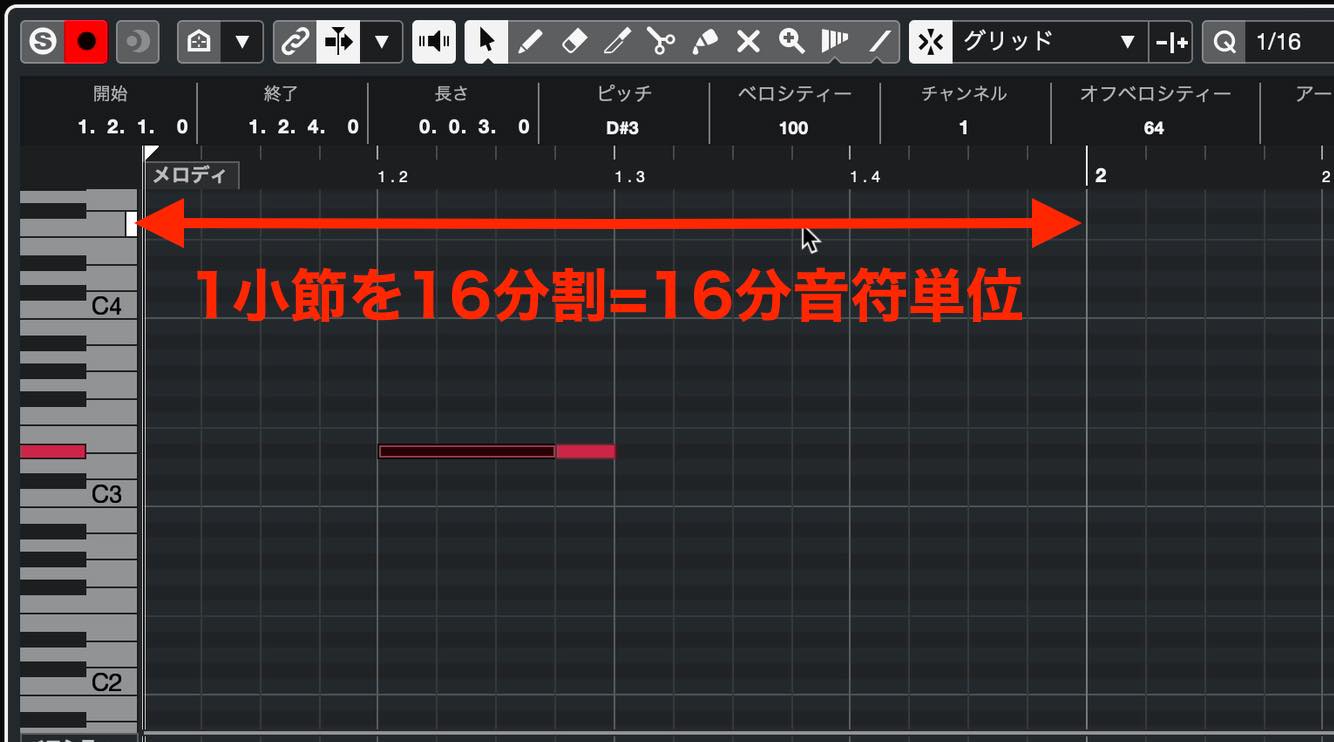
Now look at the editor grid. As we saw earlier, the vertical axis corresponds to the keyboard. The horizontal axis represents time. Here, each bar is divided into 16 sections, so the grid uses sixteenth-note increments.
To change the grid resolution, click the Quantize Presets field. A range of note values appears.
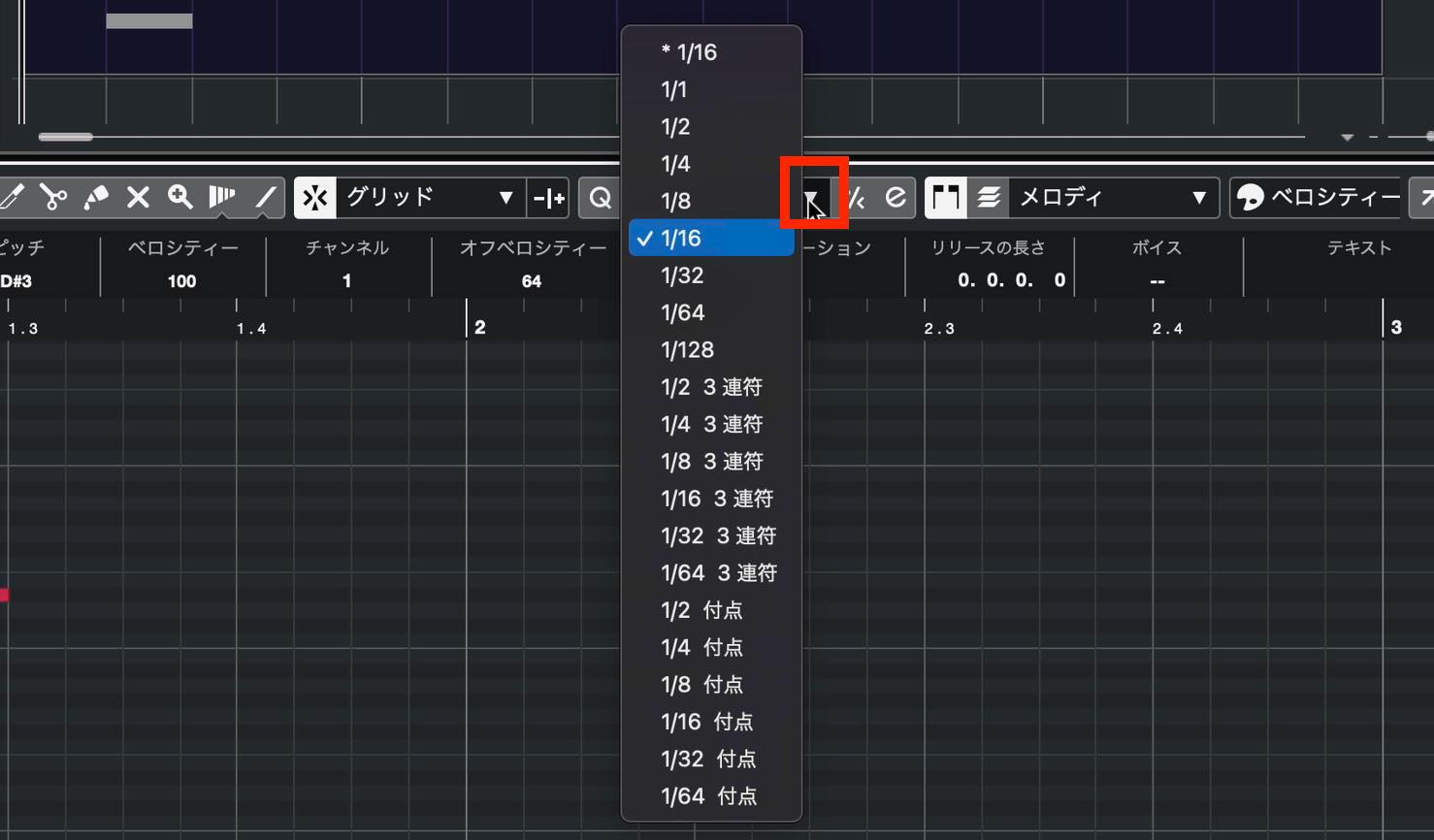
For example, choosing 1/32 sets the grid to thirty-second notes, with finer divisions as shown.
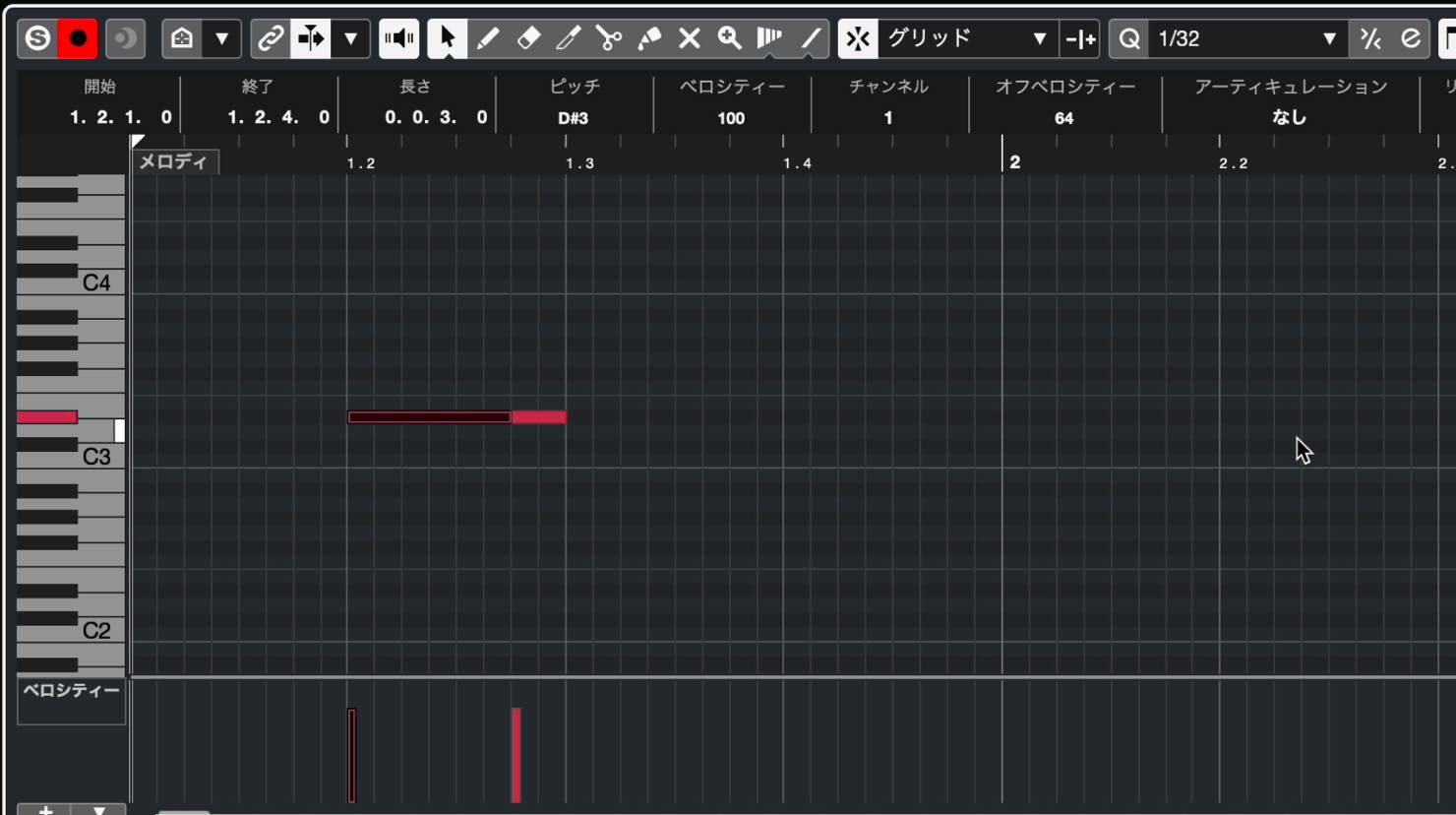
Since the shortest notes in a melody are often sixteenth notes, 1/16 is a useful starting setting.
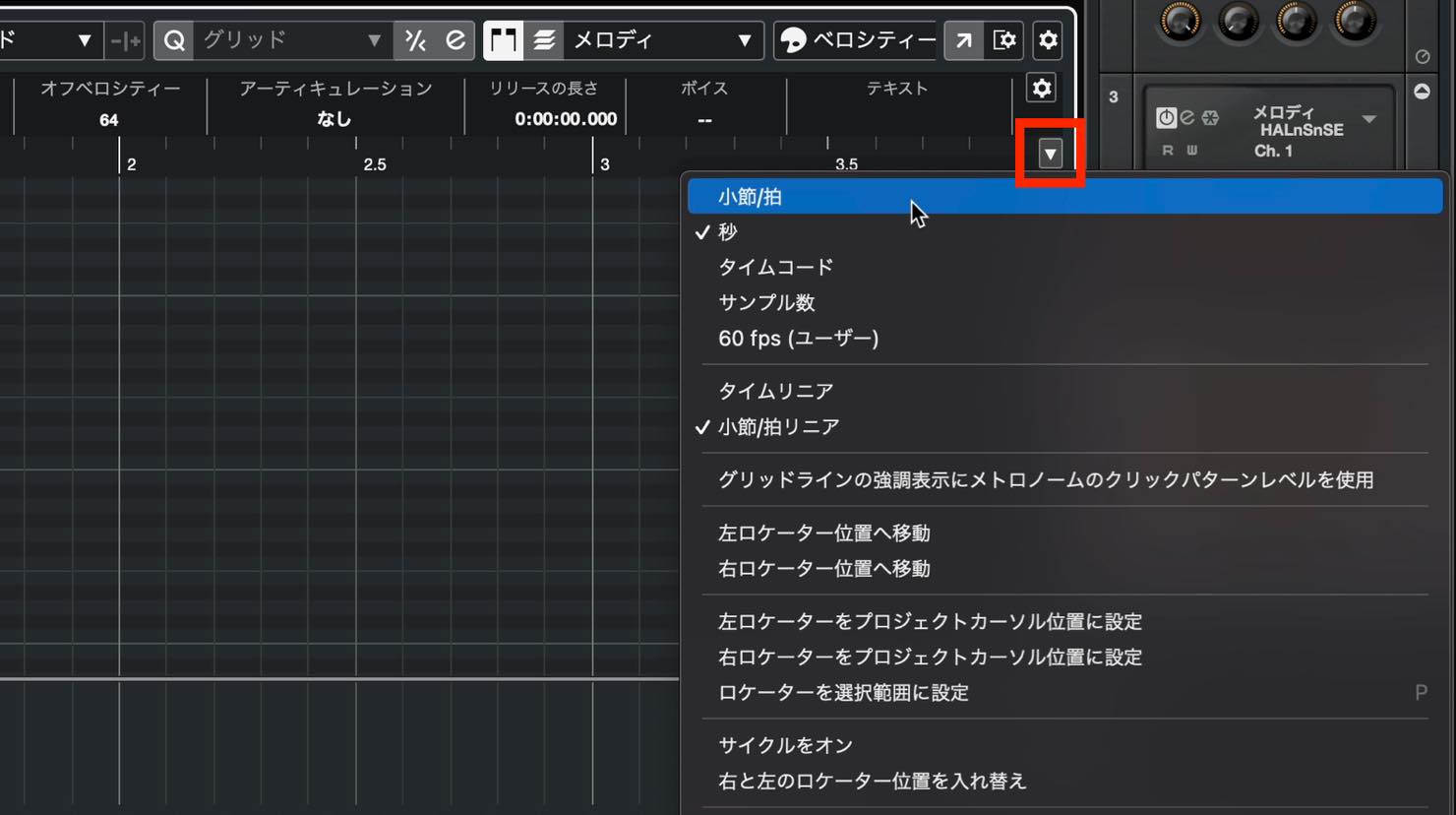
If your grid does not show note divisions, or you cannot select a quantize preset, the time format may be set to seconds or another nonmusical unit. Click the downward arrow at the upper right of the editor and select Bars+Beats.
Once you have entered your melody, press Space to play it back and check it.
Sometimes you will want to hear the melody with the other tracks, but you may also want to hear it on its own. Enable the S button at the upper left of the editor to activate Solo Editor mode and hear only the melody.
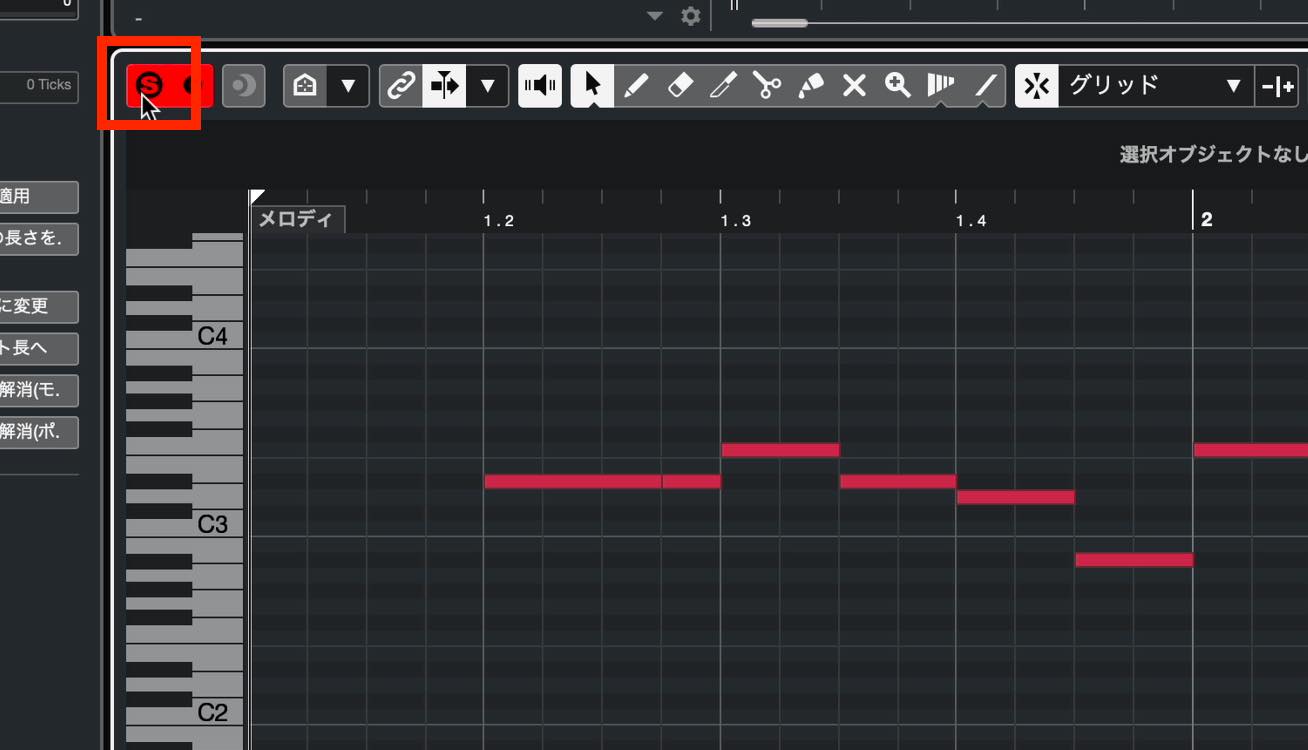
Solo Editor mode applies only while the editor has focus. When you move focus to the Project Zone, all tracks play back.
Editing notes
To change the melody, you can drag notes up or down with the mouse,
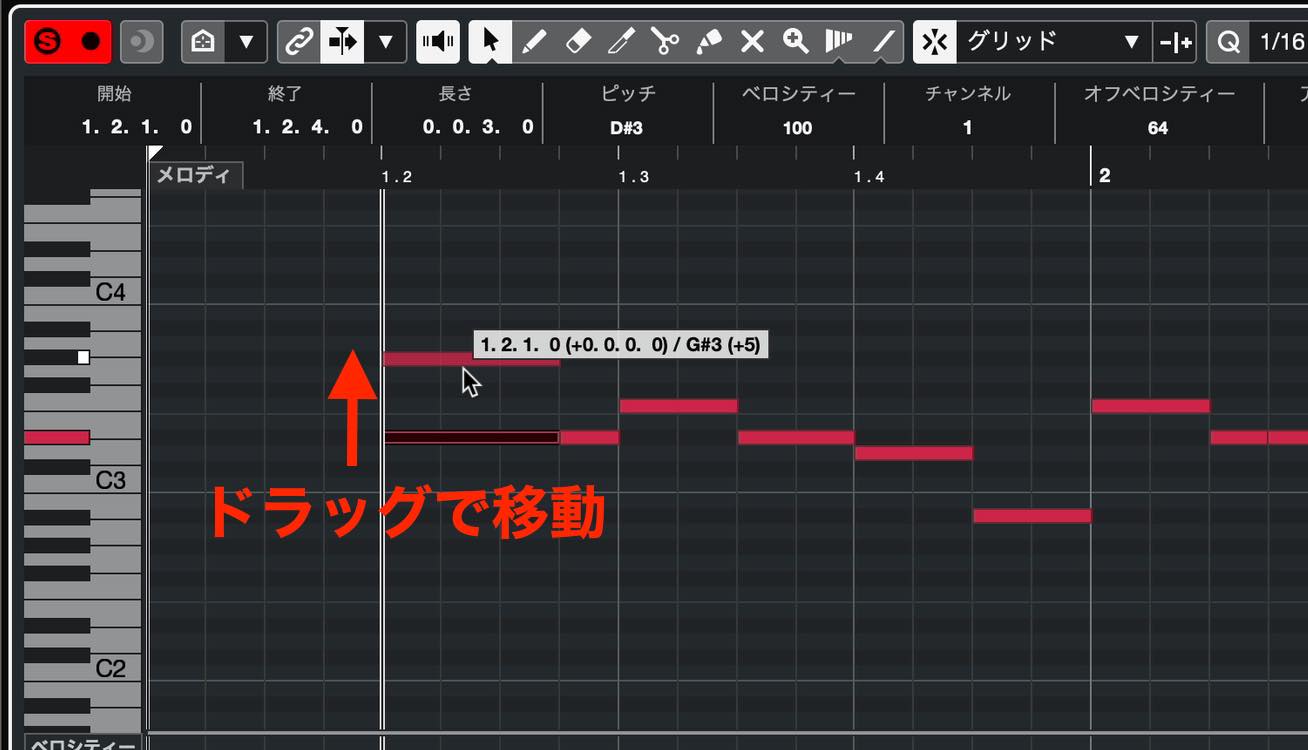
or use your computer keyboard. Select the note you want to move and press the Up or Down Arrow key to move it in semitone steps.
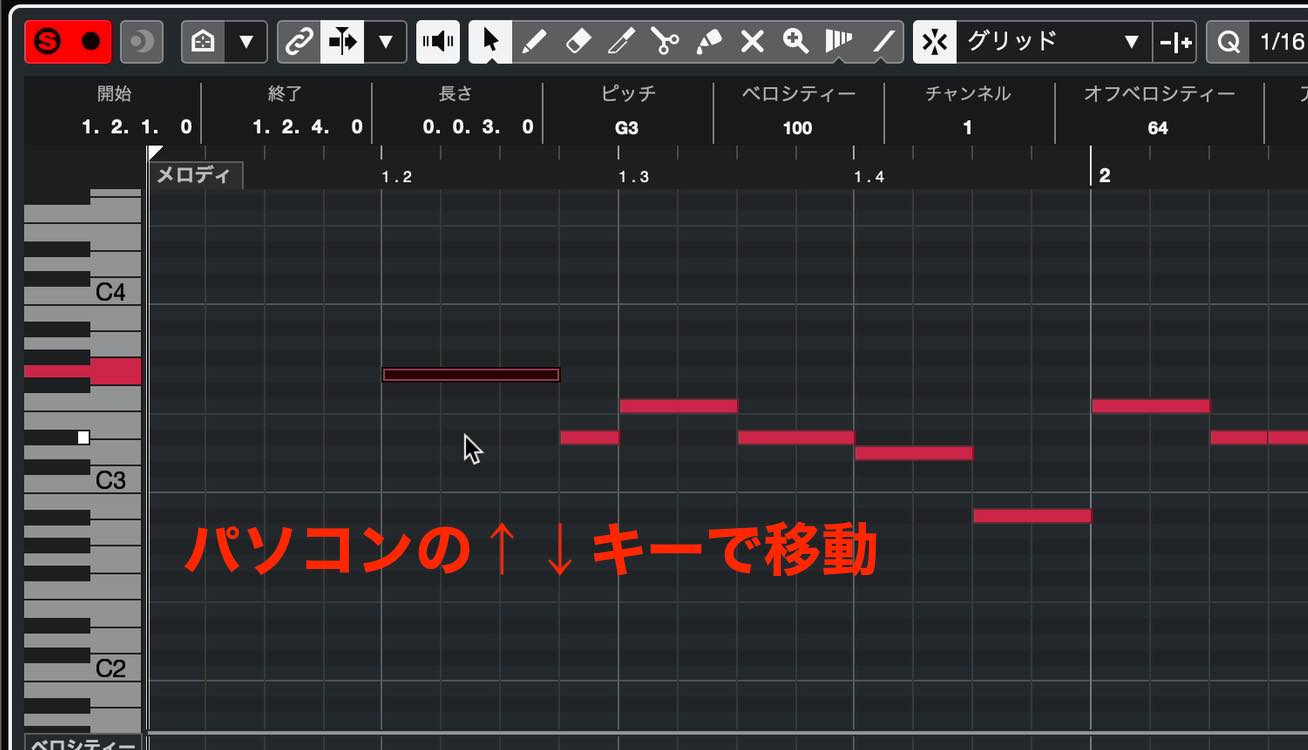
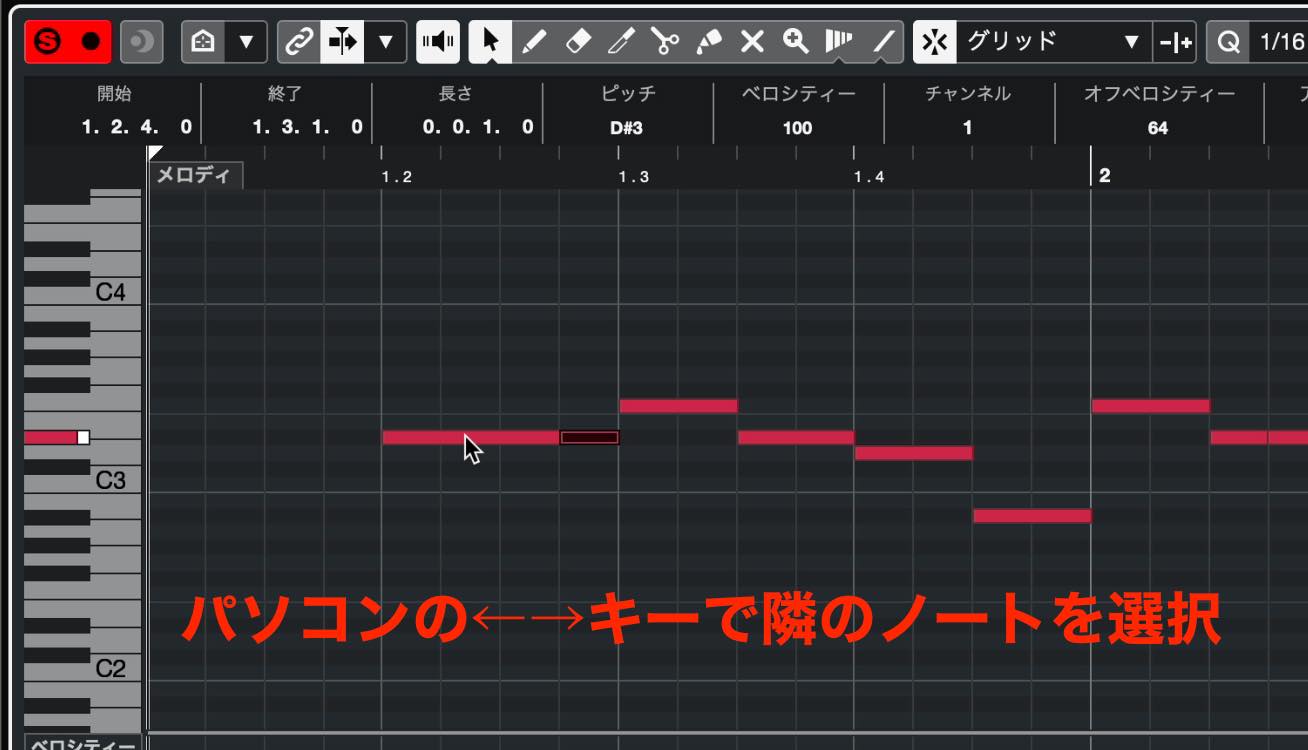
The Left and Right Arrow keys move the selection to the adjacent note.
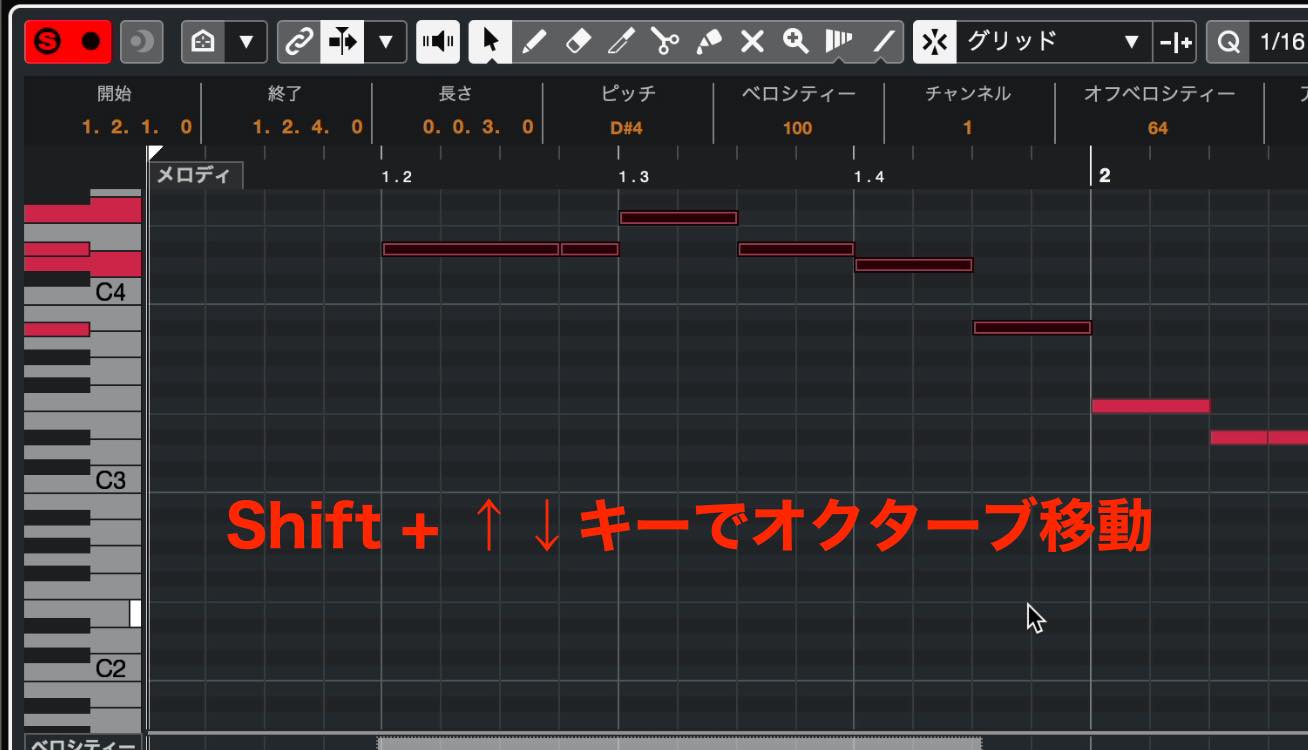
You can also select several notes and move them up or down together. Hold Shift while pressing Up or Down Arrow to transpose by an octave.
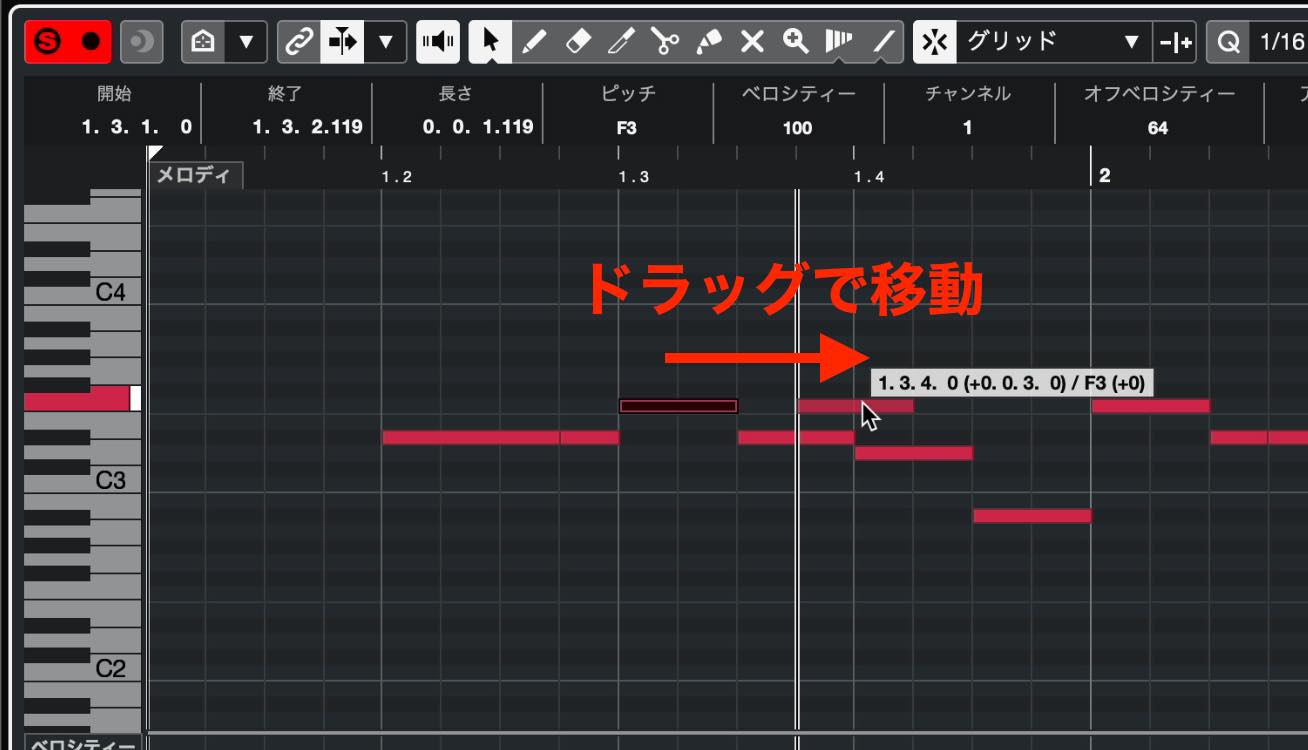
To change a note's timing, drag near its center with the mouse.
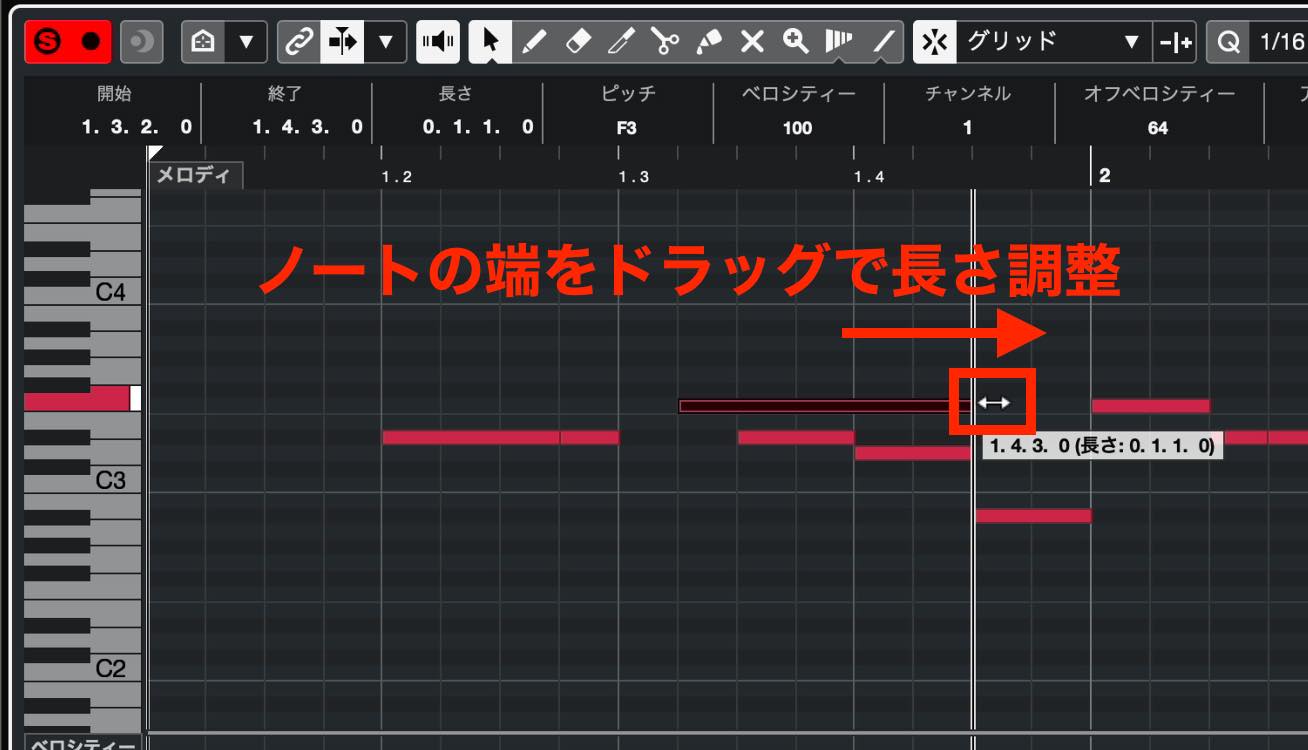
To change its length, move the pointer near either end of the note. When the pointer becomes a horizontal double arrow, drag left or right.
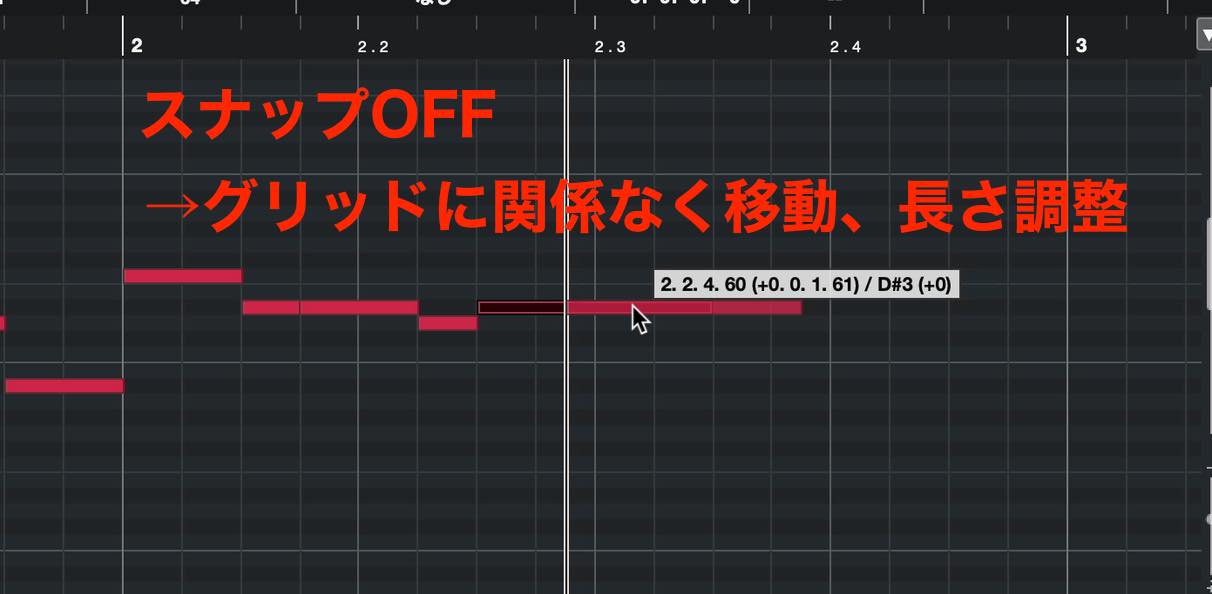
So far, we have entered the melody in sixteenth-note increments using the quantize preset. Sometimes, though, you may want to move a note slightly off the grid or adjust its length more precisely.
In that case, click the Snap button we checked earlier to turn it off.
You can then move notes and change their lengths freely, independently of the grid.
Using Scale Assistant
Finally, let's look at a useful feature for this kind of note entry.
If you are unfamiliar with scales, it may not be immediately obvious which notes to use when writing a melody.
Scale Assistant, found in the Key Editor Inspector, can help.
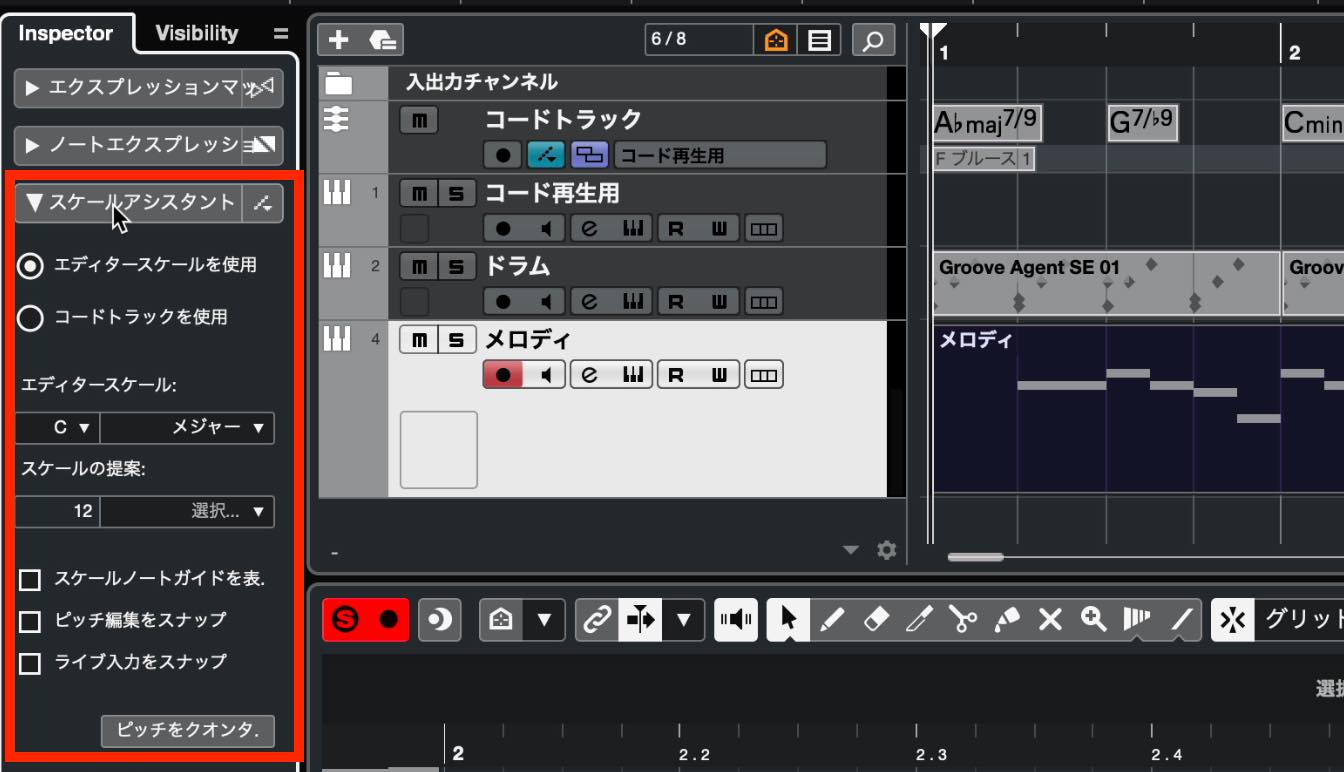
Set the song's key in the Editor Scale section.
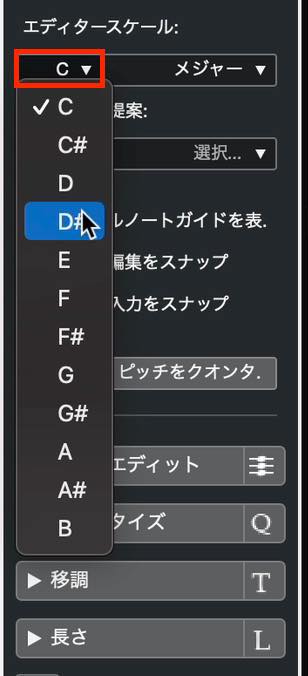
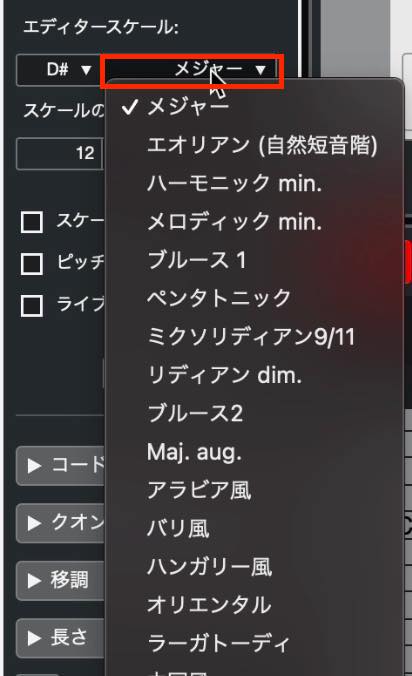
Use the adjacent field to select from the available scale types.
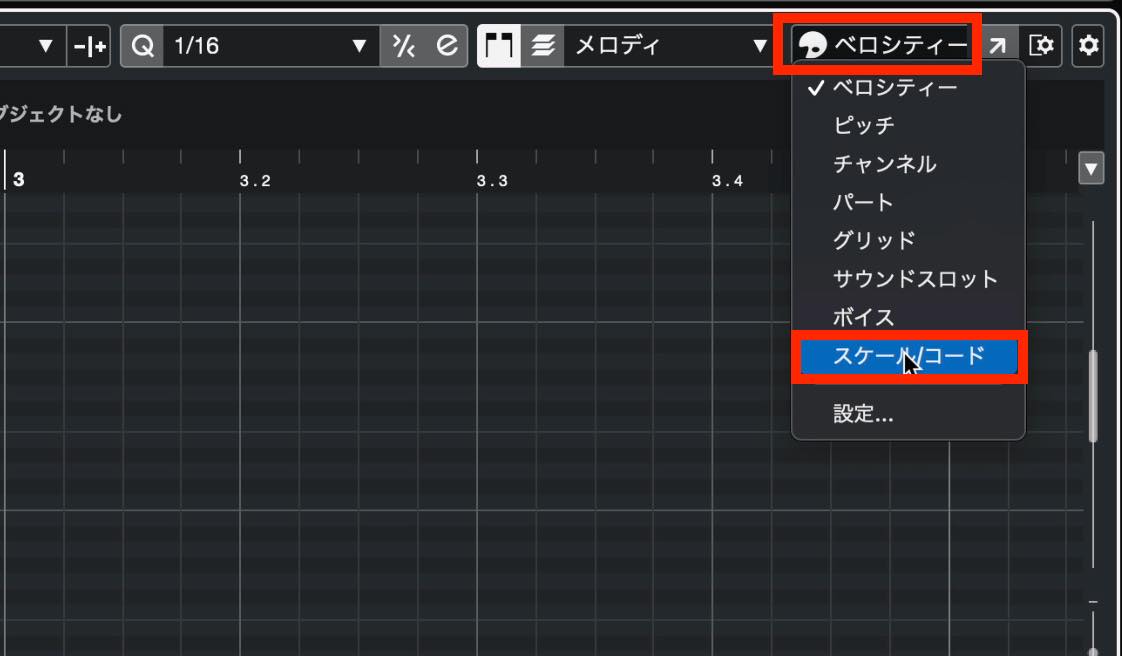
Next, click the Event Colors menu in the Key Editor toolbar, which defaults to Velocity, and choose Scale/Chords.
Now deliberately draw some notes outside the selected scale.
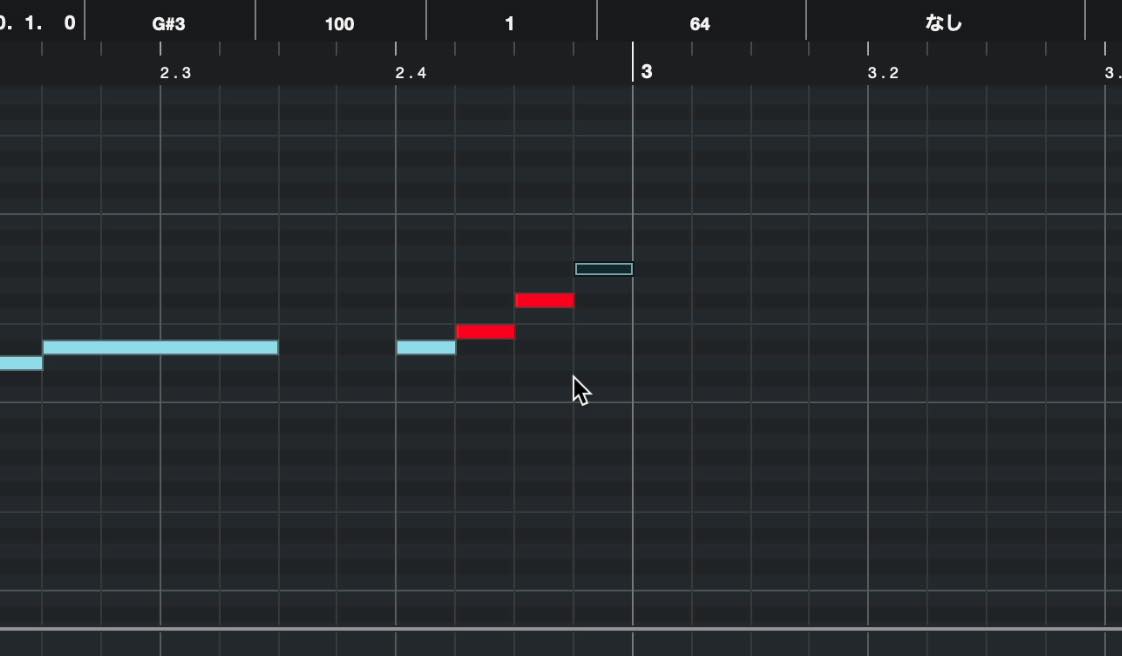
They appear in red, making out-of-scale notes easy to spot.
This is useful for finding notes you entered outside the scale accidentally rather than intentionally.
Enabling Show Scale Note Guides also changes the grid shading.
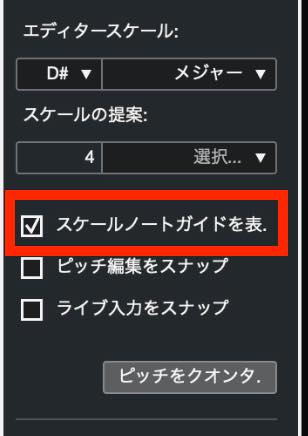
Instead of following the keyboard's white and black keys, the darker rows indicate notes outside the scale, while the lighter rows indicate notes within it.
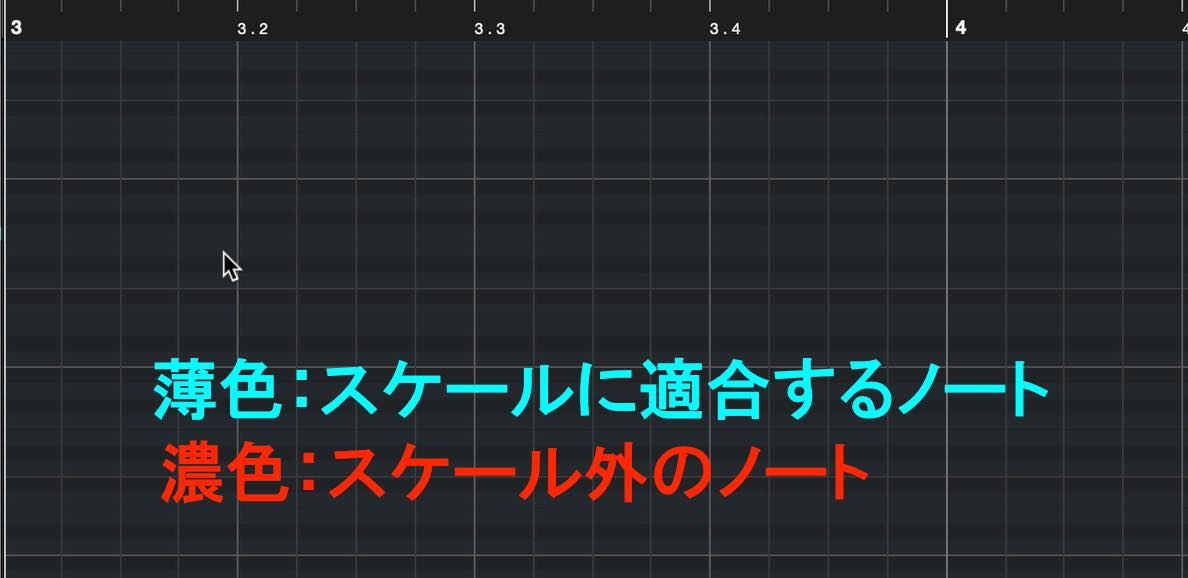
You can use the grid as a guide to enter notes accurately.
If you also enable Snap Pitch Editing, you cannot draw notes at pitches outside the selected scale.
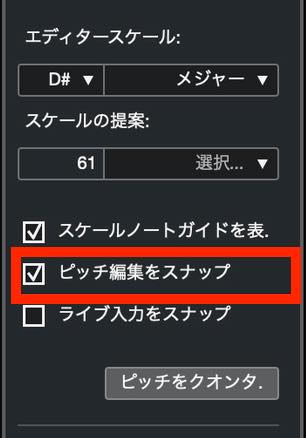
Even randomly entered notes will stay within the scale. This can be useful for creating unusual melodies or other kinds of phrases.
That covers entering notes in the Key Editor with the Pencil tool.
This is a fundamental MIDI-programming method that you can use for much more than melodies, so take time to become comfortable with it.
Next time, we will cover another input method: real-time recording with a MIDI keyboard.
Part 8 of our Cubase beginner series covers programming MIDI in the Key Editor.
Using a melody as our example, we explain the Key Editor, note entry and editing, Snap, and Scale Assistant. https://t.co/KADOzi8vTf #DTM #Cubase— SLEEP FREAKS (@SLEEPFREAKS_DTM) June 19, 2021
Frequently asked questions
Q1. What do the vertical and horizontal axes in the Key Editor represent?
The vertical axis represents pitch on a piano keyboard, with grid shading corresponding to white and black keys. The horizontal axis represents time. Quantize presets let you select divisions such as sixteenth or thirty-second notes.
Q2. Does Snap always need to be enabled when entering a melody?
With Snap enabled, notes align to the grid increments. Turn it off when you want to make small timing changes or adjust note positions and lengths freely without following the grid.
Q3. How does Scale Assistant help?
After you select the song's key and scale, you can display out-of-scale notes in red. Enabling Snap Pitch Editing prevents you from entering notes outside that scale, helping you create melodies with pitches that fit even if you are unfamiliar with scales.
Q4. Do drum programming and melody programming use different editors?
Yes. Use the Drum Editor for drum programming and the Key Editor for melodies played by instruments with pitched notes and note lengths.
Q5. How do the mouse gestures for changing note timing and note length differ?
Drag near the center of a note to move its timing. Move the pointer to the note's edge until it becomes a horizontal double arrow, then drag to change the note's length.
NEW ARTICLES
Latest English Articles




















































































































































