
EQuivocate is a powerful graphic equalizer designed for detailed sound editing while preserving phase relationships through linear-phase processing. Up to 26 EQ bands allow flexible frequency adjustments, and you can draw curves intuitively with the mouse. Its MATCH EQ feature analyzes a reference track and applies its frequency characteristics to your own music, providing another tool for mixing and mastering.
Features including linear phase and Match EQ
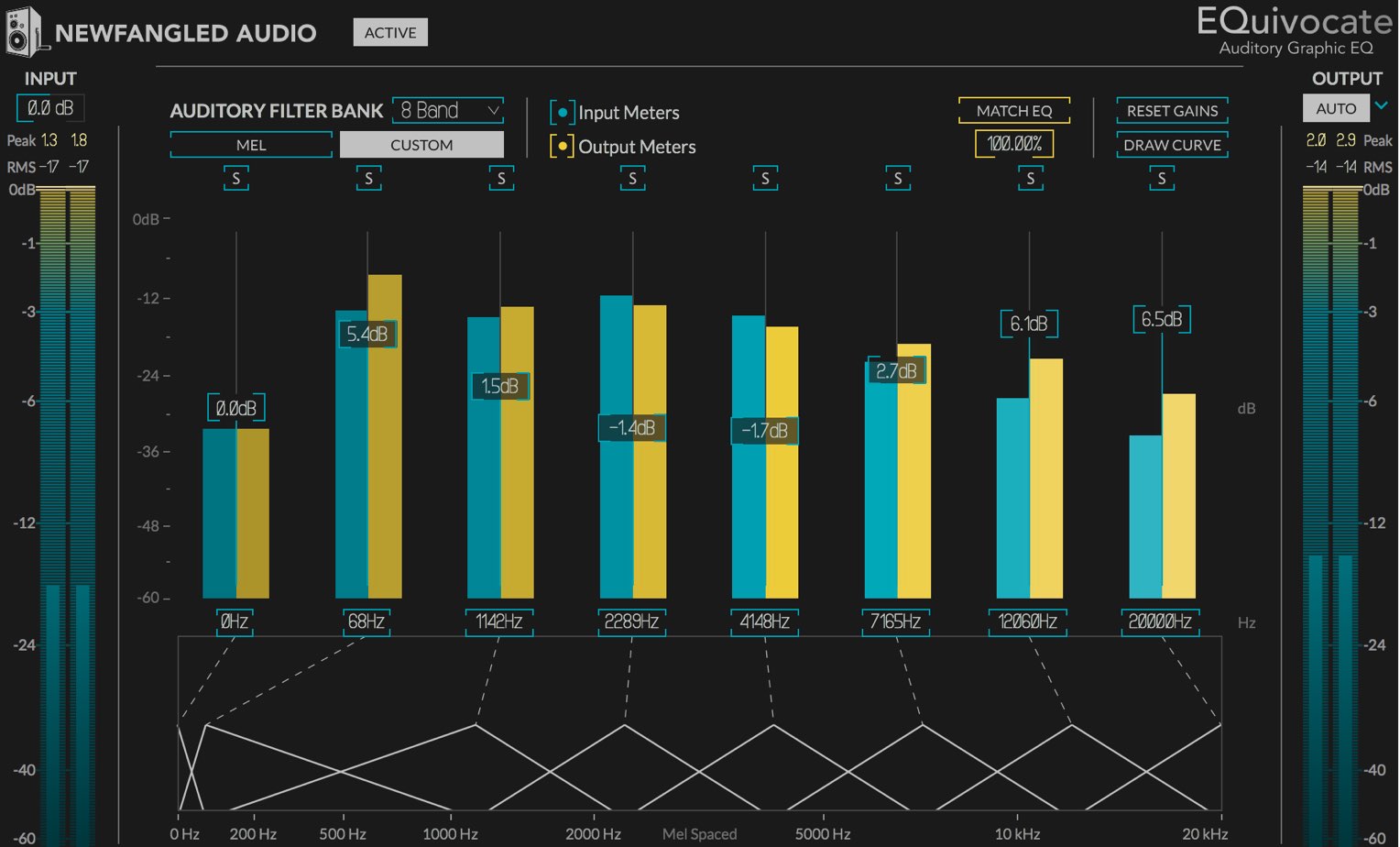
EQuivocate is a versatile graphic equalizer with a refined, intuitive interface.
It can be used on individual tracks and is designed as a linear-phase equalizer for editing sound while preserving the left/right phase relationship. This also makes it suitable for drum buses and the master track.
You can draw an EQ curve by dragging the mouse, and the sound changes naturally, making it approachable for beginners.
Linear-phase equalizers have drawbacks as well as benefits. See the following article for more detail.
Video: How to use EQuivocate
Setting frequency ranges and bands
Use up to 26 EQ bands to edit the sound.
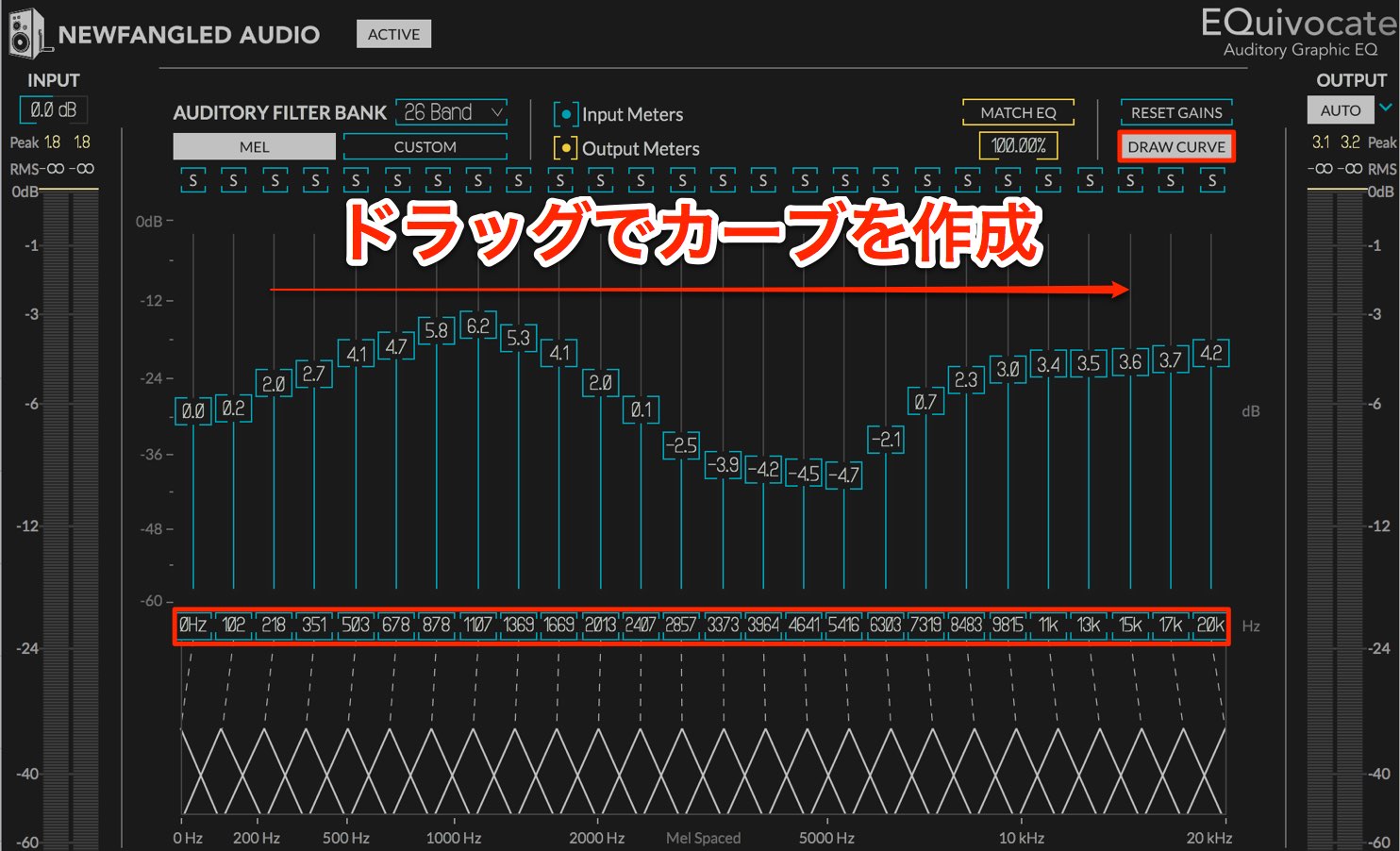
Enable DRAW CURVE and drag to adjust the level of each frequency range.
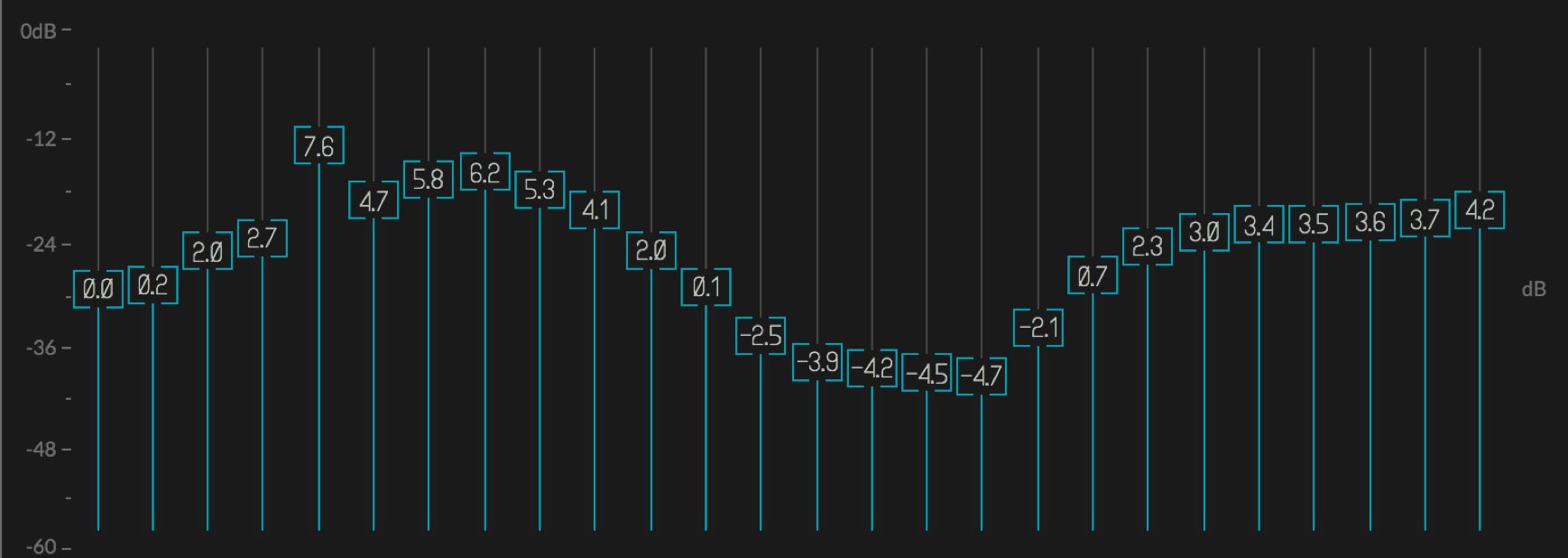
Each fader uses 0.0 as its baseline.
Moving upward boosts the level; moving downward cuts it.
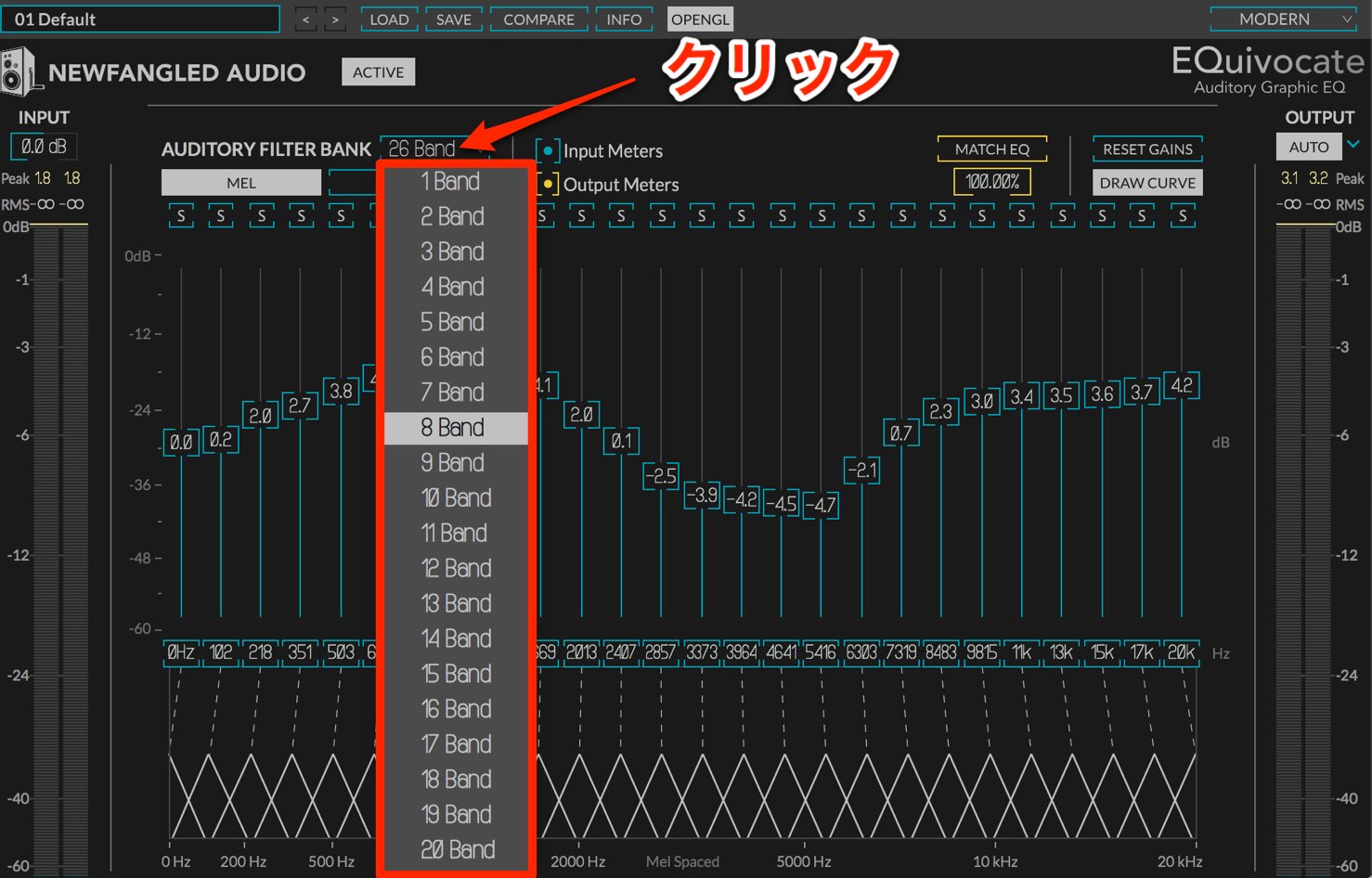
You can also change the number of EQ bands.
Click the Band control and choose the number you want.
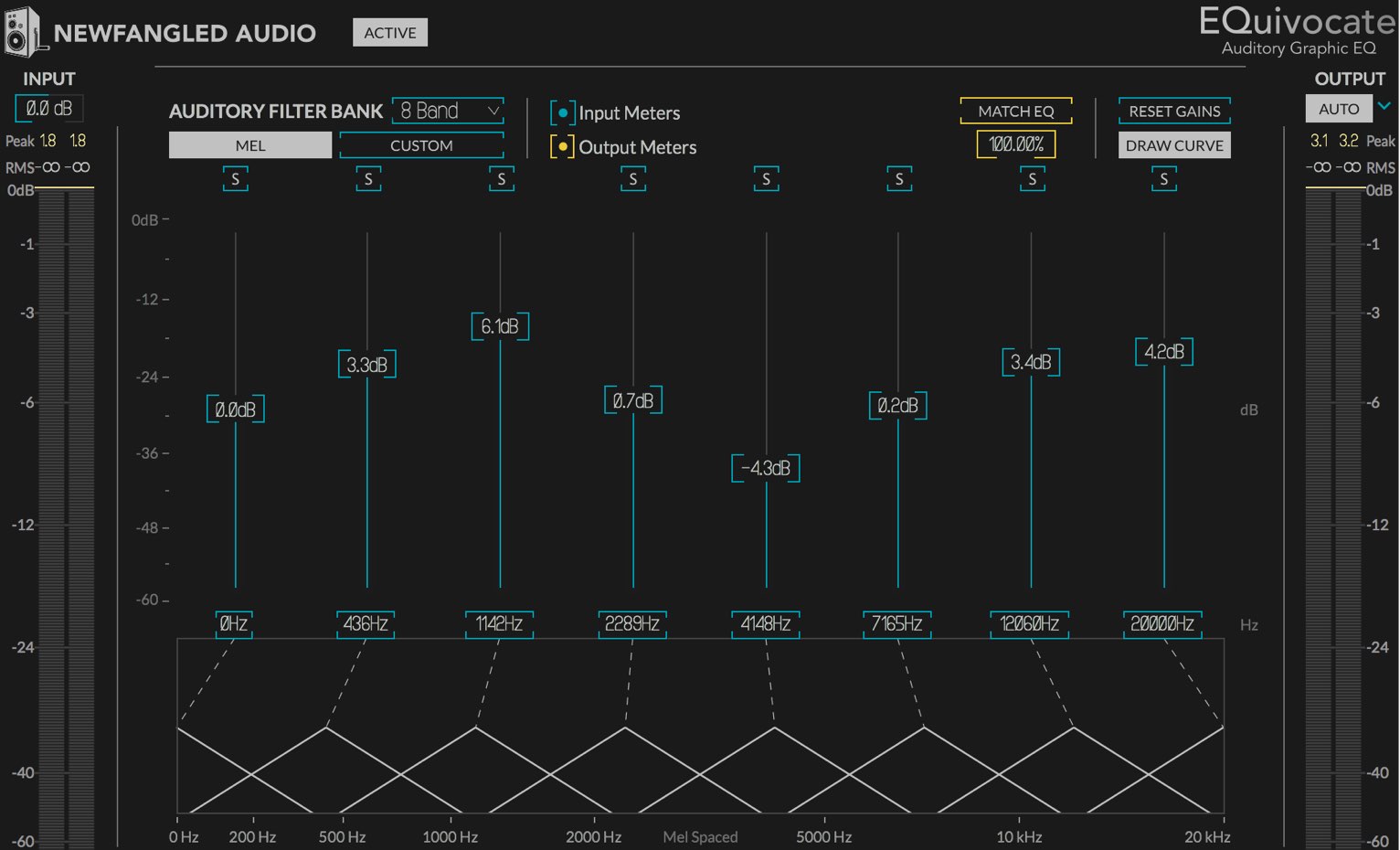
Reducing the number of bands lets you make broader sound-shaping adjustments.
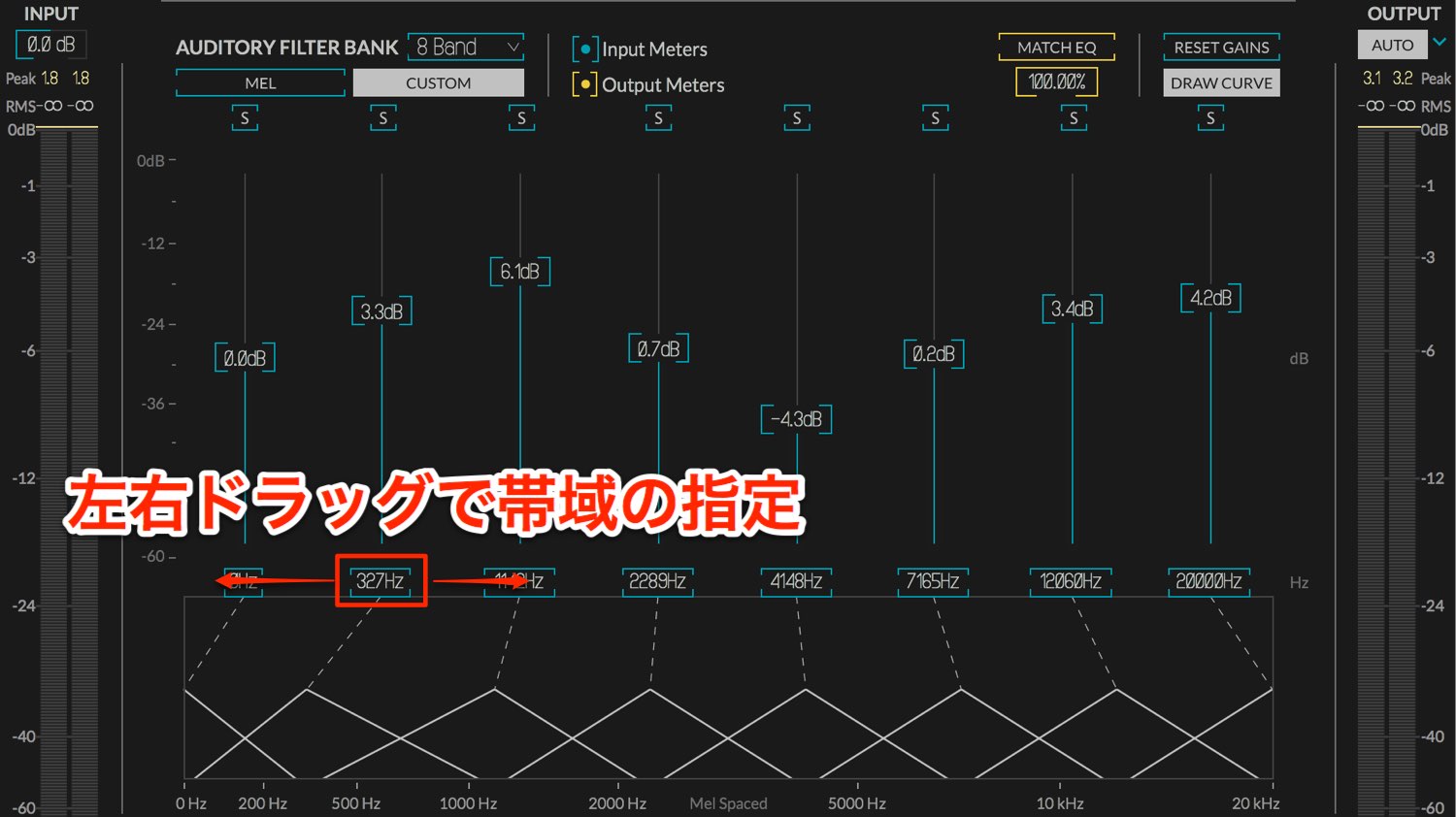
Drag left or right to choose the center frequency of each band, allowing more flexible editing than a conventional graphic equalizer.
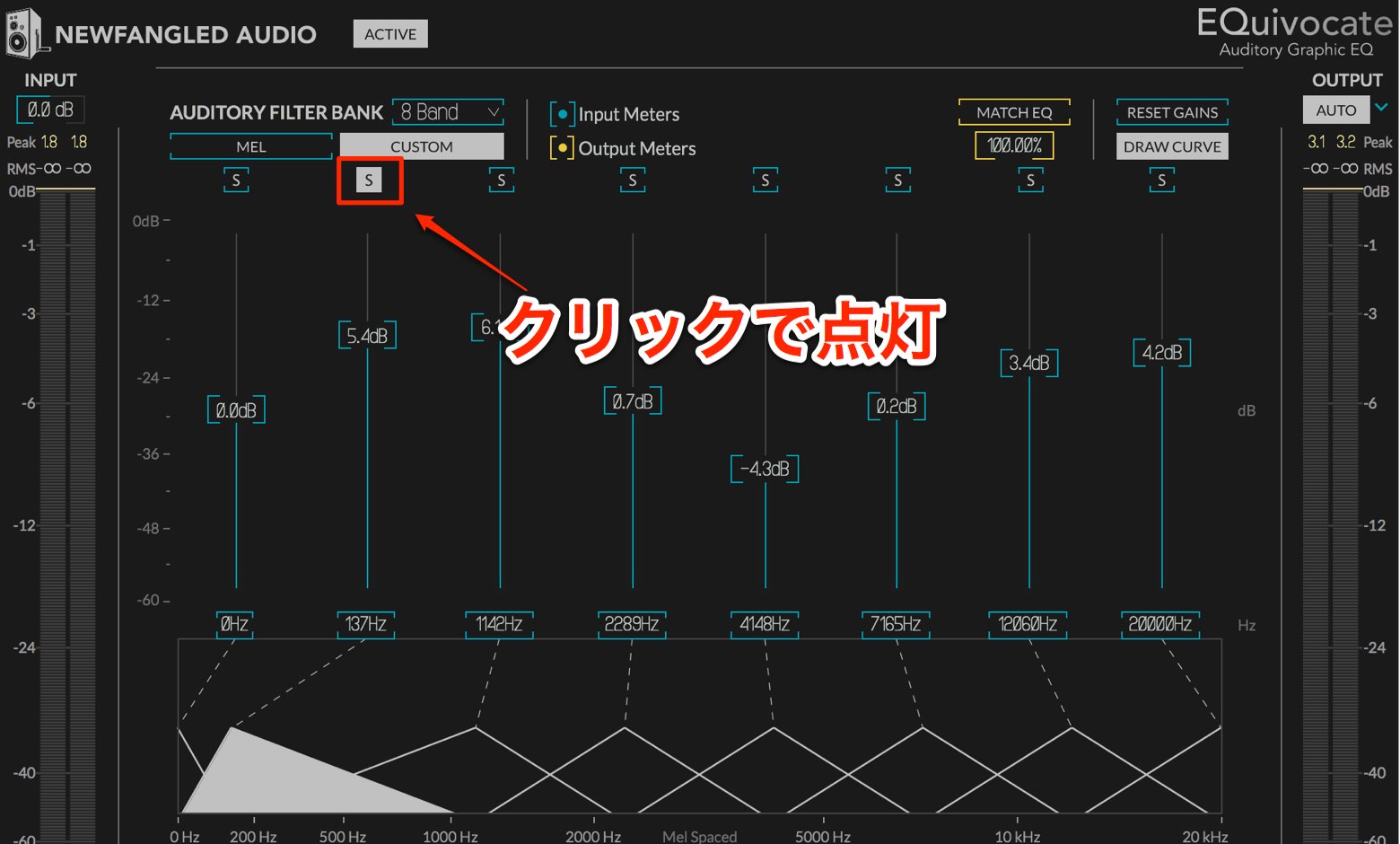
Enable the S button on a band to preview only that frequency range.
This is useful for setting the band and for learning to associate frequencies with the sounds you hear.
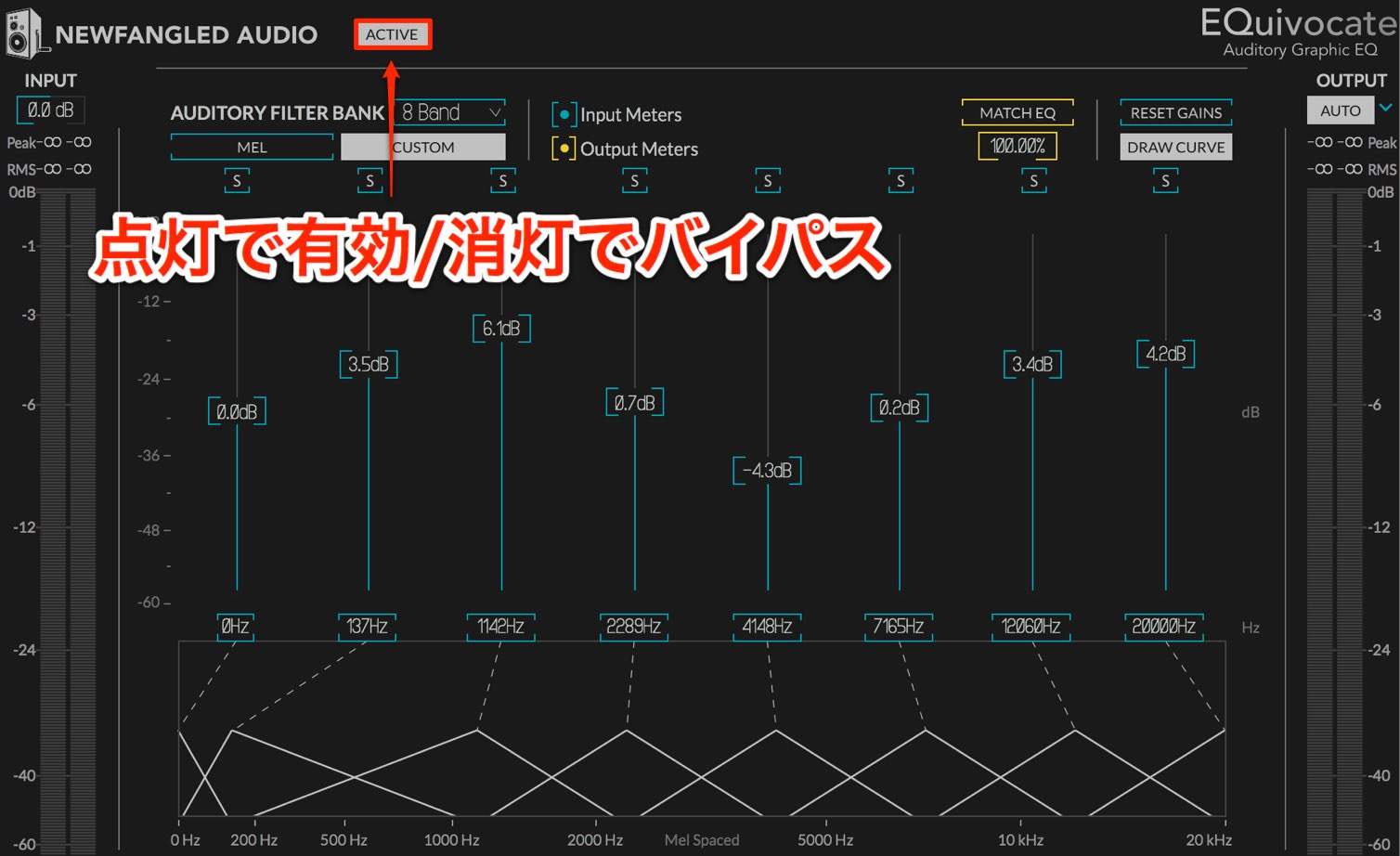
Toggle the equalizer on and off as you shape the sound to compare its effect.
Controlling volume
Each band has a level meter, so you can see the level change caused by the EQ at a glance.
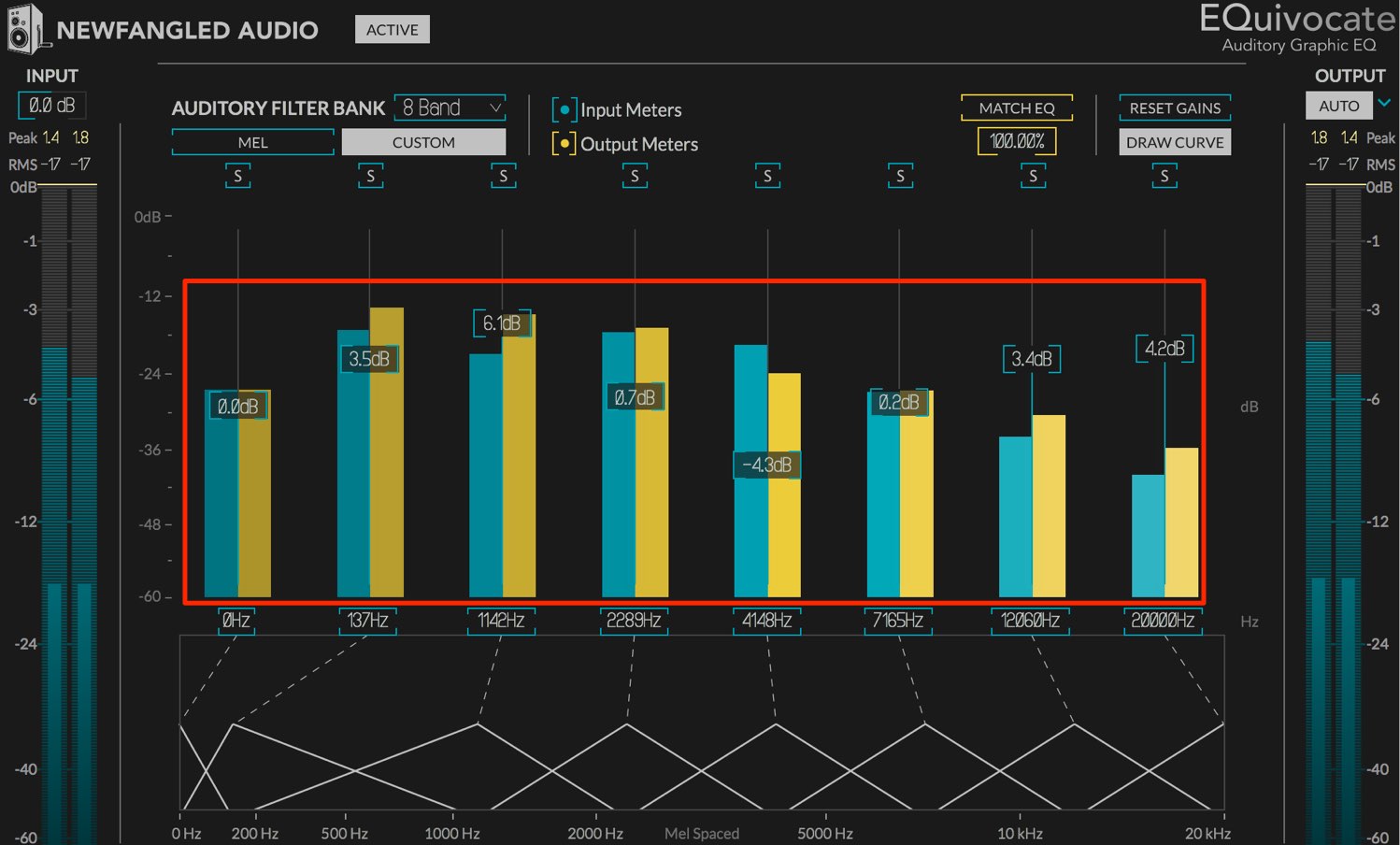
- Blue: level before EQ
- Yellow: level after EQ
The meters on the left and right also show input and output levels.
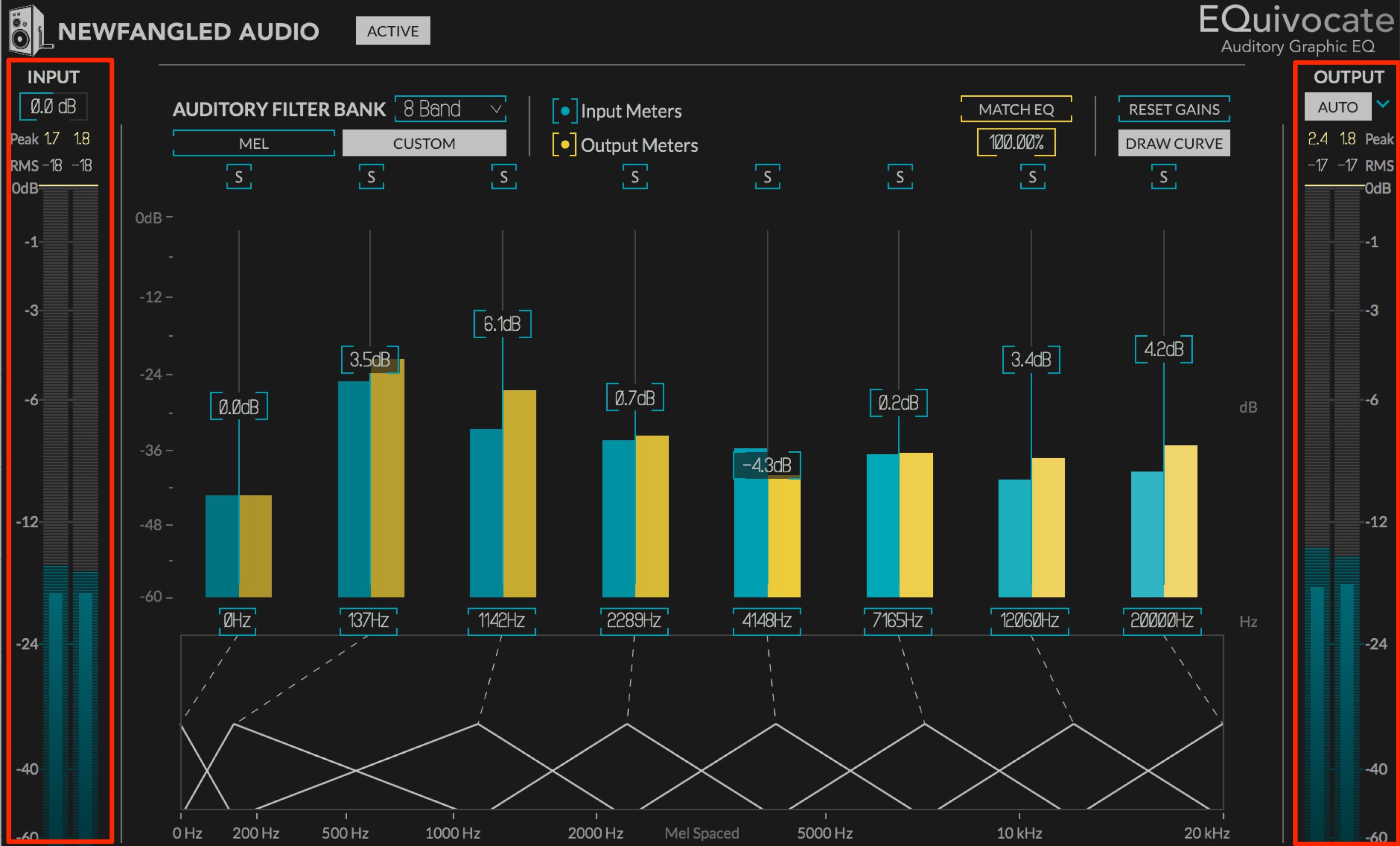
- Left: overall level before EQ
- Right: overall level after EQ
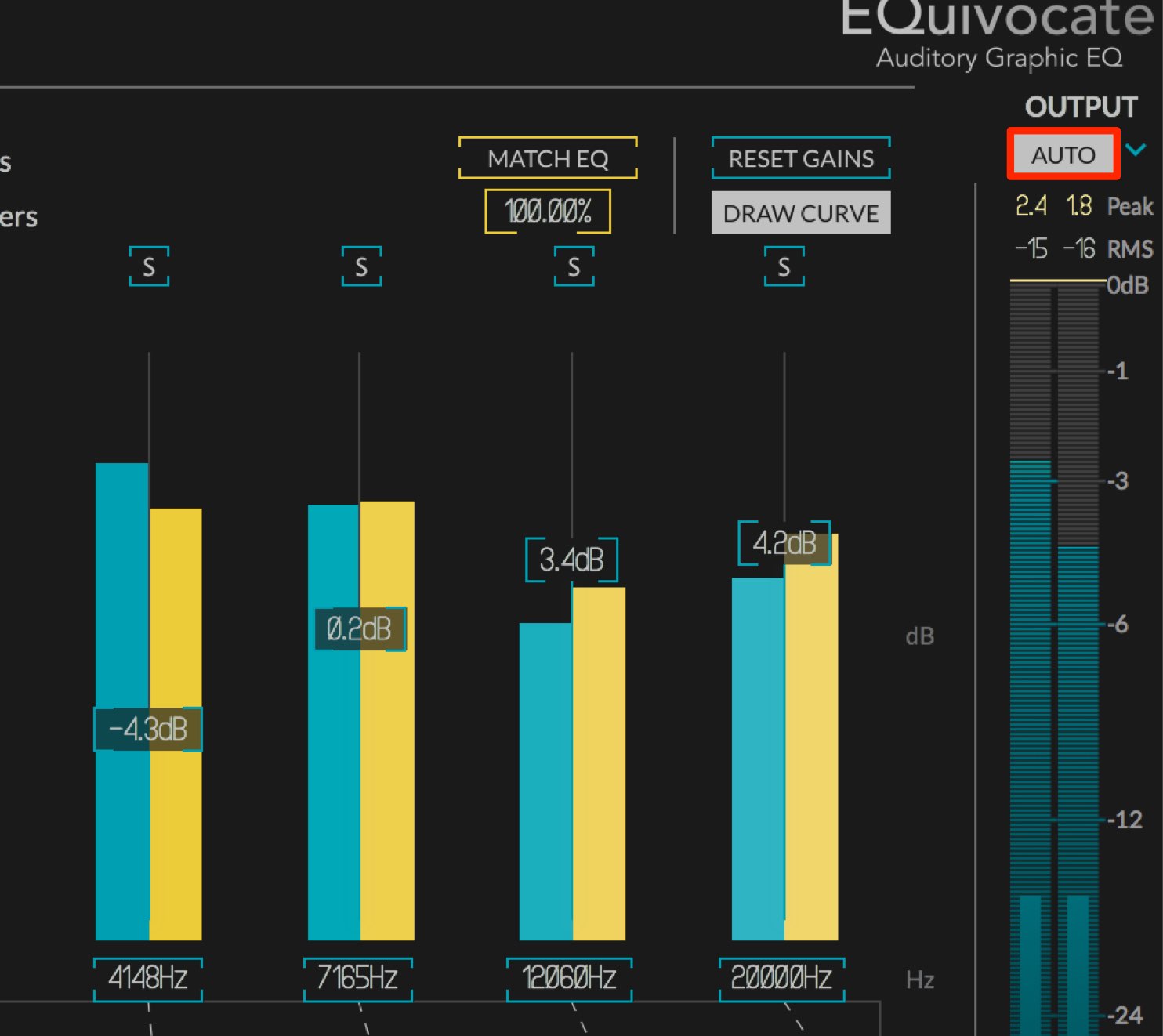
The output has an auto-gain function.
Boosting or cutting bands normally changes the perceived overall level. Auto gain compensates for this change, bringing the output closer to the level before EQ.
This makes it easier to judge the sound quality without being misled by a change in volume.
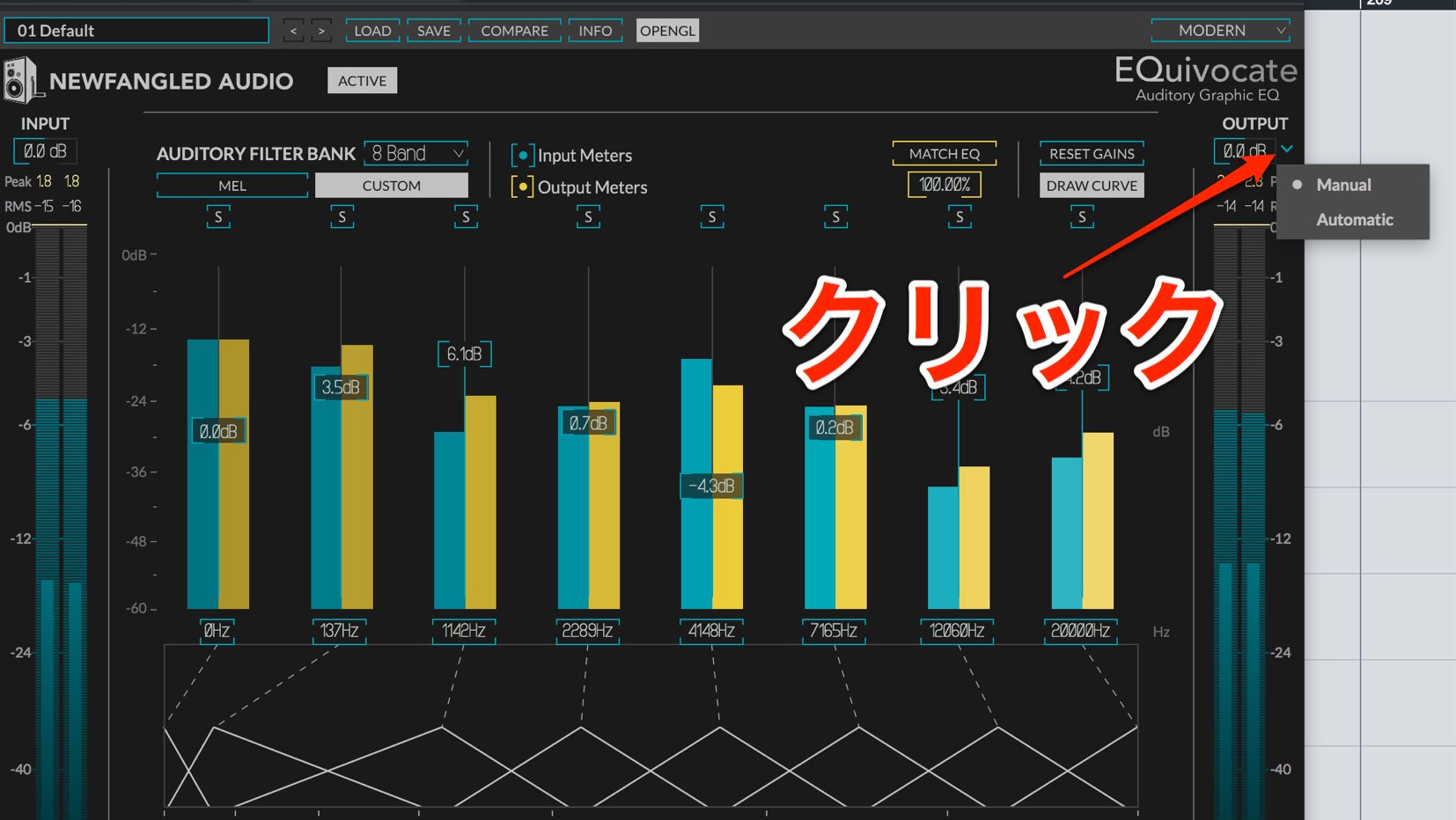
You can disable auto gain and use manual gain as with a conventional equalizer.
Analyzing and applying a reference track’s frequency characteristics
EQuivocate includes a unique MATCH EQ feature that analyzes a reference track and incorporates its frequency characteristics into your own music.
MATCH EQ uses a sidechain to send the reference track to EQuivocate.
See the links below for sidechain setup in each DAW.

 Logic
Logic Cubase
 Ableton Live
 Studio One
 FL Studio
We will use Cubase as an example.
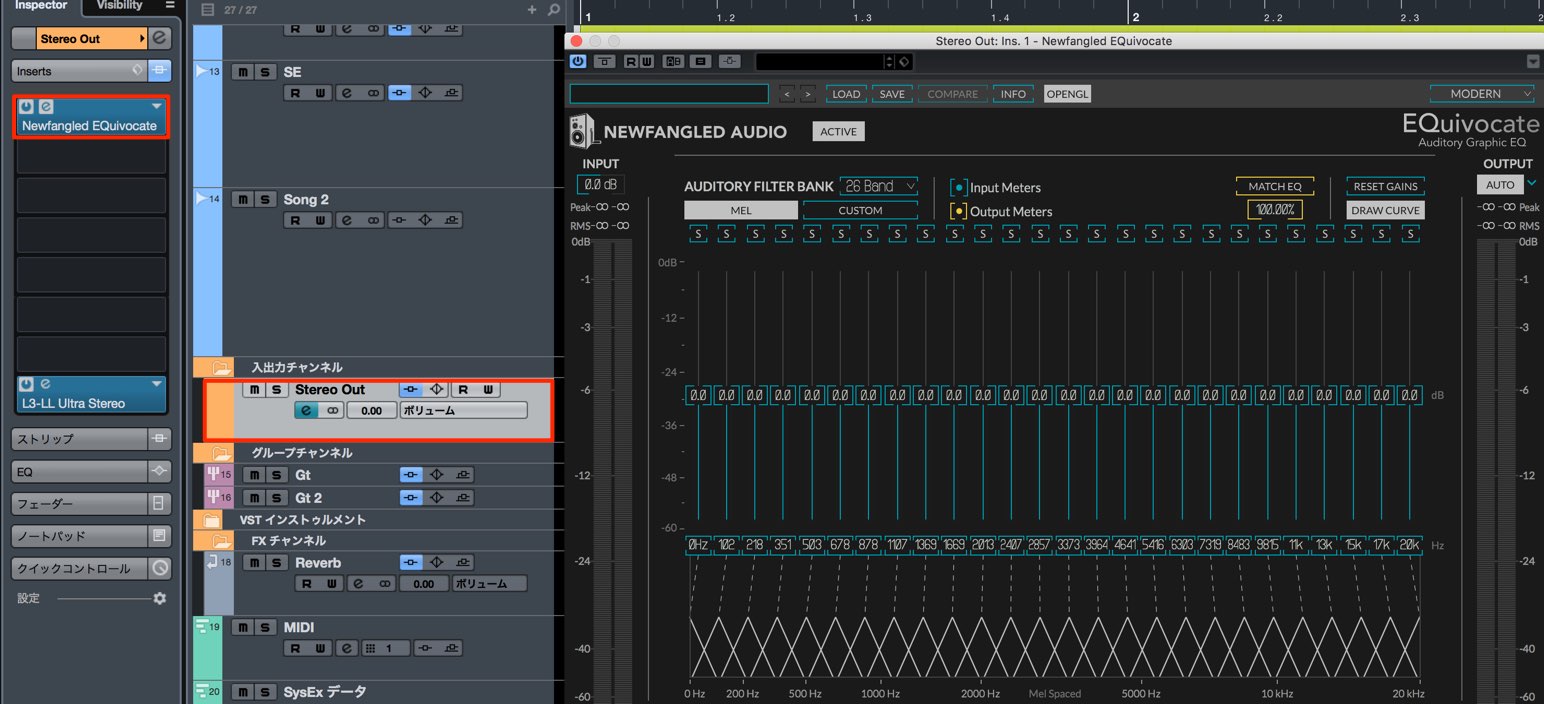
First, insert EQuivocate on the master track.
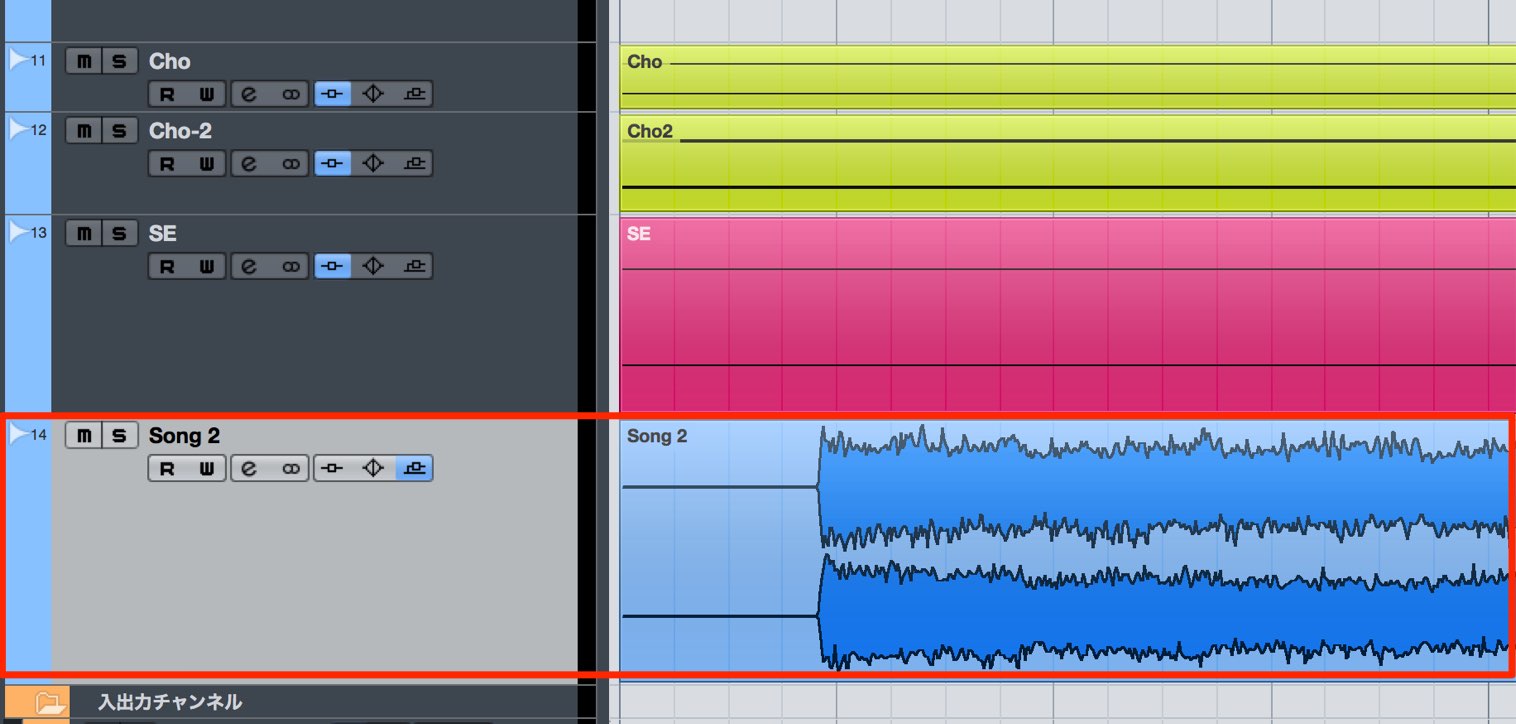
Import the reference audio into your project.
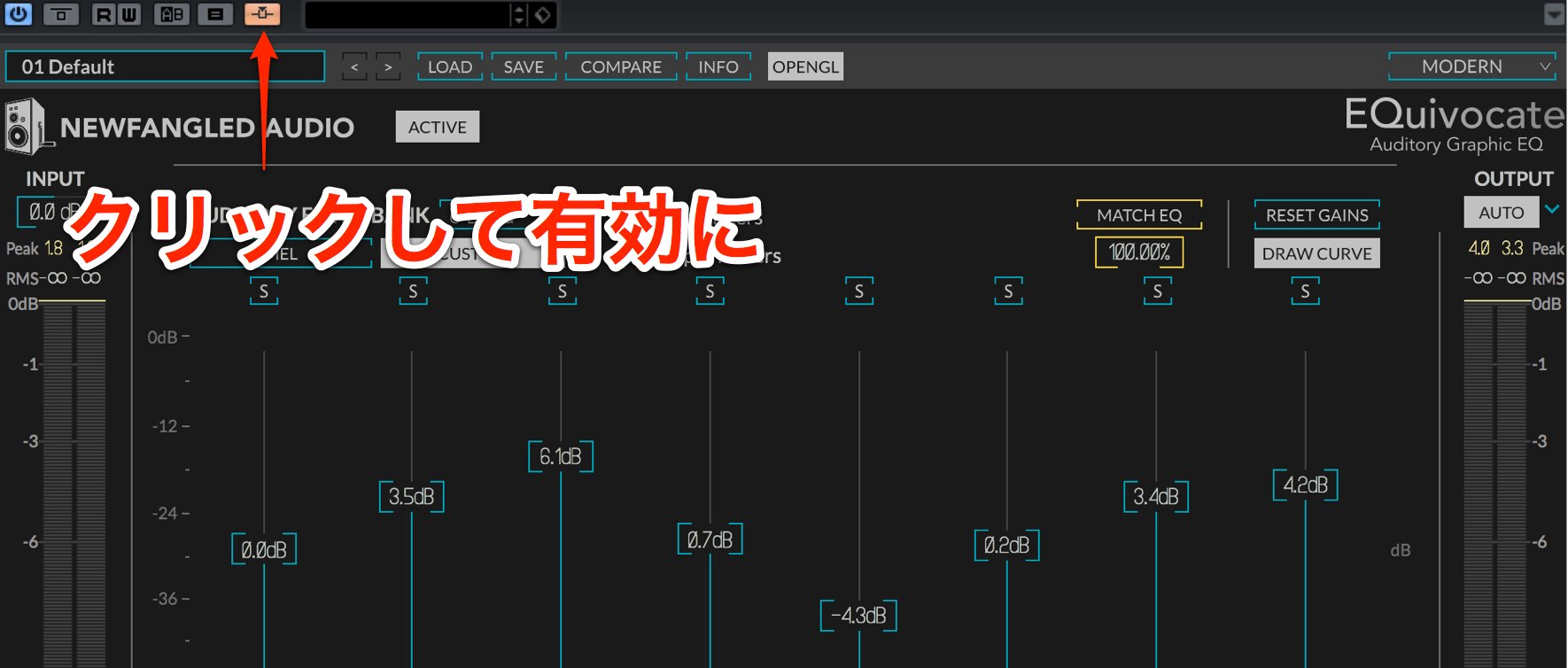
Enable EQuivocate’s sidechain button.
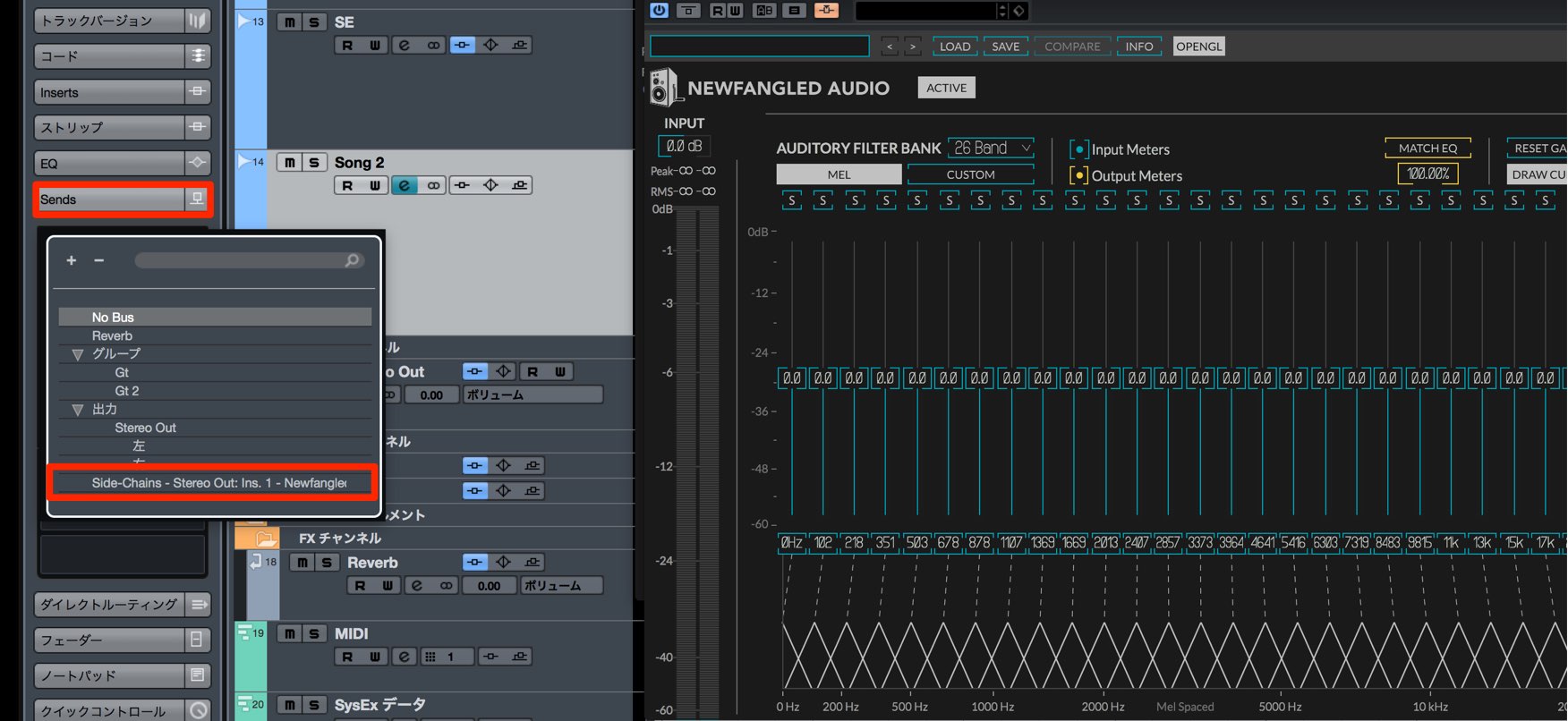
In the reference track’s Sends, select the sidechain-enabled EQuivocate.
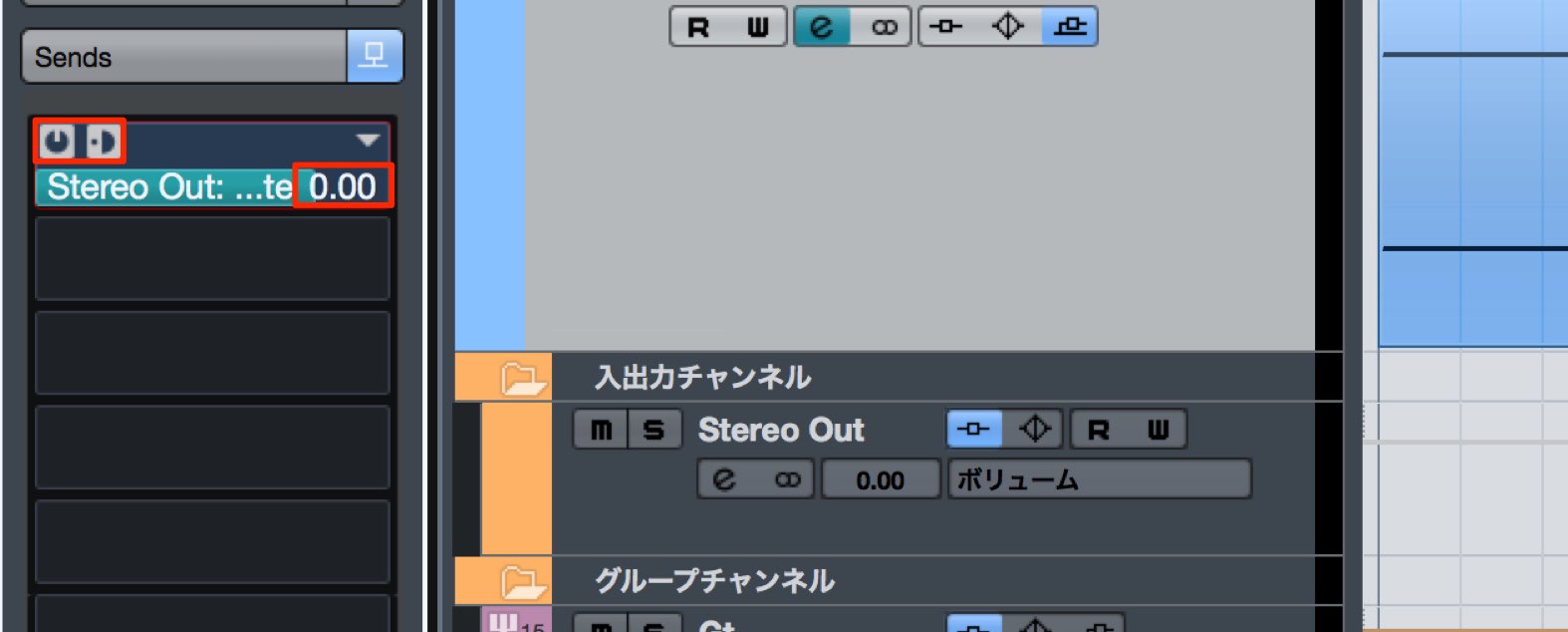
The important point is that the reference track is used only to feed EQuivocate.
It should not be heard directly.
Therefore, enable the send and set it to pre-fader.
Set the send level to 0.0 dB.
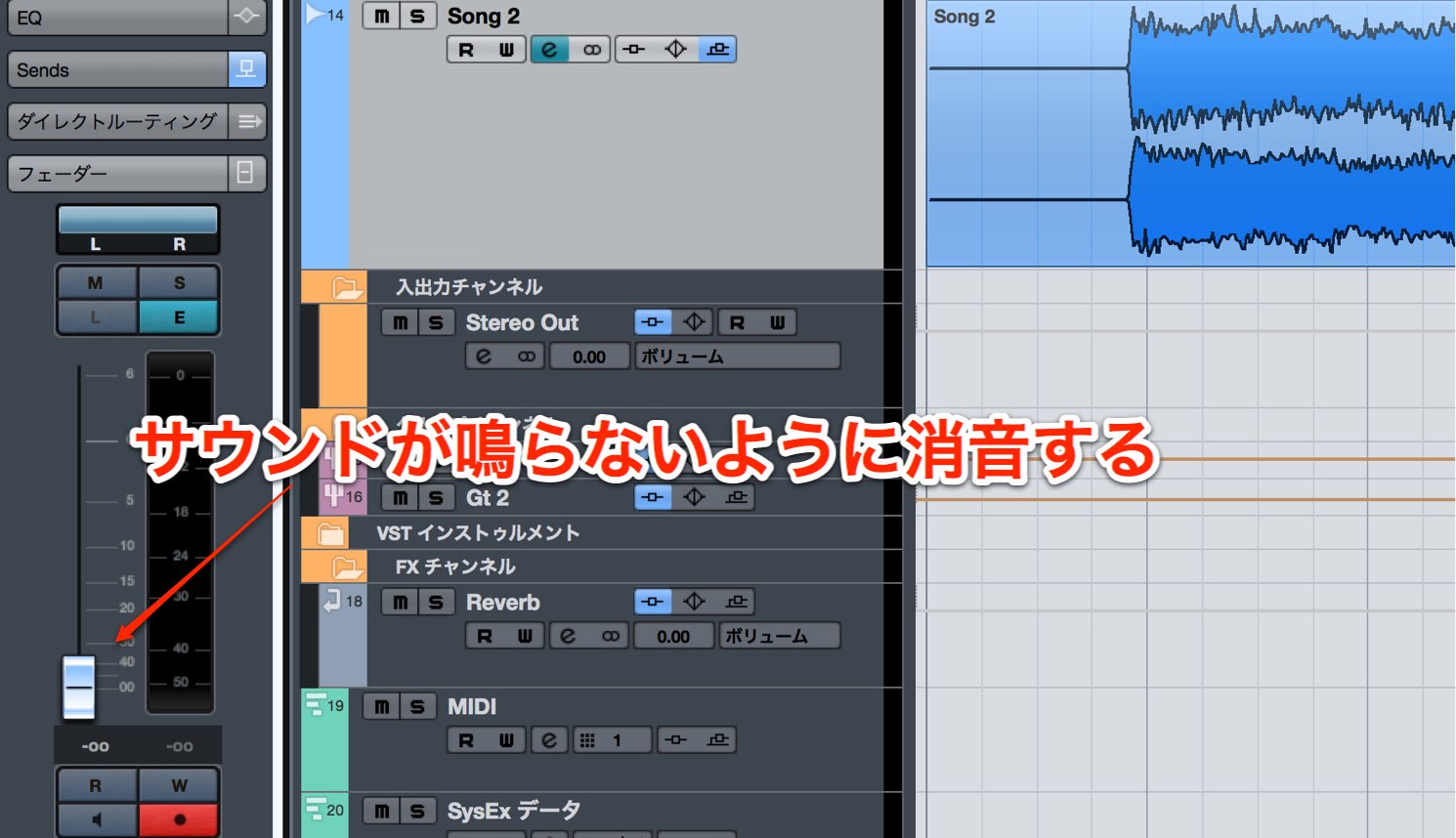
Lower the reference track’s fader all the way so its sound is not heard directly.
Because the send is pre-fader, the signal still reaches EQuivocate.
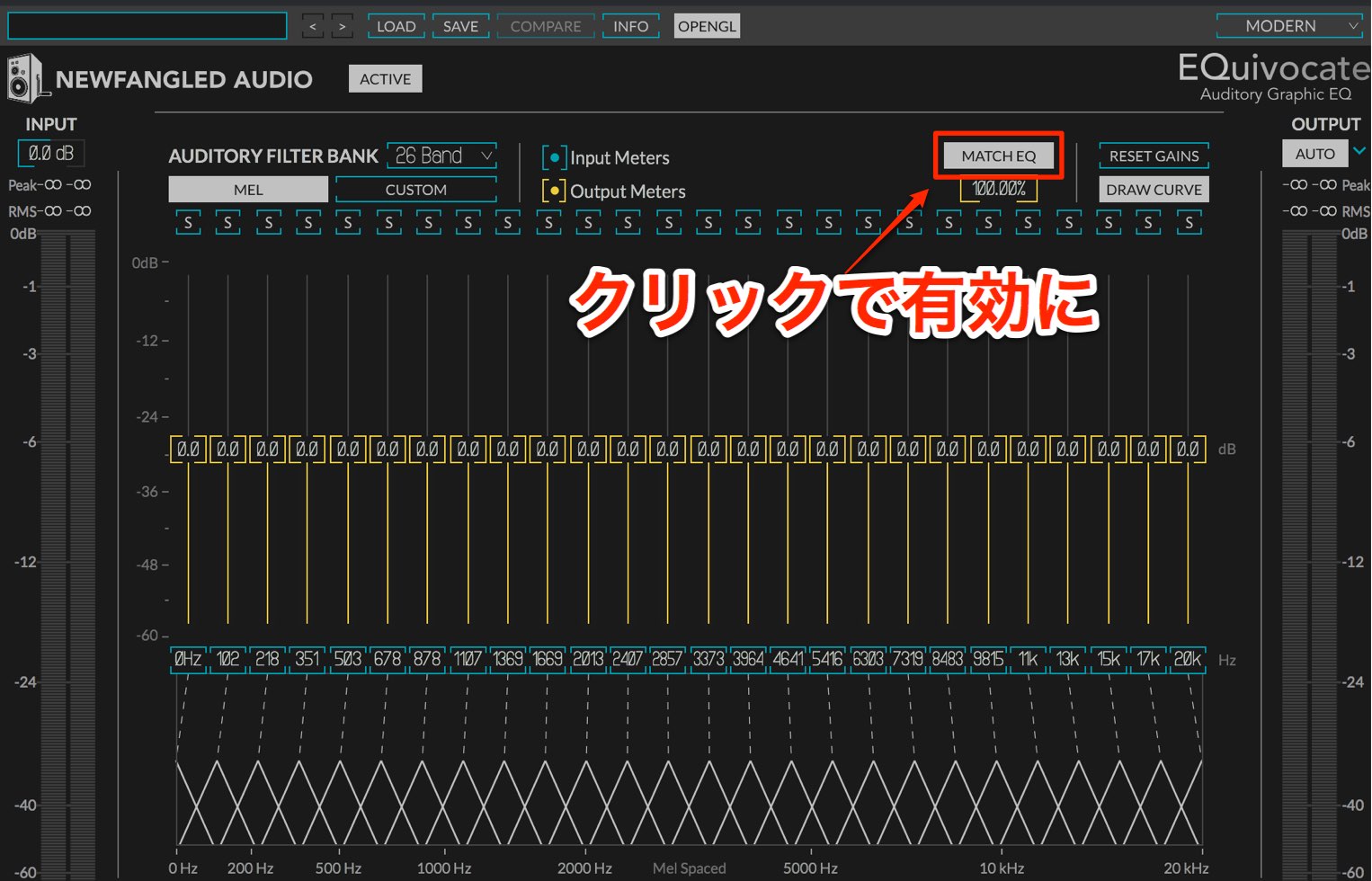
Click MATCH EQ to enable it.
The bands turn yellow and enter standby mode.
Setup is now complete.
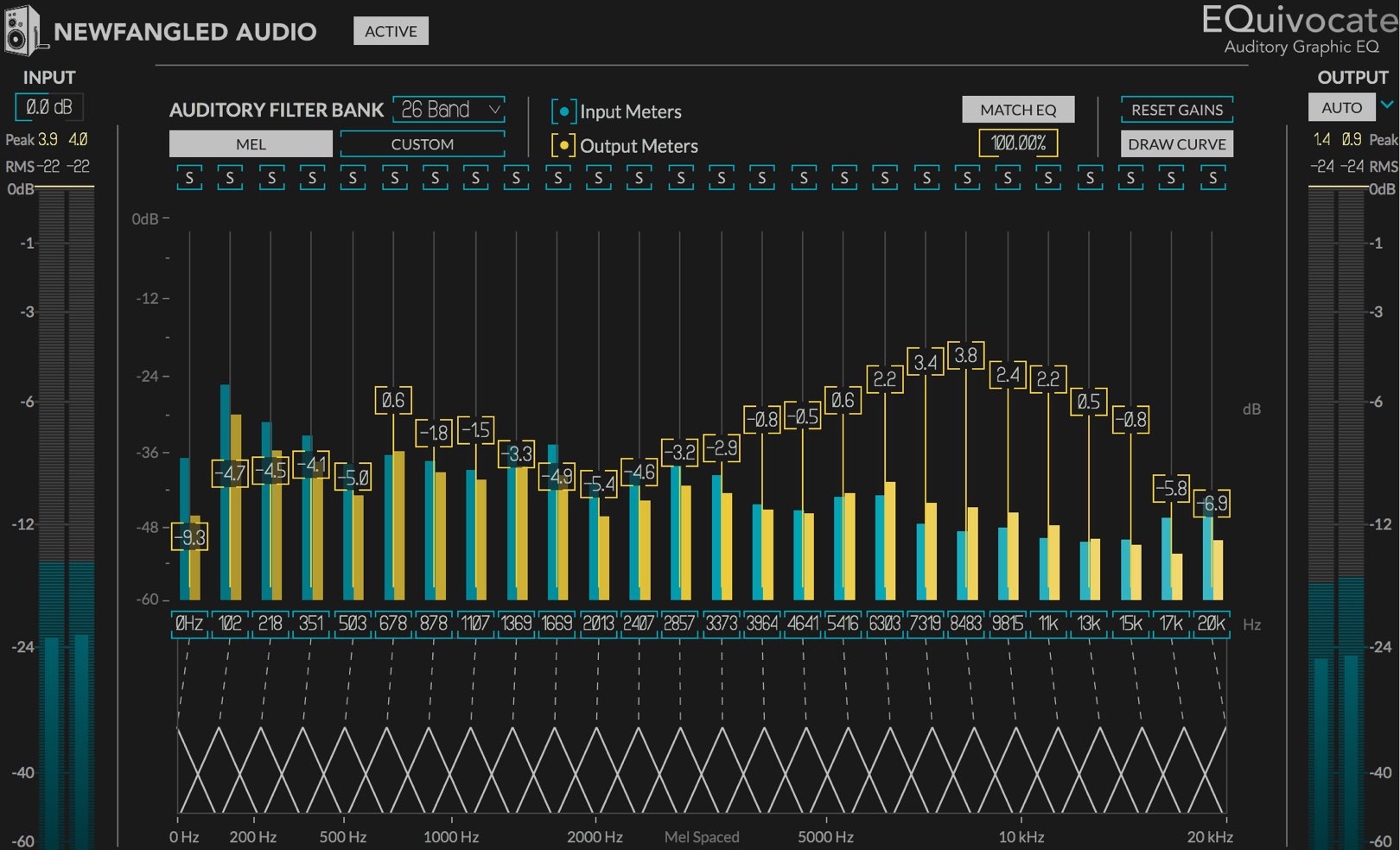
Play the DAW and a curve is generated from the reference audio’s frequency content.
Let it play for a while, then stop the DAW.
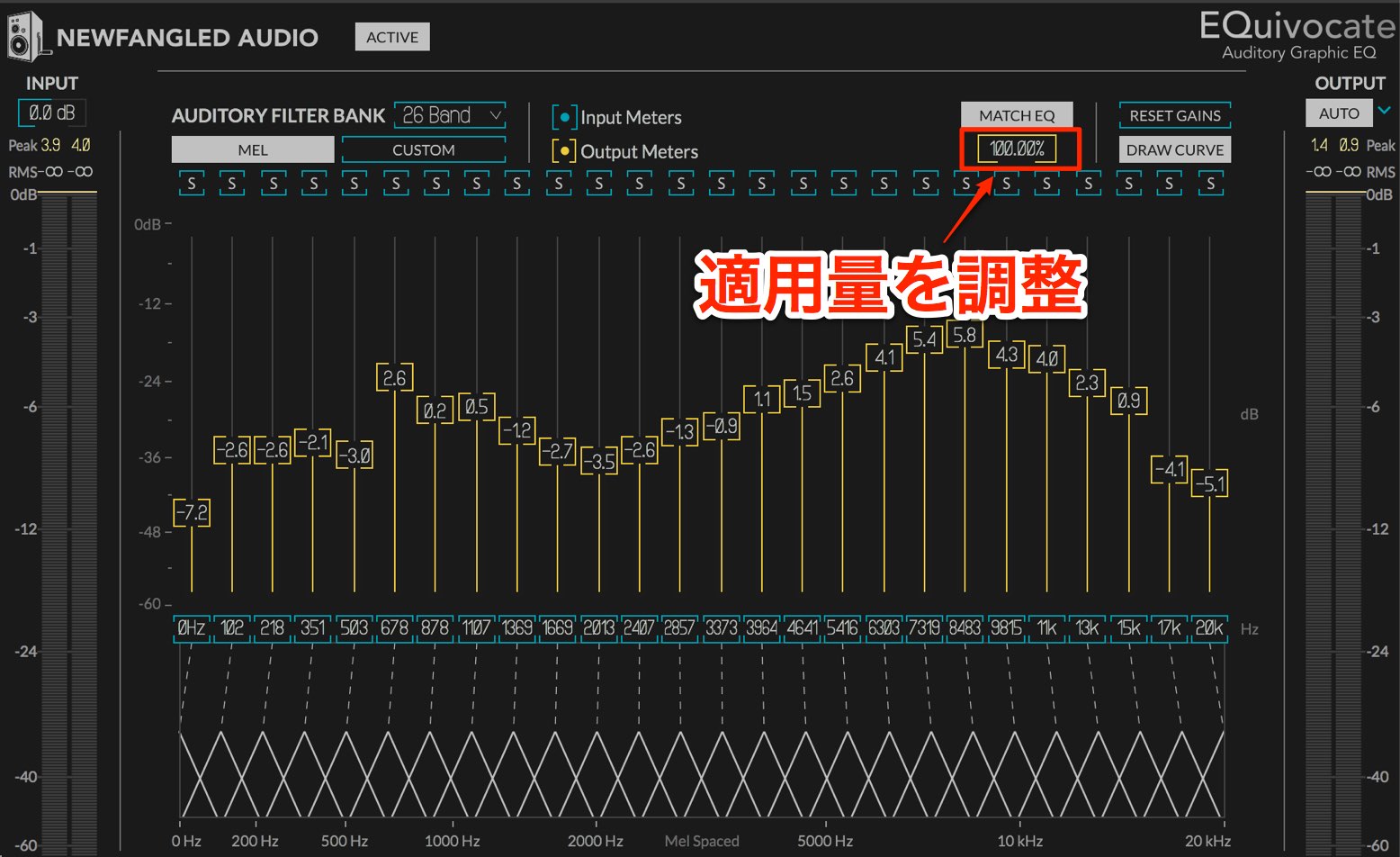
Drag up or down to set how strongly the characteristics are applied.
- 100%: applies the frequency characteristics fully
- 0%: removes the MATCH EQ effect
- -100%: applies the opposite frequency characteristics
Adjust the value within this range to achieve the sound you want.
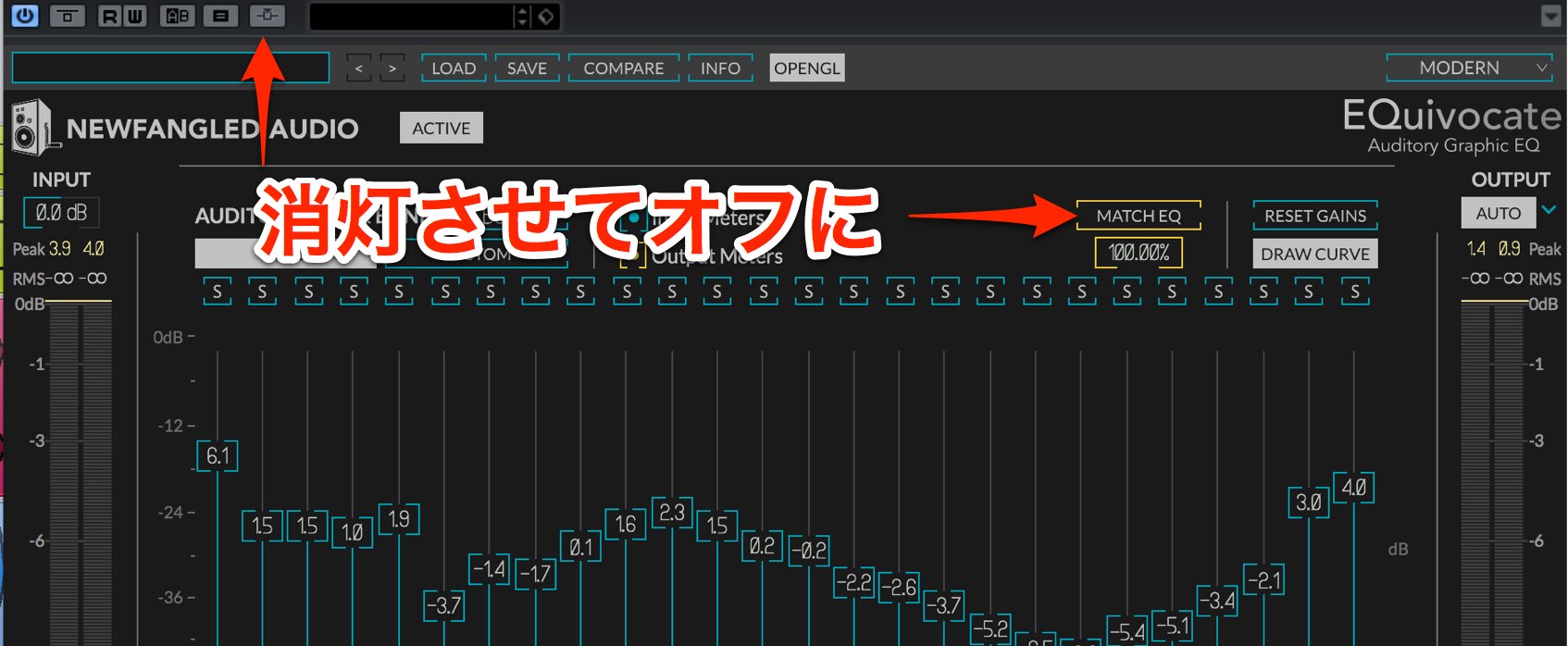
When finished, turn off MATCH EQ and the sidechain.
The MATCH EQ result remains reflected in the bands.
What did you think?
Despite the simple controls, it offers flexible and intuitive sound editing.
Alongside this ease of use, MATCH EQ is accurate, making this a product that can serve as a useful mixing and mastering tool for a long time.
Give it a try!
Frequently asked questions
Q1. What is EQuivocate’s linear-phase equalizer?
A linear-phase equalizer applies EQ while preserving the phase relationship between left and right. It can be used on a master track or drum bus while retaining the stereo image and providing natural sound changes.
Q2. How do I use MATCH EQ?
Send a reference track to EQuivocate via a sidechain and click MATCH EQ to analyze its frequency characteristics. Then adjust the strength from -100% to 100% to apply the reference’s sound character to your own track.
Q3. What is auto gain useful for?
Auto gain compensates for overall level changes caused by boosting or cutting, keeping the level close to that before EQ. This helps you judge changes in sound quality without being misled by volume differences.
NEW ARTICLES
Latest English Articles















































































































































































































































































































































