
This practical tutorial shows how to create a Skrillex-style wobble bass using Native Instruments Massive. Combine envelopes, vibrato, noise and effects to produce dramatic, screaming changes in tone. Explore oscillator hard sync, the timing of Env1 and macro controls to create expressive bass sounds for EDM.
Skrillex-Style Wobble Bass: Part 2
This is the second installment of our answer video series on making a Skrillex-style wobble bass.
The previous article leads into this one, so we recommend reading it first.
This time we focus on using envelopes to create a roaring sound.
How to Create the Sound
Selected Questions and Answers from the YouTube Video

I matched the settings shown up to 2:03, but the sound from 2:01, especially the rising sound at the end of 2:02 through 2:03, does not sustain as well as in the video. Were settings other than OSC1 and Env1 changed by this point? What should I adjust to improve the sustain?

https://app.box.com/s/dri9map2gxst3g8q6uexhkvb3ijqst2n Could the oscillator Sync or Bend+ setting, or the envelope attack value, be different? Please check those settings.
I assigned ENV1 to the oscillator and set the blue modulation range, but the sound starts at its final tone and does not change. I matched the video settings; how can I fix this?
Does changing the Attack, Decay or Sustain of the ENV1 curve change the sound?
Should Env4 have a long release?
Leave Env4 release at its default setting.
How do I do this in Logic 10?
https://sleepfreaks-dtm.com/for-advance-logic/lesson8-5/ Try recording Massive automation as shown in this article.
Massive Settings
OSC1 Settings
Use either Pulse-Saw Sync or Hard Sync.
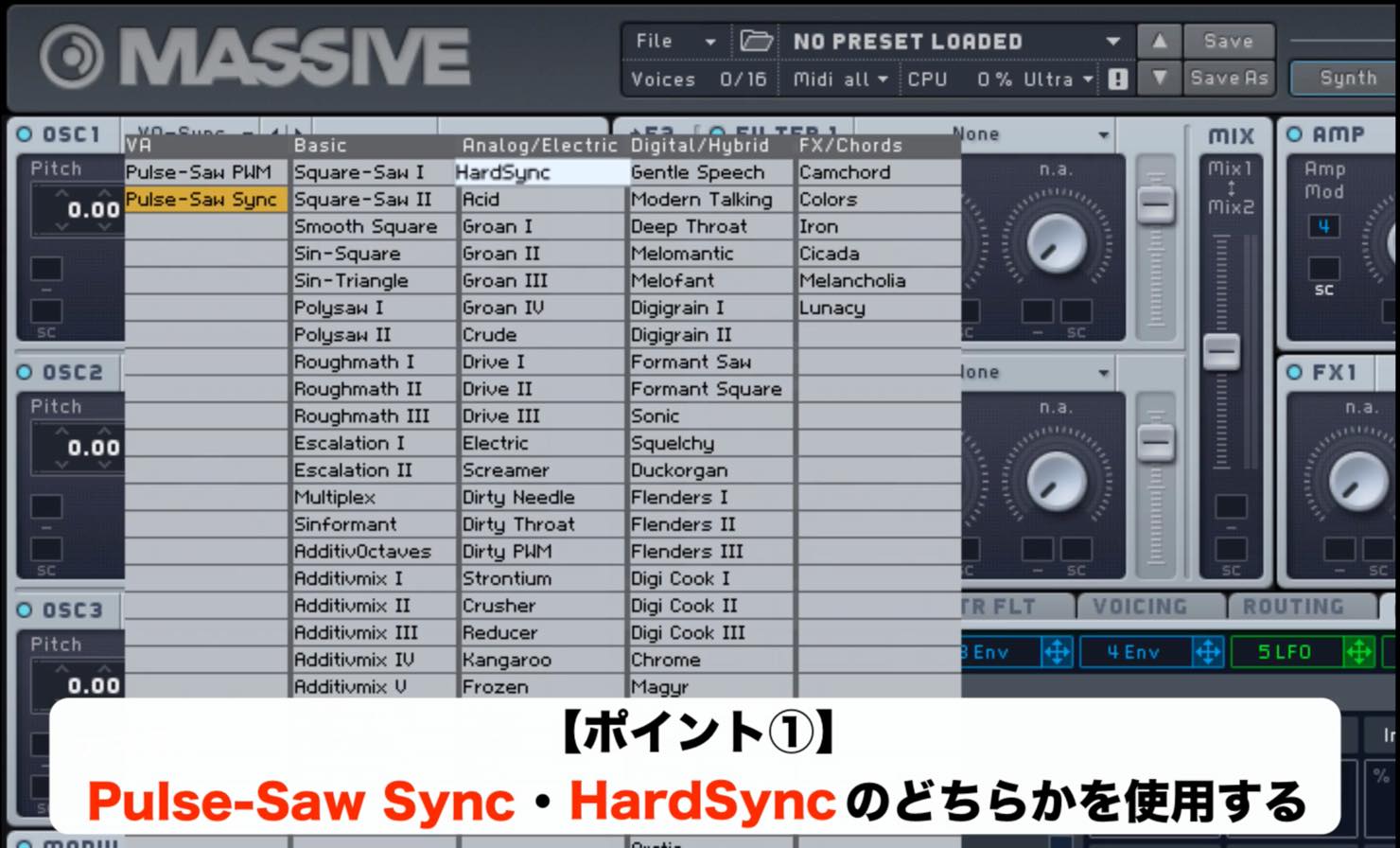
- Pulse-Saw Sync Set the waveform to Pulse and adjust Sync.
- Hard Sync Set Intensity to maximum and adjust Wt-Position.
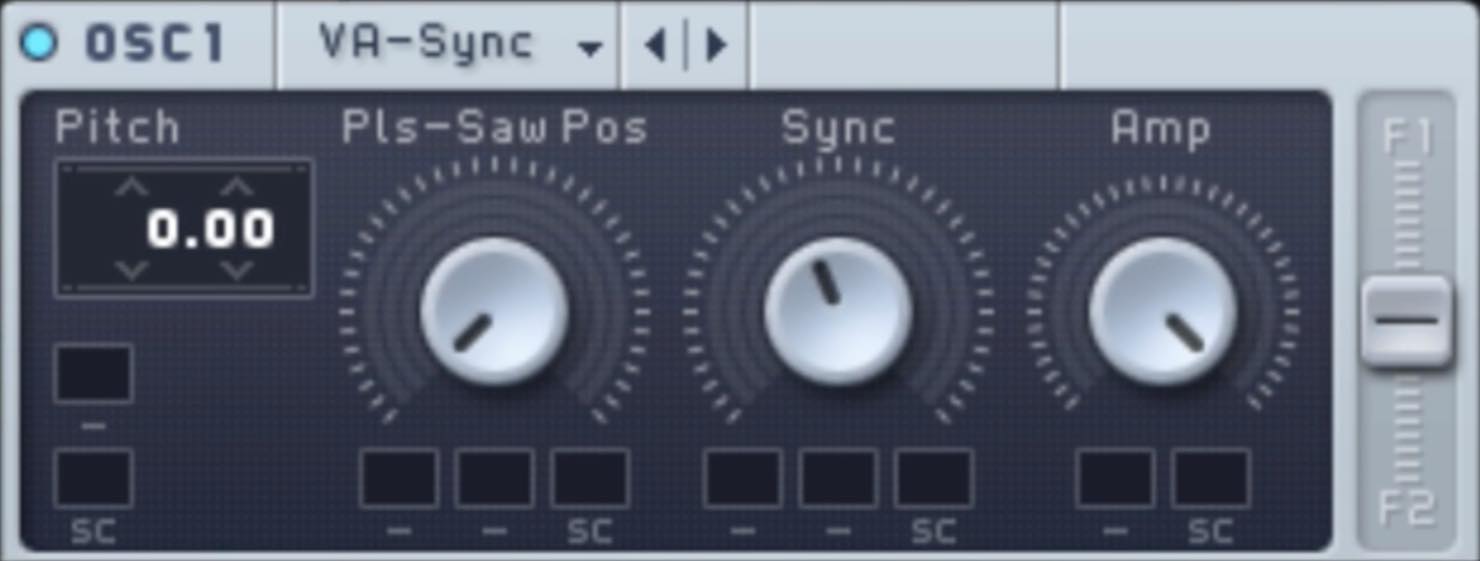
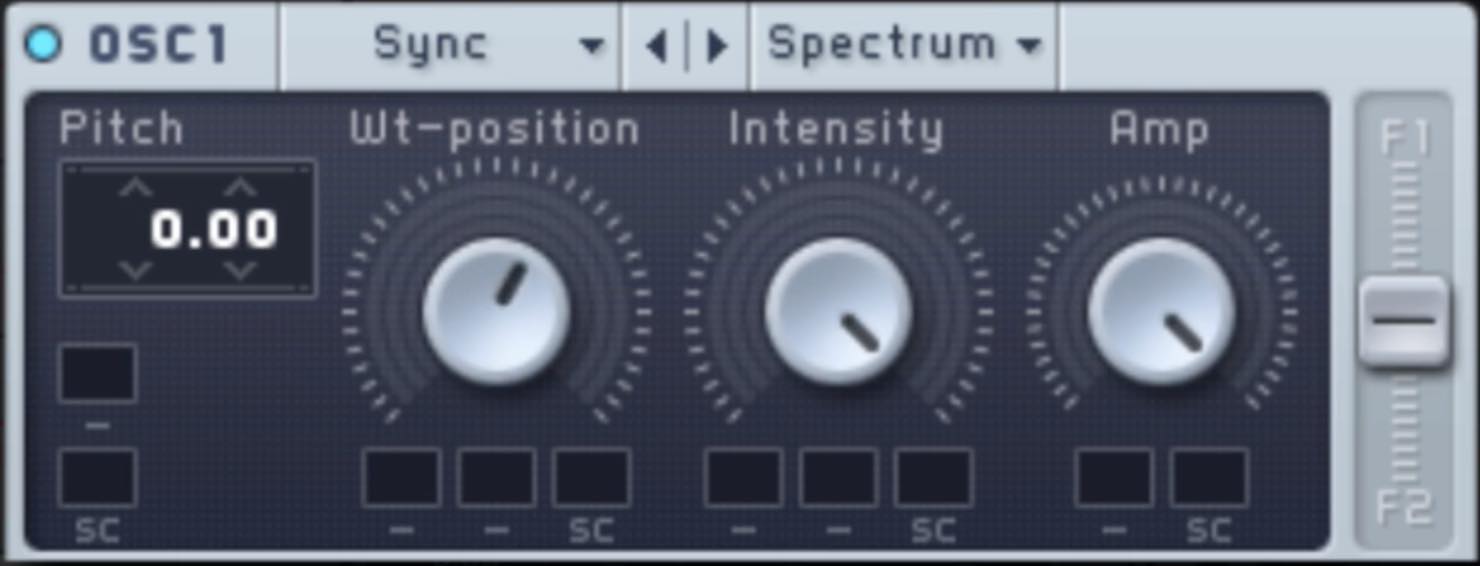
For this example, we will use Hard Sync.
Envelope Settings
Use Env1 to create a screaming sound by changing the tone over time.
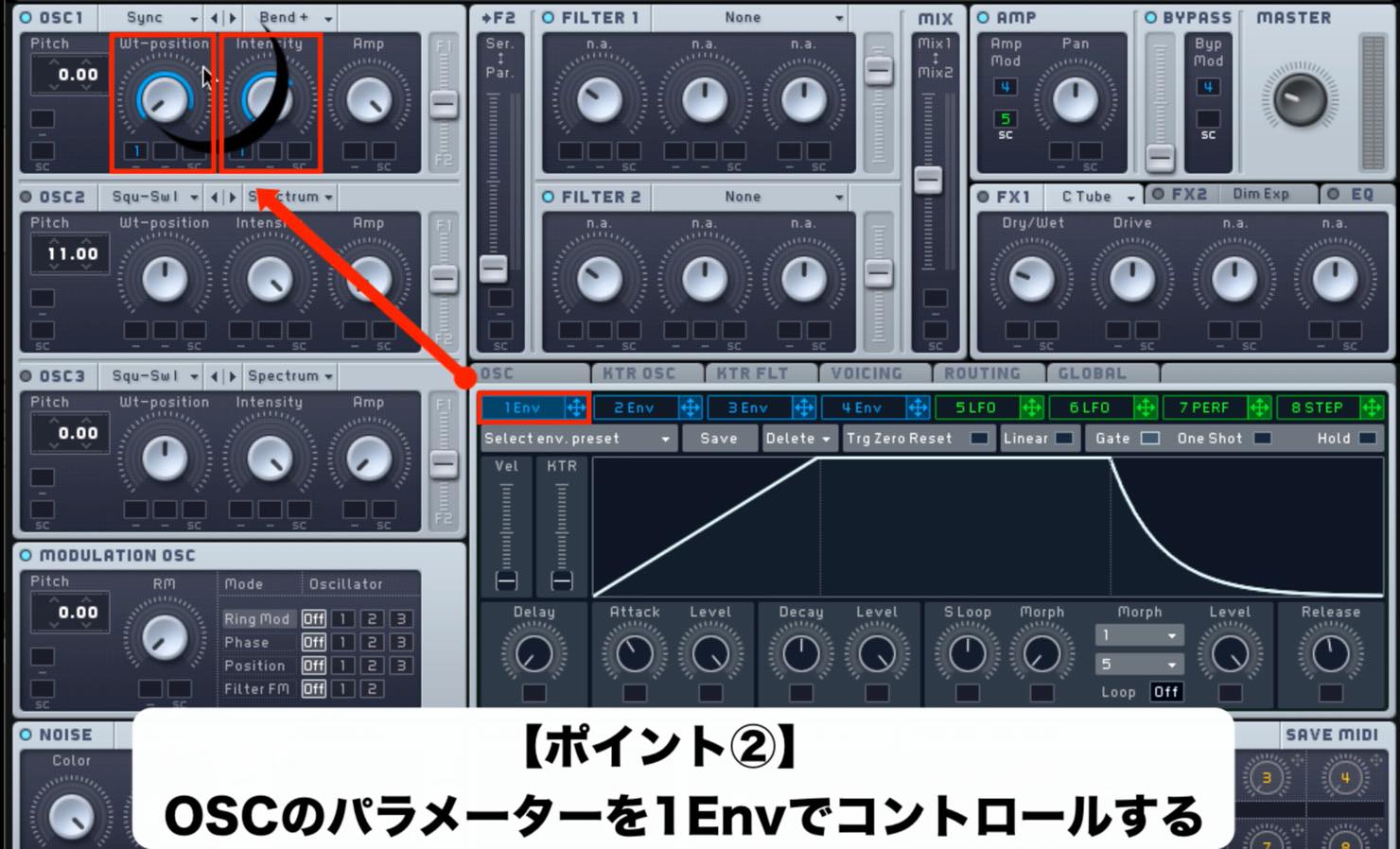
- Set the oscillator mode to Bend+.
- Set Env1 so Wt-Position moves to the right and Intensity moves to the left over the attack time.
- Set Level to maximum, and adjust Release to control how the sound returns.
Vibrato Settings
Set up Vibrato to add subtle pitch movement as the sound sustains.
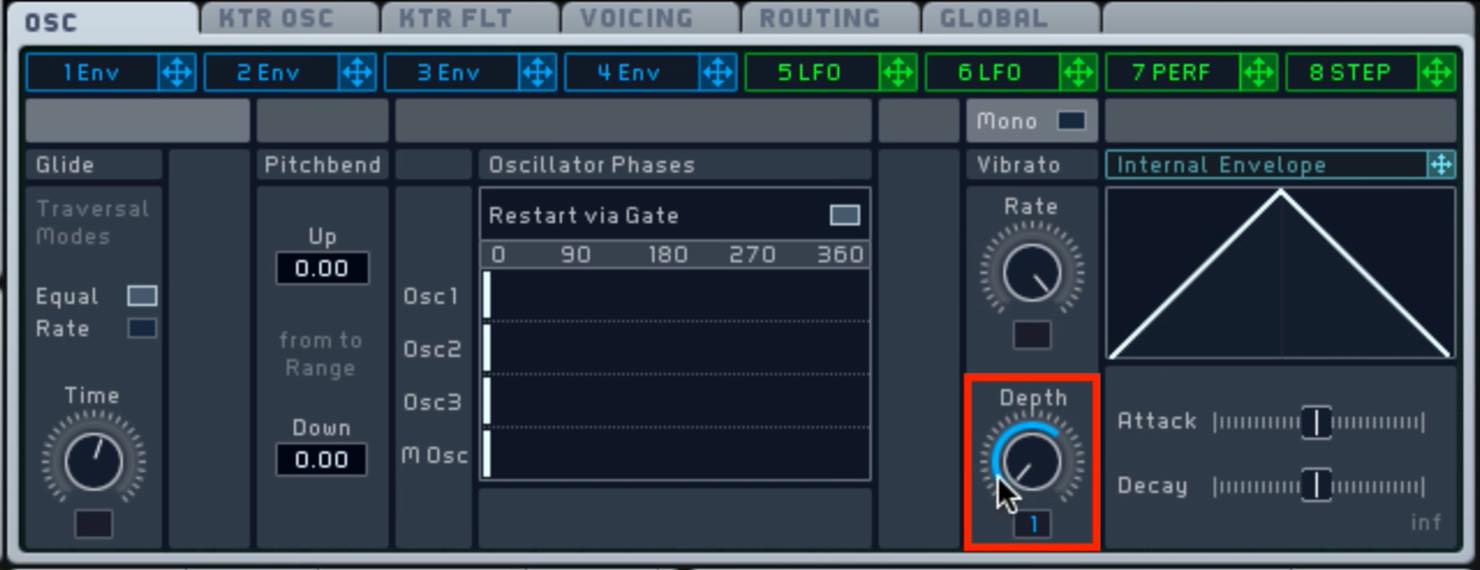
- Set Rate to maximum.
- Assign Env1 to Depth so the vibrato becomes more intense over the attack time.
NOISE Settings
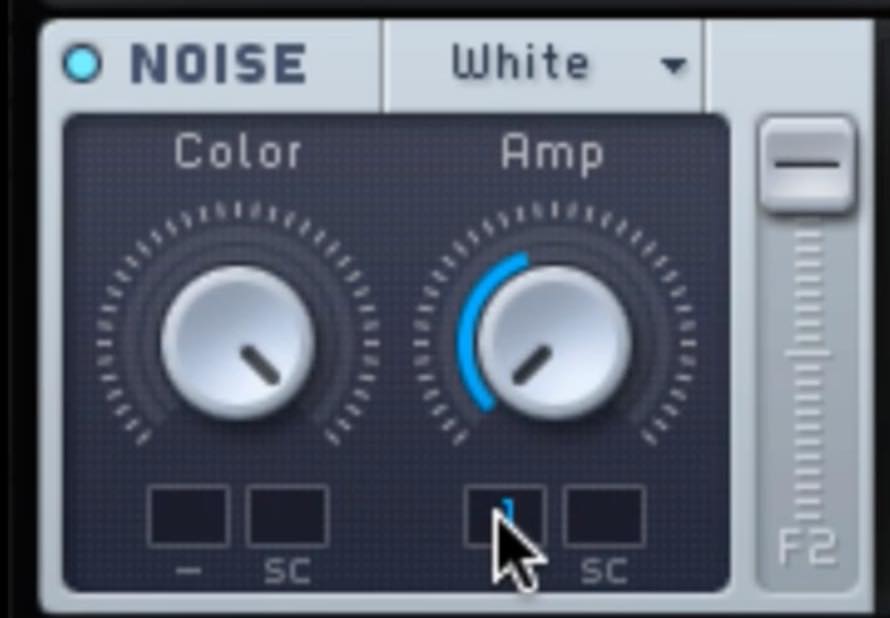
Assign Env1 to the NOISE Amp to emphasize the screaming character.
Voicing Tab Settings
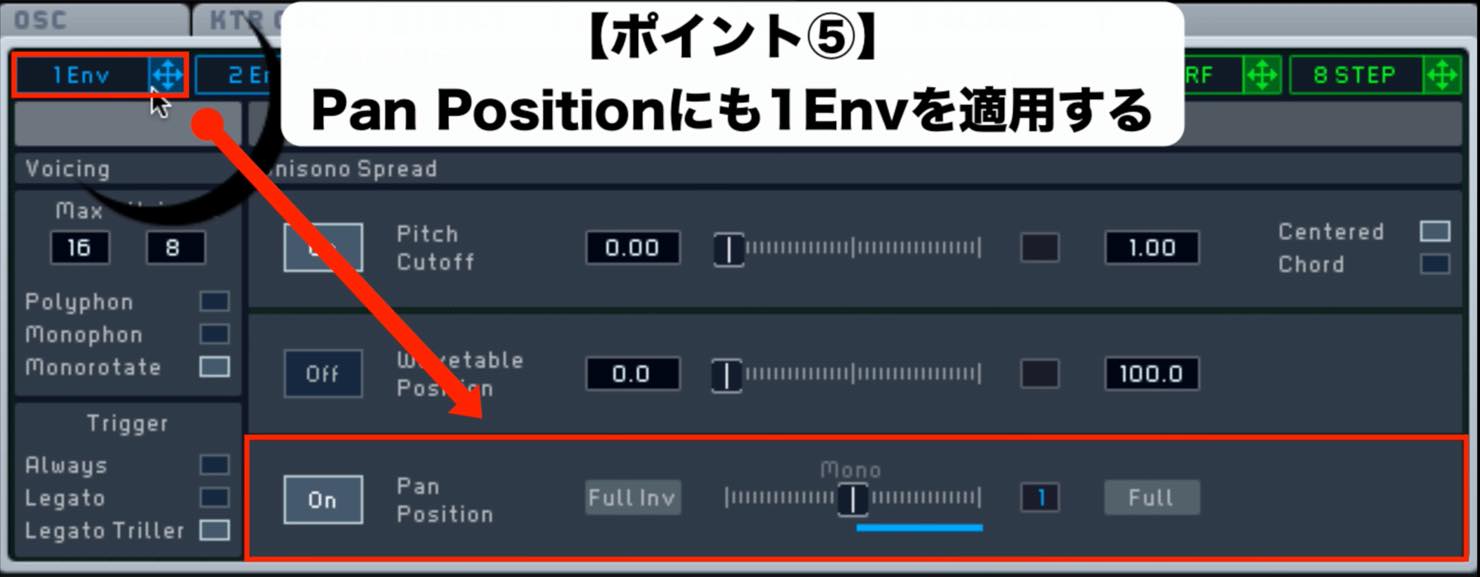
- Set Unisono to around 8, a relatively high value.
- Apply a small amount of Pitch Cutoff to thicken the sound.
- Apply Env1 to Pan Position to make the sound gradually widen.
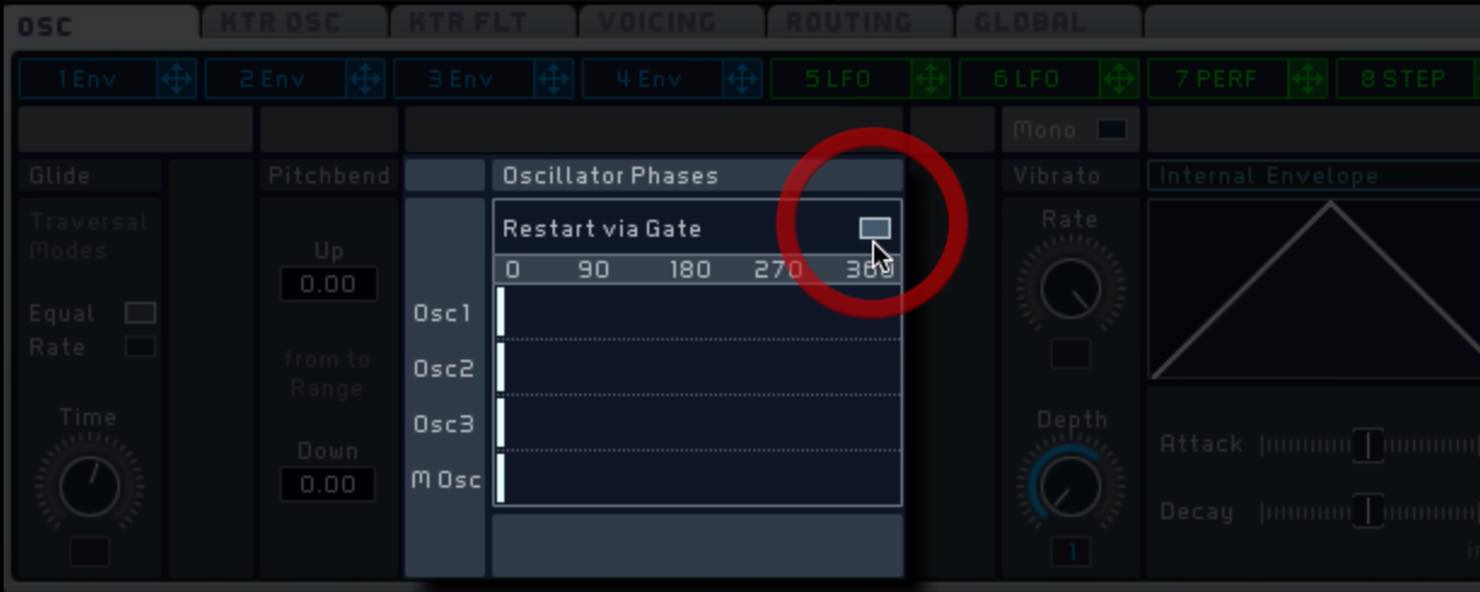
To prevent Pitch Cutoff from weakening the attack,
enable Restart via Gate on the OSC tab.
Effects Settings
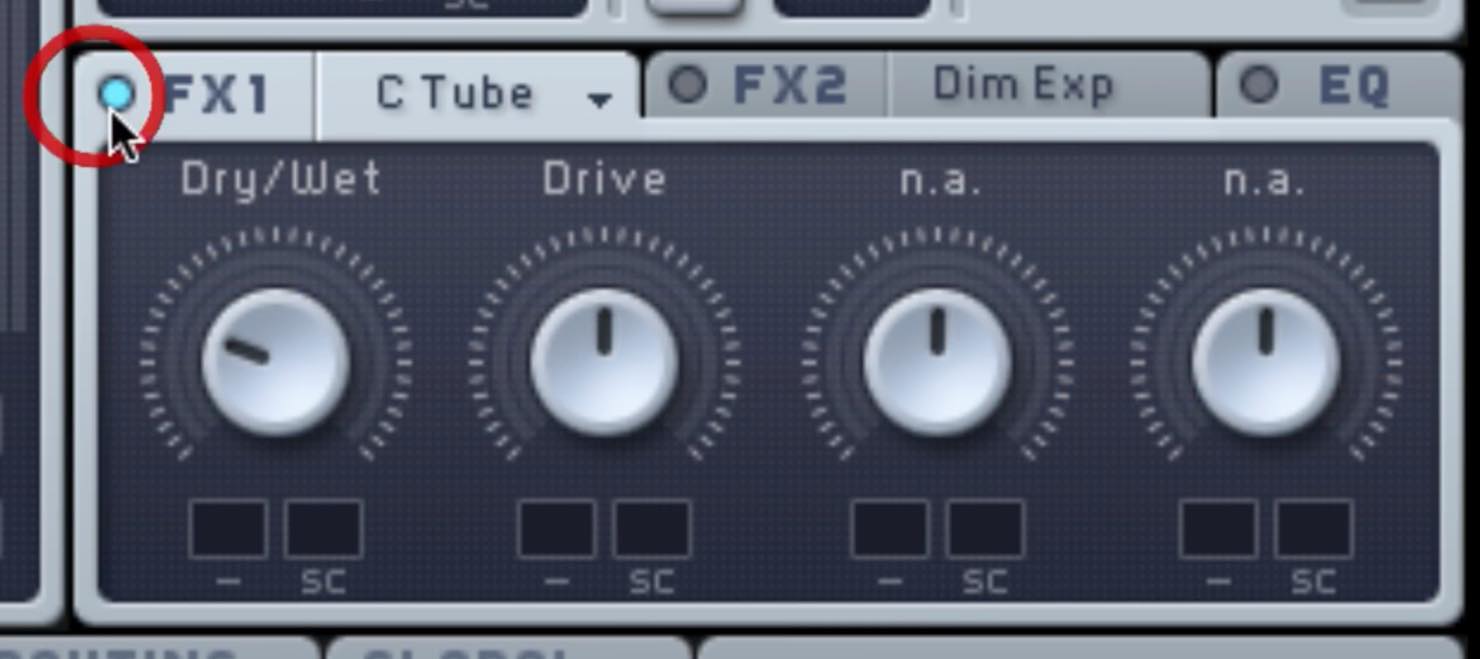
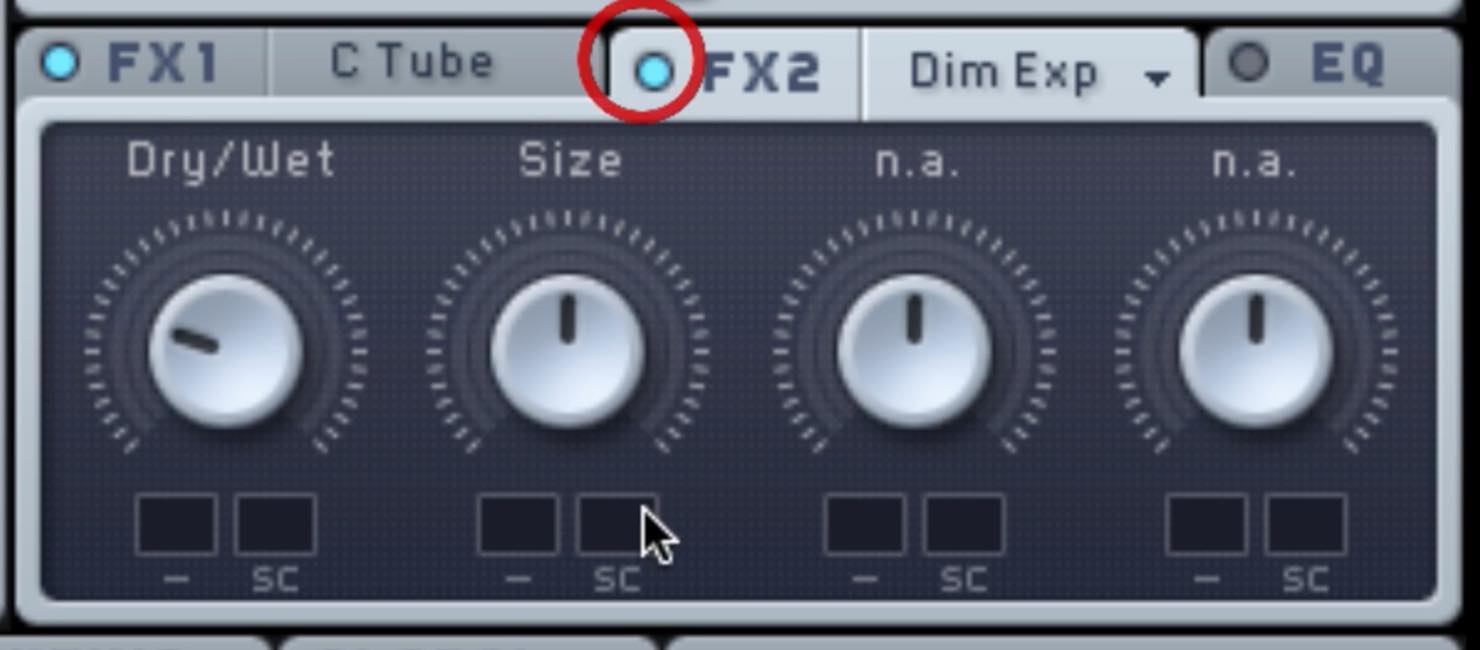
- FX1: Classic Tube; FX2: Dimension Expander
Apply a little of each to add thickness and width. - INSERT: Bitcrush
Deliberately degrade the sound to give it impact.
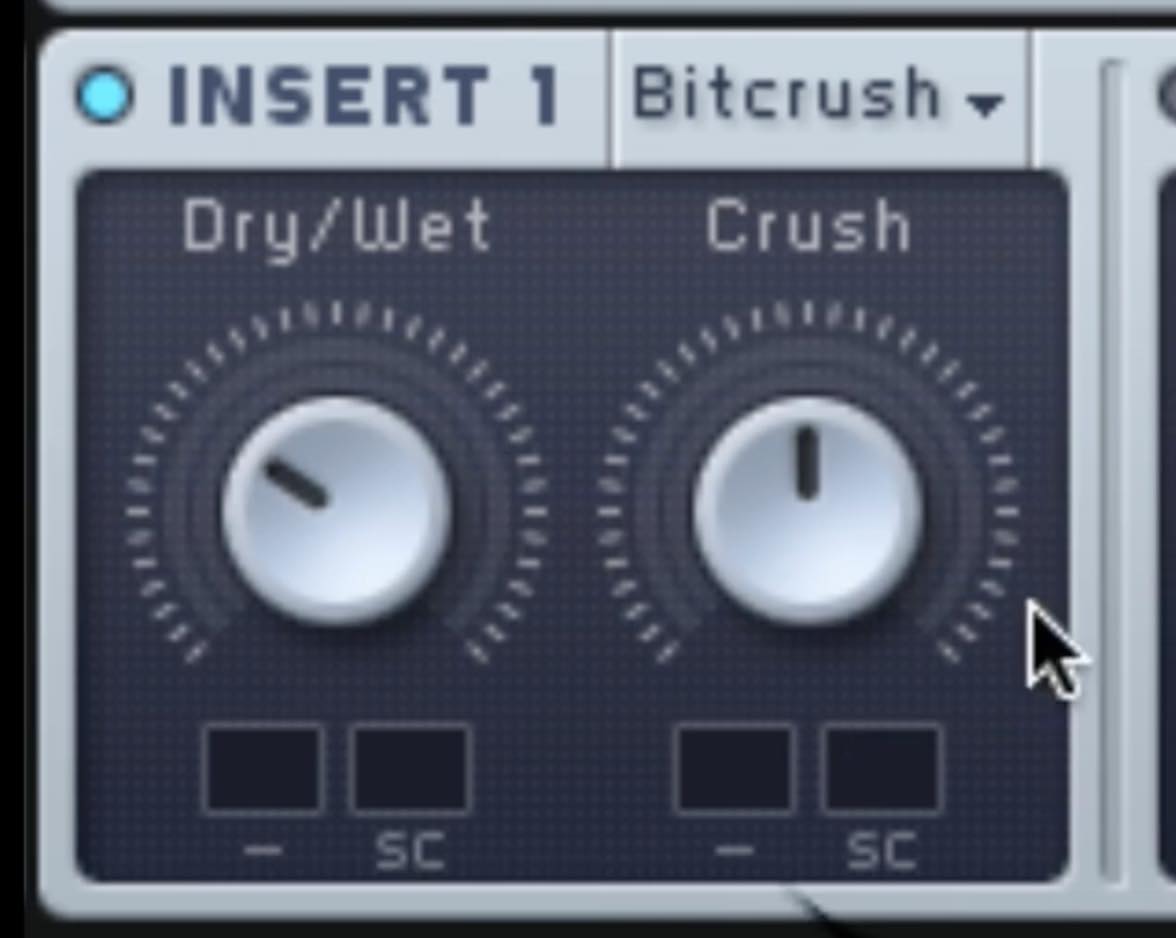
Pay attention to routing when using insert effects.
By default, INSERT1 follows the individual filters, while INSERT2 follows the filter mix.
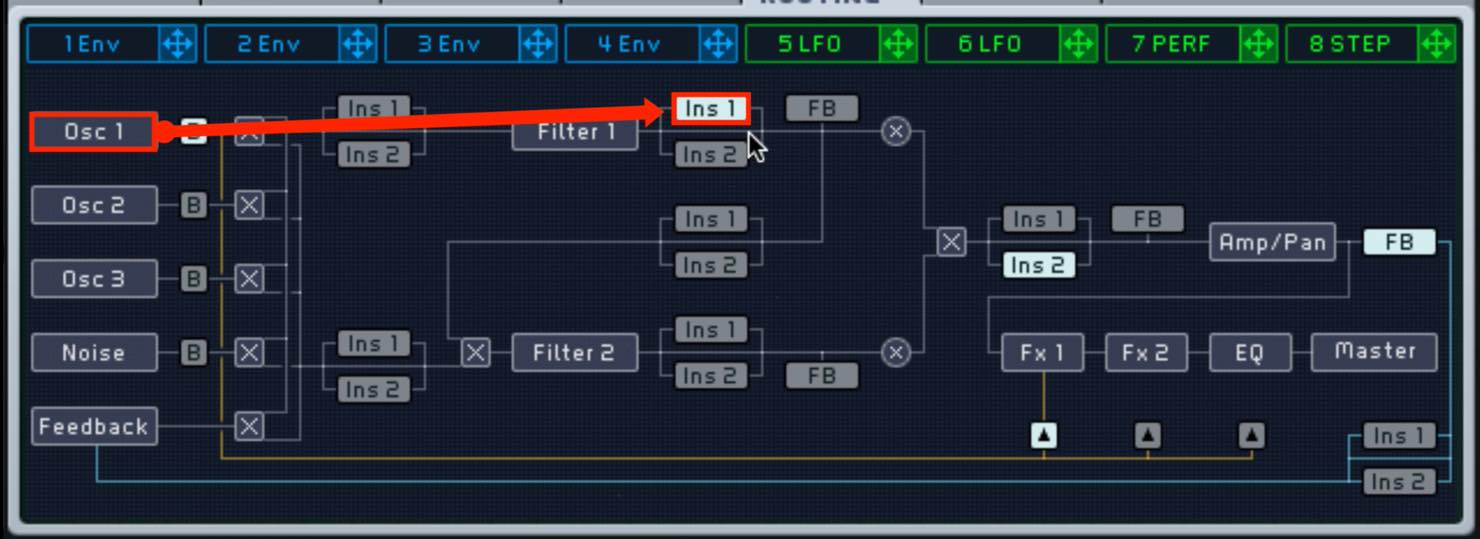
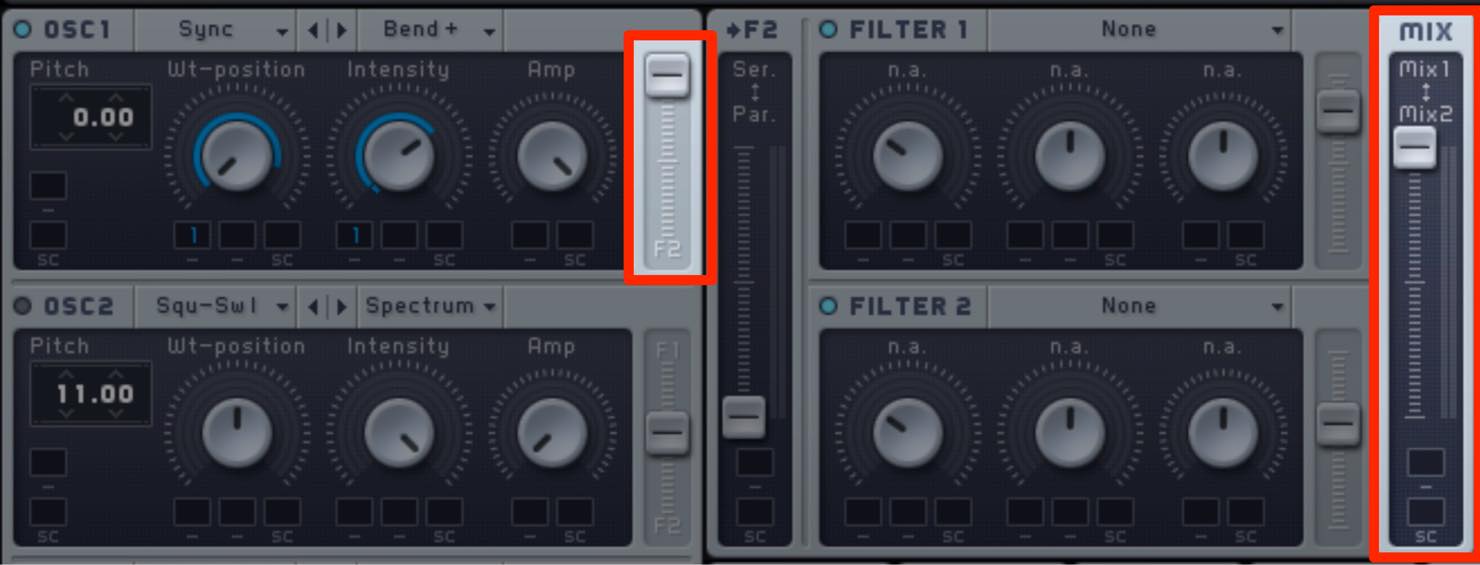
By default, the filter routing and mix are both set halfway,
so the amount of Bitcrush applied will be reduced.
To address this, turn OSC1 fully toward F1 and turn MIX fully toward Mix1.
Add Velocity Sensitivity to Env1
We have assigned Env1 to various parameters.
Now let us make its effect responsive to velocity.
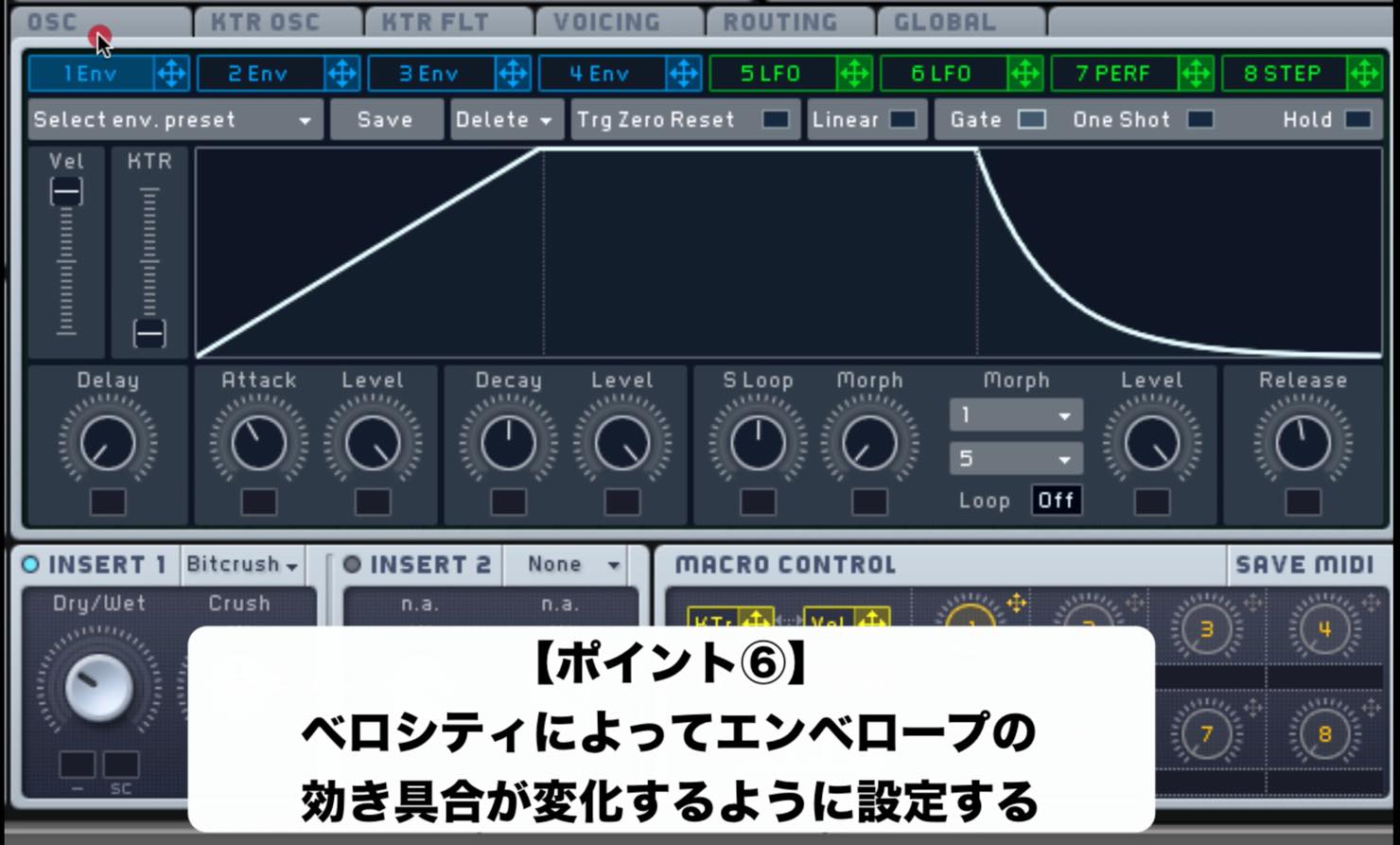
Simply raise the Vel slider on Env1.
The amount of change depends on how far you raise it, so adjust it to taste.
Apply an LFO to the Master AMP
Finally, apply an LFO to the master AMP and control it with a macro
to introduce further changes in tone.
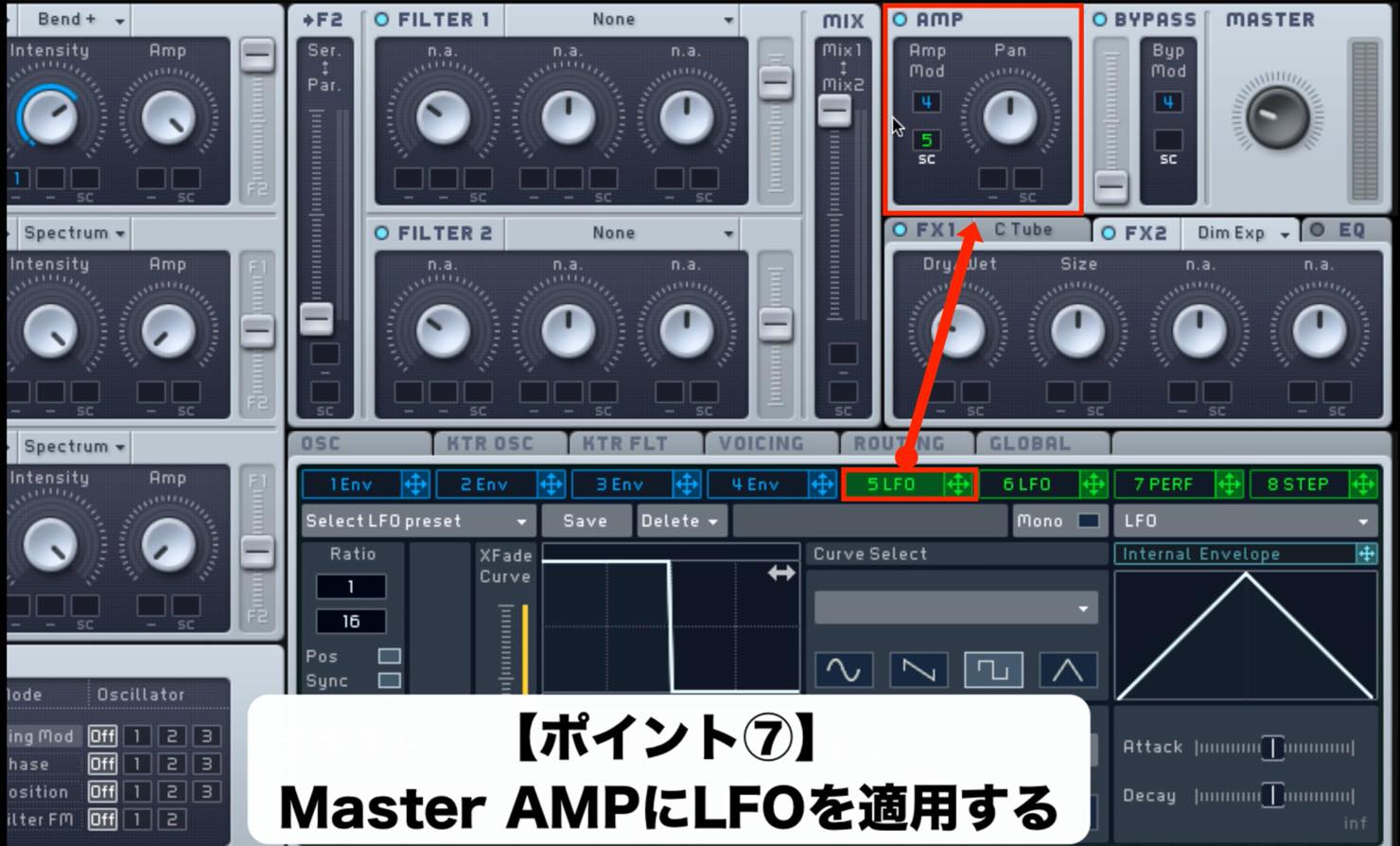
- Set the upper waveform to Square and the lower waveform to 100%.
- Turn Sync on and set it to 1/16.
- Assign a macro to XFade Curve so you can move between the upper and lower waveforms.
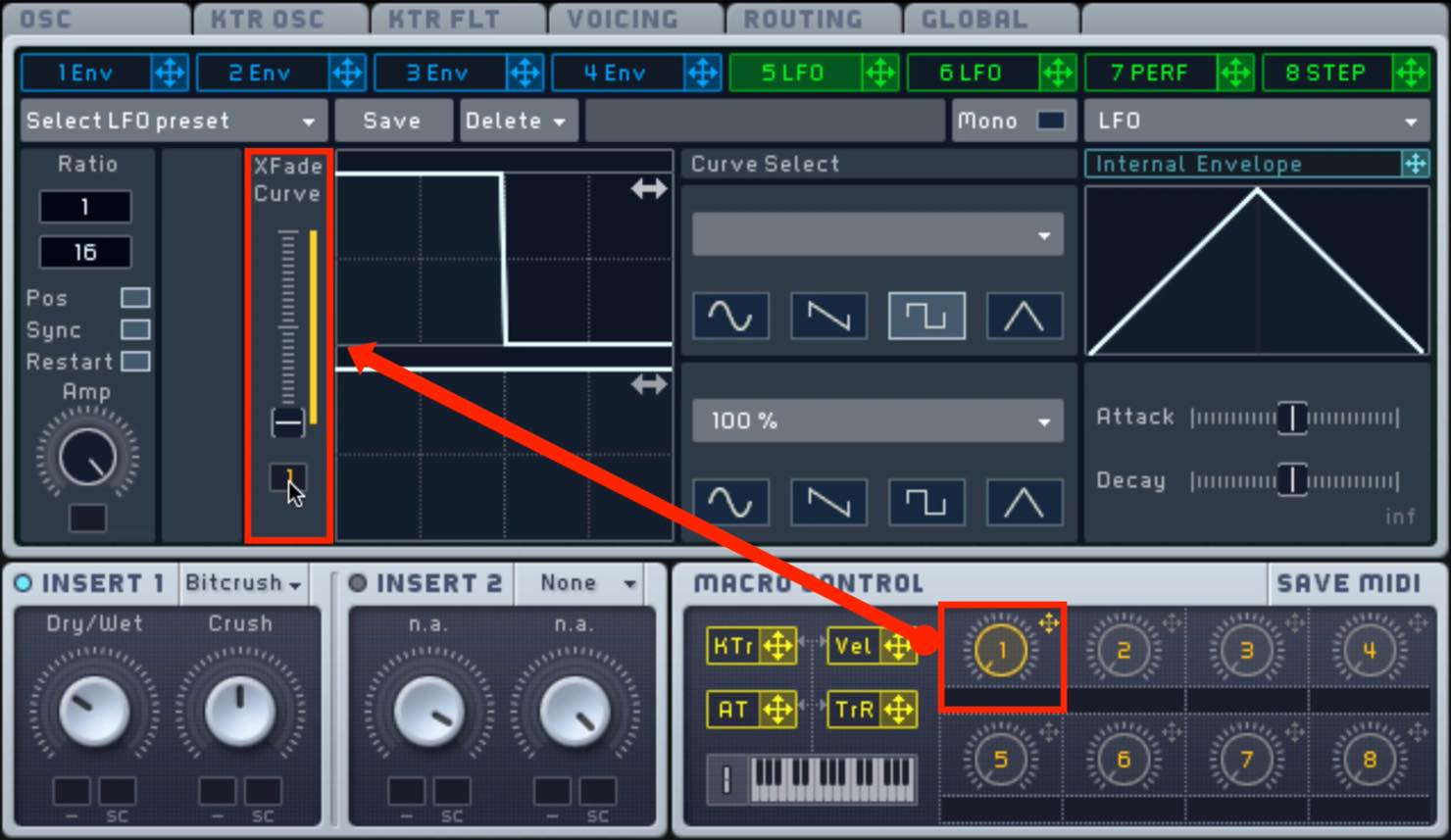
That completes the settings.
When programming your DAW, vary velocity at different points
or automate the macro to create a range of tonal changes.
Assigning the macro to a hardware knob
can make creating phrases even more intuitive.
Frequently Asked Questions
Q1. Which oscillator settings should I start with for a Skrillex-style wobble bass?
In Massive, start with Hard Sync on OSC1, set Intensity to maximum and adjust Wt-Position. This provides a foundation for changes in tone.
Q2. Which envelope settings are important for a screaming sound?
Set the oscillator mode to Bend+ and use Env1 to move Wt-Position right and Intensity left over the attack time. Set Level to maximum for a dramatic change in tone.
Q3. What can I do if the Bitcrush effect sounds weak?
The filter routing is halfway by default. Turn OSC1 fully toward F1 and the mix fully toward Mix1 to increase the effect, and check the routing.
Q4. How can I adjust the amount of tonal change according to velocity?
Raise the Vel slider on Env1. The amount you raise it controls the strength of the change, so fine-tune it to taste.
NEW ARTICLES
Latest English Articles



































































































































































































































































































































































































