
Optimizing a master for iTunes distribution involves more than adjusting loudness: it also helps prevent clipping during AAC encoding. This 2014 guide describes the source’s recommended 48 kHz/24-bit settings and real-time monitoring with Apple’s AU Lab. The workflow aims to help preserve sound quality between the production environment and the distributed file.
Delivering Better Sound Quality

You can buy all kinds of music on iTunes
. Another appealing feature is the ability to sell your own music as well.
Many of you may already sell your music on iTunes.
There are, however, some things to watch for when submitting audio to Apple for iTunes distribution.
In this article, we explain level management for delivering better sound quality to listeners.
Optimizing Mastering for iTunes Distribution
This plug-in is available only in Logic.
For users of other DAWs, we recommend the plug-in below.
Sample Rate and Bit Depth

When you finish a track in your DAW and export it,
you have probably often used the CD standard, WAV at 44.1 kHz/16-bit.

The Apple guide discussed here, however, assumes encoding for distribution to m4a (256 kbps VBR AAC) and recommends
delivering audio at the same resolution used in the DAW.
In other words,
if the track was produced at 48 kHz and 24-bit,
the file submitted can be a 48 kHz/24-bit WAV.
Higher-resolution WAV files such as 96 kHz/32-bit are also mentioned.
Other points to watch for include:

- Do not use dithering.
- The article cites an Apple recommendation of a maximum level of approximately -1 dB.
However, even tracks that do not clip before conversion
may clip after conversion, depending on the material and genre.
Using AU Lab to Identify Clipping After Conversion

Apple provided a tool called AU Lab to address this problem.
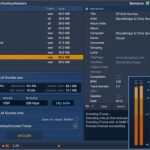
One particularly useful plug-in included with it is RoundTripAAC.

AU Lab is software for monitoring clipping.
It detects clipping in the original and encoded audio in real time.
Open it and monitor the final output level to help avoid clipping after encoding.
Apple also noted that it accepts audio containing clips.

A recommended approach is to insert it after the limiter or maximizer at the final mastering stage.

Adjust the limiter or maximizer’s output level,
aiming just below the point where the encoded Peaks indicator turns red, indicating clipping.
If you distribute music on iTunes or are considering doing so, try this approach.
Mastered for iTunes
https://www.apple.com/jp/itunes/mastered-for-itunes/
Frequently Asked Questions
Q1. What sample rate and bit depth should I use when exporting a WAV for iTunes?
The article cites 48 kHz/24-bit as Apple’s recommendation. If the track was produced at that resolution, it says the WAV can be exported at the same settings. Higher-resolution formats such as 96 kHz/32-bit are also mentioned.
Q2. Is AU Lab required?
The article recommends it but does not describe it as mandatory. It can detect clipping after AAC conversion in real time, helping you assess the master level.
Q3. How high should the peak level be during mastering?
The article cites a maximum level of approximately -1 dB and suggests using AU Lab to adjust the level just below the point where encoded peaks show red.
NEW ARTICLES
Latest English Articles






























































































































































































































































































































































































































































































































































