
Cubase offers several snap modes for moving and arranging audio and MIDI events. Grid, Grid Relative, Events, Shuffle, and Cursor each behave differently. Understanding when to use them can make it easier to preserve rhythmic offsets, place events without gaps, and close gaps after deletion. This tutorial demonstrates each mode.
Control Event Movement for a Faster Workflow
Moving and arranging events is an essential part of music production.
A common workflow is to build a song by placing audio and MIDI material on the timeline.
Several modes are available for editing and moving events,
and you can switch between them to suit the task.
Here we will look at these event editing modes.
Video Tutorial
Questions and Answers from YouTube

Hello, thank you for the clear explanation. I am editing about ten minutes of narration in Cubase 9.5 and ended up with unwanted silent gaps between words. I used Detect Silence from the Audio menu to remove them, but now I have many small events and gaps lined up like the teeth of a comb. I selected everything and tried Shuffle or Events to move them all left, but nothing happened, even after restarting. How should I handle this?

Try deselecting the first event, selecting all the remaining events, and dragging them to the left.
Hello. I worked on a song whose actual tempo is 80 BPM in a 120 BPM template and recorded MIDI drums using a Roland V-Drums TD-15. The drums enter partway through the song, so the MIDI data begins at an arbitrary position. When I change the project back to 80 BPM, the recorded MIDI data moves later. How can I change the tempo without moving it, and how does the grid help?
To keep MIDI timing independent of tempo and fixed to the time axis, switching from musical to linear time base as described in the following article may help: https://sleepfreaks-dtm.com/for-advance-cubase/musical-mode/
How do I show VST performance in the upper-right area of Cubase?
Right-click an empty area to the right of the toolbar and quantize controls. You can choose which items are shown or hidden there; enable Performance Meter.
Changing and Understanding Event Editing Modes
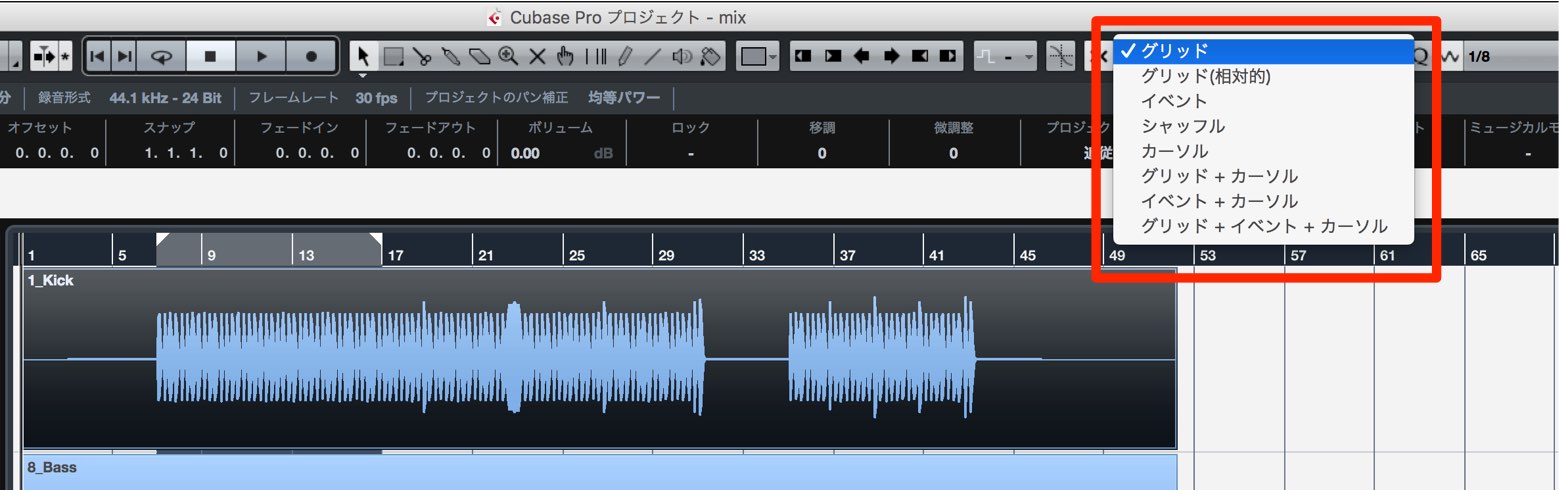
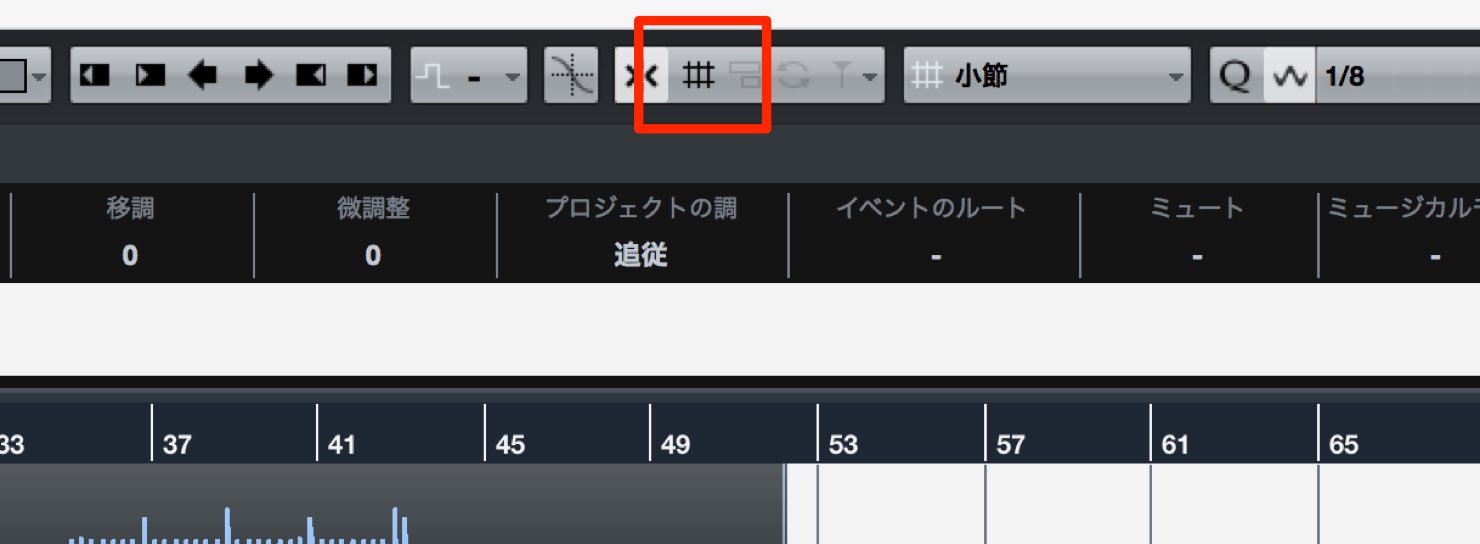
To change the mode, click the highlighted control at the top of the Project window.
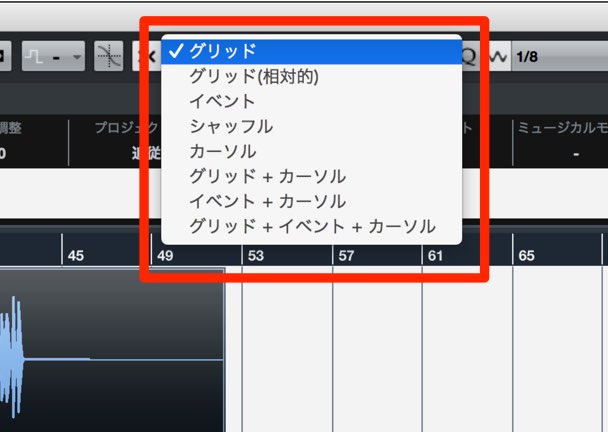
A list of modes appears for you to select from.
Let’s look at each mode.
Grid
This is the default mode.
When Snap is enabled, events move according to bars, beats, or the quantize value.

Grid Relative
Let’s use an example to understand relative grid movement.
Suppose an event starts away from a bar or beat boundary, as shown here.
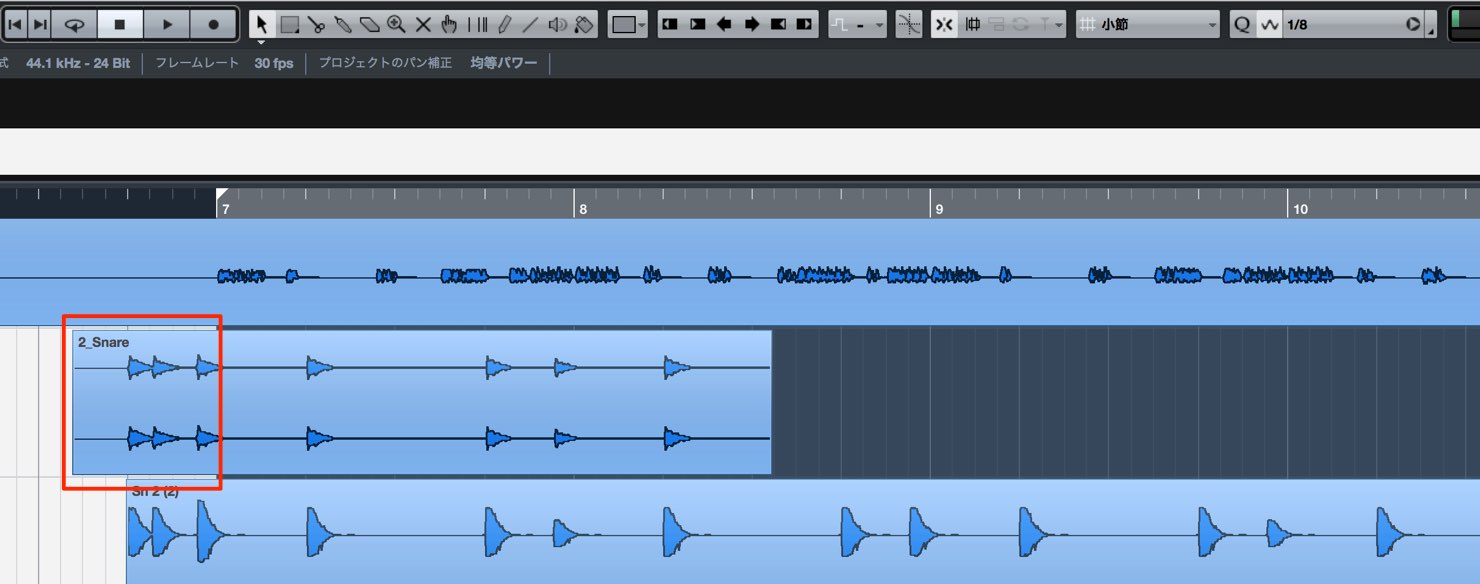
If you move it with ordinary Grid mode,
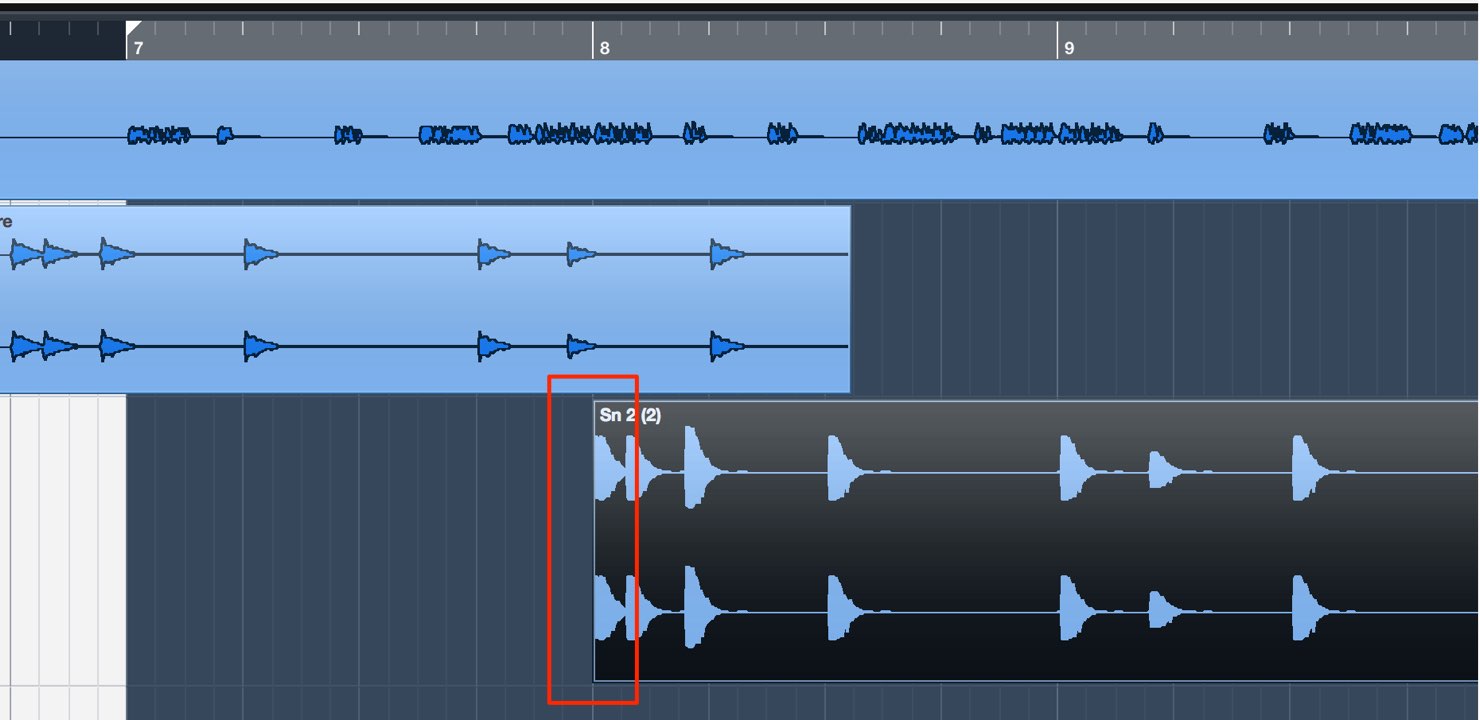
the event start snaps to the grid.
That can change the intended playback timing.
Here is the result of moving the same event with Grid Relative.
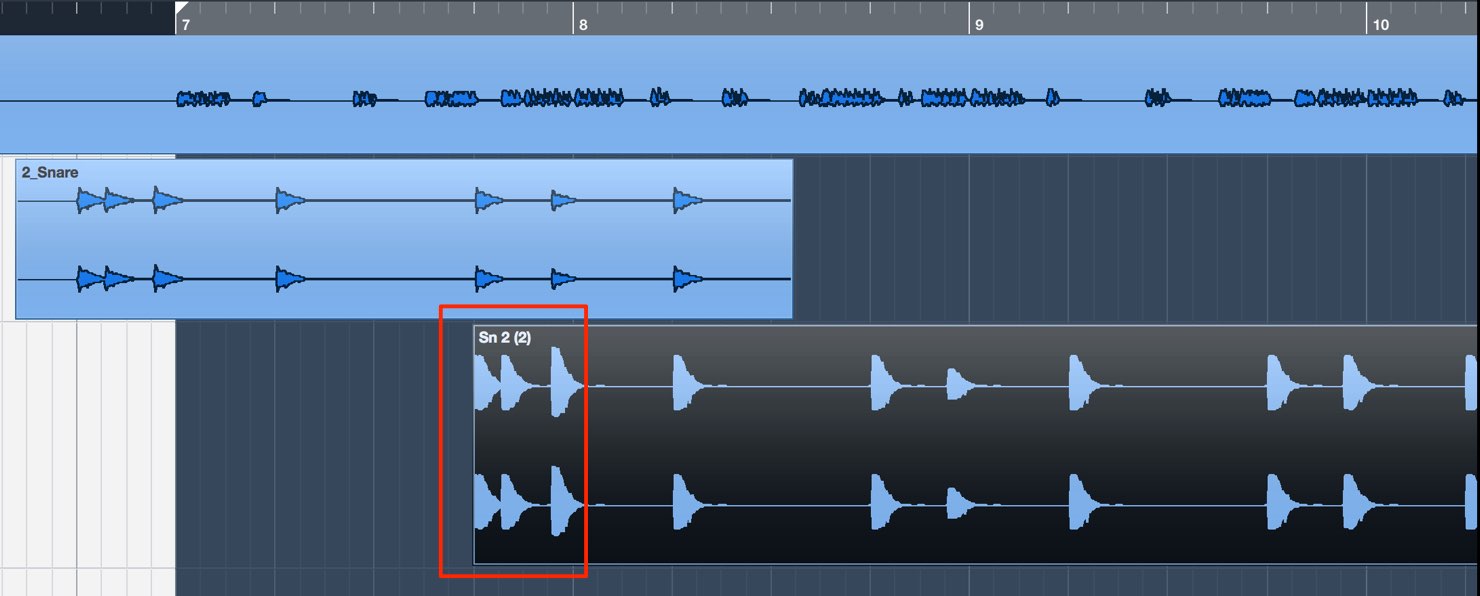
The event moves while preserving its offset from the bar or beat,
which is useful when you want to move material that already has the right rhythm.
Events
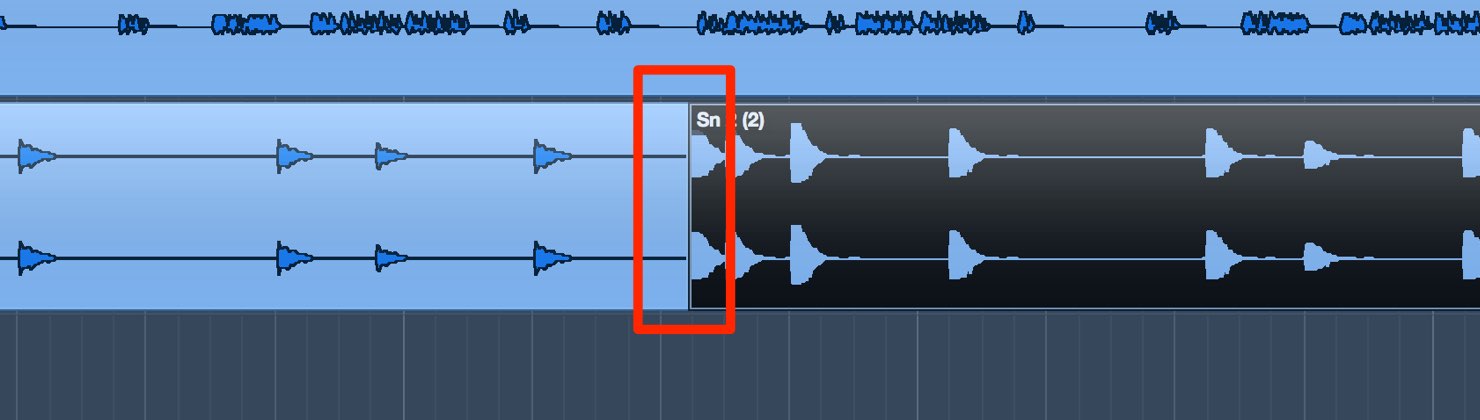
In this mode, an event snaps to neighboring events as you move it.
This lets you place events directly next to each other without gaps.
Shuffle
When you delete an event, subsequent events move forward to close the space.
For example, if we delete the event selected in the image below,
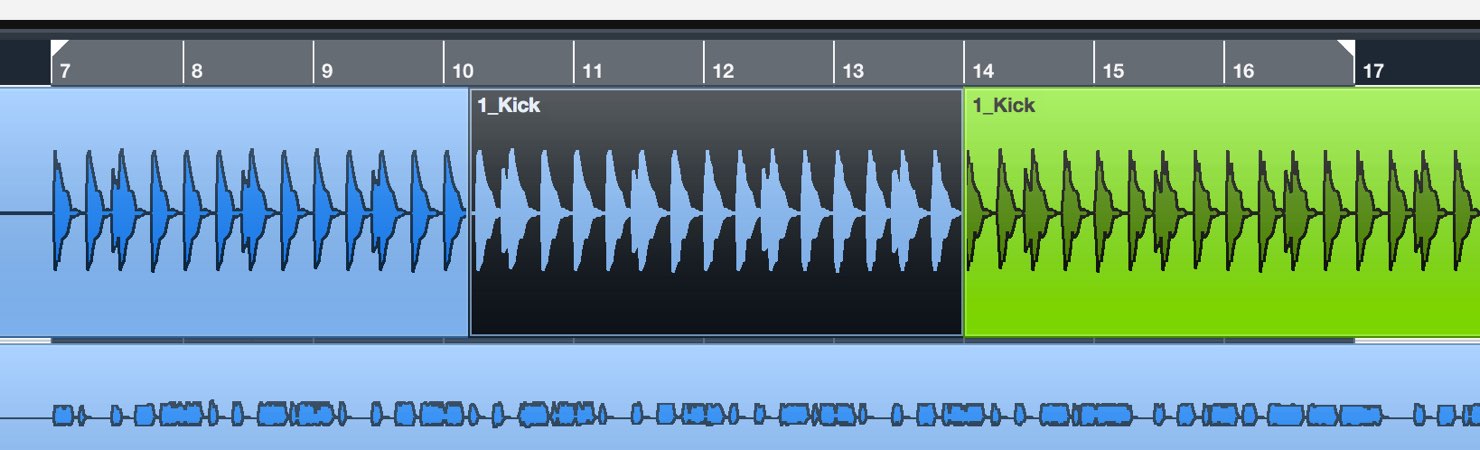
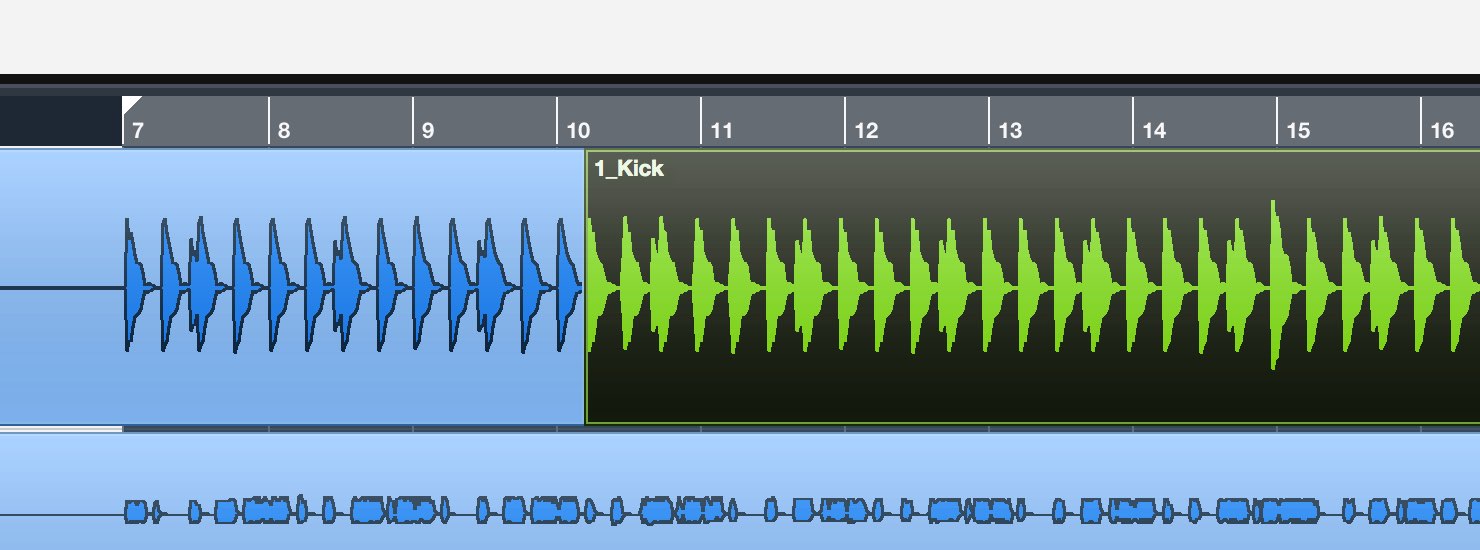
later events shift forward to fill the resulting gap.
Cursor
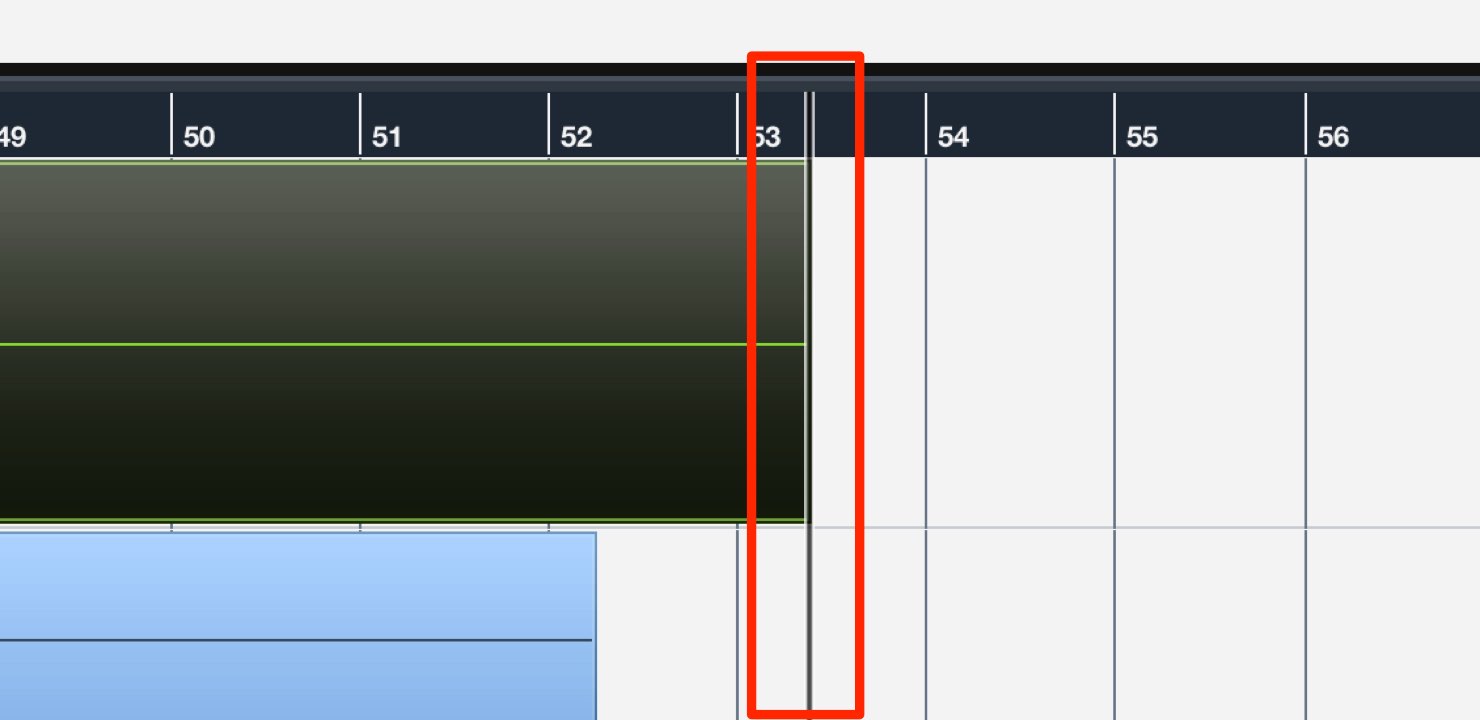
An event snaps to the playback cursor.
This is useful when you want to place an event precisely at a chosen position.
By understanding these modes and switching according to the task,
you can make your workflow considerably more efficient.
They are easy to incorporate and can make a real difference, so try them in your own productions.
Frequently Asked Questions
Q1. How do I switch event editing modes in Cubase?
Click the mode selector at the top of the Project window, highlighted in red in the article, and choose the mode you need from the list.
Q2. When should I use Grid Relative?
Use it when moving an event that starts away from a bar or beat boundary. It preserves the offset, so you can move material without changing its existing rhythmic placement.
Q3. What is the benefit of Shuffle mode?
When an event is deleted, later events move forward to close the gap, saving you from closing it manually.
Q4. Which mode places an event at an exact position?
Cursor mode snaps an event to the playback cursor, helping you place it at the desired position.
NEW ARTICLES
Latest English Articles


























































































































































































































































































































































































