
This historical tutorial describes Yamaha’s NETDUETTO 2 beta, which sent and received DAW audio in real time over the internet. It supported VST on Mac and Windows and was free in beta. Users moved the downloaded plug-in files to a VST folder and inserted it on the DAW master track. Rooms enabled multiple users to share audio, with quality settings for different connection speeds. The article describes low-latency, high-quality streaming and combining it with calling software such as Skype. Yamaha later introduced SYNCROOM as its successor and announced the beta service would end in 2020; the instructions below describe the earlier software and may no longer work.
Share DAW audio with collaborators online

One appeal of making music on a computer is that you can complete a song on your own,
and refine its sound to your satisfaction without having to accommodate anyone else.
As you expand your activities, however,
you may also want to collaborate with others.
Band members, for example, may want to work on an arrangement or mix
while letting their collaborators listen.
That is where Yamaha’s beta software NETDUETTO comes in.

NETDUETTO can send DAW audio to another person over the internet.
It can be used on Mac or Windows with an internet connection.
Originally developed for musicians to perform together online,
it evolved to support the VST format and send audio from a DAW.
Although operation is not guaranteed, it can also be launched in the AU format used by Logic.
Here we explain setup and use specifically for collaboration in a DAW.
Netduetto tutorial video
Questions and answers from the YouTube video

I connected to Netduetto in Cubase AI and monitored an audio track, but I get an endlessly looping delay. What am I doing wrong?

Try muting the microphone button under Input at the top left of the Netduetto window.
Download and installation
At the time of this tutorial, the beta was available free of charge.
First, download it.
Visit the following URL:
http://netduetto.net/download/
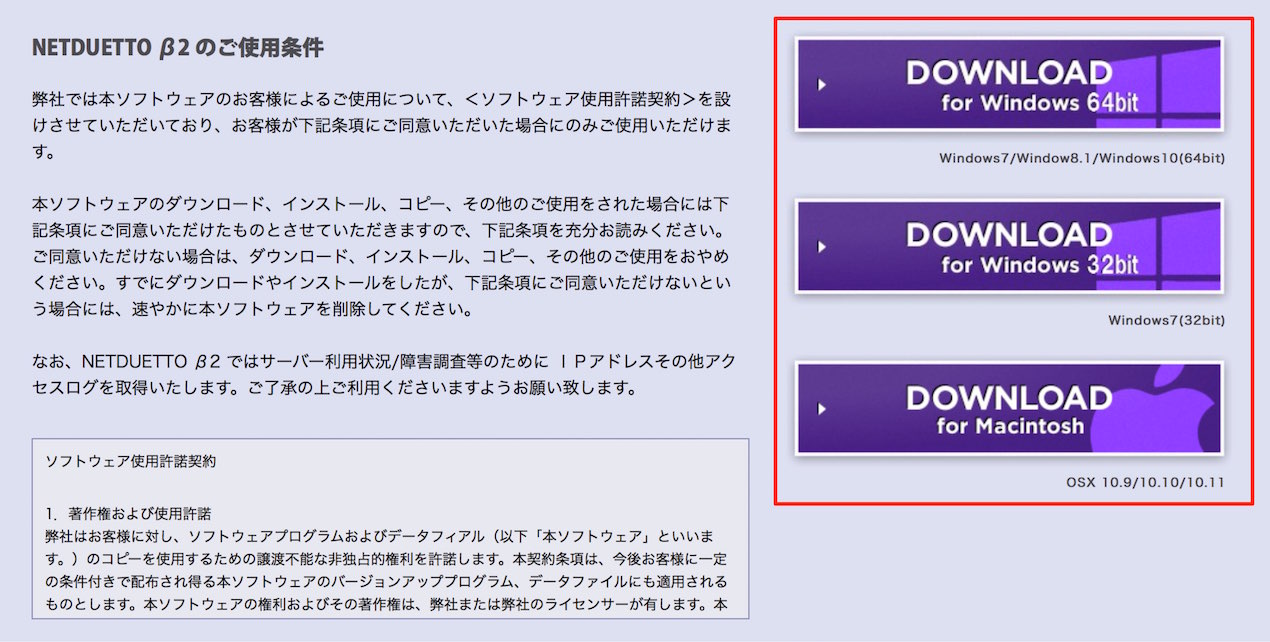
Click the file for your computer to download it.
We use a Mac here; the Windows procedure is largely similar.
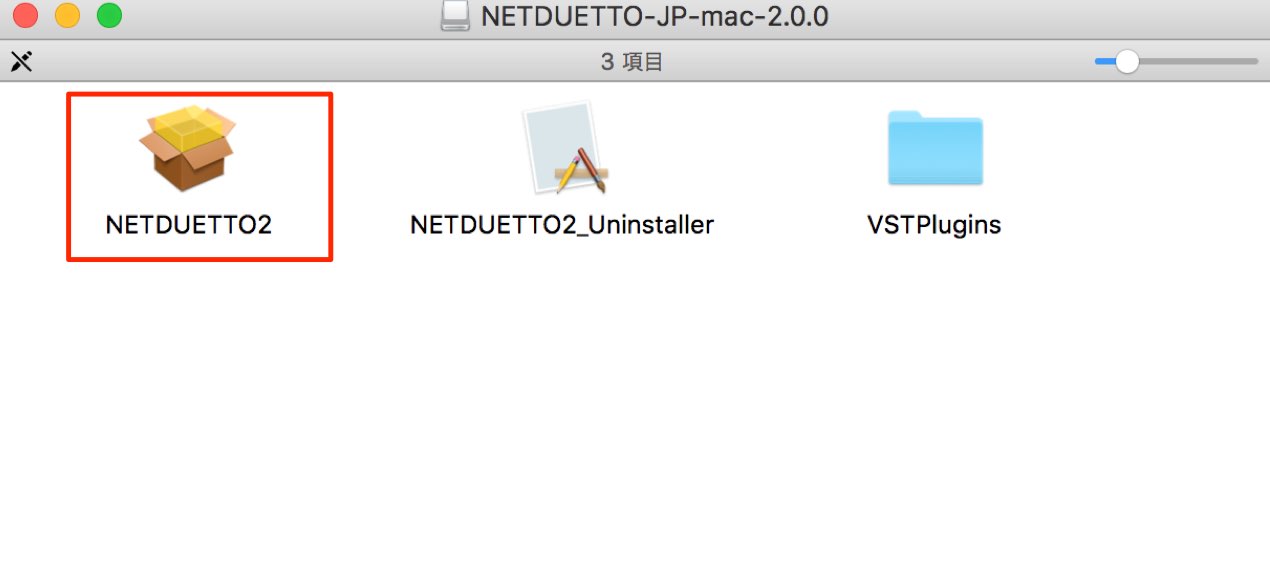
Extract the downloaded file and double-click NETDUETTO 2.
When the installer opens, follow its on-screen instructions.

After installation, configure the plug-in so your DAW can find the VST.
Open the VST Plugins folder,
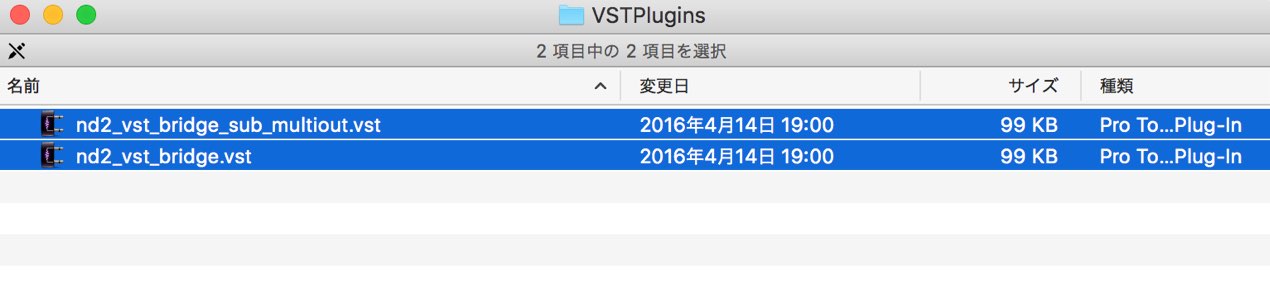
and move the two files inside
into a VST folder recognized by your DAW.
(The Windows paths are examples and may differ depending on your DAW and settings.)
- Mac
System HD → Library → Audio → Plug-Ins → VST or VST3
- Windows
C drive → Program Files → Steinberg → Cubase →
VSTPlugins or vst3or
C drive → Program Files → Steinberg → Cubase → VSTPlugins
or
C drive → Program Files → VSTPlugIns
This completes the Netduetto installation.
For AU in Logic, the plug-in is installed automatically in the AU plug-in folder.
Launching Netduetto in a DAW
Open the project you want to work on together and apply the NETDUETTO plug-in.
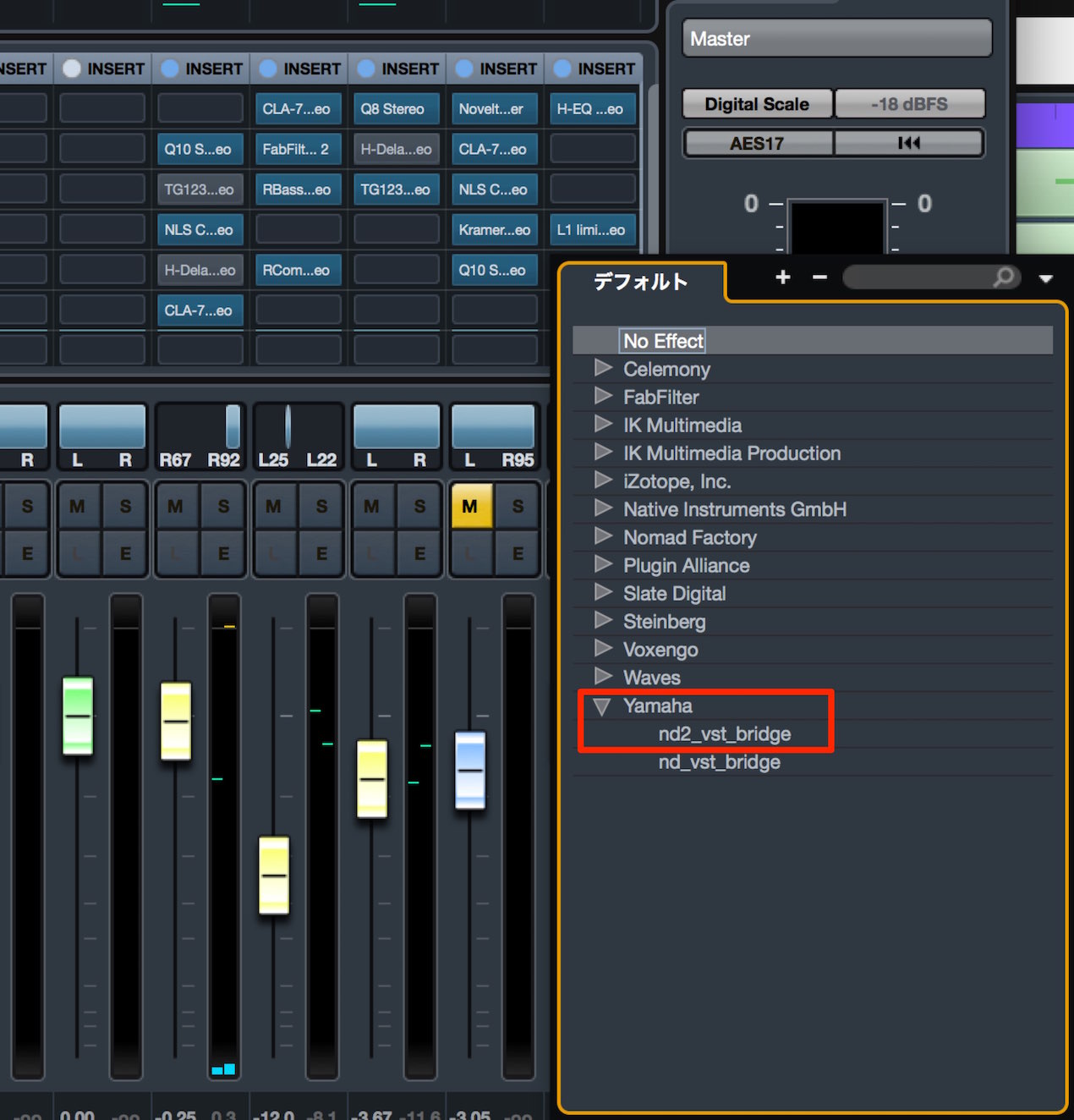
To send the sound of the whole DAW, insert it on the master track:
select YAMAHA → nd2_vst_bridge.
Audio is sent from the point where NETDUETTO is inserted.
Processing by plug-ins placed after NETDUETTO is not sent.
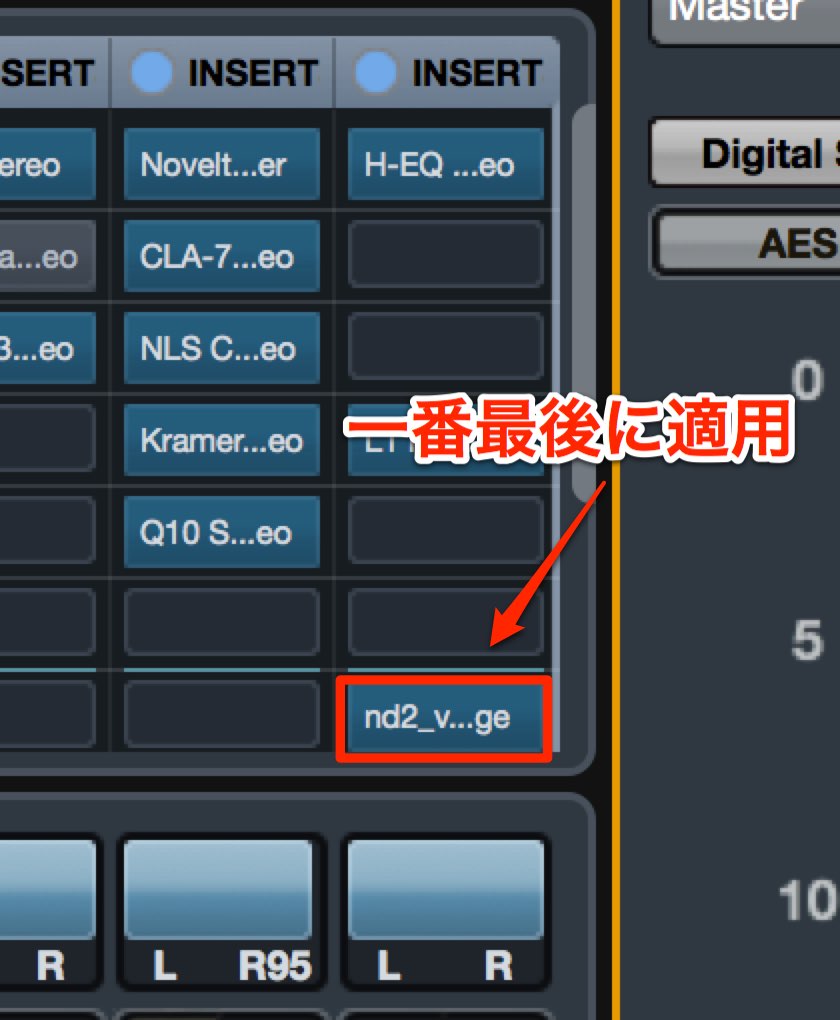
To send the sound after all track processing,
place NETDUETTO in the last slot.
Connecting to your collaborator
Now send your DAW audio to your collaborator.
Inserting NETDUETTO in the DAW launches the application automatically.
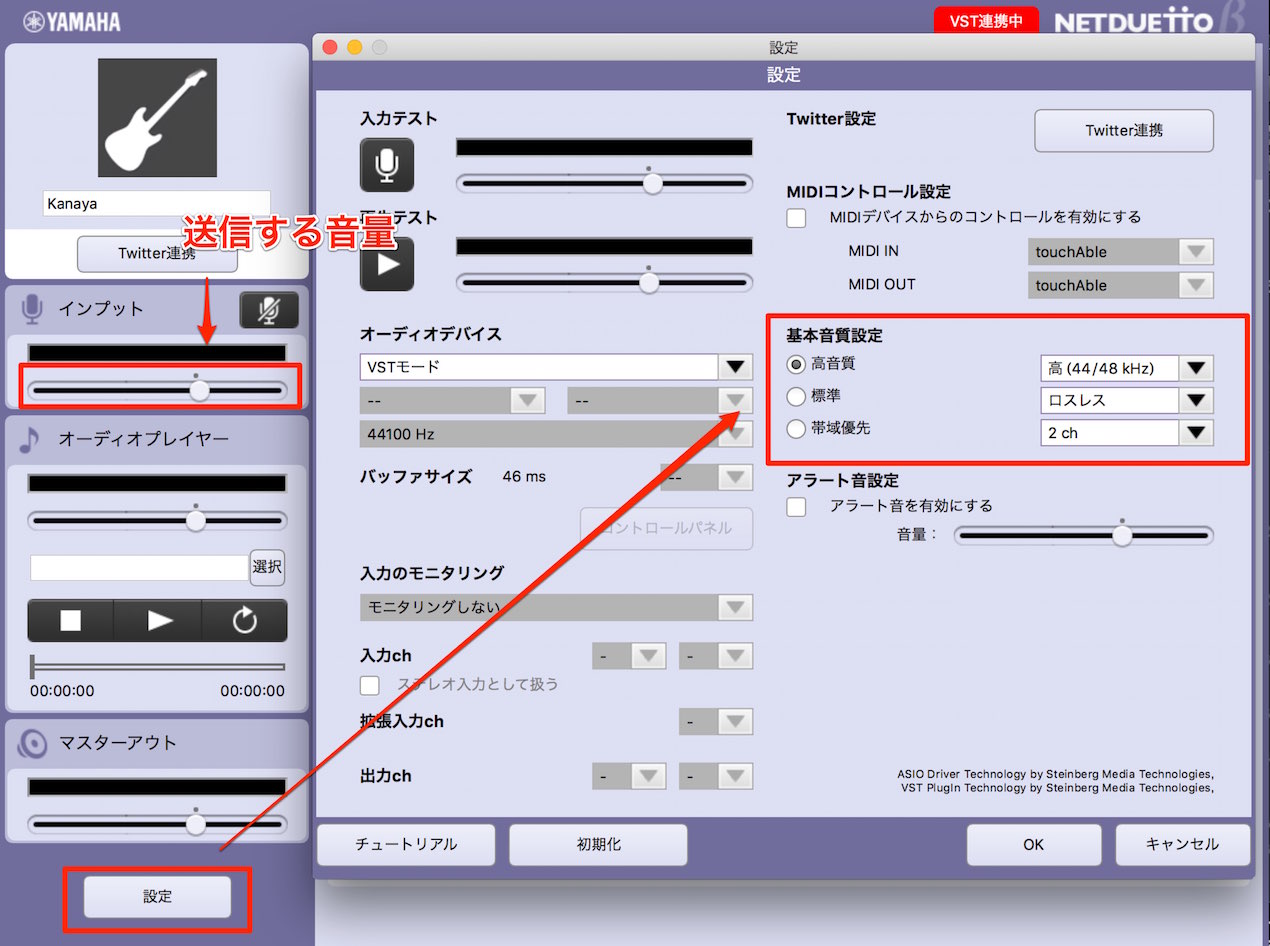
First choose the sound quality under Settings.
High Quality is recommended, but
the result depends on both users’ internet speeds.
If the connection is slow, try Standard or Bandwidth Priority after connecting,
and select the setting that produces stable audio.
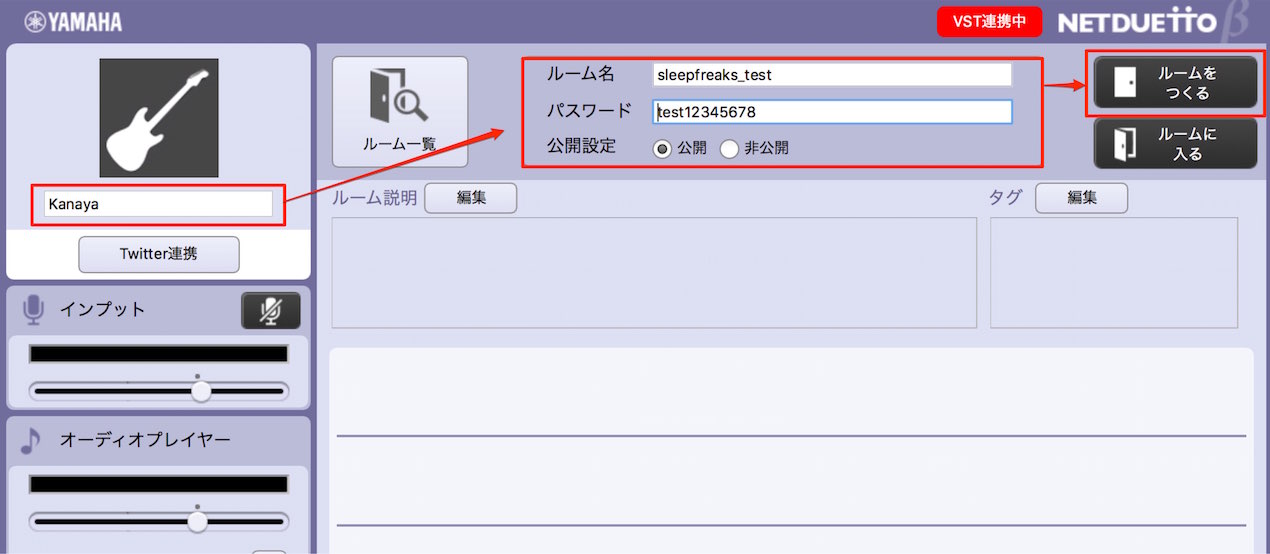
In Netduetto, users sharing sound join the same room.
First, create a room.
- 1. Choose a username that other participants can recognize.
- 2. Choose and enter a room name and password.
You can also make the room invisible to other users by selecting Private. - 3. Select Create Room.
This completes the setup for sending DAW audio.
Next, configure the receiving side.
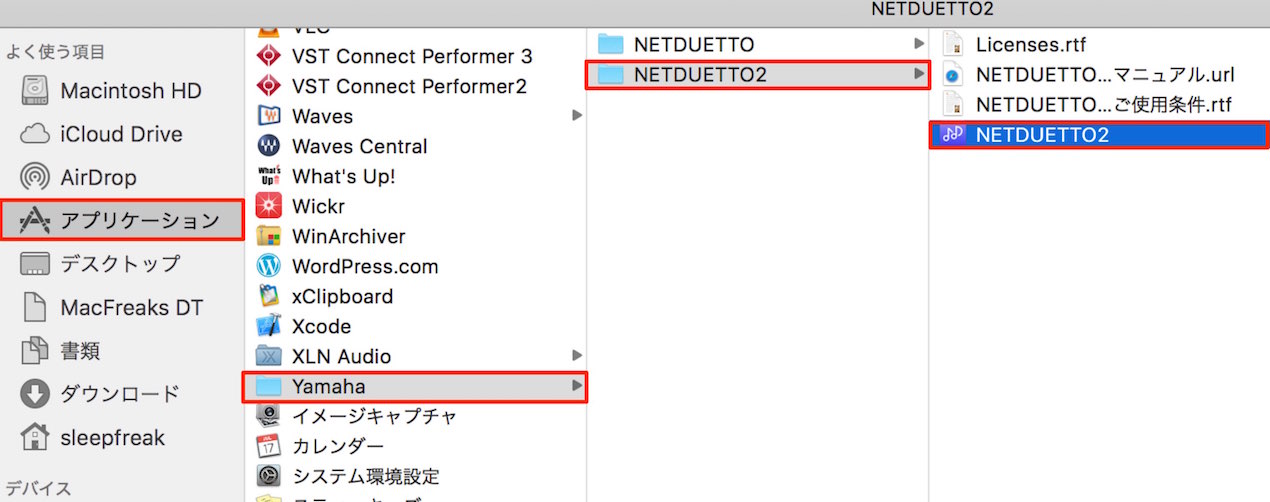
To launch the app standalone without a DAW,
open Applications (Program Files on Windows) →
YAMAHA → NETDUETTO2 folder → NETDUETTO2.
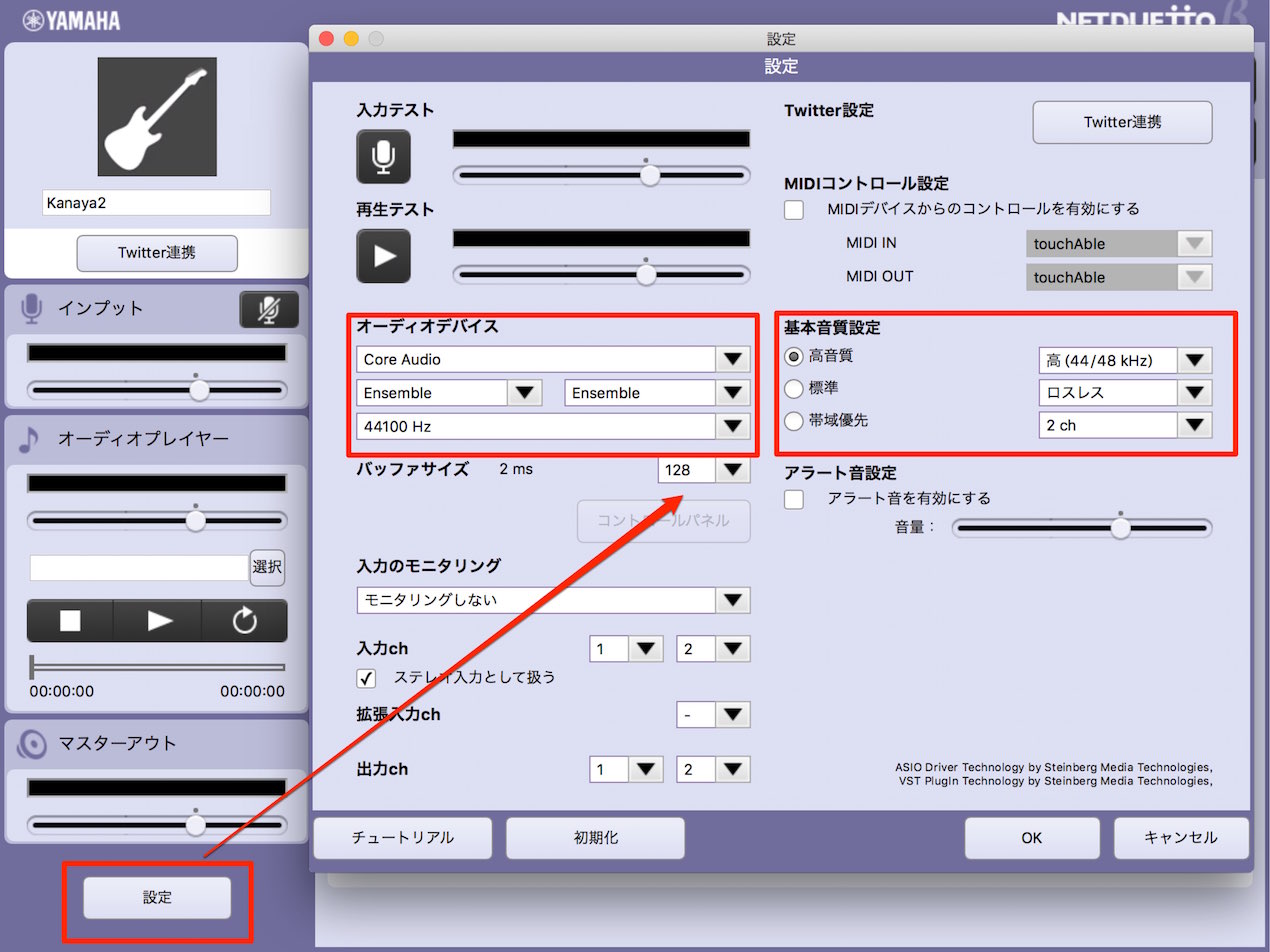
Open Settings.
Under Audio Device, choose the device through which you want to hear your collaborator.
Selecting the same sample rate as the other person’s DAW may improve performance.
The basic sound-quality settings are the same as those explained for the DAW side above.
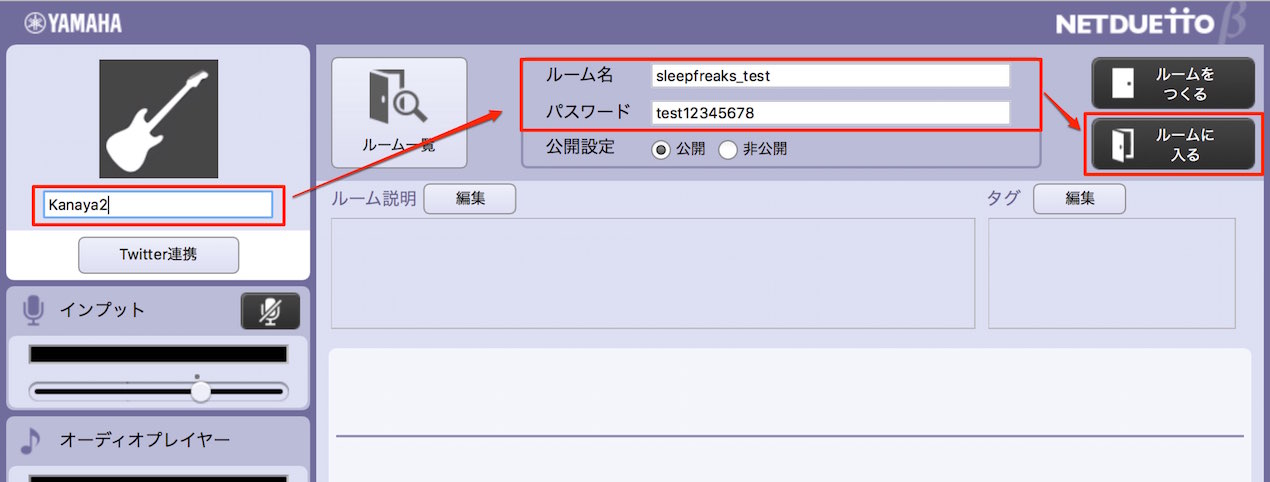
Set a username and enter the room name and password created by the DAW user,
then select Join Room.
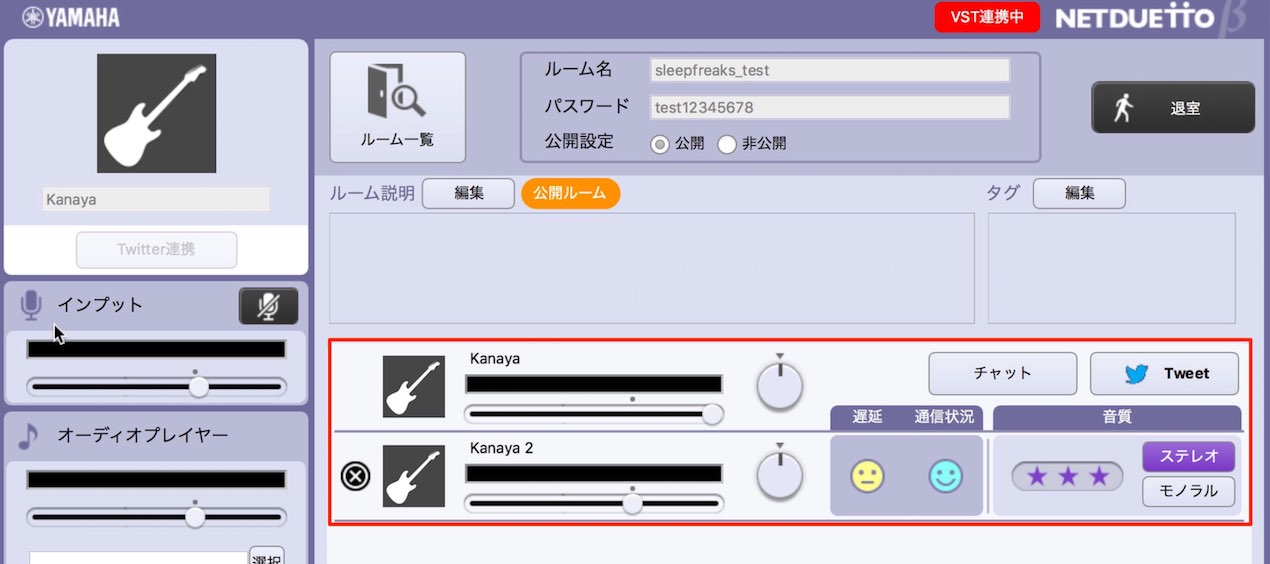
The users appear in the same room as shown.
When the sender plays the DAW, the receiver should hear its audio.
If both users launch the DAW plug-in, they can share their sounds with each other.
Depending on the sound-quality setting, the stereo audio can have low latency
and offer very good quality for streaming.
Give it a try.
Work more efficiently with voice calls and screen sharing

Voice calls and screen sharing can make online collaboration much more productive.
You can talk through NETDUETTO,
but if you also need chat or screen sharing, use separate software alongside it.
Frequently asked questions
Q1. How much did Netduetto 2 cost?
The beta was free at the time of this article and supported Mac and Windows DAWs with VST. Collaboration required no additional fee after installation. Yamaha subsequently introduced SYNCROOM and announced the end of the beta service.
Q2. What if the internet connection is slow?
Adjust the sound quality in Netduetto settings. High Quality is recommended, but try Standard or Bandwidth Priority after connecting and choose the setting that provides stable audio for your connection.
Q3. Could it be used with Logic on Mac?
The AU plug-in could be launched in Logic, but its operation was not guaranteed. The original article stated that operation was guaranteed with VST-compatible DAWs; check the applicable support information before relying on any compatibility claim.
Q4. How can I share my screen during a remote session?
The original article recommended combining Netduetto audio sharing with free calling and screen-sharing software such as Skype or TeamViewer to enable conversation, screen sharing and audio sharing together.
NEW ARTICLES
Latest English Articles





















































































































































































































































































































































































































