Customizing Studio One preferences can make music production more efficient. Autosave helps protect your work, while recording latency settings let you balance stability and responsiveness. MIDI playback and stop behavior options can make detailed editing smoother. Adjust these settings to suit your workflow. The interface and menu locations shown in this older tutorial may differ in newer versions.
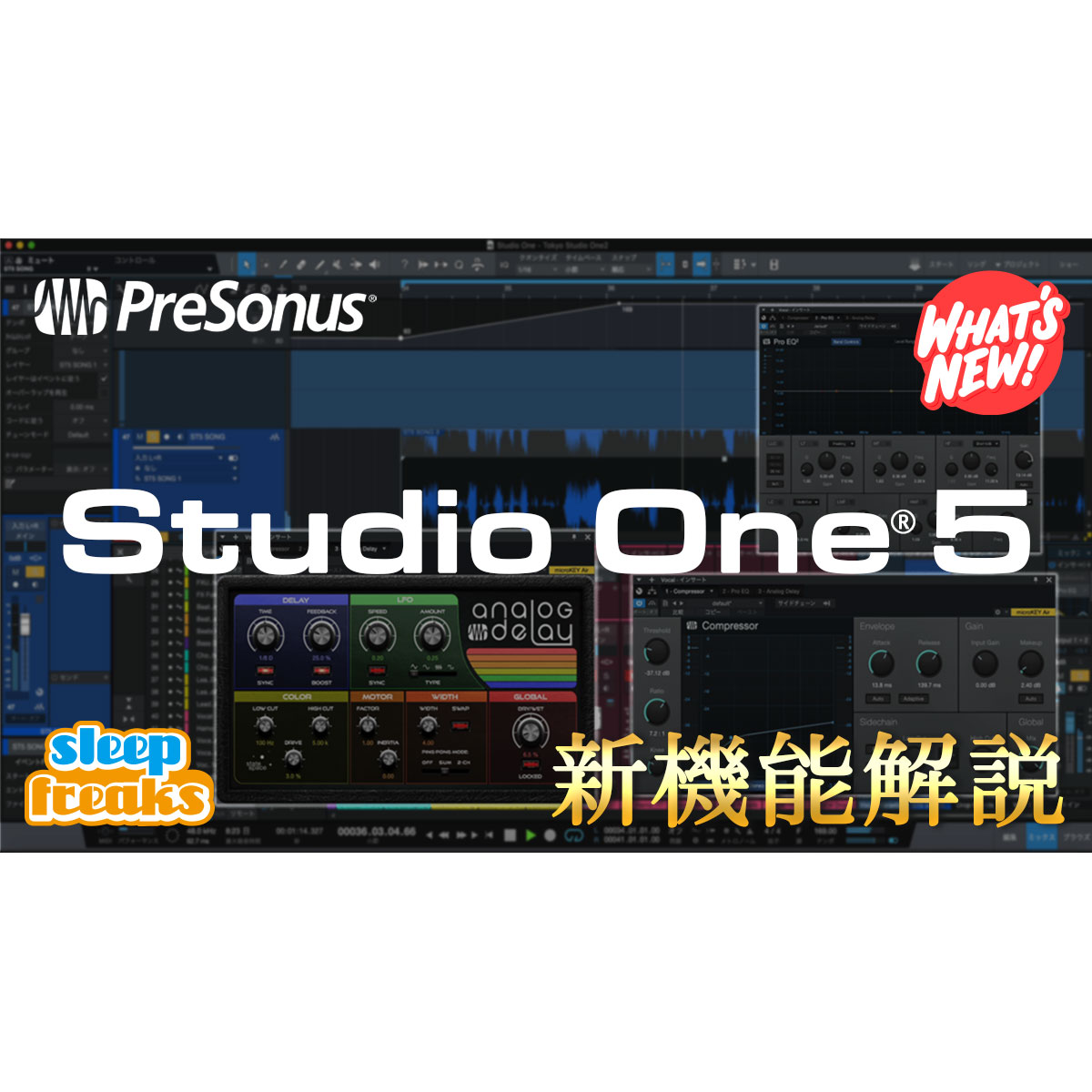
Adjust Studio One Preferences for a More Efficient Workflow
It is important to customize Studio One preferences so they suit the way you work.
A smoother workflow can also change how you make music.
Here are some preference settings I recommend.
Questions and answers from the YouTube video

If I record on a computer, can I transfer it to Android?

You can export audio from Studio One and import it into an Android app that supports audio import. For listening, a standard player app can play it; for editing, the possibilities depend on the app and its specifications.
Video highlights: Autosave
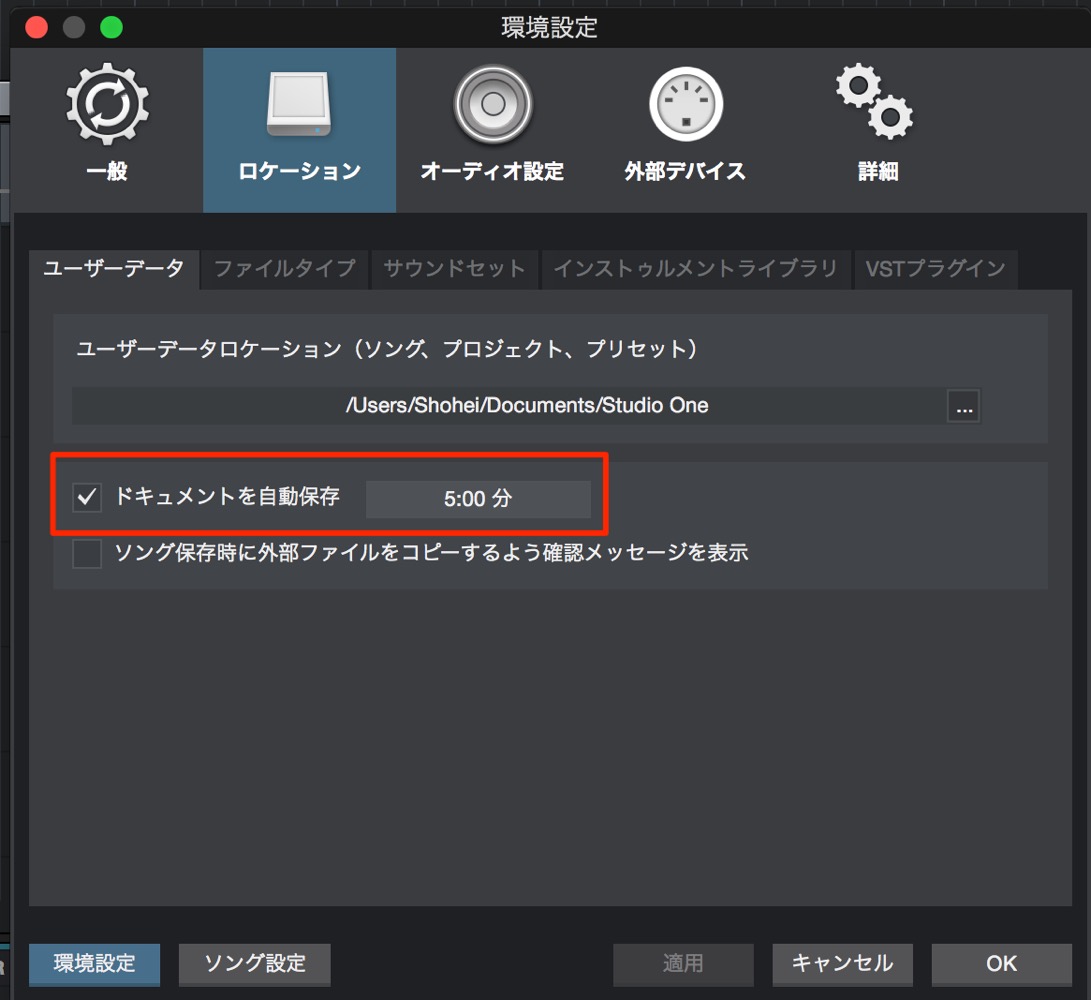
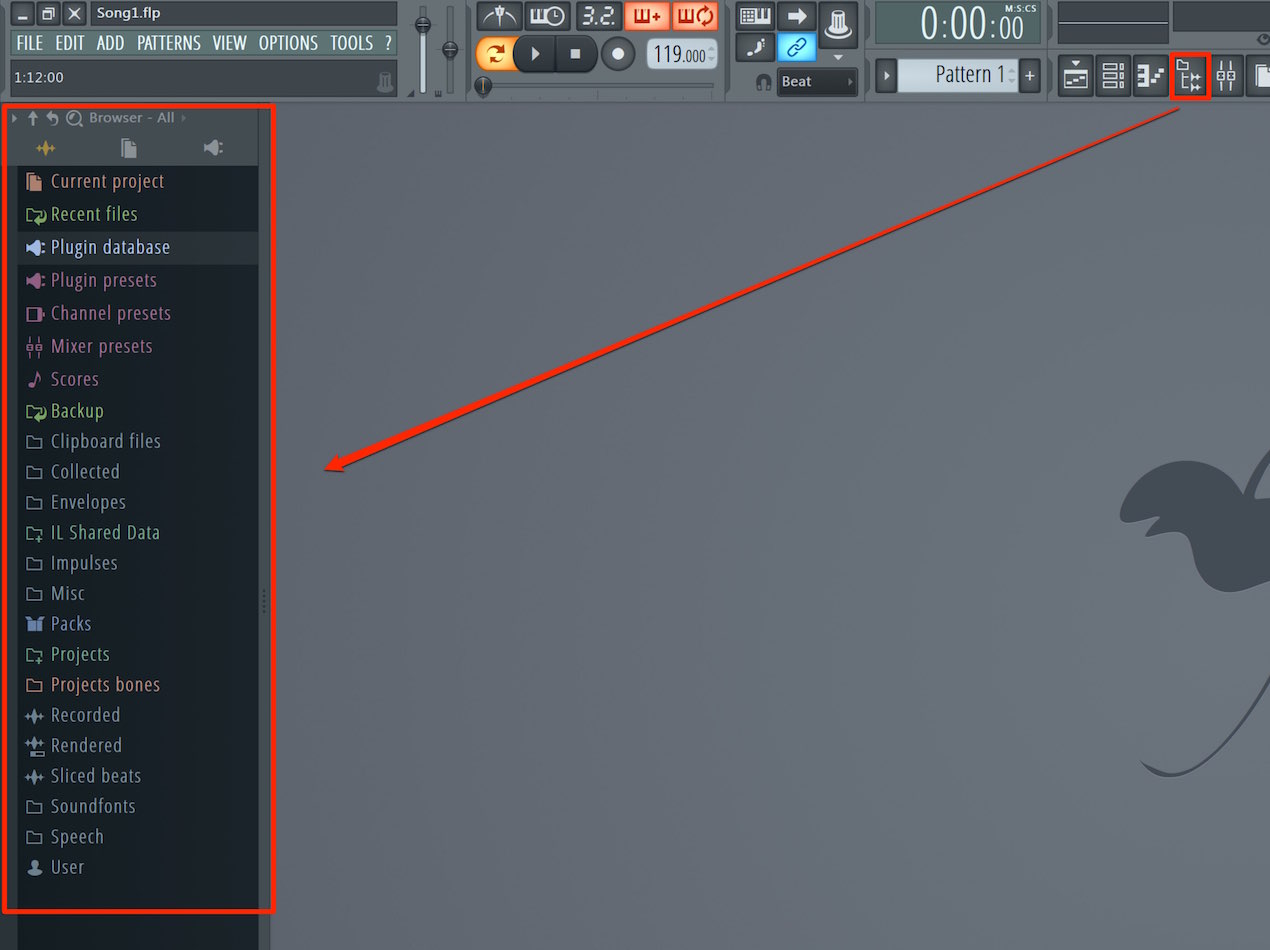
Under Locations → User Data,
you can configure automatic saving of your song.
Video highlights: Recording latency
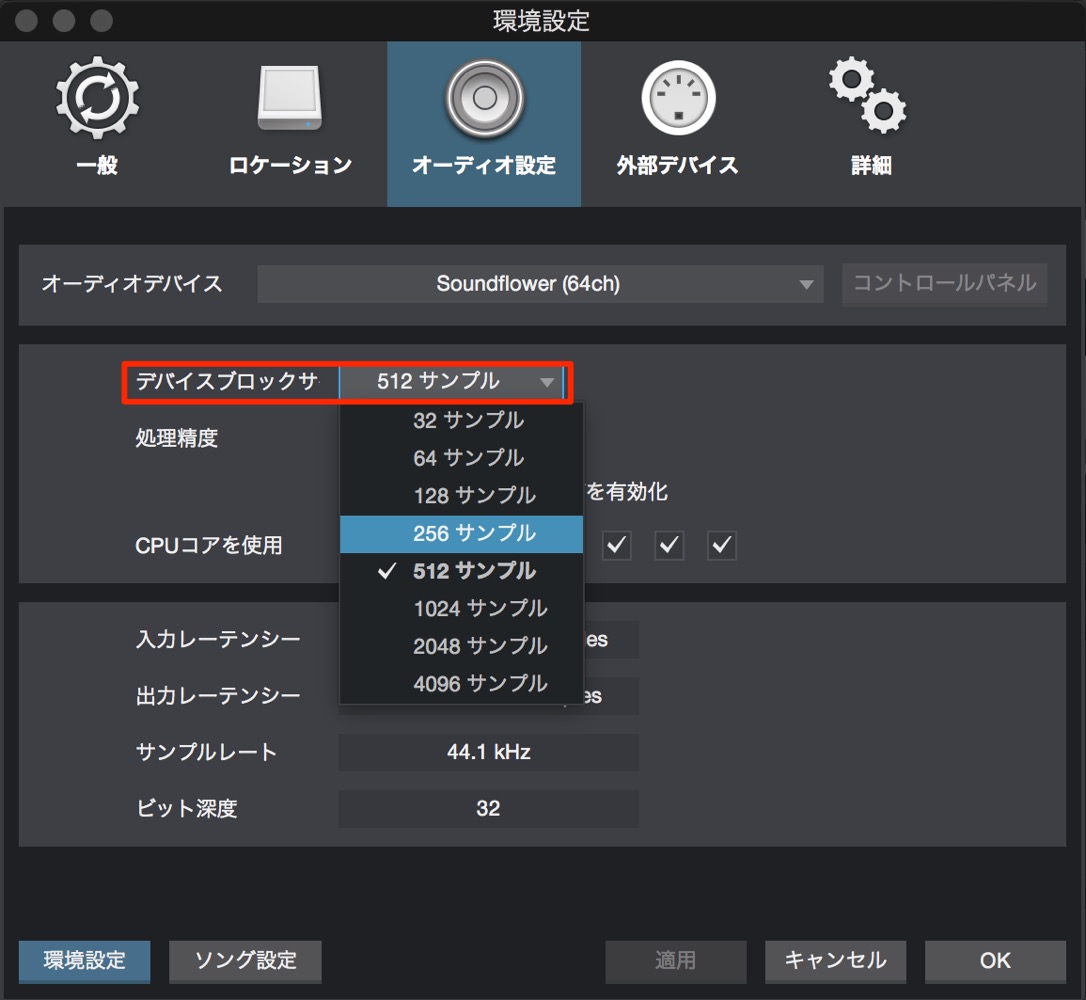
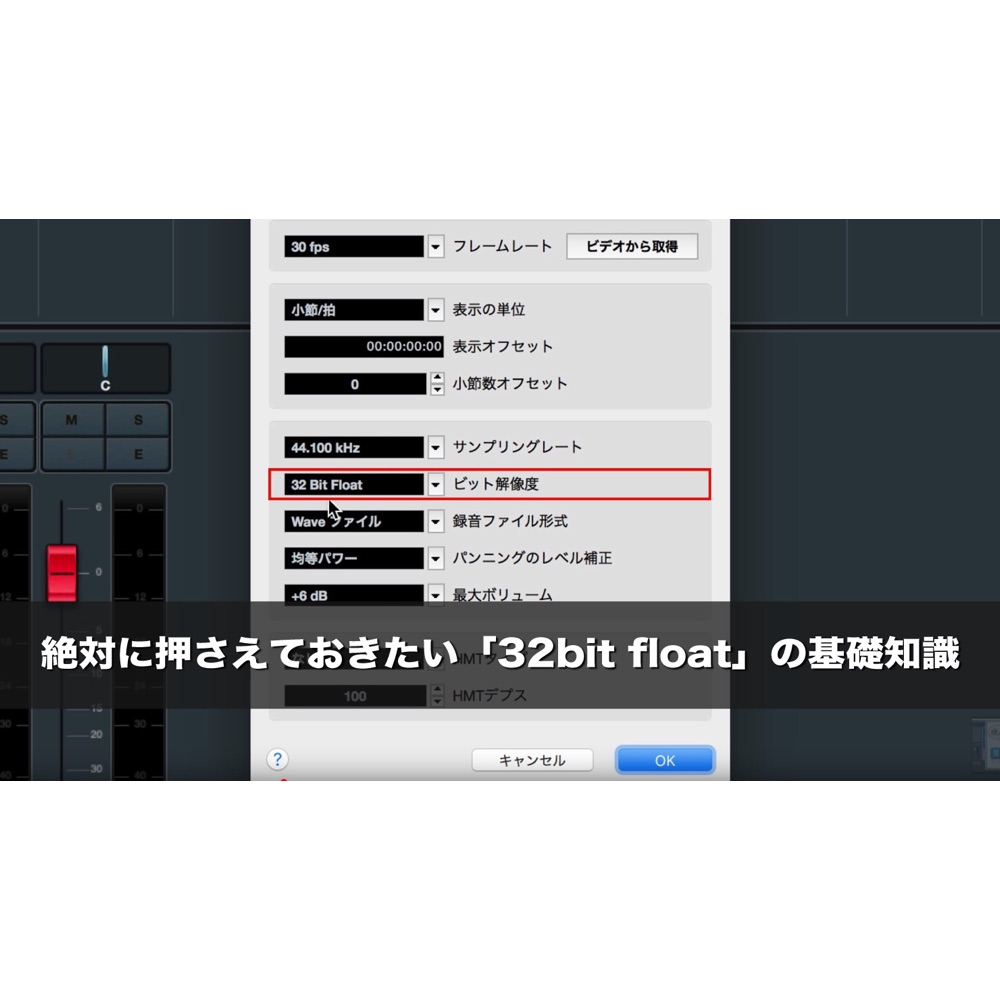
Under Audio Setup, you can adjust the latency you hear while recording.
A higher buffer setting generally improves stability but increases recording latency.
Choose the setting that suits the task.
Video highlights: MIDI playback
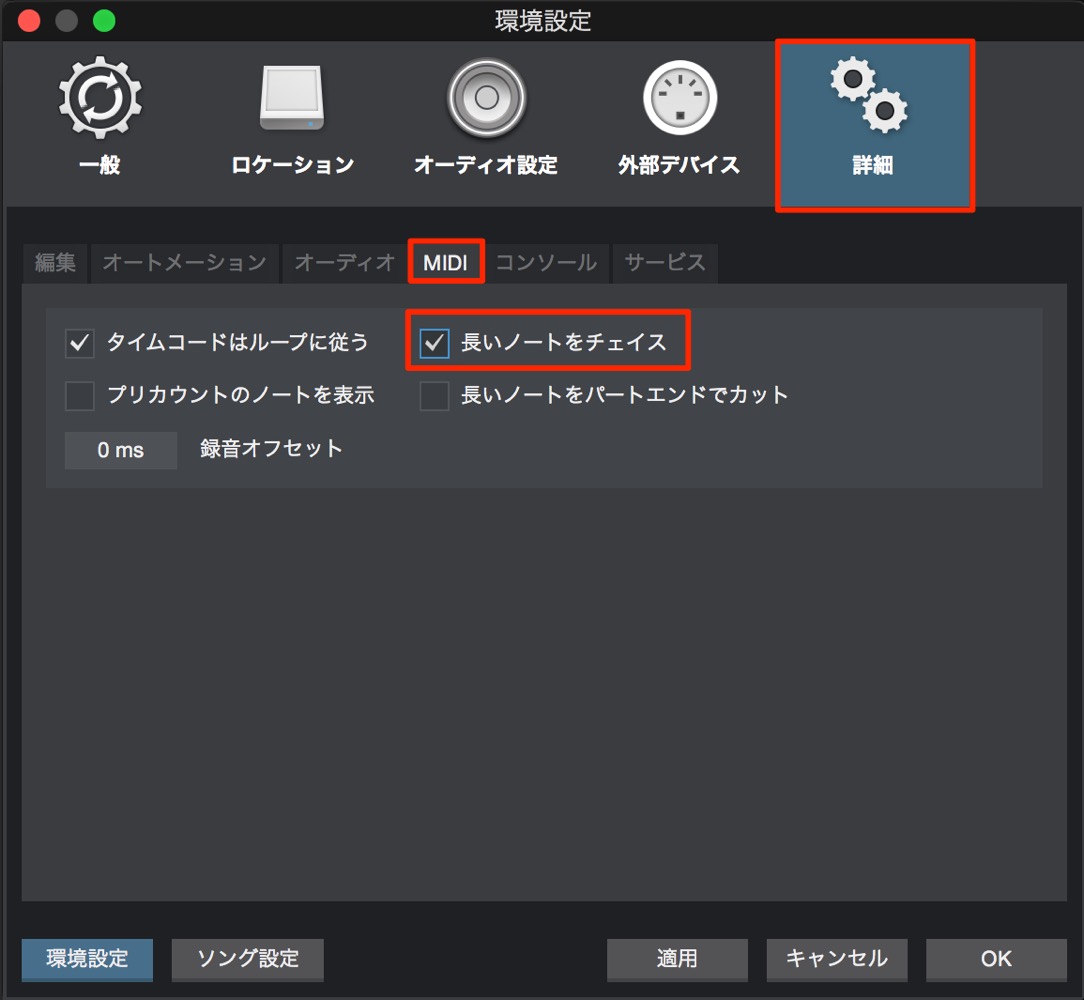
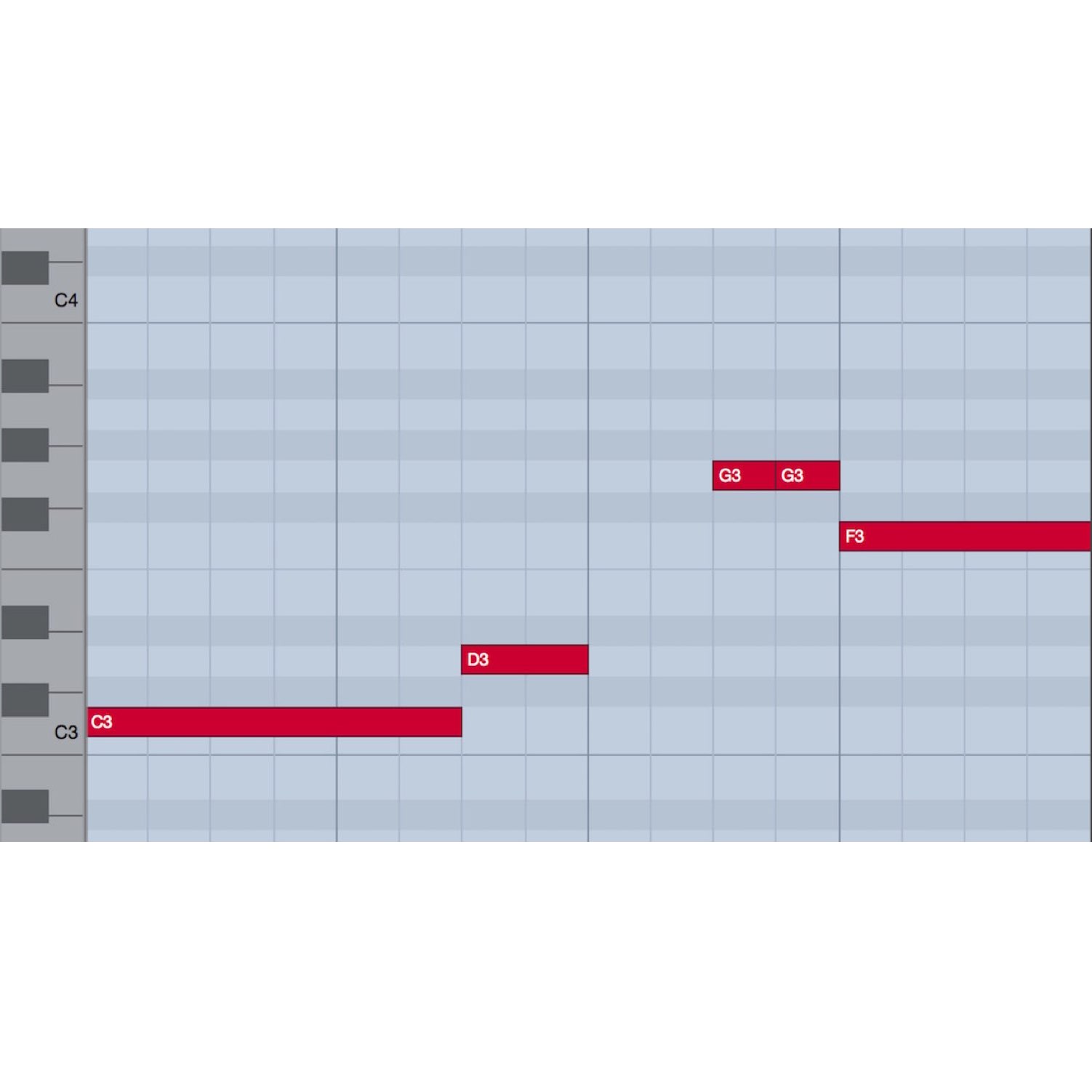
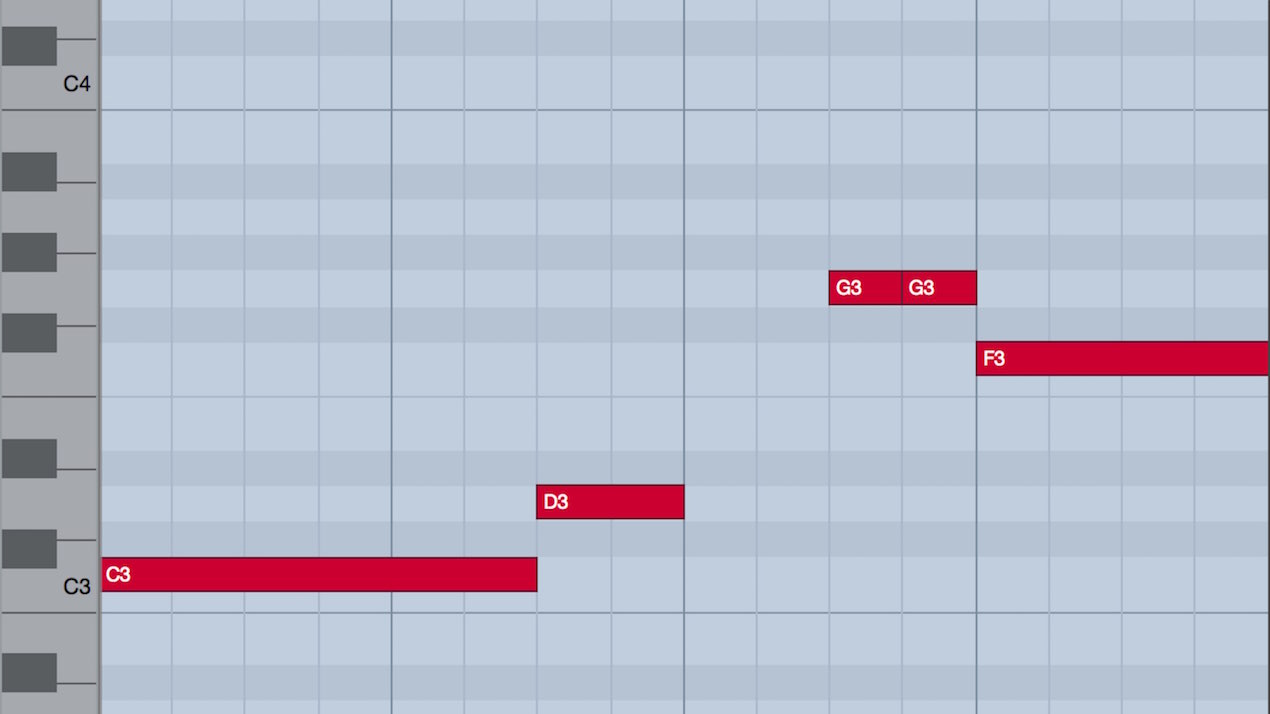
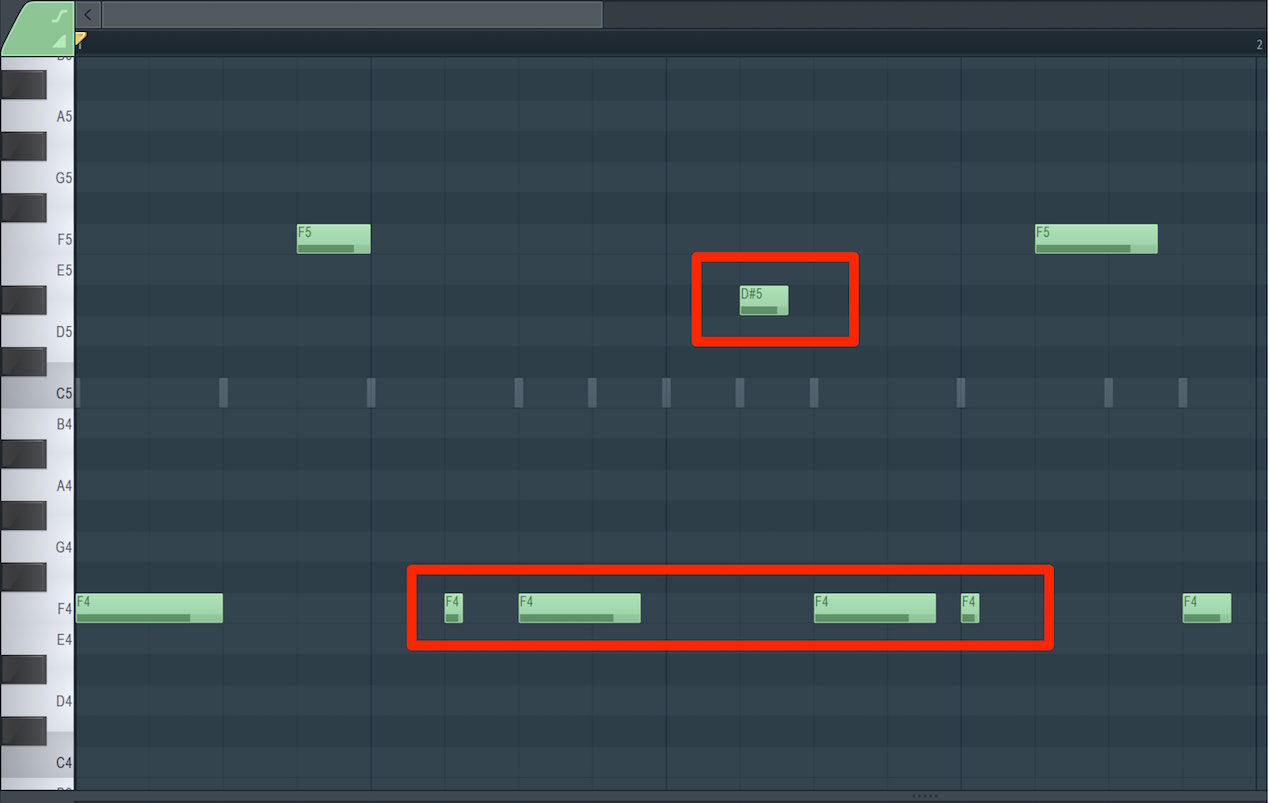
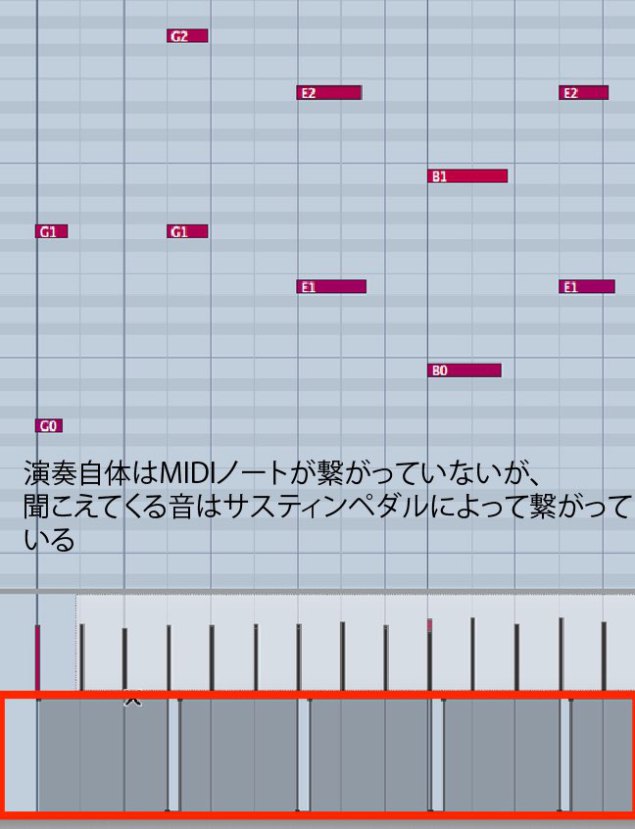
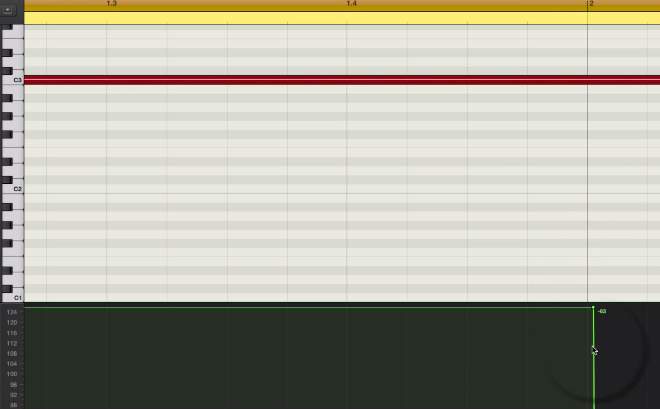
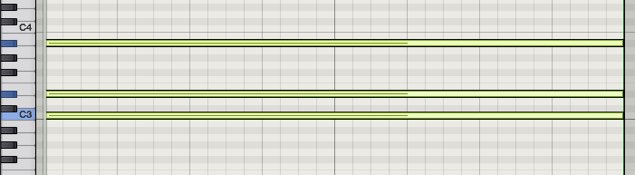
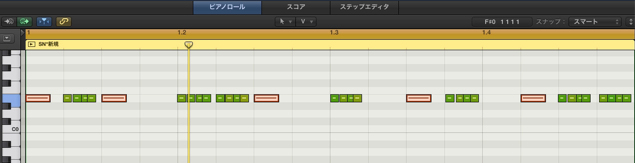
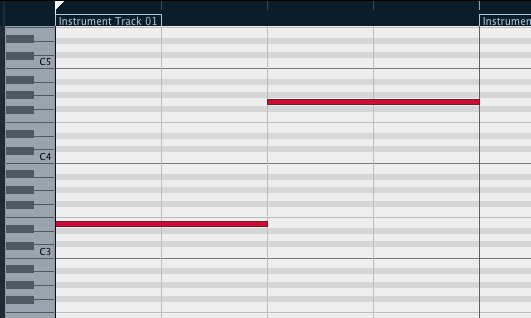
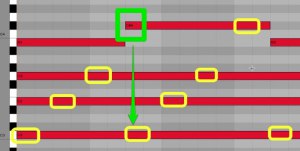
In Preferences, select Advanced → MIDI → Chase Long Notes,
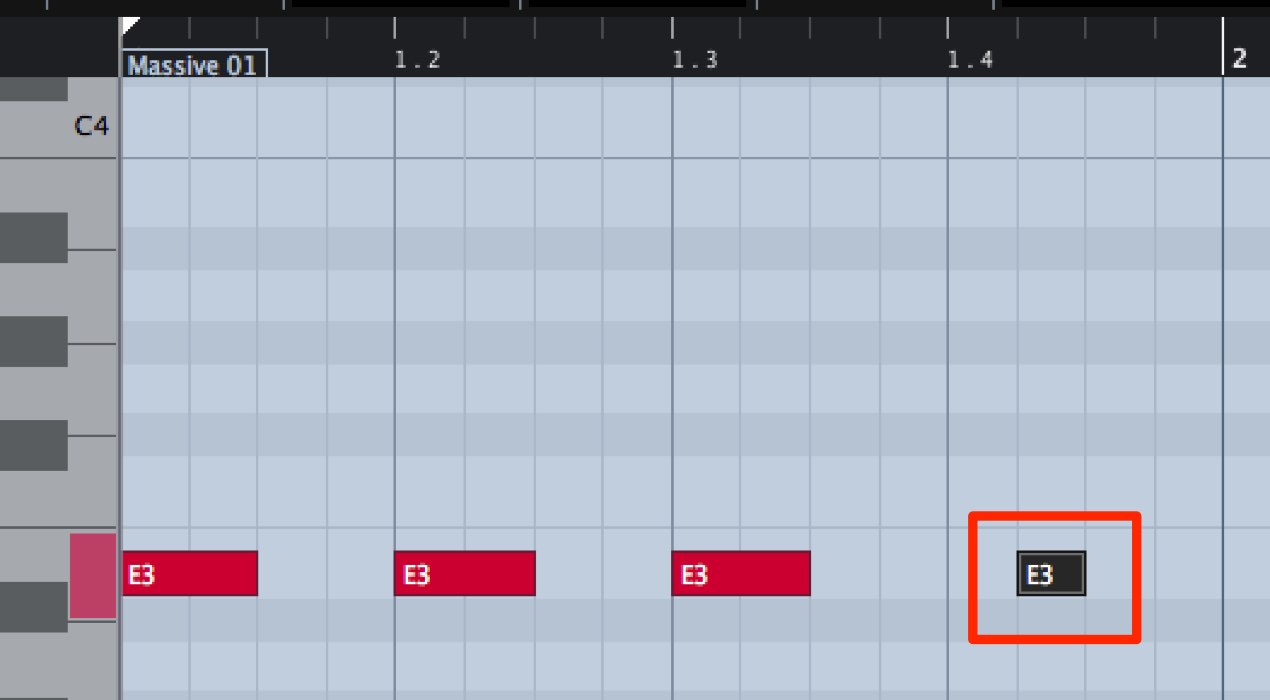
so a MIDI note can sound even if playback begins partway through it. Menu locations may differ by version.
Playback and stop behavior
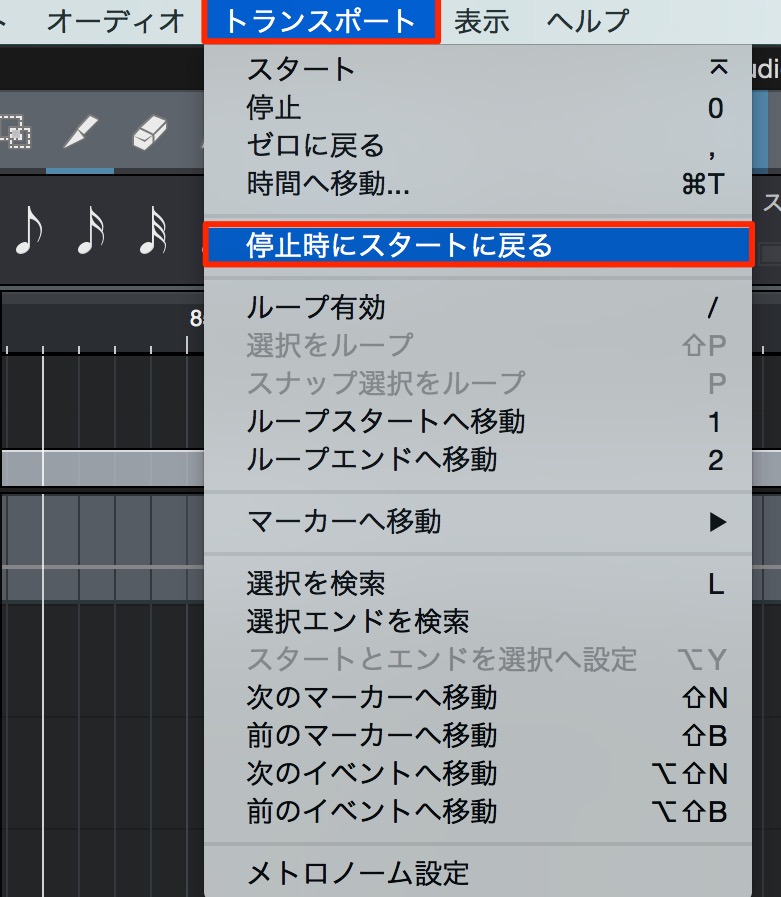
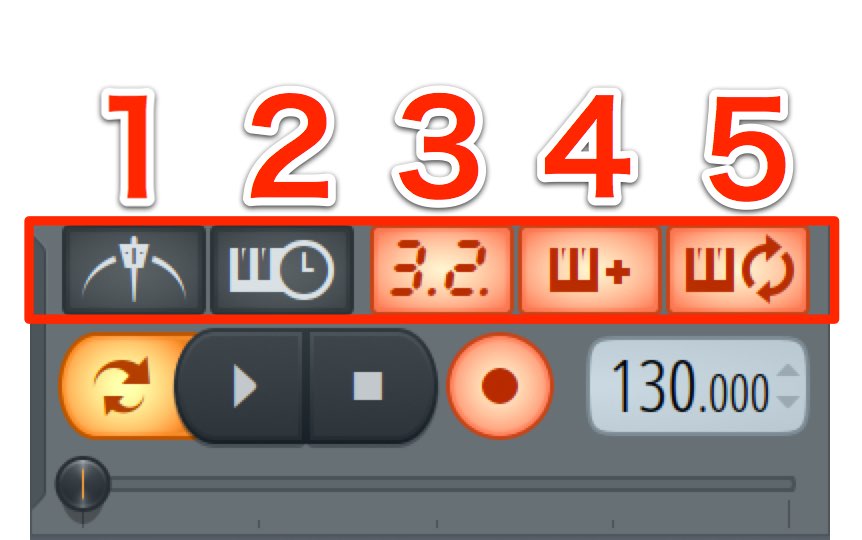
From the top menu, enable Options → Return to Start on Stop.
When you stop playback, the cursor returns to the position where playback began.
This is useful for detailed editing.

Frequently Asked Questions
Q1. Where can I configure autosave in Studio One?
In the version shown, use Locations → User Data to configure song autosave. Regular saving helps reduce the risk of losing work if the application quits unexpectedly. Menu locations can vary by version.
Q2. What should I do if I hear a delay while recording?
Adjust the buffer or latency setting in Audio Setup. A higher setting generally improves stability but increases latency, so choose a setting that suits the task.
Q3. Why is there no sound when playback starts partway through a MIDI note?
Enable Chase Long Notes so notes can sound when playback starts after their beginning. The pictured settings screen places this under Preferences → Advanced → MIDI; menu locations can vary by version.
Q4. How can I make detailed editing more efficient?
Enable Options → Return to Start on Stop to return the cursor to the playback start position when you stop, making repeated edits easier.
NEW ARTICLES
Latest English Articles