
This article explains how to make a smooth transition to Cubase 8. The Japanese introduction states that it was released in December 2024, although this article was originally published in December 2014. Learn how to transfer preferences and key command presets from an earlier version, select 32-bit or 64-bit settings on Mac and Windows, and customize the plug-in display using the new Plug-in Manager. These steps help you retain your existing working environment while making use of Cubase 8’s new features.
Making a Smooth Transition to Cubase 8

Cubase 8 was released on December 3, with a variety of new features.
First, we will focus on transferring settings from an earlier version.
Cubase 8 Tutorial Videos
Cubase 8: Smooth Transition from an Earlier Version (this page)
Cubase 8: Render in Place
Cubase 8: VCA Faders
Cubase 8: Direct Routing
Cubase 8: Chord Pads and Chord Track
Operating Systems Supported by Cubase 8
- Mac: OS 10.9 / 10.10
- Windows: 7 / 8 / 8.1
Note that Mac OS 10.8 and earlier are not supported.
32-bit and 64-bit on Mac
When using Cubase 8 on a Mac,
you can choose whether to launch it in 32-bit or 64-bit mode.
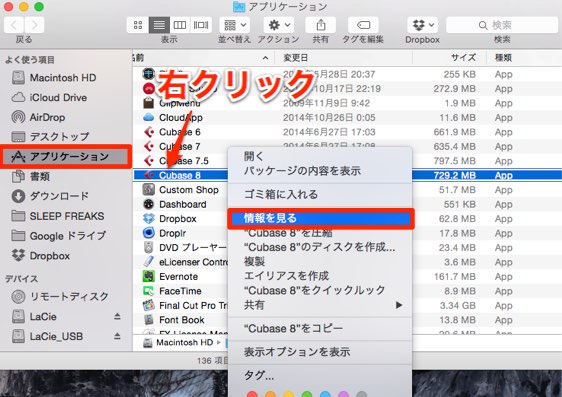
In Applications, right-click Cubase 8.
Choose Get Info from the menu.
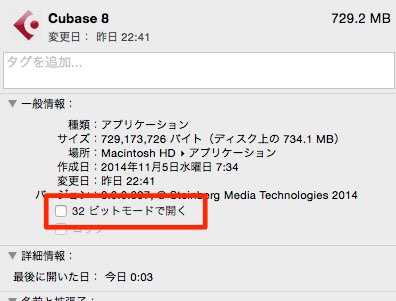
Check the box outlined in red to launch in 32-bit mode;
uncheck it to launch in 64-bit mode.
Transferring Preferences and Key Commands on Mac
By saving preference and key command presets in your previous version,
you can easily apply them in Cubase 8.
Preferences
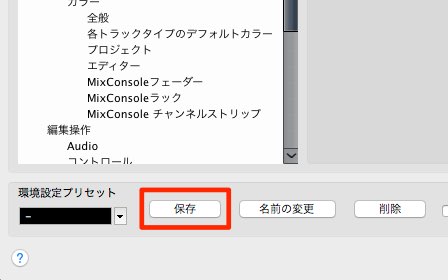
Launch your previous version of Cubase.
Save the preset via Cubase → Preferences in the top menu.
Key Commands
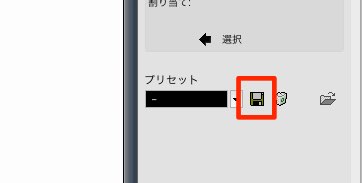
Launch your previous version of Cubase.
Save the preset via File → Key Commands in the top menu.
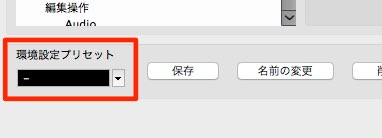
The preset will then appear in Cubase 8, where you can select it.
Transferring Preferences and Key Commands on Windows
First, open your previous version of Cubase.
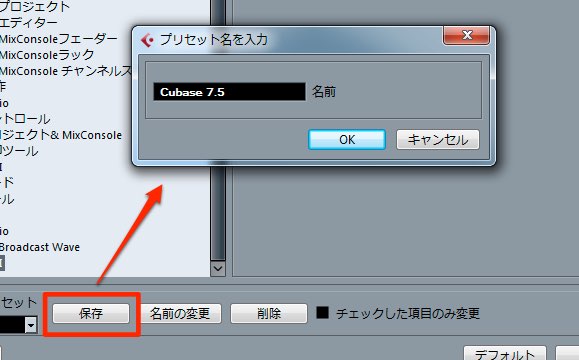
Save your preferences via File → Preferences in the top menu.
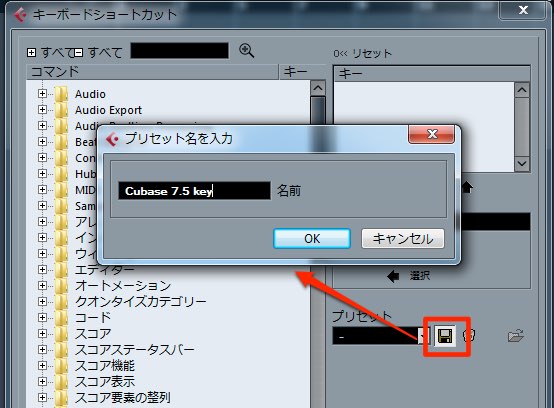
Save your key commands via File → Key Commands in the top menu.
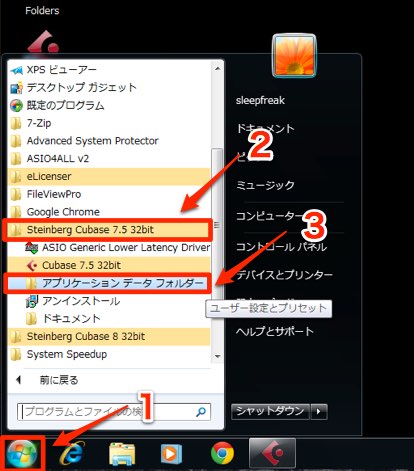
From the Start menu, open the previous version of Cubase → Application Data Folder.
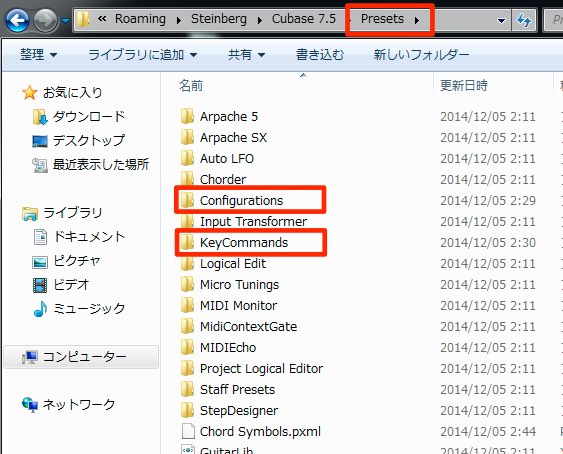
Open Presets inside that folder;
you will find Configurations (preferences) and KeyCommands folders.
These contain the files you saved above.
Copy the files to your desktop.
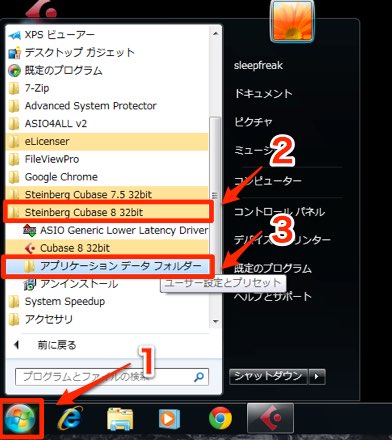
Next, open Cubase 8 → Application Data Folder from the Start menu.
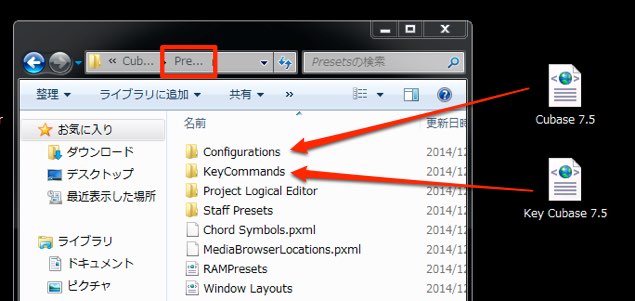
Open Presets;
you will find Configurations (preferences) and KeyCommands folders.
Place the files copied to your desktop into the corresponding folders.
If the Presets folder does not exist,
save any preferences and key command presets in Cubase 8 and it will appear.
That completes the transfer.
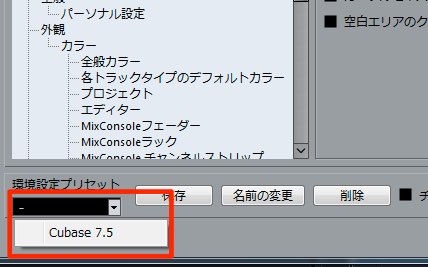
The presets will appear in Preferences and Key Commands in Cubase 8.
Plug-in Display
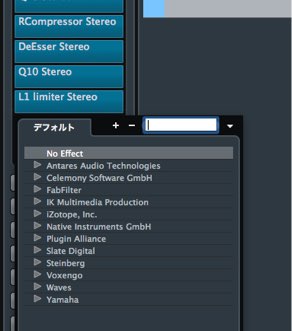
The way plug-ins are accessed has changed.
In previous versions, you could change the plug-in display via Cubase → Preferences in the top menu,
but this option has been removed.
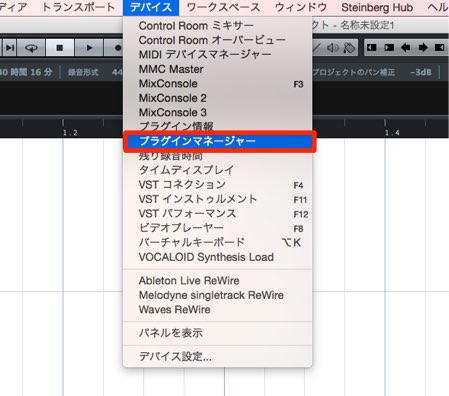
Select Devices → Plug-in Manager from the top menu.
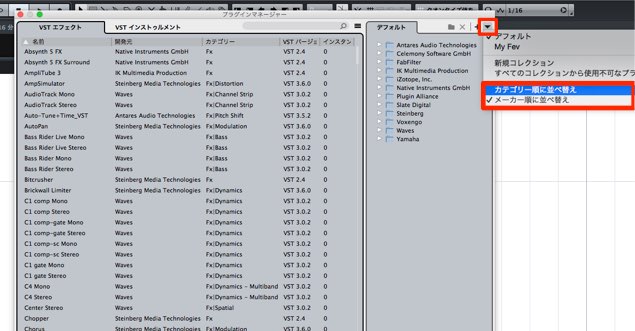
Use the area outlined in red to switch the display.
Customizing the Plug-in Display
One particularly useful new feature
is the ability to customize the plug-in display.
As above,
select Devices → Plug-in Manager from the top menu.
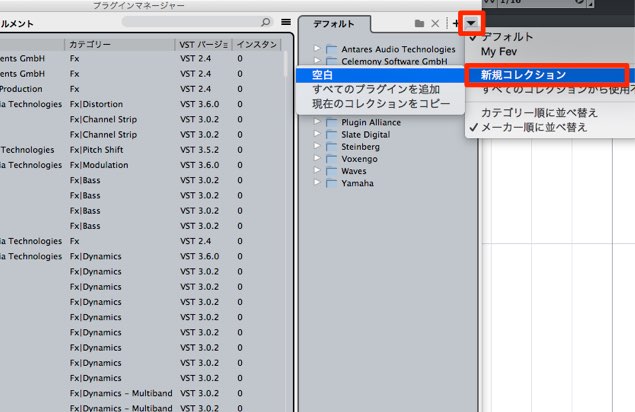
In the area outlined in red, select New Collection,
then choose Empty.
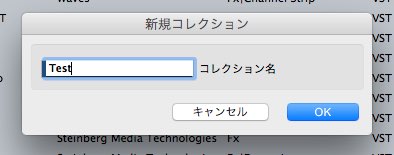
Enter a name for the collection.
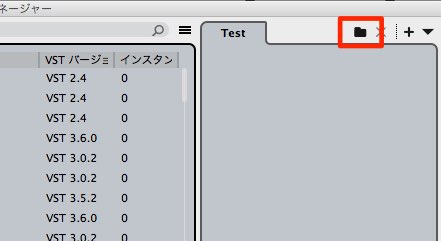
Click the folder icon outlined in red
to create a folder of your choice.
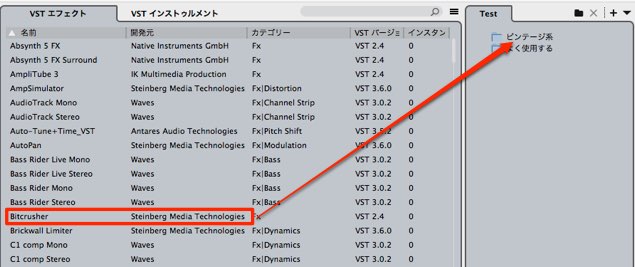
You can add as many folders as you like.
Once created, drag and drop your preferred plug-ins into them.
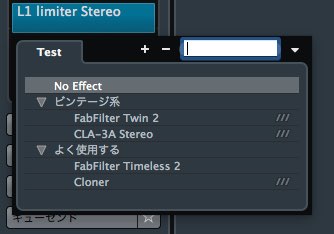
When you open plug-ins on a track,
your configured preset will appear as shown.
You may also want to use the default preset.
Switching to it is easy.
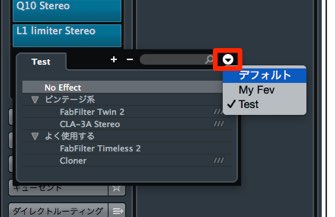
Click the area outlined in red
to switch between Default and the user preset.
Frequently Asked Questions
Q1. Can I transfer my existing key commands when moving from Cubase 7 to Cubase 8?
Yes. Save a preset in the previous version under File → Key Commands, then load it using the same procedure in Cubase 8 to use your customized shortcuts.
Q2. How do I choose between launching Cubase 8 in 32-bit and 64-bit mode on a Mac?
Right-click Cubase 8 in the Applications folder and choose Get Info. Use the “Open in 32-bit mode” checkbox: checked launches in 32-bit mode, unchecked in 64-bit mode.
Q3. How can I quickly access only my frequently used plug-ins in Cubase 8?
Under Devices → Plug-in Manager, choose New Collection and select Empty. Name the collection, then drag and drop the plug-ins you want into it. You can also create multiple collections.
NEW ARTICLES
Latest English Articles


































































































































































































































































































































































































































































































































