Sample One, the sampler included with Studio One, makes it easy to turn your own audio into an instrument. This guide covers the basics: dragging in samples, mapping them to keys, setting playback and loop ranges, using the filter, and adjusting pitch bend. It also introduces REX file support for sliced rhythm samples. These features give you creative ways to work with voices and other sampled sounds.
Sample One: An accessible, powerful sampler
Studio One includes the sampler Sample One.
It comes with a variety of instrument presets, but you can also
use your own audio material as an instrument with ease.
You can process vocal samples and other sounds,
opening up a wide range of creative possibilities.
In this article, we will explain the basics of Sample One
and how to import and edit your own material.
Sample One video series
- 1Basic concepts and loading samples (this article)
- 2Monophonic mode and glide
- 3Creating an orchestral hit, part 1
- 4Creating an orchestral hit, part 2
Selected questions and answers from YouTube

I want to use samples downloaded for free from a site called Cymatics in Studio One. What should I do after downloading them?

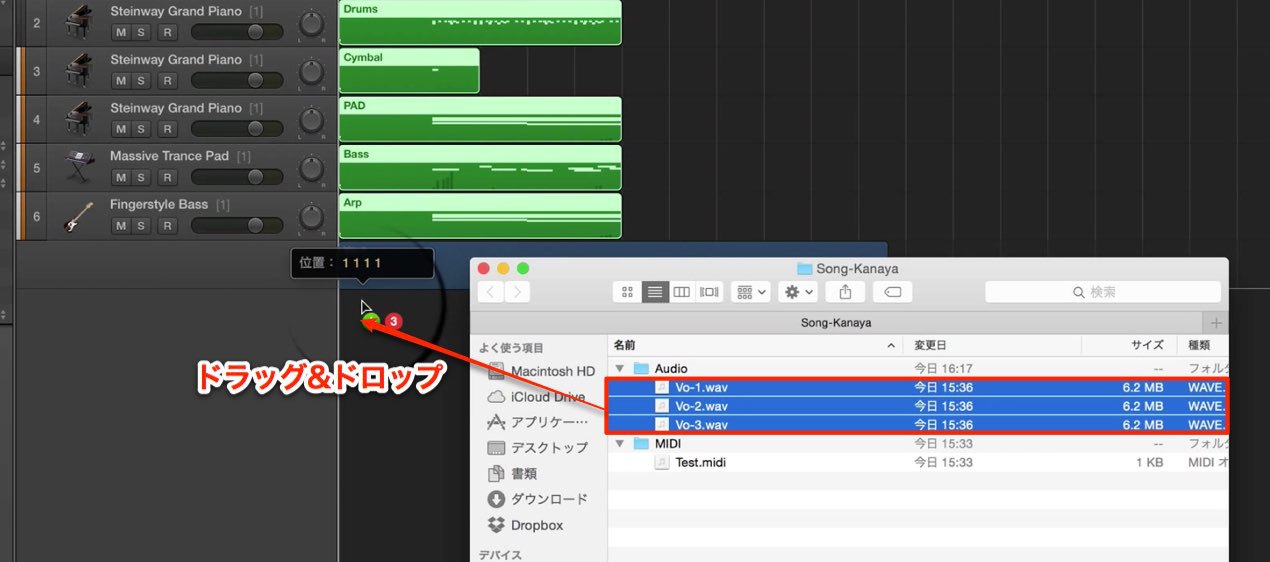
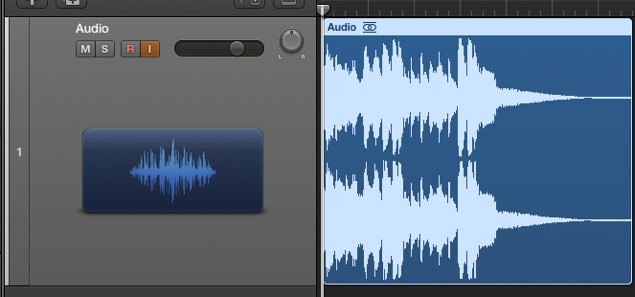
Try dragging and dropping the samples onto the Studio One timeline.
Video focus: Loading a sample
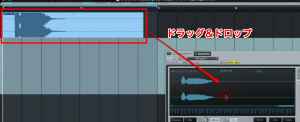
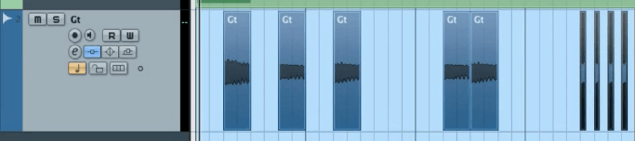
Drag and drop an audio file from the song to
load it into Sample One.
Video focus: Mapping samples
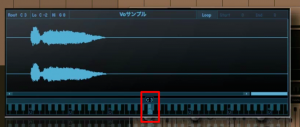
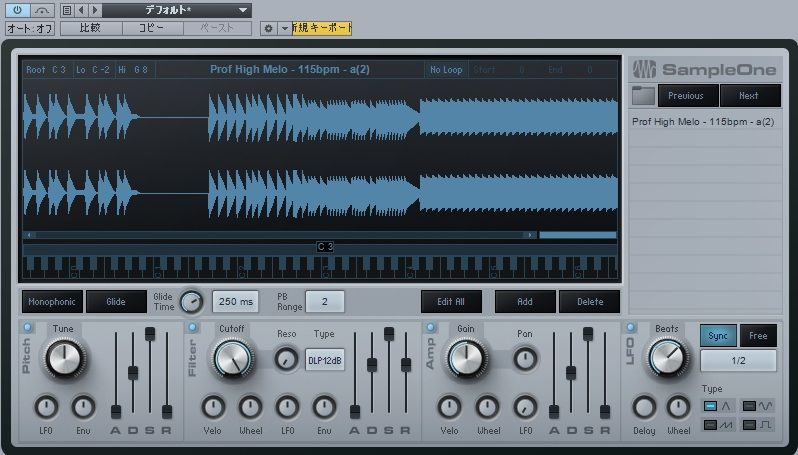
Once loaded, the sample is automatically mapped across the keyboard.
By default, C3 is the sample’s original reference key.
Pitch and playback speed change relative to C3.
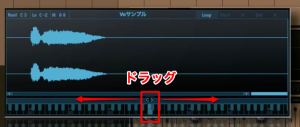
Drag the sample left or right
to move its reference key to a note other than C3.
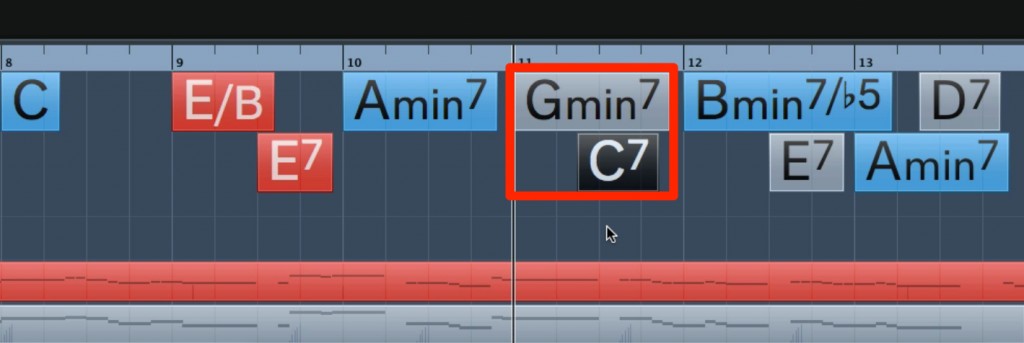
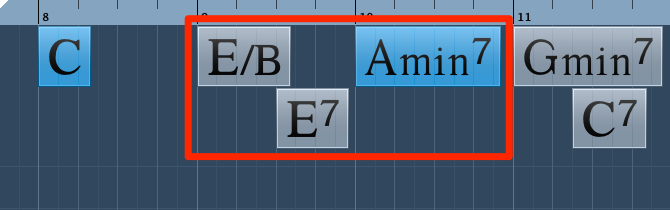
For example, if a sample contains an E chord,
placing its reference key at E3 instead of the default C3 can make it more convenient to work with.
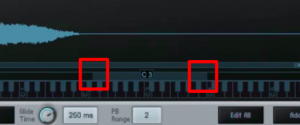
Drag the area outlined in red
to set the range of keys that will play the sample.
This also lets you assign different samples to different keys.
Video focus: Editing a sample
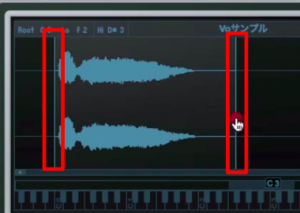
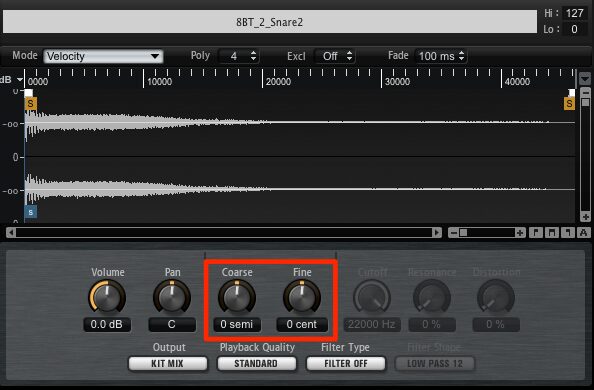
Drag the area outlined in red to
set the sample’s playback range.
This is useful for
removing unwanted silence
or starting playback at a chosen point in the sample.
Video focus: Looping a sample
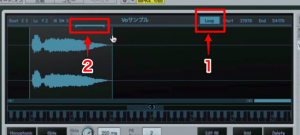
While a key is held, you can repeat a selected part of the sample.
- 1. Turn on Loop.
- 2. Drag to set the loop range.
This is useful for sounds such as pads that you want to sustain for a long time:
the selected section repeats while the key is held,
allowing the sound to continue without stopping.
Video focus: Deleting a sample
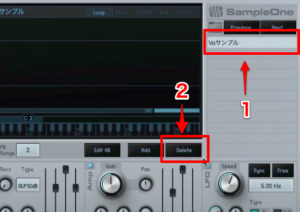
To remove a loaded sample,
select it and click Delete.
Video focus: Filter settings
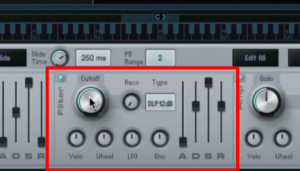
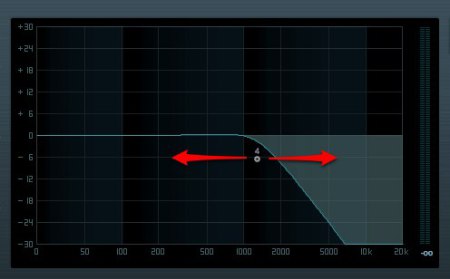
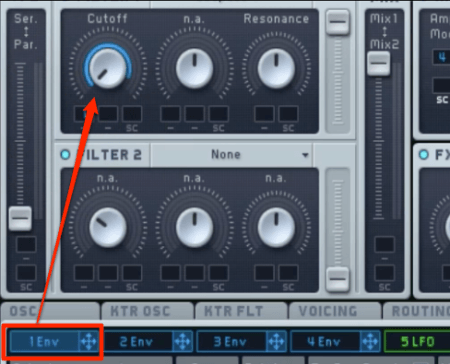
Use Filter to control the character of the sound.
The following Mojito video explains this section in more detail.
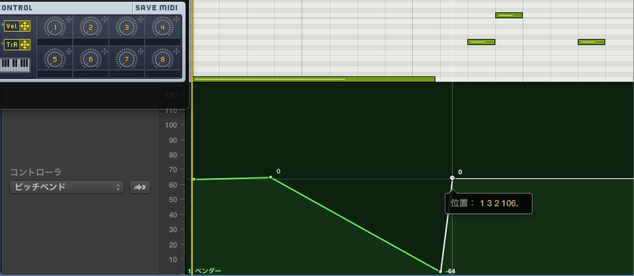
Video focus: Pitch bend settings
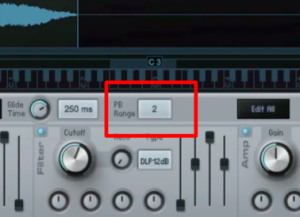
Use the area outlined in red
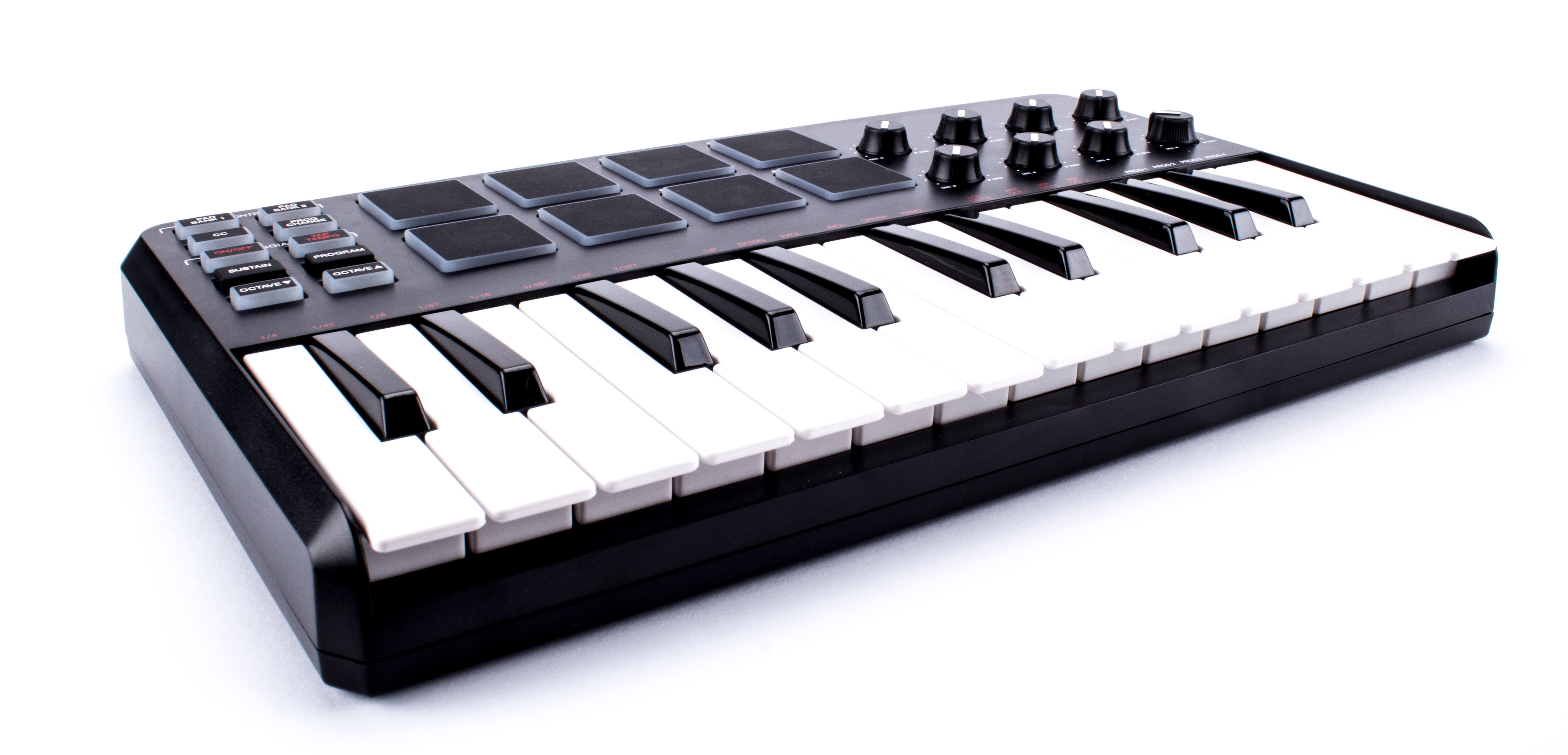
to adjust the pitch-bend range of a MIDI keyboard.
The value uses one-semitone steps for both upward and downward bends.
Video focus: Loading REX files
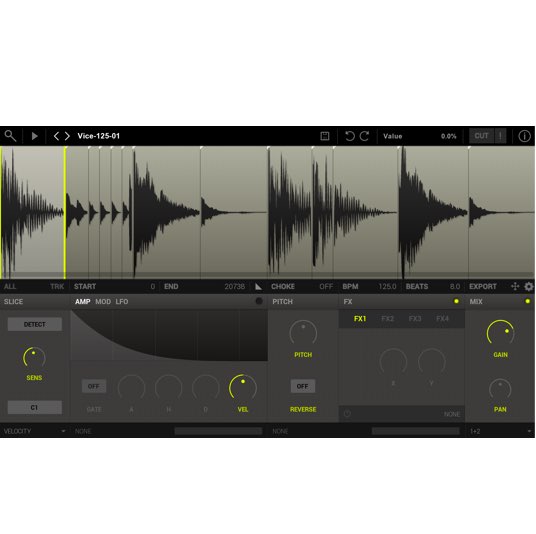
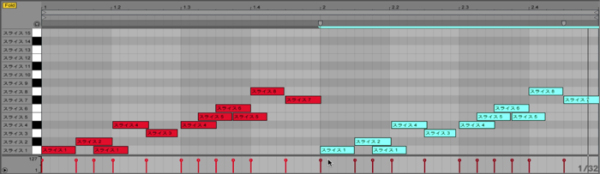
Sample One also supports REX files.
Drag and drop a REX file into Sample One to load it.
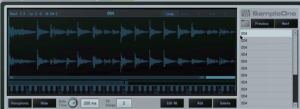
The file is sliced and mapped across the keyboard.
Volume, filter, and pitch can be adjusted for each sample.

Frequently asked questions
Q1. How do I load a sample into Sample One?
Drag and drop an audio file from the song into Sample One. It is automatically mapped across the keyboard so you can play it as an instrument.
Q2. How do I handle a sample recorded in a different key?
The default reference key is C3. Drag left or right to change it; for example, mapping an E chord sample to E3 can make it easier to work with.
Q3. Does Sample One support REX files?
Yes. Drag and drop a REX file into Sample One to load it; it is sliced and mapped across the keyboard. Volume, filter, and pitch can be adjusted for each slice.
Q4. When is sample looping useful?
It is useful for sustaining sounds such as pads. Enable Loop and set a loop range to repeat that section while a key is held.
Q5. Why edit a sample’s playback range?
You can remove unwanted silence or begin playback at a chosen point in the sample, giving you more control over the sound.
NEW ARTICLES
Latest English Articles