
Joué Play is an MPE controller designed for expressive performance beyond a conventional MIDI keyboard. Swapping the Play Pads on its Play Board lets one device control instruments such as drums and piano. The companion app provides an accessible introduction to music making, while the Pro Option described in this January 2022 guide enables detailed MPE and MIDI CC customization in Joué Editor for DAW use. Vibrato and glissando offer intuitive ways to shape a performance. Product options, pricing, app availability and compatibility below reflect the original guide’s period, rather than a statement of current availability.
An MPE controller for expression beyond a conventional MIDI keyboard
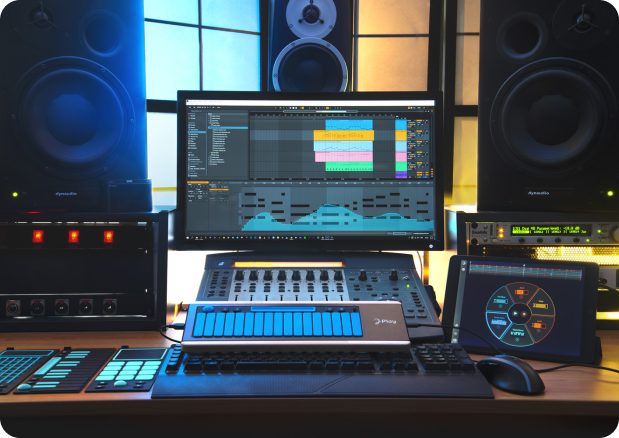
With more DAWs supporting MPE, many musicians may be interested in bringing this expressive control into their music production.
In this tutorial, we introduce the distinctive design and features of Joué Play from Joué Music Instruments and explain how to use it.
You can swap between playing surfaces for drums, guitar, keyboards and more. An iOS app was also provided with the aim of making music creation accessible even without prior knowledge of music production or composition.
Product features and lineup
Joué Play consists of two parts: the Play Board itself and the Play Pad placed on top of it for performance.
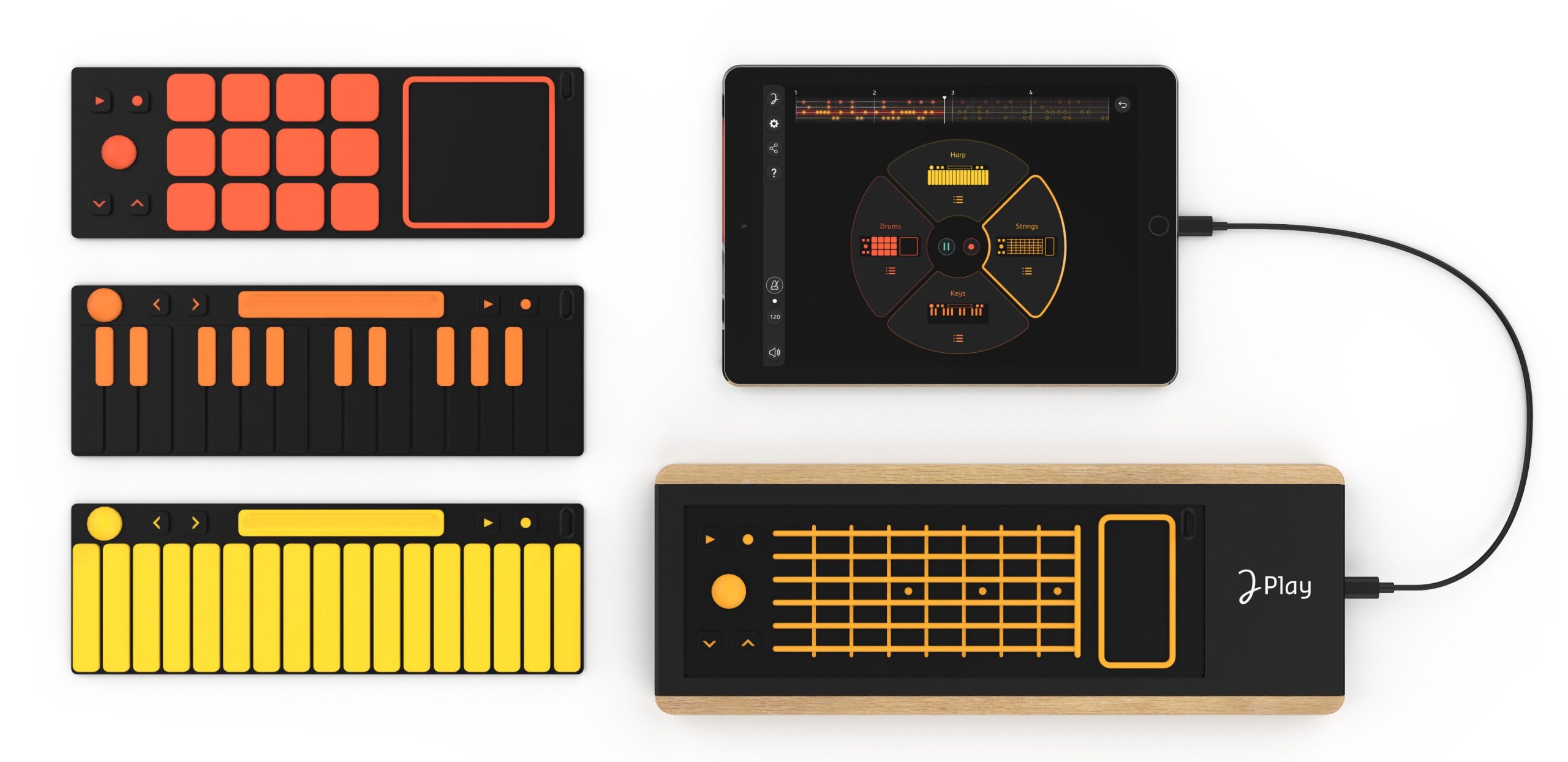
There are four types of Play Pad, each with a different playing interface. Swap them on the board to perform and record.
The board automatically recognizes a newly fitted pad without requiring special configuration—an appealing feature.
Joué Play video tutorial
Using the companion Joué Play app
The original guide links to the Joué Play controller app in each operating system’s store.
We will use an iPad for this walkthrough.
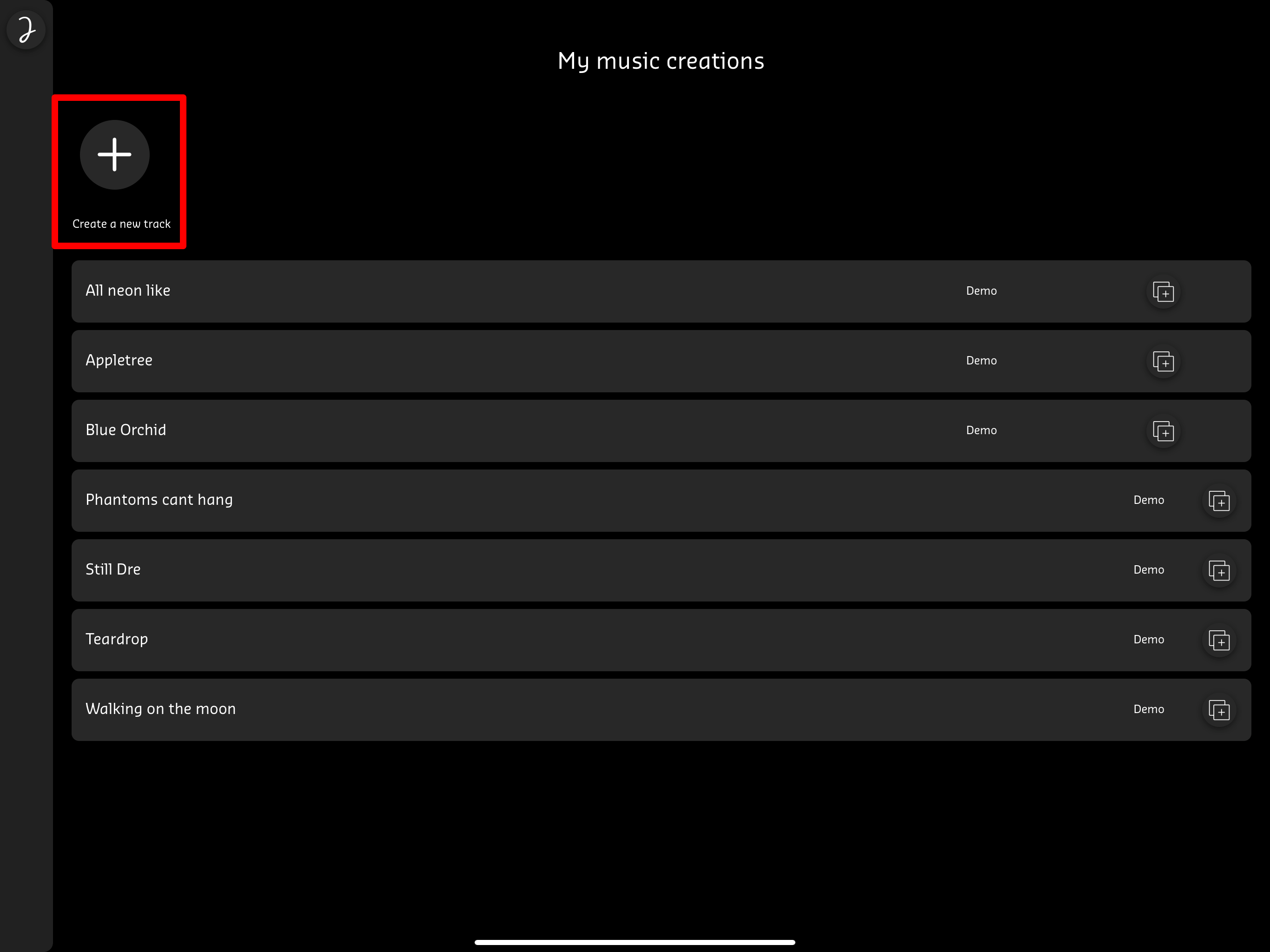
Launch Joué Play and choose “Create a new track” to start a new song.
First, let’s try the Play Drum pad.
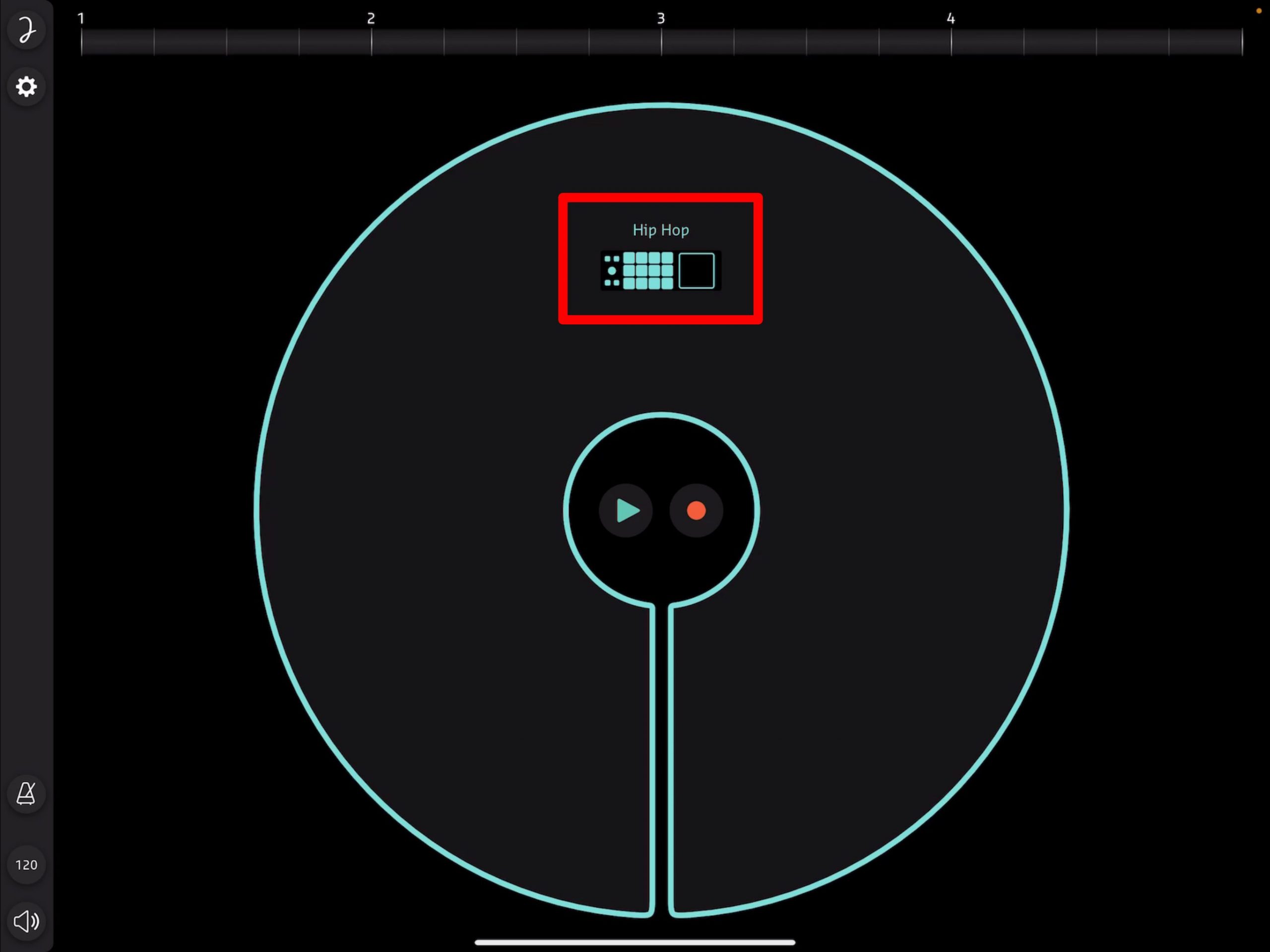
Play Drum is recognized immediately, and you can play drum sounds from the pad.
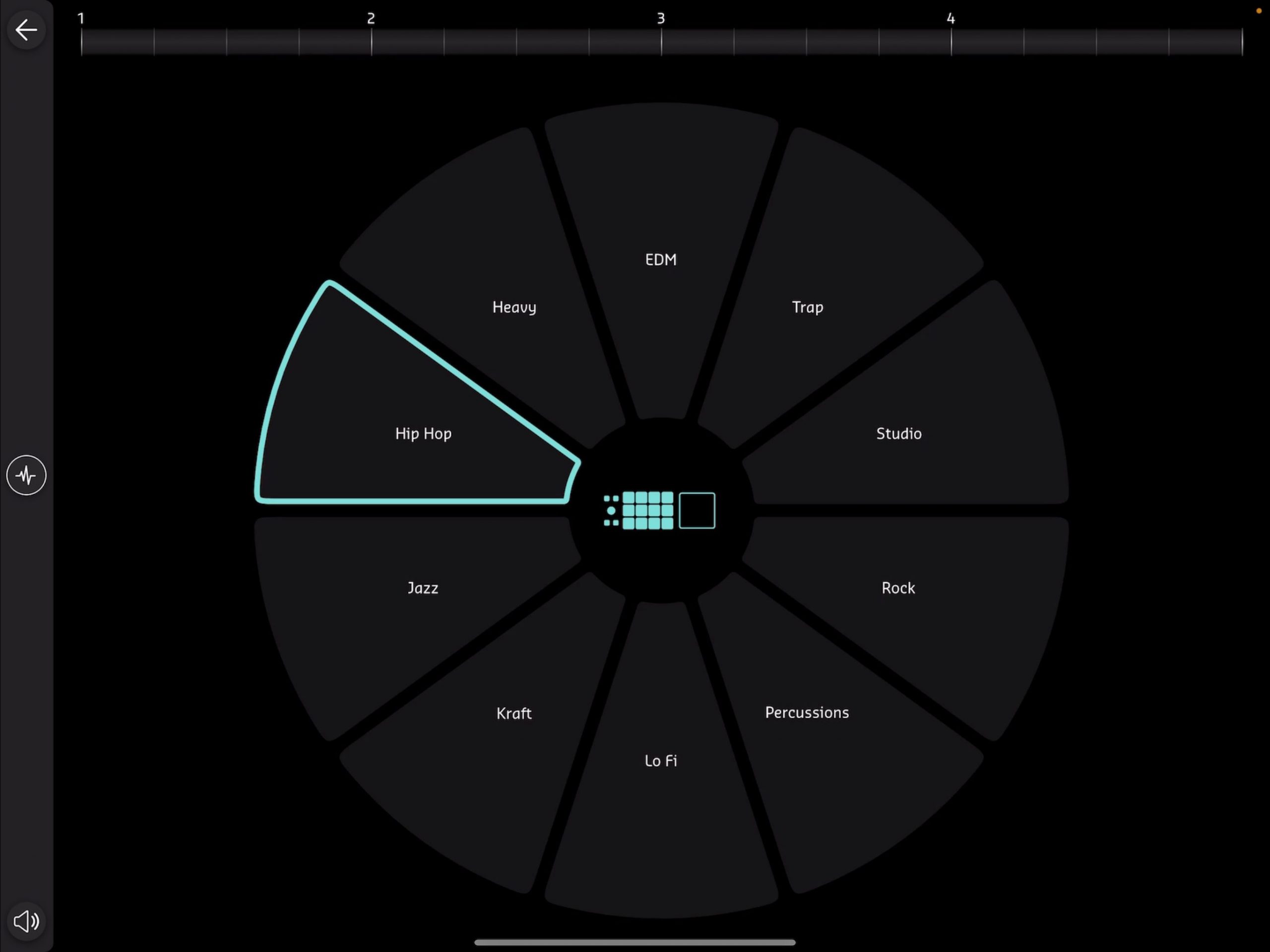
Tap the Play Pad icon in the app to display a list of ten sounds for that pad and change the sound.
Next, swap to the Play Piano pad in the same way.
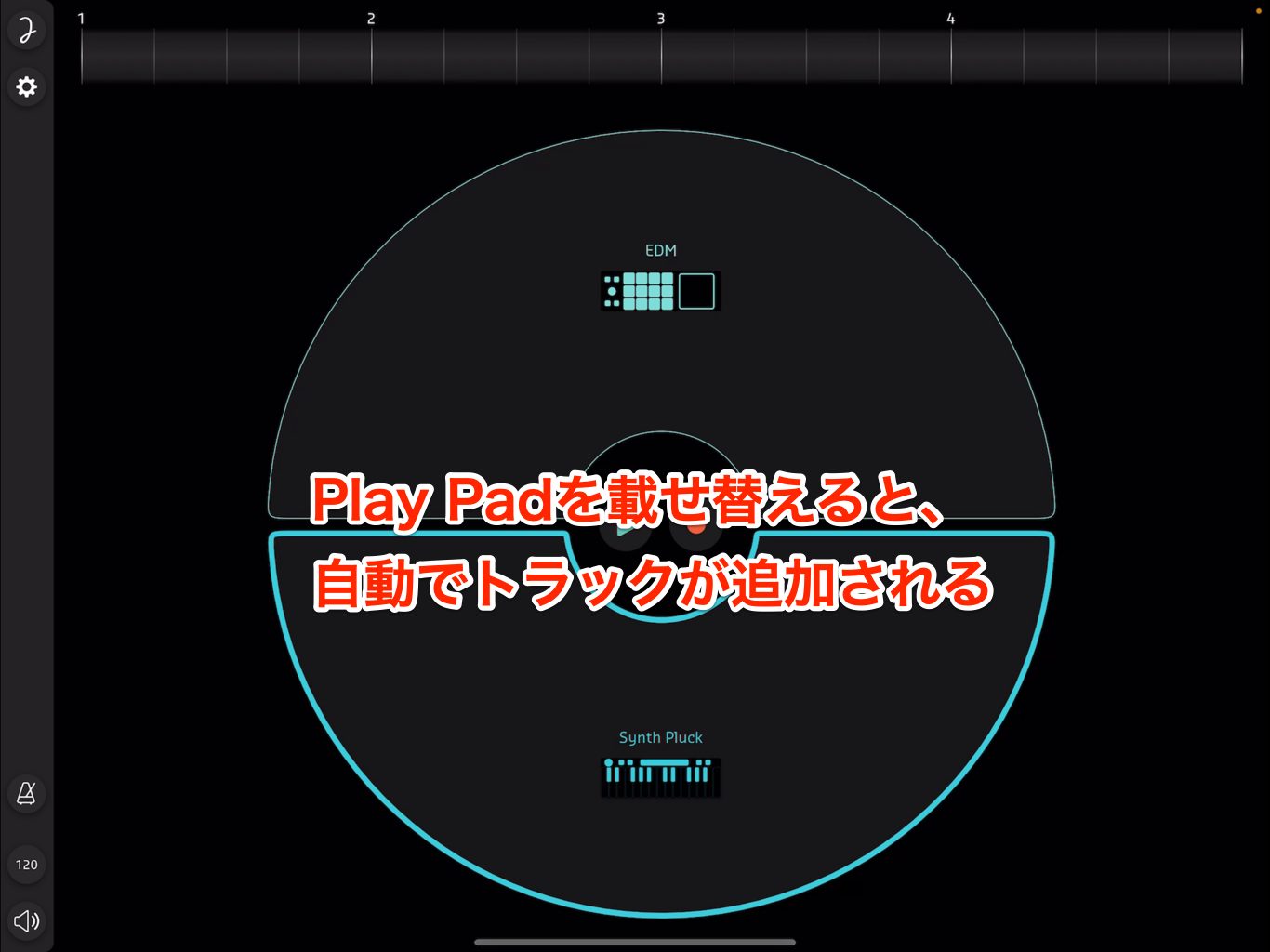
A synthesizer track is added automatically while the drum track remains in place.
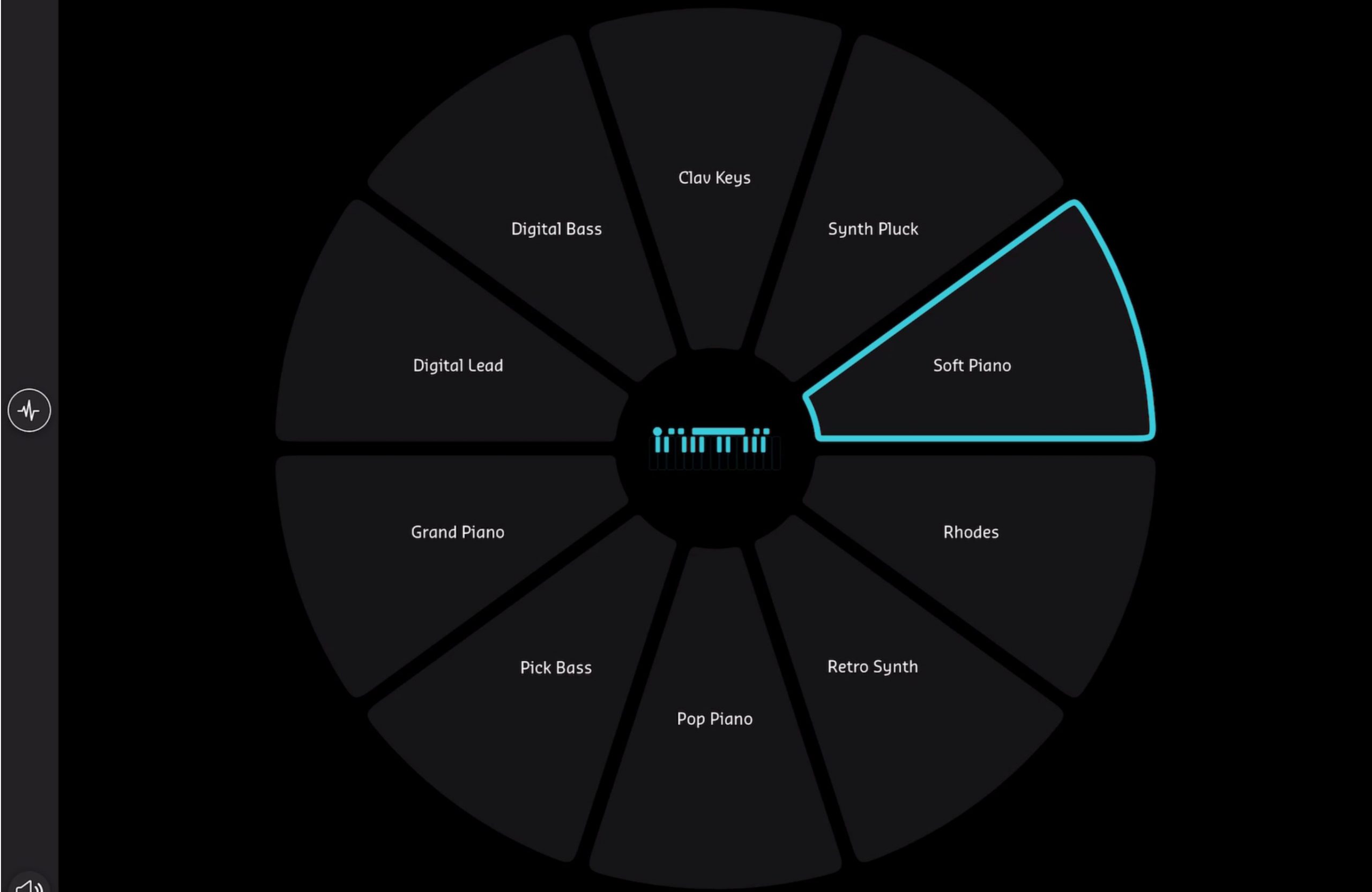
As with the drums, you can switch between ten sounds.
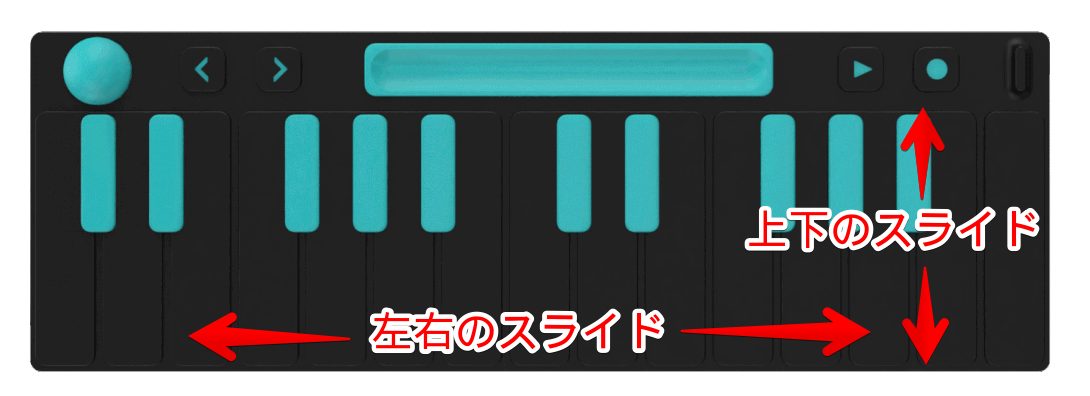
Enjoy expressive sound changes characteristic of MPE devices, such as sliding between notes or moving vertically along the keyboard surface to alter the timbre.
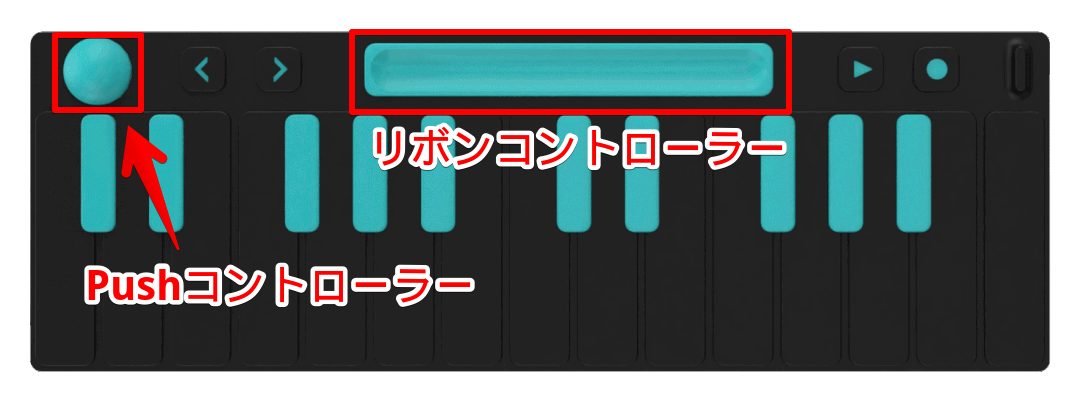
The Push controller, XY pad and ribbon controller provided on the pads are also assigned different parameters for each sound.
Now swap back to a Play Drum pad, this time in the Fire color.
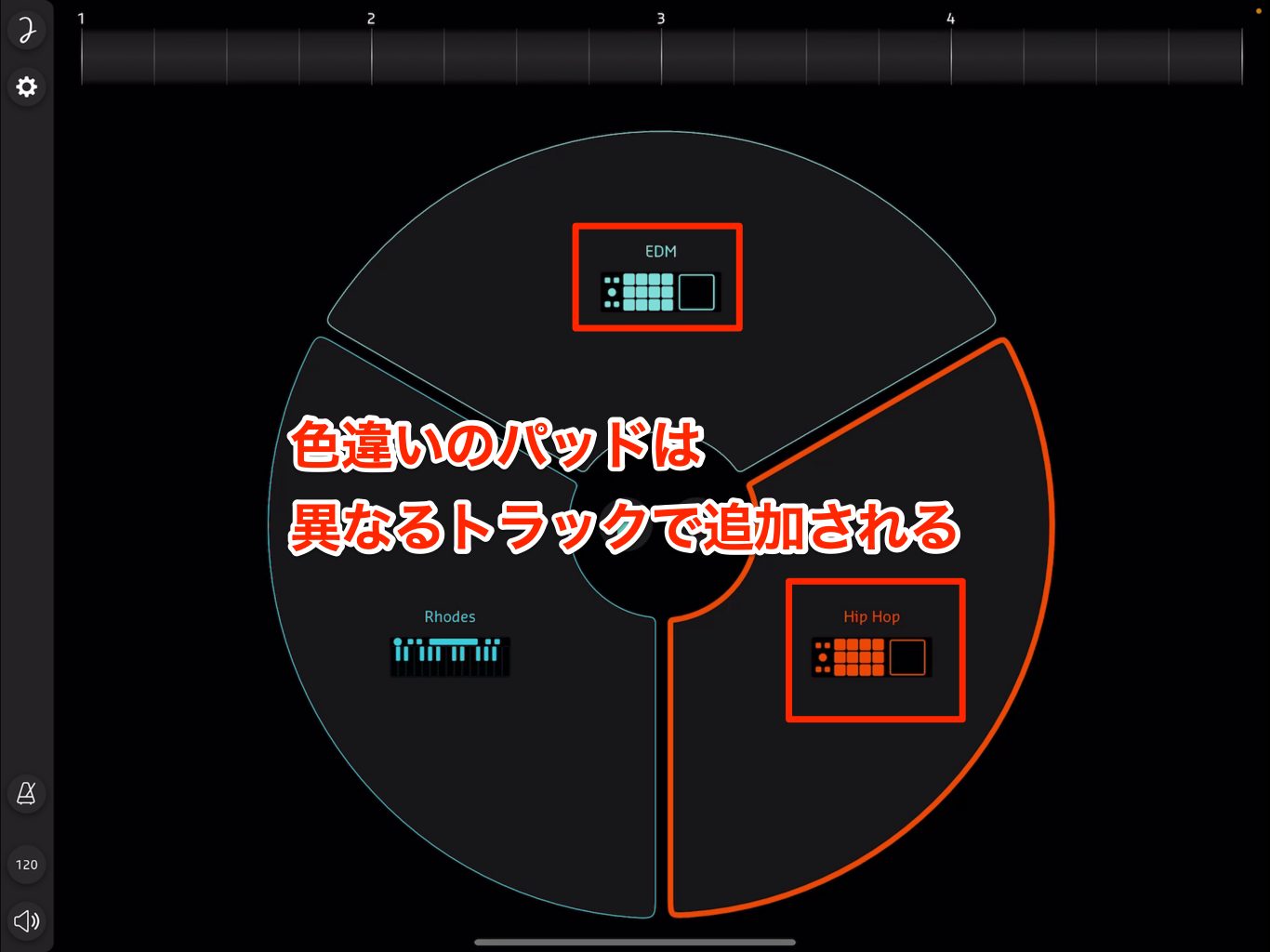
A different color lets you use another Play Drum pad as a separate track.
With all four pads in each of the Water and Fire colors—eight pads in total—the Joué Play app described here can hold up to eight tracks.
Song settings and recording
Now let’s record a performance.
Before recording, set the song’s tempo, length and other options.
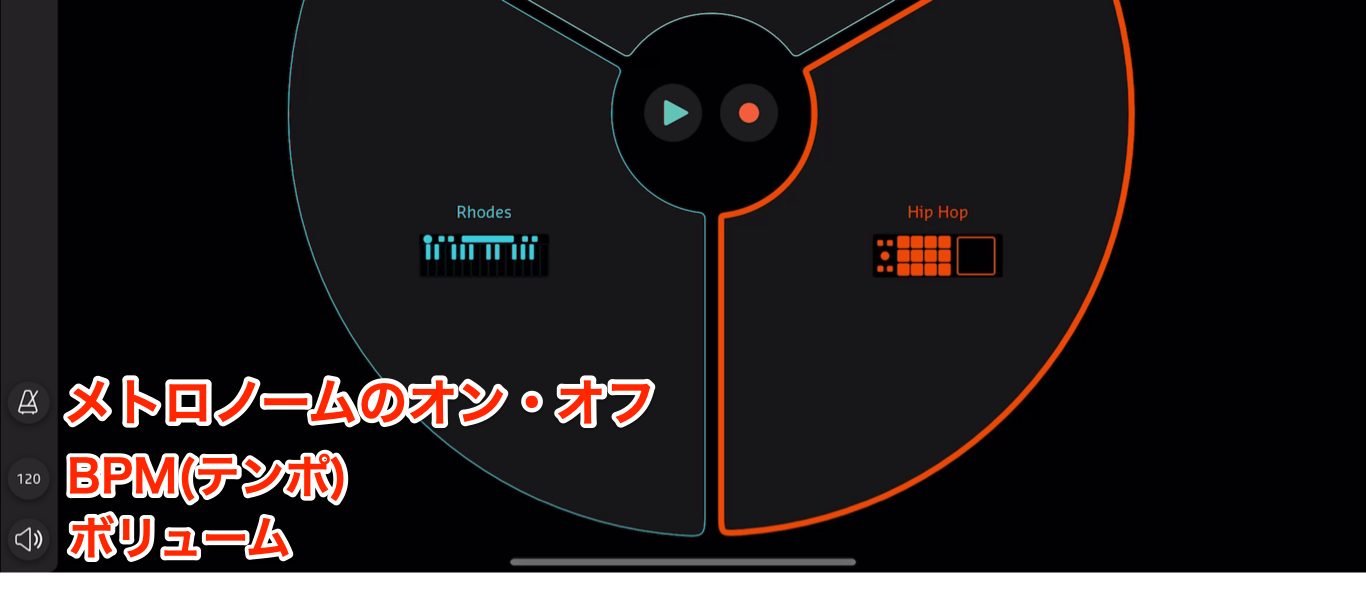
The three buttons at the lower left control the following, from top to bottom:
- Metronome on/off
- BPM (tempo)
- Volume
These controls let you adjust the corresponding settings.
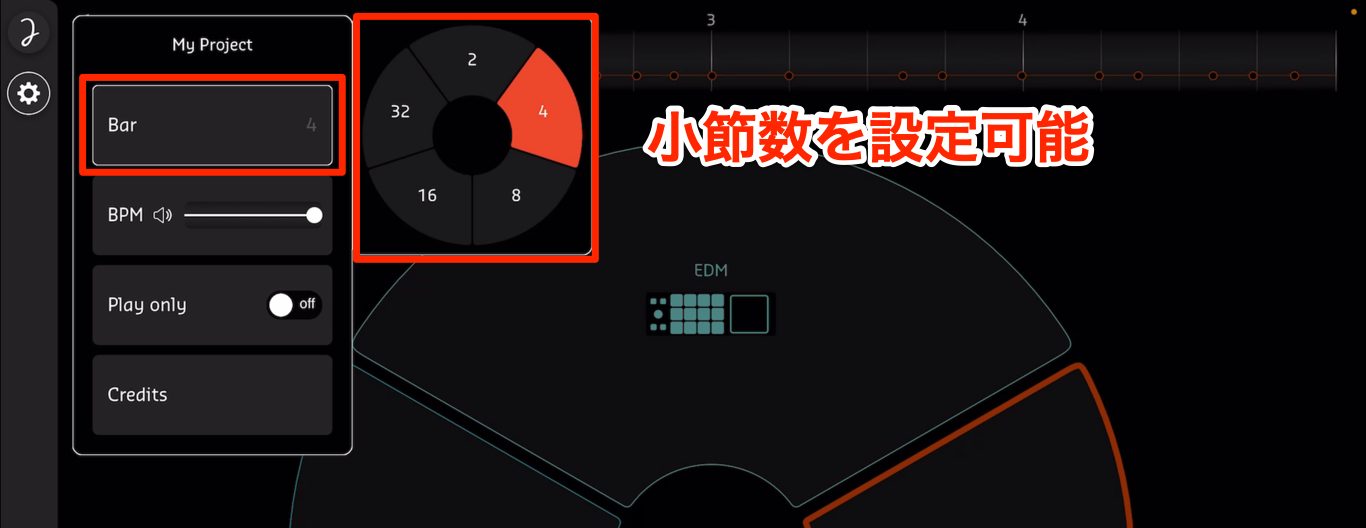
Tap the gear button at the upper left to open a dialog with these settings:
- Number of bars in the song
- BPM (tempo)
- Recording on/off
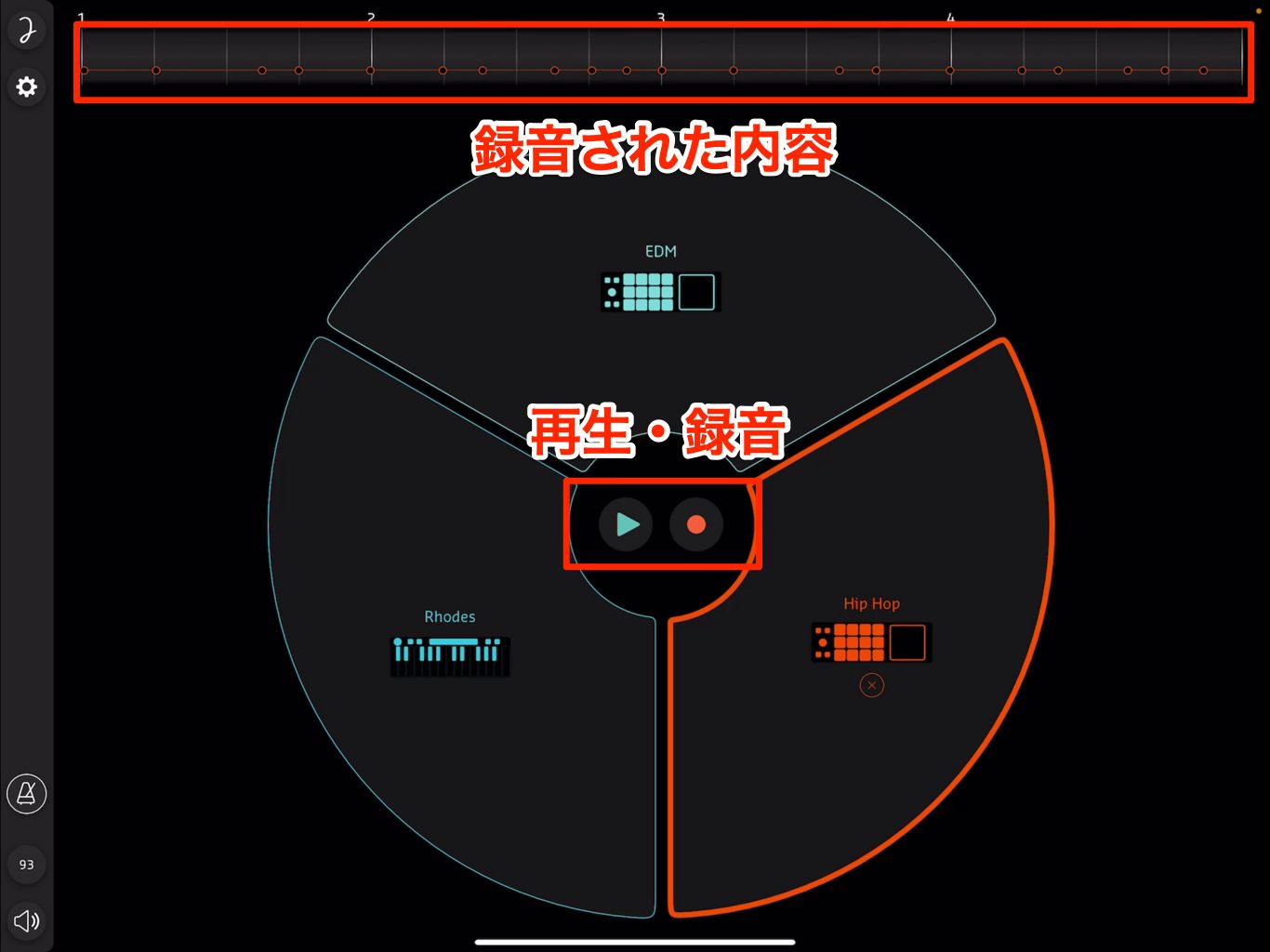
Use the two buttons in the center of the screen to record and play back your performance. Recorded material appears at the top.
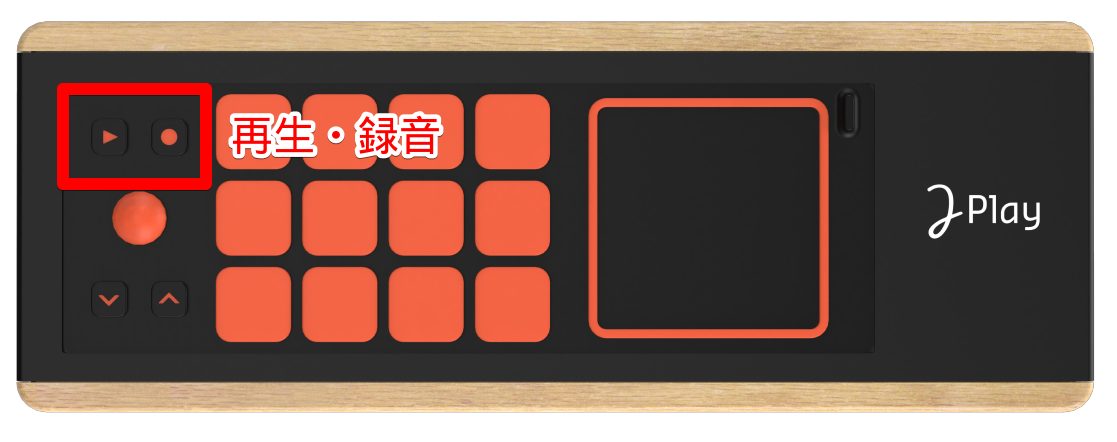
Each Play Pad also has playback and record buttons, so you can operate these functions from the pad.
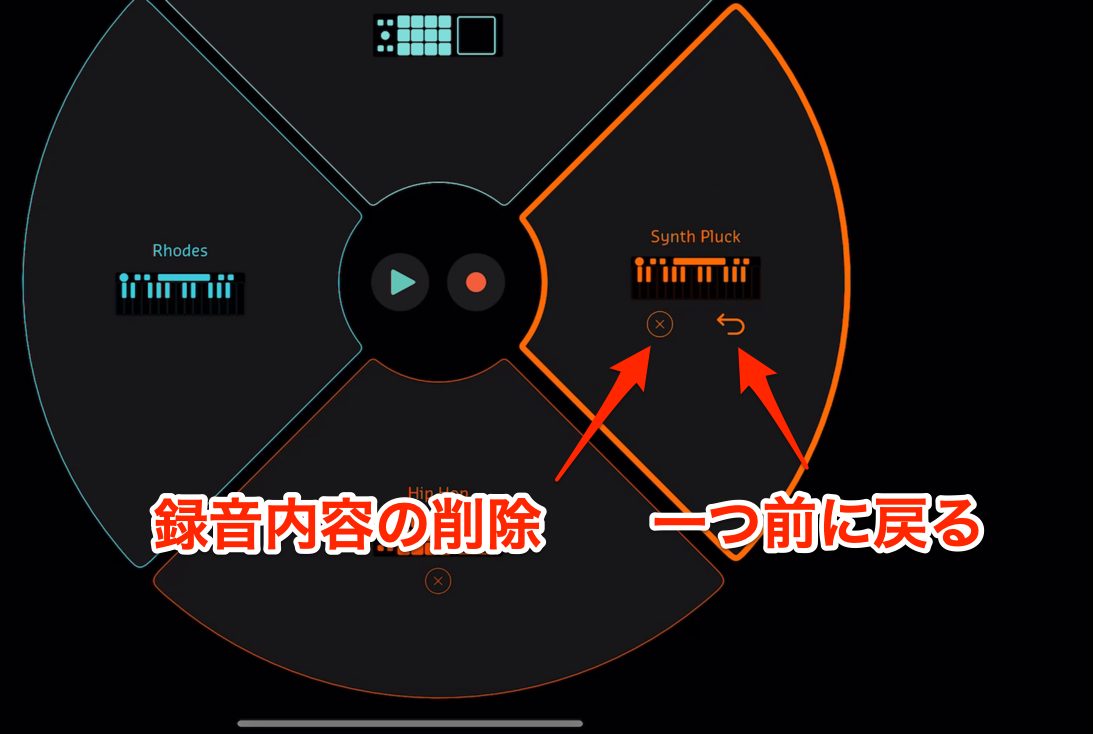
After recording, you can delete a take or use Undo to return to the previous state, making it easy to try again until you are happy with the result.
The app is designed to let you connect the controller to your device with a cable and start playing.
Using the editor with a DAW
Joué Play can also be used with a DAW.
Important points about Joué Editor
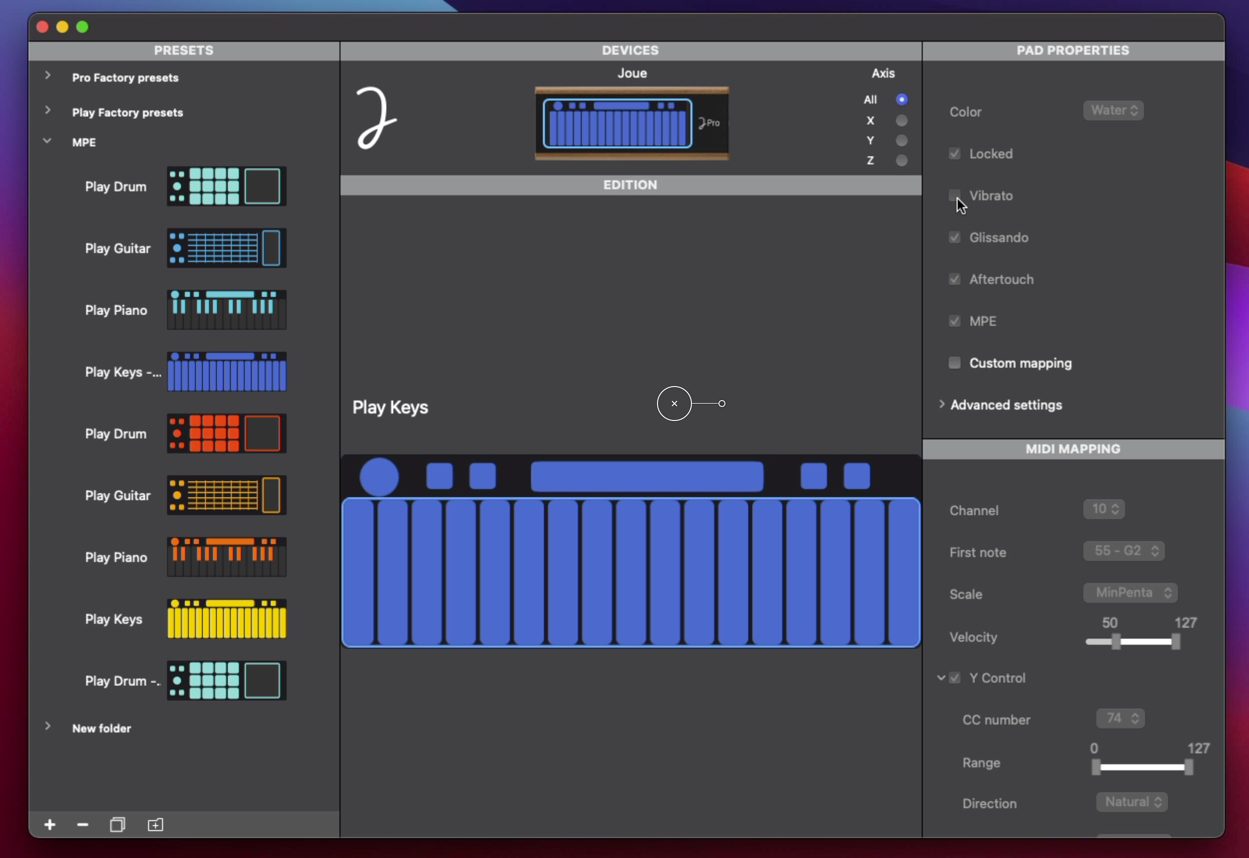
For DAW use, configure MPE and MIDI CC settings to suit the instrument you want to play.
These settings are configured in the Joué Editor software.
The original guide describes Joué Editor for Windows and Mac, with editing support on Joué Play requiring the higher-tier Joué Play Pro Option.
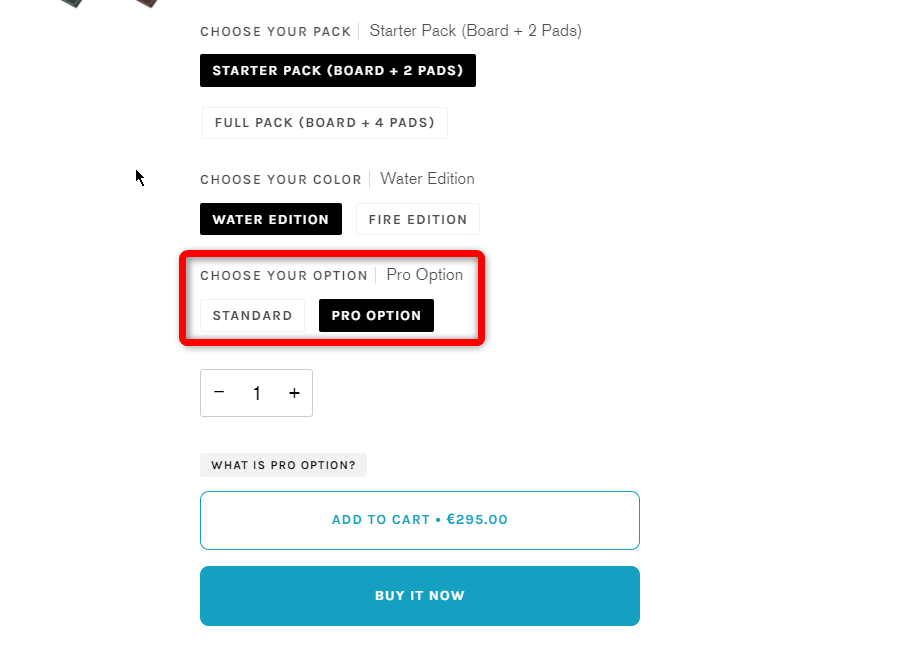
At the time of the original guide, this meant changing “CHOOSE YOUR OPTION” from “Standard” to “Pro Option” when purchasing the product.
The price difference from Standard was €50 in the original guide.
The guide notes that basic DAW use is possible without customizing MPE or CC assignments and recommends the upgrade to make fuller use of the controller. Editorial clarification: the Japanese sentence names “Joué Editor” as the device used in the DAW; in context, this refers to using the Joué Play controller, while the Pro Option enables the editor settings described above.
Configuring Joué Editor
Let’s look at how to use Joué Editor.
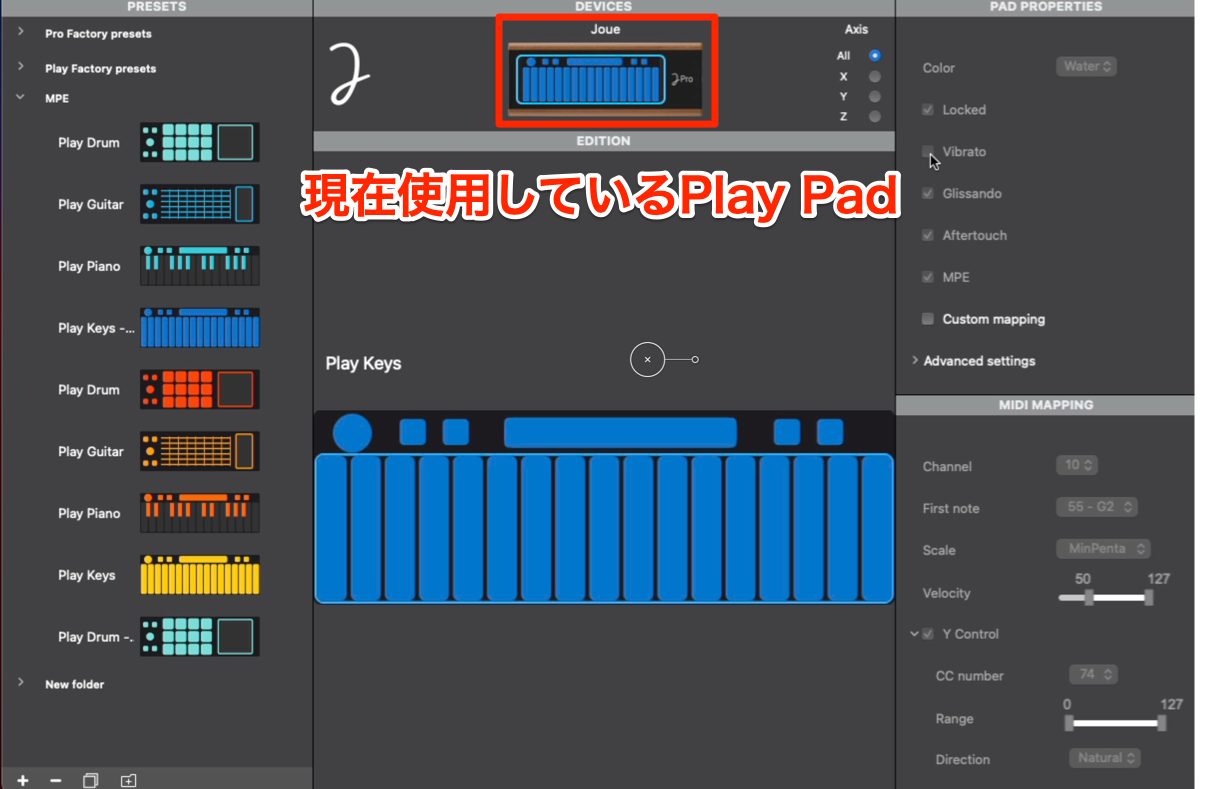
Like the Joué Play app, the editor recognizes the Play Pad on the board and displays it at the top of the screen.
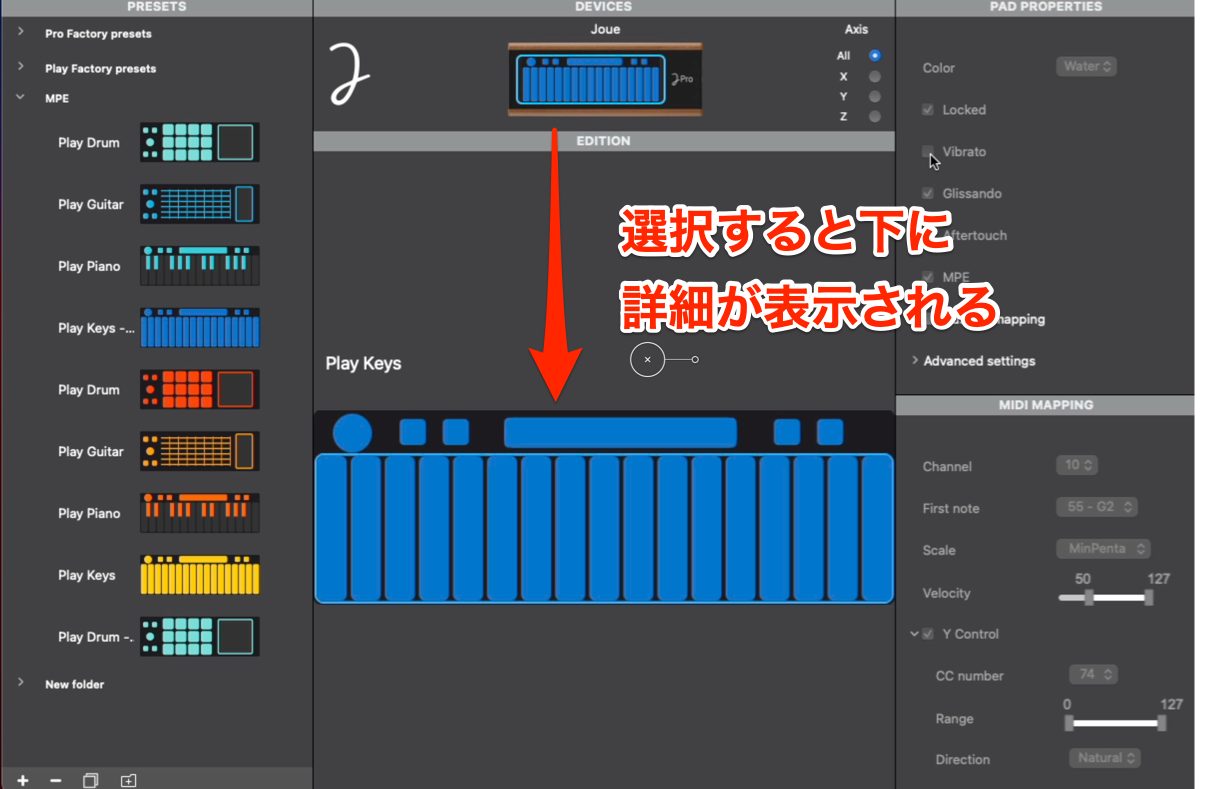
At the bottom, you can select individual buttons and controls in more detail.
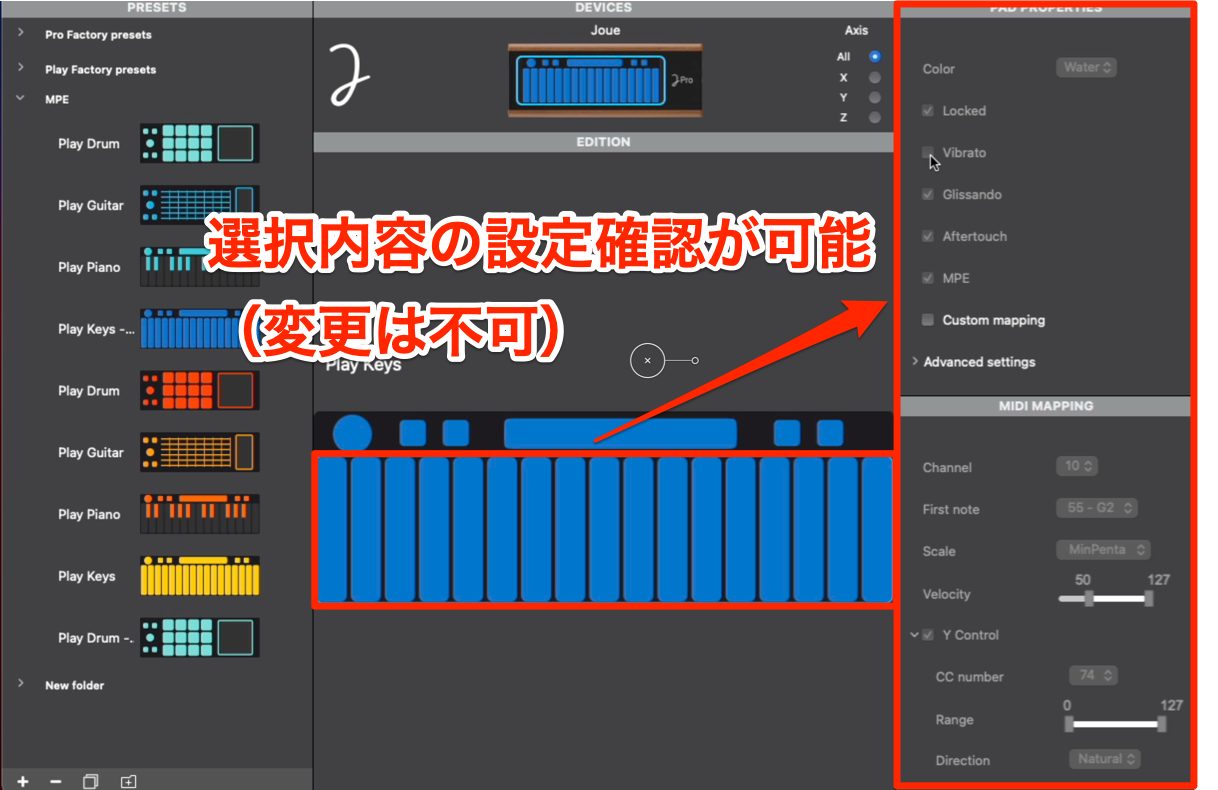
The settings for the selected item appear on the right.
The settings for the currently attached Play Pad are grayed out here and cannot be edited directly.
To change settings, use the sets displayed on the left.
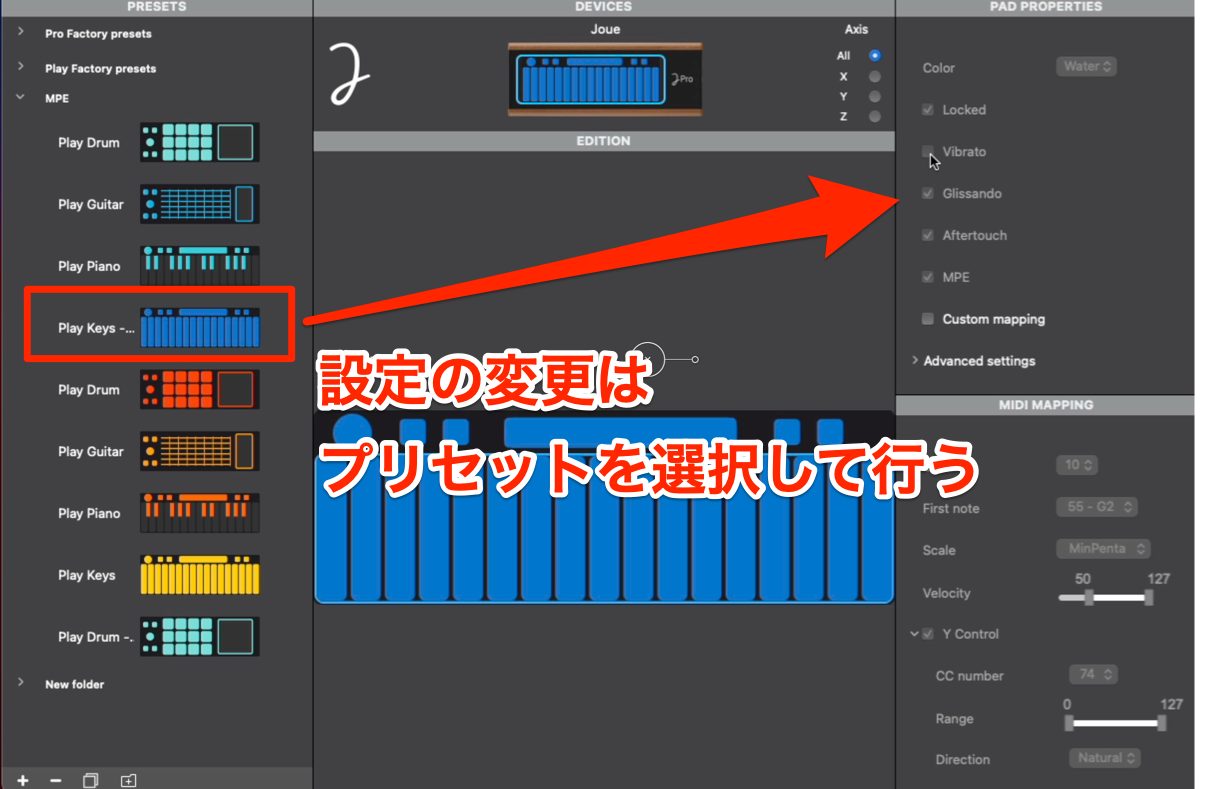
Each set stores MPE and MIDI CC settings. The settings that were grayed out can be edited within a set.
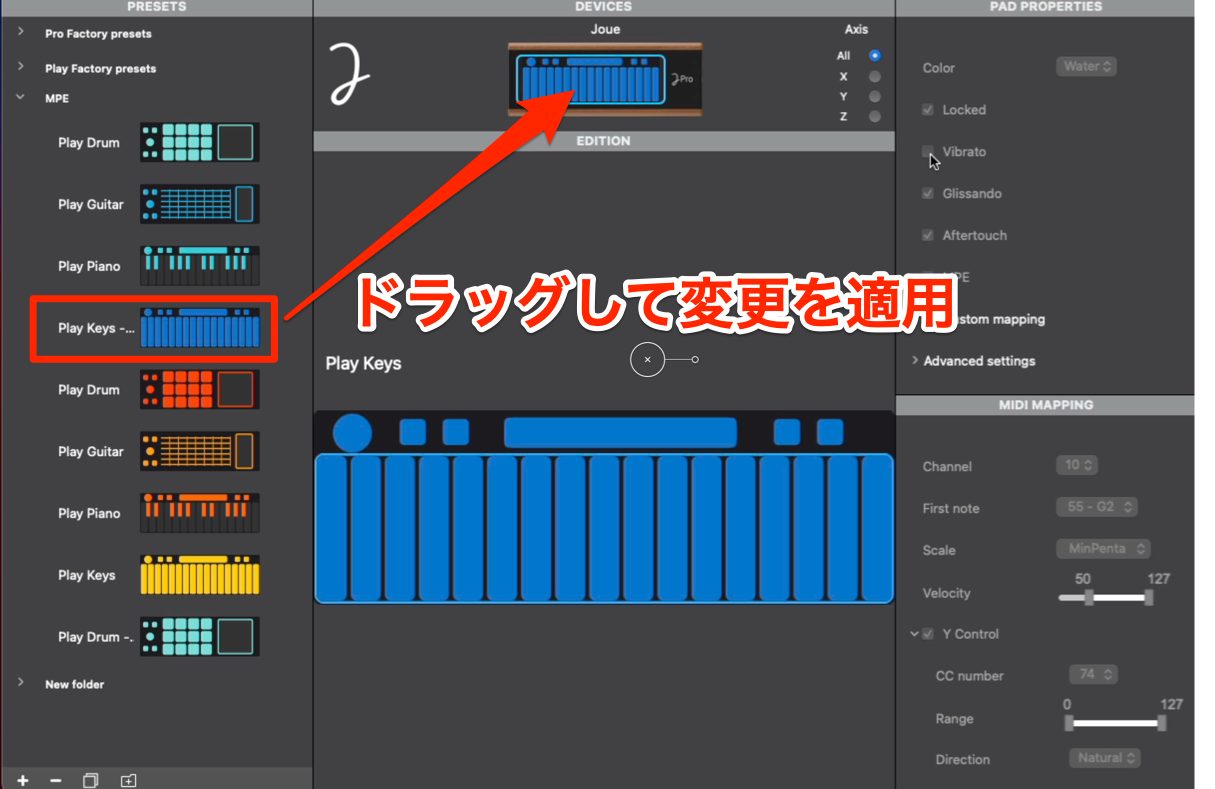
After editing, drag and drop the set onto the Play Pad to write the settings to it.
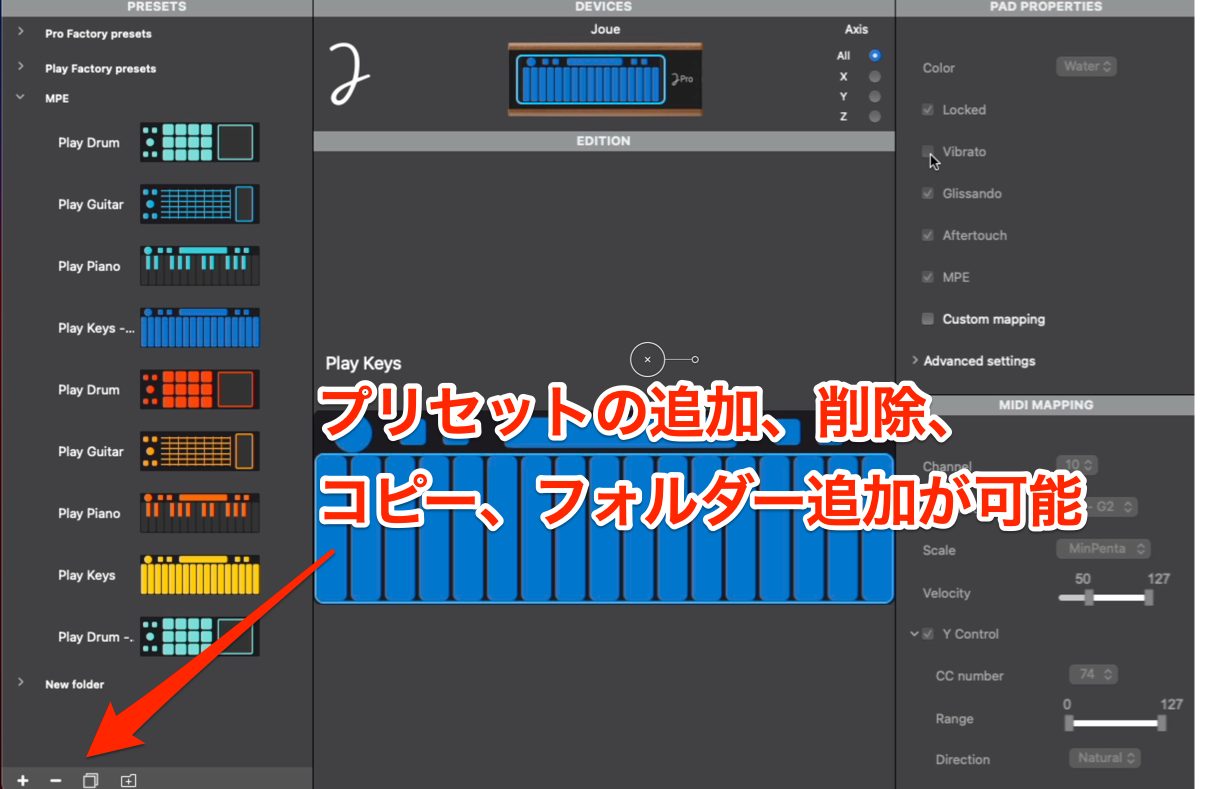
When changing settings, edit an existing set or create a new one. The relevant controls are grouped at the lower left.
They let you create a new set, delete the selected set or duplicate it.
You can also add folders to organize your sets.
Main Play Pad settings
These settings appear under PAD PROPERTIES on the right.
Many settings are shared across the different Play Pads.
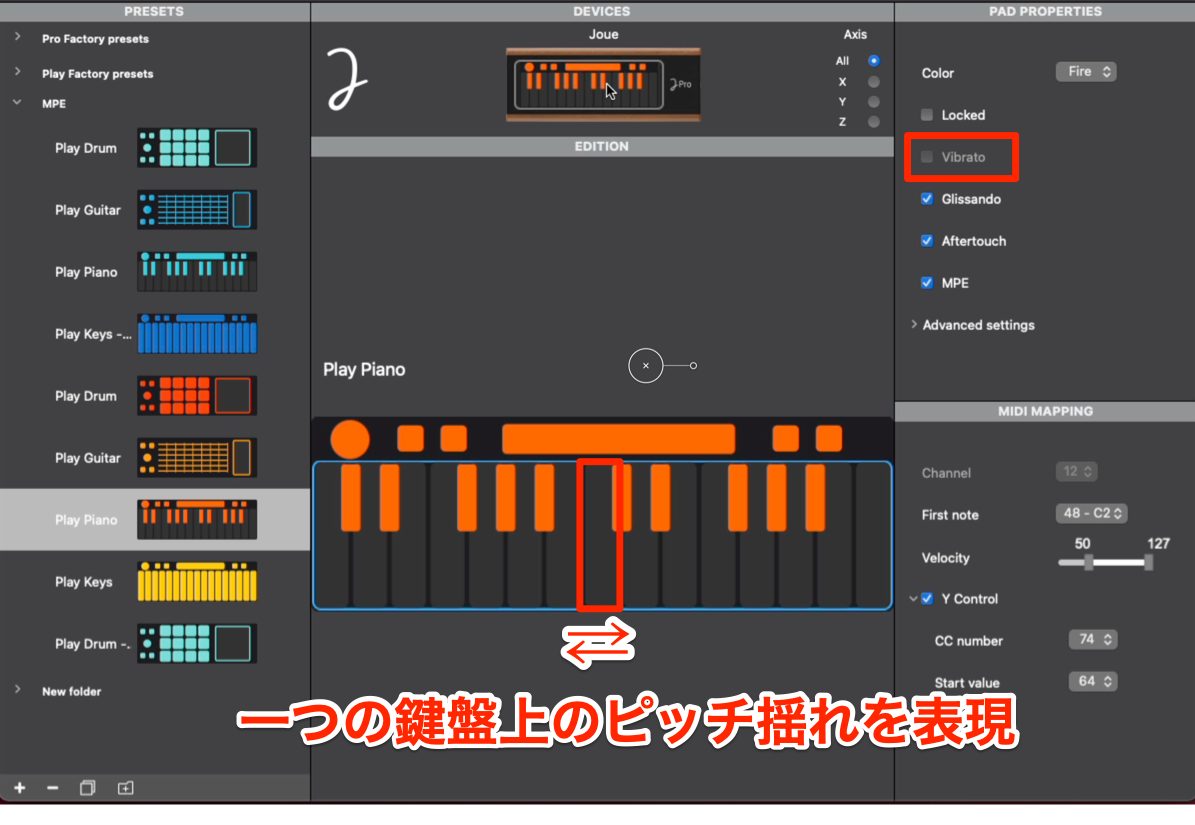
Vibrato varies the pitch when you move a held key—or a guitar string area, for example—from side to side.
This lets you add natural vibrato intuitively.
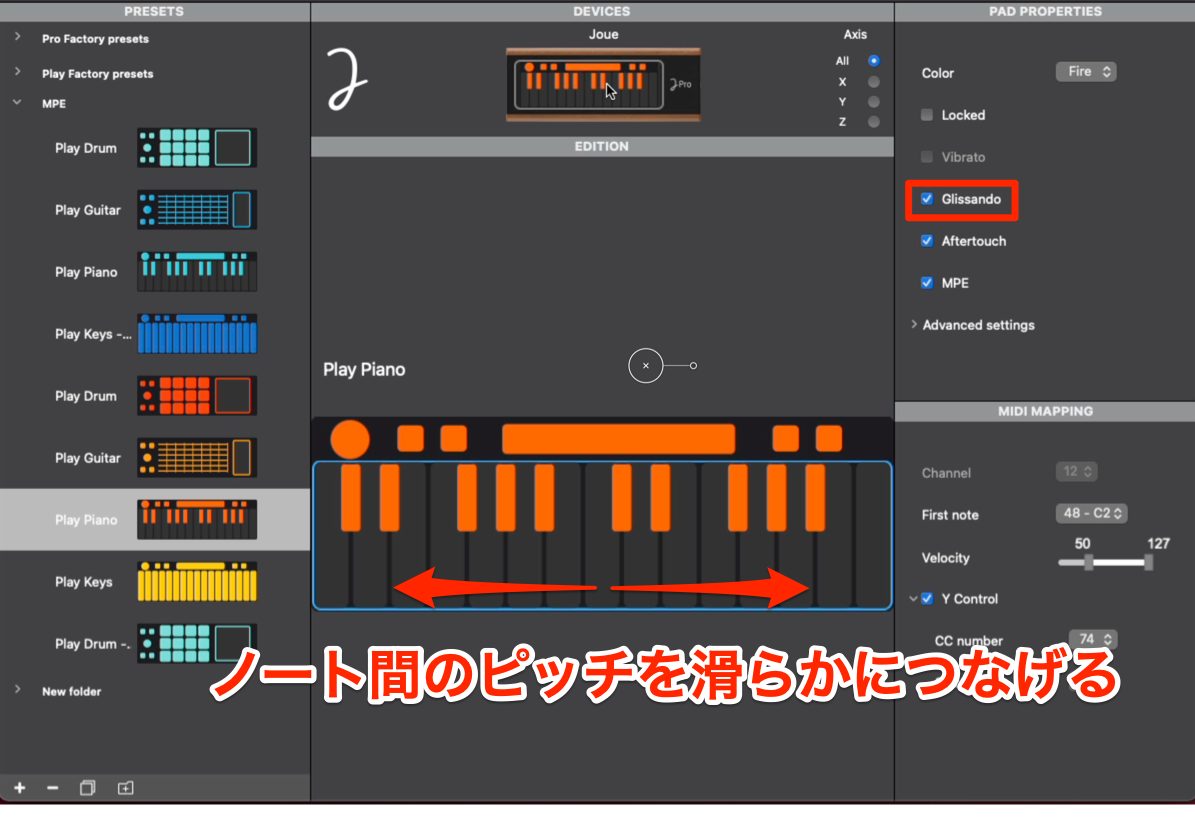
The settings called “Fletless” and “Glissando” in the original article serve the same purpose: while holding a note, slide your finger to another key for a smooth change in pitch. “Fletless” is the original article’s spelling of “Fretless.”
In MPE terminology, this is commonly called Glide. It allows pitch gestures like those in the example below.
Synth lead with glide
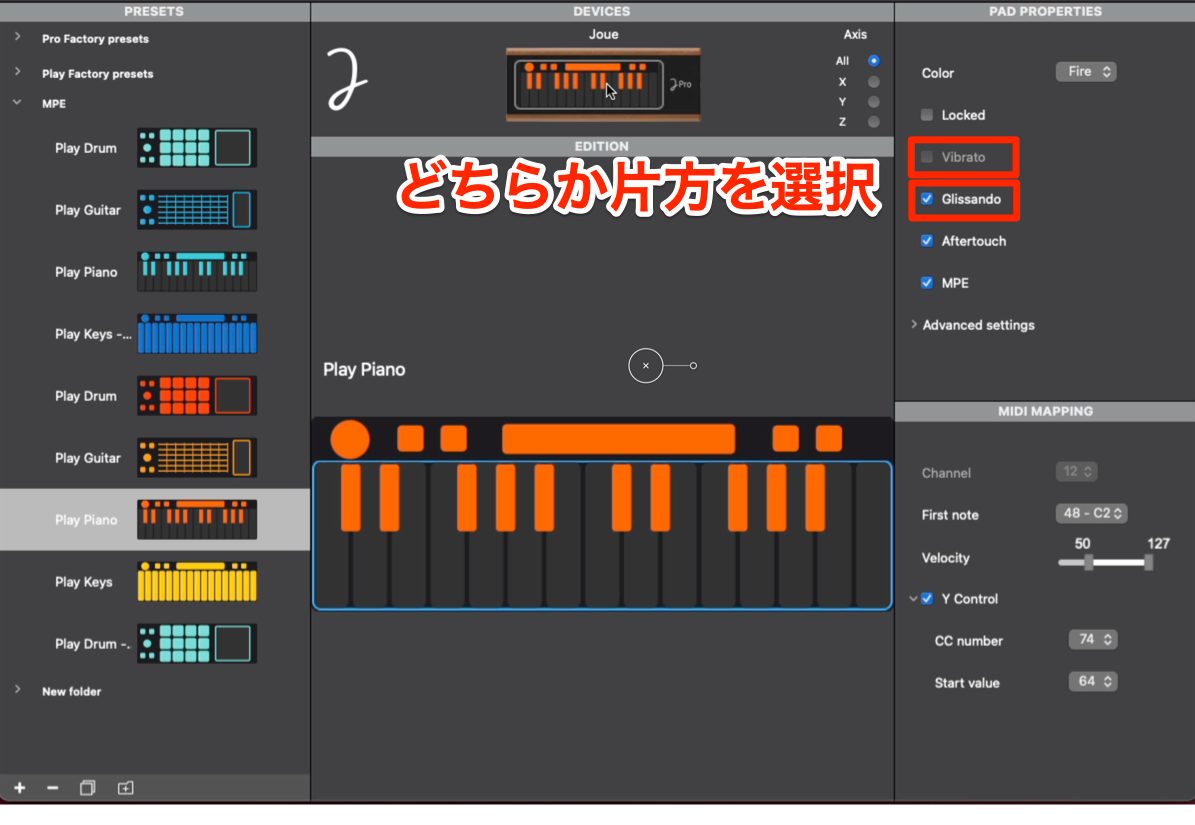
When both Vibrato and Fretless/Glissando are listed, choose one of the two according to the performance you want.
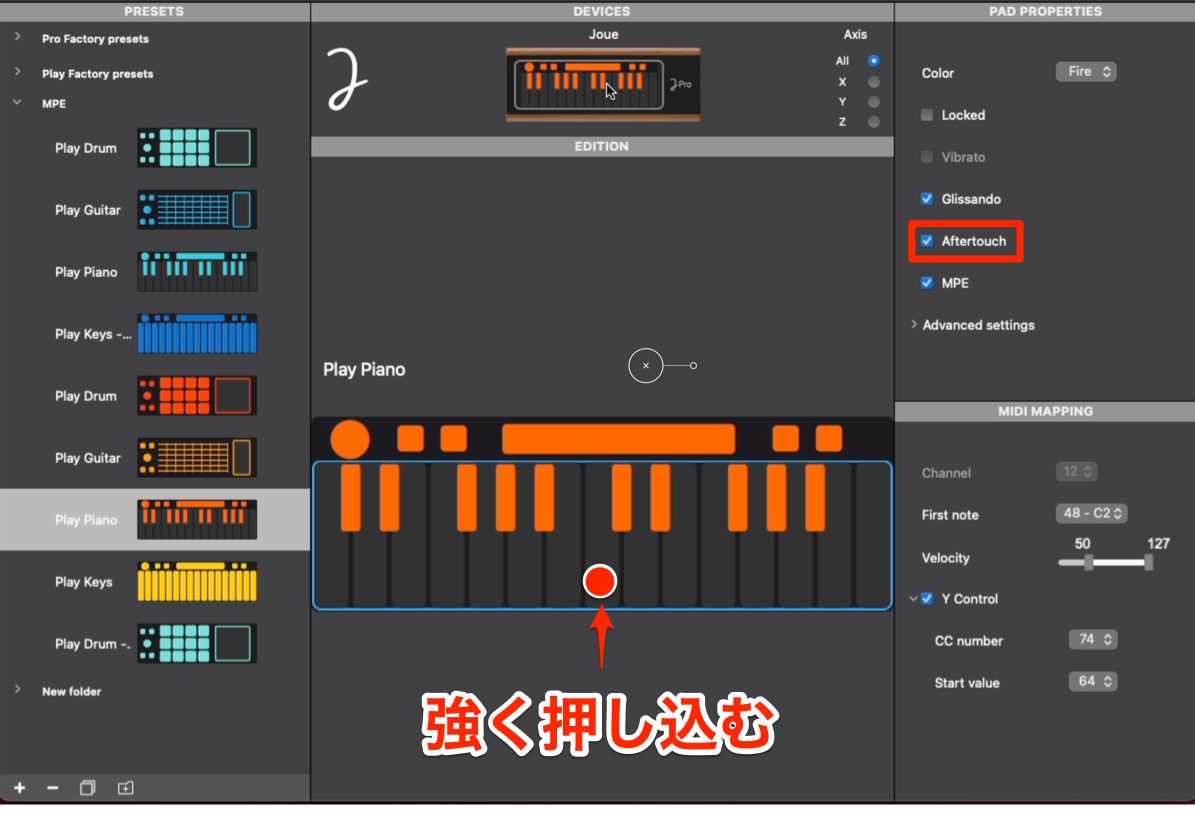
Aftertouch responds when you press more firmly after initially playing a key.
In MPE terminology, this is commonly called Pressure.
Assign a timbral change to Pressure in the instrument you are using.
Sound with timbral changes controlled by pressure
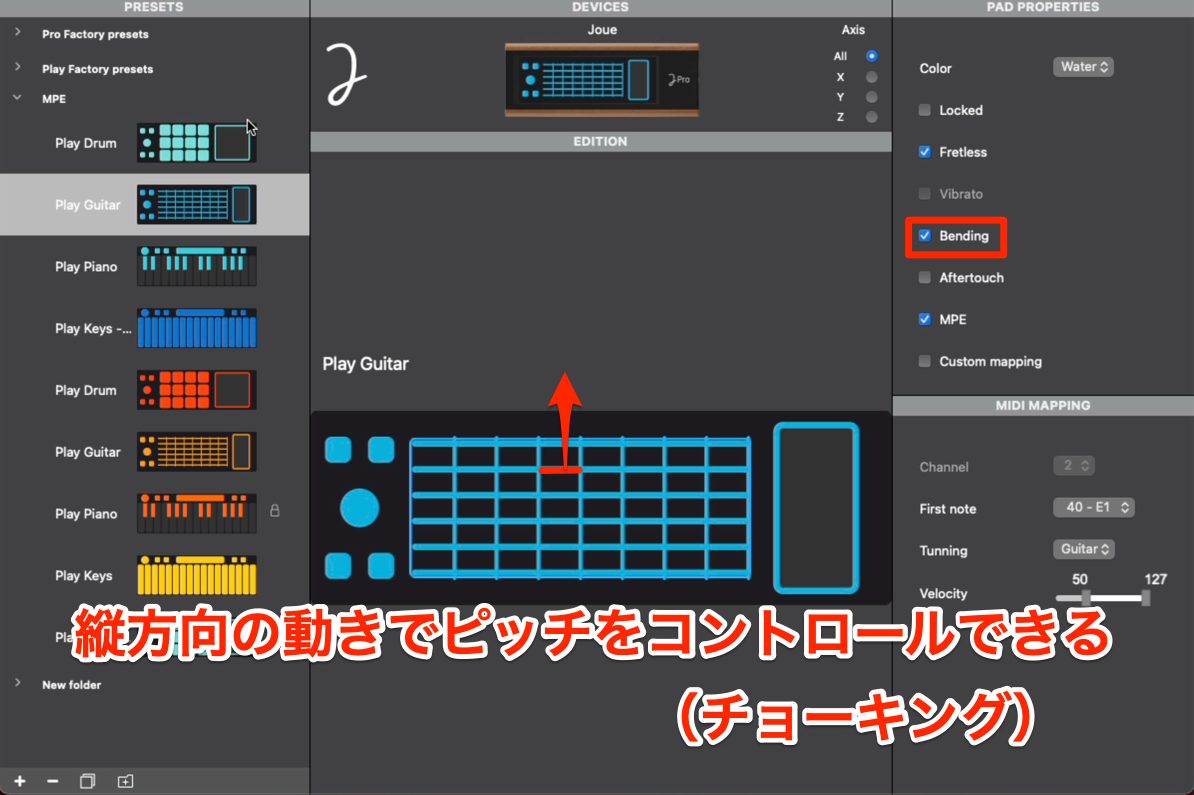
Bending is available only on Play Guitar. It adds the pitch-bending effect of pushing a guitar string sideways.
This provides pitch gestures characteristic of string instruments, extending beyond guitar sounds alone.
Sound with pitch bending
Applying a little extra pressure at the attack can also produce an expression reminiscent of a koto.
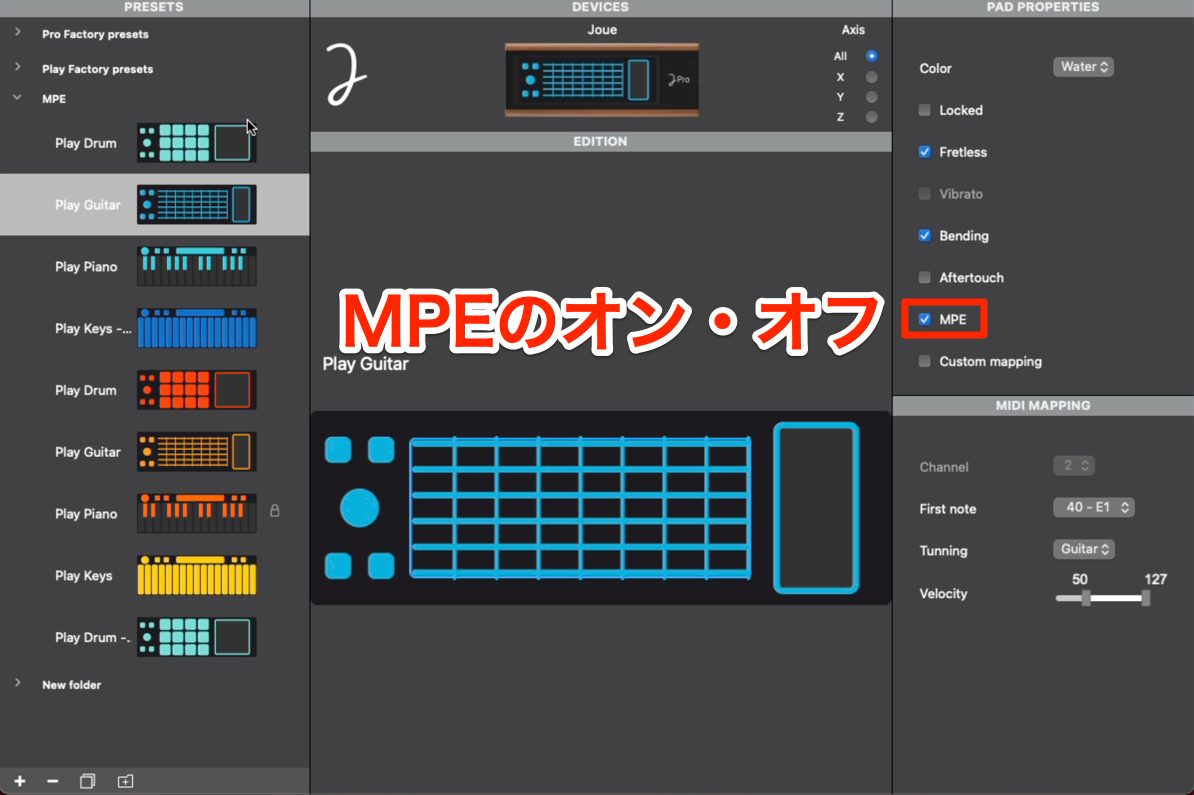
The MPE setting selects whether the controller operates in MPE mode.
Enabling MPE makes a wide range of expression possible, but the instrument you are playing must support MPE.
The original guide warns that, with the setup shown, you need to disable MPE when playing an instrument that does not support it, or no sound will be produced.
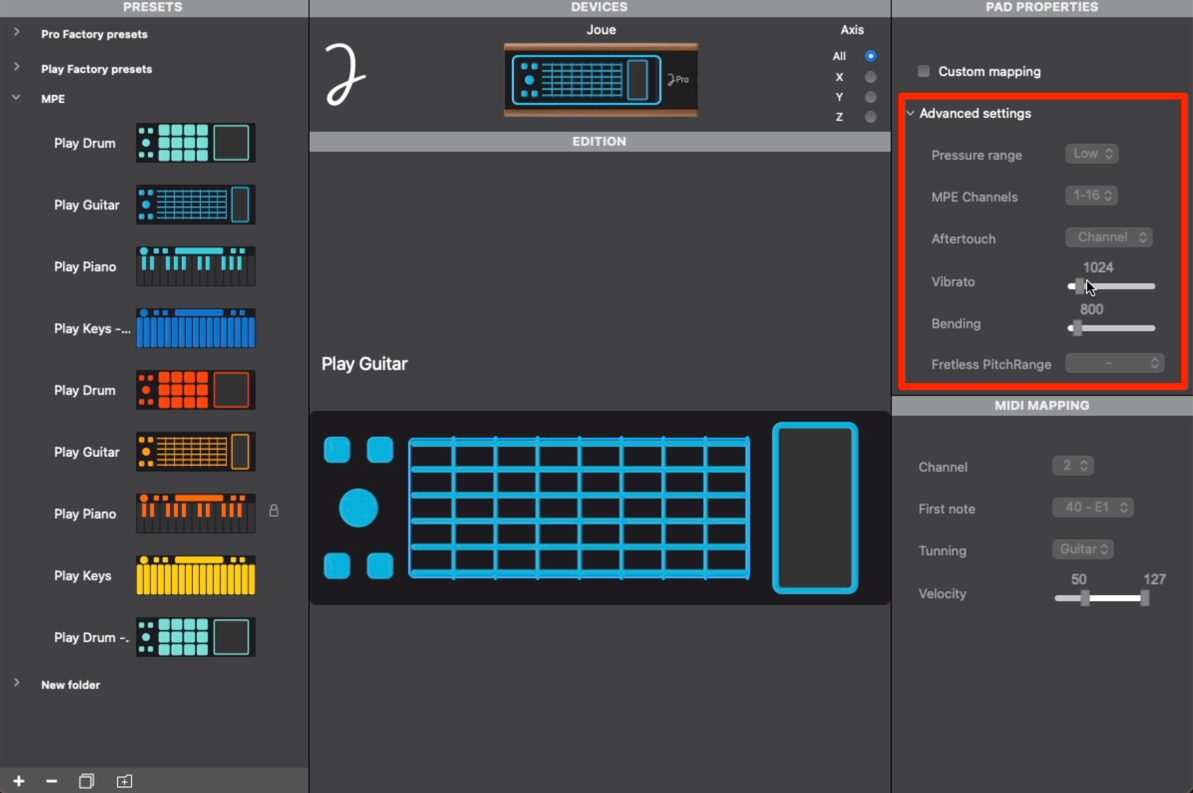
Advanced settings provides more detailed adjustment of the parameters covered so far.
For example, adjust how much the pitch changes during vibrato or bending to fine-tune the performance response.
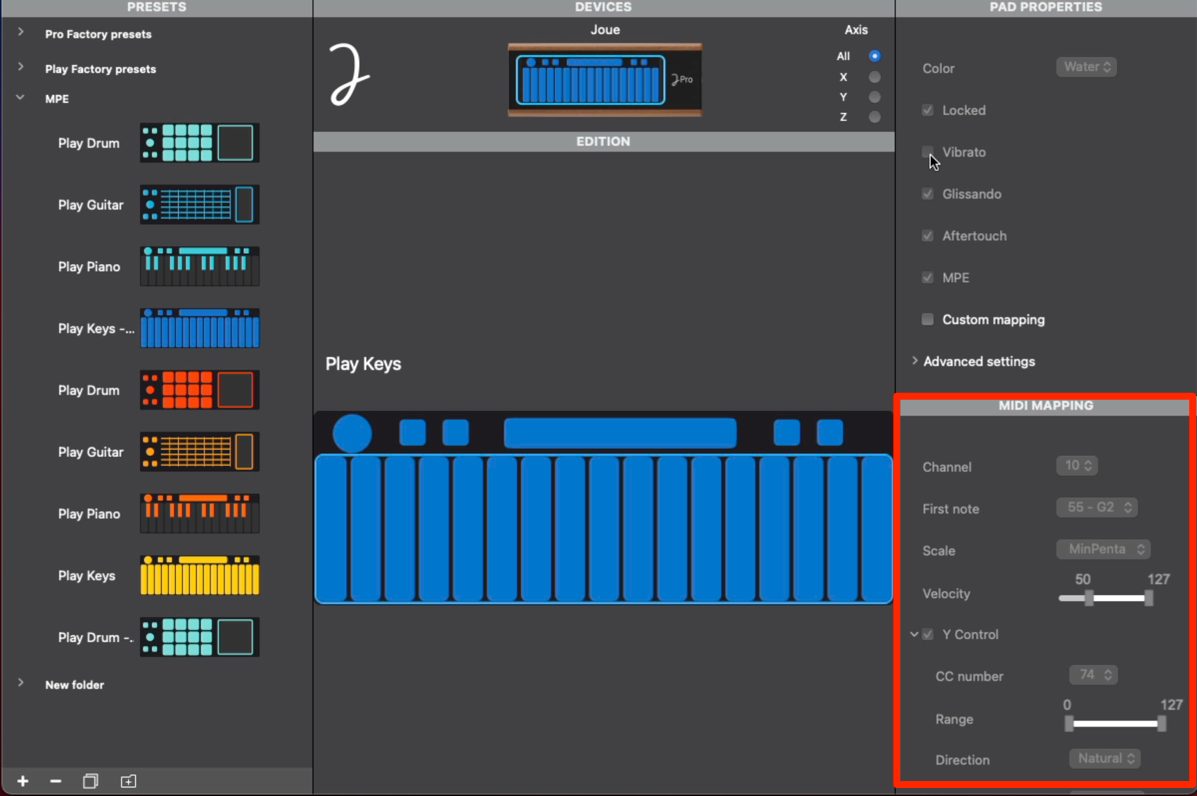
MIDI MAPPING contains note-related settings appropriate to each Play Pad, including velocity range, pitch and scale.
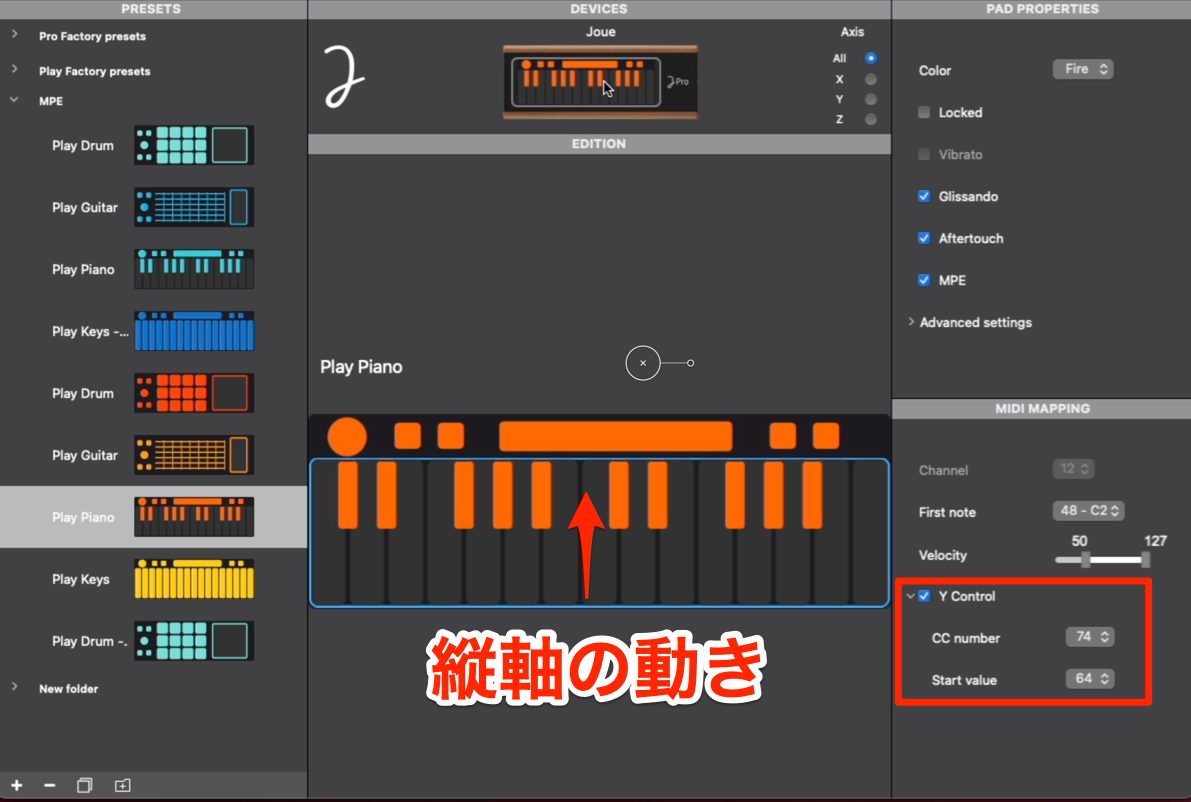
Play Piano and Play Key provide a Y Control parameter. It lets you choose the CC number sent when you slide your finger along the vertical axis.
In MPE terminology, this gesture is commonly called Slide. Like Aftertouch, it can be used to change the timbre.
Here we used Y Control to adjust the bass track’s filter.
Bass track using Y Control
You can intuitively create a sidechain-like effect without drawing automation.
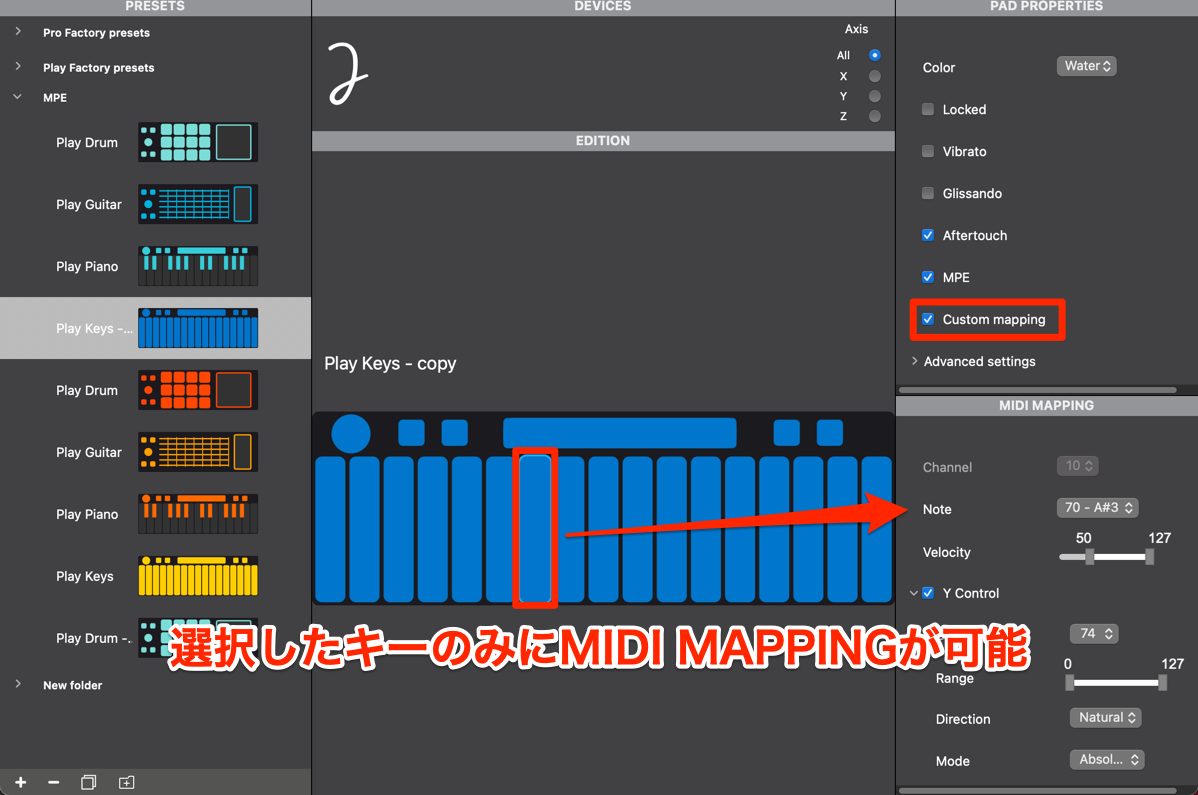
Custom mapping is available on pads other than Play Piano.
Select the key you want to change, then edit its values in MIDI MAPPING.
On Play Guitar, you can change string tuning. On Play Drum and Play Keys, you can specify the MIDI note for each individual key.
Demo track created entirely through Joué Play performances
This example was recorded by playing the various Play Pads introduced above live.
Without editing automation and similar data afterward, you can achieve organic expression reminiscent of acoustic instruments.
What did you think?
At the time of the original guide, a growing range of DAWs and instruments supported MPE, and the author expected it to become more closely integrated into music production.
For the author, Joué Play captures the essential enjoyment of making music: shaping expression in real time as you play an instrument, rather than editing automation or MIDI CC data after recording.
The original review recommends it both to beginners starting music production and to intermediate or advanced players seeking a wider range of expression. Explore the demonstrations and original product link above.
An intuitive music-making tool: how to use Joué Play
Swap between interfaces for drums, guitar, keyboards and more. An iOS app was also offered with the aim of making music creation accessible without prior knowledge of music production or composition.Details: https://t.co/UiiuKqNgSQ #DTM pic.twitter.com/S8ZvyW5wZu
— SLEEP FREAKS (@SLEEPFREAKS_DTM) January 6, 2022
Frequently asked questions
Q1. Which DAWs can I use with Joué Play?
The original guide describes using Joué Play with an MPE-capable DAW and compatible instruments. Detailed configuration in Joué Editor requires the Pro Option described here, with the editor available for Windows and Mac at the time of the guide.
Q2. Can I use several Play Pads in the same project?
With all four pads in both Water and Fire colors—eight pads in total—the app described here supports up to eight tracks. Record parts by swapping pads, and keep the recorded tracks together in the project. Editorial clarification: the Japanese FAQ says the pads can be played and recorded “simultaneously,” but the walkthrough demonstrates one pad at a time on one Play Board; it does not establish simultaneous physical use of multiple pads on a single board.
Q3. Can a music-production beginner use Joué Play?
Yes. The iOS app described here is designed for intuitive use without prior music-production or composition knowledge. Swapped pads are recognized automatically, letting you start making music without complicated setup.
Q4. Which settings can I change in Joué Editor?
Configure MPE and MIDI CC assignments, customize vibrato and glissando, and change settings for individual controls. Create and manage multiple sets, then drag and drop a set onto the Play Pad to write its settings.
NEW ARTICLES
Latest English Articles






























































































































