
This beginner guide explains four basic audio-processing steps for video editing: noise reduction, evening out volume, tonal adjustment with an equalizer, and limiting to control clipping and loudness. Using approachable plugins such as Waves NS1 and MV2, it shows how beginners can improve dialogue clarity and prepare more polished video content. The settings below are examples from the original 2021 tutorial, to be adjusted for your own recordings.
Try Processing Audio for Your Videos
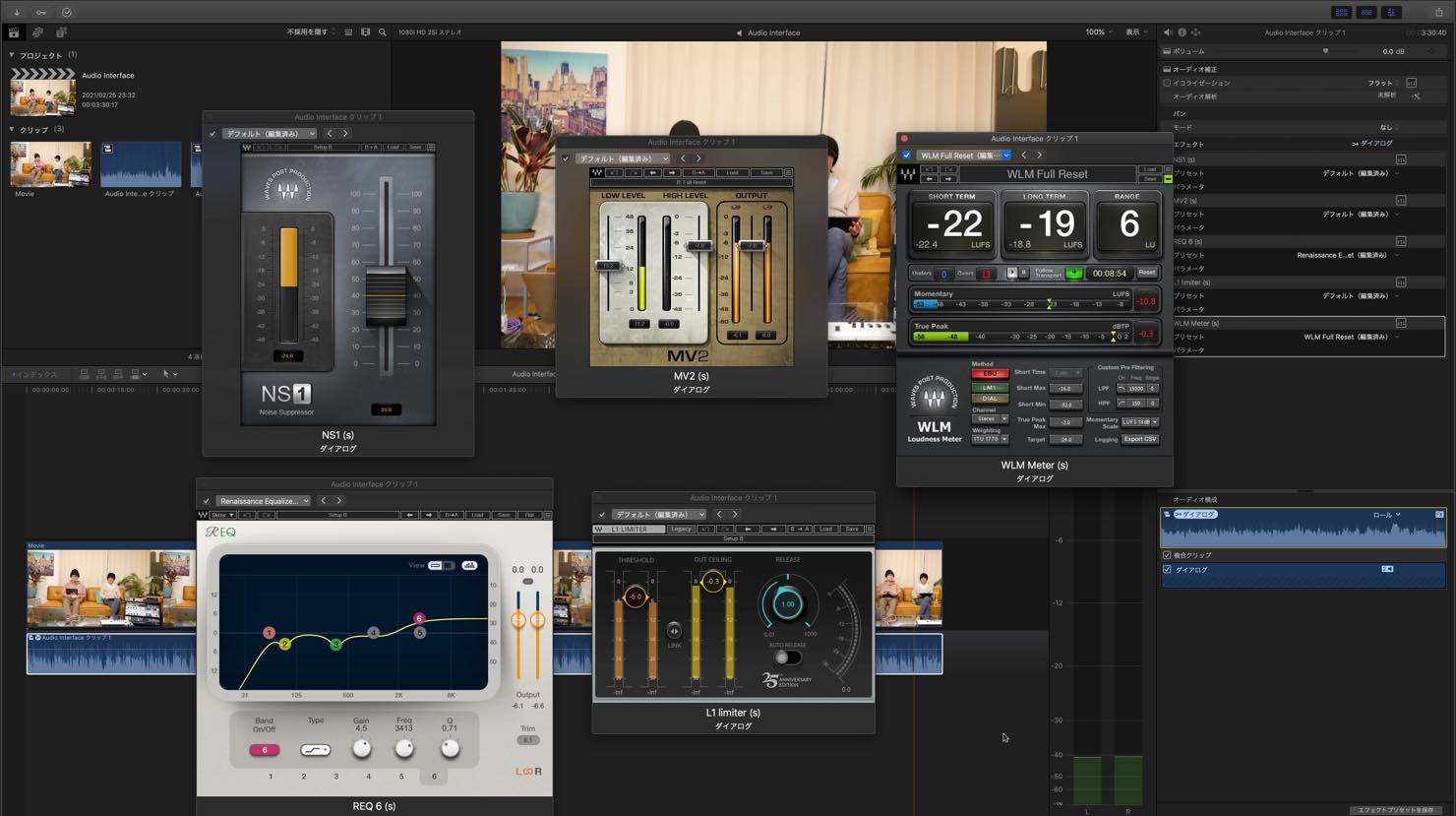
This time, we cover basic audio processing for video editors who want to start making videos for online distribution.
We will also introduce useful plugins for each step. Follow along to the end.
Disclosure: this article and video contain promotional content.
- 1 Noise Reduction
- 2 Evening Out Volume Levels
- 3 Adjusting Tone with an Equalizer
- 4 Controlling Clipping and Loudness with a Limiter
Let’s get started.
Audio Processing Basics for Beginner Video Creators: Video
Product links: the following include affiliate and promotional links.
• Waves NS1
• Waves MV2
• Waves Renaissance Equalizer
• Waves L1 Ultramaximizer
• Waves WLM Plus Loudness Meter
Noise Reduction
Here is a sample straight from the recording, with no processing applied. Play it and listen carefully to the audio.
Noise reduction: before
There is a steady hiss throughout the recording. Let’s reduce that distracting noise.
Waves NS1 is a useful plugin for this kind of noise.
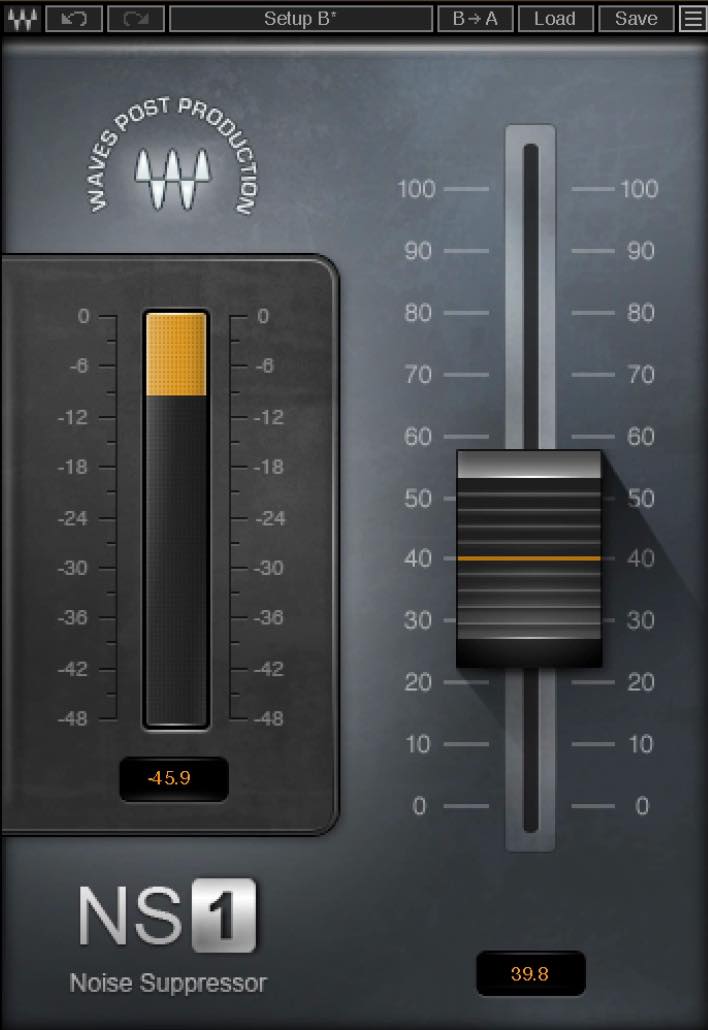
Operation is extremely simple: raise this single fader.
Raising it increases the amount of noise reduction. Be careful, though: excessive processing can also affect the voice you want to keep.
At the maximum setting, parts of the voice sound muffled.
Lower the fader until the voice sounds natural. For this sample, a setting around 40 worked well.
Noise reduction: after
The noise is noticeably cleaner. Some of the room’s reverberant sound also seems to have been reduced in this example.
Evening Out Volume Levels
Next, let’s reduce volume variations to make the dialogue easier to follow.
Listen to this section, for example.
Quiet dialogue: before
The speaker starts loudly, then becomes quieter toward the end. You can also see the change in the audio clip’s waveform.

A compressor is commonly used to control this kind of variation. However, compressors can be difficult for audio-editing beginners to approach and take time to understand.
An alternative to try is Waves MV2.
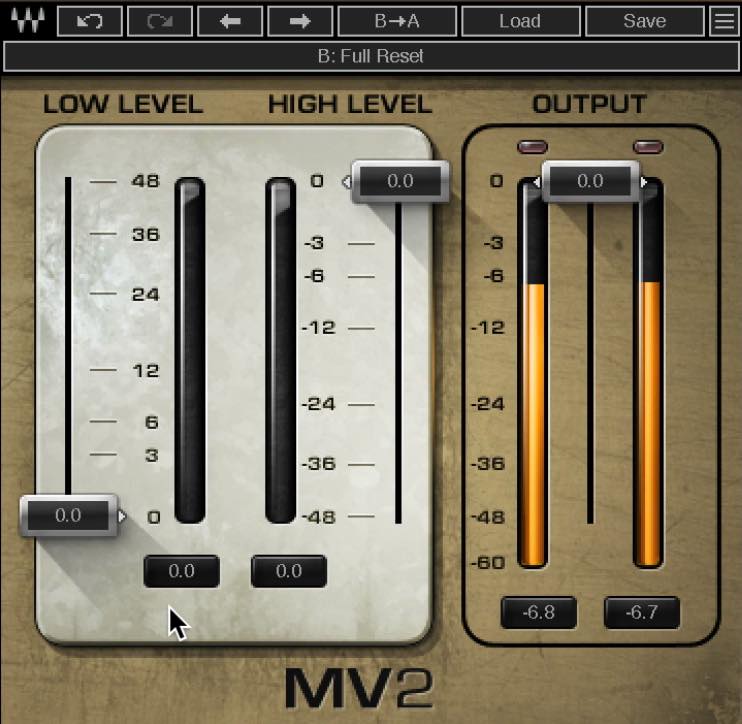
MV2 has three sliders. From left to right, they control:
- LOW LEVEL: how much to raise quieter sounds
- HIGH LEVEL: how much to reduce louder sounds
- OUTPUT: the final output level
These controls let you adjust each part of the level balance.
In this example, we first want to raise the quieter parts, so increase LOW LEVEL.
The appropriate amount depends on the recording’s level variation. In this tutorial, having the LOW LEVEL meter rise to around 6–12 often works well as a starting point.
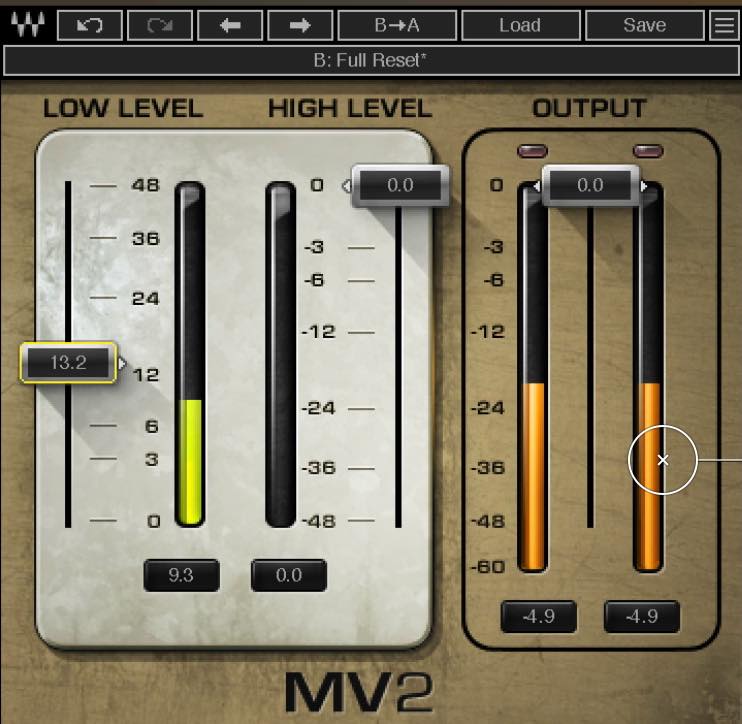
Quiet dialogue: after
The end of the sentence should now be easier to hear.
The waveform shows that the louder parts have changed relatively little, while the quieter parts have been brought up.

Next, there is a section that is particularly loud compared with the rest. Let’s reduce it using HIGH LEVEL.
The highlighted part of the waveform shows where the level is especially high.

Loud dialogue: before
The level suddenly increases, partly because two people are speaking at once.
Lower HIGH LEVEL. As a starting point for this example, aim for the downward-extending HIGH LEVEL meter to reach roughly −6 dB on the loudest sections. Excessive reduction can make the sound noticeably squashed, so listen carefully.
Lowering HIGH LEVEL in this setup also increases the overall level. Select OUTPUT on the right at the same time so that it moves down together with HIGH LEVEL, as shown.
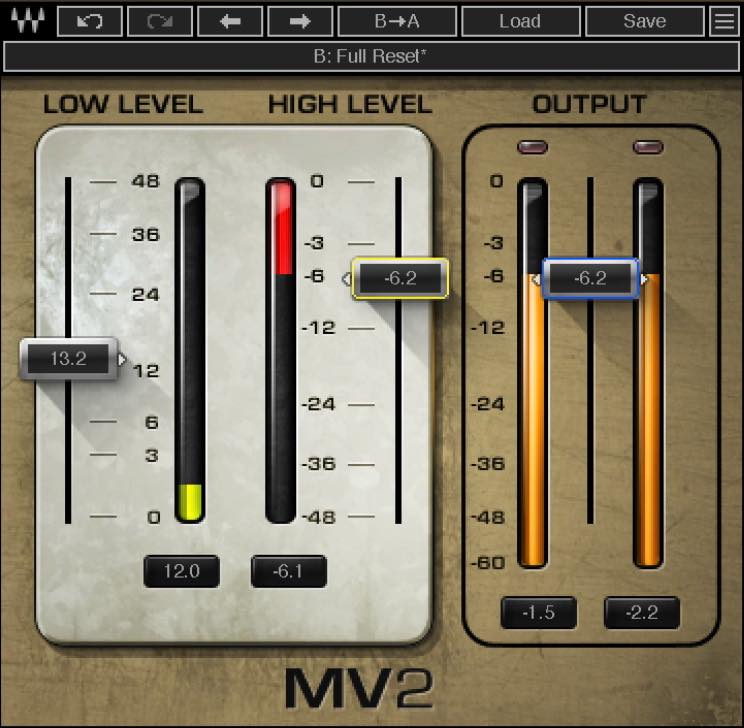
Loud dialogue: after
Compare the samples: the volume changes are smoother, without the same sudden jump in level.
The waveform also shows that the loudest sections have been reduced and the overall level is more even.

Adjusting Tone with an Equalizer
Next, let’s adjust the tonal balance using an equalizer.
We will use Waves Renaissance Equalizer, or REQ, but another equalizer can also do the job.
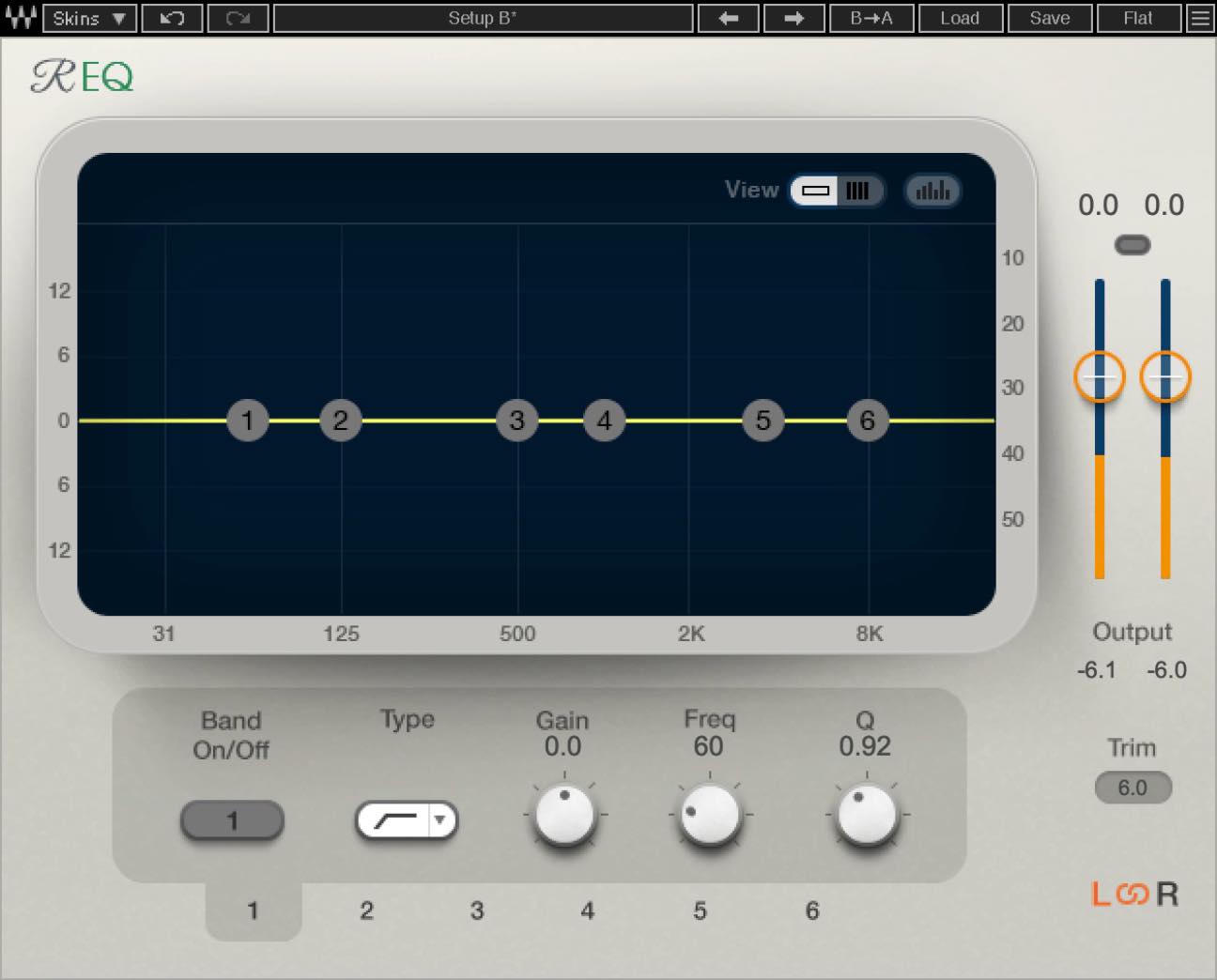
An equalizer changes the sound by boosting or cutting selected frequency ranges within the audio.
Low frequencies are on the left and high frequencies on the right. Control points called bands let you boost areas that need more presence or reduce excessive frequencies.
Waves REQ includes a spectral analyzer that shows the frequency content visually during playback.
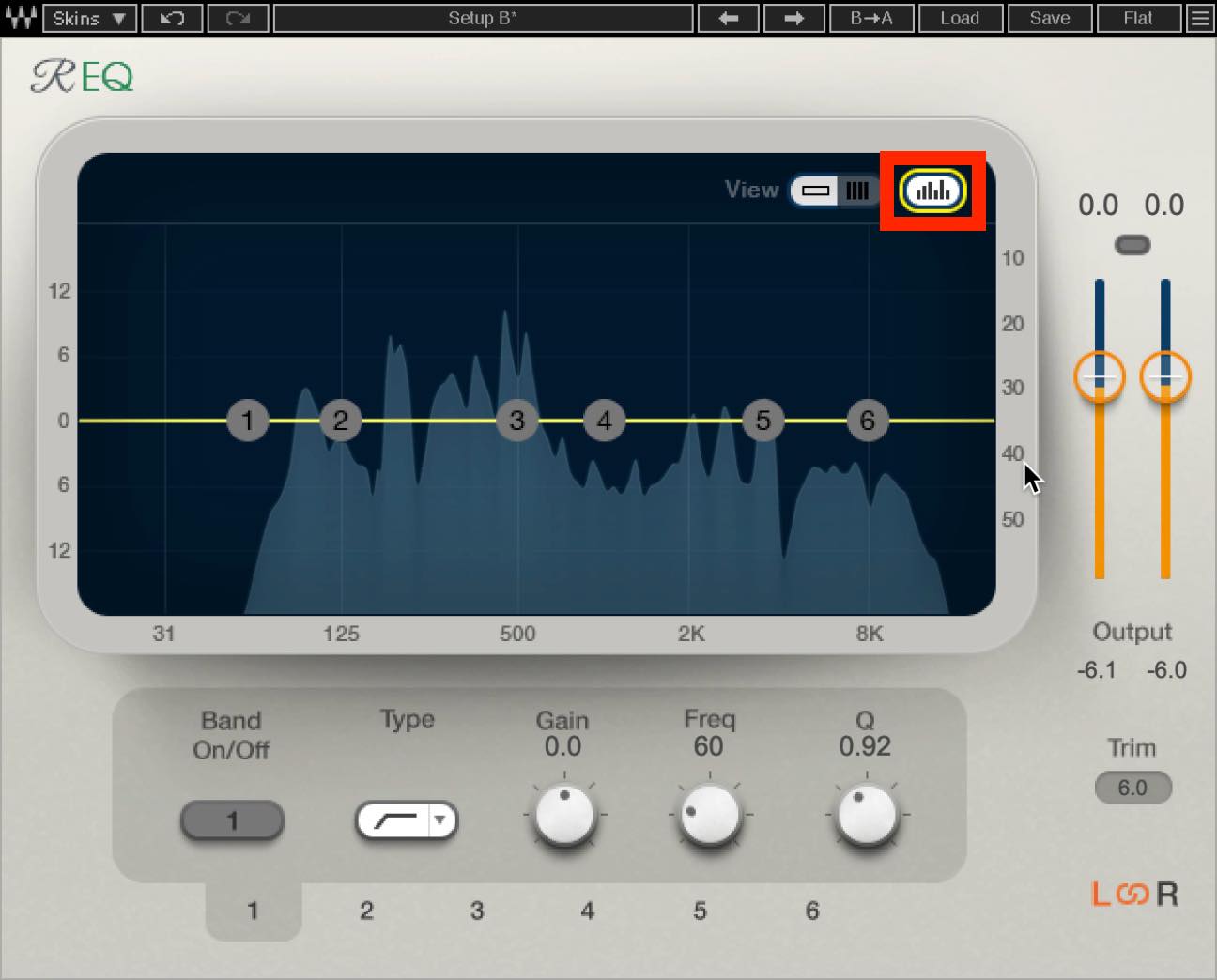
You can see that a speaking voice contains a wide range of frequencies.
How should you adjust it? That depends on the recording, so there is no single correct setting for every voice.
There are useful starting points, however. Let’s use this sample to demonstrate them.
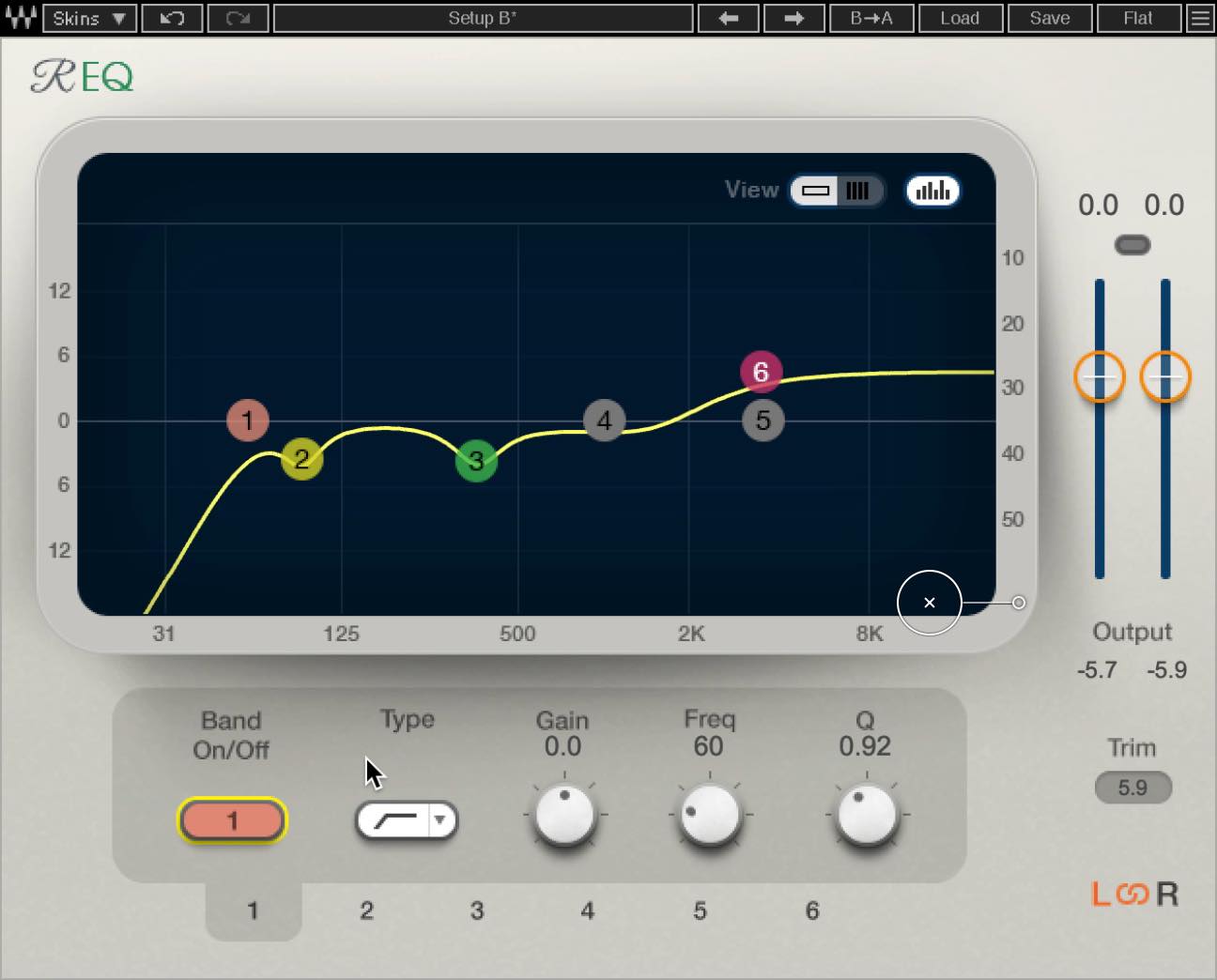
First, consider the higher frequencies above 2 kHz. A suitable boost can often improve intelligibility and give the voice a clearer sound.
To reduce a muffled quality, try cutting some of the low-mid range around 200–500 Hz.
One speaker in this particular sample has a strong low-frequency component around 100 Hz. We reduce it slightly to balance the two voices.
Finally, this tutorial uses a high-pass filter to cut frequencies below 60 Hz, where unwanted low-frequency noise is often present.
Compare the audio before and after equalization.
Equalization: before
Equalization: after
The sound becomes somewhat thinner, but it is clearer and easier to follow.
Controlling Clipping and Loudness with a Limiter
Finally, we use a limiter to help avoid digital clipping and set the final level while referring to a loudness reading.
We will use Waves L1 here, although another limiter can also be used.
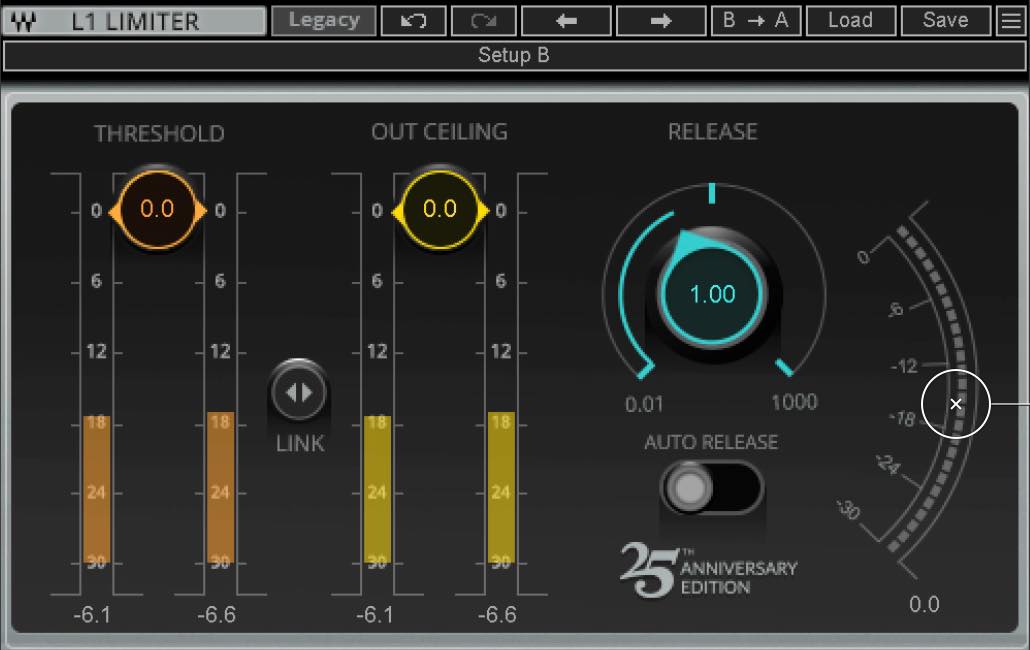
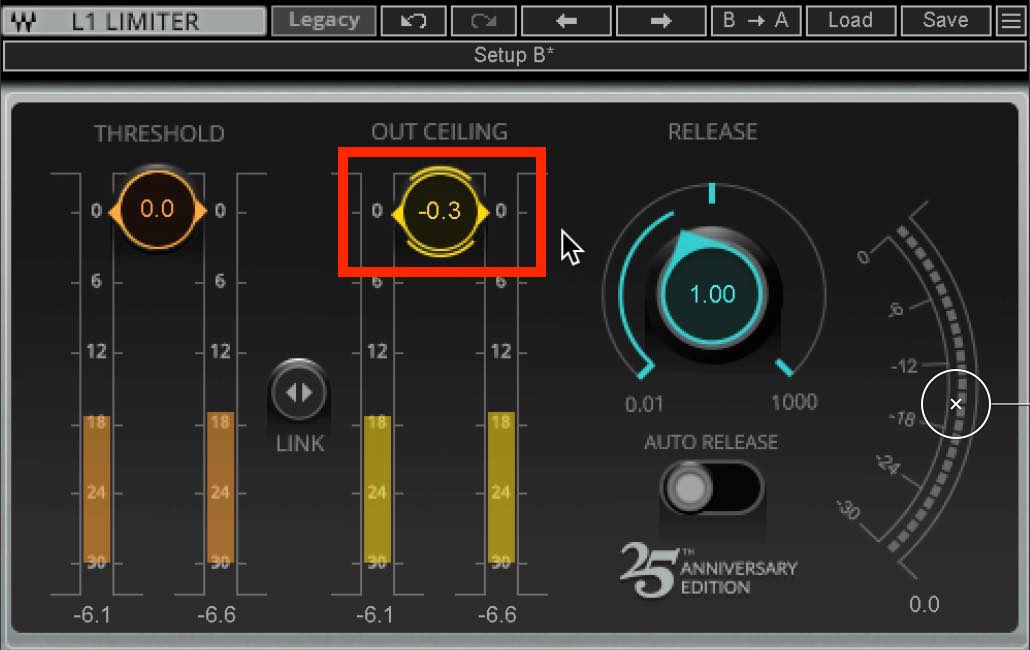
First, set Out Ceiling, the maximum output level the limiter should allow.
For digital audio sample levels, 0 dBFS is the maximum; lower levels are expressed as negative values. If the final fixed-point output is pushed beyond that limit, it clips and can produce unpleasant distortion.
The limiter controls those peaks. In this original example, Out Ceiling is set slightly below zero, at about −0.3 dBFS. This is the tutorial’s example setting, not a guarantee against intersample or encoded-output peaks.
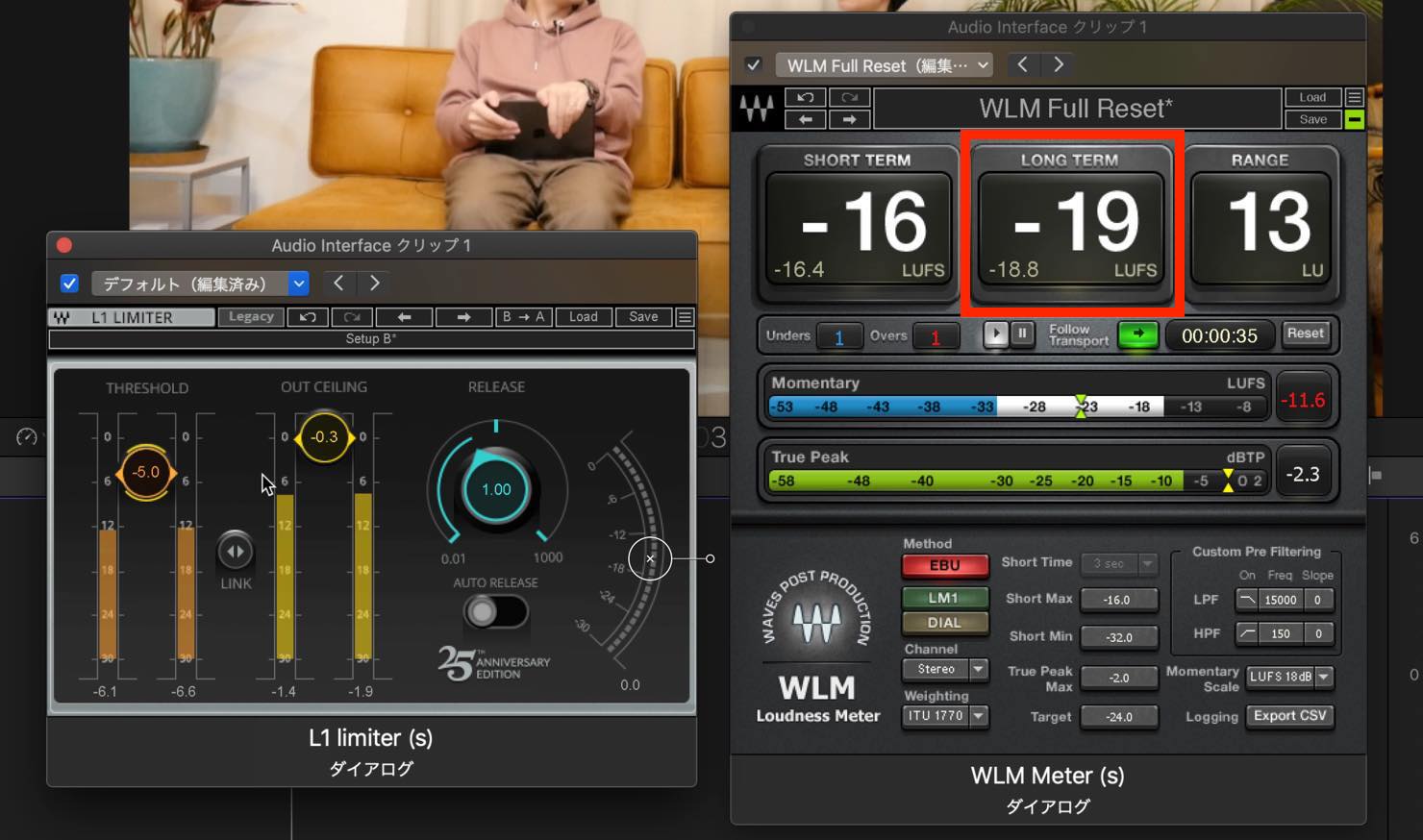
Next, adjust Threshold.
Limiter behavior varies, but in L1, lowering Threshold raises the apparent level while limiting peaks to the selected ceiling, −0.3 dBFS in this example. Pushing Threshold too low applies excessive limiting and can make the dialogue sound constrained and distorted.
We do not need an extreme increase here, but we do want a suitable overall listening level.
Loudness measurements help us judge that overall level.
You need a loudness meter to measure it. We will use Waves WLM, though another loudness meter is fine. Place it after L1.
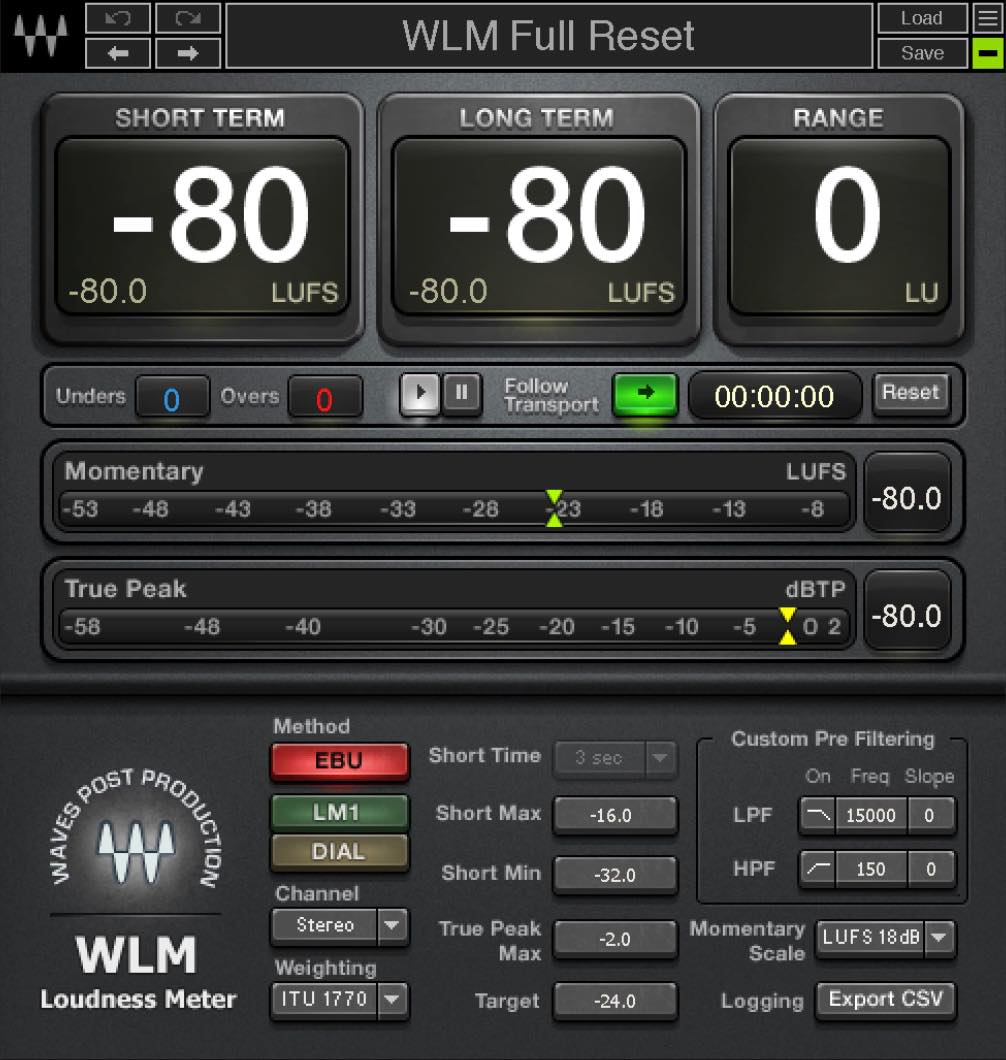
WLM shows several measurements related to level. We will leave the detailed explanation of each for another time.
Focus on the large LONG TERM reading in the middle. Other meters may label the corresponding whole-program measurement Integrated.
For this spoken-word example, the tutorial suggests aiming for approximately −18 to −19 LUFS as a comfortable dialogue level for a YouTube video.
The original tutorial mentions the commonly cited −14 LUFS YouTube reference, but the author finds that level somewhat loud for narration or conversation and prefers the lower dialogue target above. These are practical recommendations for this example, not separate mandatory platform standards for music and speech.
The Threshold value depends on the source recording, so adjust it while watching the loudness measurement and listening to the result.
Finally, compare the original recording with the version using all of these processing steps.
Full processing: before
Full processing: after
Only basic processing was used, but the dialogue is considerably easier to follow.
That concludes our introduction to basic audio processing for video editing.
Once you are familiar with these steps, they can be applied quickly and make a noticeable difference. Give them a try as you start editing your own videos.
This tutorial introduces basic audio processing for people starting to make online videos. We also use NS1 and MV2 in our own video editing.
For YouTubers and Beginner Video Editors: Easy Noise Reduction and Volume Control with Waves Plugins
Details: https://t.co/NAaMTzDawX pic.twitter.com/wIHOMoOJDd— SLEEP FREAKS (@SLEEPFREAKS_DTM) March 6, 2021
Frequently Asked Questions
Q1. Is audio processing important when editing video?
Yes. Appropriate processing can reduce distracting noise, make volume more consistent, and improve the overall listening experience. Clear, comfortable audio is an important part of online video quality.
Q2. Is there an approachable alternative if compressors seem difficult?
A tool such as Waves MV2 offers three straightforward sliders for raising quieter sounds, reducing louder sounds, and adjusting output. This makes it easier for beginners to even out volume variations.
Q3. Is there one correct equalizer setting?
No. The right settings depend on the recording’s frequency balance. A suitable high-frequency boost may improve intelligibility, while a low-mid cut can reduce muddiness. Treat these as starting points and listen to your own material.
Q4. Why can noise reduction make a voice sound muffled?
Excessive noise reduction can remove wanted voice components along with the noise. Adjust it gradually and find the point where the voice still sounds natural.
NEW ARTICLES
Latest English Articles


































































































































































