
Distroyer, the distortion plug-in included with Cubase 10, is a versatile effect that ranges from saturation to aggressive distortion. Combining its four basic parameters—MIX, DRIVE, BOOST, and OUTPUT—lets you tailor the distortion to each track. Distortion can reduce the attack and emphasize the sustain, making a sound fuller and easier to bring up in level. Understanding these characteristics can make sound shaping more efficient, whether you are working on a kick drum or another track.
Tailor the Distortion to Your Track and Musical Context
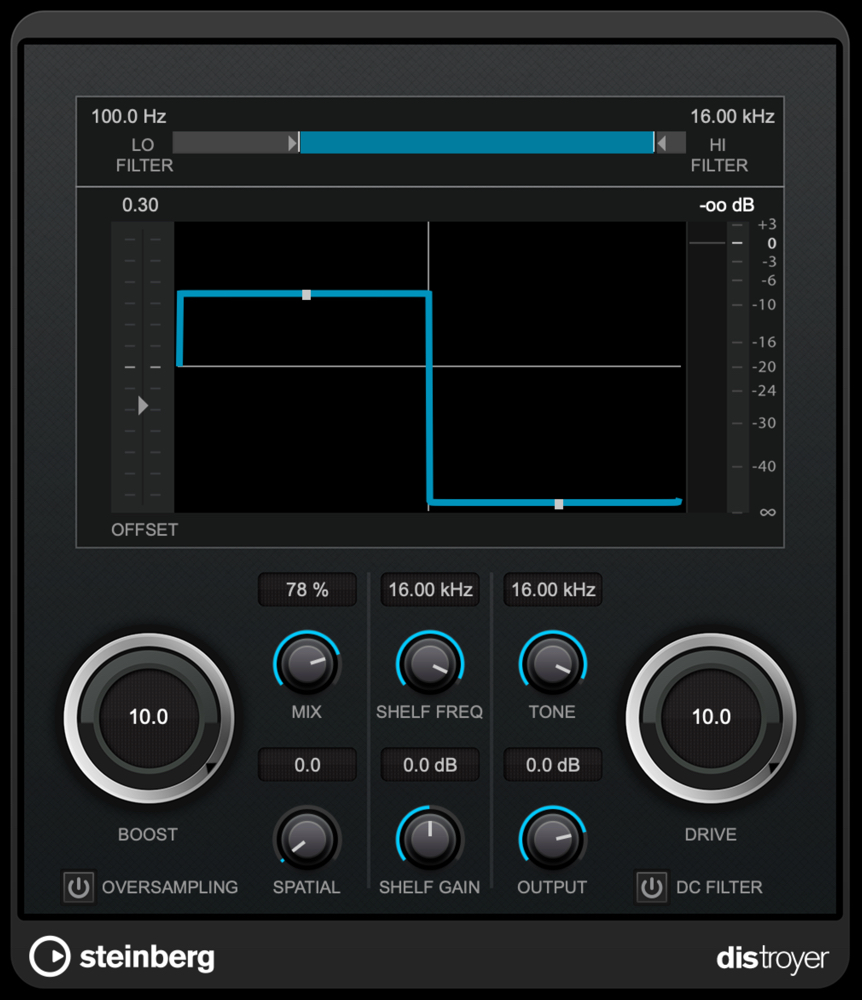
In this tutorial, we will explore Distroyer, an excellent distortion plug-in included with Cubase 10 (Pro/Artist).
Distroyer is a versatile distortion plug-in that covers everything from extreme distortion to saturation that adds body to a sound.
Across two videos, we will introduce the plug-in and demonstrate practical applications.
First, let’s look at the basics and hear what it can do.
Distroyer Basics: Video Tutorial
Steinberg Distributor: Yamaha Music Japan — Content Links
- Yamaha Music Japan MPP (YouTube): https://www.youtube.com/user/SteinbergJapan
- MPP (Twitter): https://twitter.com/SteinbergJP
- Sound Roster Music Production Program (Fresh!): https://freshlive.tv/ymjsoundroster
Product page: https://bit.ly/2UiQvP5
Distroyer’s Basic Parameters
For this example, we will apply Distroyer to a kick drum track.
MIX
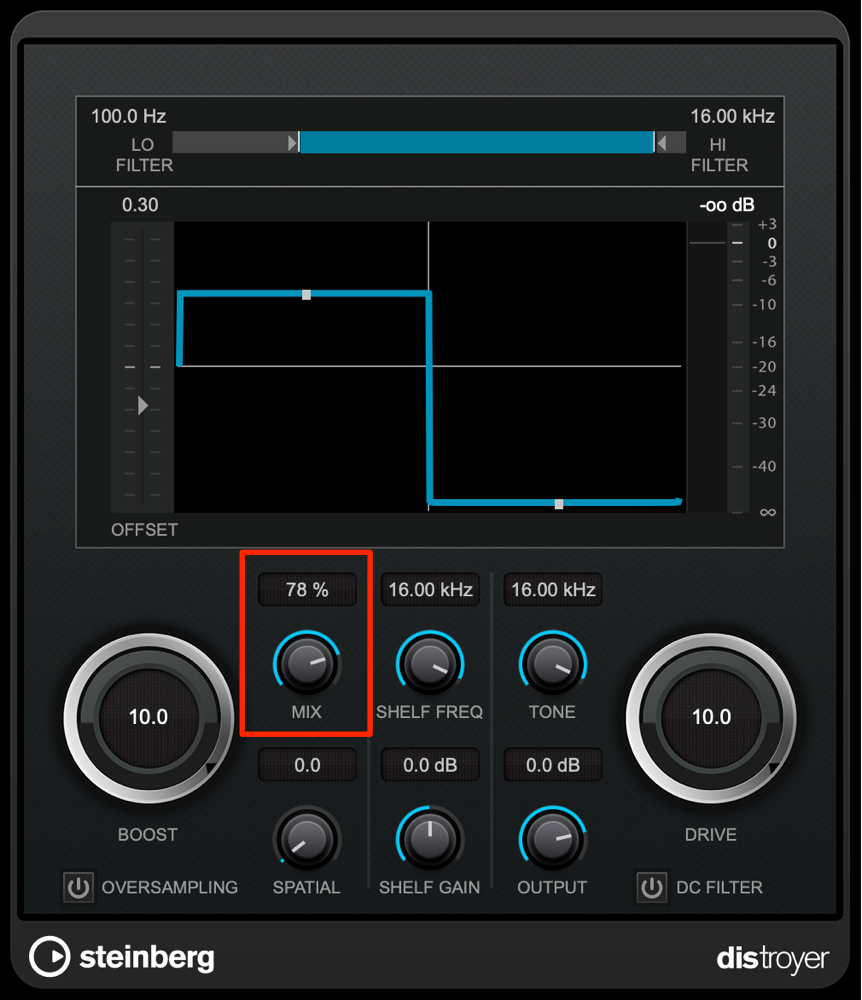
MIX adjusts the balance between the original signal and the distorted sound.
At 0%, you hear only the original signal, with no distortion effect. As you move toward 100%, the distorted signal makes up more of the mix.
You can also set up an aggressive distortion sound and blend in just enough of it with the original signal.
DRIVE
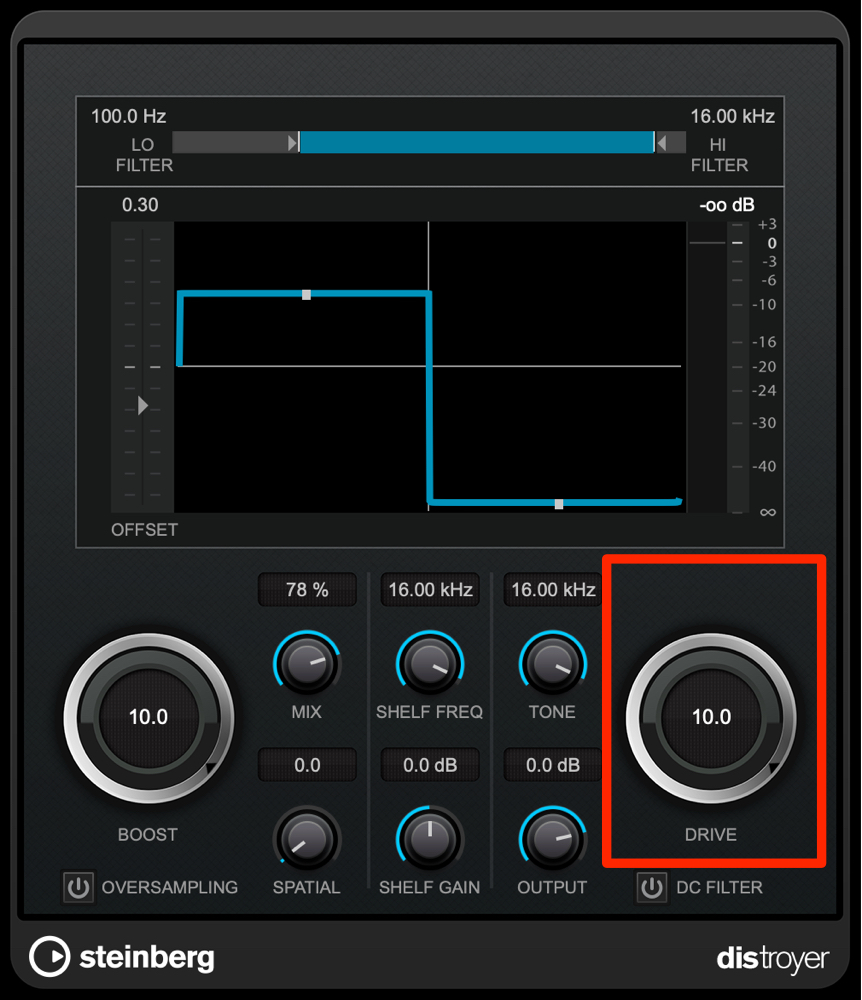
This controls the character of the distortion.
Lower values produce a more natural sound, like saturation or overdrive. Increasing the value produces a more aggressive, distortion-like sound.
BOOST
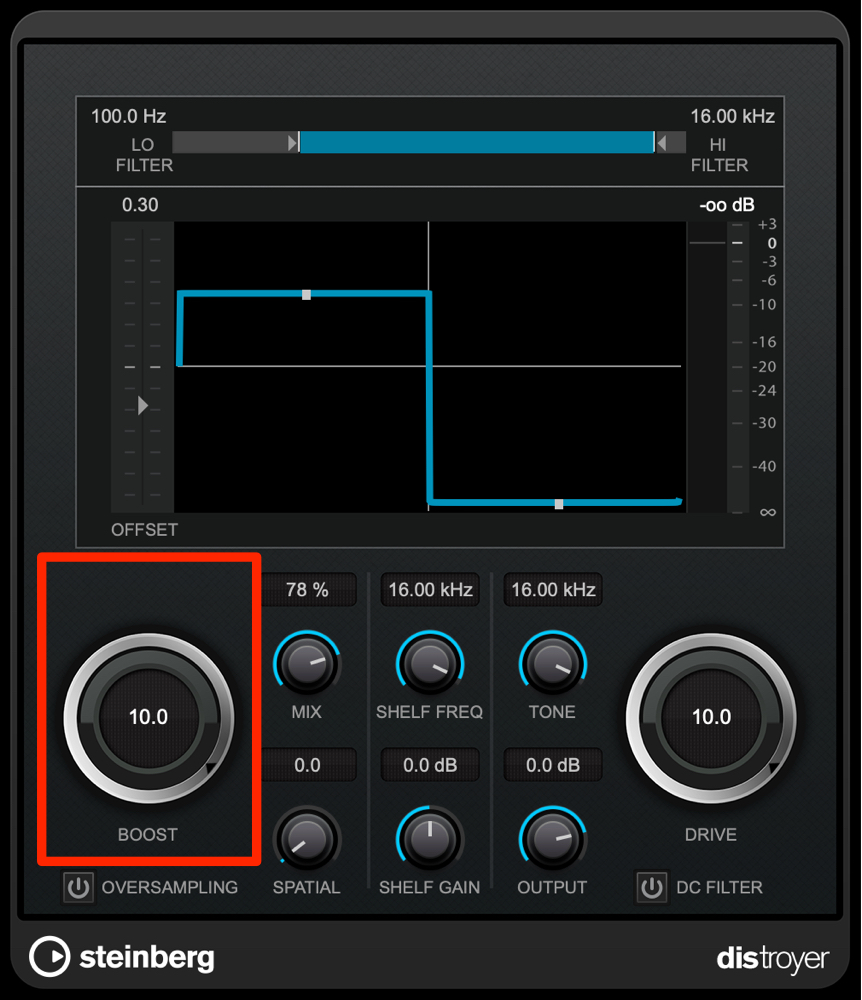
This sets how much of the distortion you have configured above is applied.
The basic approach is to combine these controls to shape the sound to your taste.
OUTPUT
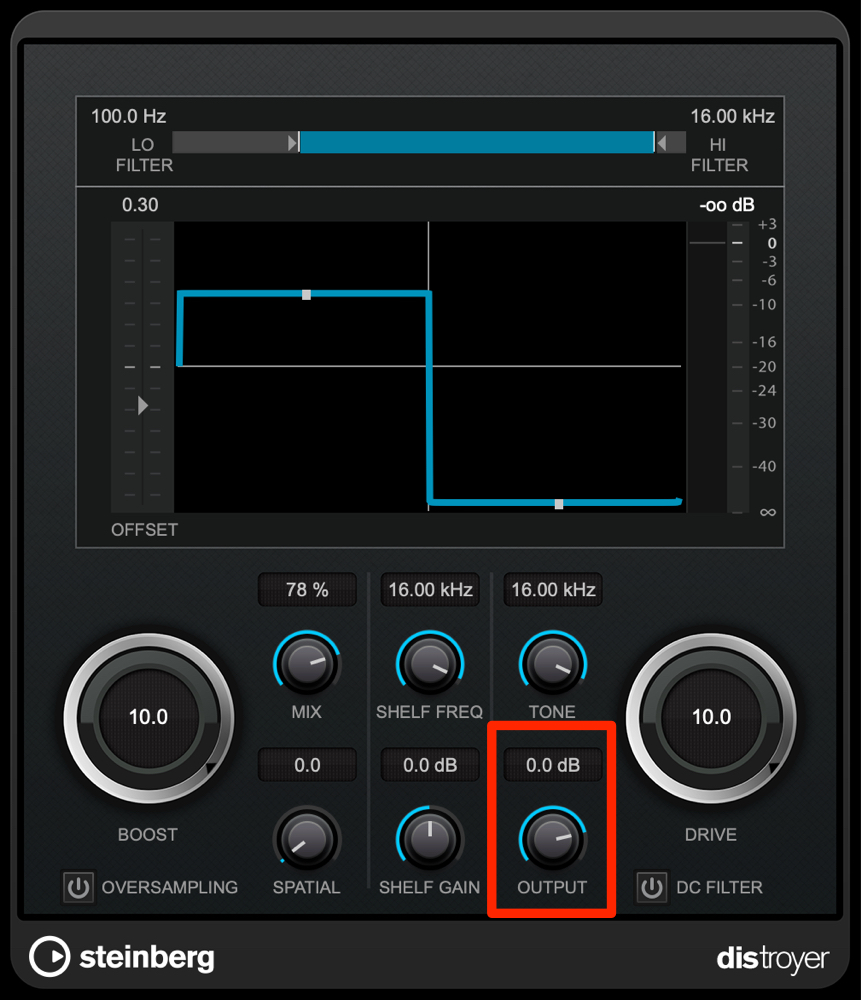
Adjusting the distortion can change the volume considerably.
Once you have the distortion sound you want, use OUTPUT to adjust the track’s level.
Why Does Distortion Make a Sound Fuller?
Distortion is often said to make a sound fuller and increase its perceived loudness.
Let’s look at why.
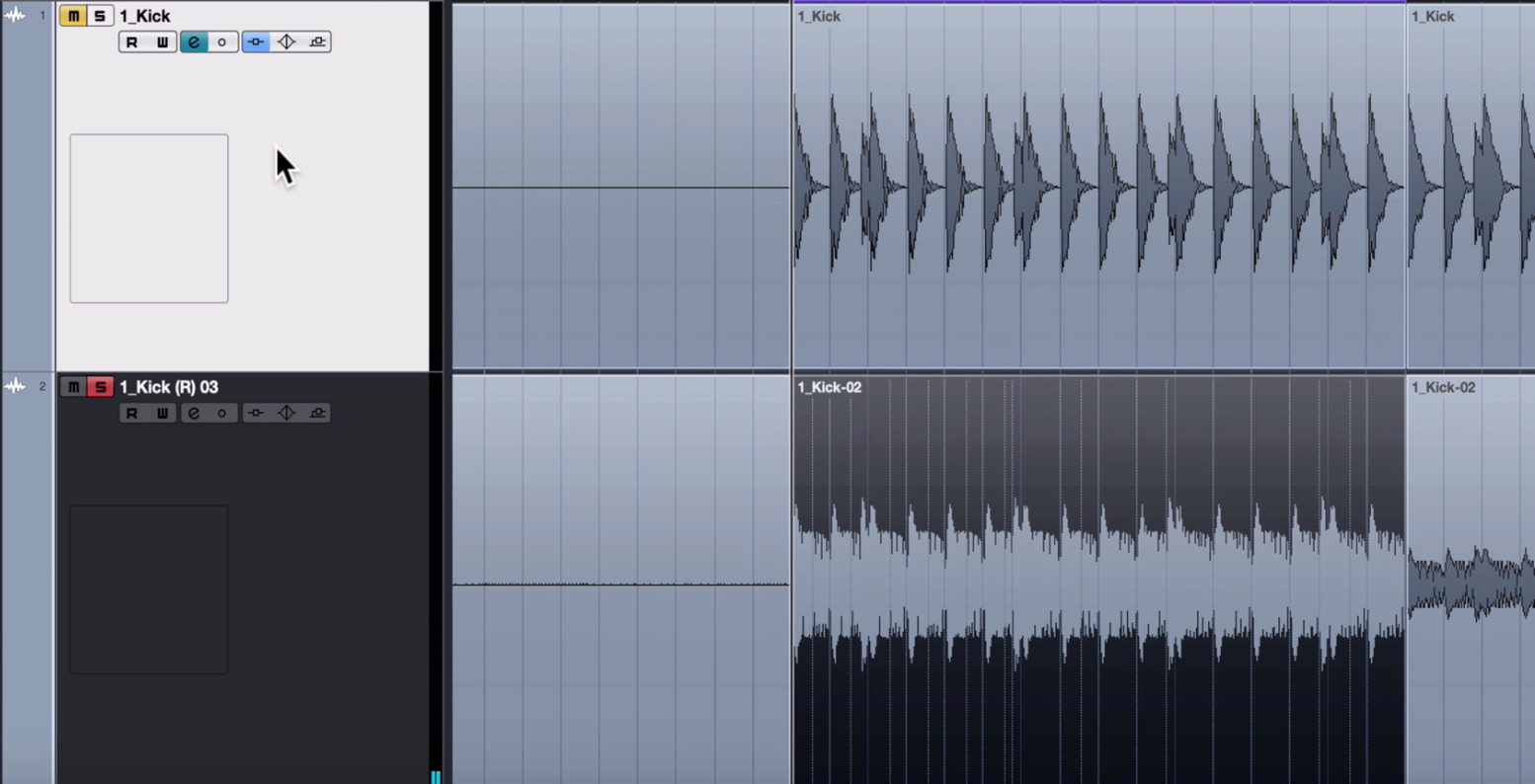
Here, we have placed the waveform of a heavily processed Distroyer sound alongside the original track’s waveform.
This is a somewhat extreme example, but you can see that adding distortion reduces the attack and brings up the sustain.
Bringing up the sustain makes the sound fuller. Because the peaks are reduced, you can also raise the level more easily. These are characteristic effects of distortion.
In the next installment, we will show how to use these basic parameters and the remaining features for sound design and mastering.
Steinberg Distributor: Yamaha Music Japan — Content Links
- Yamaha Music Japan MPP (YouTube): https://www.youtube.com/user/SteinbergJapan
- MPP (Twitter): https://twitter.com/SteinbergJP
- Sound Roster Music Production Program (Fresh!): https://freshlive.tv/ymjsoundroster
Product page: https://bit.ly/2UiQvP5
Frequently Asked Questions
Q1. When should I use Distroyer’s MIX parameter?
A lower MIX setting lets you balance even an aggressive distortion sound with the original signal. This gives you fine control over the sound, adding body while preserving its definition.
Q2. What is the difference between DRIVE and BOOST?
DRIVE determines the character of the distortion: lower values sound more natural, while higher values sound more aggressive. BOOST adjusts how much of that distortion is applied. Combine the two to shape the sound you want.
Q3. Why does adding distortion make a sound seem fuller?
Distortion can reduce the attack while emphasizing the sustain, adding body to the overall sound. Lower peaks also make it easier to raise the level, which can increase perceived loudness.
NEW ARTICLES
Latest English Articles

















































































































































































































































































