Alloy 2 is an all-in-one mixing plug-in from iZotope that combines essential effects, including EQ. This article explores practical EQ techniques: using low cuts to separate tracks from kick and bass, shaping the midrange to improve perceived loudness, and controlling multiple EQ points together. Its wide range of presets can help beginners shape sounds even with limited EQ experience.
Alloy 2: Essential Effects in One Plug-in
iZotope’s Alloy 2 is an all-in-one plug-in.
It packages the basic effects used on individual tracks during mixing into a single tool.

It also includes a wide range of presets,
making it easy to shape a suitable sound even if you have little experience with effects.
Alloy 2 EQ Tutorial, Part 1
Alloy 2 EQ Tutorial, Part 2
Video Point: Turning Individual Effects On and Off
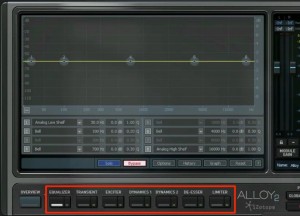
Use the controls at the bottom of the screen to turn each effect on or off.
Video Point: EQ Controls
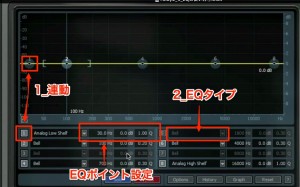
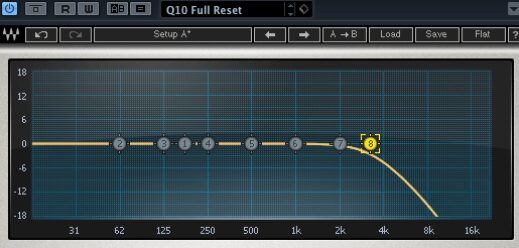
- 1. The numbers correspond to the EQ points.
Click a number at the bottom to turn its point on or off. - 2. Choose an EQ curve type, such as cut, shelf, or peak.
- 3. Adjust the frequency, gain, and Q for each point.
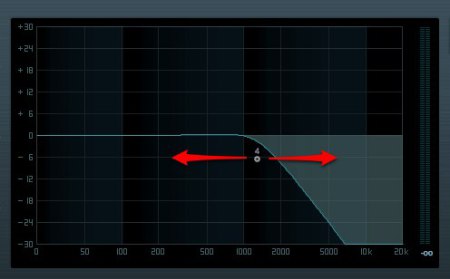
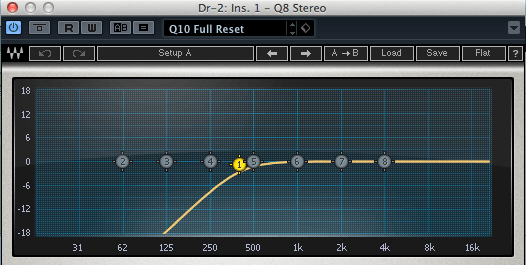
Video Point: Low Cut
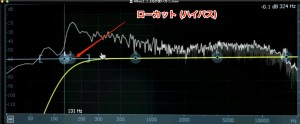
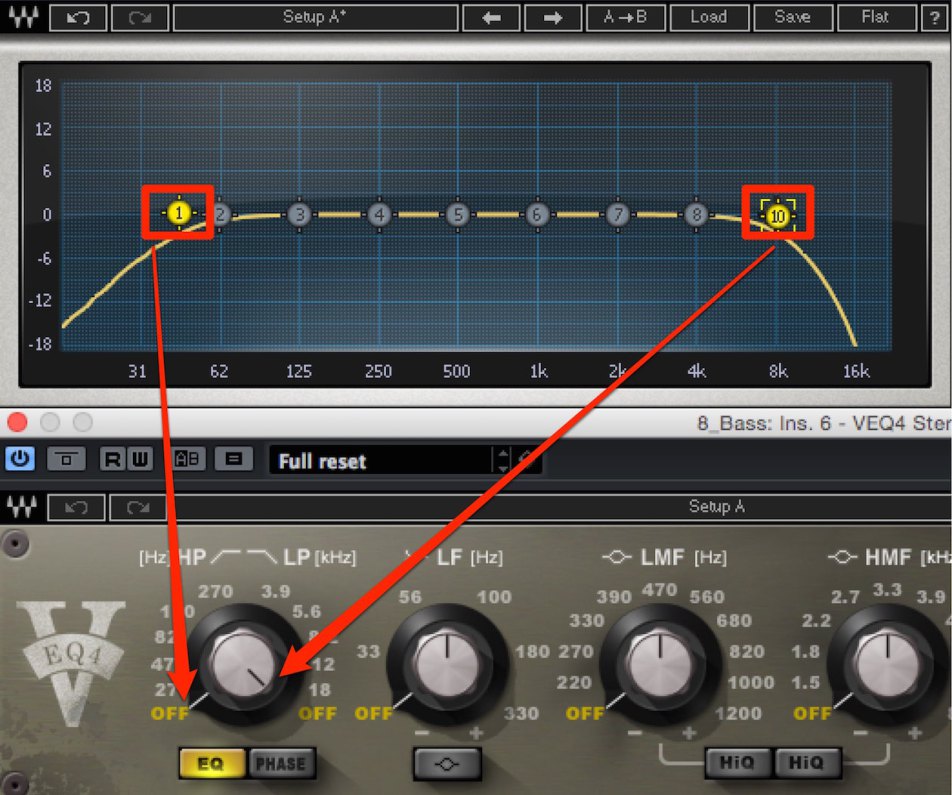
Cutting low frequencies from a track
can help separate it from the kick drum and bass.
Video Point: Working with the Midrange
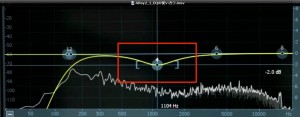
The midrange is where the frequency ranges of many tracks overlap.
Cutting this range on selected tracks can improve separation.
Video Point: Bypassing All EQ Points
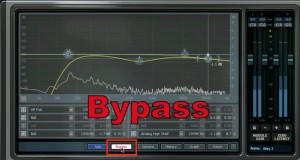
Activate “Bypass,” outlined in red,
to turn off all EQ points at once.
Frequently Asked Questions
Q1. How many EQ points can be configured at once in Alloy 2?
The article explains that numbered controls correspond to EQ points, each with its own frequency, gain, and Q settings. Multiple EQ curves can be configured, and the numbers at the bottom toggle their points on and off.
Q2. When should I use a low cut?
Cutting low frequencies from a track can improve its separation from the kick drum and bass. Reducing frequency overlap between tracks can make the overall mix clearer.
Q3. How do I temporarily disable all EQ settings?
Activate the “Bypass” button to turn off all EQ points at once. This is useful for quickly comparing the sound before and after EQ.
NEW ARTICLES
Latest English Articles