
Learn practical drum programming techniques in Cubase 11, from a basic four-on-the-floor beat to velocity changes, tempo settings, and drum-kit customization. This beginner tutorial explains how to build the rhythmic foundation of a song, use open and closed hi-hats, add ghost notes, and replace kick samples. Follow the steps to develop a more expressive drum pattern and understand how velocity layers affect the sound.
Continuing from the previous tutorial, we will look at programming drum patterns.
Last time, we learned the basic input procedure and related controls. Now, let's use those skills to build a drum pattern that forms the foundation of a song.
Programming Drum Patterns: Video
The Basics of Four-on-the-Floor
For this example, we will create a four-on-the-floor pattern to give the music a dance-oriented feel.
The defining feature is a kick on every beat of the bar. In this four-beat pattern, that means four kick hits per bar.
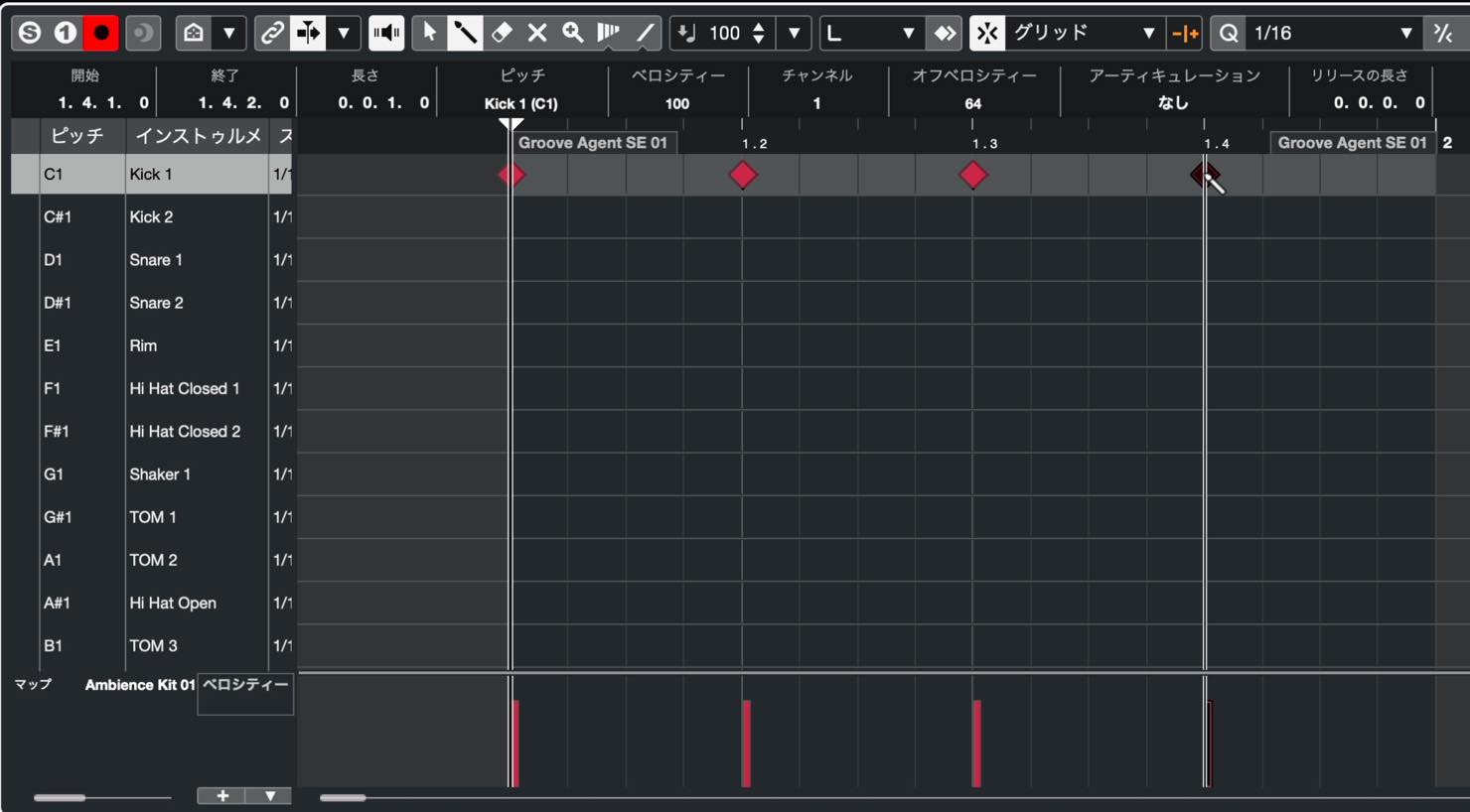
While playing the pattern in a loop, add snare hits to provide accents.
Place the snare on beats 2 and 4.
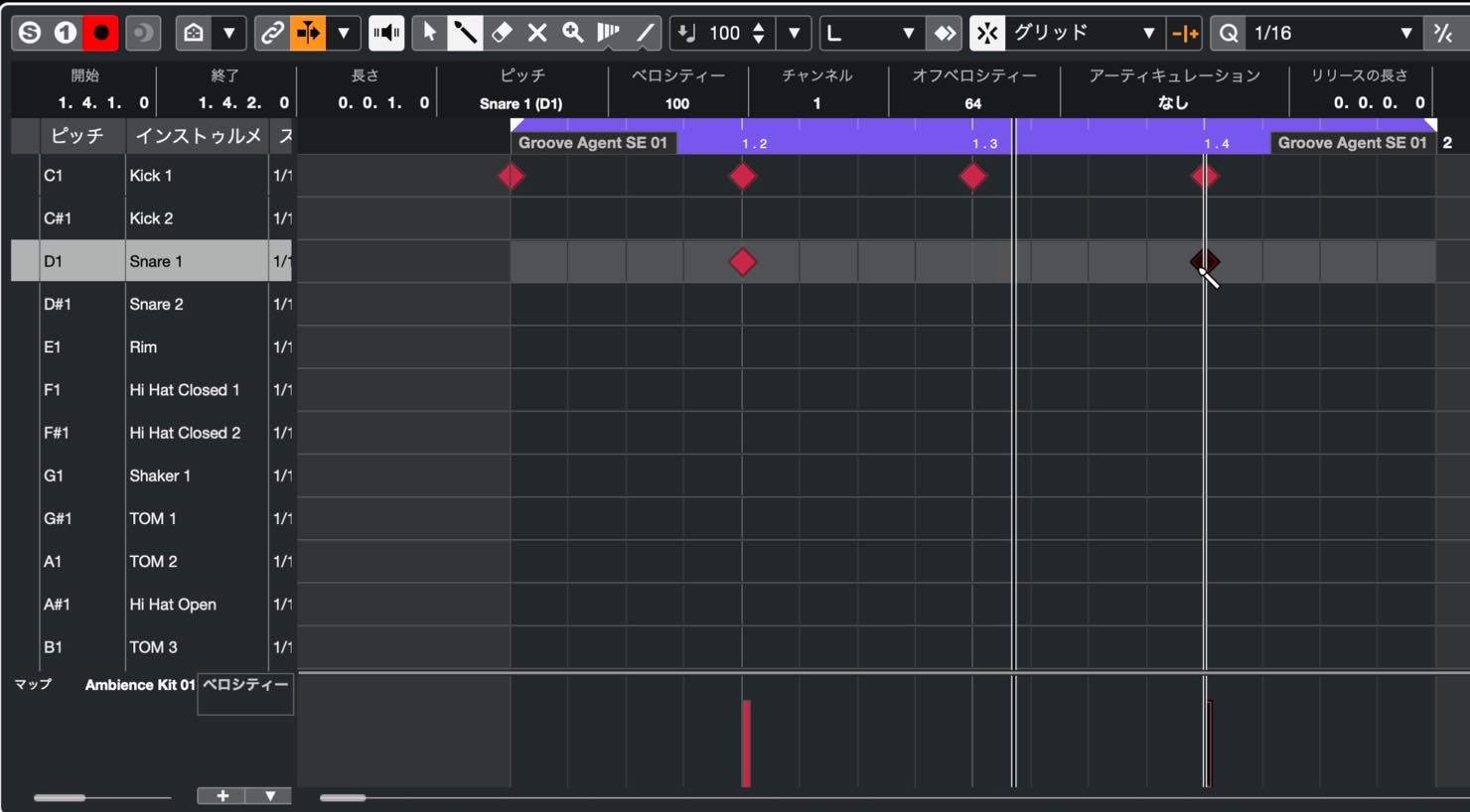
Here is a useful programming technique: click and keep dragging to enter a series of hits. Dragging across positions that already contain hits can erase them.
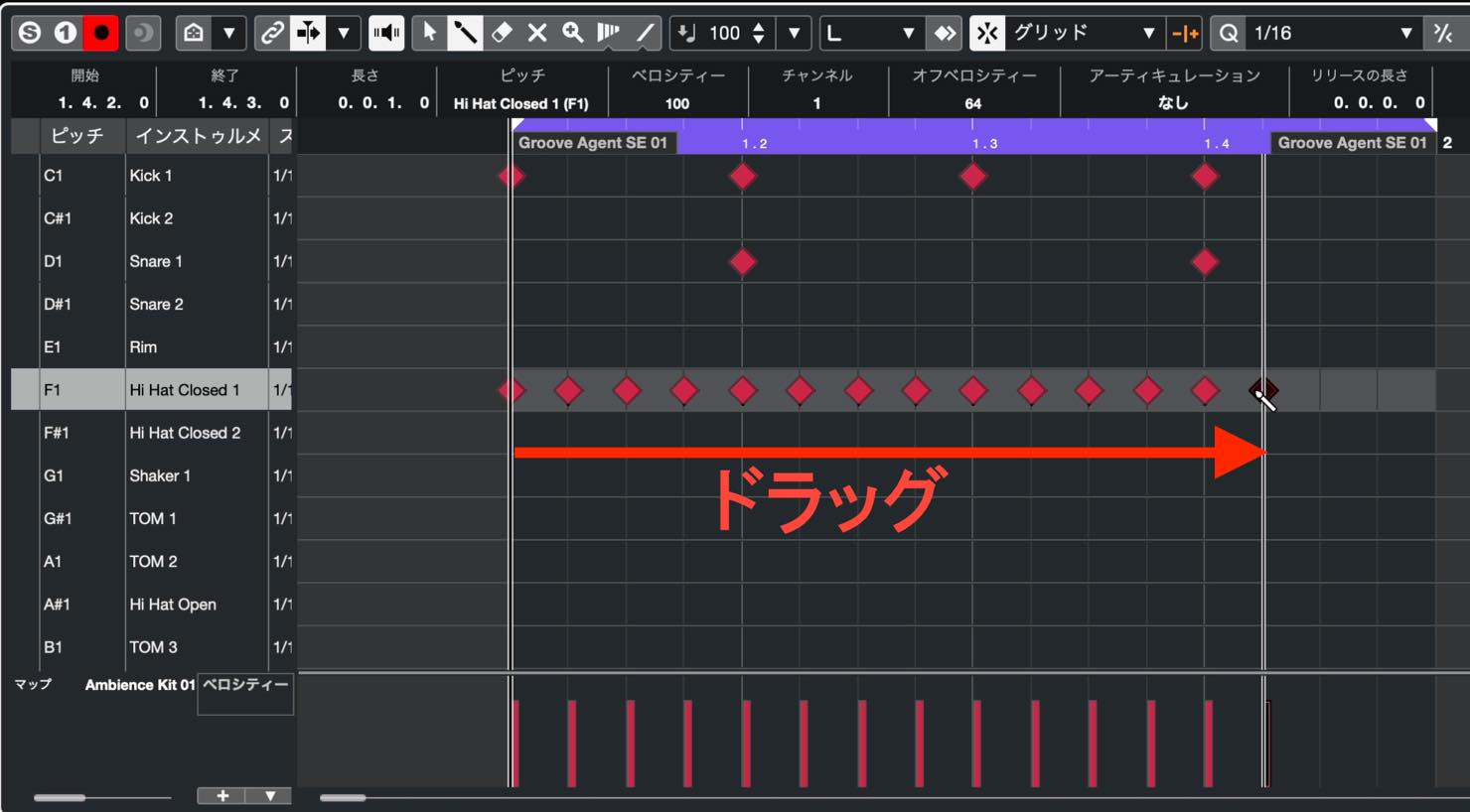
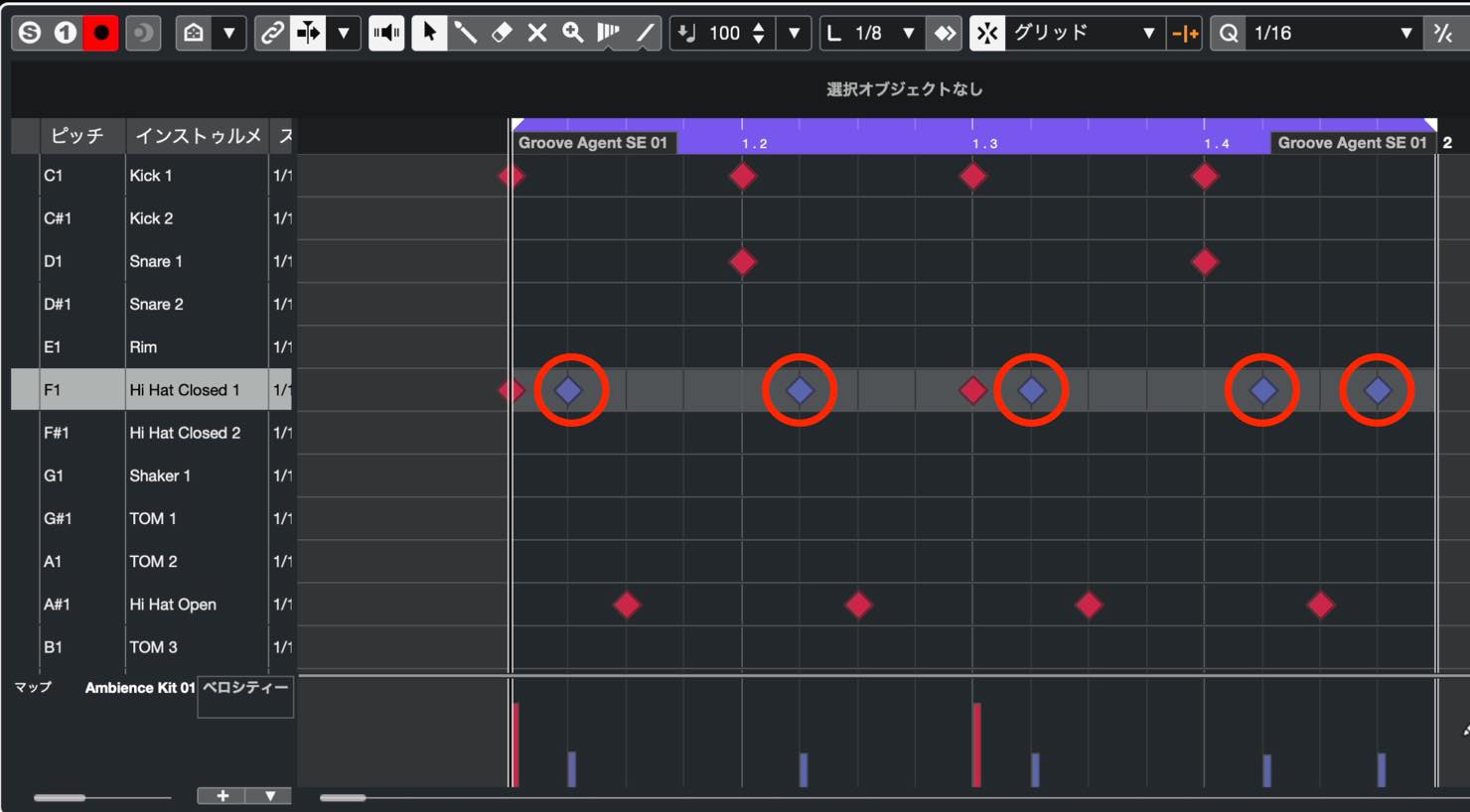
Kick, snare, and hi-hat are enough to establish a beat, but a common four-on-the-floor approach is to accent the offbeat eighth notes.
We will use an open hi-hat for those accents.
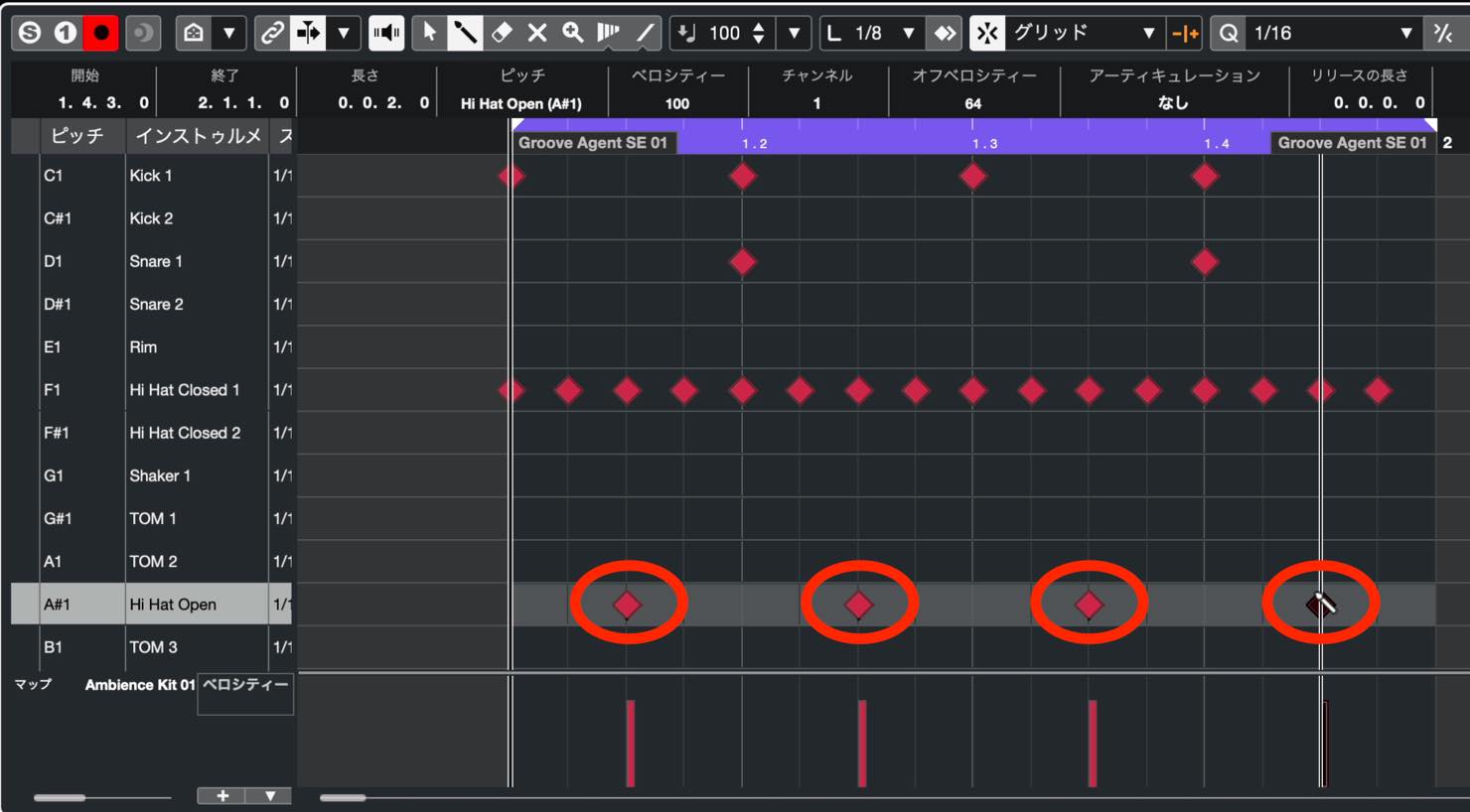
The open and closed hi-hat are different ways of playing the same physical instrument. To simulate a real drummer, avoid having them sound simultaneously.
An open hi-hat rings out, but a closed hi-hat immediately afterward cuts it short. If you want the open hit to ring fully, remove the closed hit that follows it.
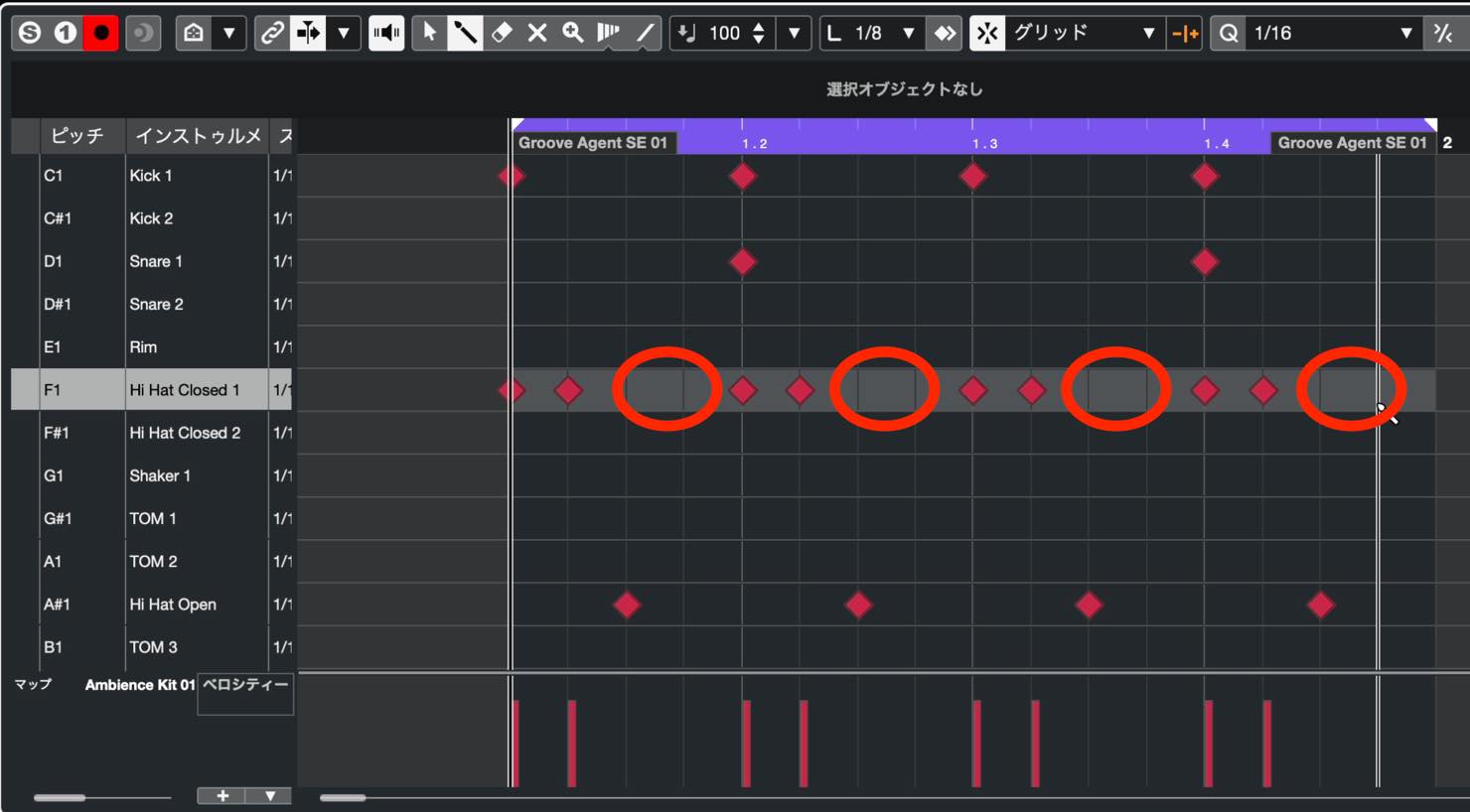
Add or remove hi-hat hits to taste to give the beat more character.
Adjusting Velocity
Once the basic pattern is in place, the next important step is adjusting how strongly the notes are played. For this, use the Velocity parameter to control the strength of each hit.
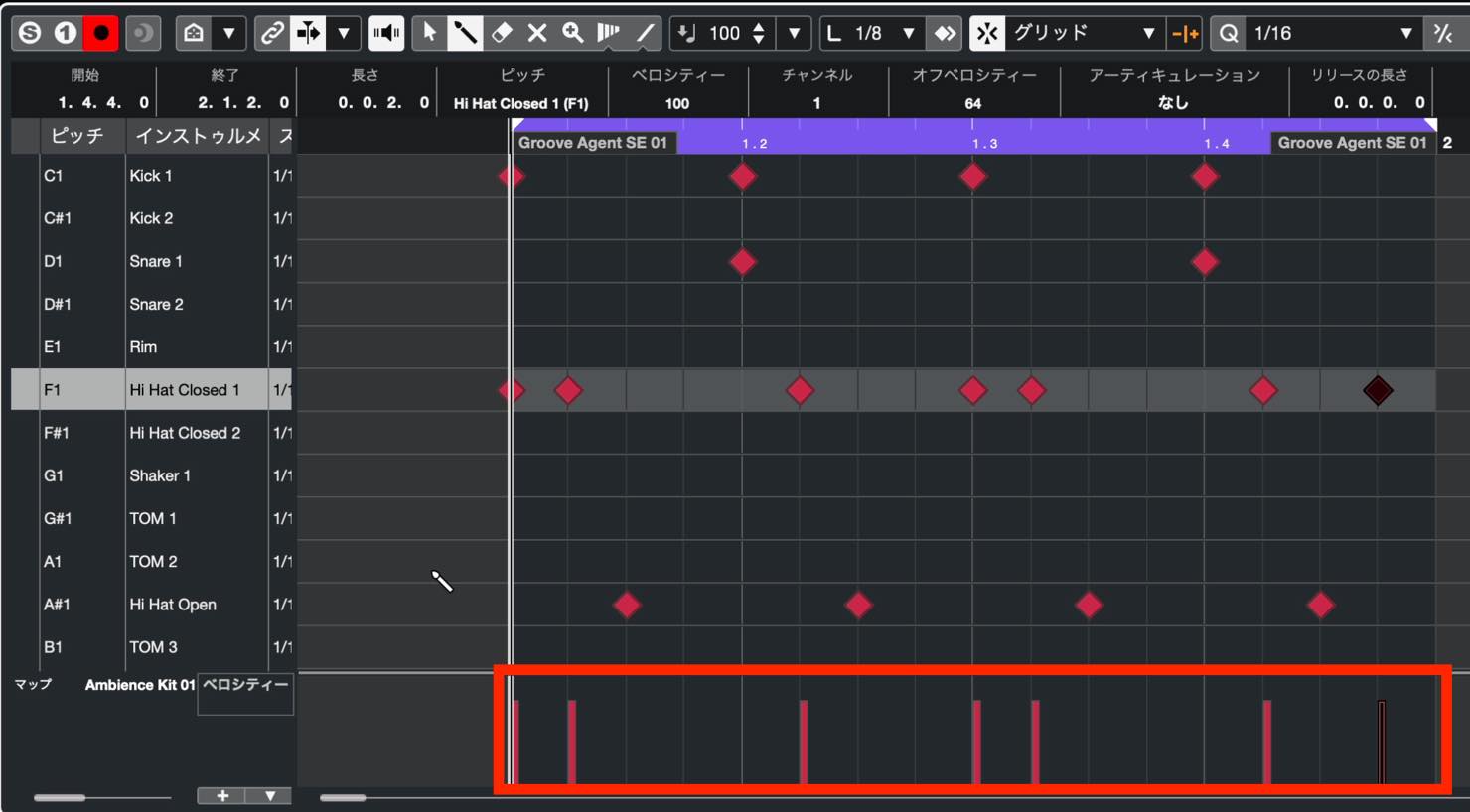
The velocity lane normally appears at the bottom. If it is missing, click the plus button below and choose Velocity.
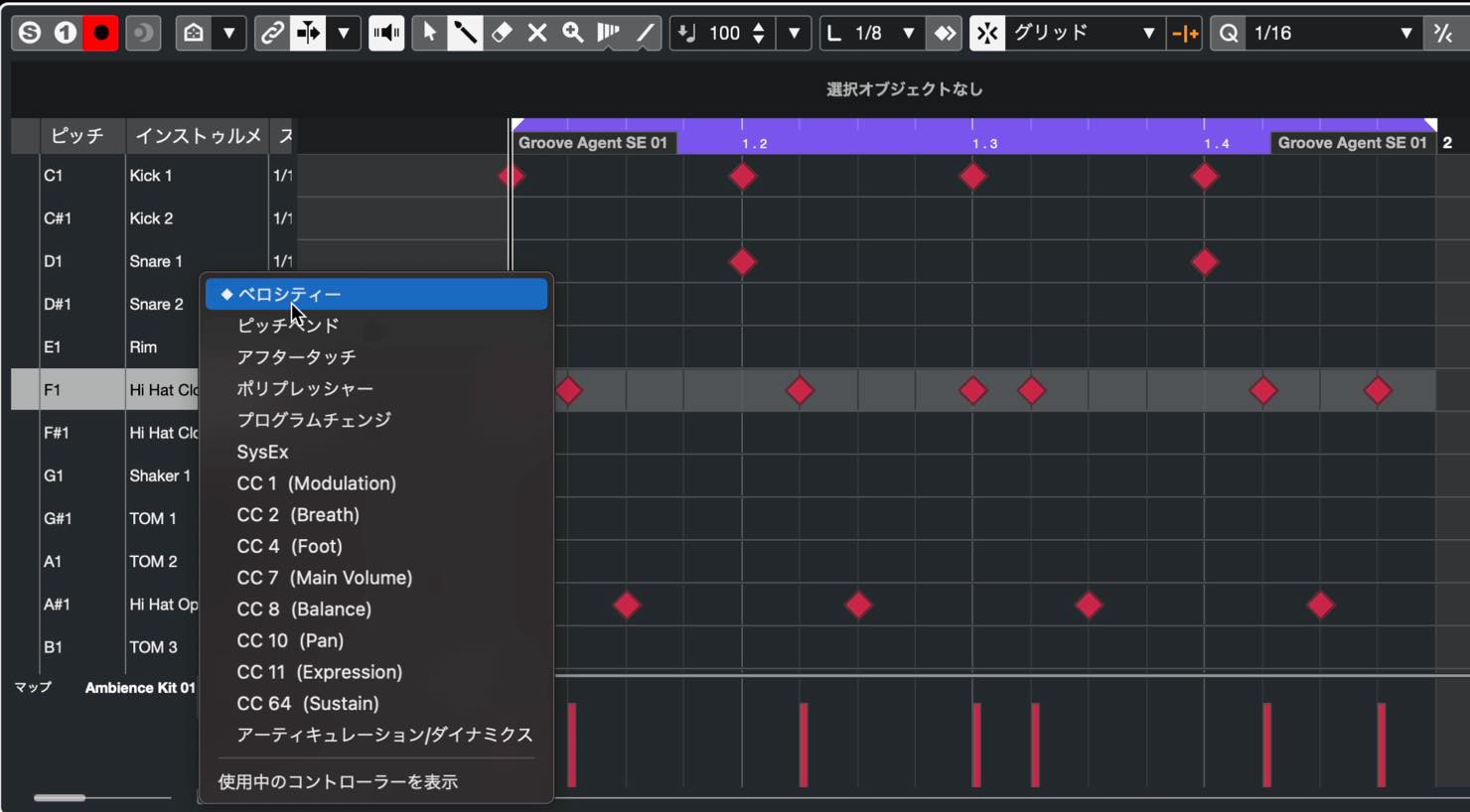
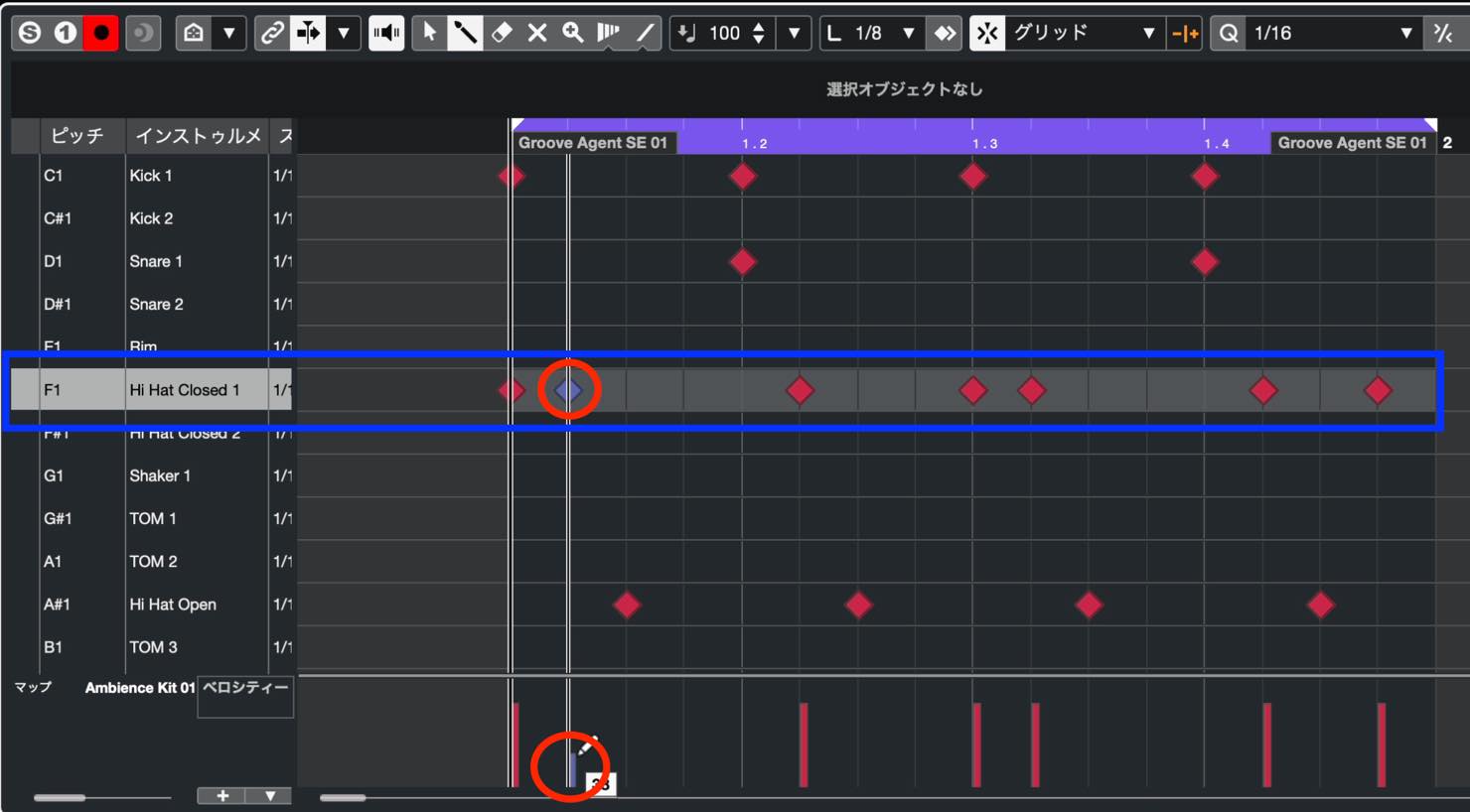
Velocities for the currently selected drum appear as bars. Drag a bar to change the strength of that hit.
To raise or lower the velocity of all drum notes together, select all the notes with the Object Selection tool, then drag the upper edge of the gray highlighted area.
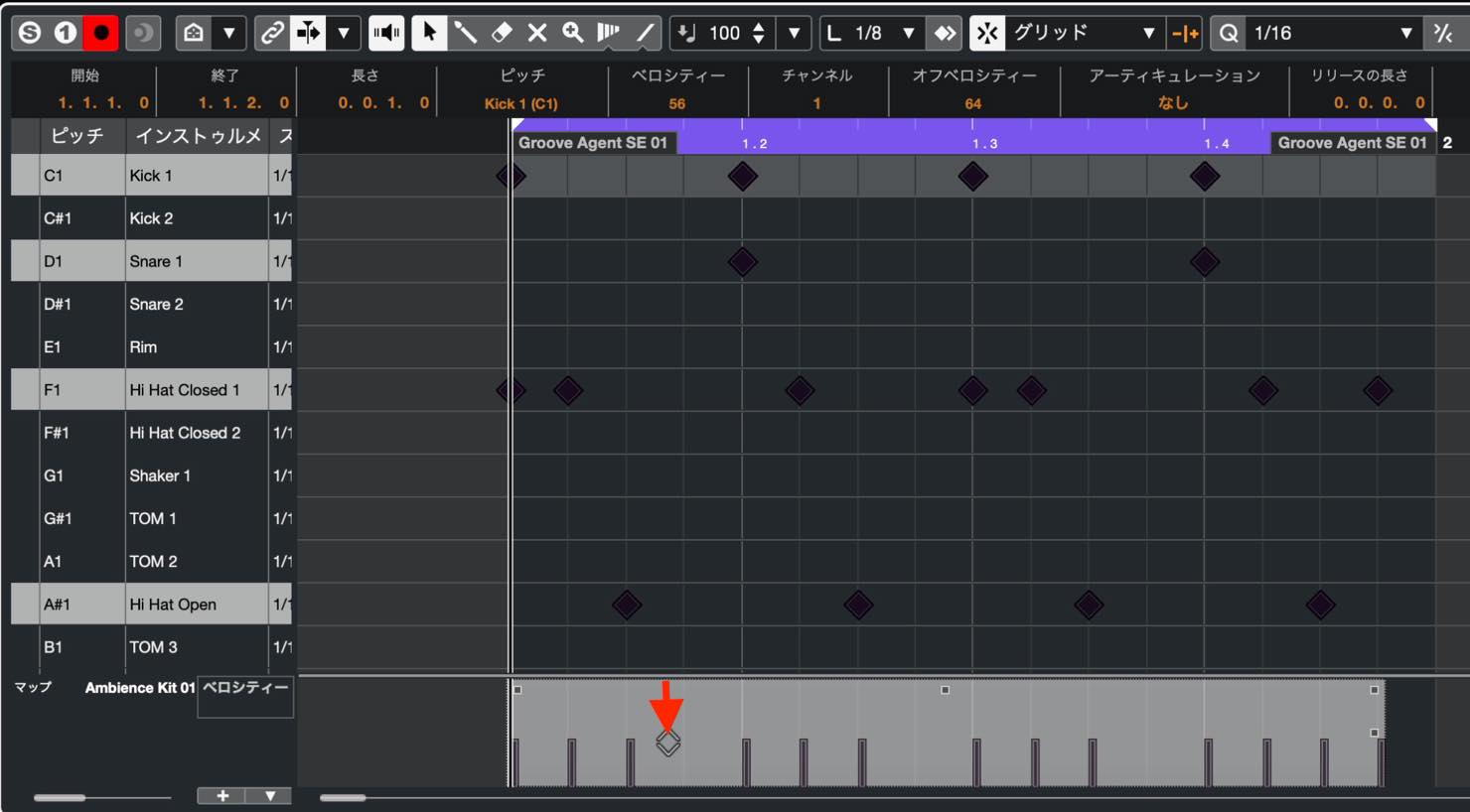
One useful approach is to make the stronger subdivisions louder and the alternating subdivisions softer. This pattern uses a sixteenth-note grid: make the odd-numbered sixteenth-note positions stronger and the even-numbered positions weaker.
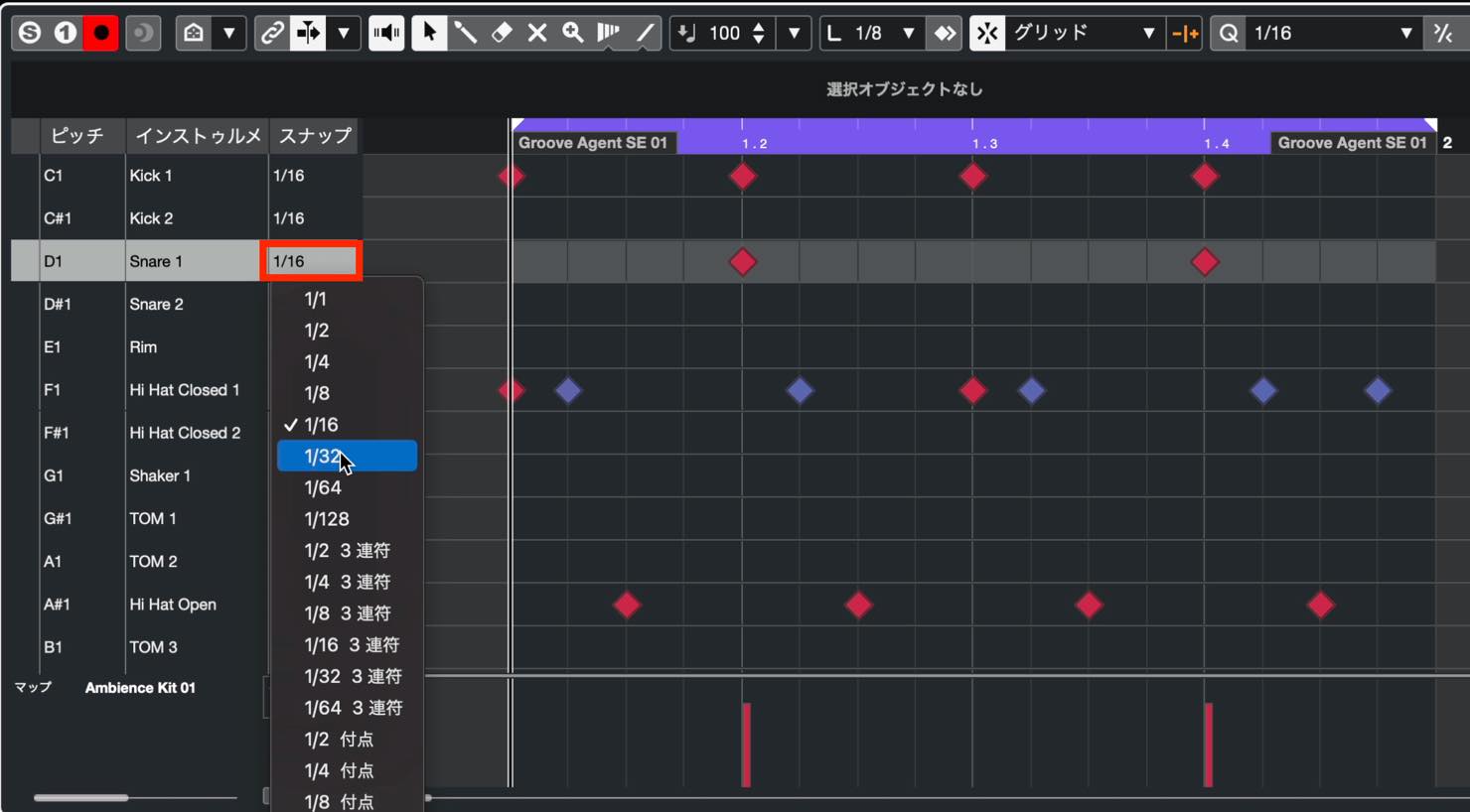
Snap
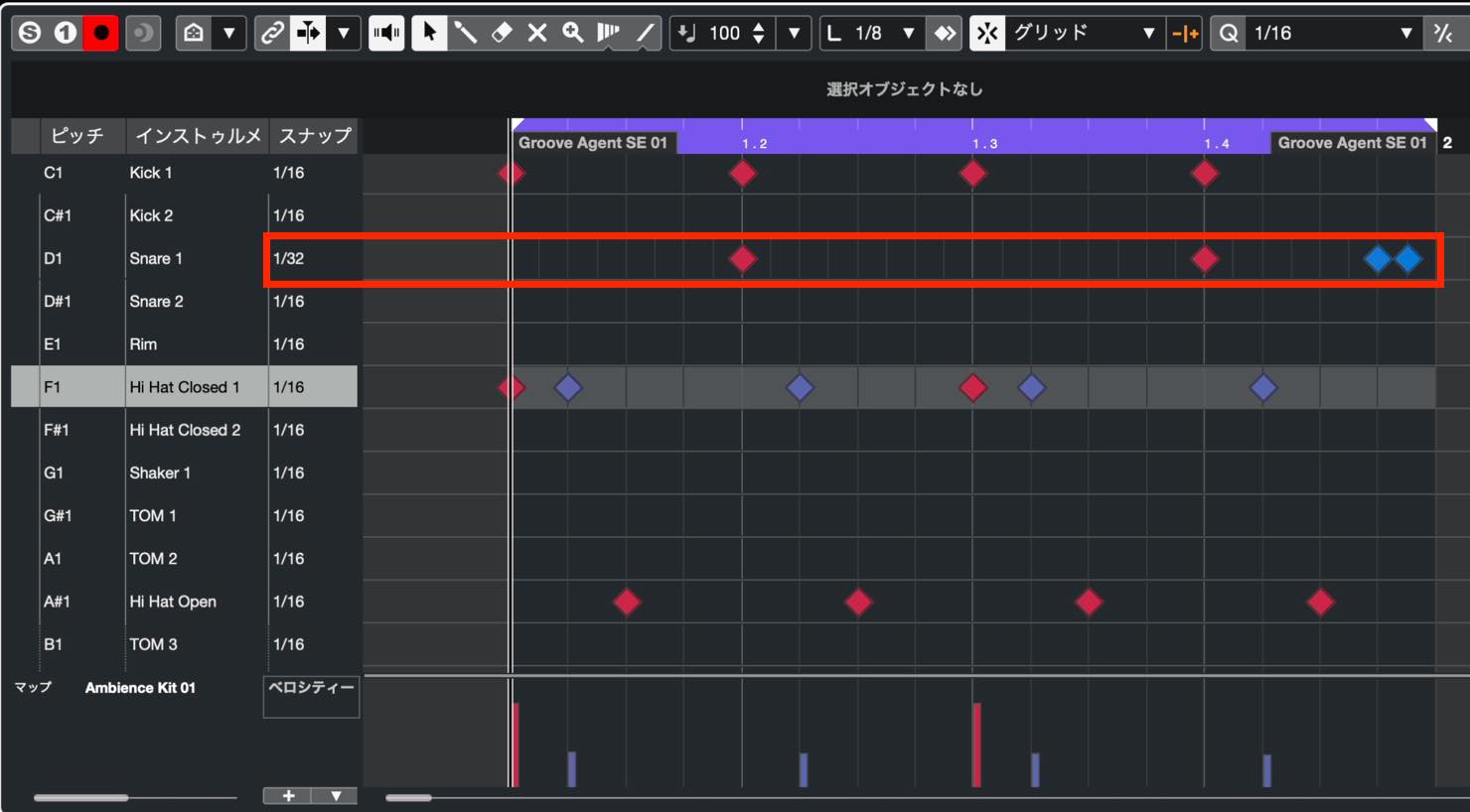
Here is another useful control. The Quantize Preset is currently set to sixteenth notes, so notes are normally entered at those intervals. To use a different interval for a particular drum, click its Snap setting and change it.
This is useful, for example, for adding a thirty-second-note ghost hit around the final offbeat sixteenth-note snare position.
Adjusting the Tempo
With the pattern nearly complete, let's adjust the tempo.
Use the tempo display at the bottom right. Drag up or down to make it faster or slower, or double-click and type a number directly.
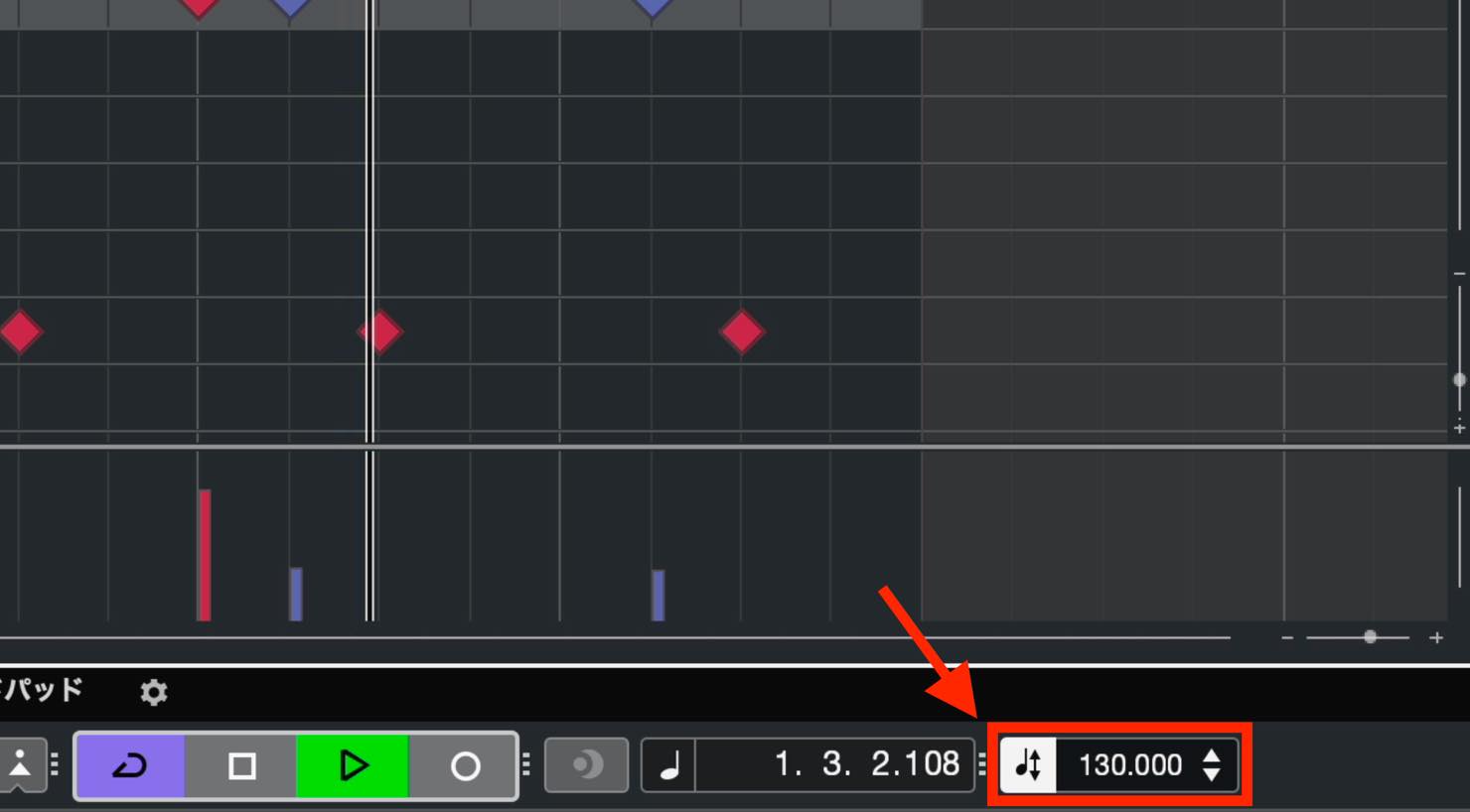
You can also change the tempo during a song.
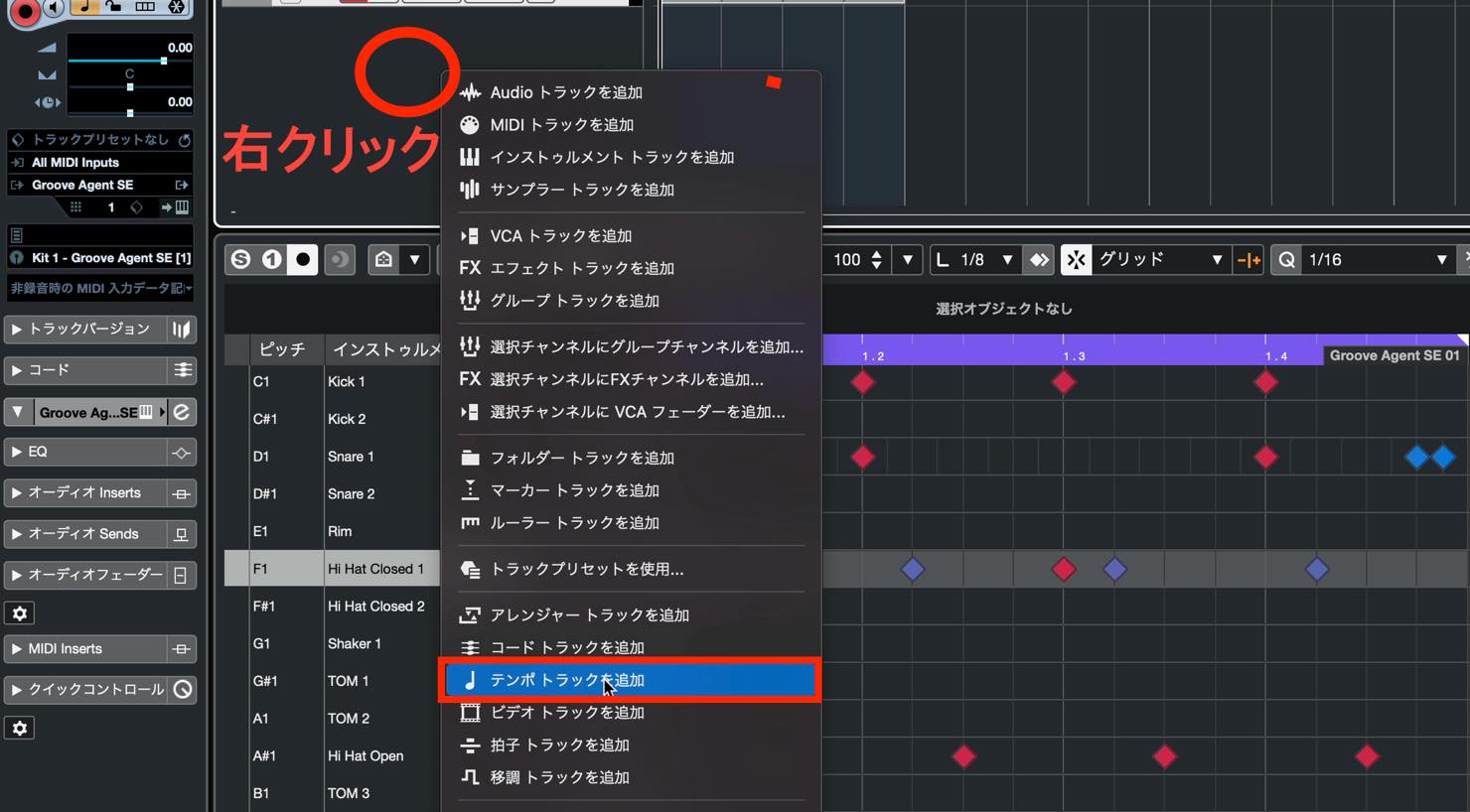
Right-click the track list and choose a Tempo Track.
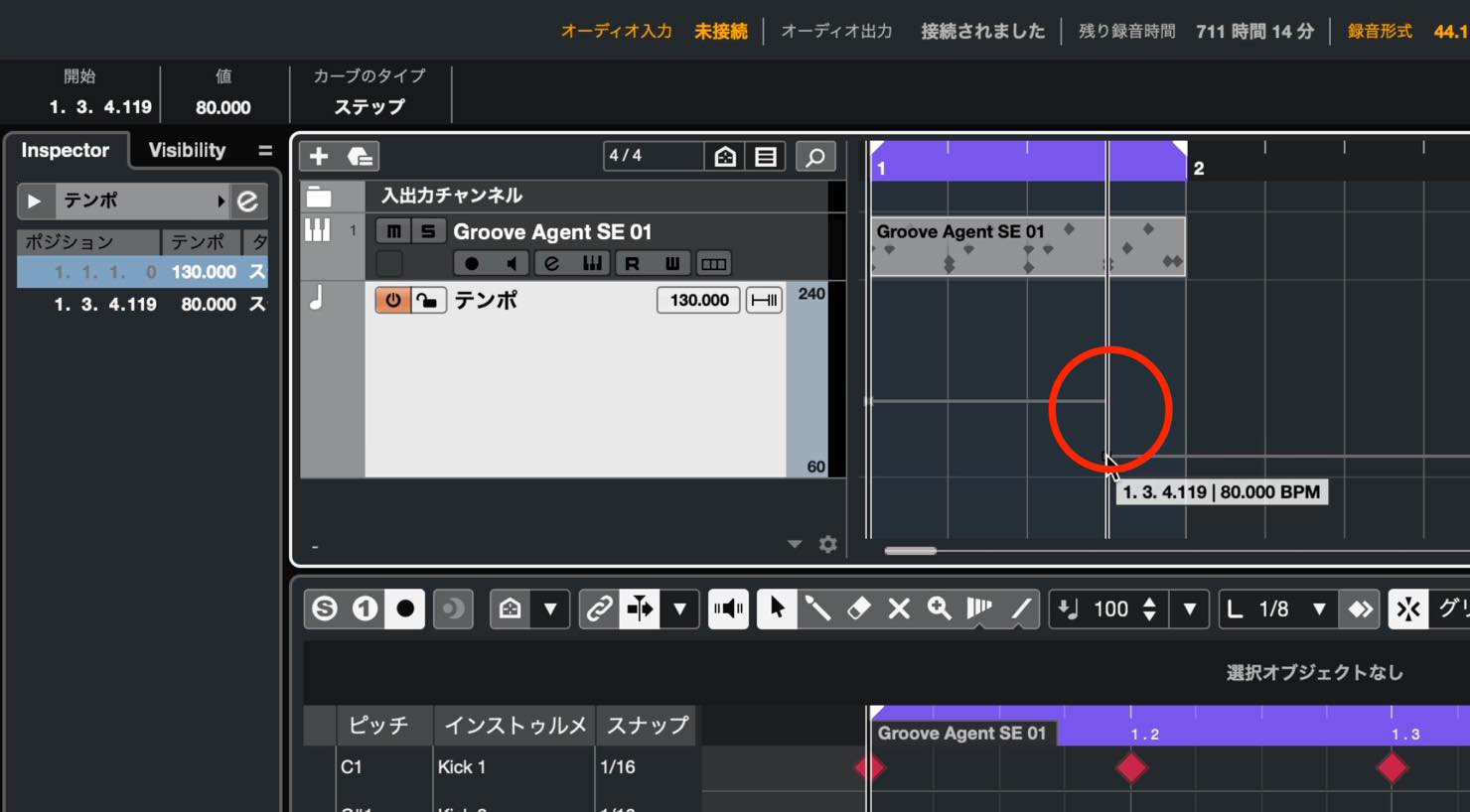
Click the line on the Tempo Track at the point where you want a change to create a tempo event. Drag the event to set the desired tempo.
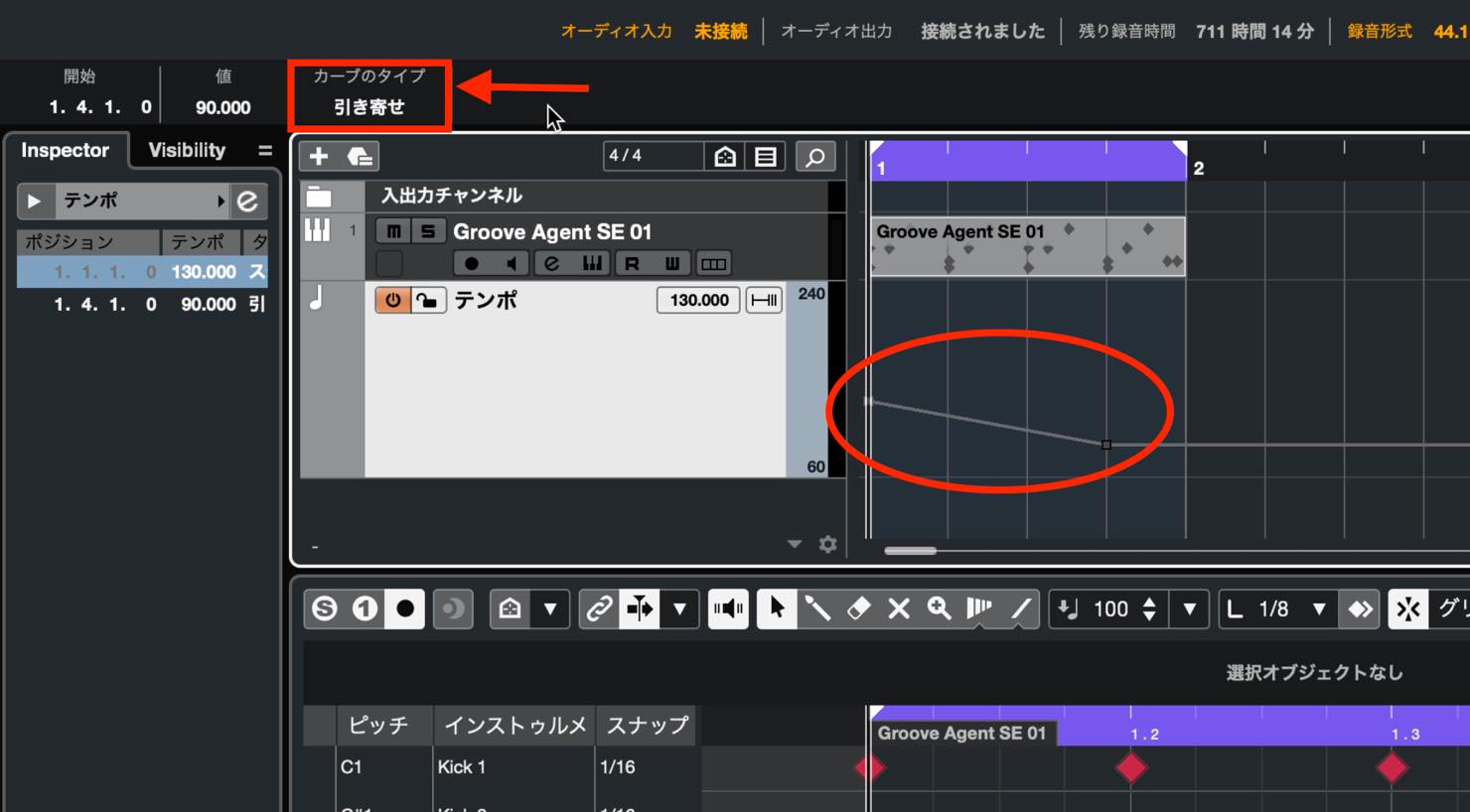
Click Curve Type in the Info Line at the top to choose Step or Ramp.
Use Step for an immediate tempo change, and Ramp for a gradual change.
Reconsidering the Sounds
Once you have chosen the tempo, try reviewing the drum sounds.
Changing the kit after programming a substantial part of the pattern can reveal new possibilities. This is part of the appeal of programming drums.
Open the browser again and choose another kit. You can narrow the choices using Style and Sub Style.
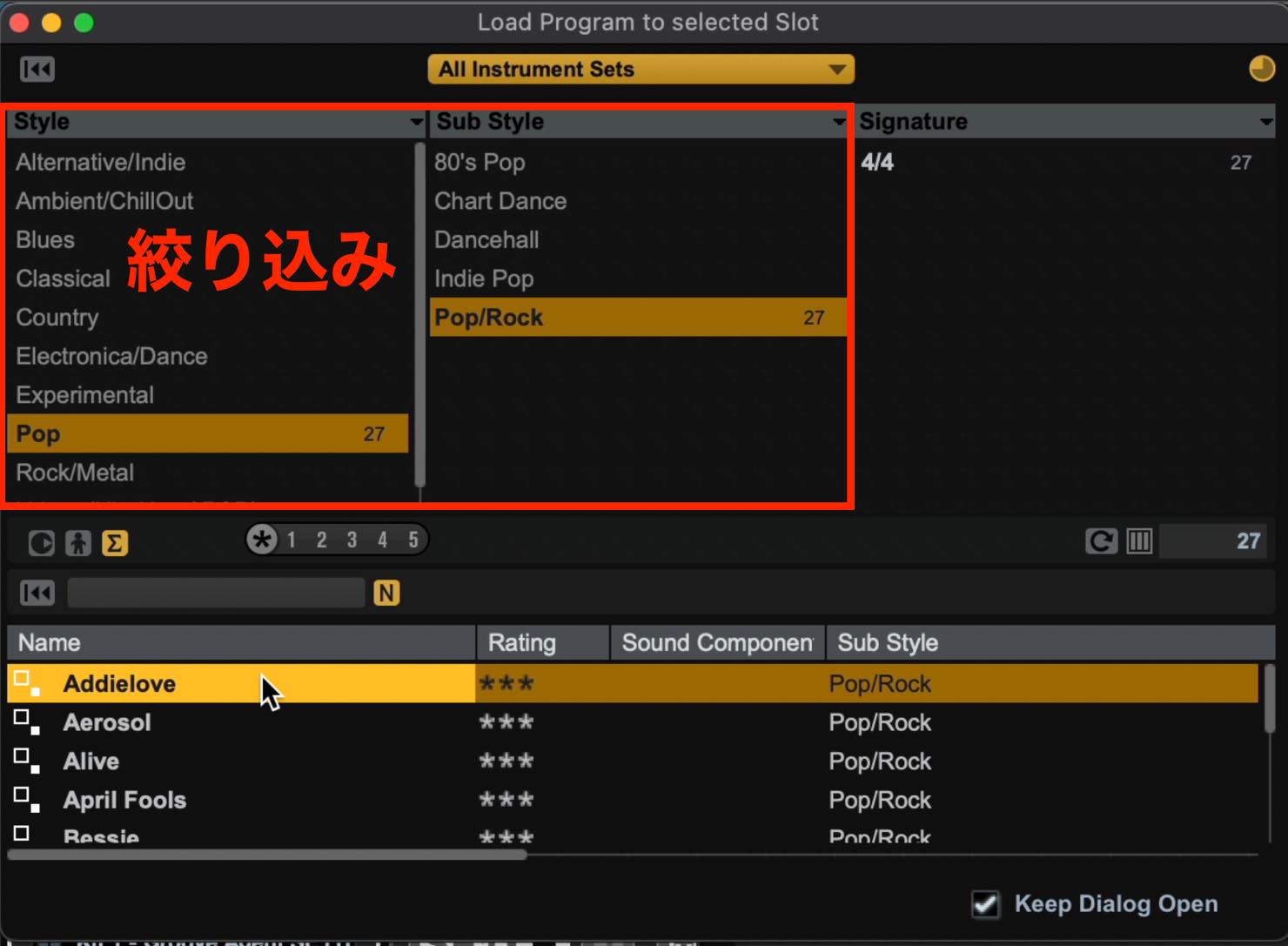
Try several kits while the pattern plays. The drum assignments are broadly similar, so the pattern should remain largely intact.
You can also close the browser and use these left and right buttons to try successive kits.
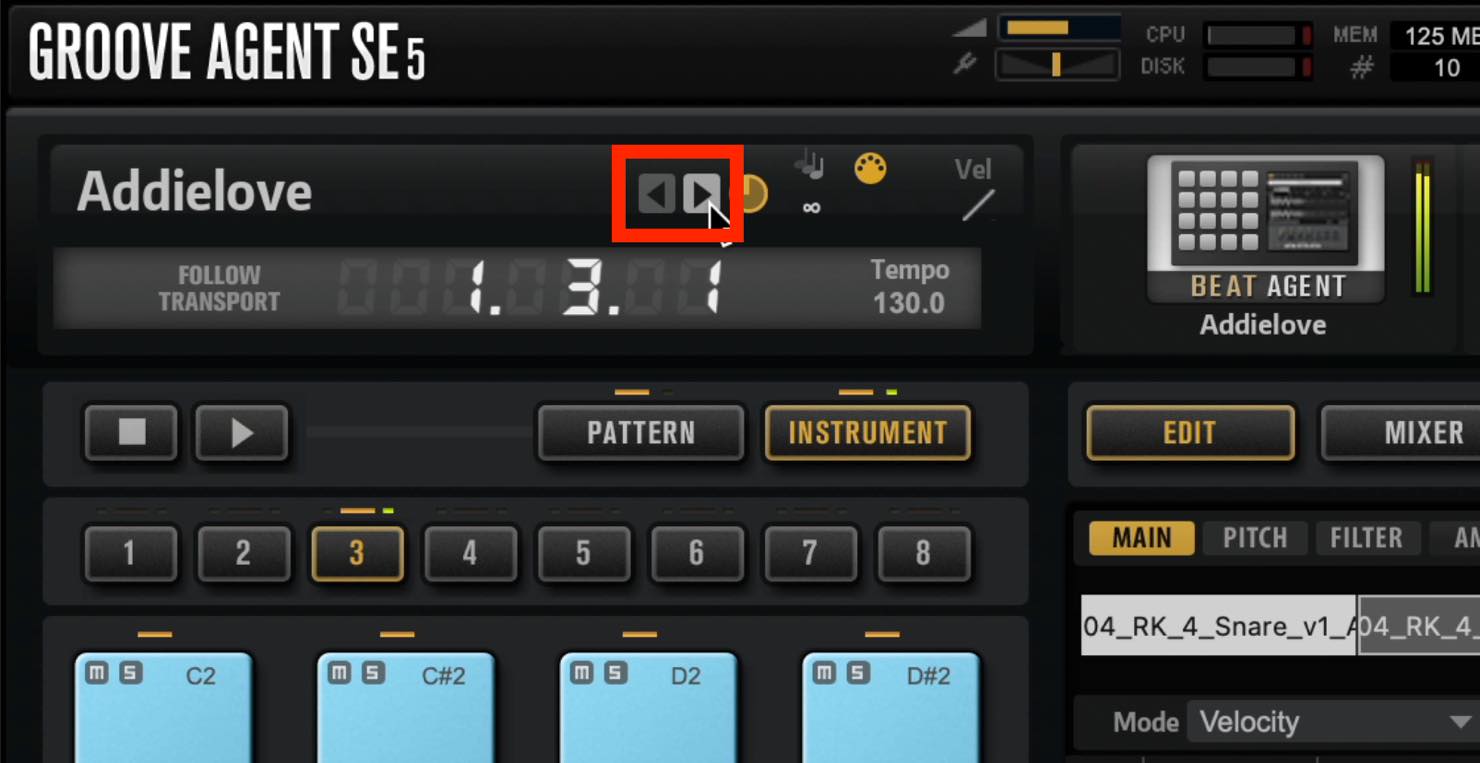
You may find a kit that mostly fits, but has one or two drums that do not match what you imagined.
In that case, customize the kit by replacing just those sounds.
Open the Media tab in the right zone and choose Loops & Samples.
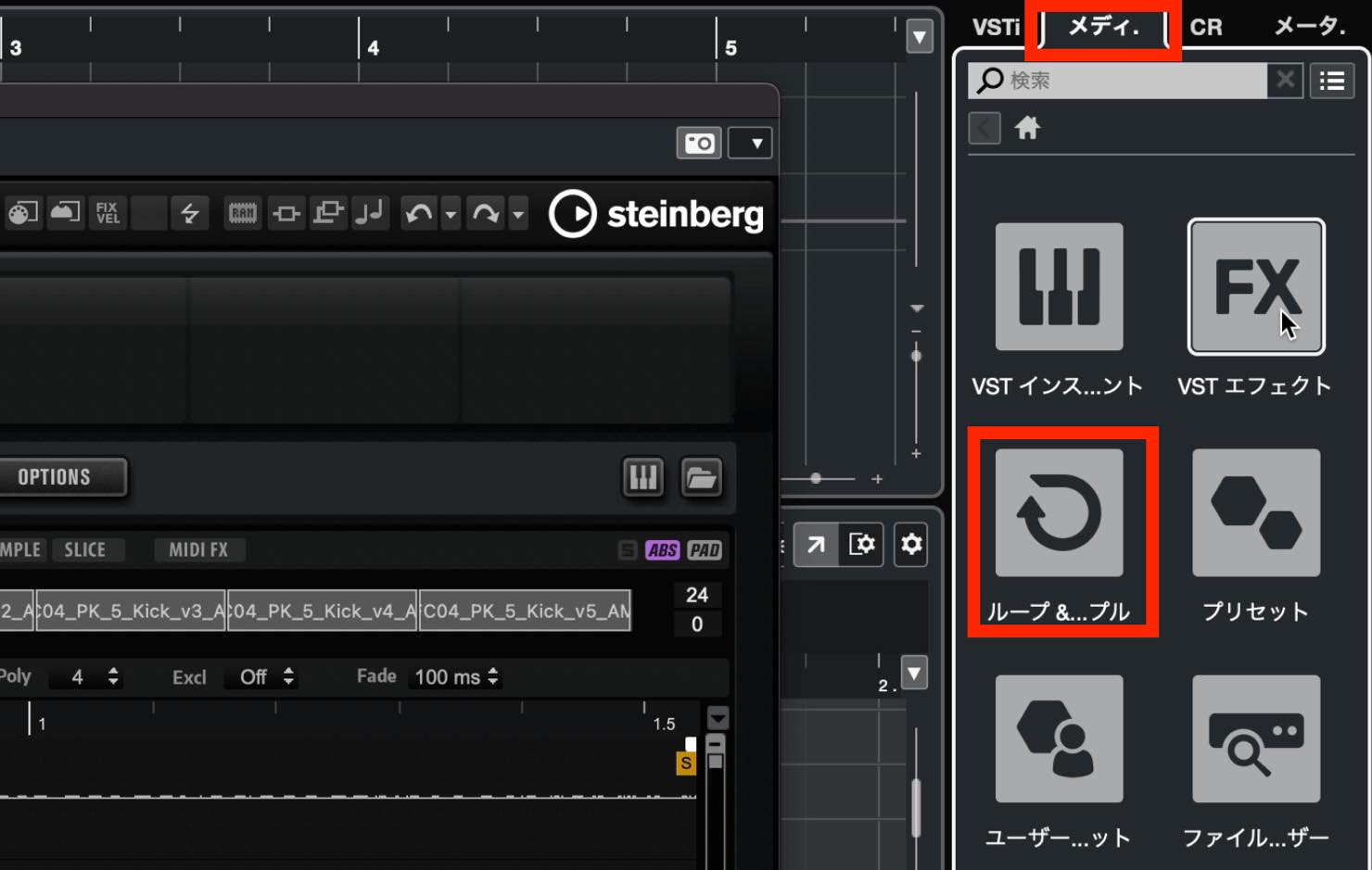
The Loops & Samples libraries appear as shown.
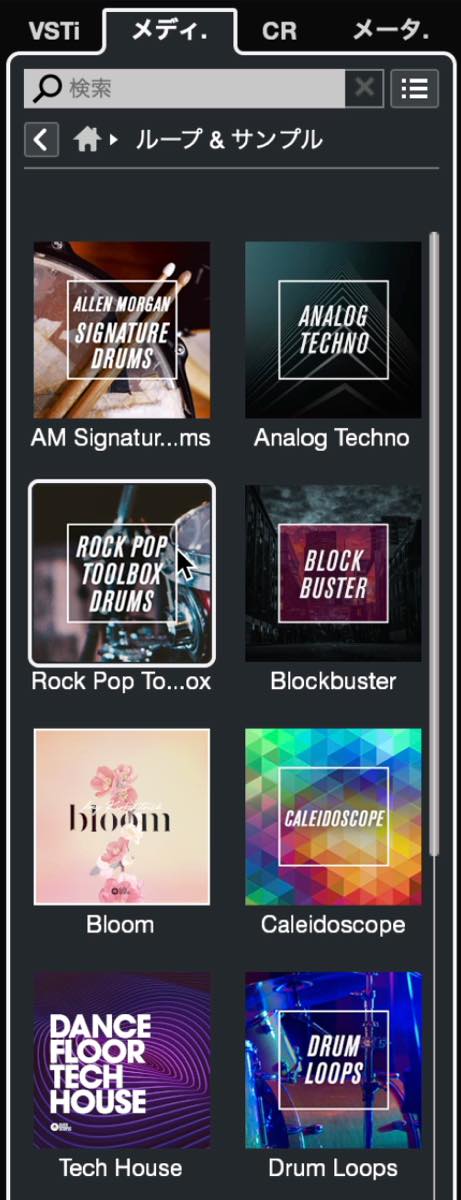
Choose a library to display its samples and loops.
Here, we want to replace the kick, so select Kick Drum under Sub Category to filter the results.
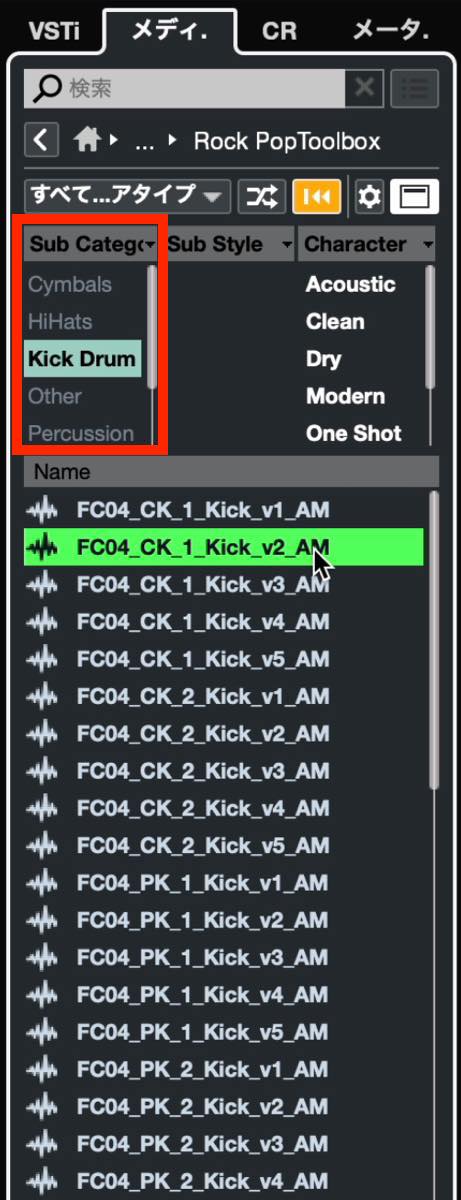
Audition the samples and choose one. If selecting a sample produces no sound, check the following setting.
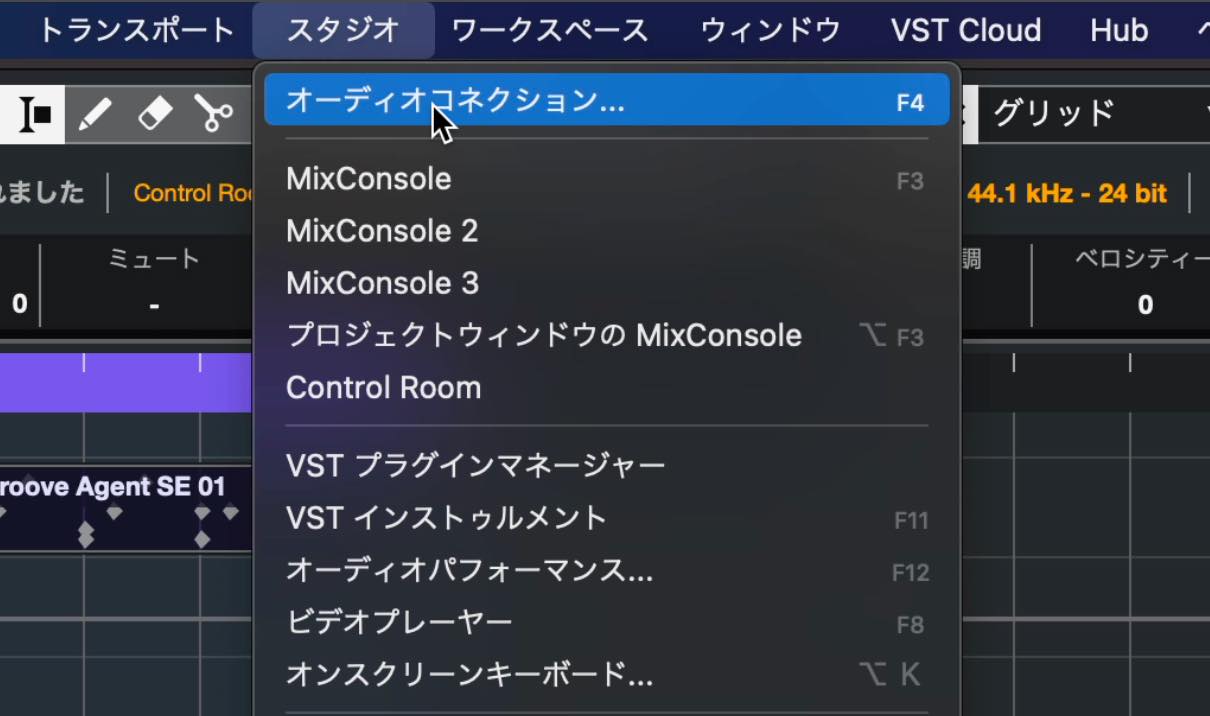
From the Studio menu, choose Audio Connections.
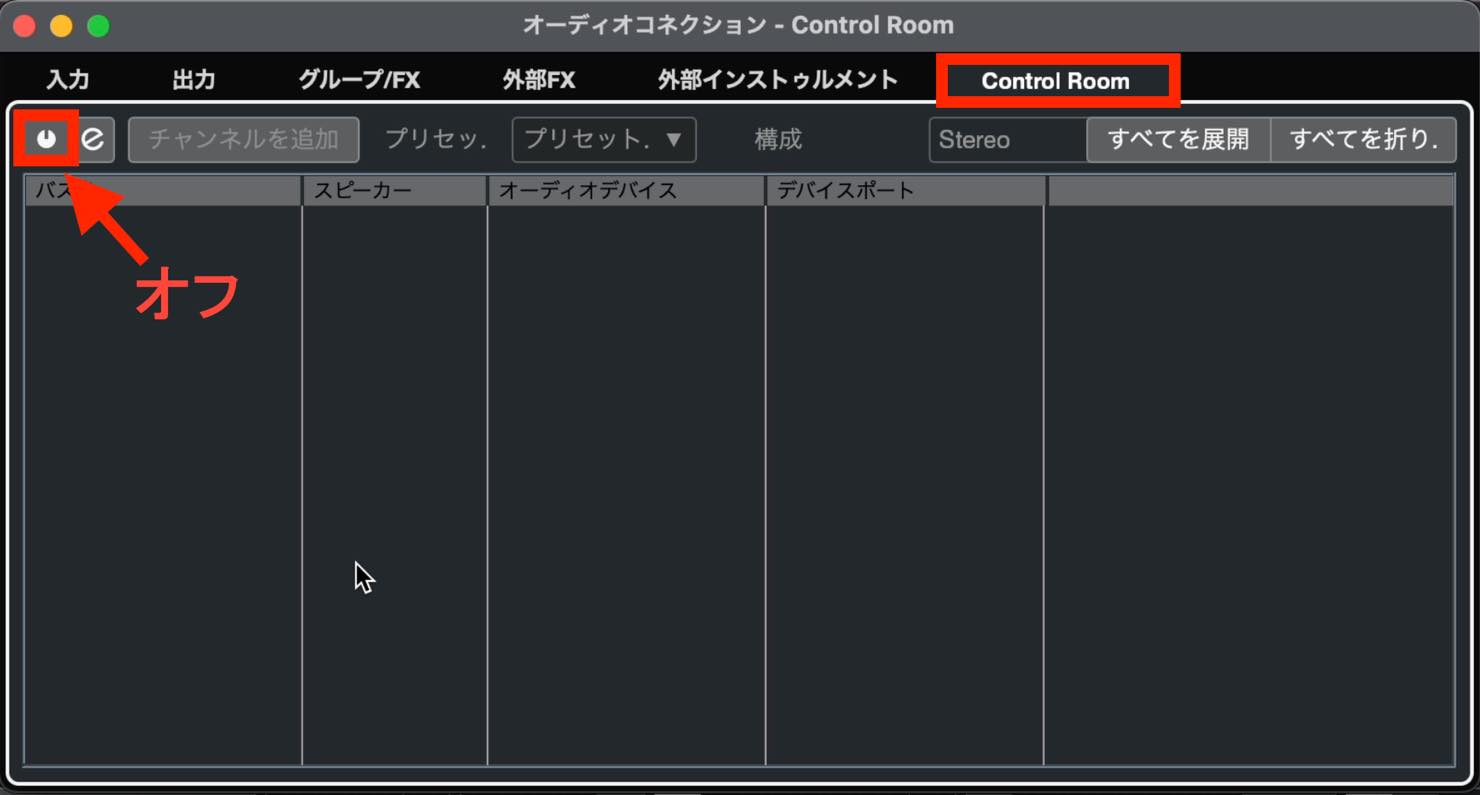
Open the Control Room tab. In the setup demonstrated here, turn off the power button at the upper left if it is enabled. This restores sample auditioning in that setup.
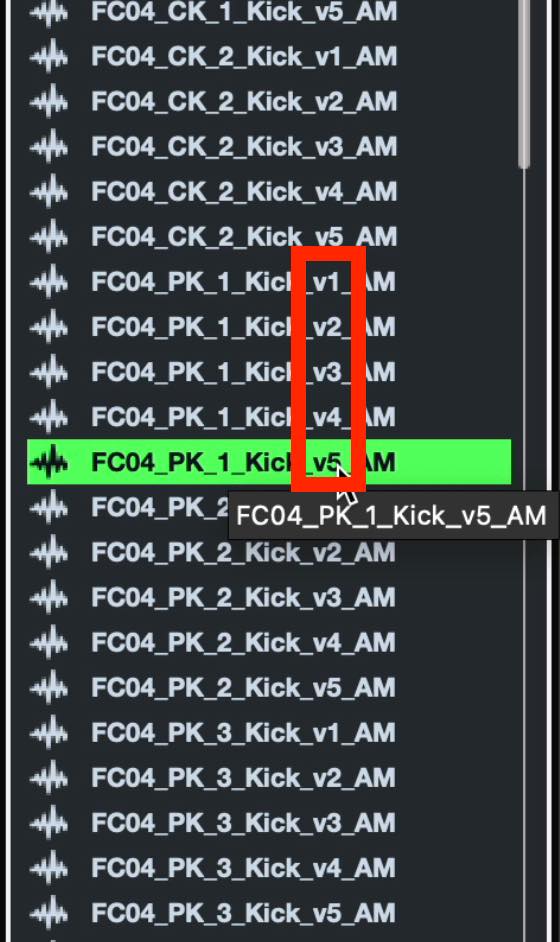
As you audition the samples, you will notice stronger and softer hits. Some share a base name with suffixes v1 through v5.
These represent five playing-strength variations of one kick sound. Groove Agent SE can switch between them according to note velocity.
Once you find a kick you like, hold Shift to select all of its v1–v5 samples, then drag them onto the kick pad in Groove Agent SE.
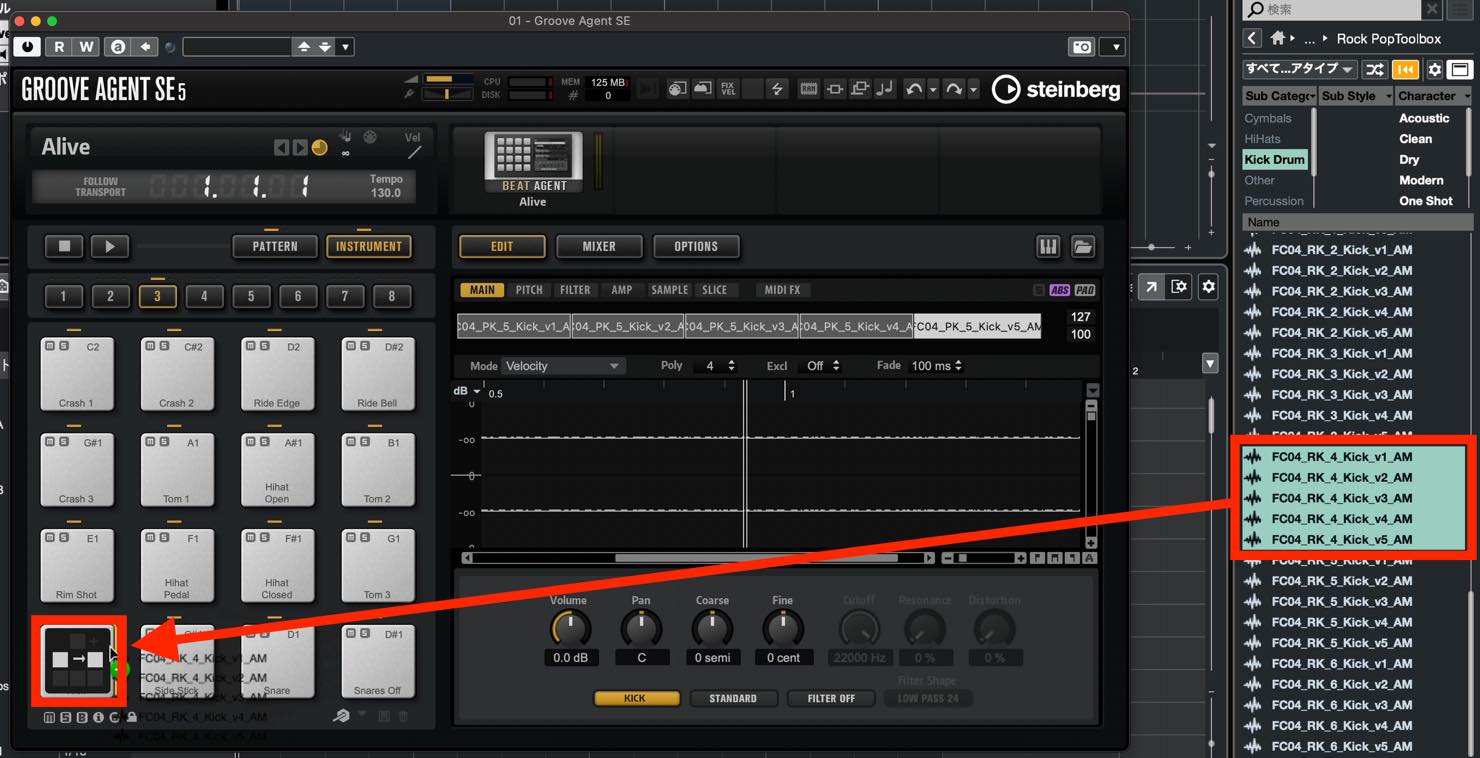
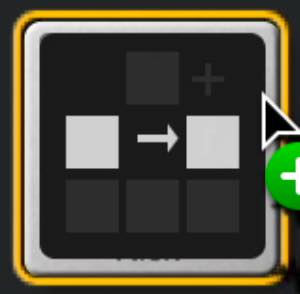
Drop them at the position where this replacement indicator appears.
Click the pad to check the new sound. Clicking near the top produces a higher velocity, while clicking near the bottom produces a lower velocity.
Above the waveform display, you can see the five samples you selected arranged in the instrument.
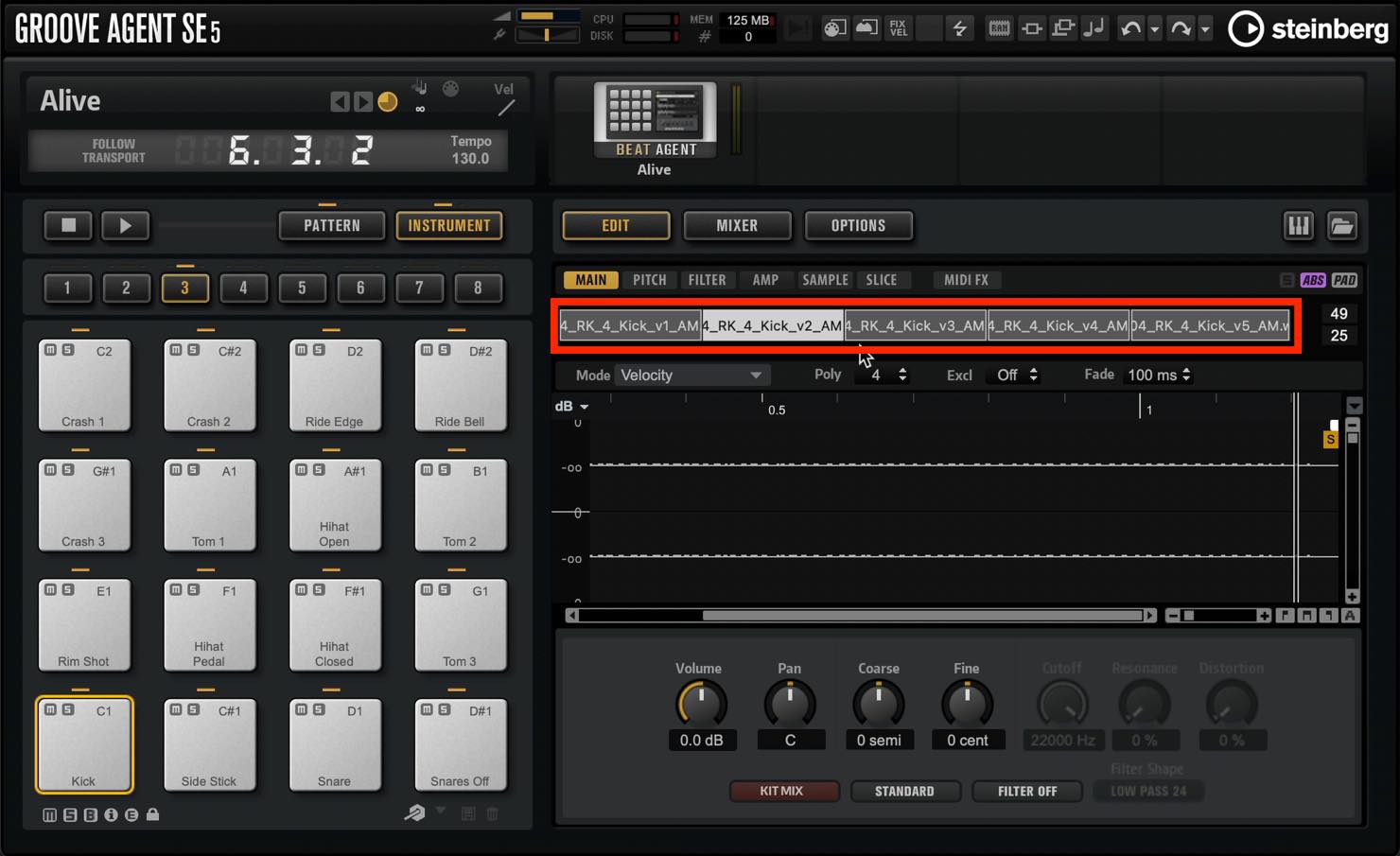
Some kits have only one sample per sound rather than separate samples for different velocities. In that case, velocity changes affect only the volume. Electronic kits often work this way.
That concludes this introduction to programming drum patterns.
Make sure you understand pattern construction, tempo settings, and sound selection so that you have a solid foundation for creating songs.
Next time, we will cover editing techniques such as moving and duplicating material, which become essential as you expand a song's arrangement.
Part 5 of our Cubase beginner series continues our introduction to programming drum patterns.
Using the note-entry procedure and controls covered last time, let's create the drum pattern that forms the foundation of a song. https://t.co/PqVBH8ZU9j #MusicProduction #Cubase— SLEEP FREAKS (@SLEEPFREAKS_DTM) April 18, 2021
Frequently Asked Questions
Q1. Where should I start when creating a four-on-the-floor drum pattern in Cubase?
Start by placing a kick on every beat of the bar. Add snare hits on beats 2 and 4, then add interest with hi-hats.
Q2. Why should I avoid playing open and closed hi-hats simultaneously?
They are different ways of playing the same hi-hat, so they do not sound simultaneously when simulating a real drummer. Removing the closed hit immediately after an open hit allows the open hi-hat to ring longer.
Q3. Can I change the whole drum kit after completing the pattern?
Yes. Choose another kit in the browser. The pattern remains in place while the sounds change; similar drum assignments usually keep it largely intact and may suggest new musical ideas.
Q4. How can velocity adjustments create a more natural groove?
Try stronger main subdivisions and softer alternating subdivisions. On the sixteenth-note grid used here, the tutorial makes odd-numbered positions stronger and even-numbered positions weaker.
Q5. How can I change the tempo during a song?
Right-click the track list to add a Tempo Track, then click where you want to create a tempo event and drag it to adjust the tempo. Choose Step for an immediate change or Ramp for a gradual change.
NEW ARTICLES
Latest English Articles




























































































































































