
Melodyne 4 assistant is a higher-tier edition that offers more detailed pitch editing than essential. Its dedicated Pitch, Formant, Amplitude, and Time tools make it easy to adjust vibrato and pitch modulation, change vocal timbre, correct the volume of individual notes, and fine-tune timing. MIDI export also lets you use the edited notes with other instruments, supporting more advanced music production tasks such as professional vocal editing and creating double-tracked vocals.
Assistant: More Detailed Corrections
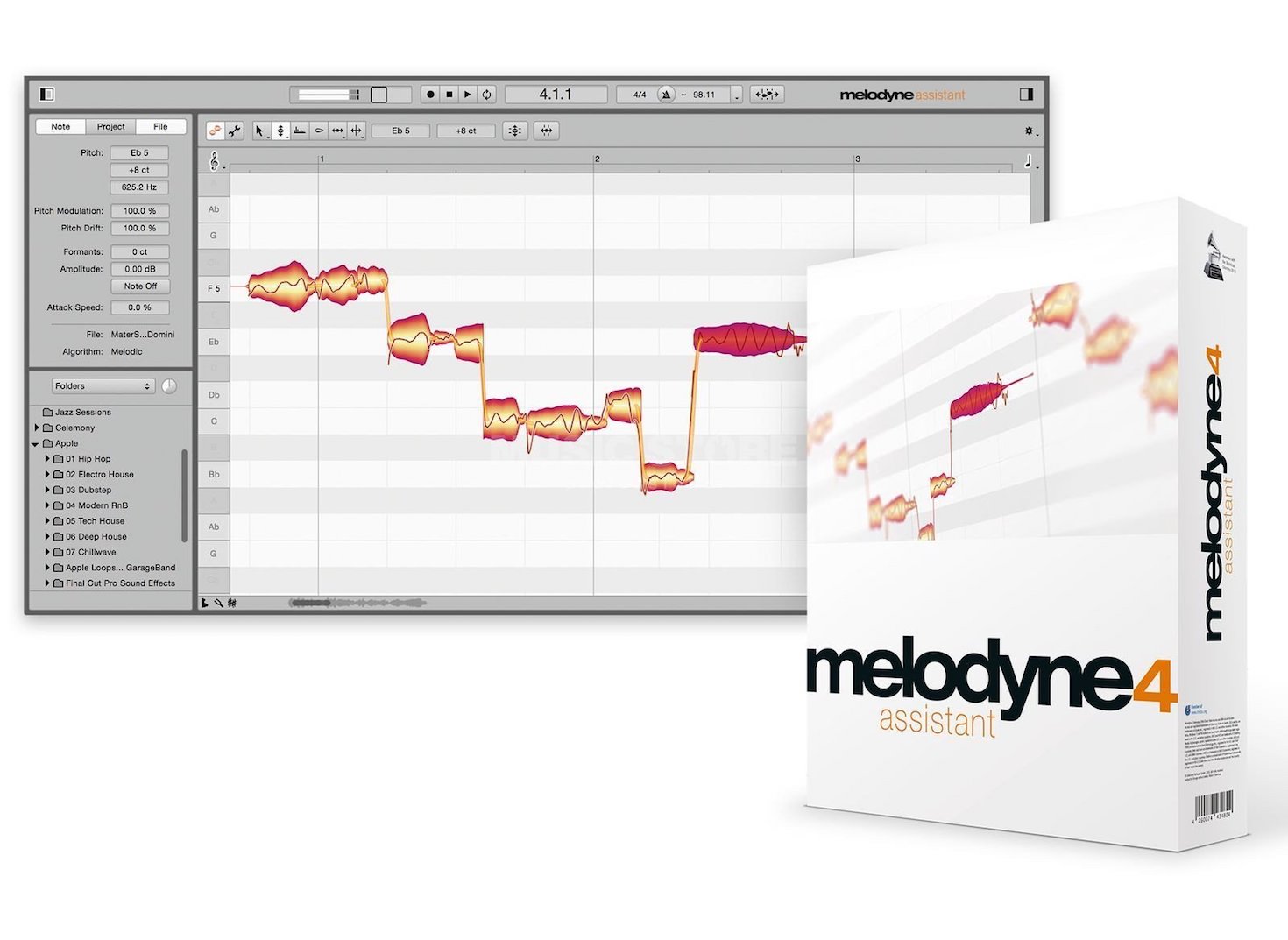
Following our look at essential, let's explore assistant, the next edition up in the popular pitch-editing software Melodyne 4.
Assistant allows more detailed corrections, helping you achieve more precise and natural results than with essential.
If you upgrade Melodyne, the edits you made in a lower edition are retained.
Melodyne Assistant Overview and Tutorial — Video
- 1Melodyne 4 essential: Overview and Tutorial
- 2Melodyne 4 assistant: Overview and Tutorial
- 3Melodyne 4 editor and studio: Overview and Tutorial
- 4What's New in Melodyne 5 Pitch-Editing Software
- ◆ Manufacturer's Website: http://urx.space/Rgab
- ◆ Purchase Here (Affiliate Link): http://urx.space/Rgab
More Detailed Editing with Assistant
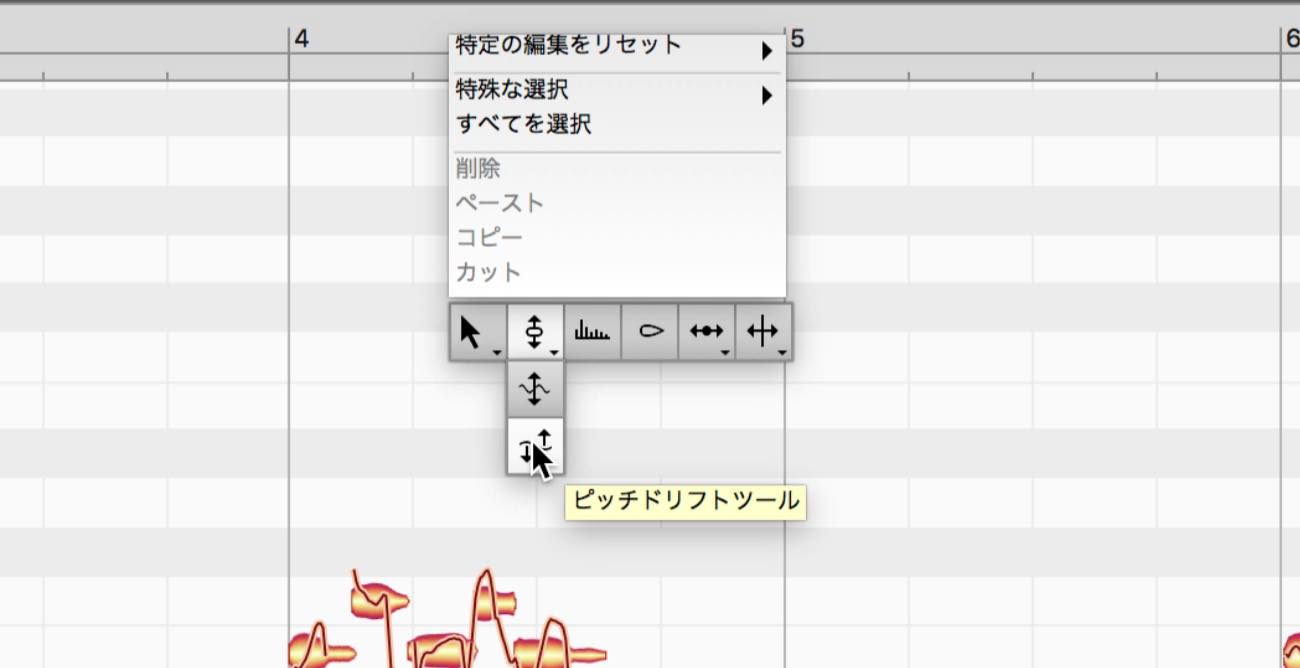
At the top of the window, you will see a number of additional tools. You can also switch between these tools by right-clicking in the timeline.
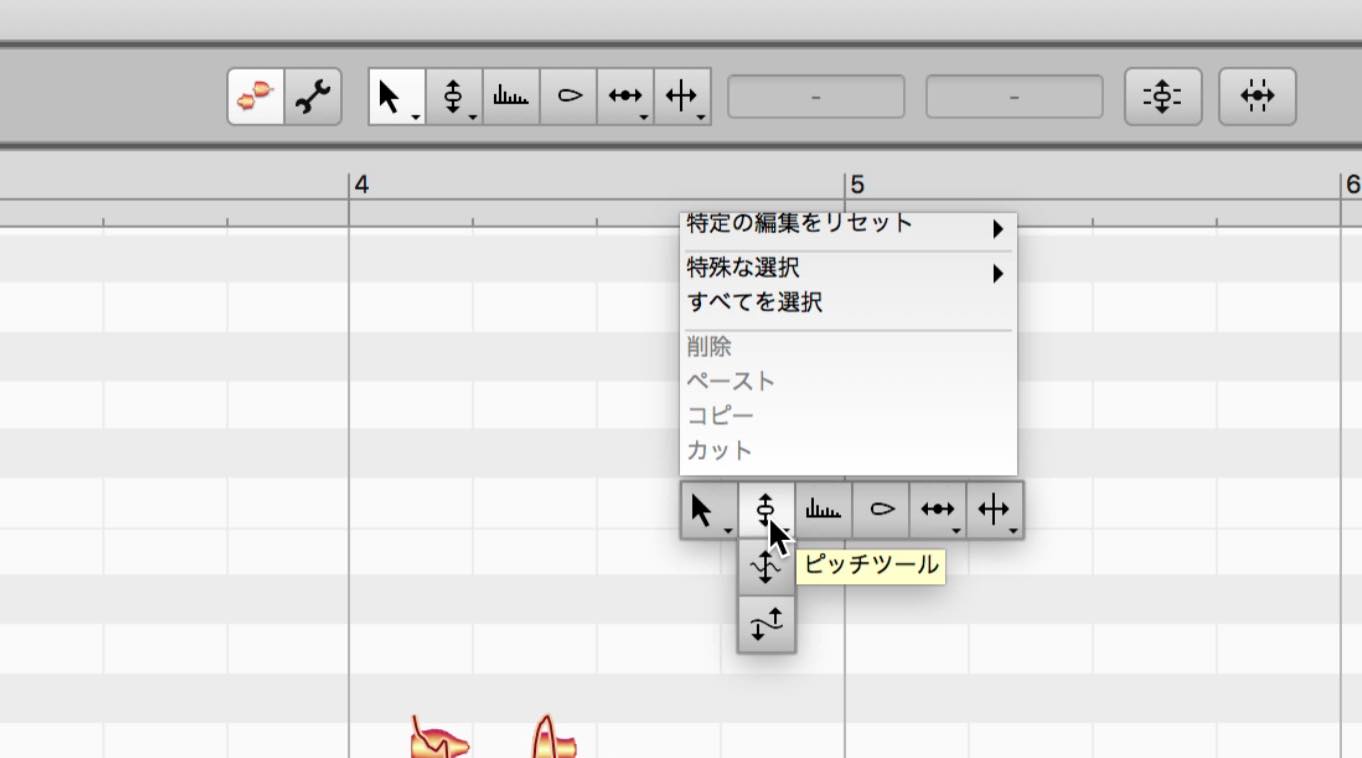
Pitch Tool
As well as moving notes up and down in pitch, just like the Main Tool, the Pitch Tool lets you drag the pitch curve at the end of a note up or down to adjust its slope.
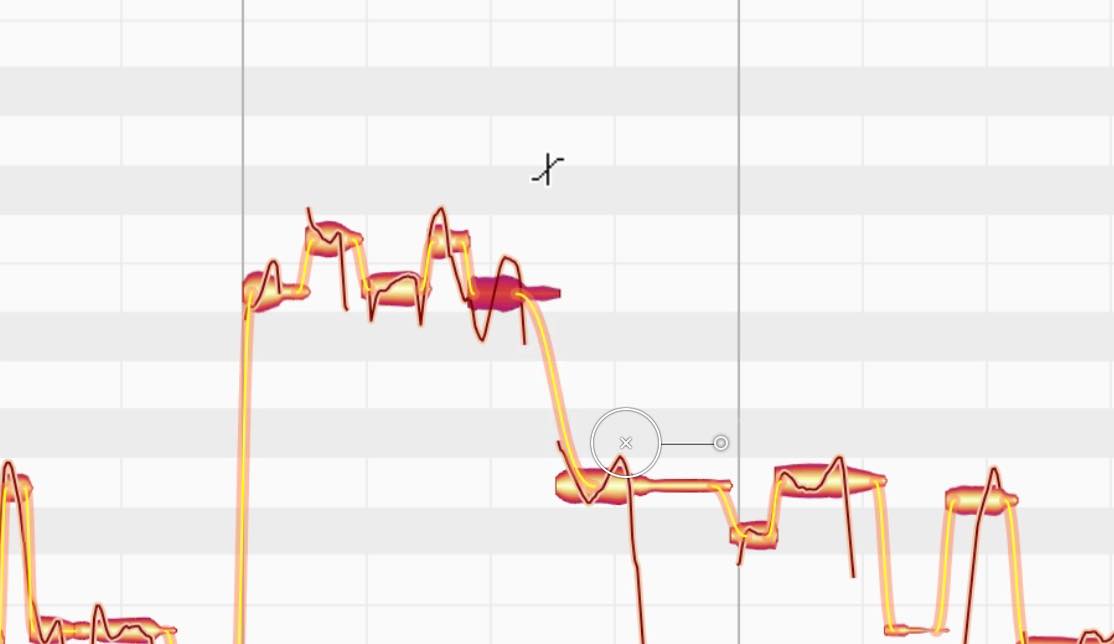
You can also edit pitch modulation and pitch drift.
The Pitch Modulation Tool controls the amount of deliberate pitch variation, such as vibrato and scoops.
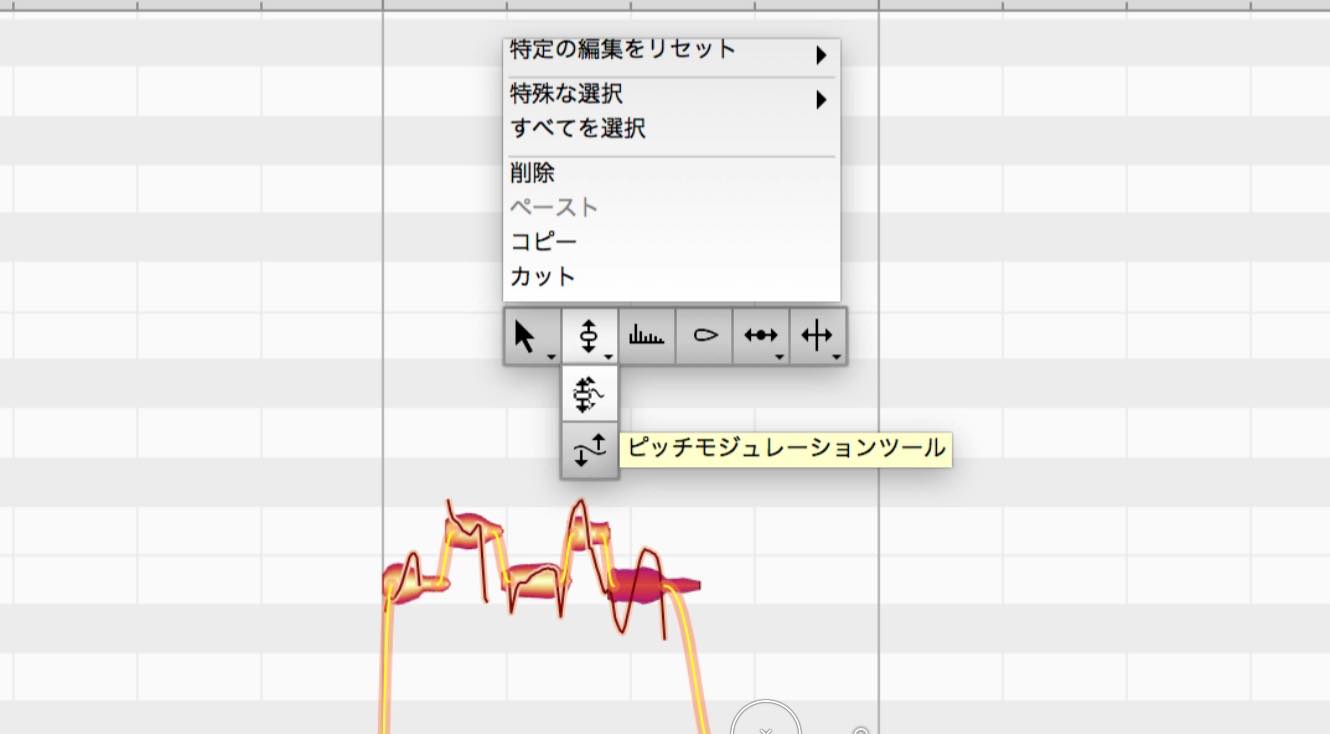
Switch to the Pitch Modulation Tool and drag the desired note upward to increase the variation, or downward to reduce it.
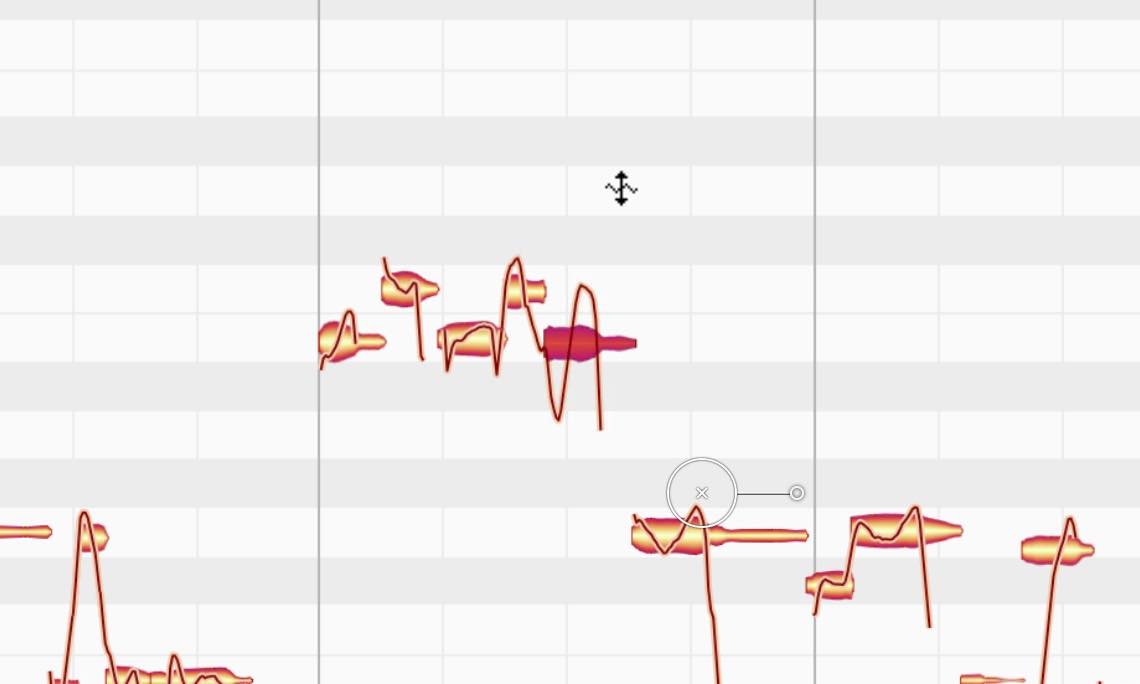
You can also select several notes and use this tool to remove all pitch variation, producing the robotic vocal effect known in Japan as a "kerokero" voice.
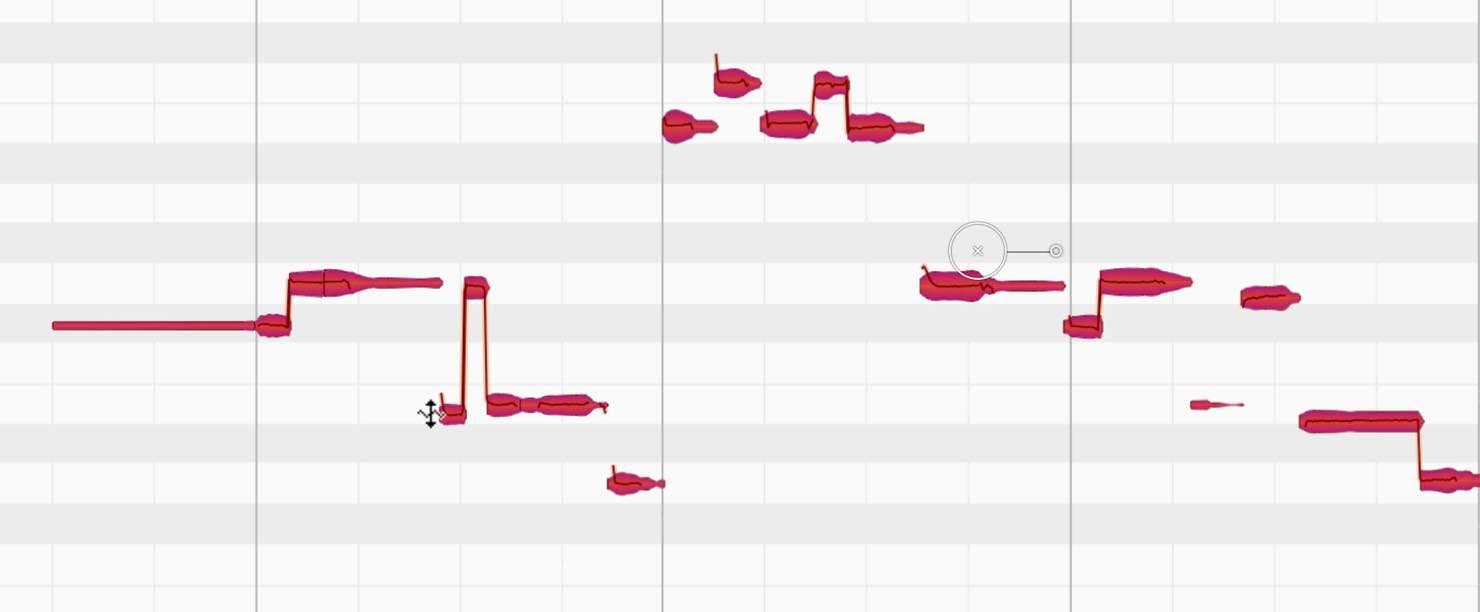
The Pitch Drift Tool gives you detailed, individual-note control over the correction available through essential's macro. You can reduce or exaggerate the pitch variation across a note, or even invert it.
Formant Tool
The Formant Tool lets you adjust the character of a voice.
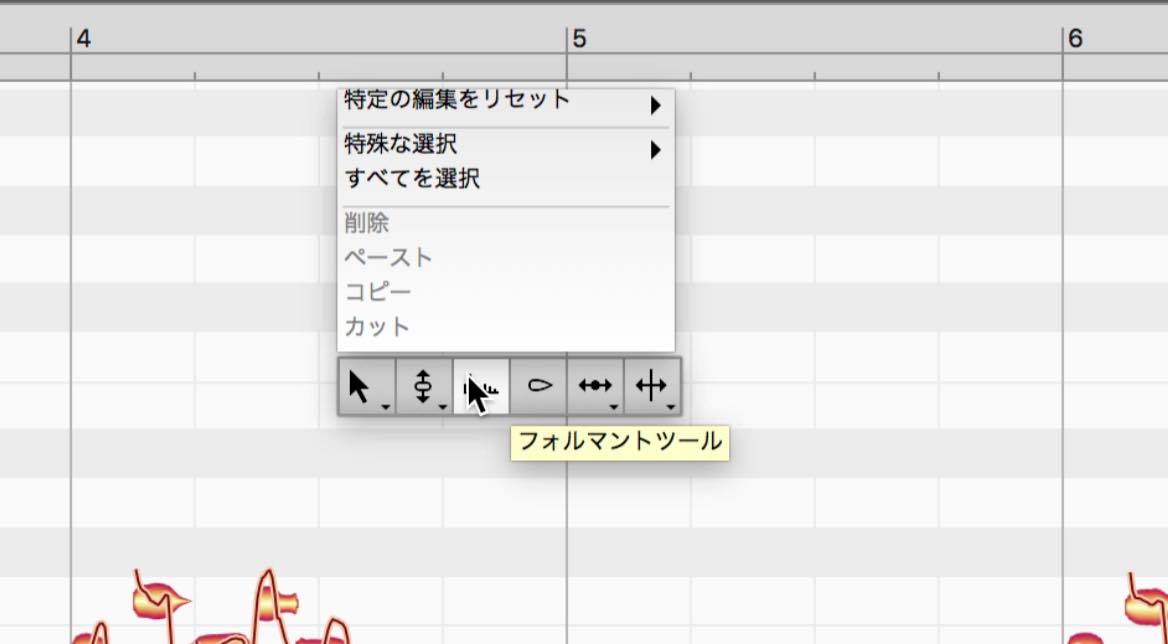
Select the desired note and drag upward for a higher, childlike vocal character, or downward for a darker, more masculine character.
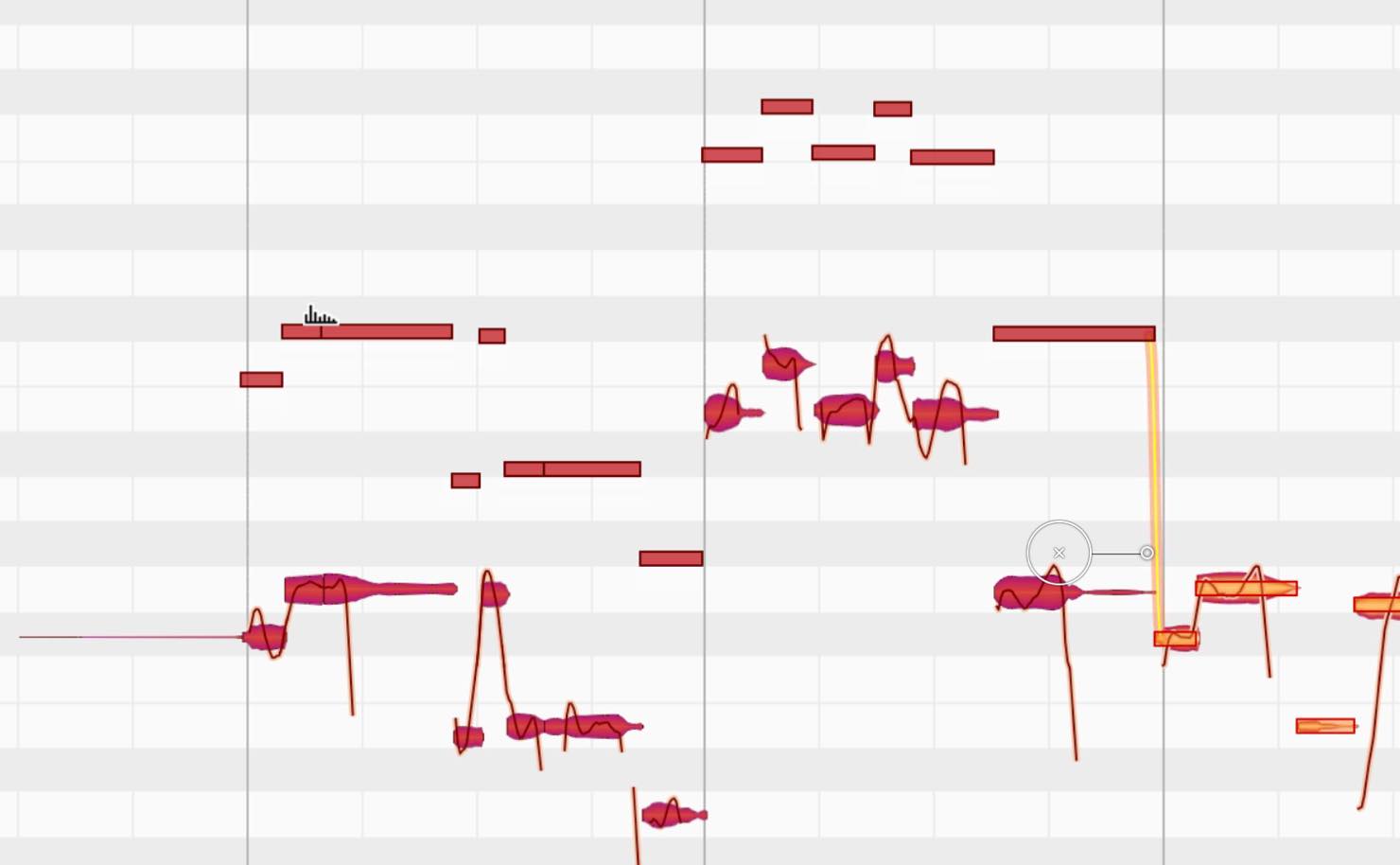
One use for this is creating a double-tracked vocal effect from a single take.
Simply copying and layering a track does not normally create a doubling effect. By slightly offsetting the timing and shifting the formants as well, you can add a natural thickness more like a genuine double take.
Amplitude Tool
As its name suggests, the Amplitude Tool adjusts the volume of individual notes.
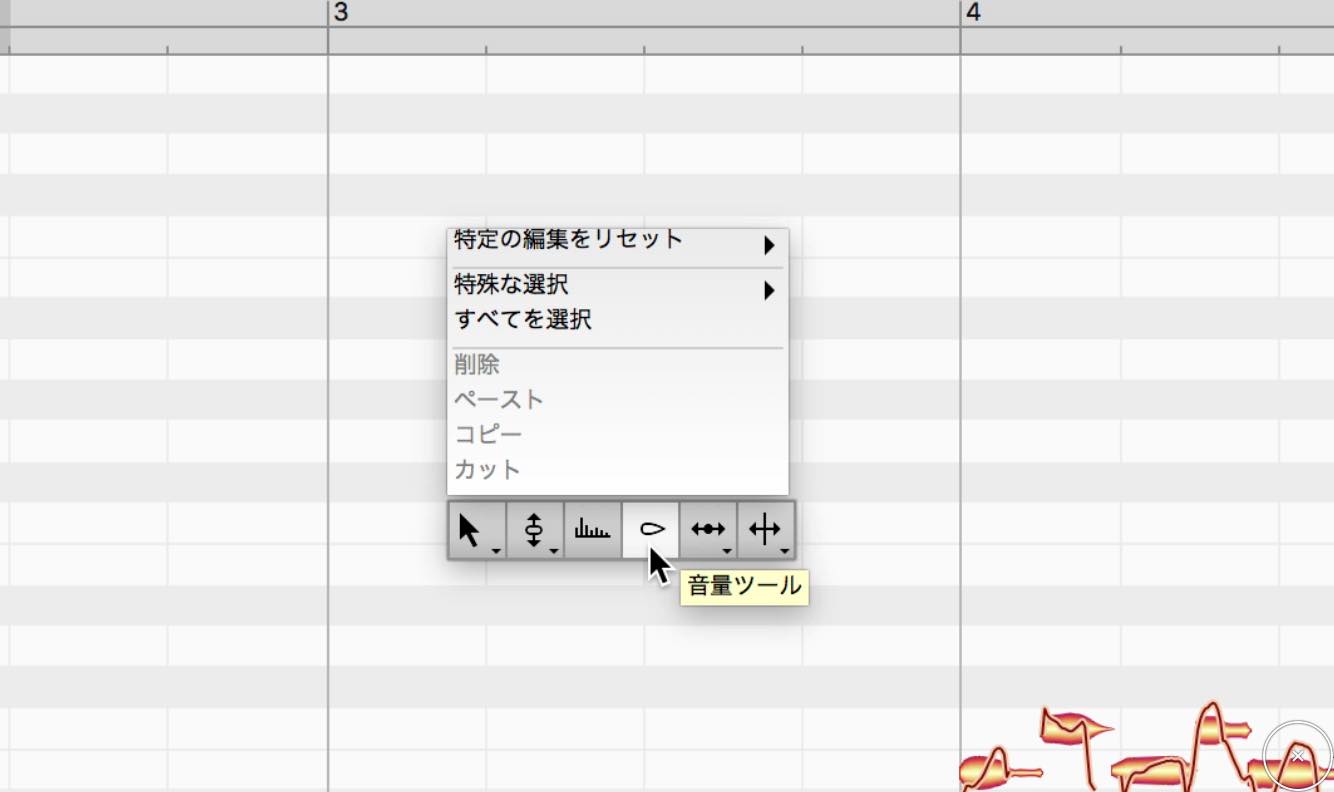
Select the desired note and drag upward to increase its volume, or downward to decrease it.
Normally, you would use a compressor or volume automation for this kind of editing. Melodyne lets you make detailed adjustments note by note while keeping the transitions natural.
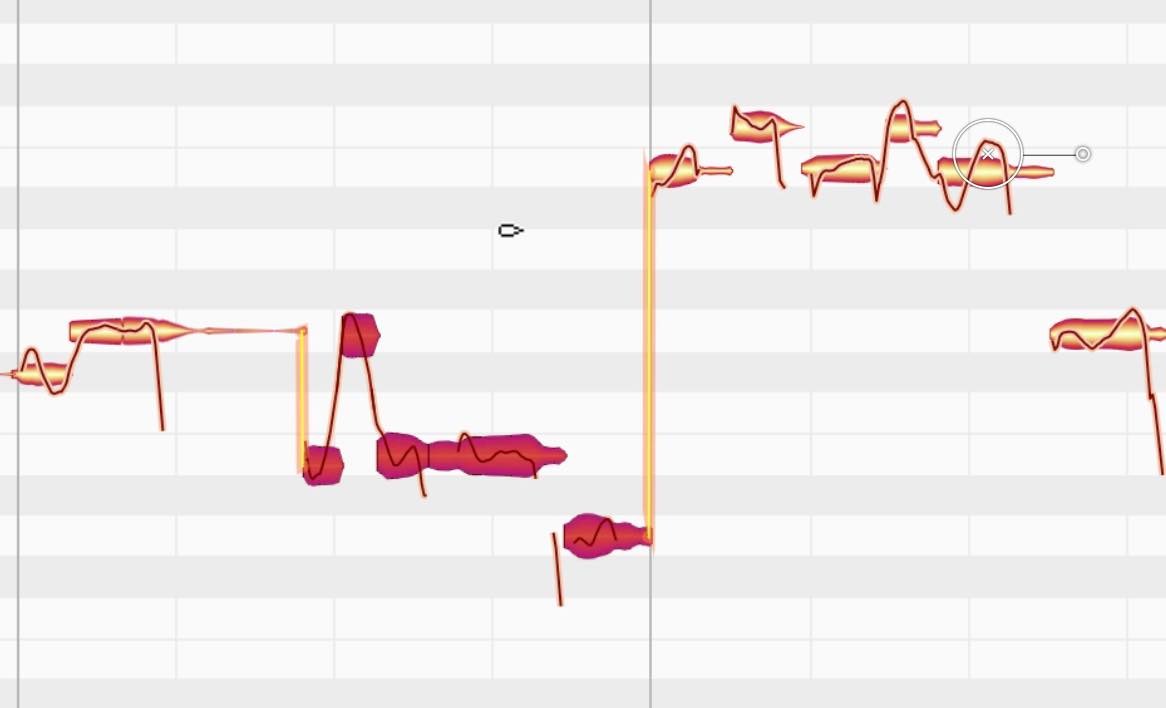
You can also mute an individual note by double-clicking it with the Amplitude Tool.
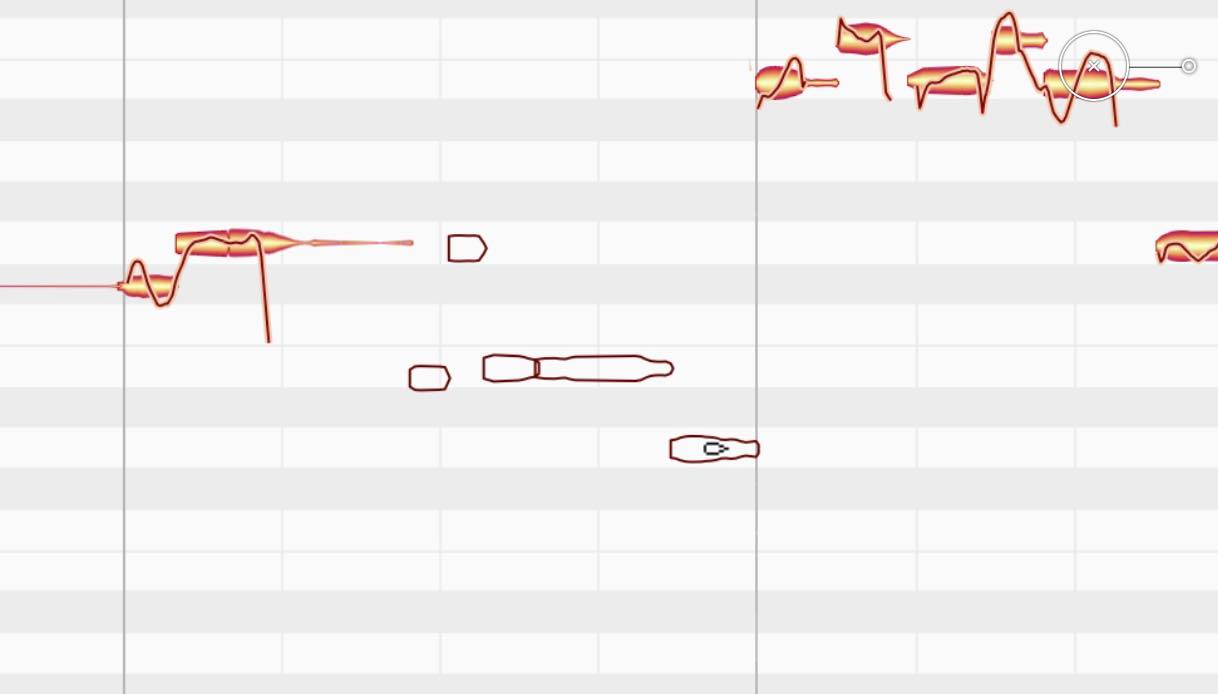
Time Tool
The Time Tool lets you make detailed timing corrections.
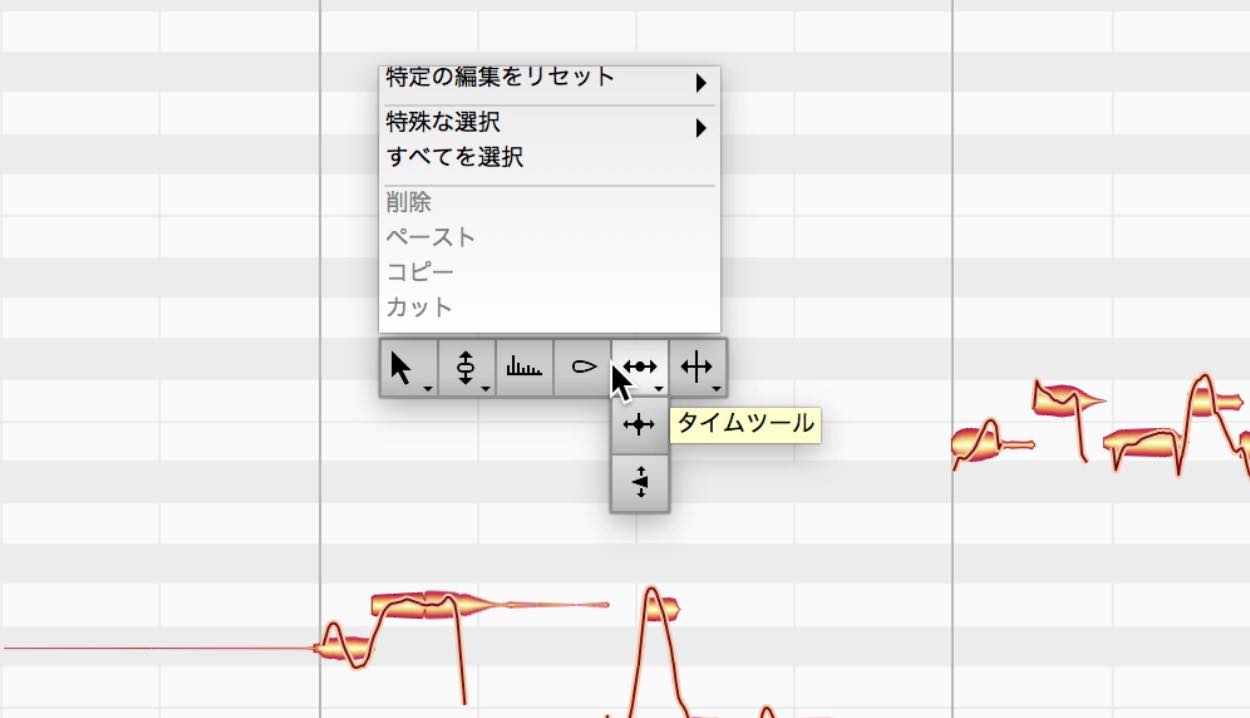
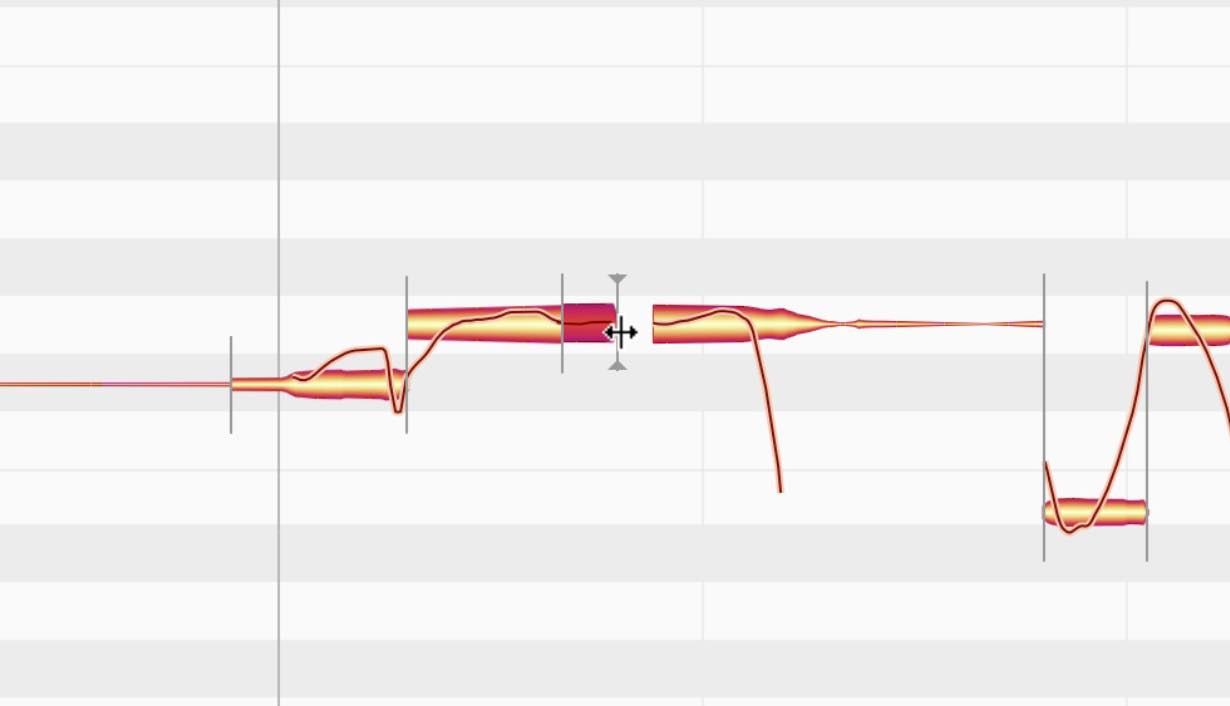
When you switch to it, markers appear at the ends of the notes, as shown here. Drag these to move them. The basic approach is the same as in essential, but this tool lets you focus on timing correction.
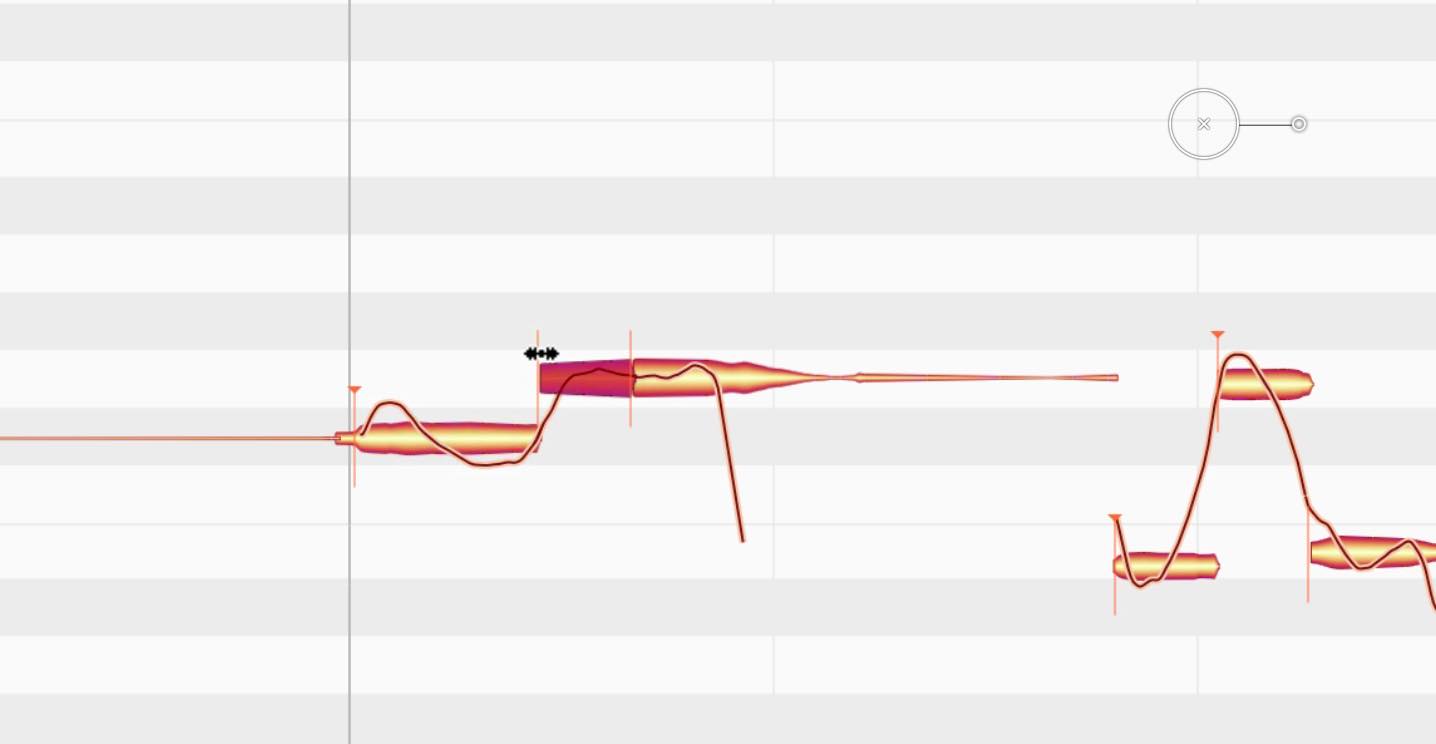
The Time Handle Tool controls the timing within a note, allowing you to stretch it or make its delivery more crisp.
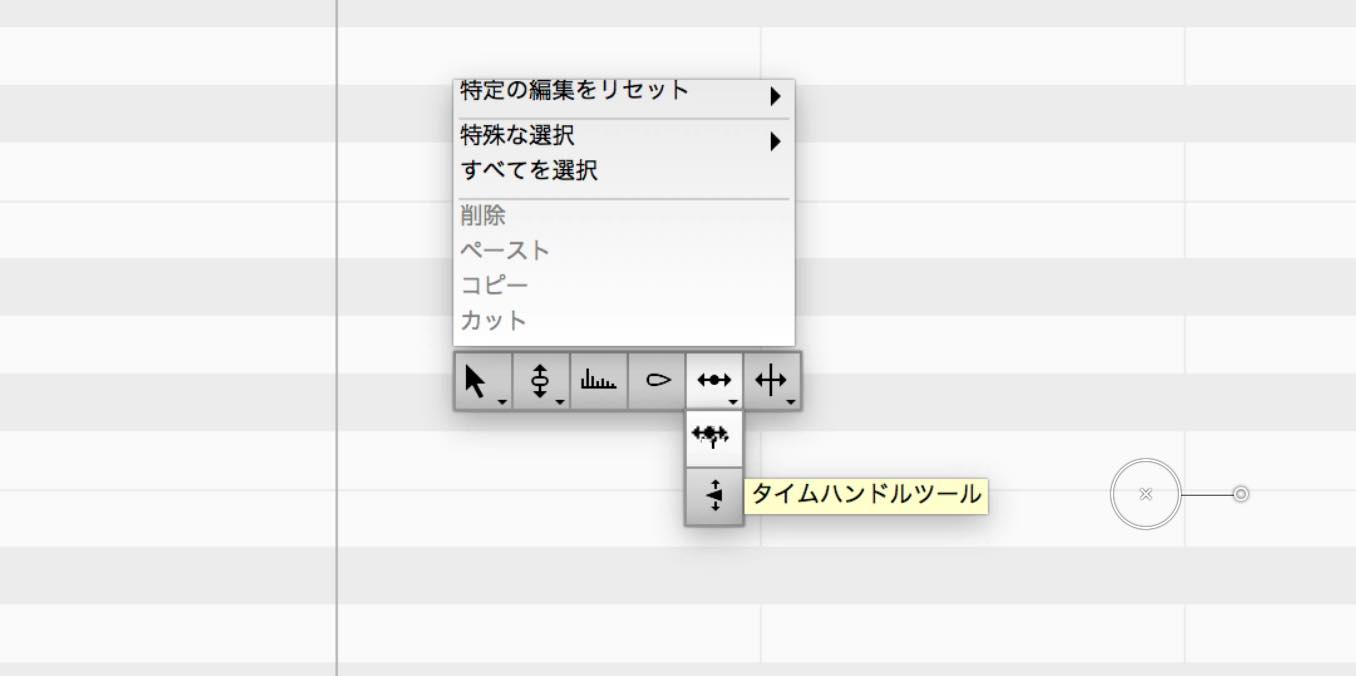
Switch to this tool and double-click a note to place a marker. Moving it backward or forward lets you adjust the duration of parts of the note.
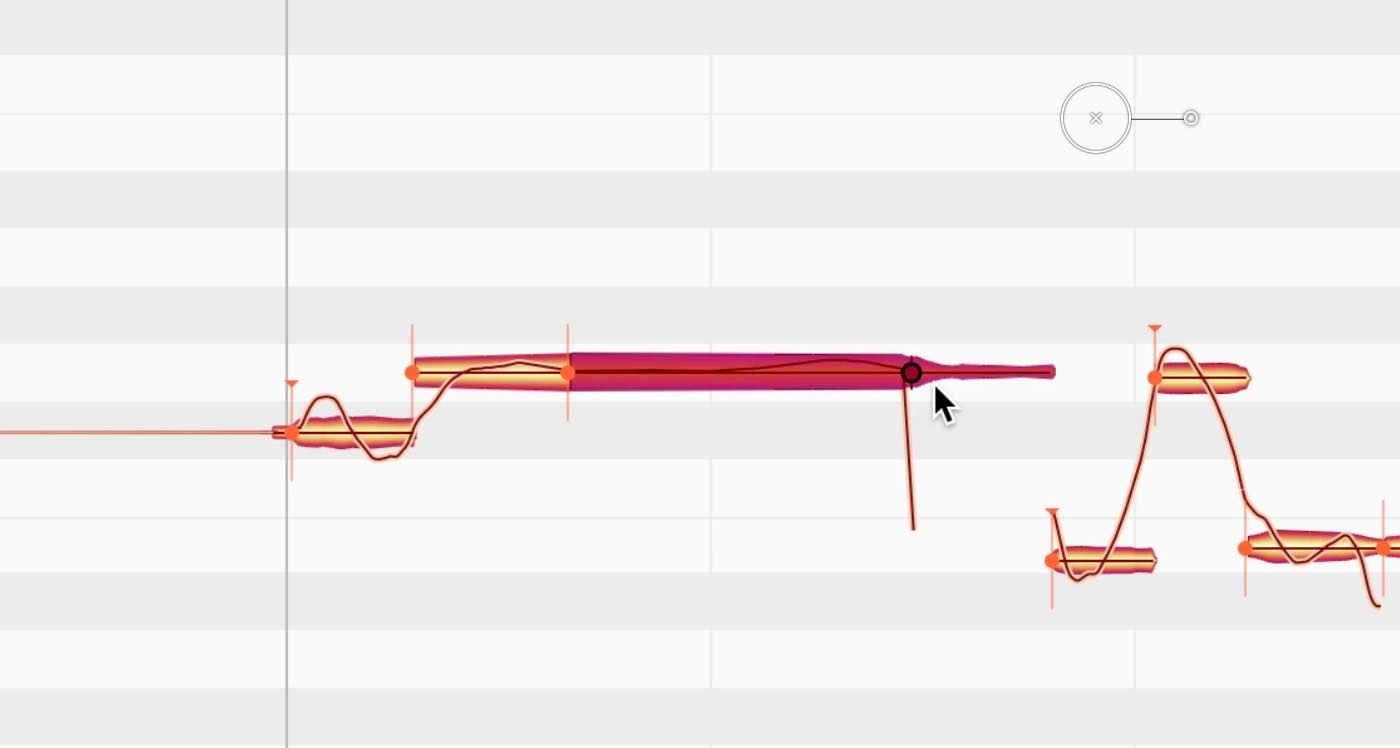
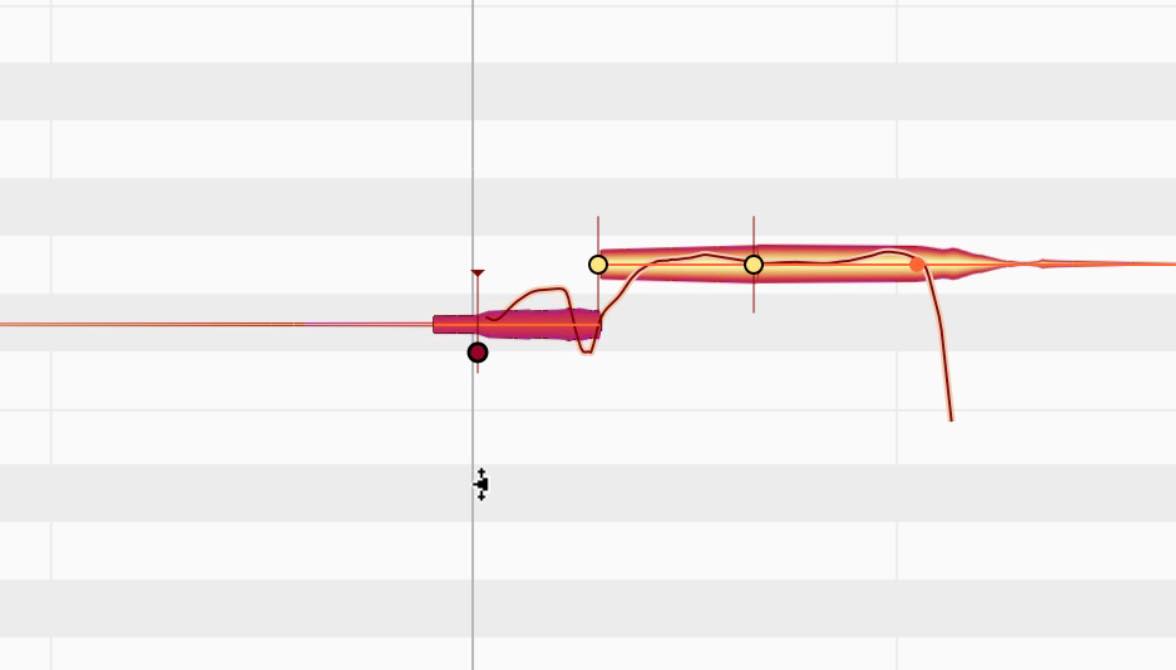
The Attack Speed Tool also lets you adjust how quickly a note's attack develops.
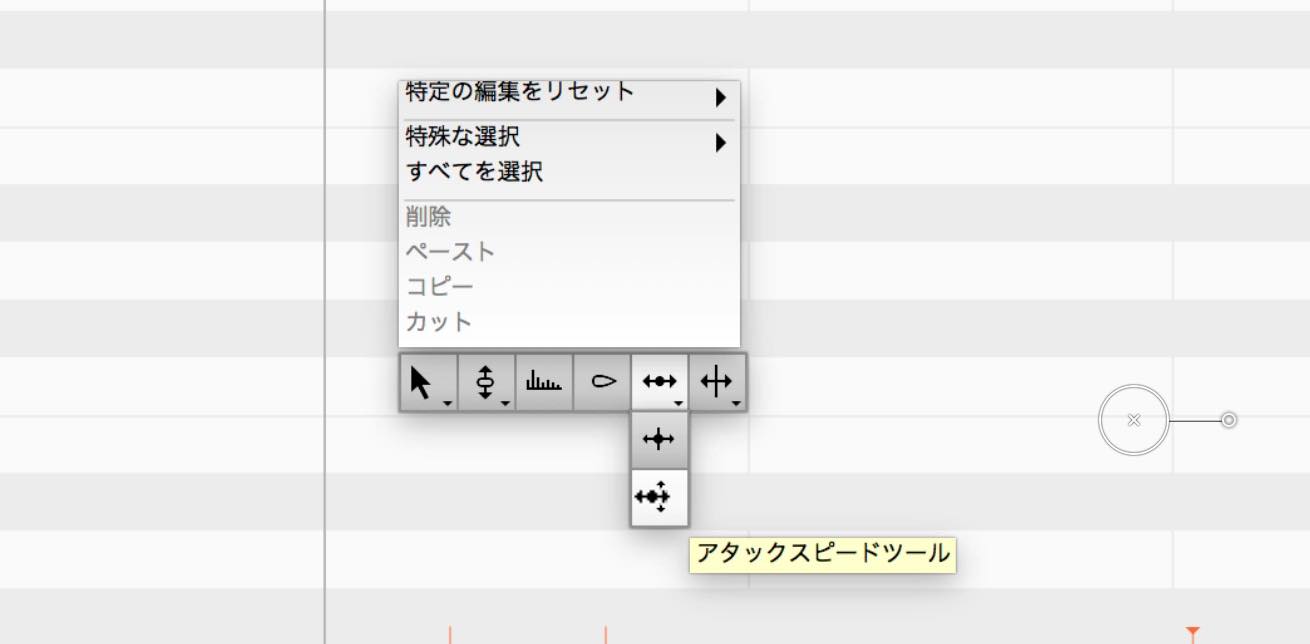
When you switch to it, a slider appears at the edge of the note, as shown here. Move it up or down to change the attack timing.
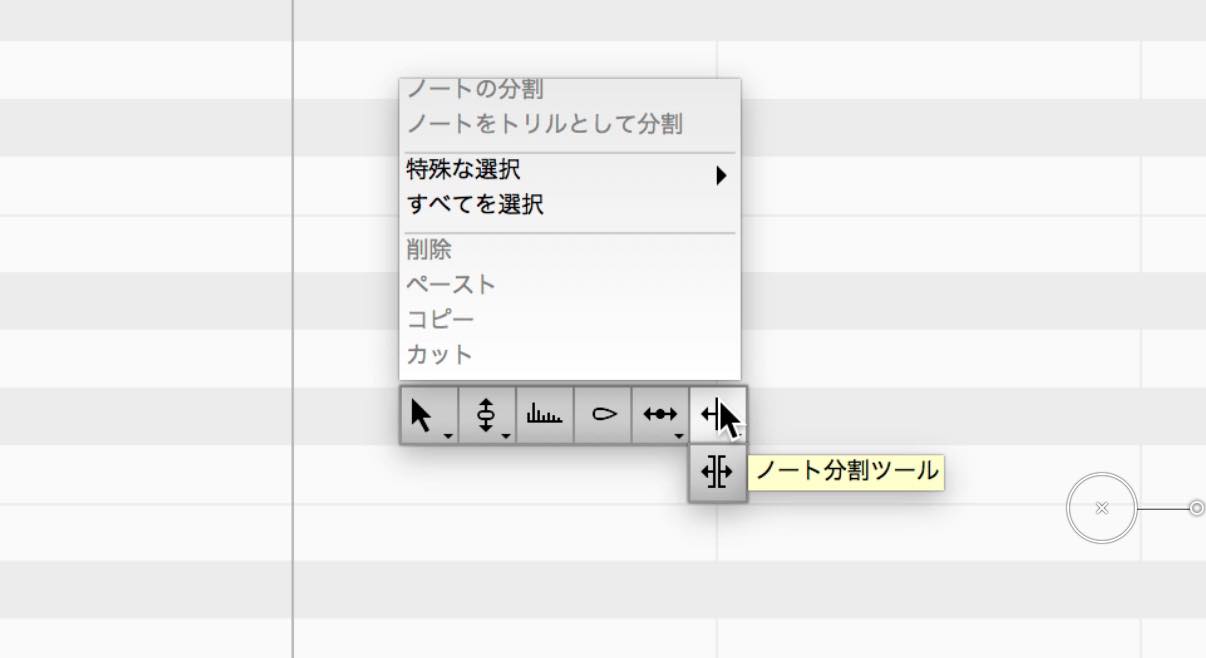
Note Separation Tool
Finally, the Note Separation Tool makes essential's note-splitting function available as a dedicated tool, allowing you to focus on separating notes.
The Separation Type Tool below it lets you switch a note boundary to a hard separation by double-clicking the boundary.
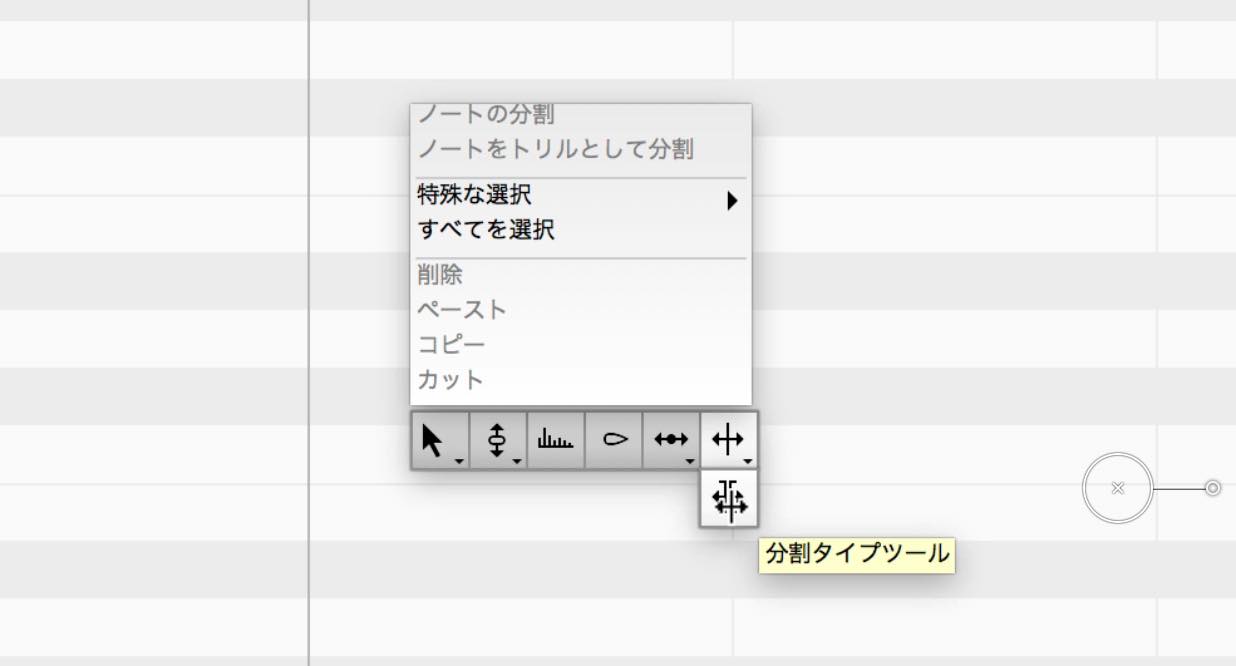
With a hard separation, the notes on either side become independent, so trimming them can leave a gap.
MIDI Export
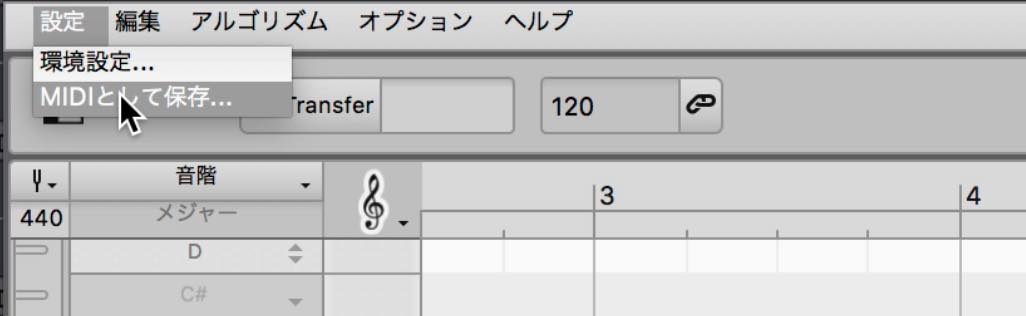
Another feature added in assistant is MIDI export.
This is useful when you want to play notes analyzed and corrected in Melodyne with an instrument.
Choose Save as MIDI from the Settings menu at the upper left. A dialog will ask where to save the file; choose a location and save it.
That concludes our overview of the features available in assistant.
Next time, we will explore the features of the higher-tier editor and studio editions.
- 1Melodyne 4 essential: Overview and Tutorial
- 2Melodyne 4 assistant: Overview and Tutorial
- 3Melodyne 4 editor and studio: Overview and Tutorial
- 4What's New in Melodyne 5 Pitch-Editing Software
- ◆ Manufacturer's Website: http://urx.space/Rgab
- ◆ Purchase Here (Affiliate Link): http://urx.space/Rgab
Frequently Asked Questions
Q1. What are the main differences between Melodyne assistant and essential?
Assistant offers more detailed editing tools than essential, including dedicated tools for pitch modulation, pitch drift, formants, time handles, and attack speed. It also adds MIDI export.
Q2. When is the Formant Tool useful?
It is useful for changing vocal timbre and creating layered, doubled voices from a single take. Shifting the formants while offsetting the timing can produce a natural, full double-tracked effect.
Q3. How can I use notes edited in Melodyne in my DAW?
Choose Save as MIDI from assistant's Settings menu to export your edited notes as a MIDI file, which you can then use with other instrument plug-ins.
NEW ARTICLES
Latest English Articles

































































































































































































































































































