
Suno V5 is an AI music-making tool that can generate complete songs from text prompts, even if you have never composed before. It offers two workflows, Simple and Custom, and lets you choose between AI-generated lyrics and lyrics you write or edit yourself. You can describe a theme you love and get a finished song in seconds without playing an instrument or knowing music theory, making it an accessible starting point for music-production beginners.

Hi, I'm Sleep! People call me Suriko—nice to meet you. Today I'll introduce the much-talked-about AI music tool Suno. I've put together the basics so even first-time users can follow along. Suno changes quickly, so please forgive any differences between the current screen and the screenshots here. This article reflects the service as of November 2025!

Hi, I'm S! I'll bring the energy, help Suriko, and explore this with everyone. Right, F?

Yeah... (Yawn. I know nothing about composing. Will I be okay?)
Selected Questions and Answers from the YouTube Video

Is there an AI tool for making easy-listening music? Am I asking in the wrong place?

If you mean AI-generated music, I think Suno can make easy-listening tracks too! Try a prompt such as "easy listening, relaxing," to get a calm mood. Then adjust the prompt to suit what you're after and experiment. Sorry if I misunderstood your question! (Suriko)
What Is Suno?
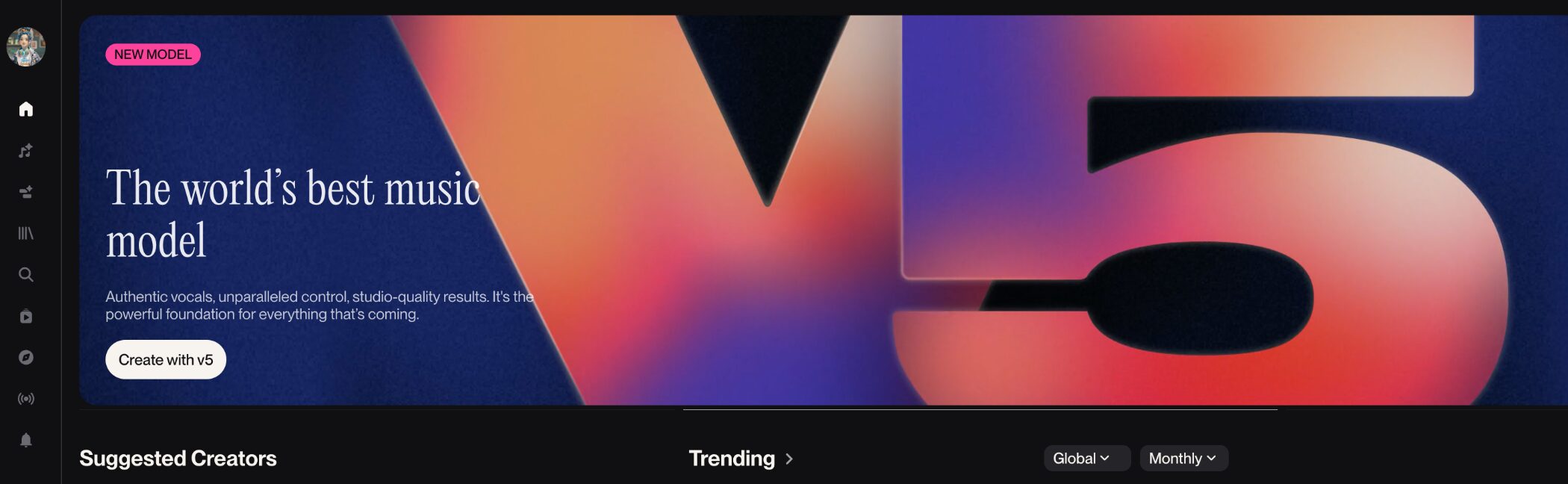
AI technology has been moving so fast lately!
Among these tools, the latest version of Suno, V5, has attracted a lot of attention for its improved sound quality and expressive vocals.
In short, Suno is a service that automatically makes a complete song when you describe the kind of music you want in text.
First, listen to a song made with Suno!
Isn't it amazing that this can be made in just seconds?
I was surprised that AI has come this far.
Music production can feel daunting, with instruments to play, music theory to learn, and all kinds of software to understand.
With Suno, though, you can get started without those skills!
Let's begin by putting what you love into words and enjoying the sound you create.
I want to try it now! This is exciting!
(What I love, huh... Could even I do this?)
Let's Generate a Song
Now I'll show you how to make a song in Suno.
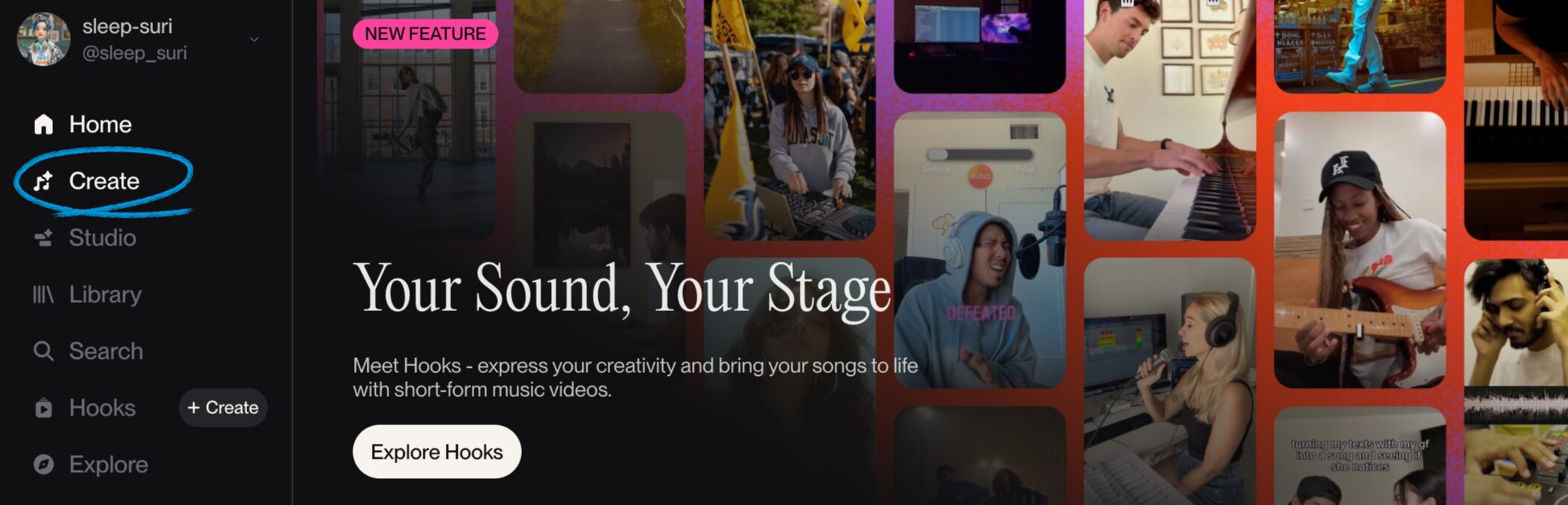
First, click "Create" in the menu on the left.
Simple Mode and Custom Mode
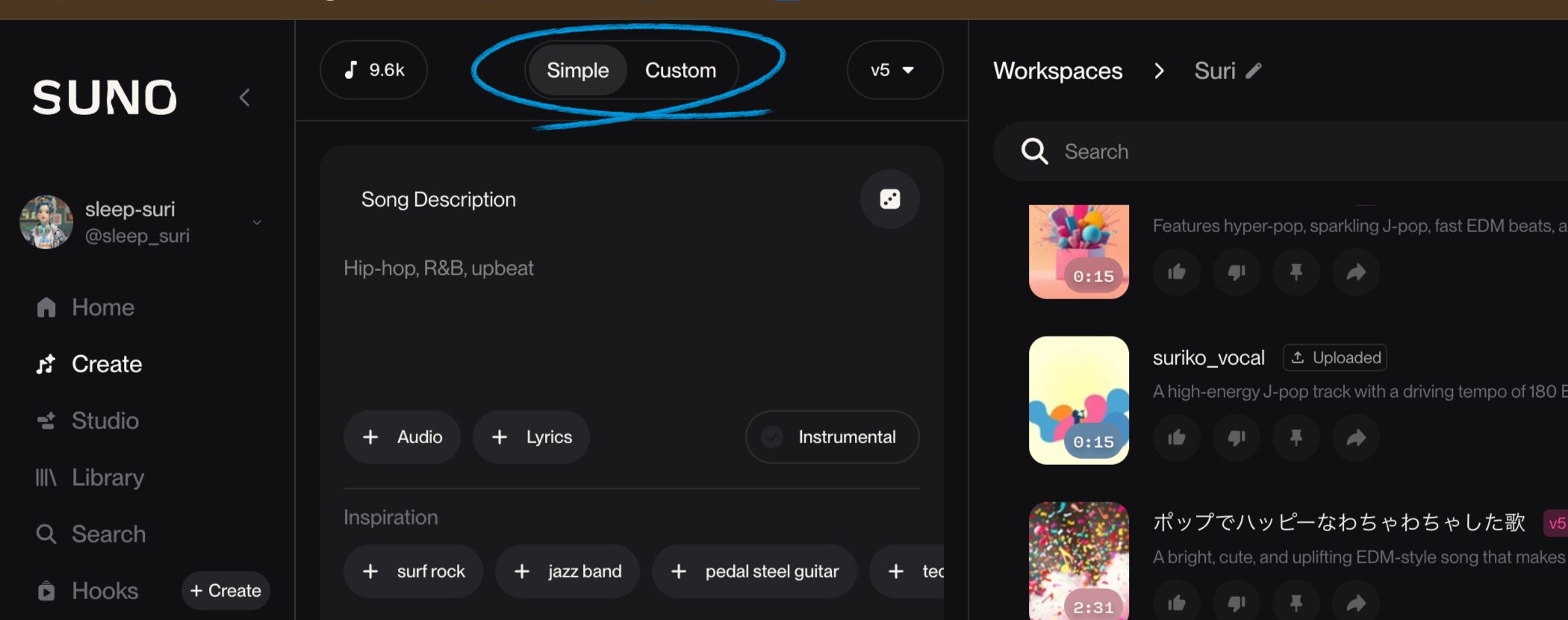
The song-creation screen has two main modes.
- Simple: Give Suno a theme, and let AI handle the lyrics and song structure.
- Custom: Control the lyrics and song structure in more detail yourself.
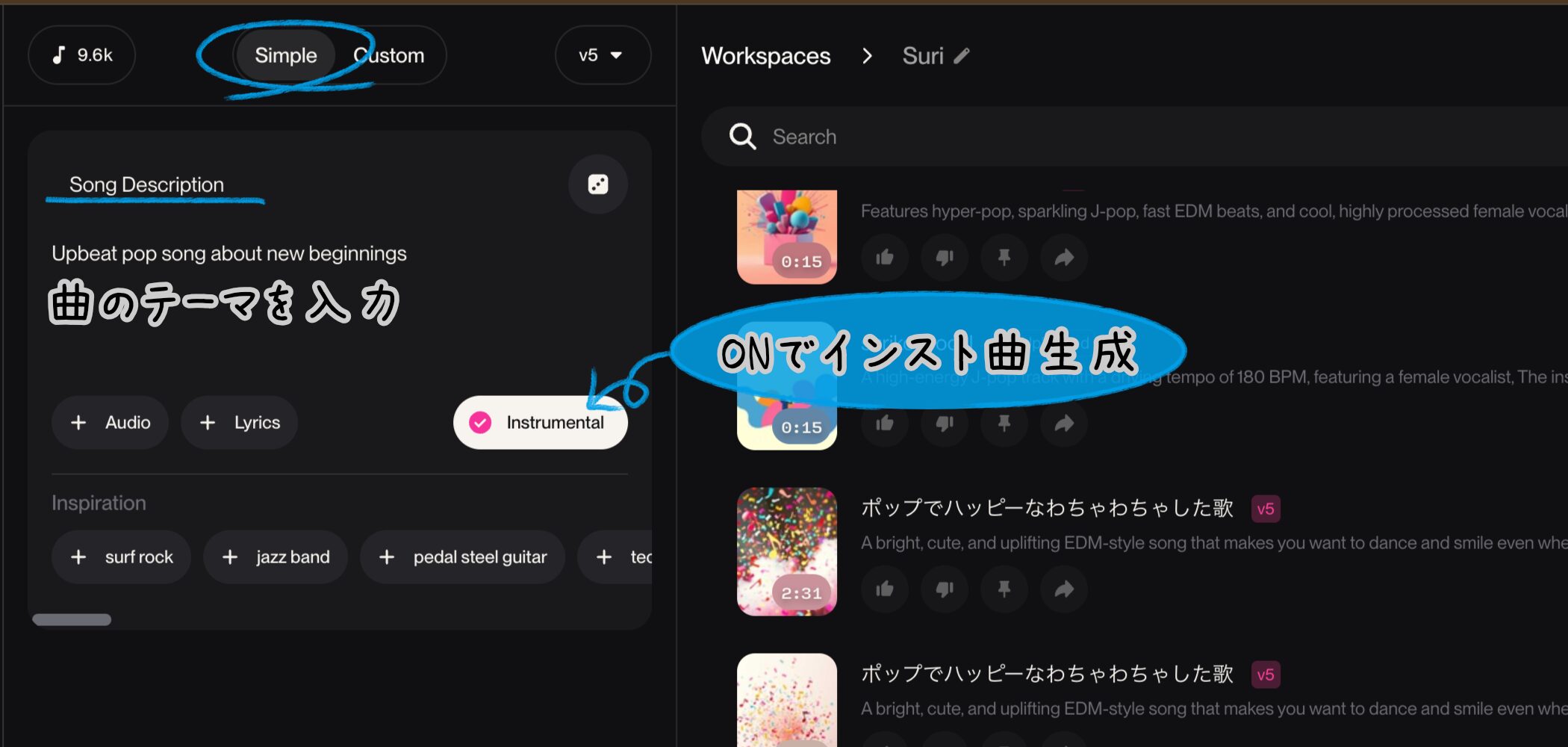
Simple mode is the easiest option: enter a Song Description and Suno makes a song.
Turn on the Instrumental toggle to make a track without vocals.
This time, we'll look at Custom mode, which gives you more settings.
Um... Should I use Simple or Custom?
Start with Simple to get a feel for it. Once you're comfortable, try Custom!
Choosing a Version
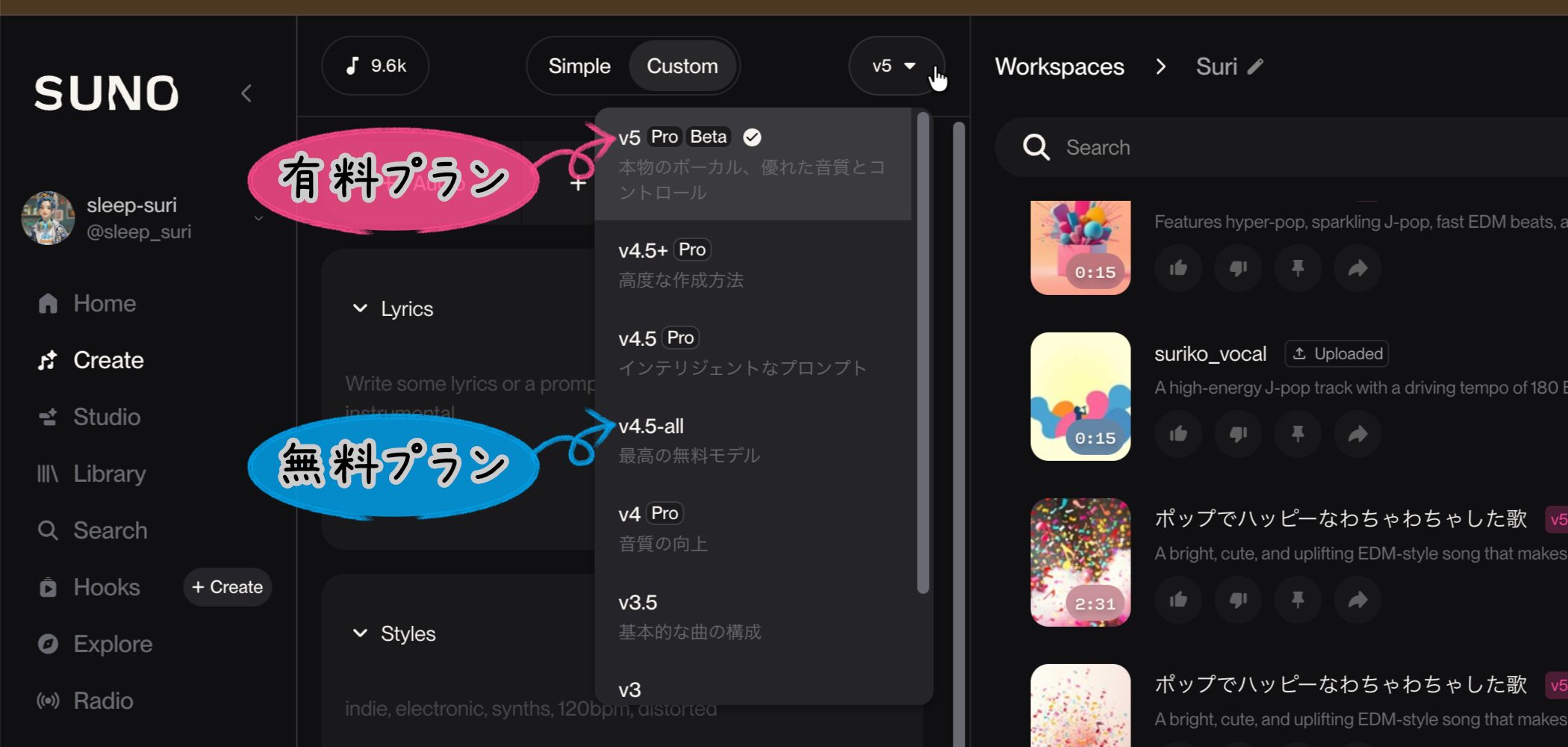
At the top right of the Create screen, you can choose the AI model version to use for your song from the menu.
If you're trying the free plan, select a version labeled as a free model.
A paid plan gives you access to the latest, higher-quality models.
Start with the free version. If you decide you want better sound, consider a paid plan with access to the latest version when you are ready.
Lyrics: Creating Lyrics
There are two main ways to create lyrics.
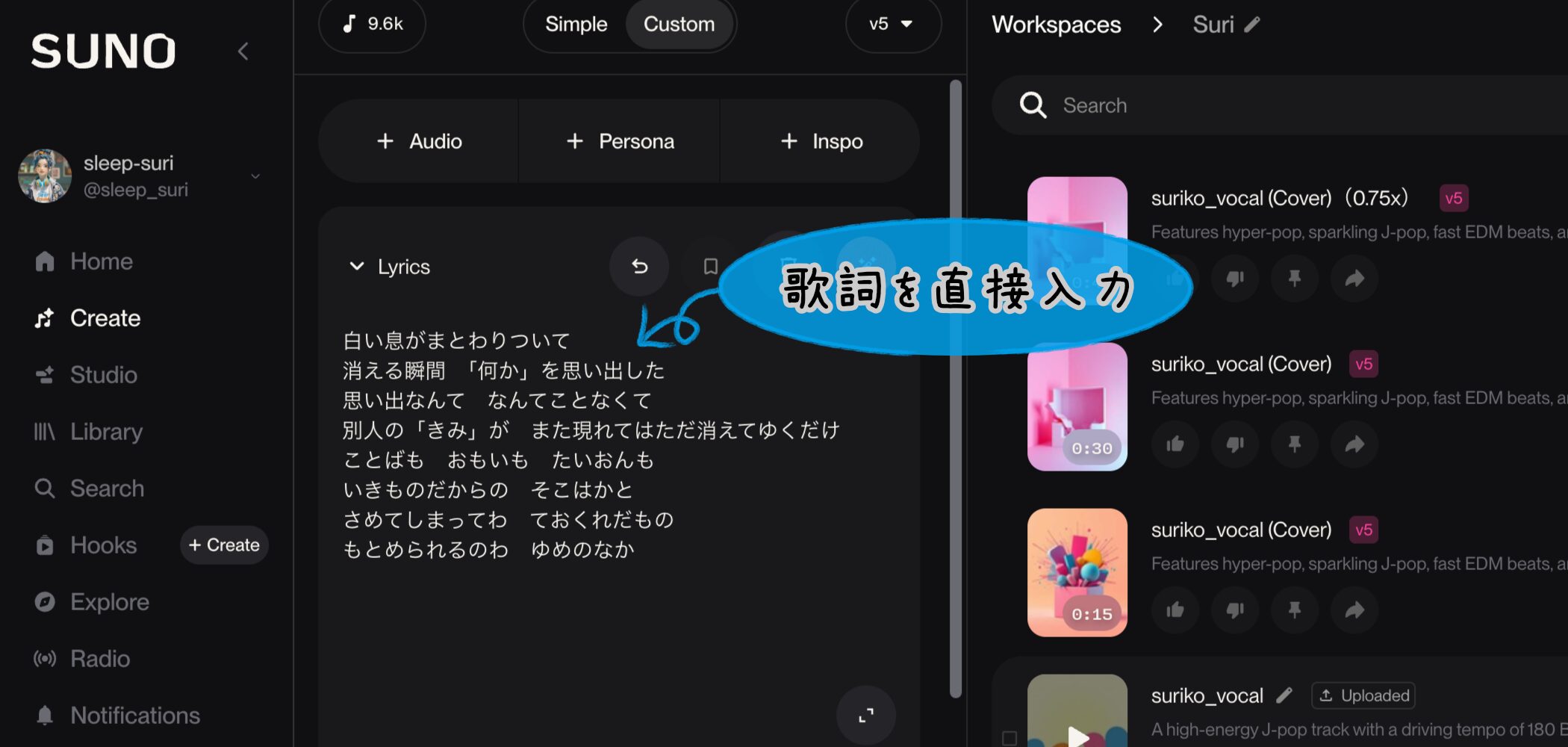
One is to type your own lyrics directly into the field labeled "Write some lyrics..."
If you've already written some, just copy and paste them here.

If you have a structure in mind, I recommend adding tags such as [Verse] and [Chorus] before the relevant lyrics to guide the arrangement.
Tags help the AI understand where the chorus and other sections should go, making the result more likely to follow your intended structure.
Here are some common tags.
- [Intro]: The opening of the song.
- [Verse]: A main section, such as an A or B verse.
- [Pre-Chorus]: The build-up before the chorus.
- [Chorus]: The chorus, often the song's biggest section.
- [Bridge]: A contrasting section, often in the middle or after an instrumental break.
- [Outro]: The ending of the song.
That sounds complicated...
Don't worry! Suriko will show you an easy way to do it even if you can't write lyrics, F.
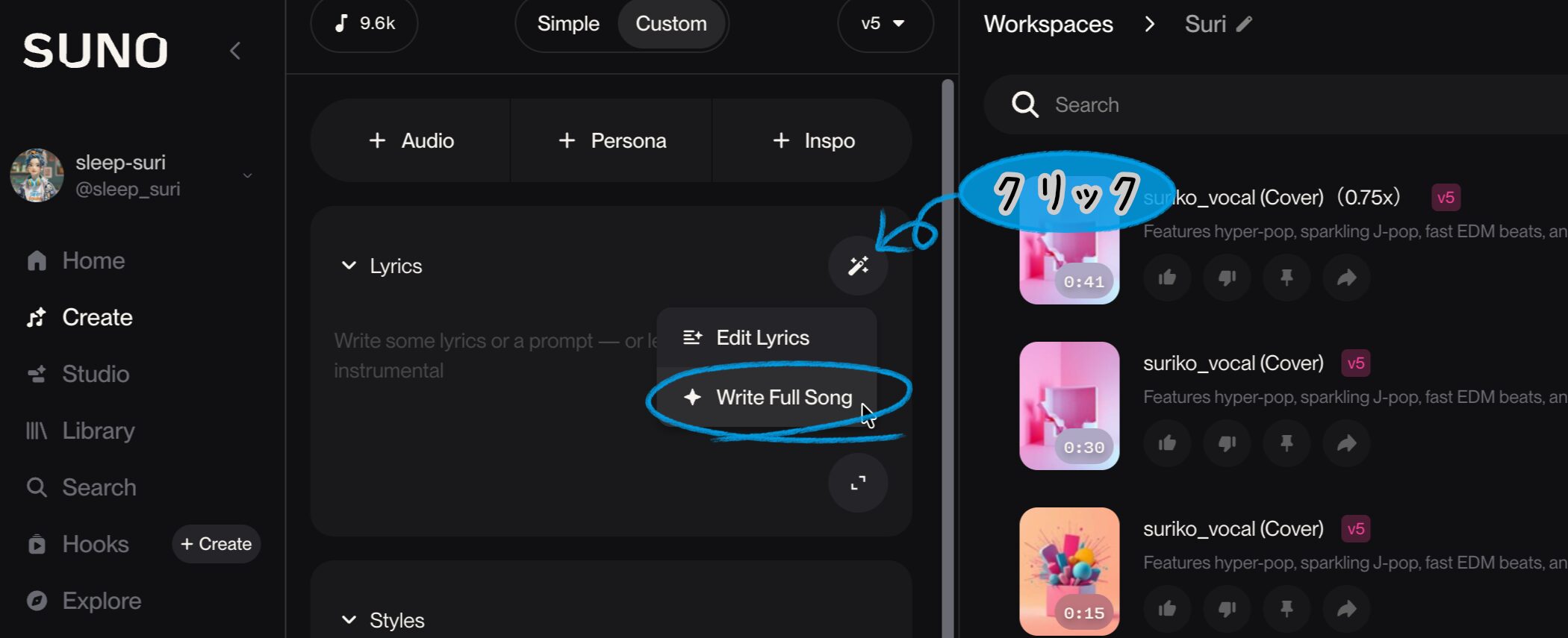
The other option is to ask AI for help. Click the icon to the right of the lyrics field and choose "Write Full Song."

Enter your song's theme and any requests, then click "Write Lyrics"!
The AI will offer two sets of lyrics.
If neither feels right, click "Write Lyrics" again.
You'll get fresh suggestions each time.
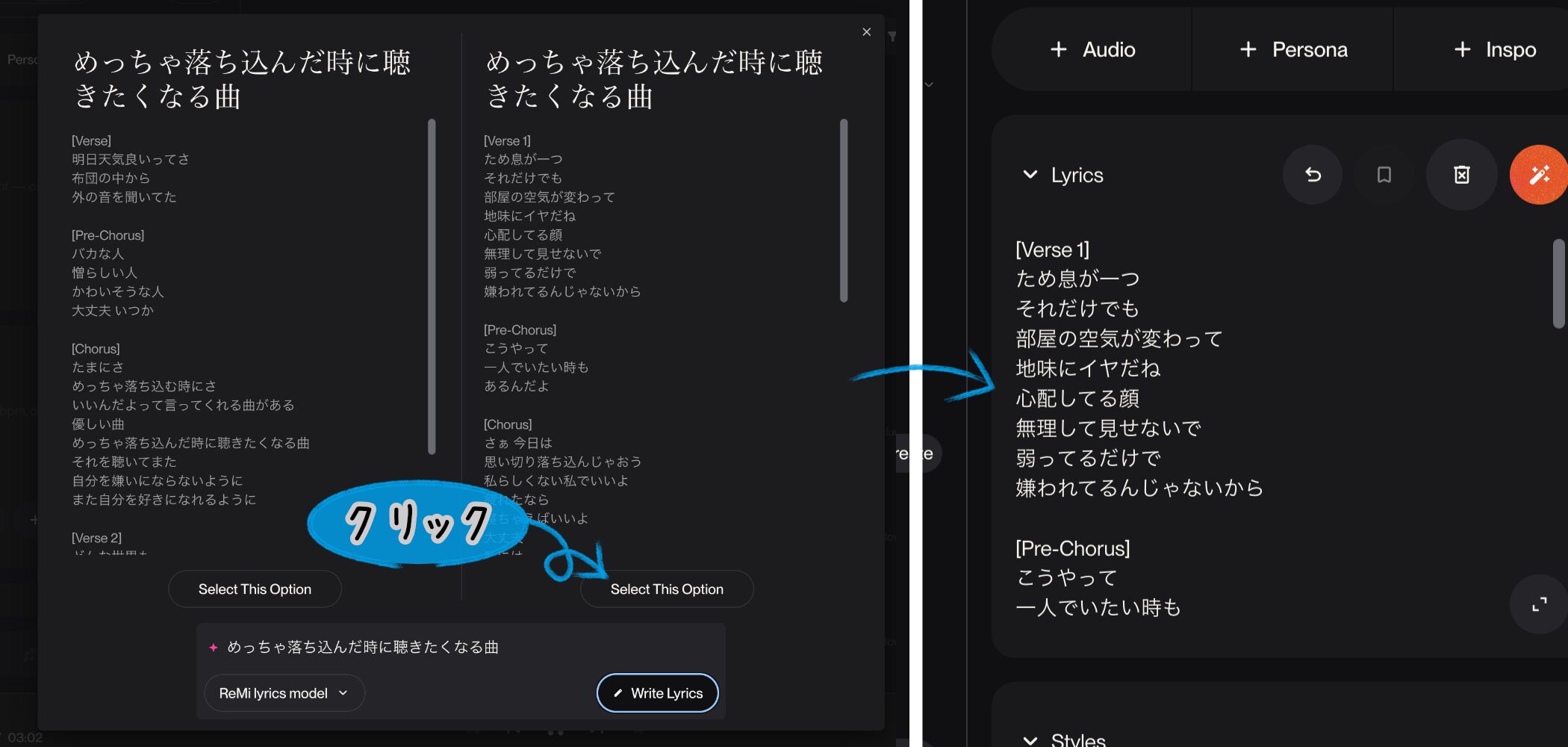
When you find lyrics you like, click "Select This Option" beneath them to place them in the lyrics field automatically.
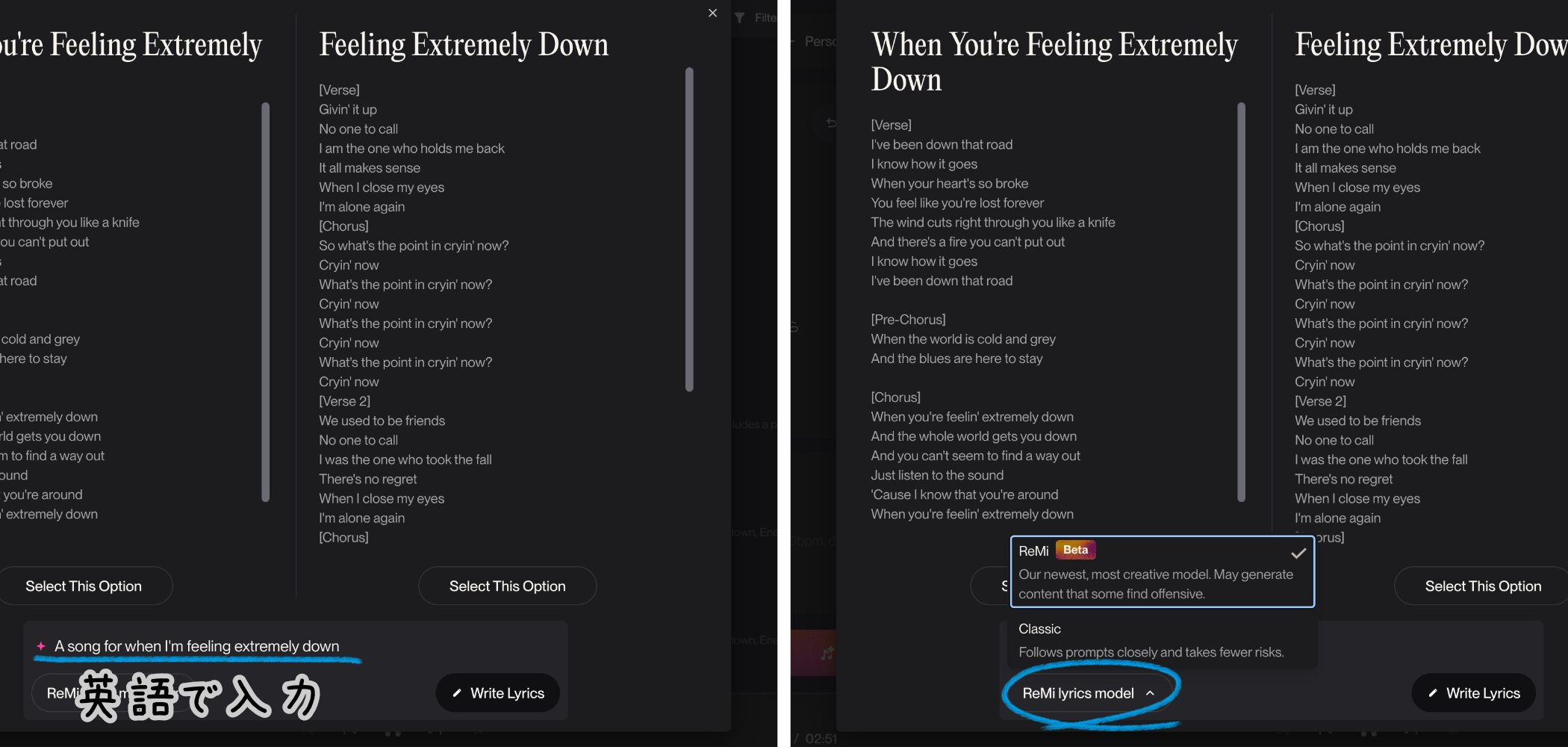
Here are a few tips for AI-generated lyrics.
- Language: Enter the theme in English to generate English lyrics.
- Model choice: You can also select the lyric-writing AI. The latest "ReMi" model is said to produce more natural, creative lyrics. (Paid plans only.)
Edit Lyrics: Editing Lyrics
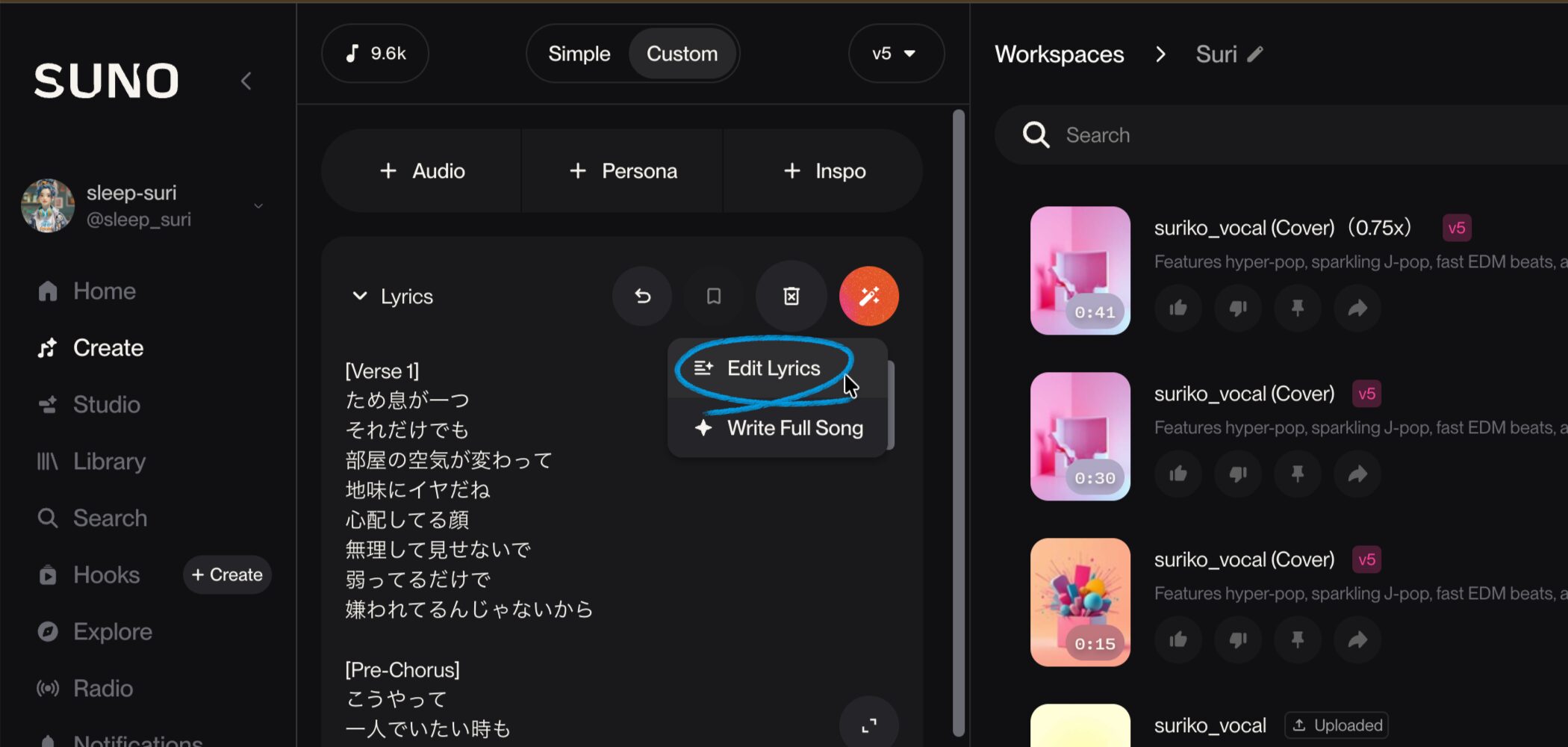
"Edit Lyrics" lets you change part of the lyrics in the input field.

Select the passage, enter your request, and click the arrow button.
The selected passage will then be rewritten automatically by AI to match your request.
You can repeat the process until you find a phrase you like!
Style: Defining the Musical Style

The Style field is where you tell the AI the genre, mood, instruments, tempo, and other important details of the song you want.
You can enter keywords or write your request conversationally.
The text you use to give an AI specific instructions is called a "prompt."
Japanese works too, but English instructions were generally considered more effective at the time of writing.
Don't worry if English isn't your strength!
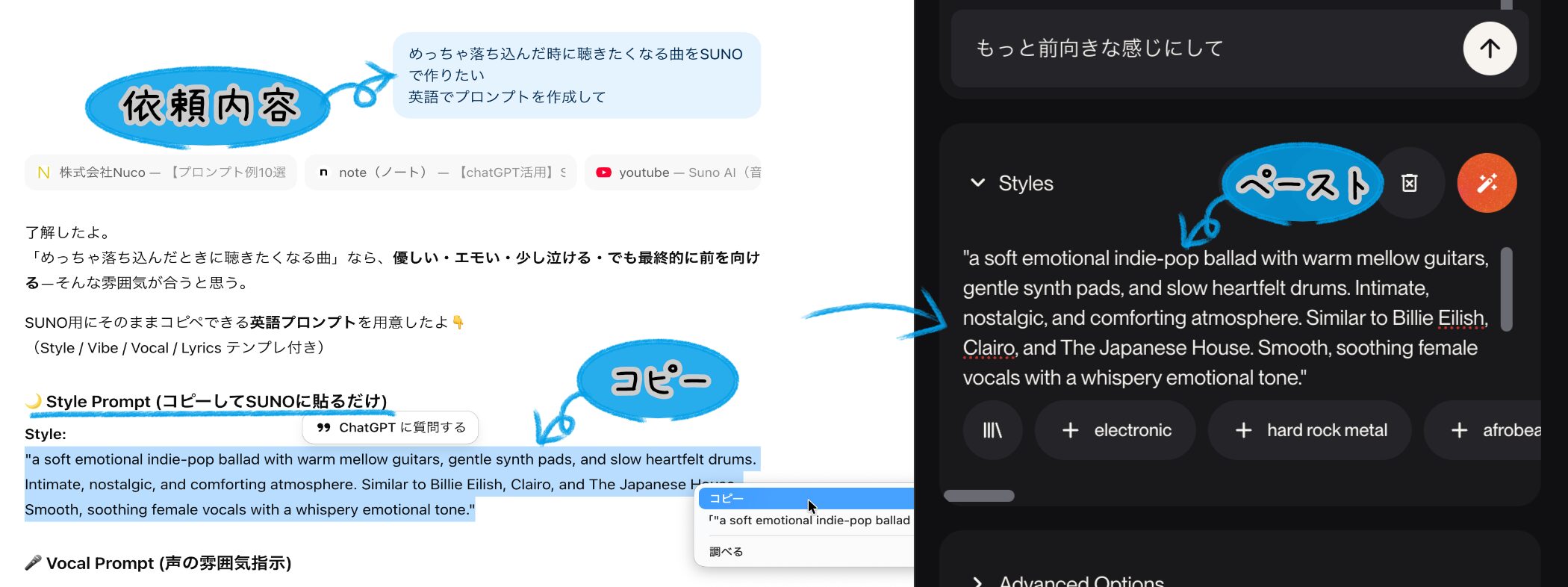
You can ask ChatGPT, for example, to write the prompt you have in mind in English.
My favorite part is that you can discuss it with AI and refine your prompt until it captures what you want.
Once you're happy with it, copy and paste it into Suno!
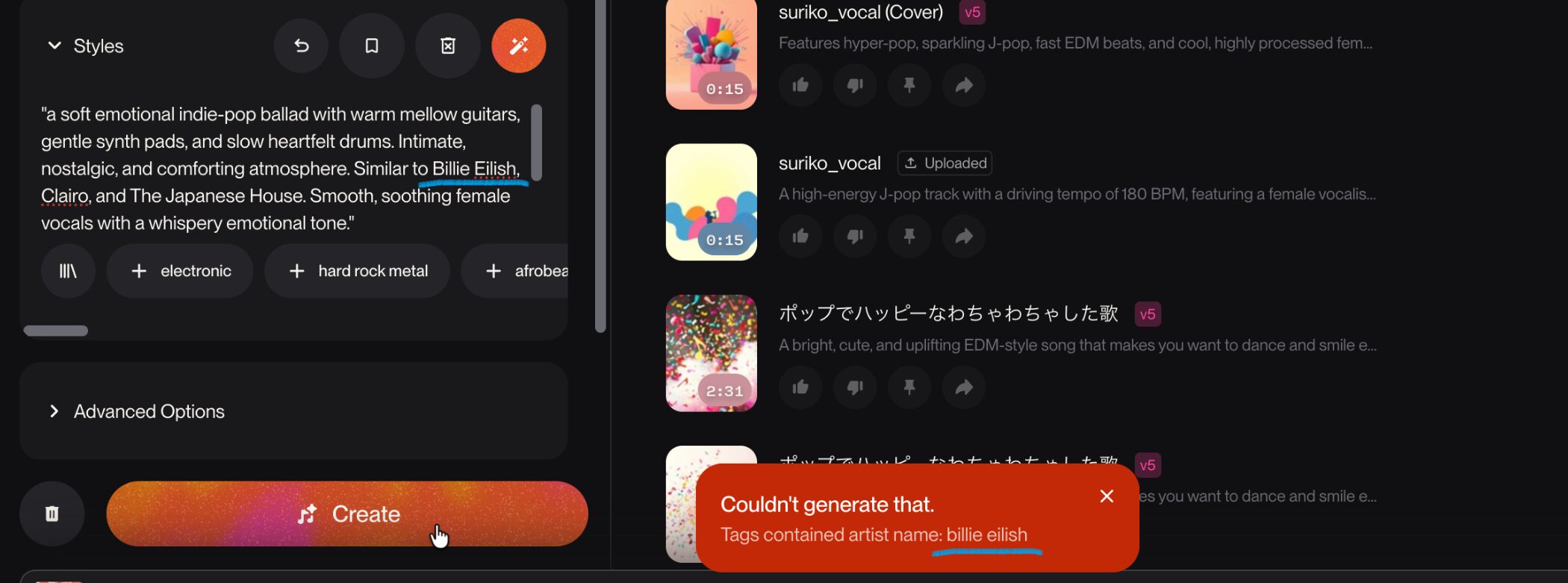
One important caution, though!If your prompt includes a real artist's name,Suno may show a warning and refuse to generate the song.
If that happens, use the AI-assisted approach I described to revise your prompt.
Revise my prompt... Can I really do that?
Of course! Just tell the AI to rewrite it without the artist's name.
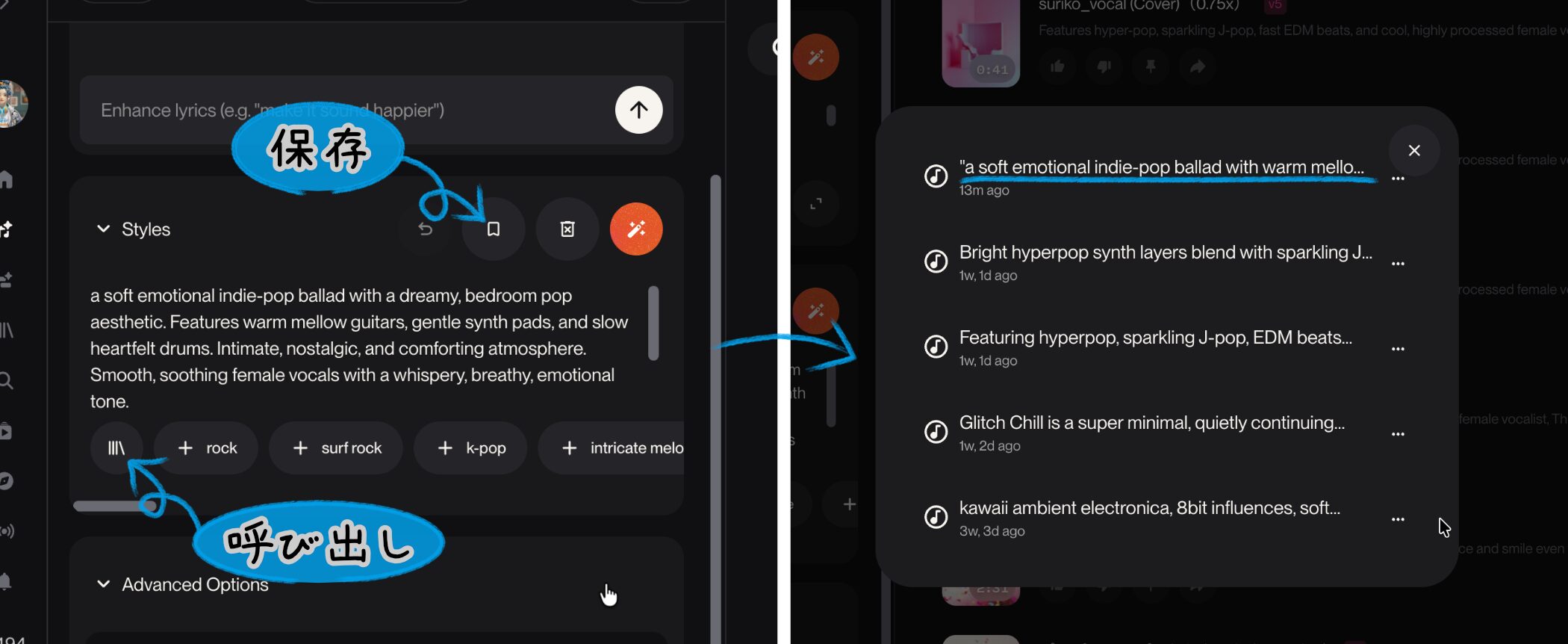
Click the bookmark icon to save a prompt you've written.
The book icon lets you bring saved prompts back whenever you want, so it's handy for collecting favorite styles.
Instrumental: Making Music Without Vocals

In Custom mode, I couldn't find the Instrumental toggle that's available in Simple mode.
I'm sure it used to be there, and it still appears to be in the mobile version, but I couldn't find it anywhere.
So try the following when making an instrumental in Custom mode.

- Leave the lyrics field completely blank (basic method): An empty Lyrics field can produce a track without vocals.
- Add to the Style prompt (more reliable): If vocals still appear, try adding "instrumental only, no vocals" in the Style field.
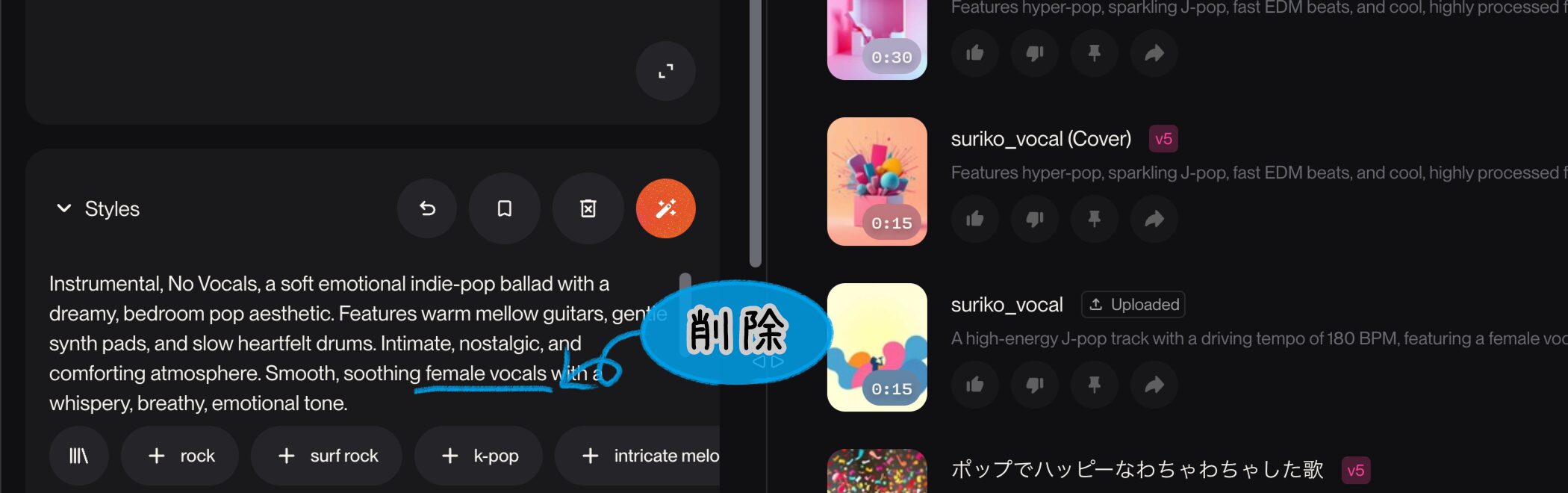
When making an instrumental, also check that your prompt doesn't ask for vocals before you generate the song.
Even with an empty lyrics field, the prompt may steer Suno toward a vocal track.
I'm going to forget to check the prompt...
When you ask AI to write your prompt, tell it you want an instrumental. It can then make a prompt that doesn't need extra additions or checking!
Advanced Options: Detailed Settings
"Advanced Options" lets you fine-tune the song you want to generate.
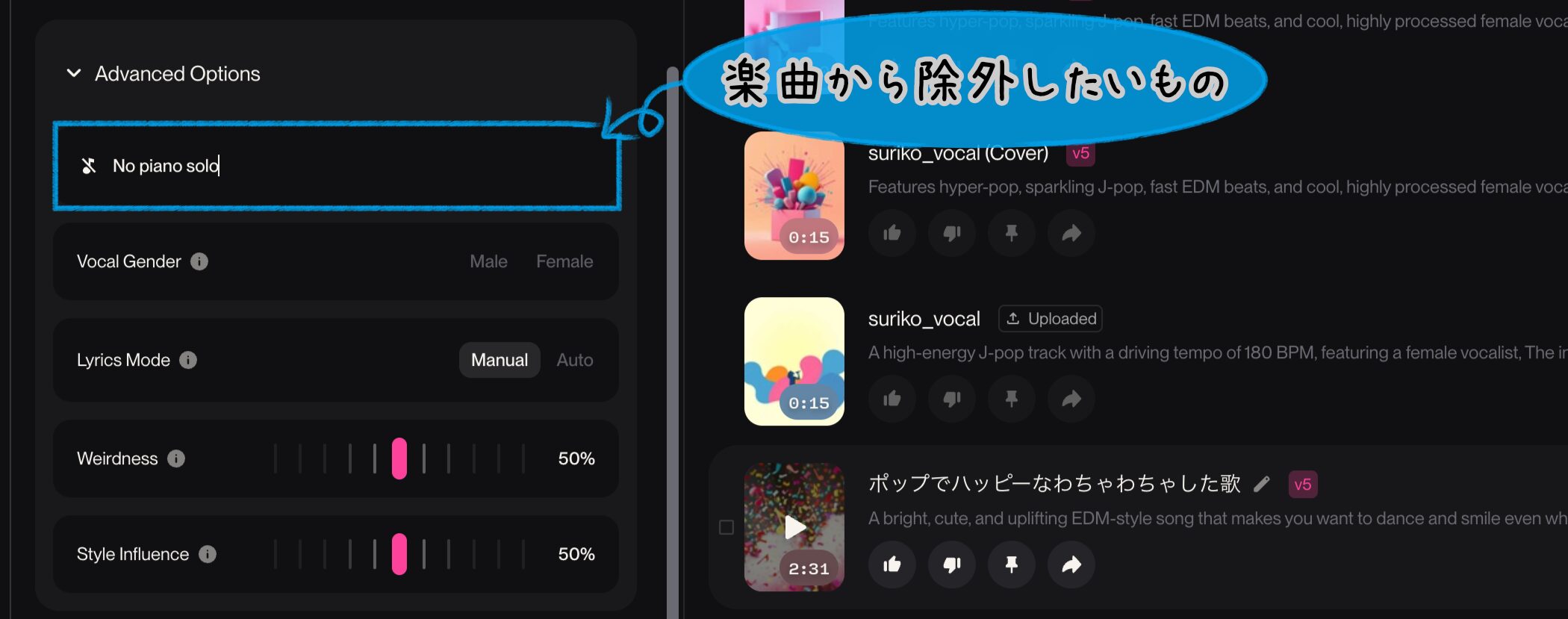
"Exclude Styles" is a field where you can specify styles or instruments you want to leave out of the song before generating it.
For example, entering "No piano solo" can stop AI from adding a piano solo on its own.
However, only Pro and Premier users can use it.
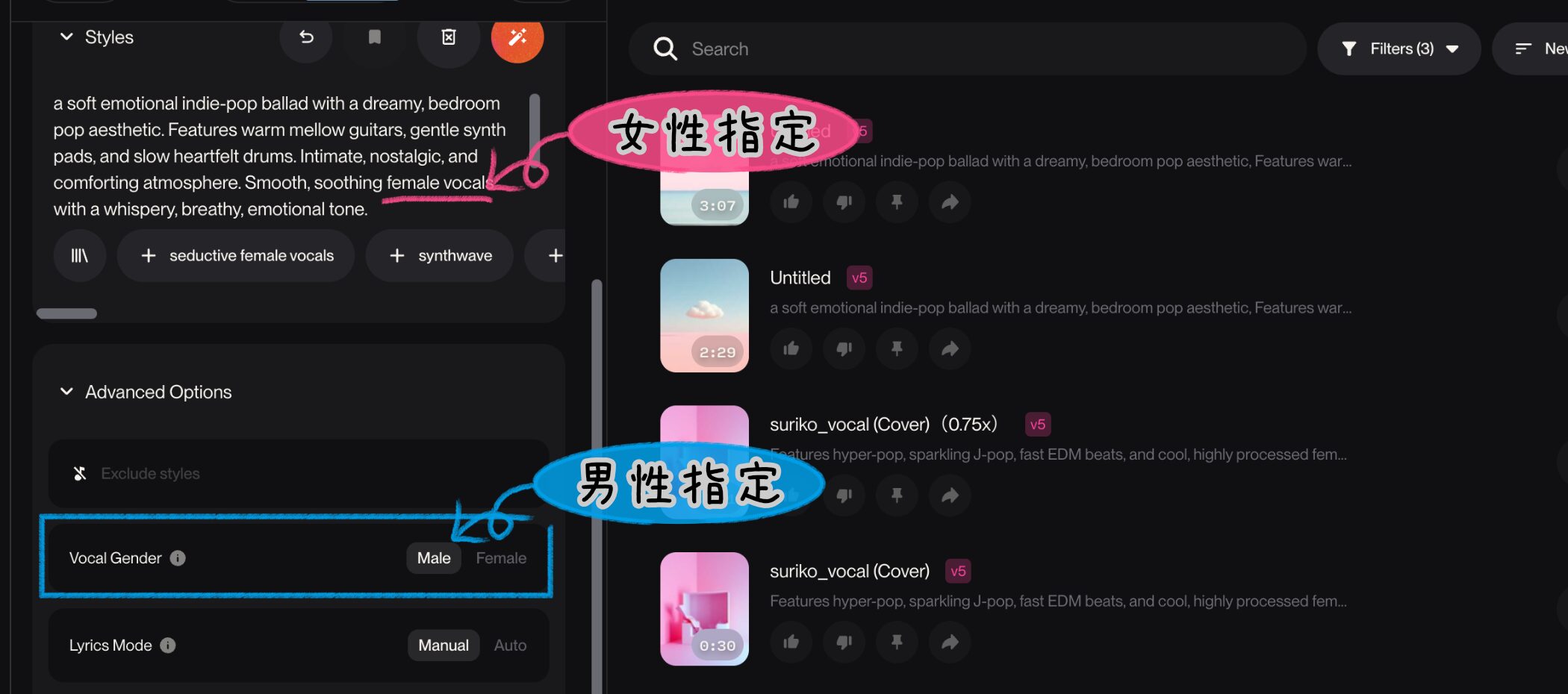
"Vocal Gender" lets you choose a male, female, or unspecified vocal.
I make this mistake too: if your prompt already specifies a vocal, the selected Vocal Gender may be ignored, so check the prompt as well.
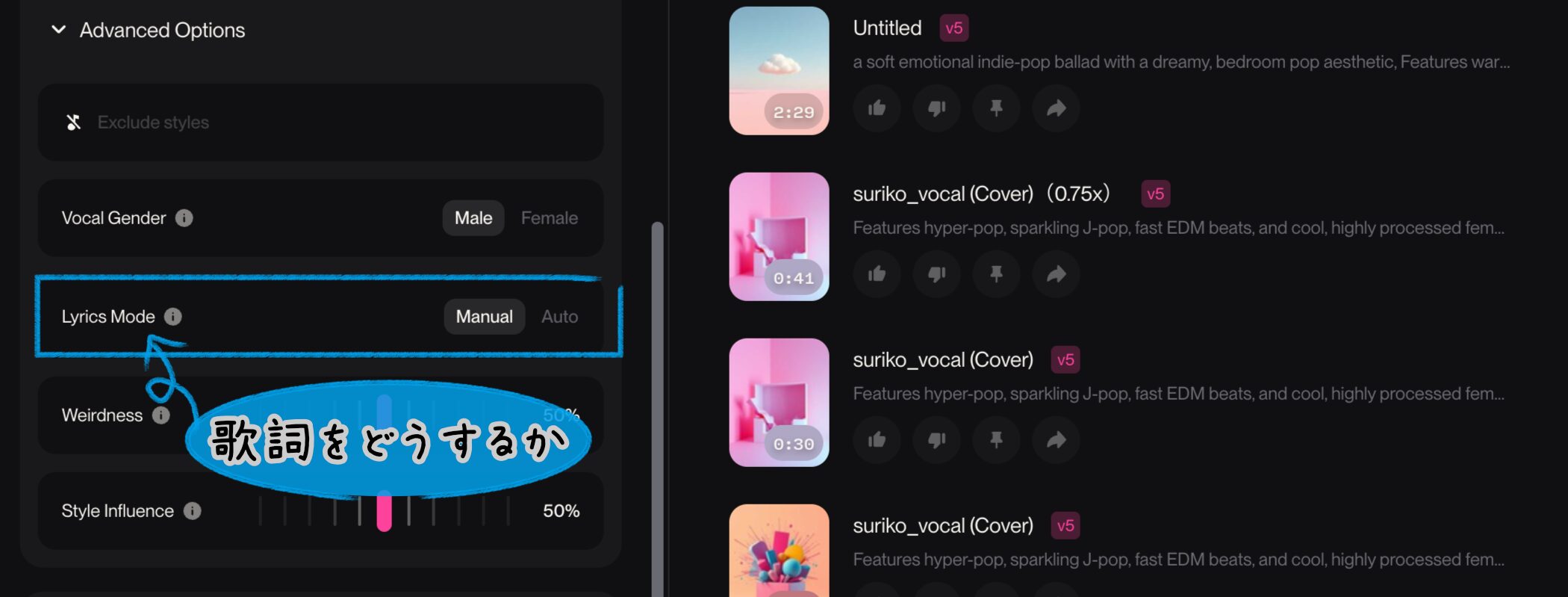
Next is "Lyrics Mode," which appeared while I was writing this very article!
Suno really does change quickly!
It appears to control how the song uses lyrics in each mode.
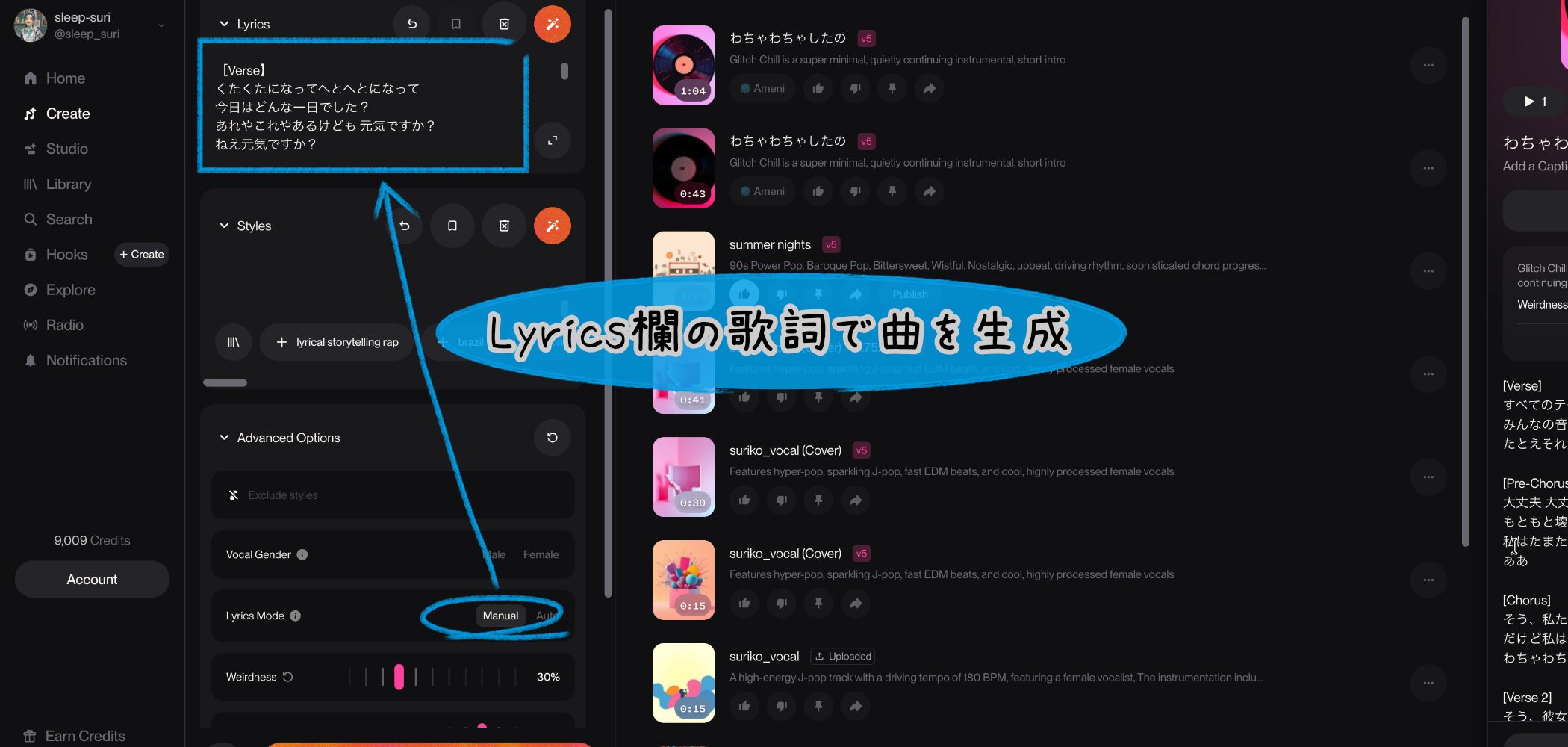
In "Manual" mode, Suno sings the lyrics you wrote or generated with AI in the Lyrics field as entered.
Choose Manual if you want firm control over the lyrics or want to create an instrumental.
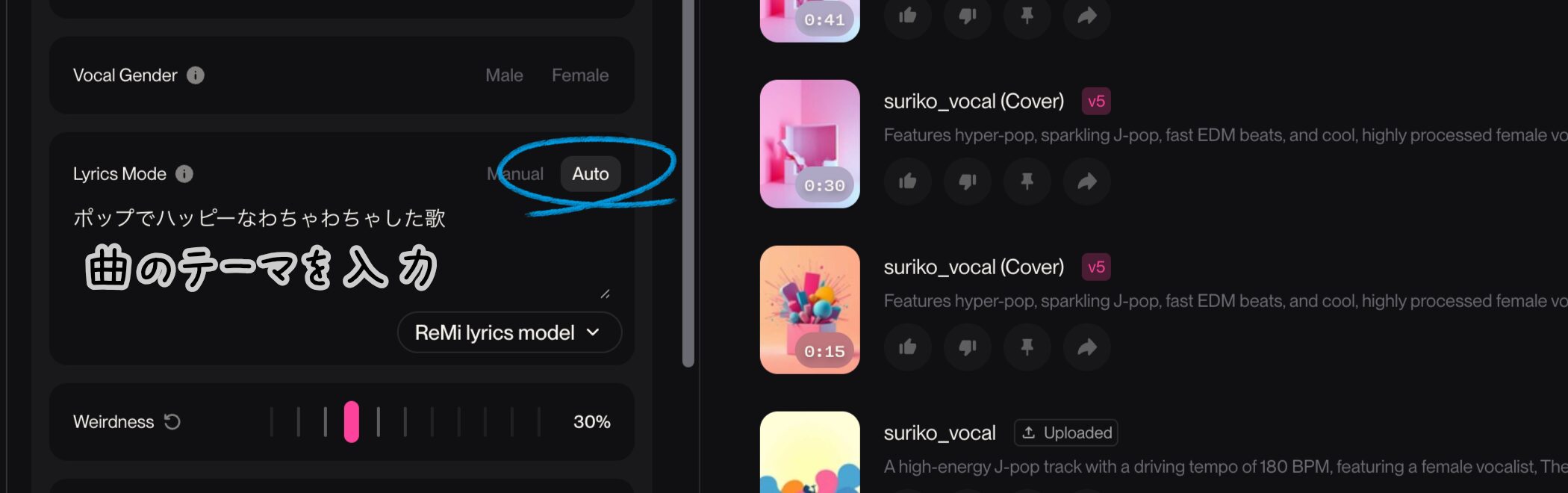
In "Auto" mode, AI creates new lyrics each time you generate a song.
Select it to show a field where you can enter a theme for the lyrics.
Then, when you generate the song, AI writes lyrics based on that theme for the new song.
This could be handy when you want a song quickly without spending time on lyrics.
Wait, isn't Auto like Simple mode?
Simple leaves everything to AI; Auto in Custom mode leaves just the lyrics to AI while you can still fine-tune the music.
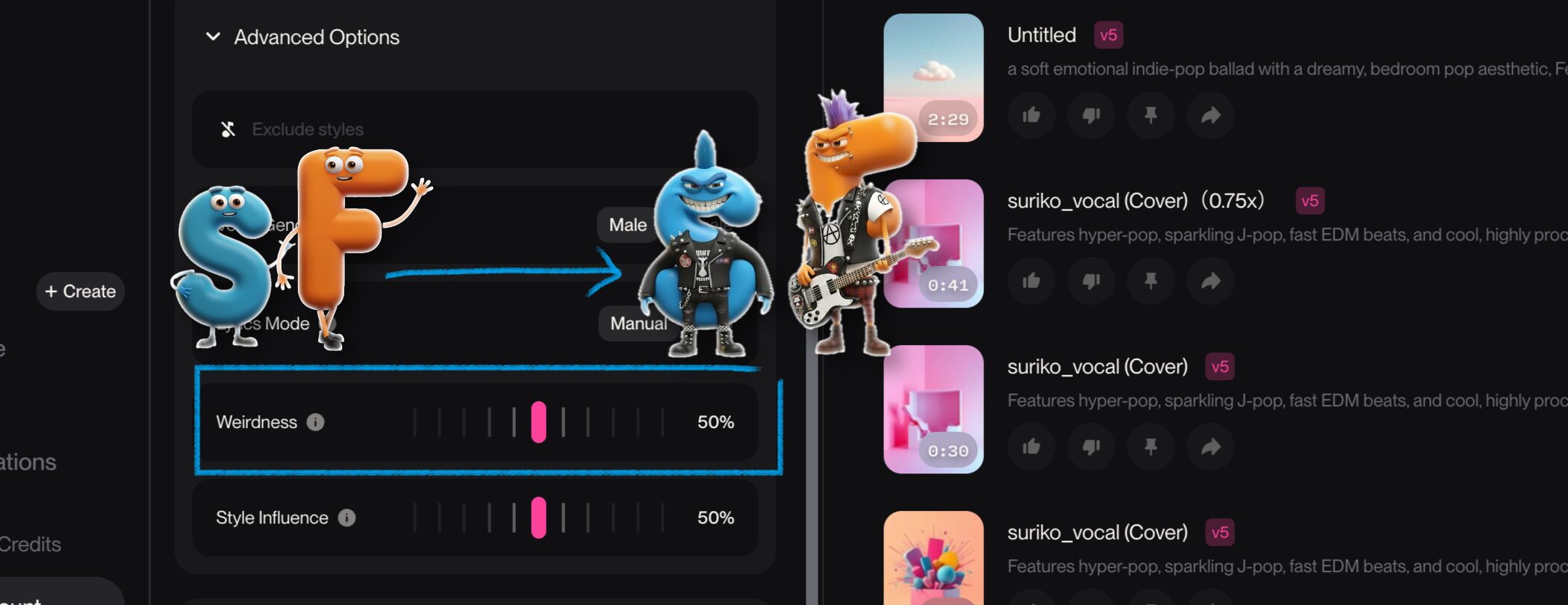
"Weirdness" is a little hard to explain. It adjusts how original or experimental the AI can be during generation.
A higher percentage produces music that breaks more conventions, but take care: too high a setting can make the song fall apart.
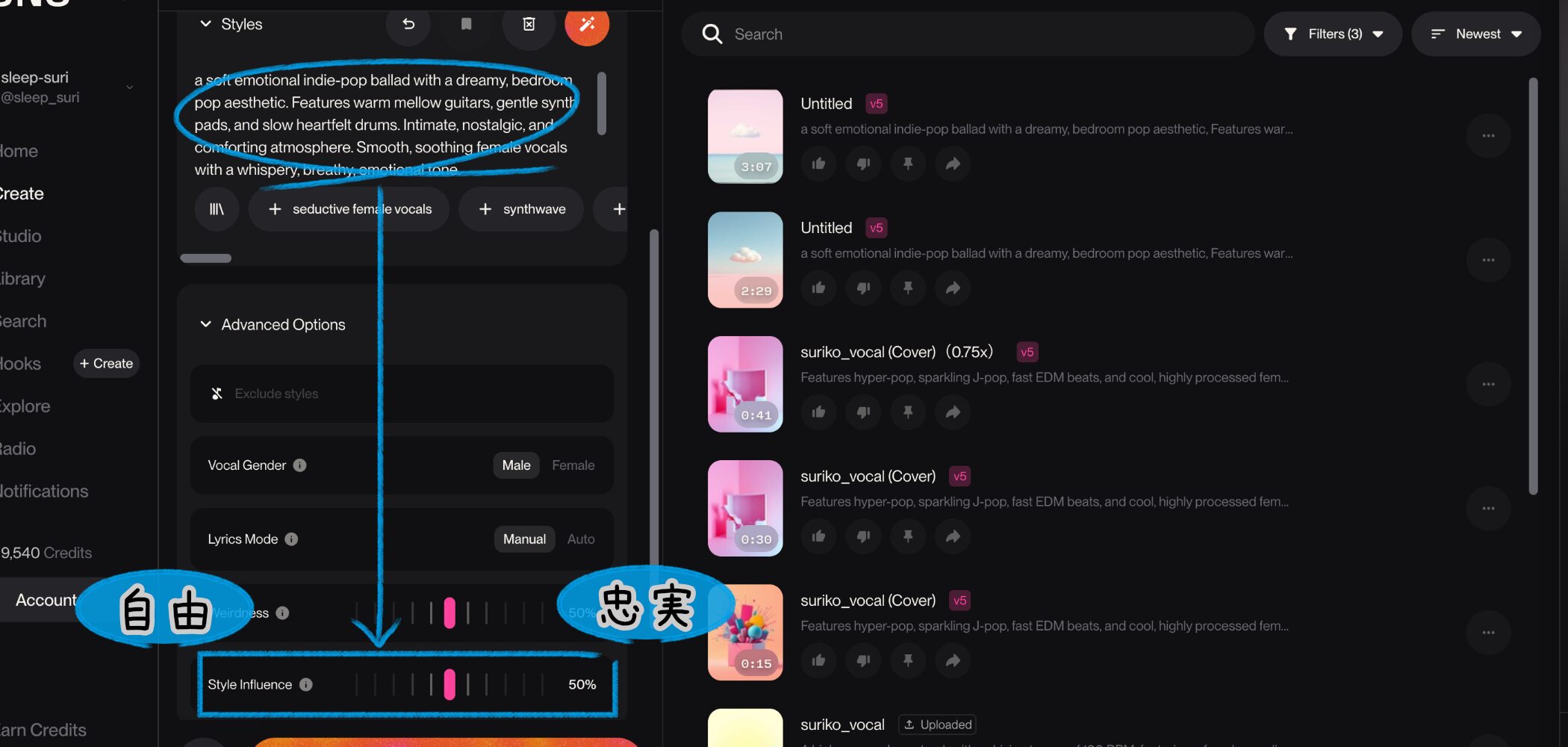
"Style Influence" adjusts how closely the AI follows the style you specify during generation.
A higher percentage seems to produce a song closer to your style instructions.
In my experience, though, both settings can feel pretty unpredictable at times.
Treat the values as rough guides.
If you're unsure, try Weirdness around 30–50% and Style Influence around 70–80% to start.
Generate with the Create Button
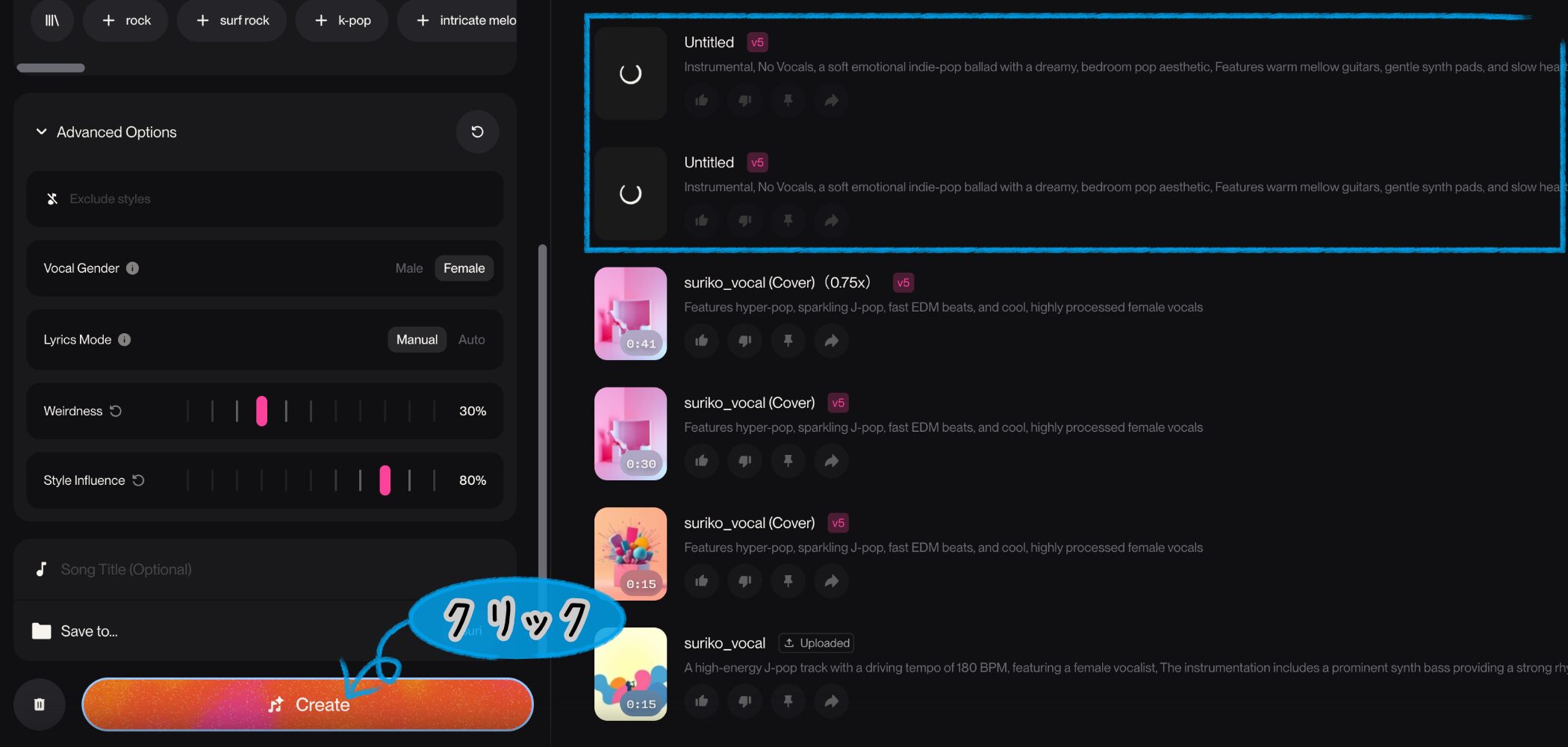
Click "Create" to generate two versions of the song from your settings. (At the time of writing, one generation seems to use 10 credits.)
Even with the same prompt, the versions differ. If one leaves you cold, the other might be great!
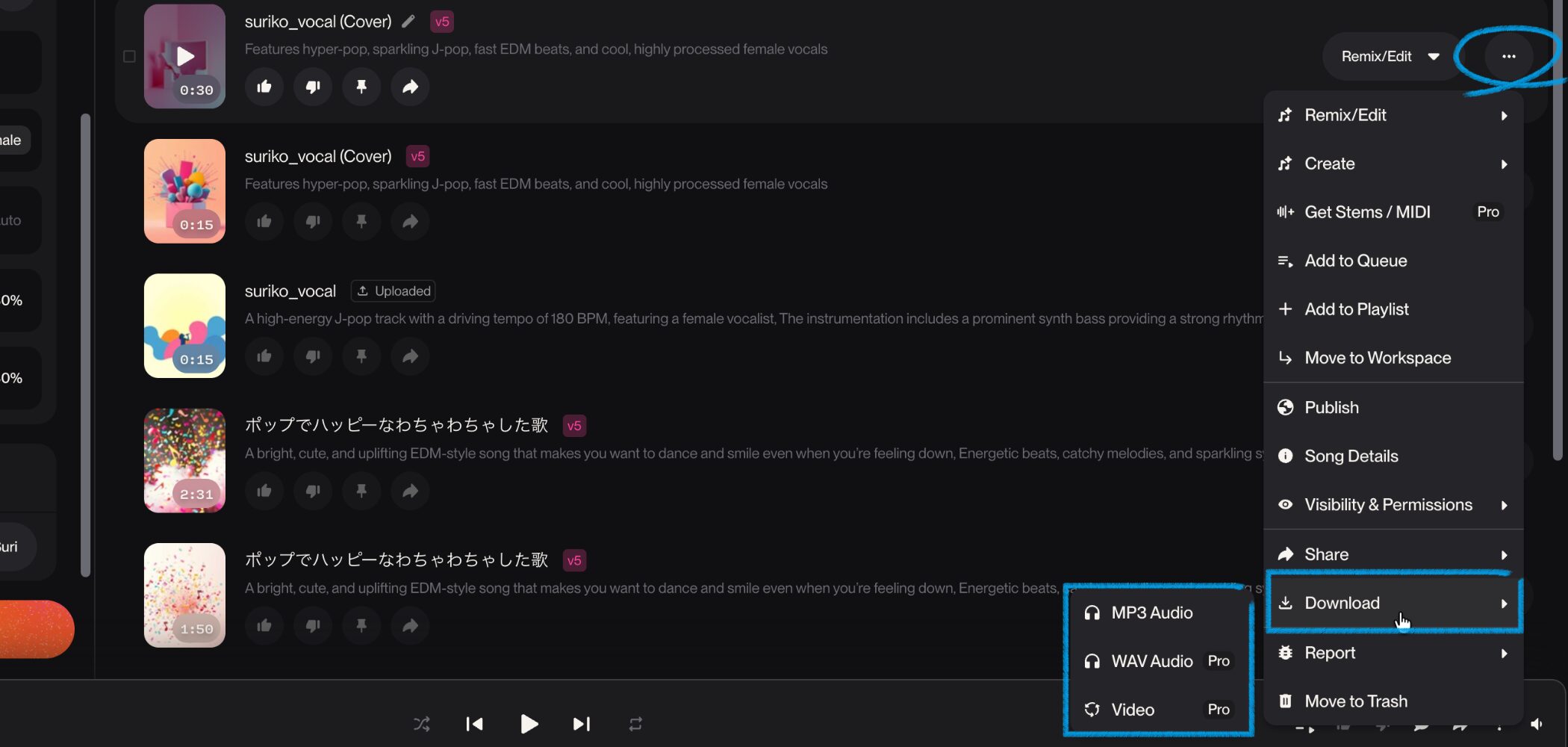
When you like a song, open its "..." menu and choose "Download."
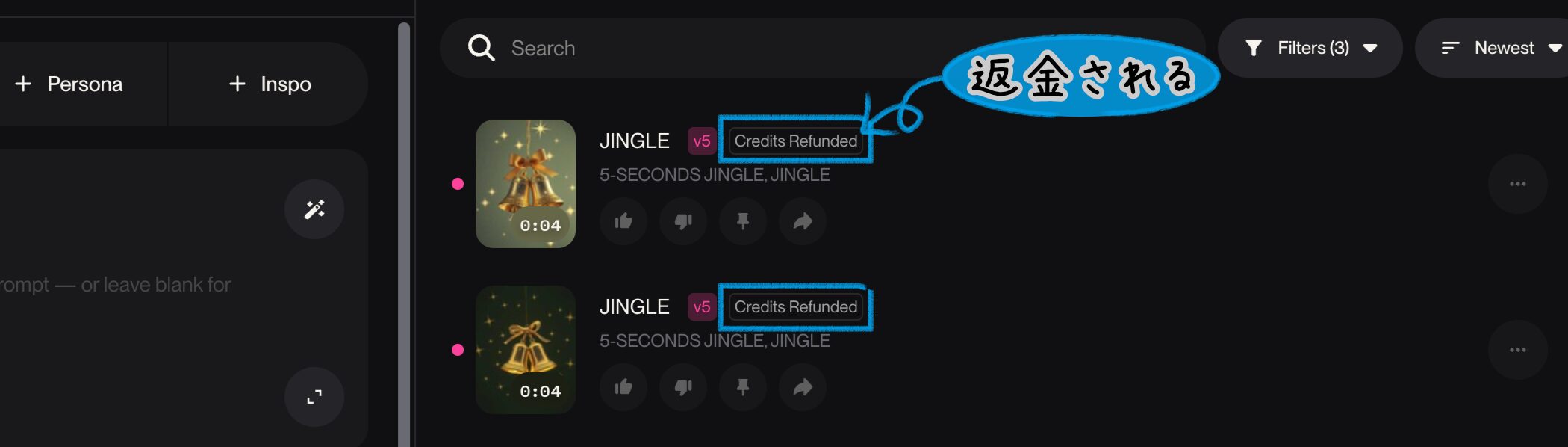
On the subject of credits: if you generate a very short song, such as a jingle, and it comes out too short, the credits you spent may be refunded in some cases.
Other Useful Features
That covers the basics of Suno, but there are more useful features to explore.
Upload Audio: Starting from Your Own Recording
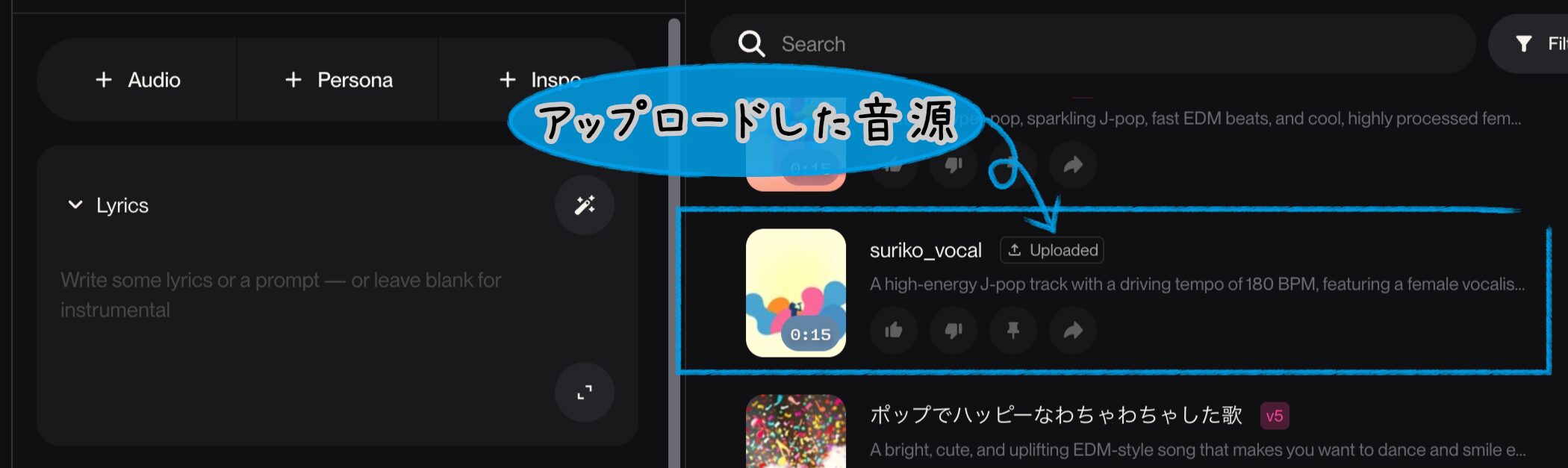
Suno can create music not only from text but also from audio you provide.
Start with a recorded hum or a melody you made earlier to give the result more of your own character.
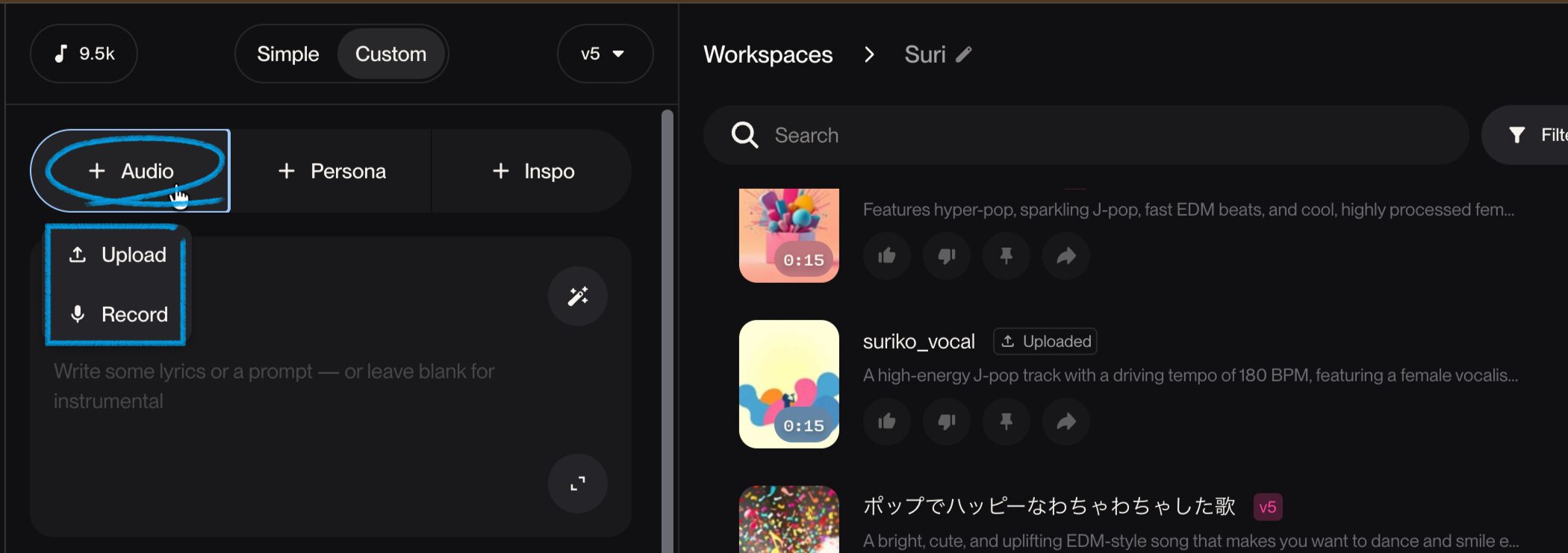
On the Create screen, click "+ Audio" to choose between two ways to bring in audio.
- Upload: Import an audio file you already have into Suno.
- Record: Record your voice or instrument directly in Suno.
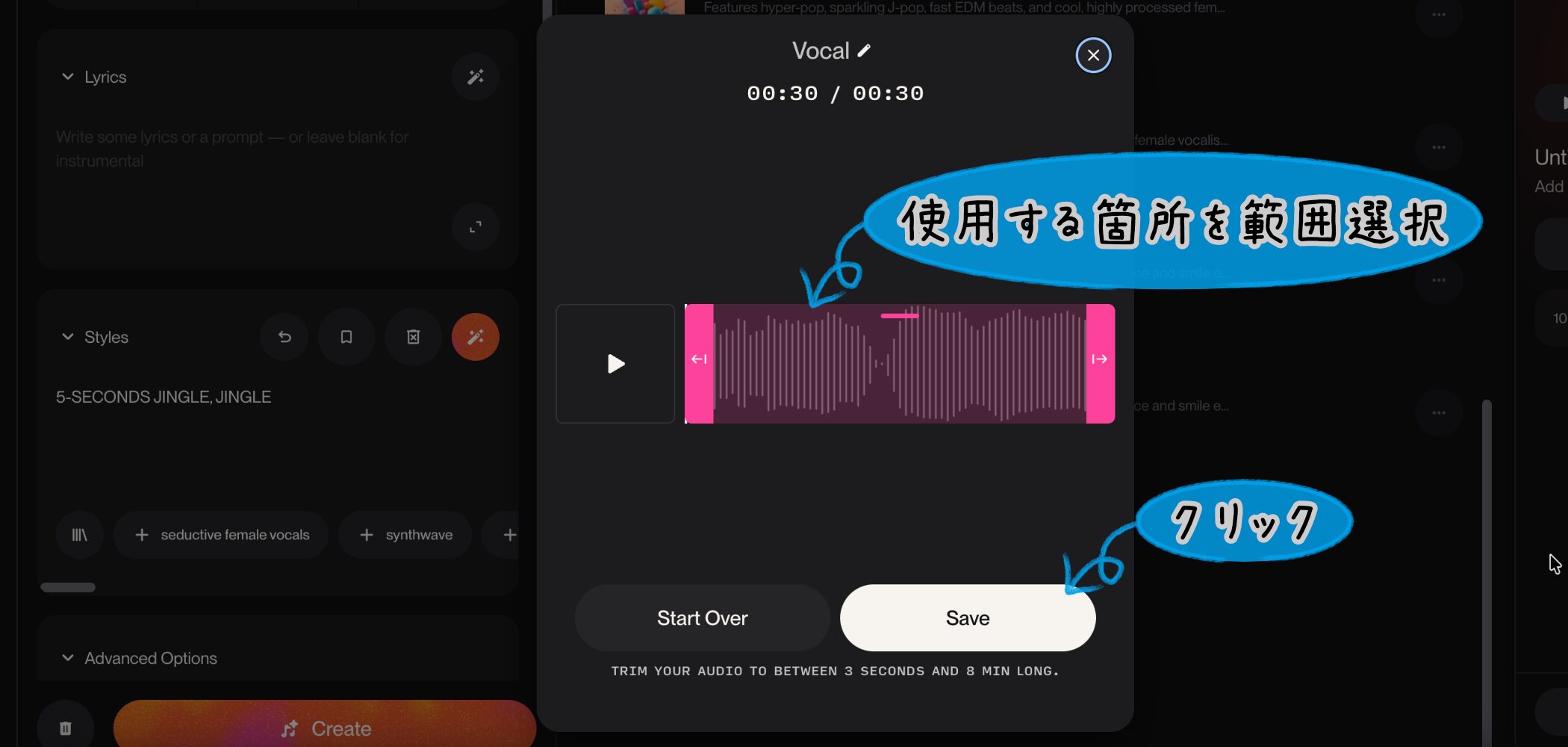
Either way, once the audio is in, you'll see its waveform.
You can select the section you want to use there. If you don't need to choose a section, just click "Save."
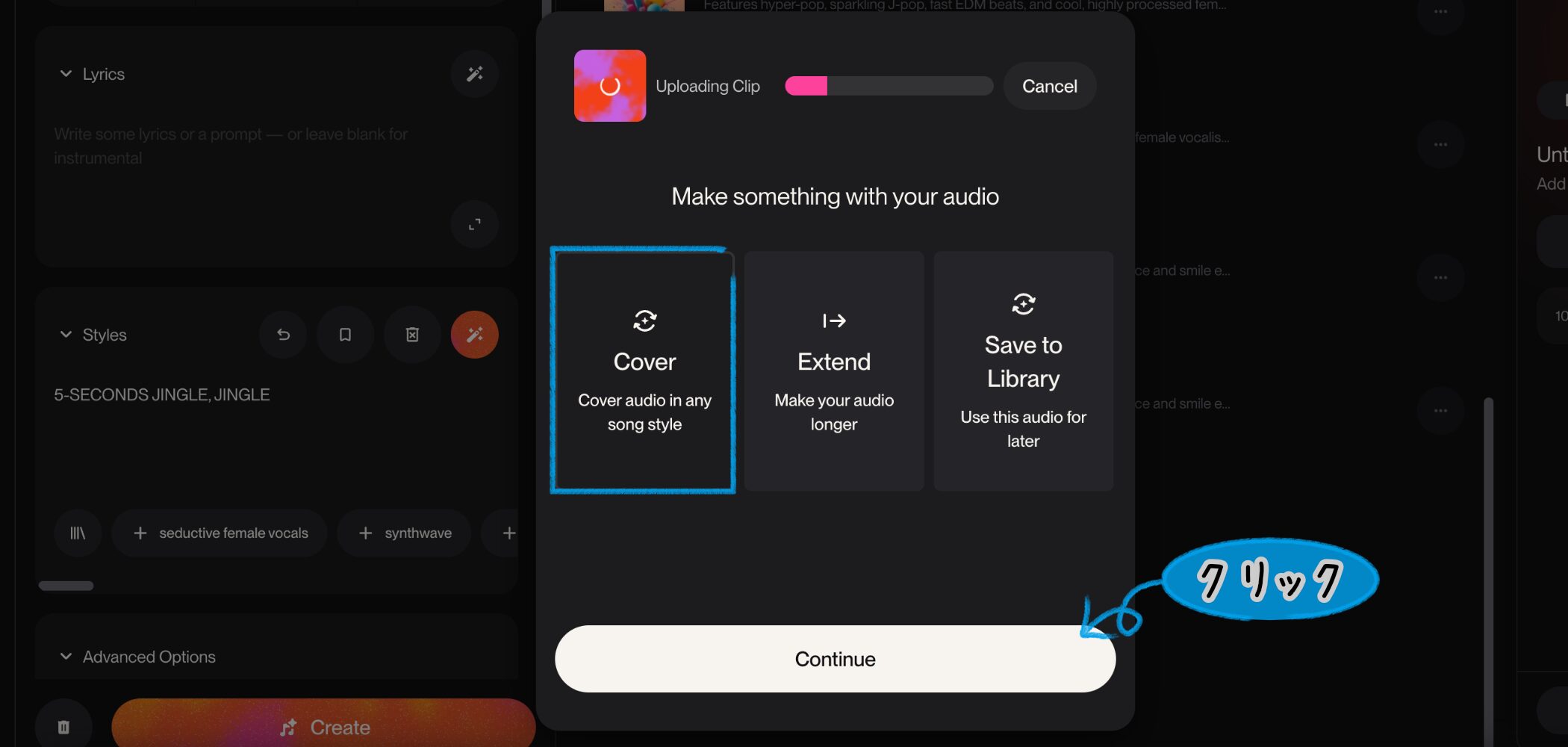
Next, you'll see three options.
Here, we want Suno to arrange the imported audio, so select "Cover" and click "Continue."
The Create screen will open with your audio attached. From there, set the lyrics, style and other options as before.
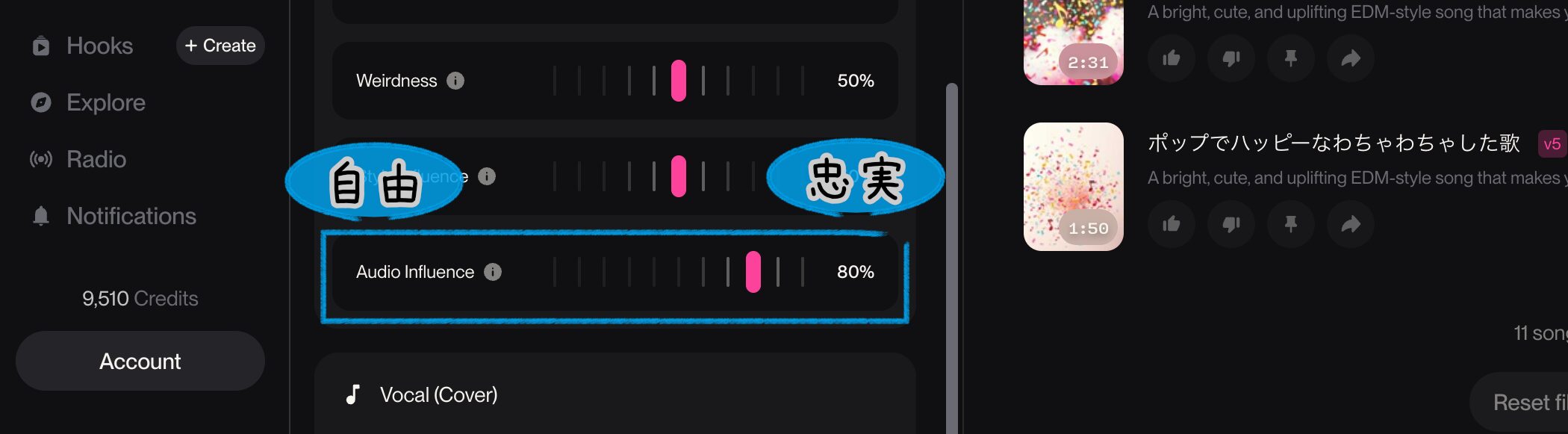
One new setting appears: "Audio Influence."
It controls roughly how much of your uploaded audio the result retains so a higher percentage makes the generated song follow the source more closely.
Here's what I got when I tried it!
▼ Audio generated with Cover
I set Audio Influence to 80% for this song. Doesn't it follow the melody closely?
But setting it too high can sound unnatural, so try 30–50% if the style prompt matters most, or 60–80% if you want to keep more of the original feel.
Song Editor: Editing a Song in Detail
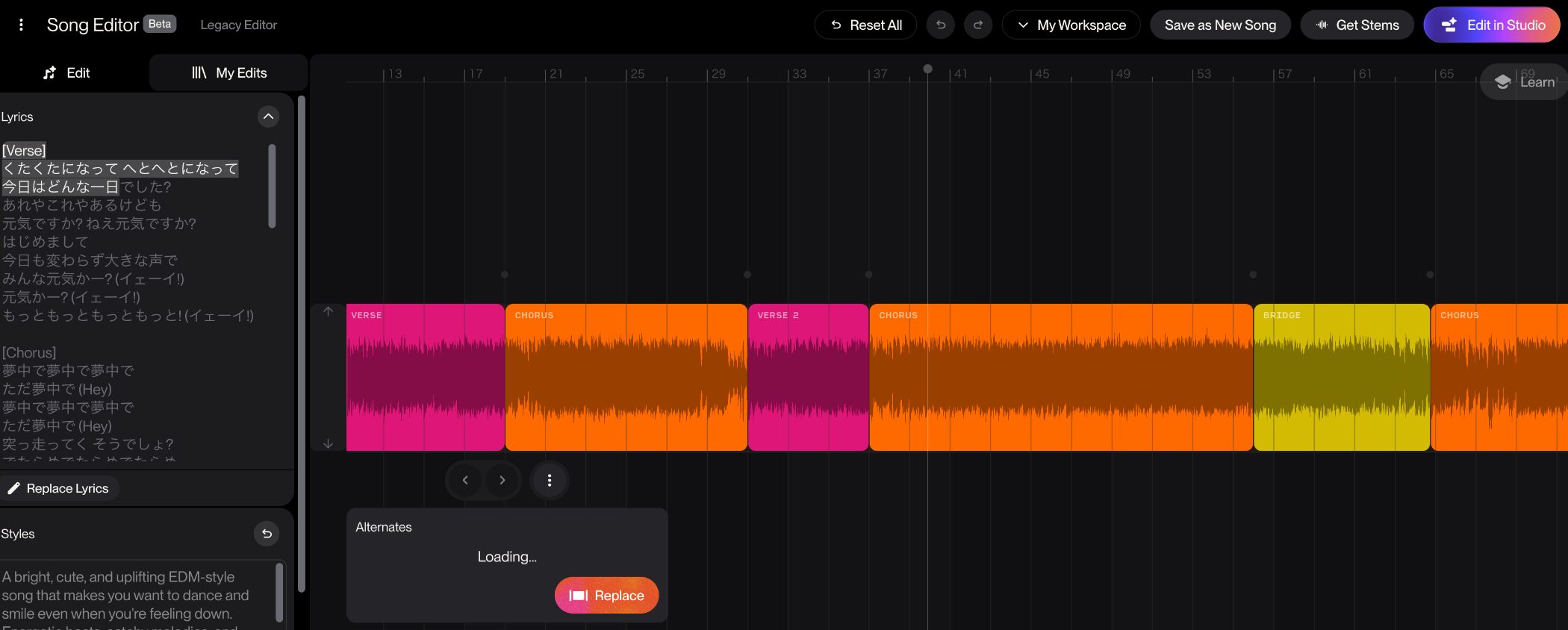
Suno also lets you edit specific parts of a song you've made.
It's useful when you want to change just one section after generating the track.
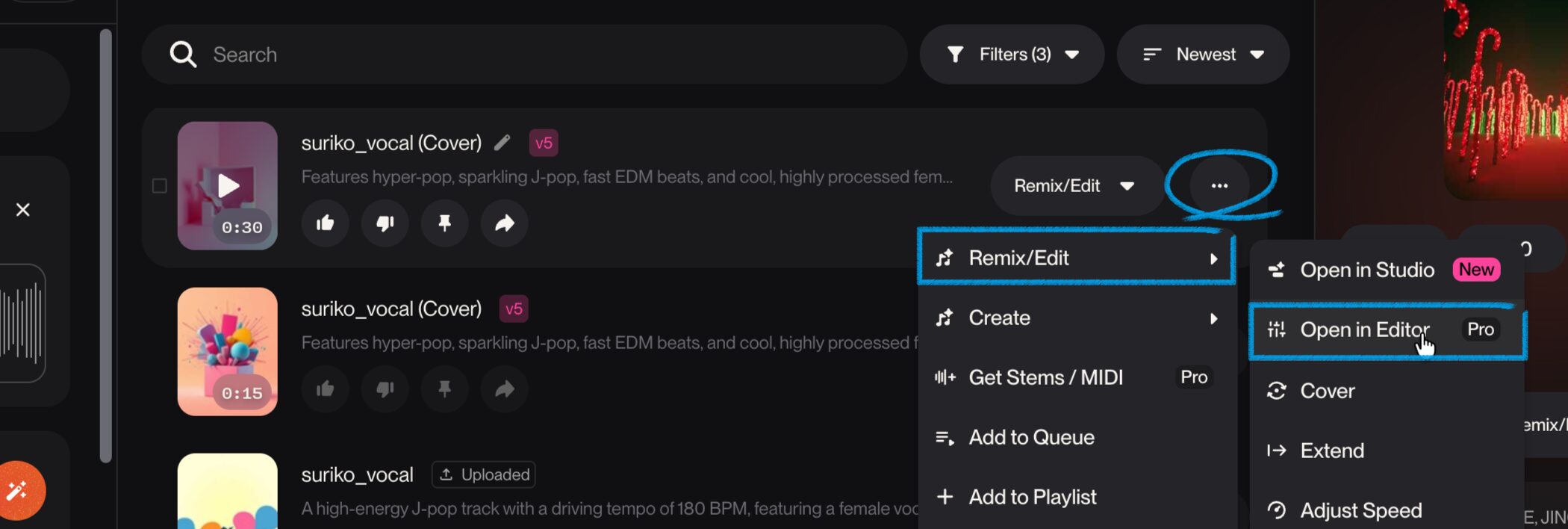
Open the song's "..." menu, choose "Remix/Edit," then click "Open in Editor."
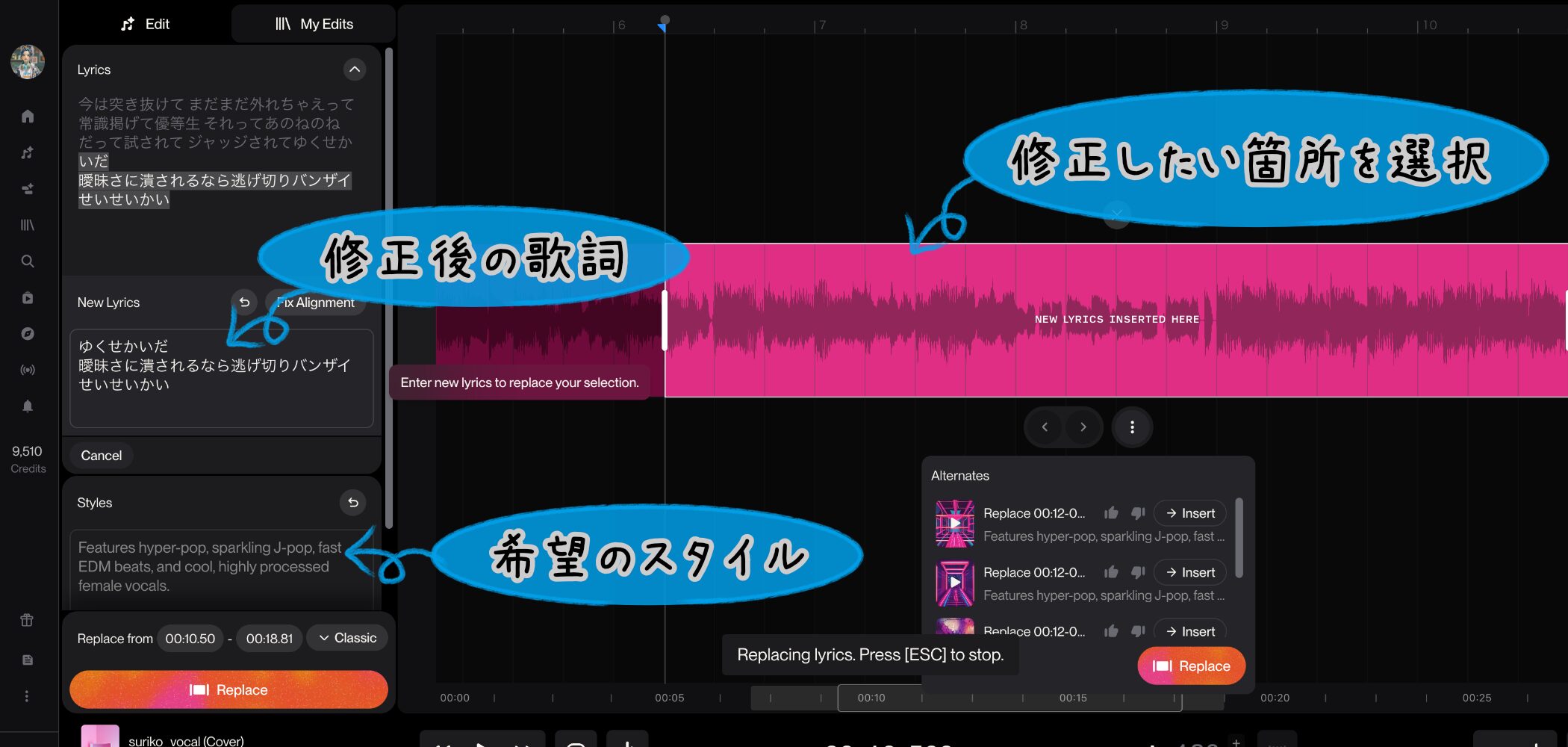
Song Editor can do many things. Here I'll introduce Replace Section, the replacement tool you heard earlier.
Select the range you want to change with your mouse, then enter the new lyrics or style on the left.
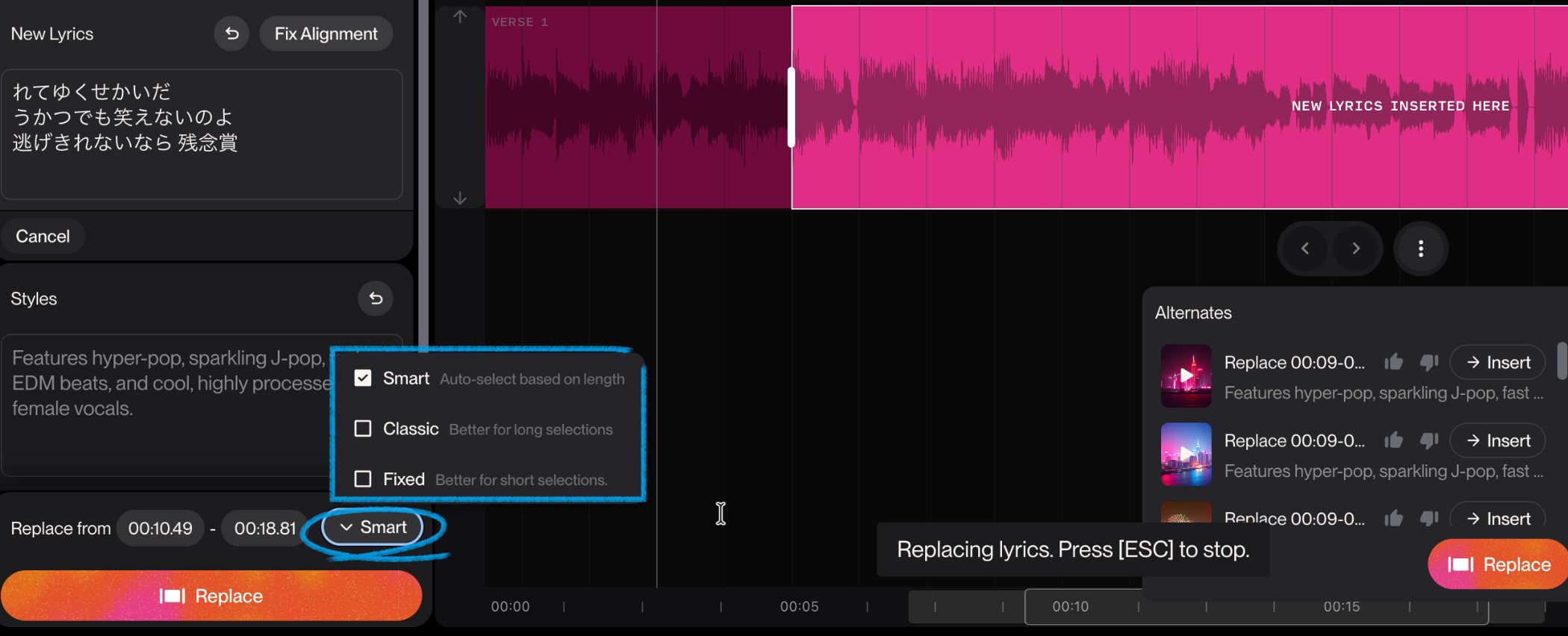
Next, choose one of three modes for how to replace the selected range.
If you're unsure, "Smart" is the usual starting point.
- Smart: AI chooses a suitable mode based on the length of your selection. Use this when in doubt.
- Classic: Recommended when replacing a relatively long section.
- Fixed: For a short phrase or a precise adjustment, such as changing just one line.
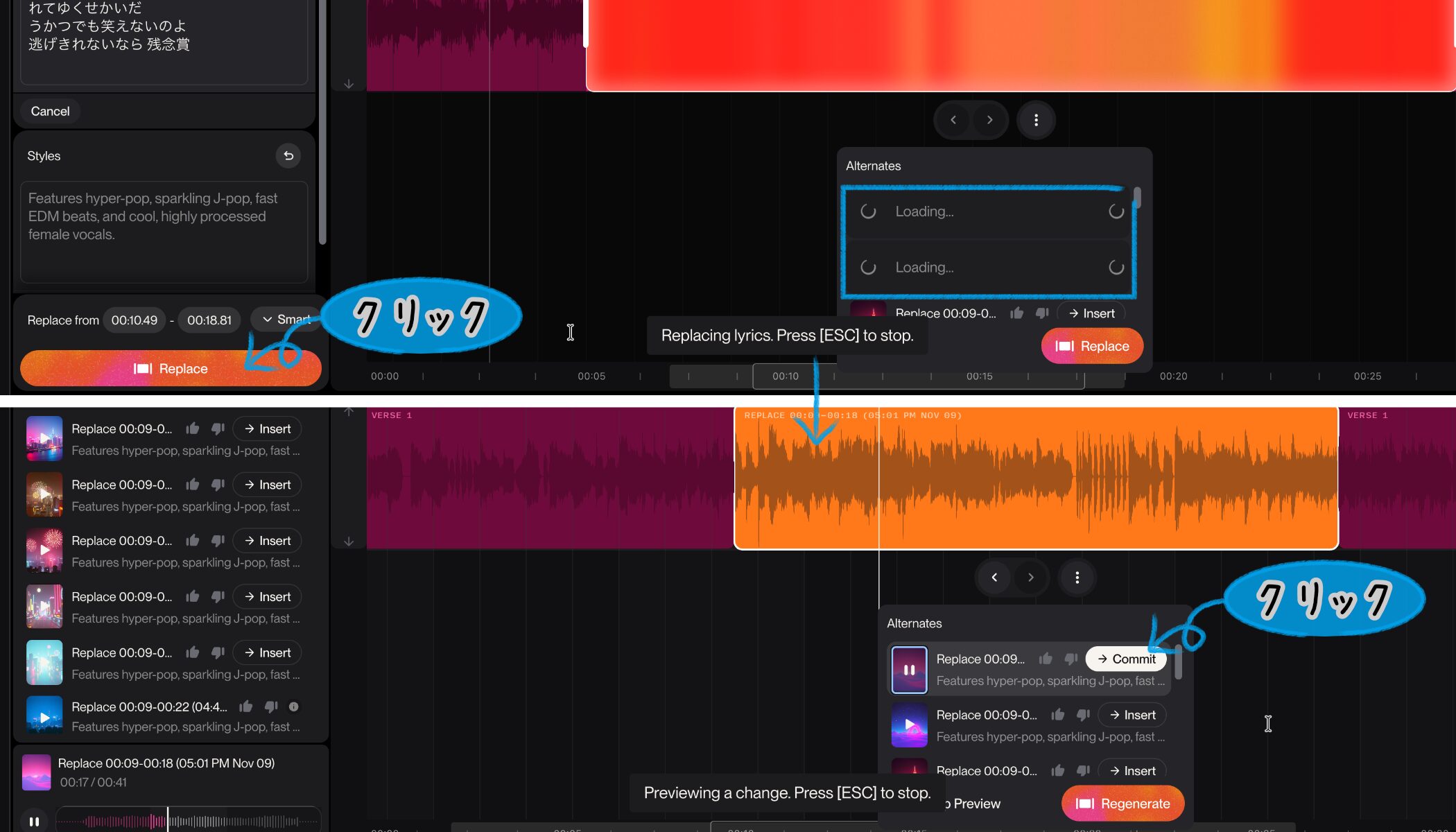
Click "Replace" to generate two alternatives. Choose one you like and click "Commit" to apply it to the song.
Persona: Save and Reuse a Vocal Style
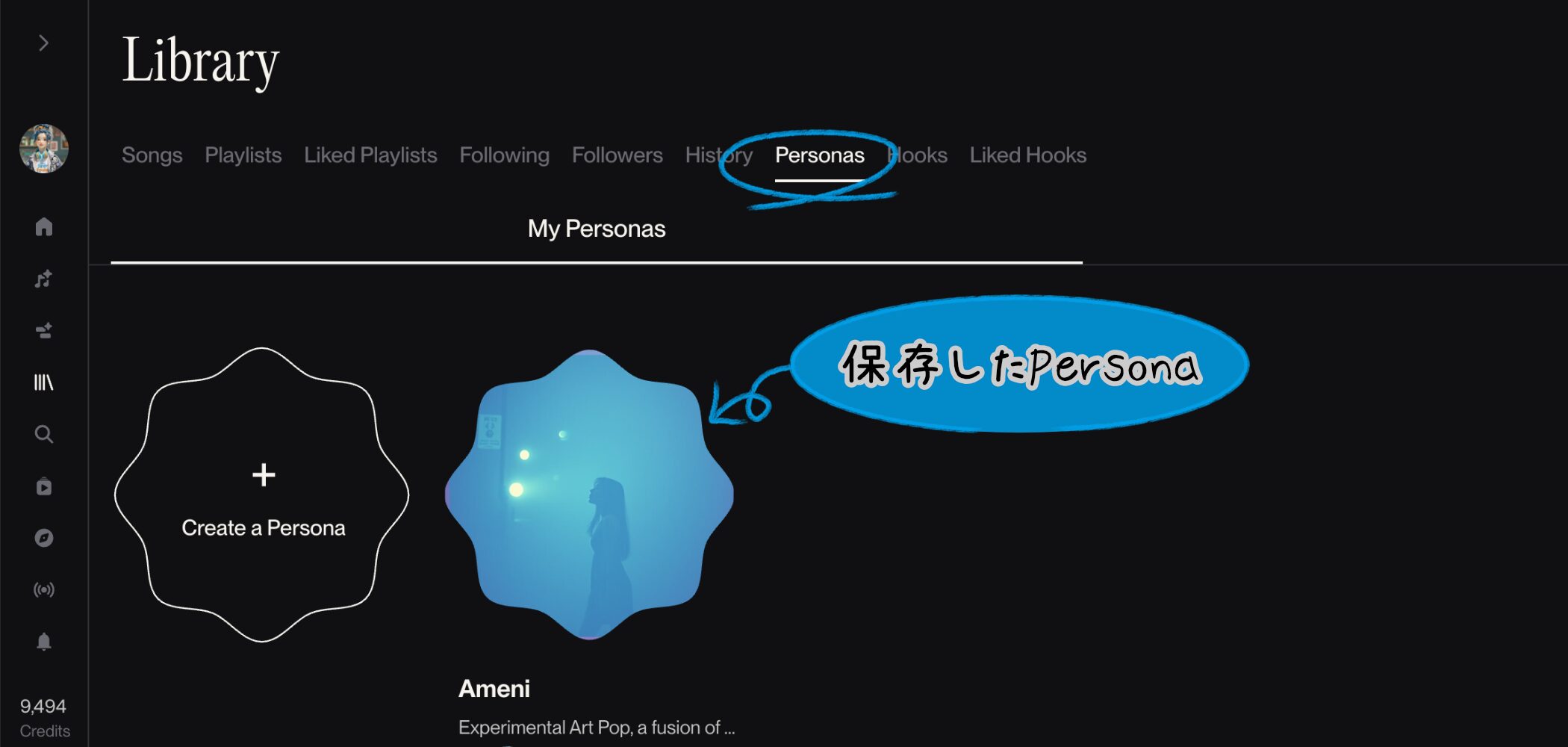
Persona saves the traits that give a song its identity: the vocal tone, singing style, musical style and mood.
For example, if you like a generated female vocalist, you can save her traits as a Persona and recall it later for a sense of continuity, almost as though the same artist is singing.
However, reproducing exactly the same voice is technically difficult, so think of Persona as recreating a similar vocal character and style rather than an identical voice.
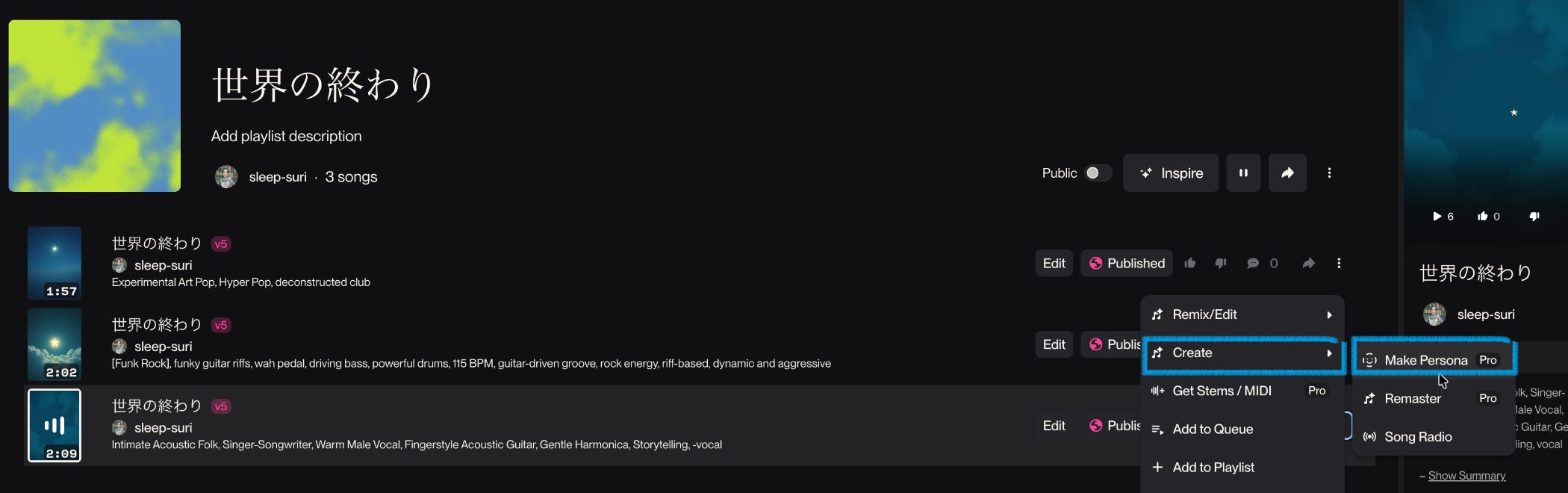
To make one, open the "..." menu on the song you want to use, then choose "Create" and "Make Persona."
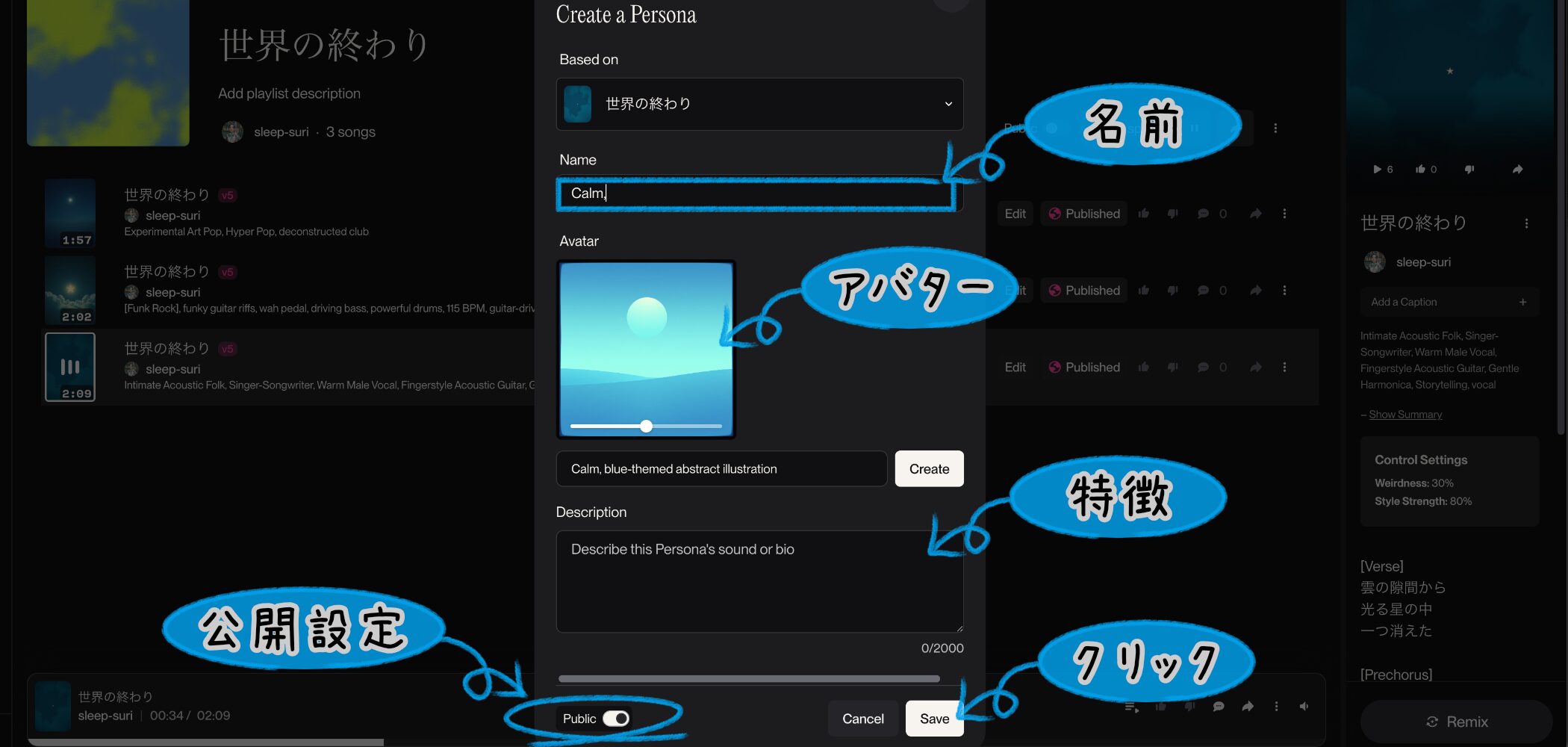
On the next screen, set a name, an avatar (generated automatically or uploaded), and a description of its traits. Choose whether it will be public or private, then save.
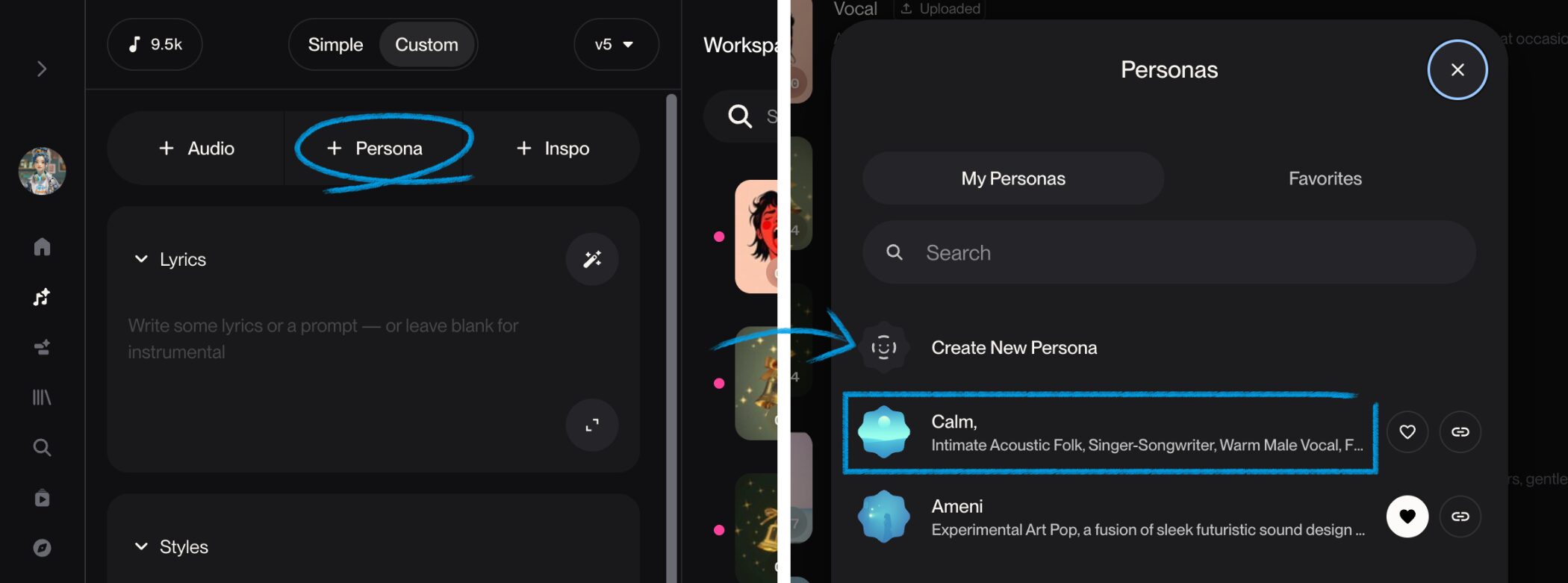
In Custom mode, select the Persona you want under "+ Persona" when generating a song to apply it automatically.
Extract Stems: Separate a Song into Parts
Suno can also split a finished song into "stems"—separate parts such as vocals and instruments.
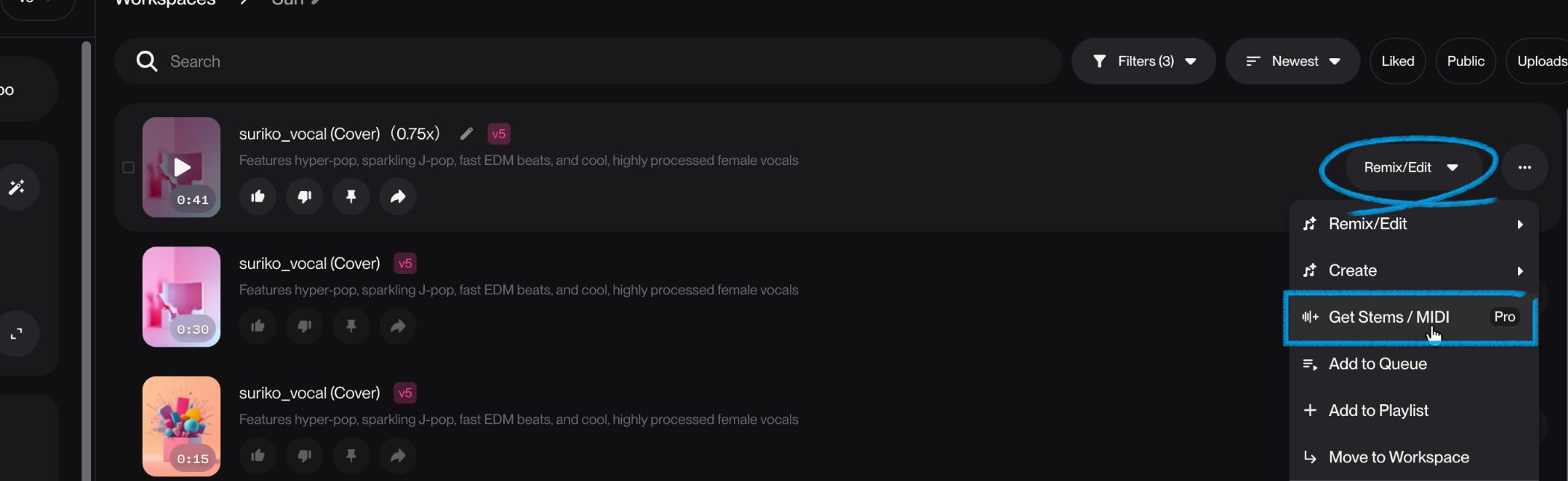
Open the song's "..." menu and click "Get Stems / MIDI."
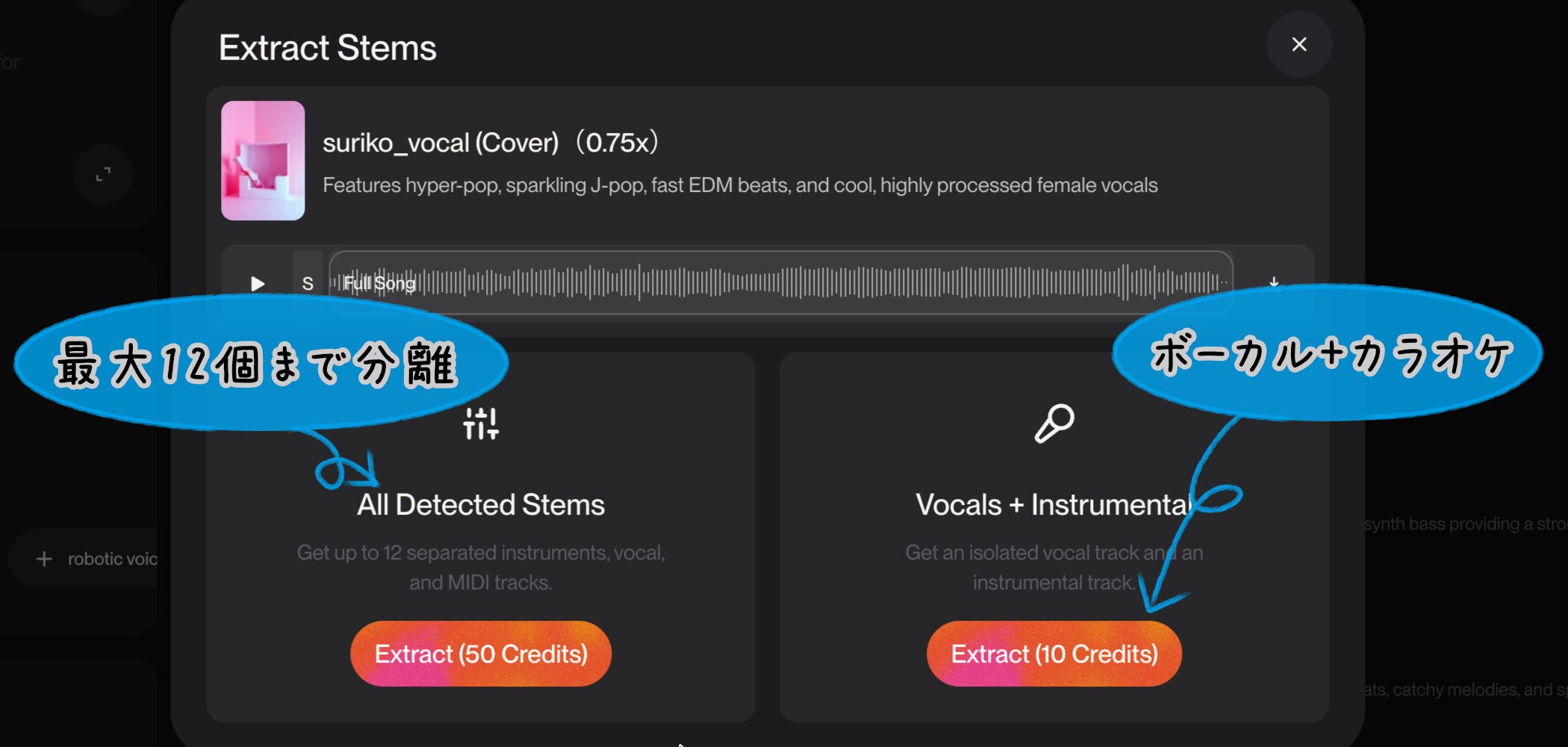
You can choose between two ways to separate it.
- All Detected Stems: Separate as many as 12 parts, such as vocals, drums, bass, piano, guitar and synths.
- Vocals + Instrumental: Separate the vocals from everything else, like making a backing track.
When would I use stem separation?
To make a karaoke track, or to rework the song more freely in other music software!
Remaster: Make a New Version
"Remaster" creates a slightly different version of an existing song.
It's especially useful when you like the song structure and lyrics but want to improve the sound: you can regenerate an older song with a newer model.
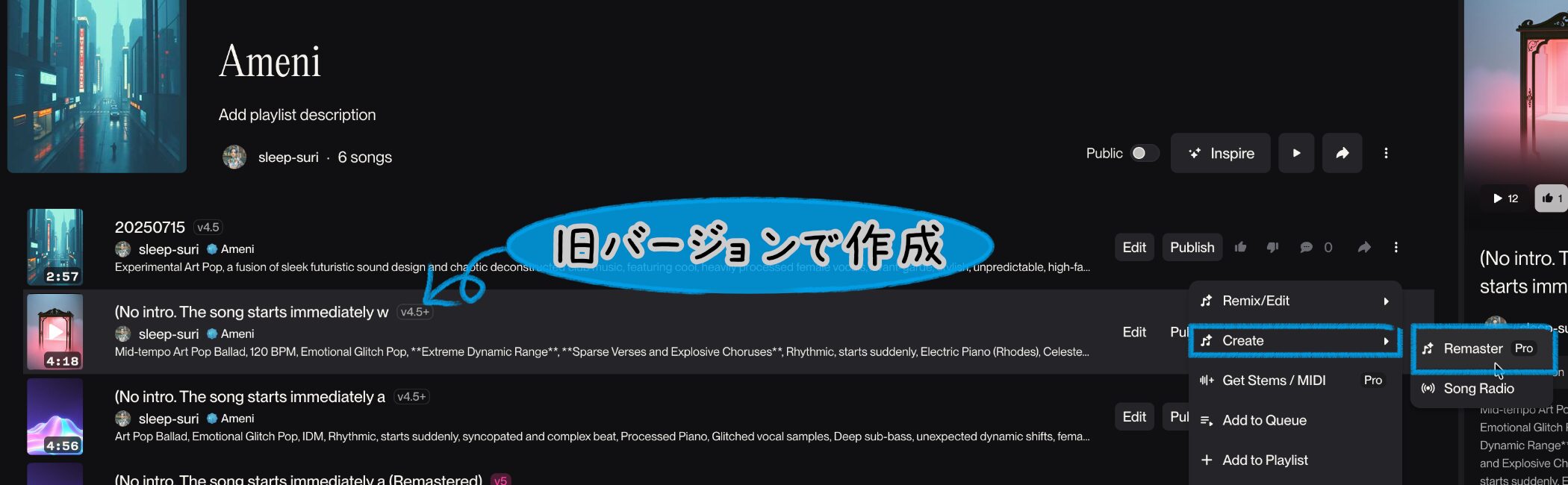
Find Remaster under "Create" in the song's "..." menu.
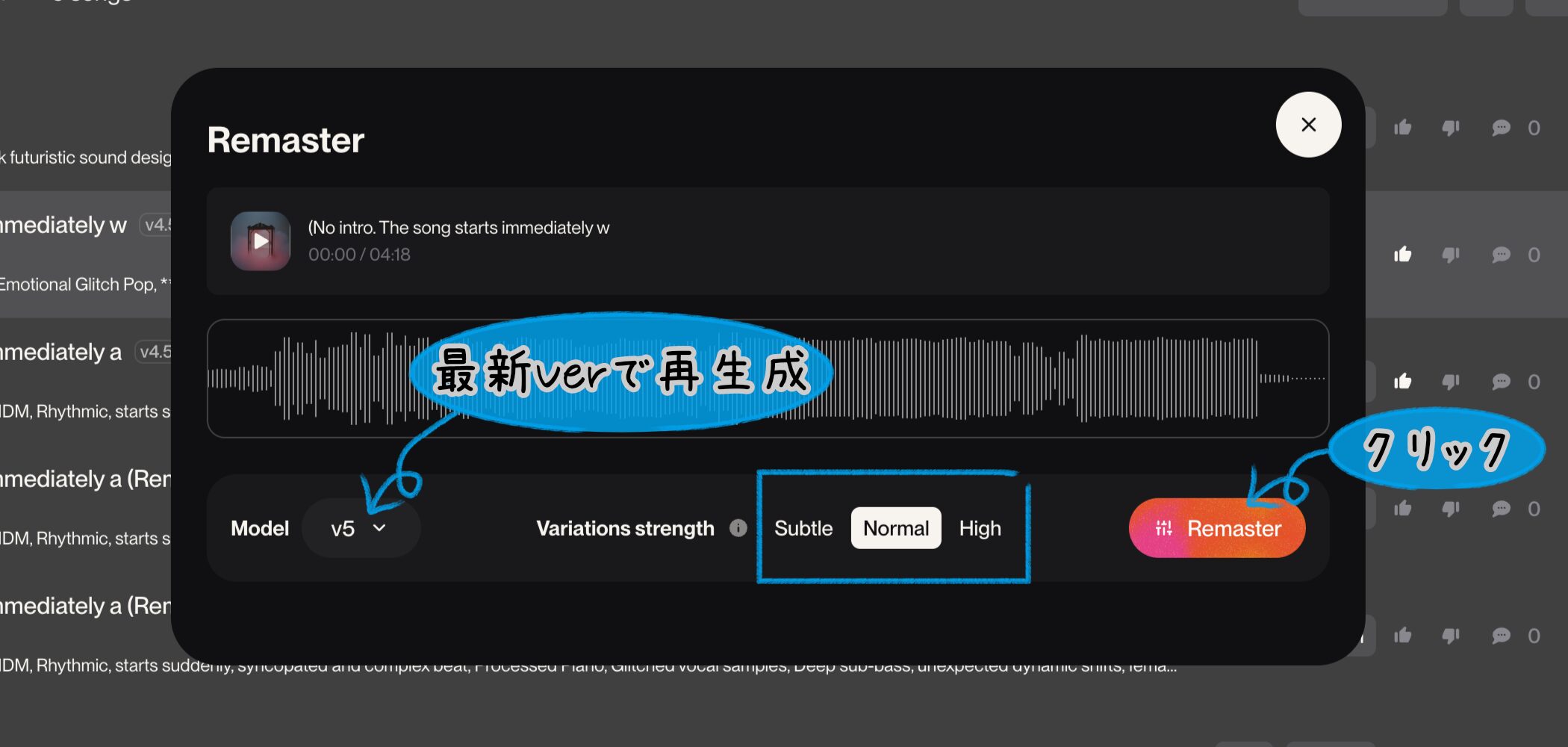
Under "Model," choose a version. "Variations strength" offers three levels for how much to change the original.
- Subtle: Almost the same song—try this if you want to hear it with a newer version without changing much.
- Normal: Suno's recommended setting. It keeps the song's feel while making some changes.
- High: For a bigger change. The vocal tone may change too.
Regenerating a song... Will I even hear the difference?
Suriko tried it recently, and High made a big difference. I think even you would notice, F!
Remix: Rework a Song
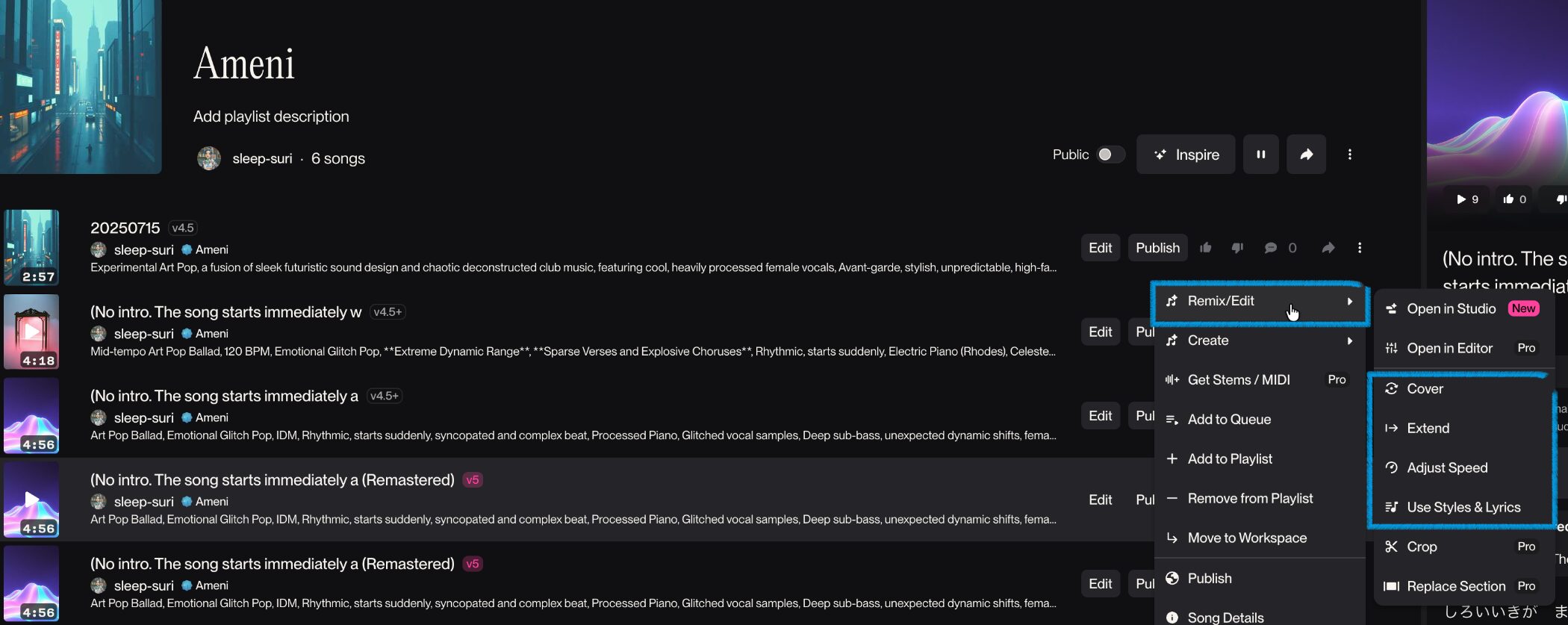
Remix lets you turn an existing song into something new.
The Cover feature we used under Upload Audio is part of this group.
There are also features such as these.
- Extend: Ask AI to continue the original song and make it longer.
- Adjust Speed: Change the song's speed or tempo.
- Use Styles & Lyrics: Keep the lyrics and style settings but have AI generate a completely different melody.
One important thing to remember: you cannot use a remix of someone else's song commercially, so keep that in mind!
Wait, does Extend mean Suno can only make short songs?
Song lengths vary. If a song you like comes out short, use Extend to ask Suno to continue it!
Pricing Plans

Finally, I put together a table comparing each plan's features.
Some of the features we've covered require a paid plan, so use this as a guide if you're starting for free.
Suno keeps adding and changing features, so always check its official site for the latest information before changing plans!
| Free Plan | Pro Plan | Premier Plan | |
|---|---|---|---|
| Monthly price (billed annually) | Free | $8/month ($96/year) | $24/month ($288/year) |
| Number of songs you can generate | 10 songs/day (resets daily) | 500 songs/month | 2,000 songs/month |
| Available models | v4.5-all (Free model) |
v4, v4.5, v4.5+, v5 (Latest models) |
v4, v4.5, v4.5+, v5 (Latest models) |
| Commercial use | ❌ | ✅ | ✅ |
| Upload Audio | Up to 1 minute | Up to 8 minutes | Up to 8 minutes |
| Persona | ❌ | ✅ | ✅ |
| Stem separation | ❌ | ✅ | ✅ |
| Replace Section | ❌ | ✅ | ✅ |
| Priority processing | 4 songs at a time (Shared queue) |
10 songs at a time (Priority queue) |
10 songs at a time (Priority queue) |
| Co-write with Suno (Lyric-generation feature) |
✅ | ✅ | ✅ |
| Remix songs (Extend, Cover, Adjust Speed) |
✅ | ✅ | ✅ |
Important note
Songs made on the Free Plan are limited to noncommercial use!
For revenue-generating activities such as monetized YouTube videos, music-streaming releases or advertisements, a Pro Plan or higher is required!
Wrapping Up
We've explored lots of Suno features. What did you two think? Do you want to make a song?
It looks so much fun! Suriko, with Persona you could create all kinds of artists. I want to make a song too!
Um... So where do I start again?
What?! Okay, F, start with Simple mode!
I'll help you. Once you're used to it, play with Custom mode, and we can listen to your best song together!
S, you're so dependable! What did everyone think of Suno? Turning a simple idea into sound right away, even without music knowledge, is something an AI music tool can do. If you've wanted to make a song but felt the barrier was too high, give it a try. I hope Suno helps you discover how much fun music can be! I've also collected the songs used in the video into a playlist, so take a look if any caught your ear. Enjoy making music!
Frequently Asked Questions
Q1. Do I need songwriting experience to use Suno V5?
No. Describe the kind of song you want in text and AI will generate it, so you don't need to know music theory or play an instrument.
Q2. When should I use Simple mode or Custom mode?
Simple mode is beginner-friendly: enter a theme and AI handles the lyrics and structure. Once you're comfortable, try Custom mode for finer control of the lyrics and song structure.
Q3. What's the difference between the free and paid versions?
The free version provides basic models. At the time of writing, paid plans offered access to newer, higher-quality AI models for more natural and creative song generation.
Q4. How can AI help me write lyrics?
Enter your theme and requests, then click "Write Lyrics." AI offers two lyric options; click again for new suggestions if neither suits you.
Q5. Do I have to use structure tags such as [Verse] and [Chorus]?
No. Tags can help AI follow your intended song structure, though, so they're recommended when the arrangement matters to you.
NEW ARTICLES
Latest English Articles





















