
With Studio One's automation feature, you can automatically change any parameter in a song, such as volume, pan, and effects. This article explains the practical setup steps in detail, from enabling the automation icon and writing with the Paint tool to showing multiple automation lanes and deleting parts you don't need. It also introduces advanced techniques such as compressor effects on vocals and controlling plugin knobs, so DTM beginners and experienced users alike can learn practical audio editing skills.
Automate Any Parameter
Using automation,
you can automatically change a track's volume, pan, effects, and more during the song.
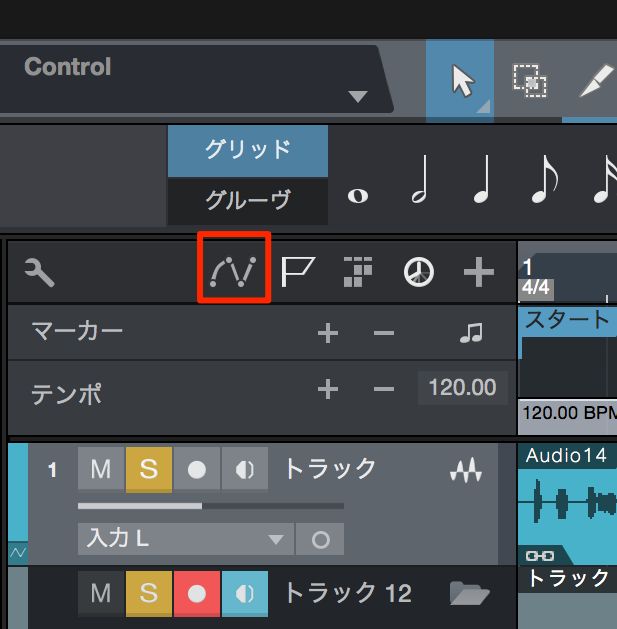
↑ Click the automation icon outlined in red to turn it on.
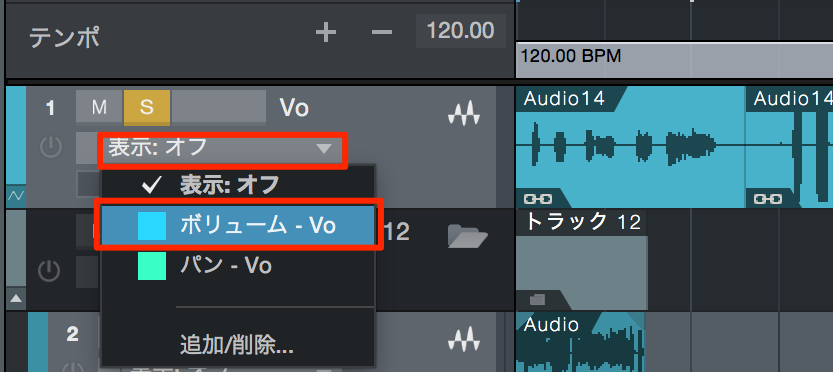
↑ Select the parameter you want to change with automation.
Here, we select volume.
Studio One Automation Video
How to Set Up Automation

↑ Select the Paint tool from the tool menu.
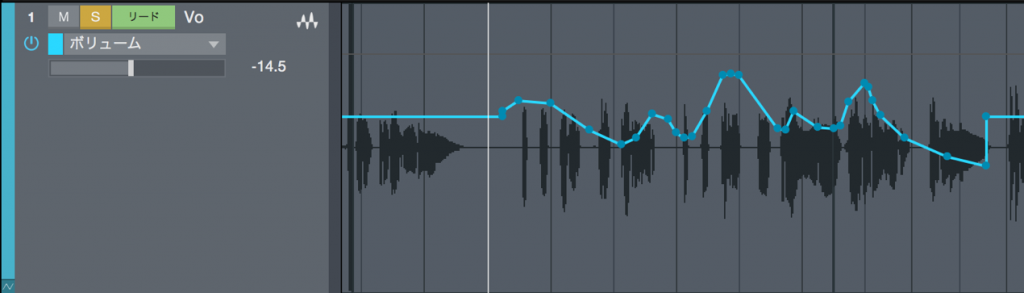
↑ Drag to write automation.
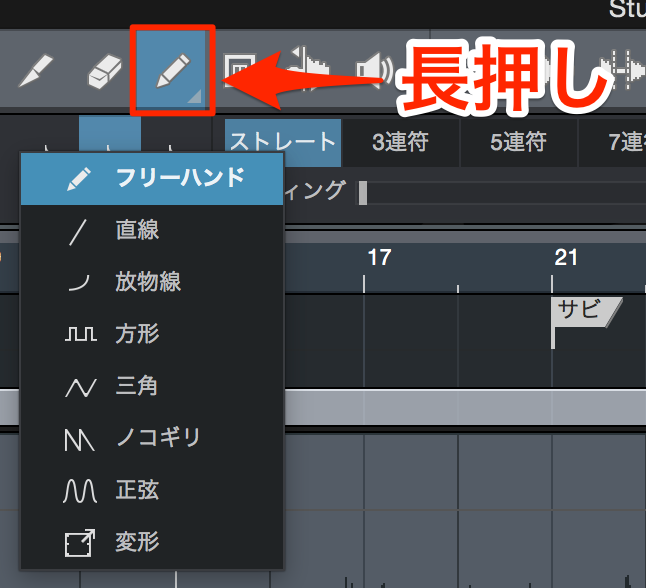
↑ You can also press and hold the Paint tool and choose a different shape
to draw various kinds of lines.
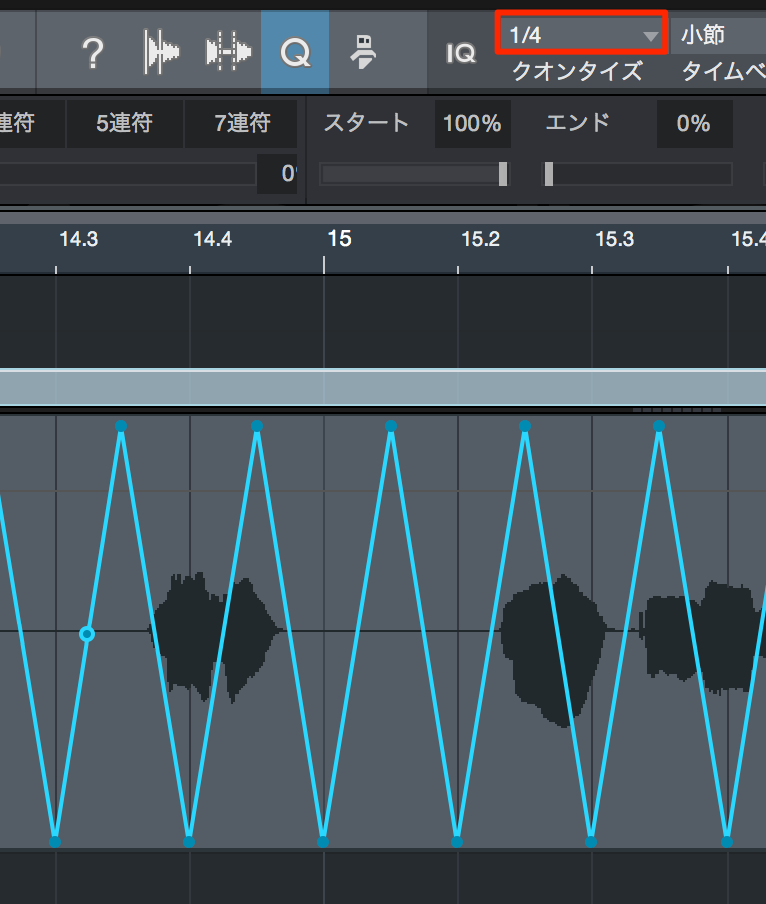
↑ The width of the automation shapes follows the quantize value.
In the image, the quantize value is a quarter note, so one triangle repeats every beat.
How to Add Automation
There is no limit to the parameters you can record automation for.
Normally only one parameter is shown, but you can display all the automation you have recorded.
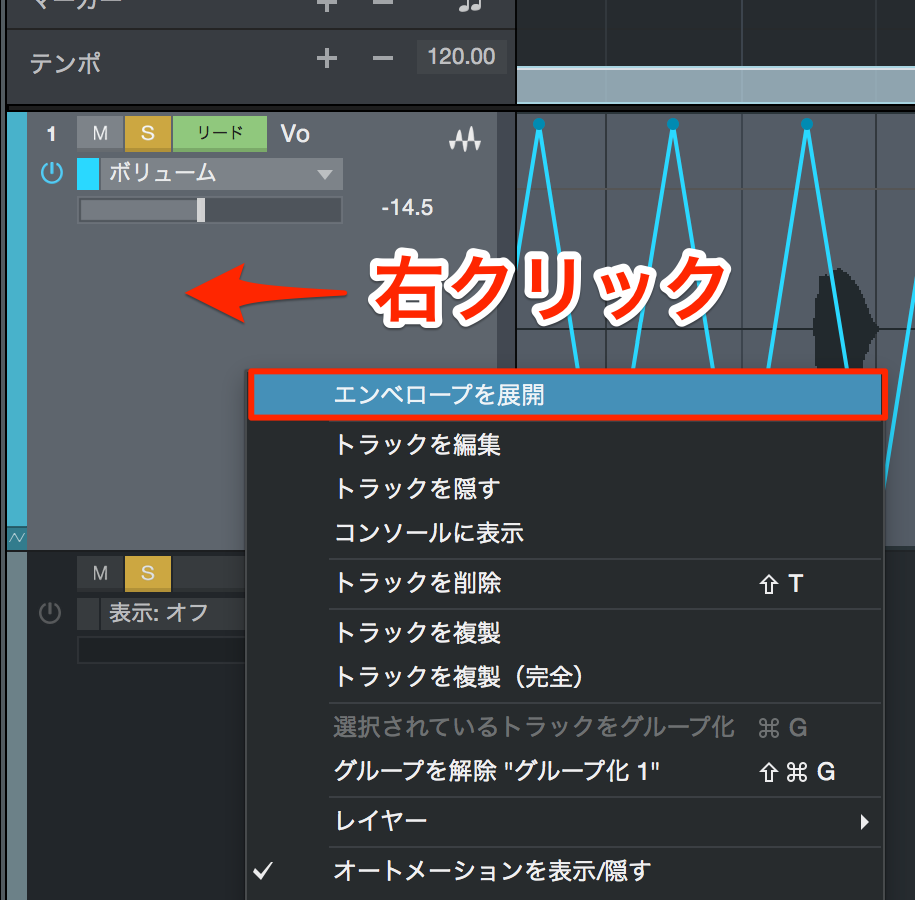
↑ Right-click the track and select "Expand Envelopes."
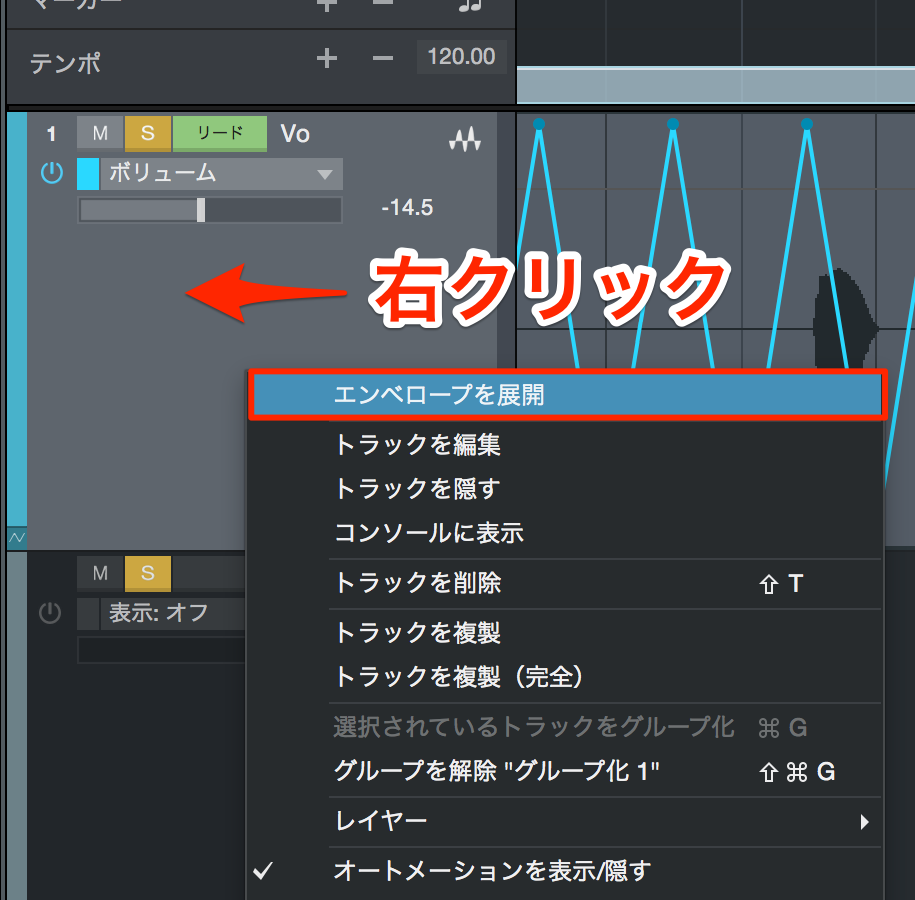
↑ All the recorded automation is displayed like this.
To return to the original display, do the same operation again.
How to Delete Automation

↑ Select the Arrow tool.
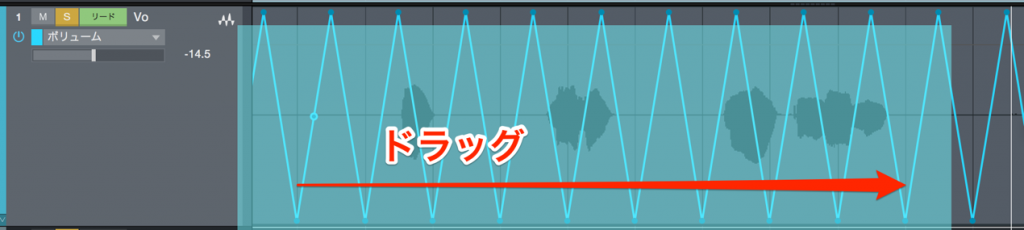
↑ Drag to select the part of the automation you want to delete and press the Delete key.
Ordering Automation with Gain Reduction in Mind

Frequently asked questions
Q1. What do I need to do to start using automation in Studio One?
First, click the automation icon on the track to turn it on, then select the parameter you want to change (volume, pan, etc.). Then choose the Paint tool from the tool menu and drag to write automation.
Q2. Can I show and edit multiple automation parameters at once?
Yes. Right-click the track and select "Expand Envelopes," and all the recorded automation is shown. You can edit and check multiple parameters at the same time.
Q3. How do I delete automation I wrote by mistake?
Select the Arrow tool, drag to select the part of the automation you want to delete, then press the Delete key. This deletes the unwanted automation.
Q4. Can automation be applied to plugin EQs and compressors too?
Yes. Automating not only volume and pan but also plugin knobs (EQ, compressor, reverb, etc.) lets you create more complex, natural changes in sound.
NEW ARTICLES
Latest English Articles











