
Using Logic Pro's automation, you can automatically change any parameter, such as volume, pan and effects, during a song. This article explains practical setup methods in detail, from turning on the automation icon and drawing curves to handling multiple parameters at once and editing points together. It also introduces one-point techniques such as drawing curves with the Automation Curve tool and selecting multiple points with the Shift key, so you can greatly improve your music production skills in Logic Pro from beginner to advanced level.
Automate any parameter
Using automation,
you can automatically change a track's "volume", "pan", "effects" and "buttons"
during the song.
- Logic X
- Logic 8/9
How to set up automation in Logic
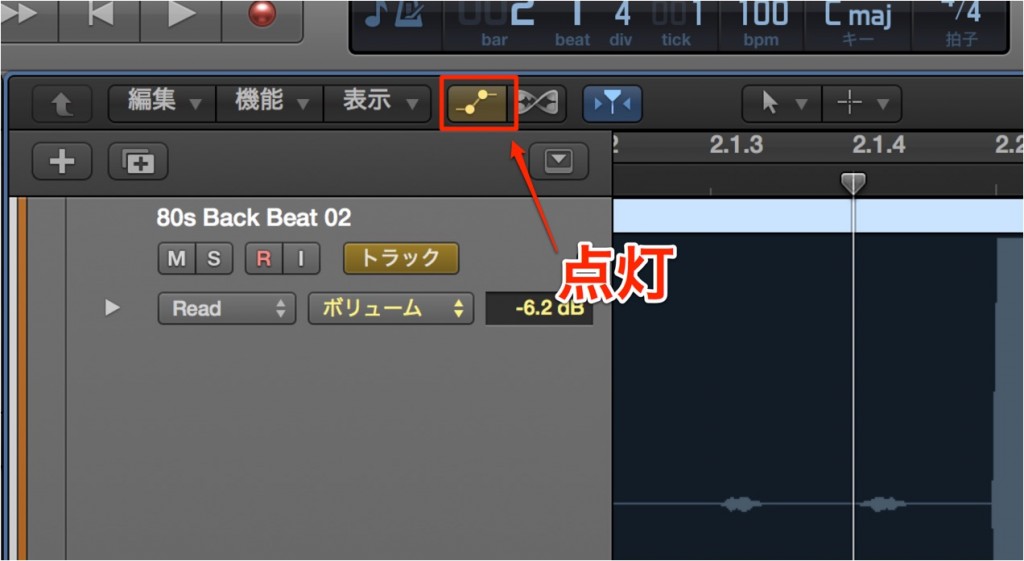
Click the "automation icon" outlined in red to light it up,
and light up the "automation icon" on the track you want to record as well.
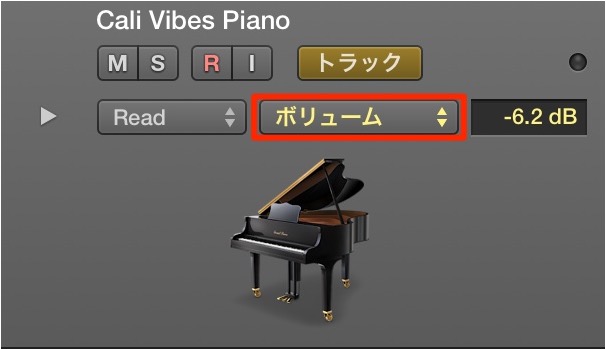
Select the parameter you want to change.
Here we selected "Volume".
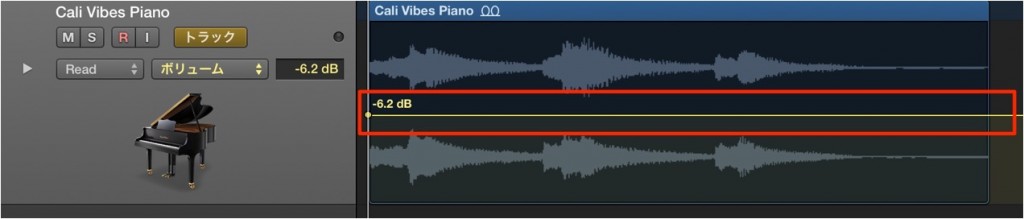
A volume curve appears on the track.
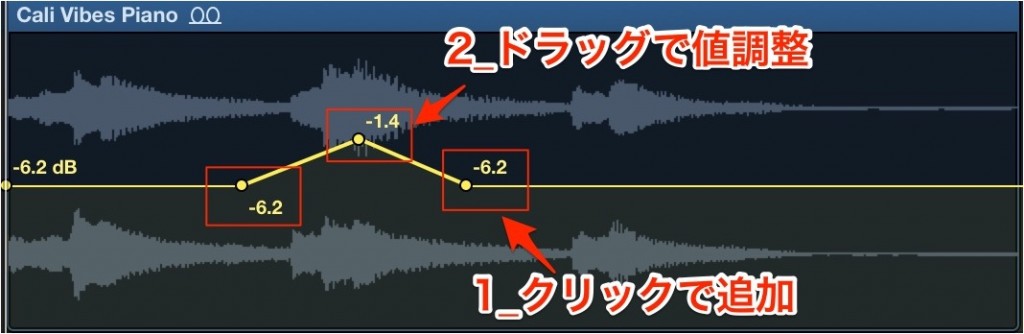
Click the curve to add points,
and the automation moves between the values of those points.
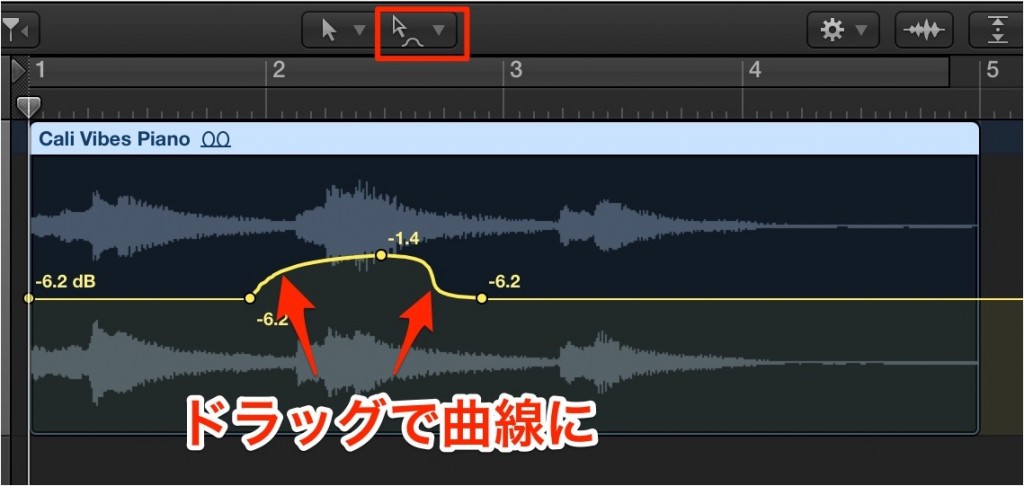
Also, by selecting the "Automation Curve tool" from the Tool menu,
you can draw curves like the one in the photo.
Adding automation
This is how to work with multiple automation lanes.
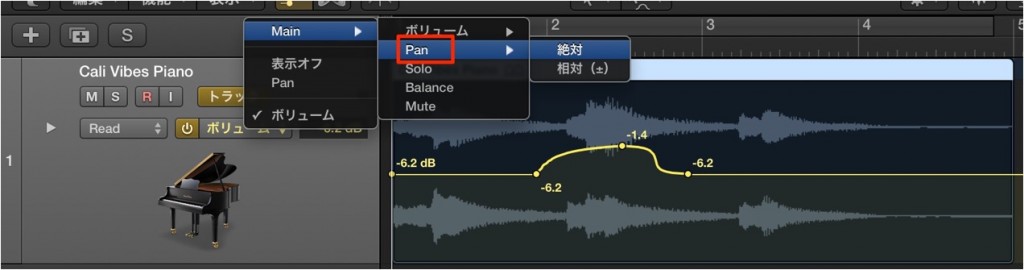
Click the area outlined in red to show a new automation lane.
In this case, we showed Pan in addition to "Volume".
Of course, the "volume automation" you drew before remains.
Deleting automation
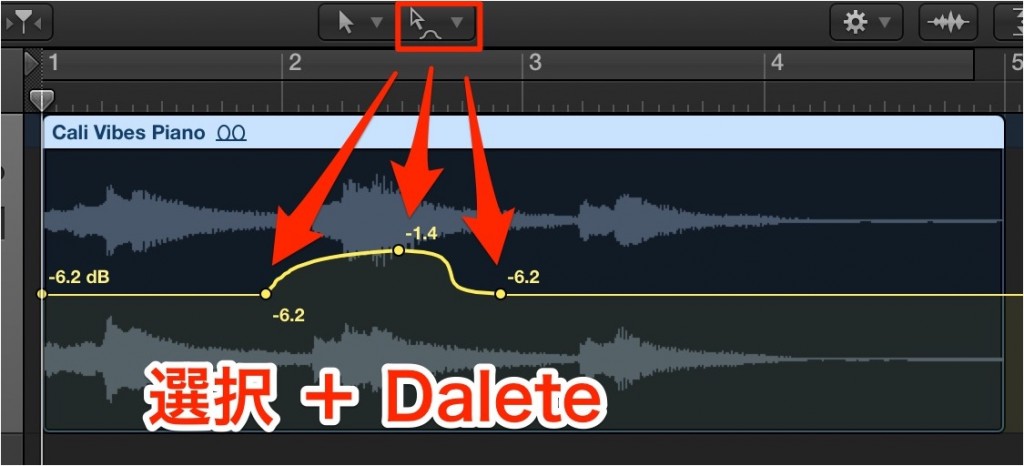
Select the "Automation Select tool" from the Tool menu.
Select the automation you want to delete and press the "Delete key".
One-point technique
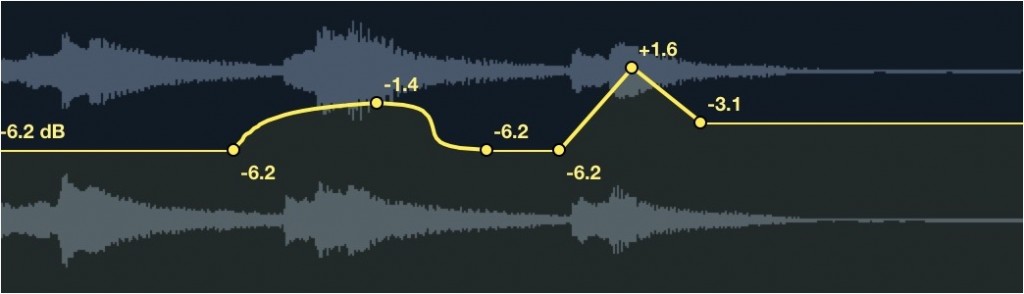
By selecting multiple "automation points",
you can change the points all at once and relative to each other.
↓
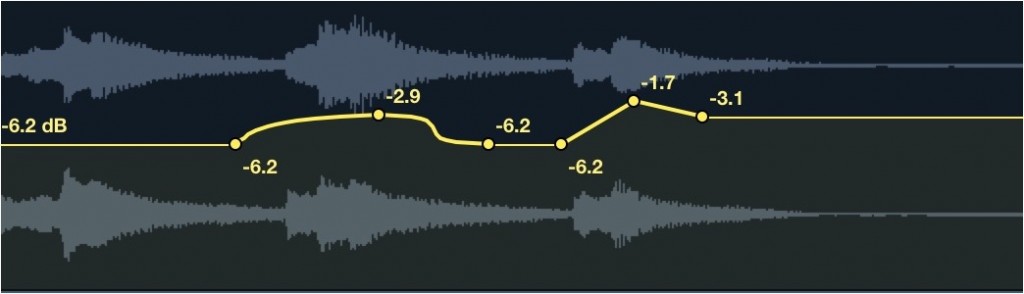
As shown above, this is useful for changing part of the automation evenly.
Writing automation using a summing stack
Selected Questions and Answers from the YouTube Video

I always use your site for reference. Automation on summing stacks is handy. By the way, I have a question about exporting audio files. The expression here is reflected in each exported file, but the automation of the plug-in placed on the summing stack is not reflected in each file. What can I do to have it reflected in each file? I used a low-pass filter on the summing stack.

We checked with our staff member Ito, who said it cannot be reflected in the files, and that "the most orthodox way is, after exporting the audio, to create a summing stack of the audio again and copy over the low-pass EQ with its settings unchanged". We hope this helps.
How to set up automation in Logic

↑ Click the "Automation" button outlined in red.

↑ Select the parameter you want to change.
Here, "Volume" is selected.

↑ A volume curve appears on the track.

↑ Click the curve to add points,
and the automation moves between the values of those points.

↑ Also, by selecting the "Automation Curve tool" from the Tool menu,
you can draw curves like the one in the photo.
Adding automation
This is how to work with multiple automation lanes.

↑ Click the area outlined in red to show a new automation lane.
In this case, we showed Pan in addition to "Volume".
To return the automation display to how it was,
press the button outlined in red again.
Deleting automation

↑ Select the "Automation Select tool" from the Tool menu.
Select the automation you want to delete and press "Backspace" or "Delete".
One-point technique
By clicking "automation points" while holding "Shift",
you can freely select automation points.

↓

↑ As shown above, this is useful for changing part of the automation evenly.
- Logic X
- Logic 8/9
In the next section, we introduce how to record "automation"
by actually moving faders and knobs.

Frequently Asked Questions
Q1. Besides volume, what parameters can be automated in Logic Pro?
Besides Volume, you can automate Pan and plug-in parameters such as EQ, compression and reverb. This lets you dynamically change the tone and spatial width of the whole song over time.
Q2. Can I select and change multiple automation points at once?
Yes. By clicking points while holding the Shift key, you can freely select multiple automation points and change them all at once and relative to each other. This is convenient when changing part of the automation evenly.
Q3. How do I delete incorrect automation?
Select the "Automation Select tool" from the Tool menu, select the automation you want to delete and press the Backspace or Delete key.
NEW ARTICLES
Latest English Articles











