Highlights of Logic Pro 13
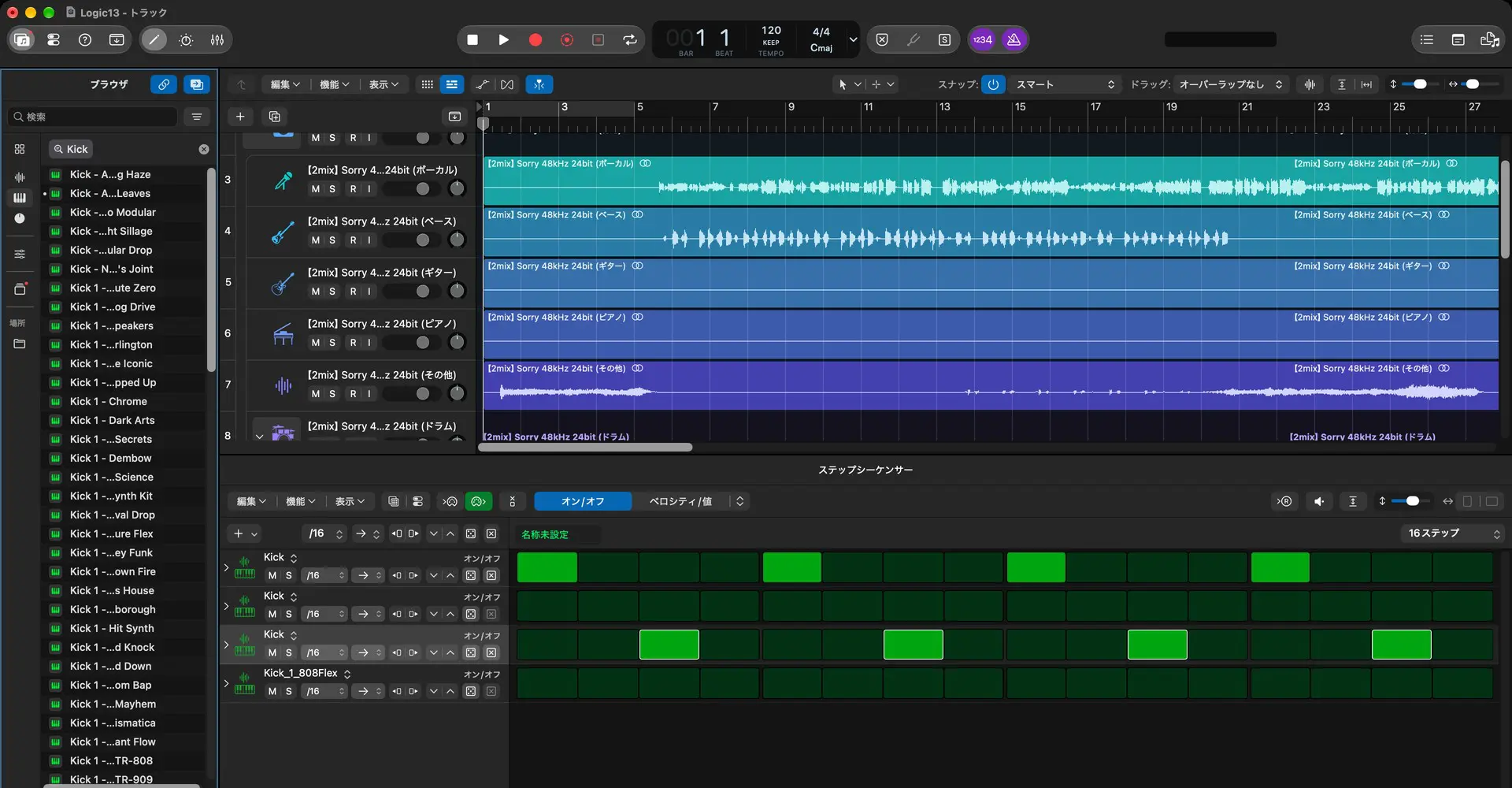
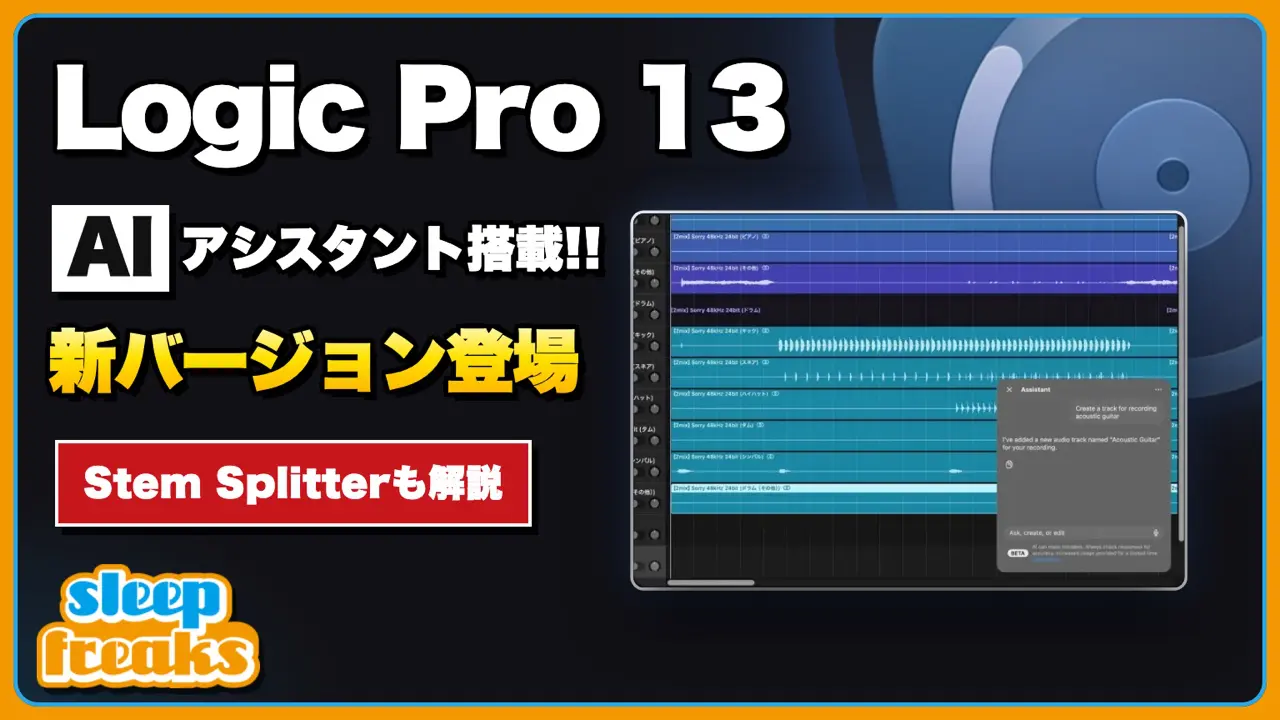
Logic Pro 13, the latest version of Apple’s music production software, is here.
It introduces a range of new features, including an AI assistant.
Here are five of the main highlights:
- Intelligent Assistant (beta): ask it to create tracks, add plugins, and more in everyday language (subscription version only)
- Stem Splitter: separate drums into individual kit pieces
- Unified Browser: search in everyday language, including for downloaded Splice sounds
- Liquid Glass design: a new look for windows, toolbars, and menus
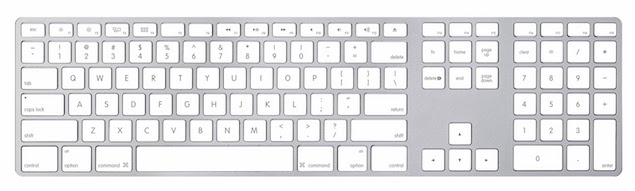
- Play Surface: play onscreen keyboards and drum pads using a Mac keyboard or mouse
Ask the Intelligent Assistant (beta) to perform tasks
One of the most notable additions in Logic Pro 13 is the Intelligent Assistant, available in beta.
Give it instructions in everyday language and it performs Logic Pro operations for you.
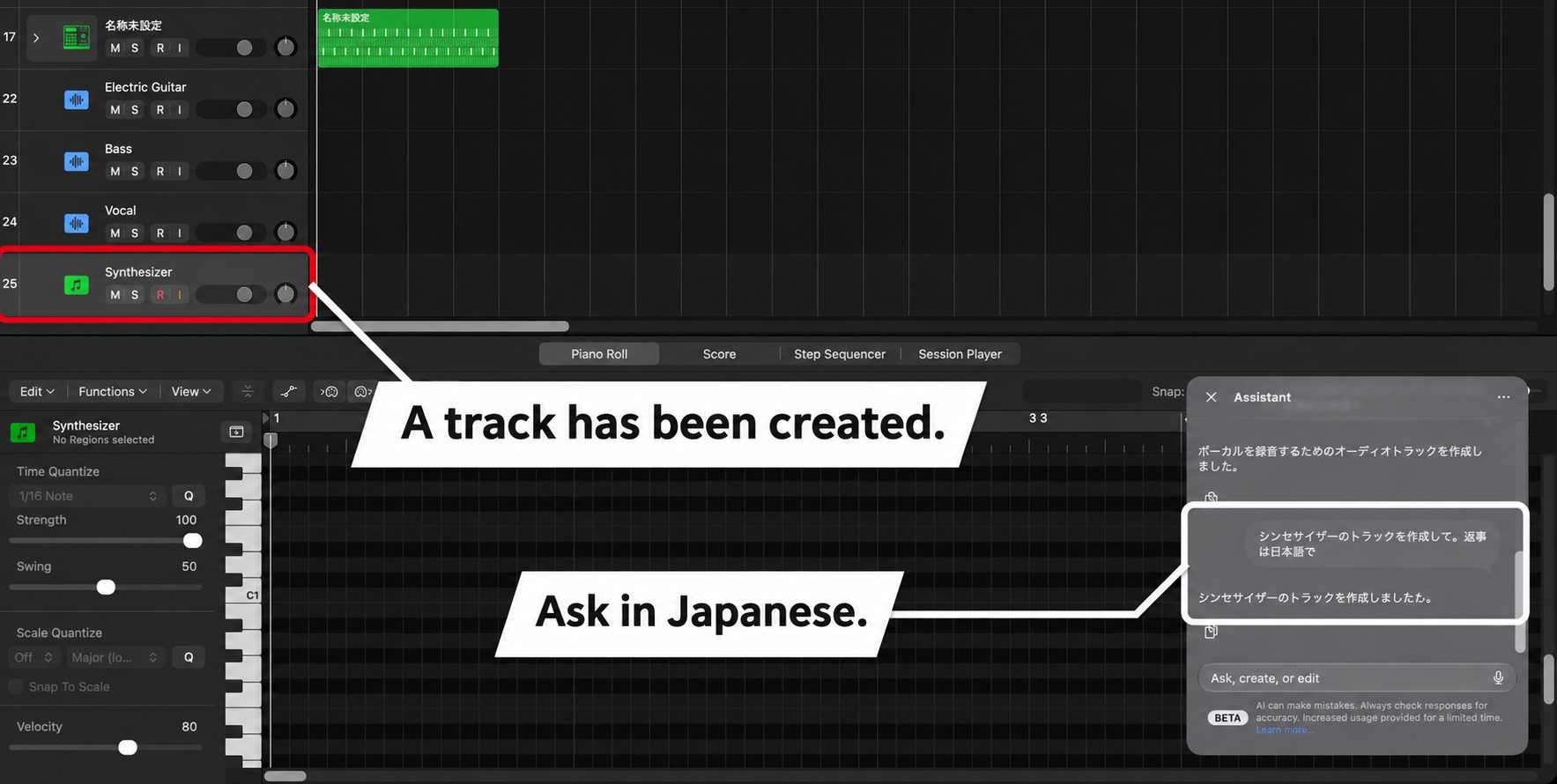
You can ask it to perform tasks or answer questions about Logic Pro using text or voice.
For example, you can ask it to:
- Create a track for recording acoustic guitar
- Add a compressor to a vocal track
- Align a bass Session Player with the drums
- Separate the drums from a selected region
- Create a chord progression
- Explain how to use a compressor
When you send a request, a prompt asks whether it may be sent to an external AI provider (Google).
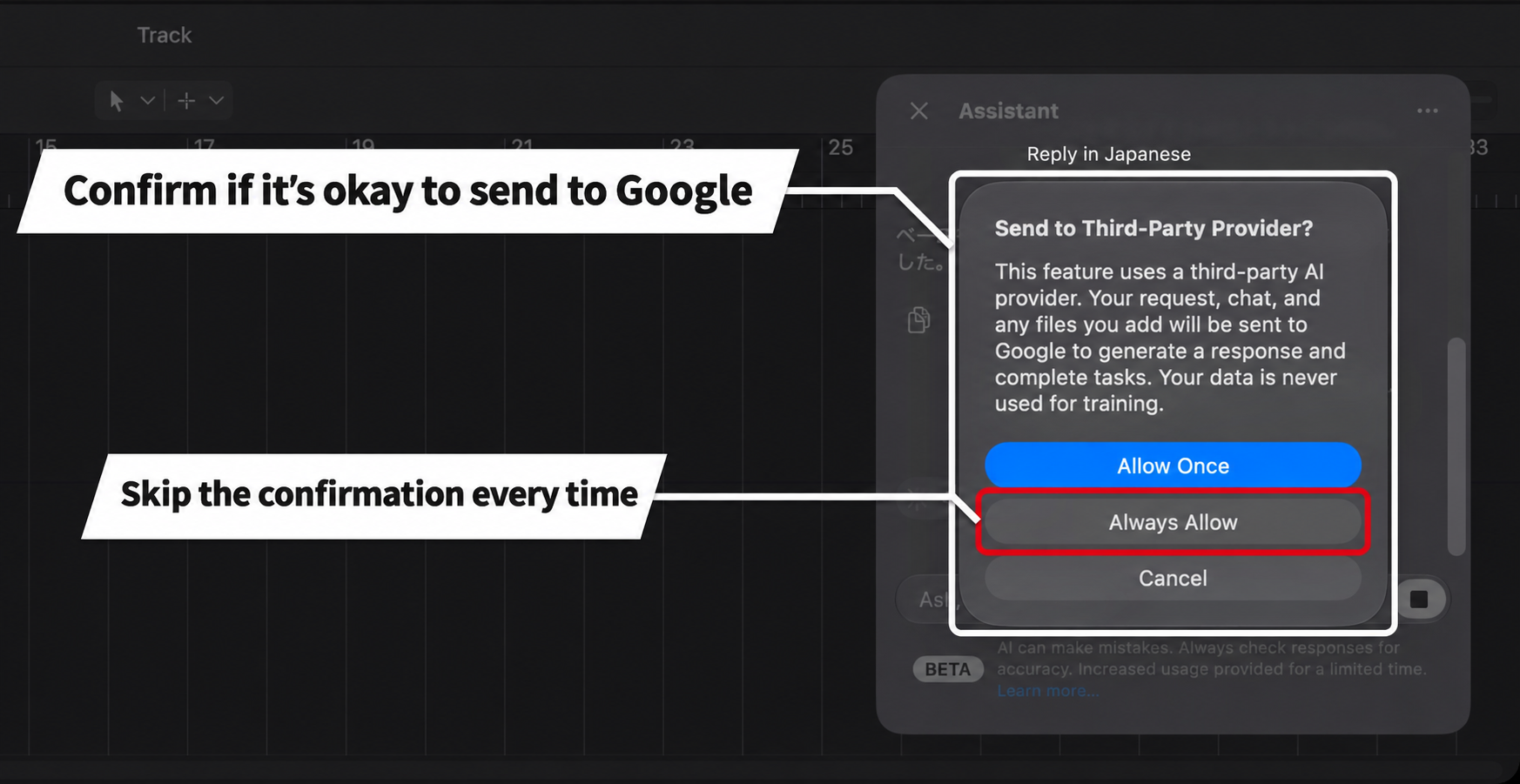
Allow Once sends only the current request and asks again each time.
If you do not want to confirm every request, Always Allow can be convenient.
The assistant combines an Apple model with third-party models, including Google Gemini.
According to Apple, requests are not associated with your Apple Account or used to train the models.
Open the assistant using the control bar button or Option + Command + /.
When you reopen the project on the same Mac, you can continue the conversation. It does not carry over when the project is shared or moved to another Mac.
Requirements for the assistant
There are several requirements for using the assistant.
First, it is available only in the subscription version.
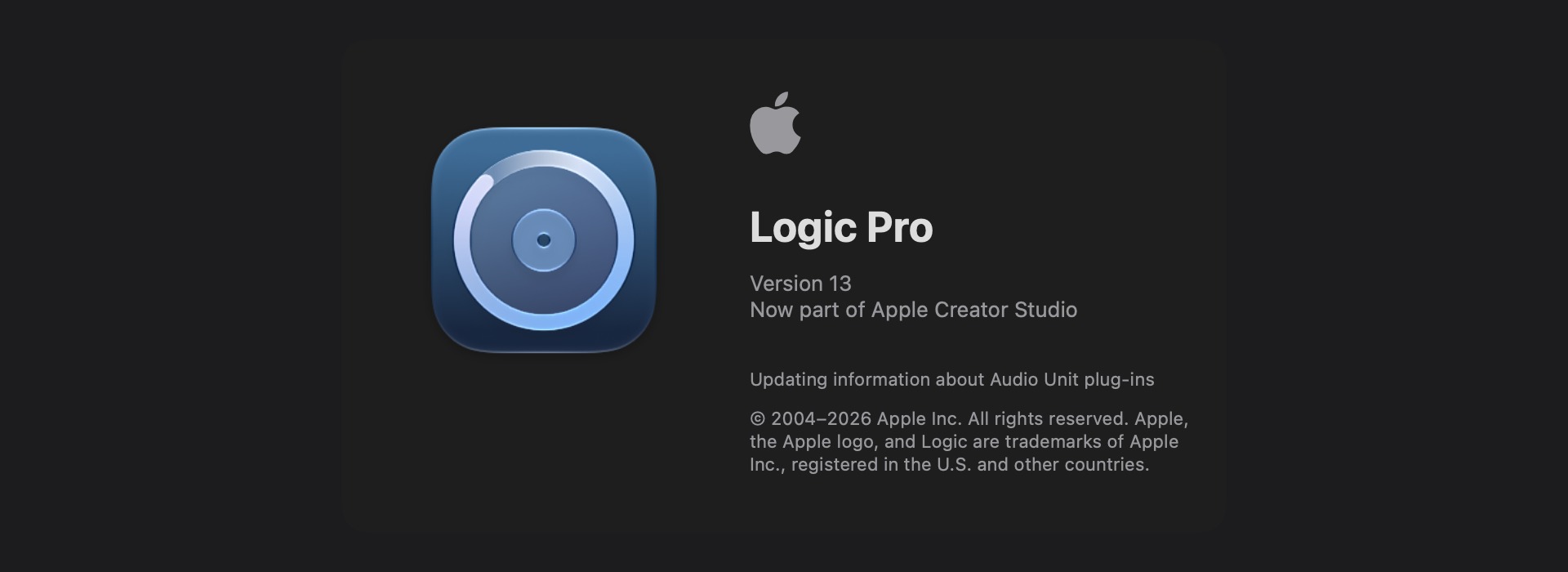
The Mac App Store offers the one-time-purchase Logic Pro and the Logic Pro app included in Apple Creator Studio.
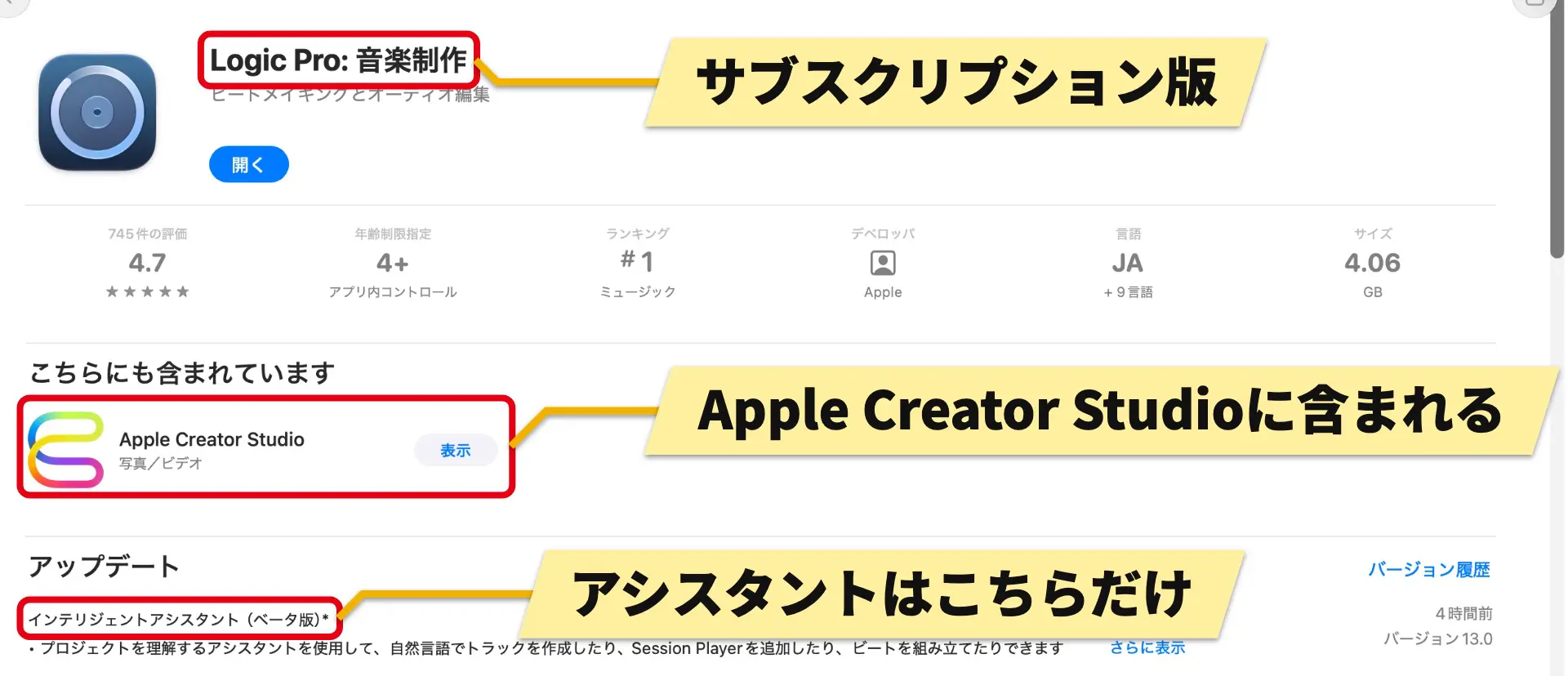
Logic Pro 13 is also available as part of Apple Creator Studio.
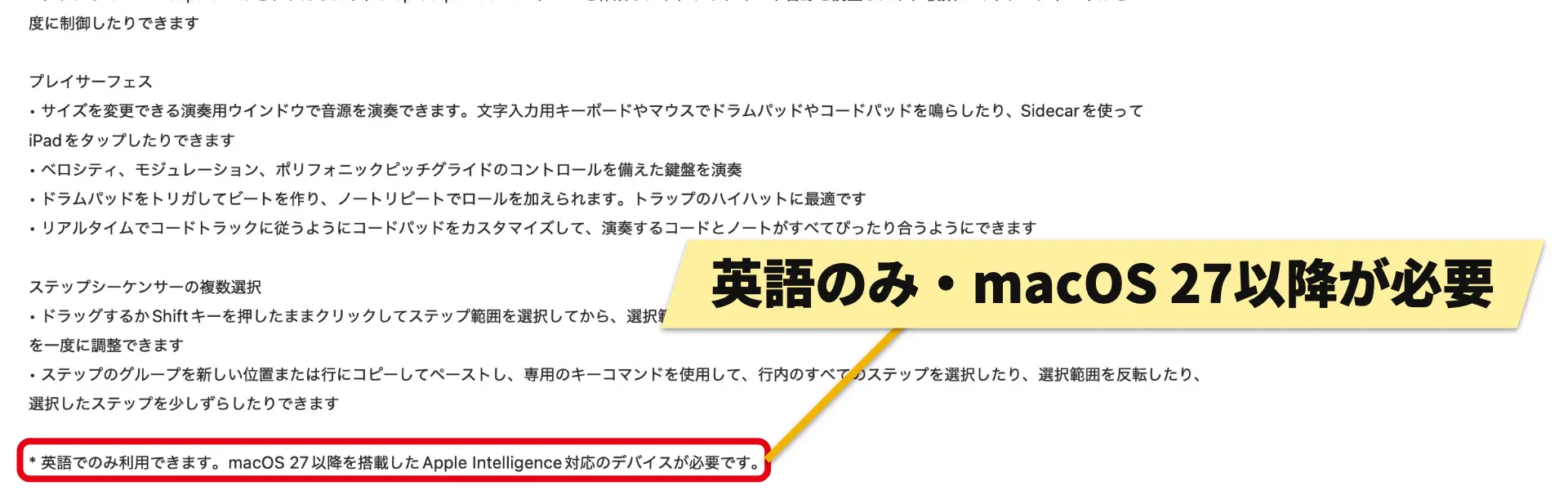
There are also language and system requirements.
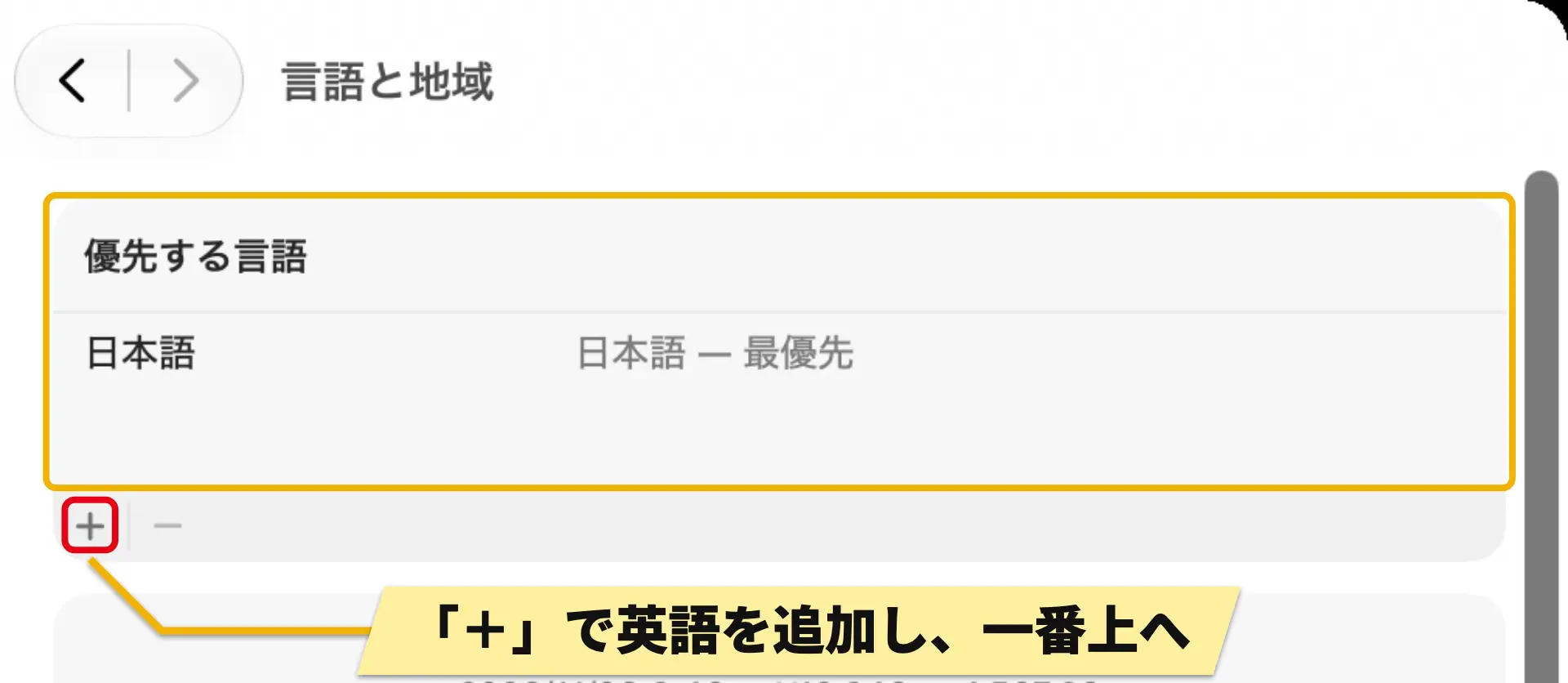
In our tests, the assistant button and menu did not appear when the Mac was set to Japanese.
To use it, set the Mac system language to English (US).
With the Mac set to English, our Japanese requests also worked.
Responses were in English by default, but asking for a response in Japanese produced a Japanese reply.
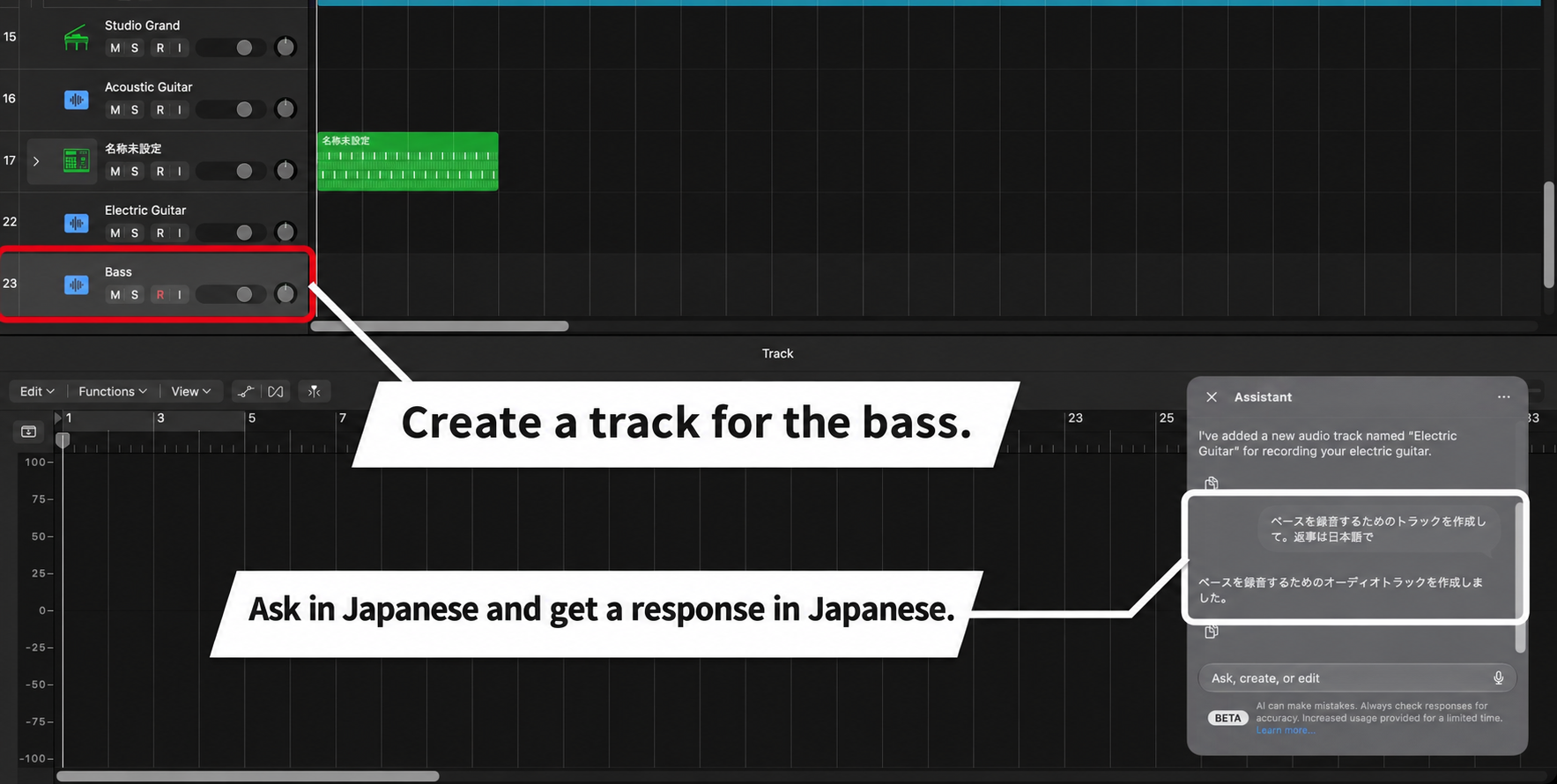
However, only English (US) is officially supported, so Japanese behavior is not guaranteed.
The assistant is in beta and some features may be limited.
It also requires an Apple silicon Mac and an Apple Account configured with iCloud.
Monthly usage limits apply. Check usage under Logic Pro > Intelligence Features > Show Usage.
Separate individual drum parts with Stem Splitter
Stem Splitter, which separates a song into parts such as vocals and drums, now lets you separate individual drum kit pieces.
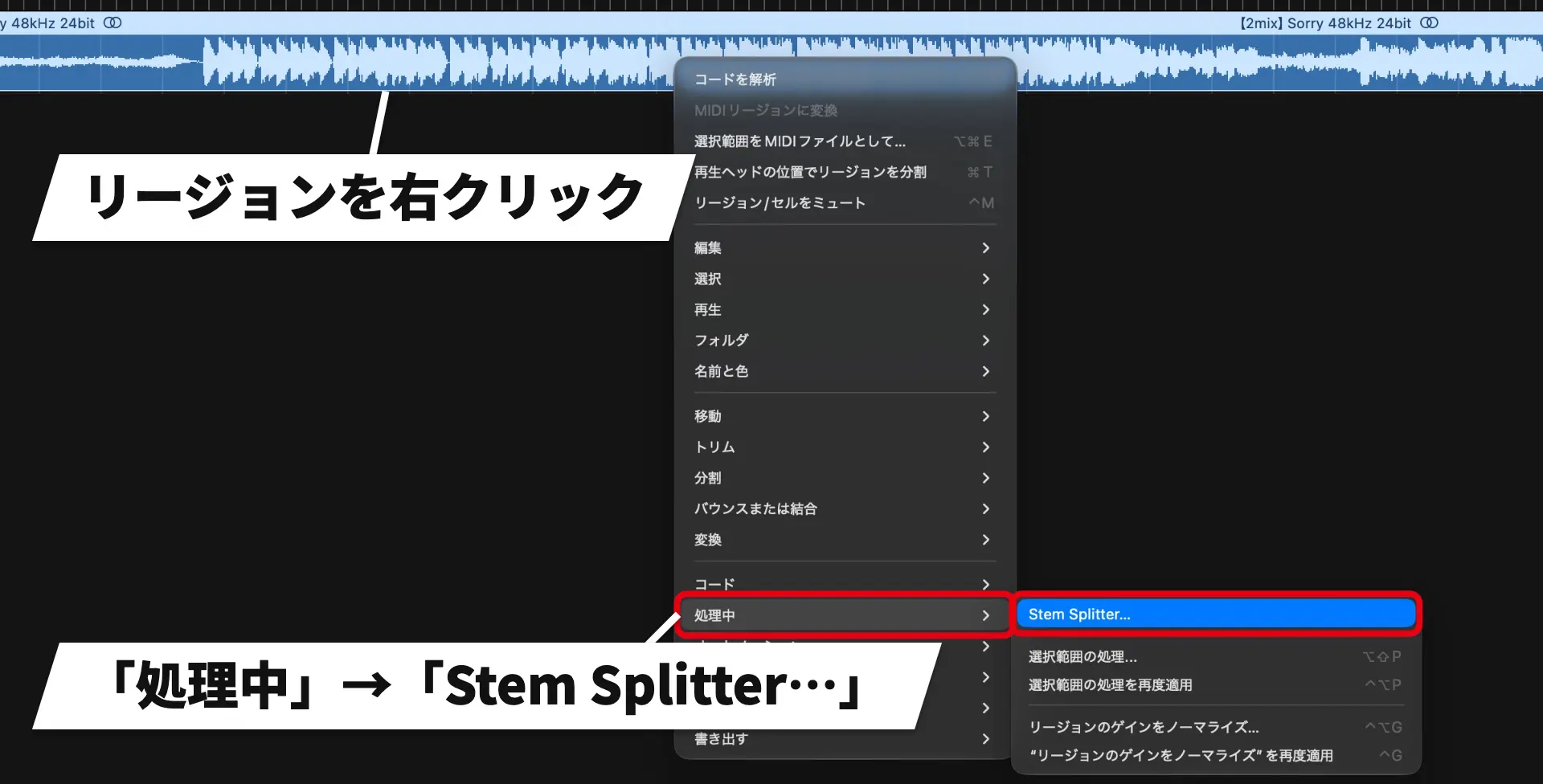
First, open Stem Splitter from the audio region containing the song.
To separate individual drum parts, use the new switch.
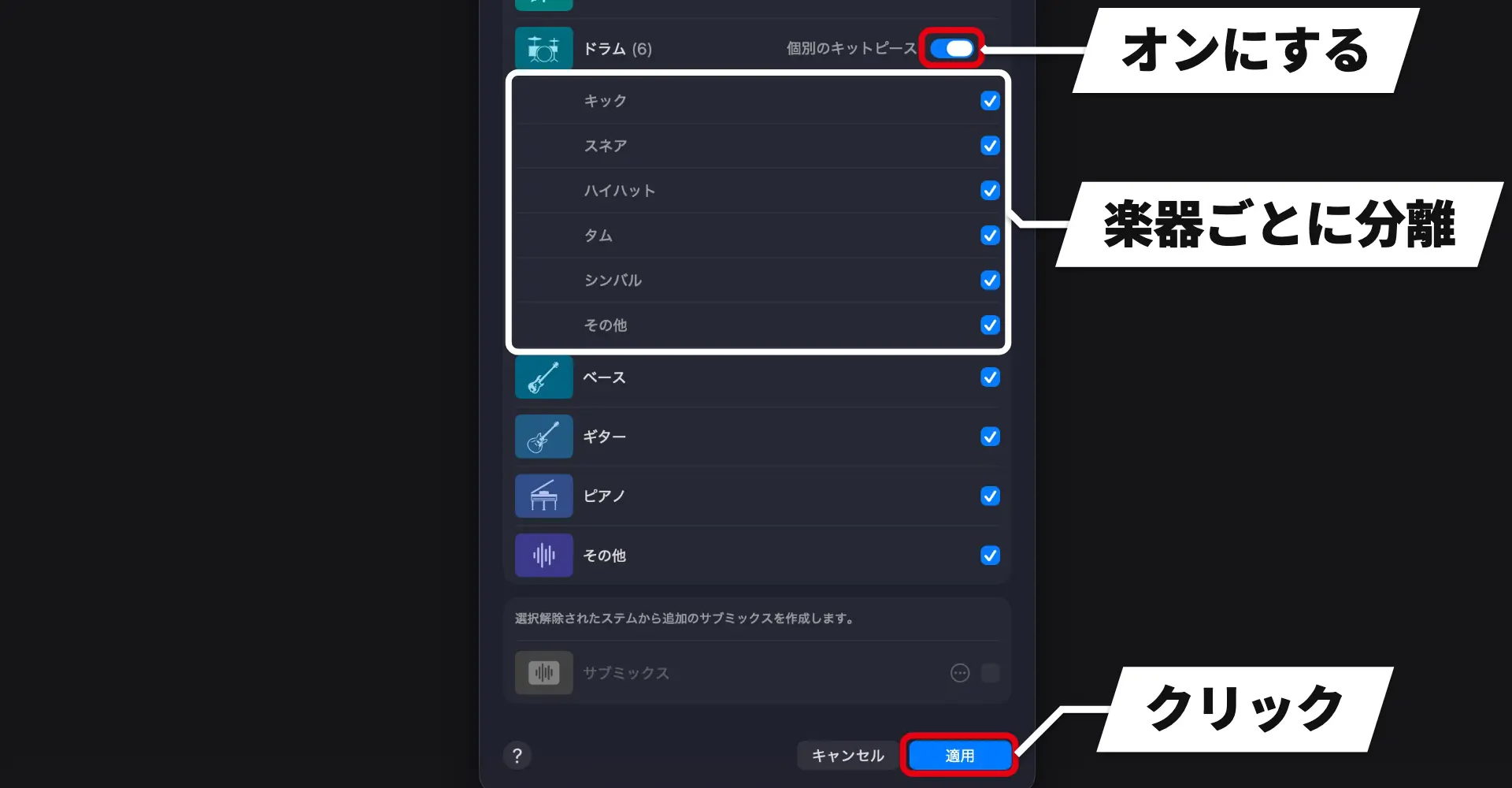
You can separate the drum pieces alongside vocals and bass, or extract only the drum instruments.
Select just the parts or instruments you need.
The results are created as new tracks.
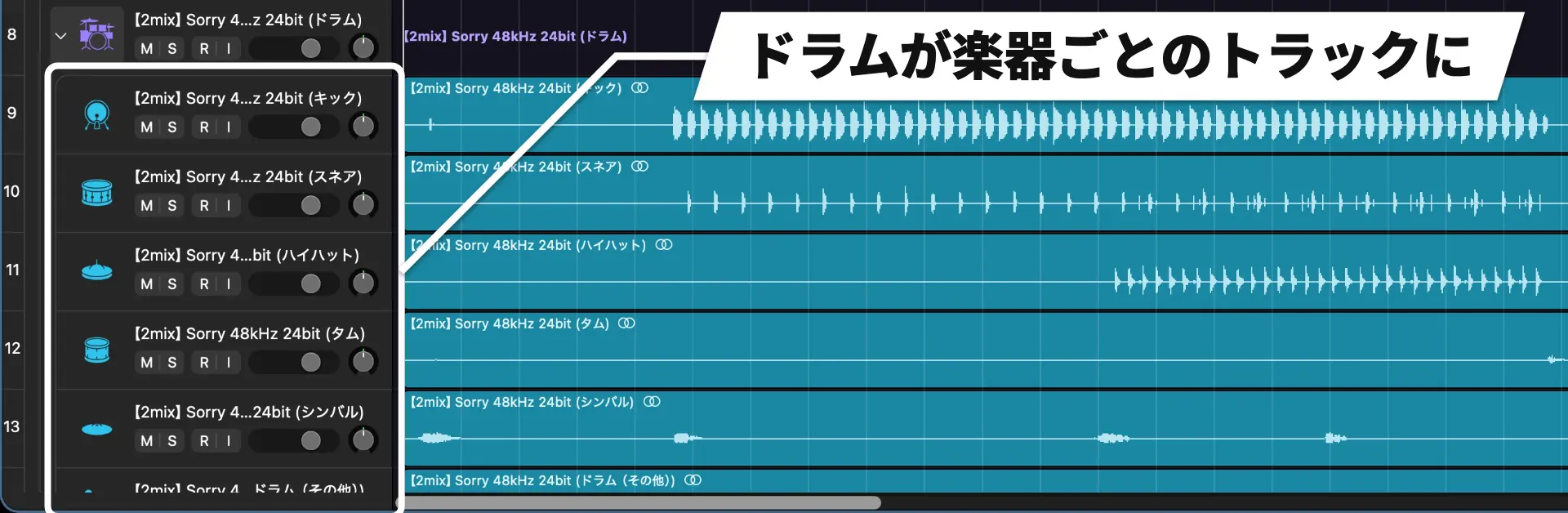
These samples let you hear each separated drum part from the same section of the song.
Original mix
Kick
Snare
Hi-hat
We found the separation quality very high.
Even without the original multitrack, you can rebalance the drums or replace a particular instrument.
The separated parts can be edited just like ordinary audio regions.
The separated audio now also reflects the original region’s gain.
Testing another song
With another song, we also tried the existing six-part separation: vocals, drums, bass, guitar, piano, and other.
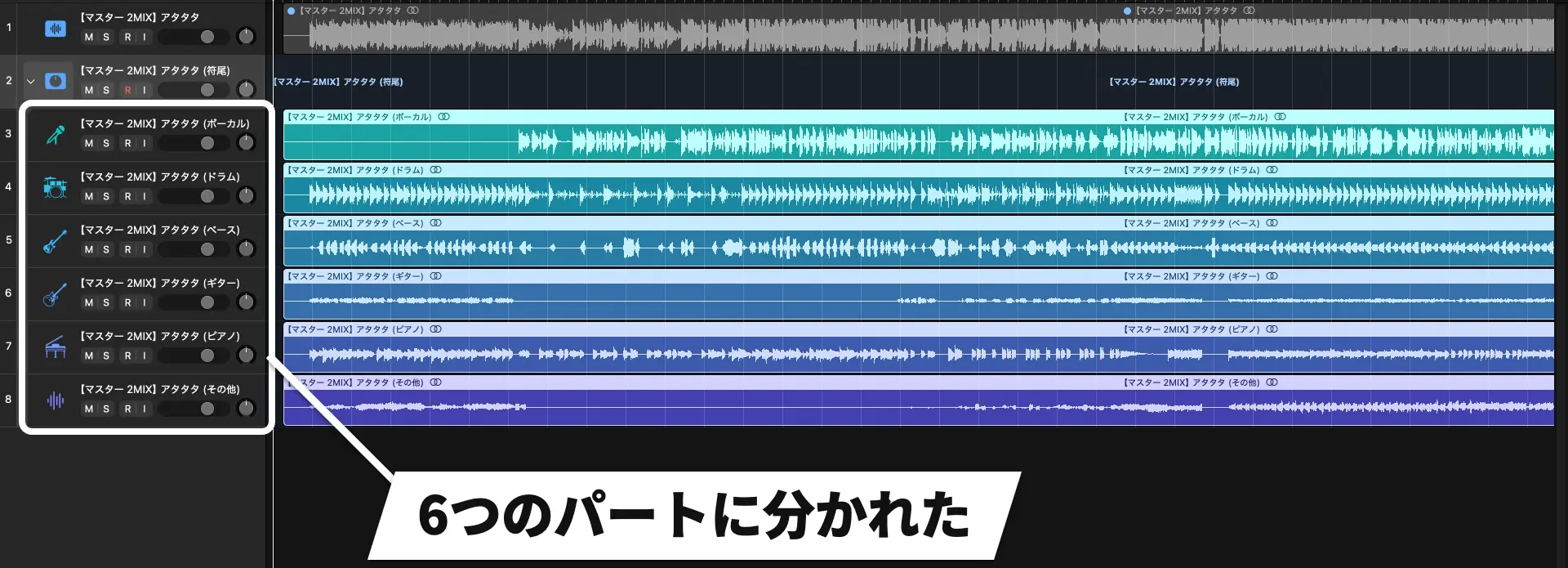
These samples let you hear each part from the same section of the song.
Original mix (second song)
Vocals
Drums
Bass
Guitar
Piano
Other
Find sounds in one place with the Unified Browser
The browser for finding sounds has also changed significantly.
Logic Pro’s sound library, your own samples and patches, plugin presets, and downloaded Splice sounds are now collected in one browser.
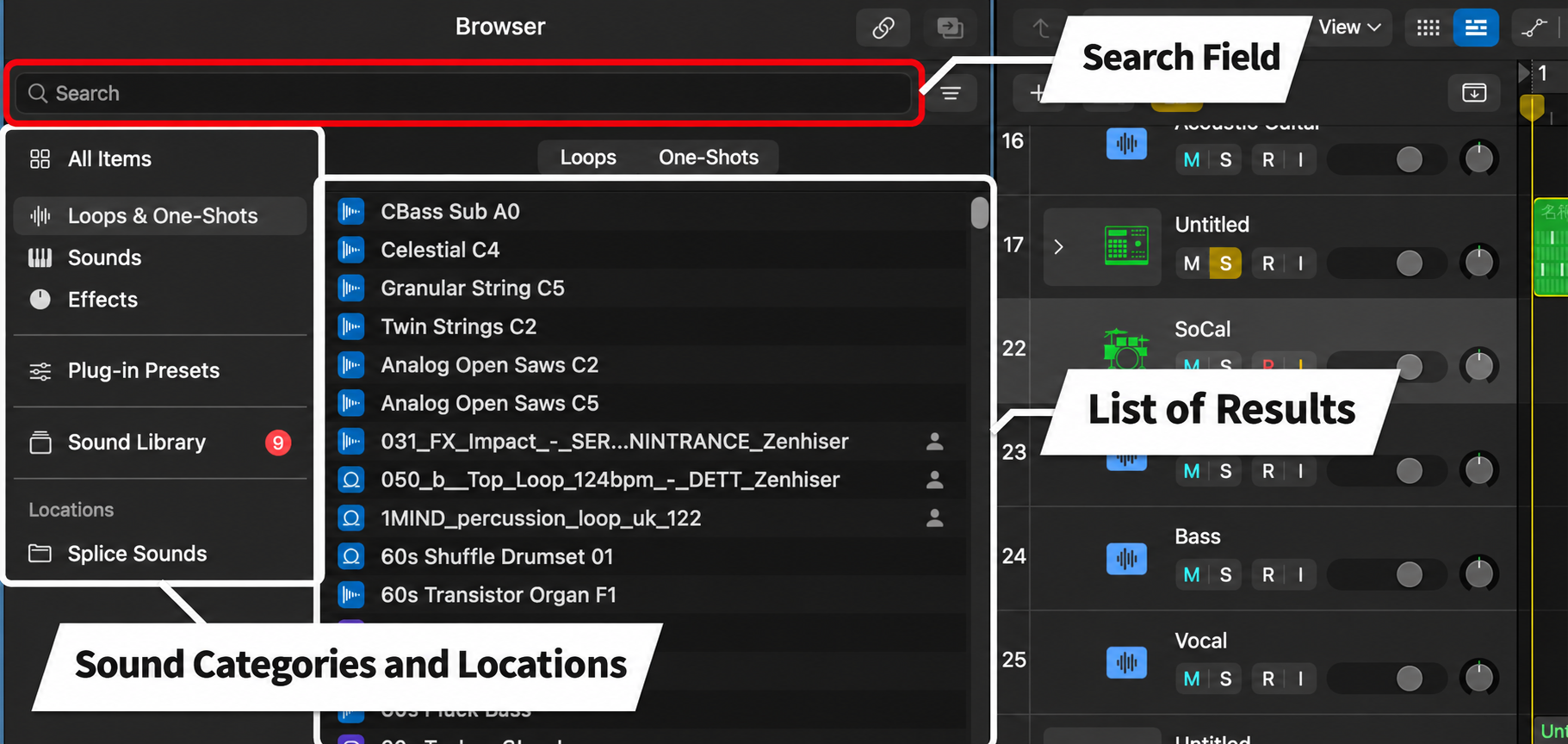
Open or close the browser with the upper-left button or the B key.
Command + F opens it with the search field selected, ready for a search.
The shortcuts for showing Smart Controls and toggling Flex have changed to Y and F, respectively.
Search by description or similarity
The new browser uses Apple Intelligence to search for sounds using everyday descriptions.
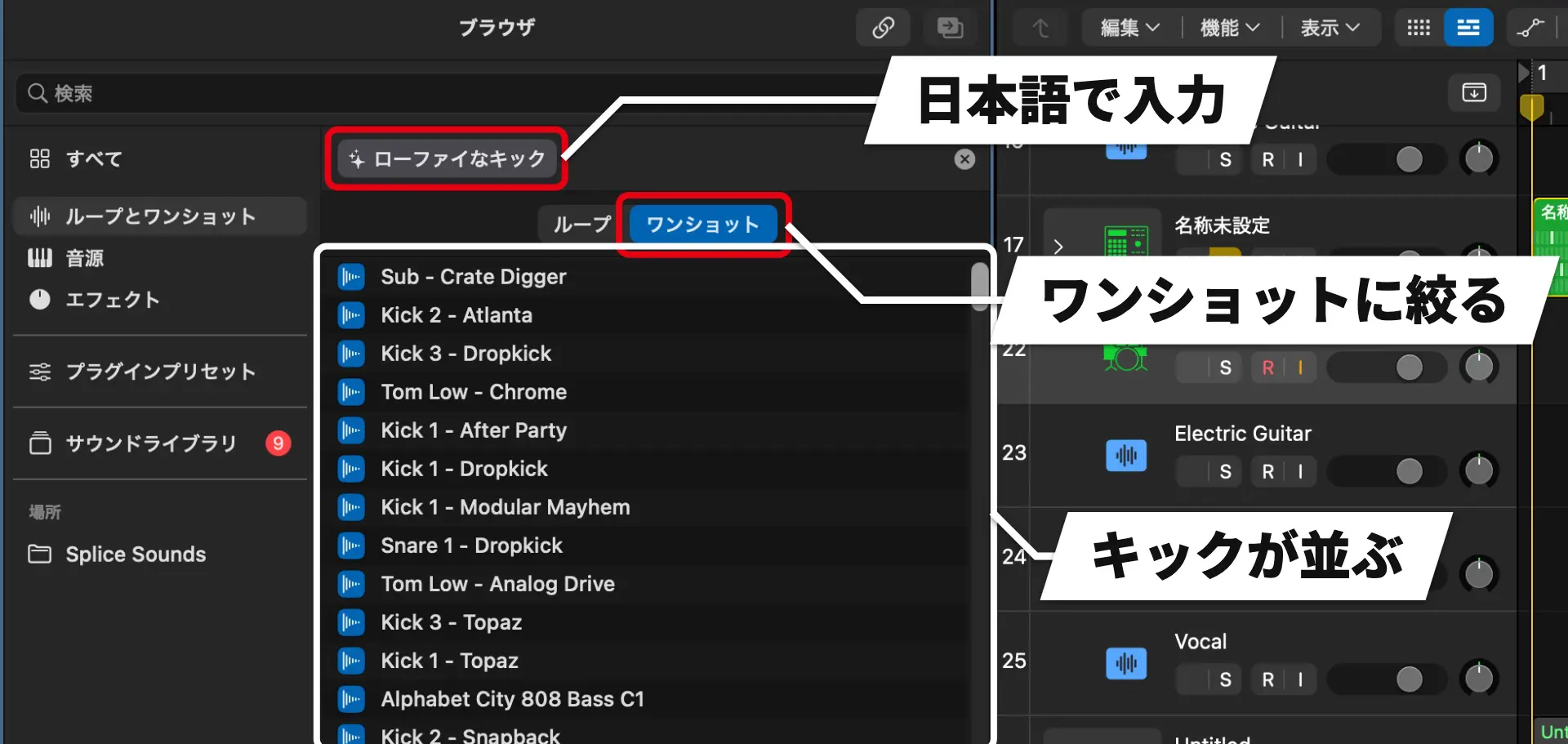
In our tests, searching in Japanese also found the intended sounds and was easy to use.
You can also find sounds similar to a selected loop or one-shot.
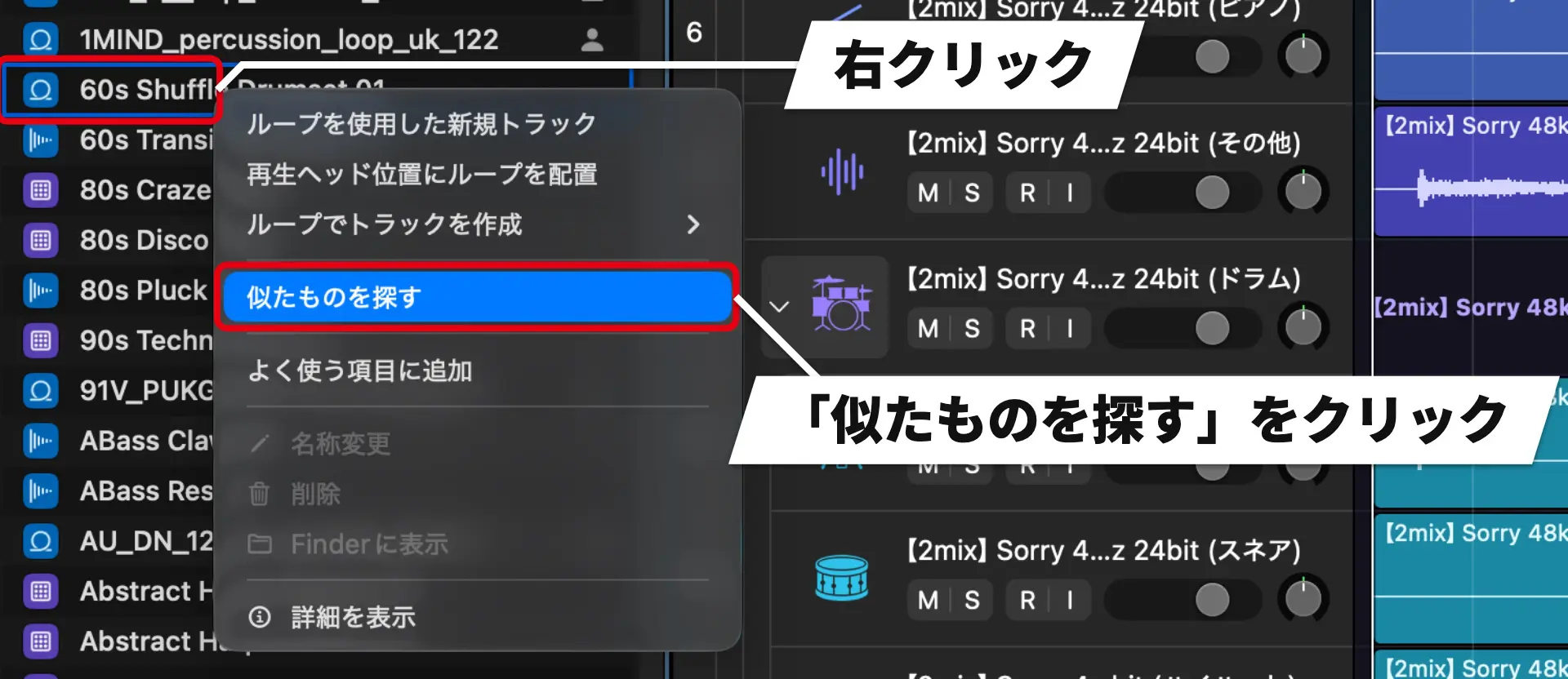
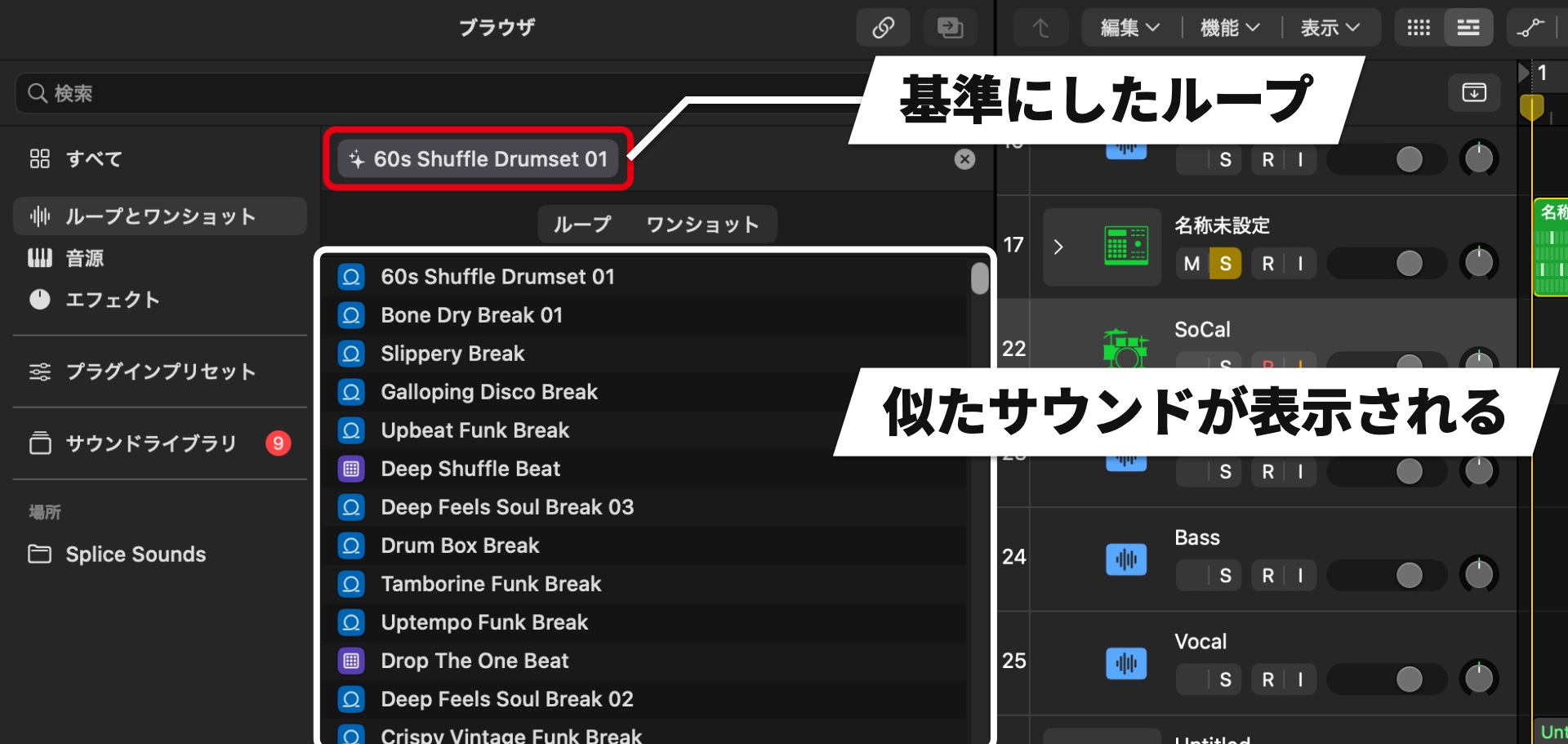
You can also drag an audio sample into the search field. Samples you add yourself are searchable too.
You can filter by tags and sort by name, tempo, key, and more.
Search Splice sounds and your own samples together
If the Splice app is installed and you have downloaded sounds, those sounds also appear in the browser.
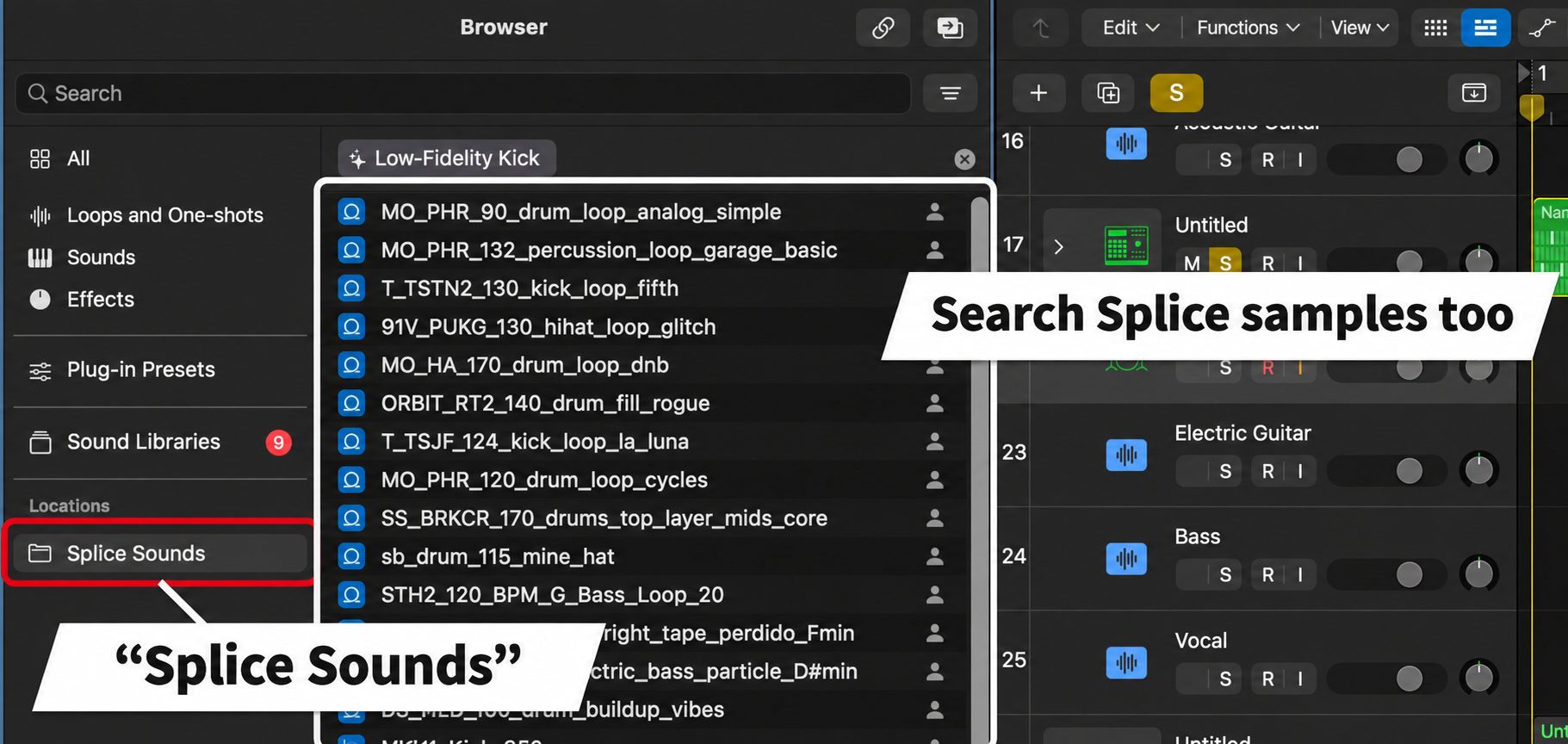
Similarity search also works with Splice samples.
Sounds downloaded from Splice appear in the browser promptly, a useful feature for Splice users.
You can also add a folder on your Mac as a browser location.
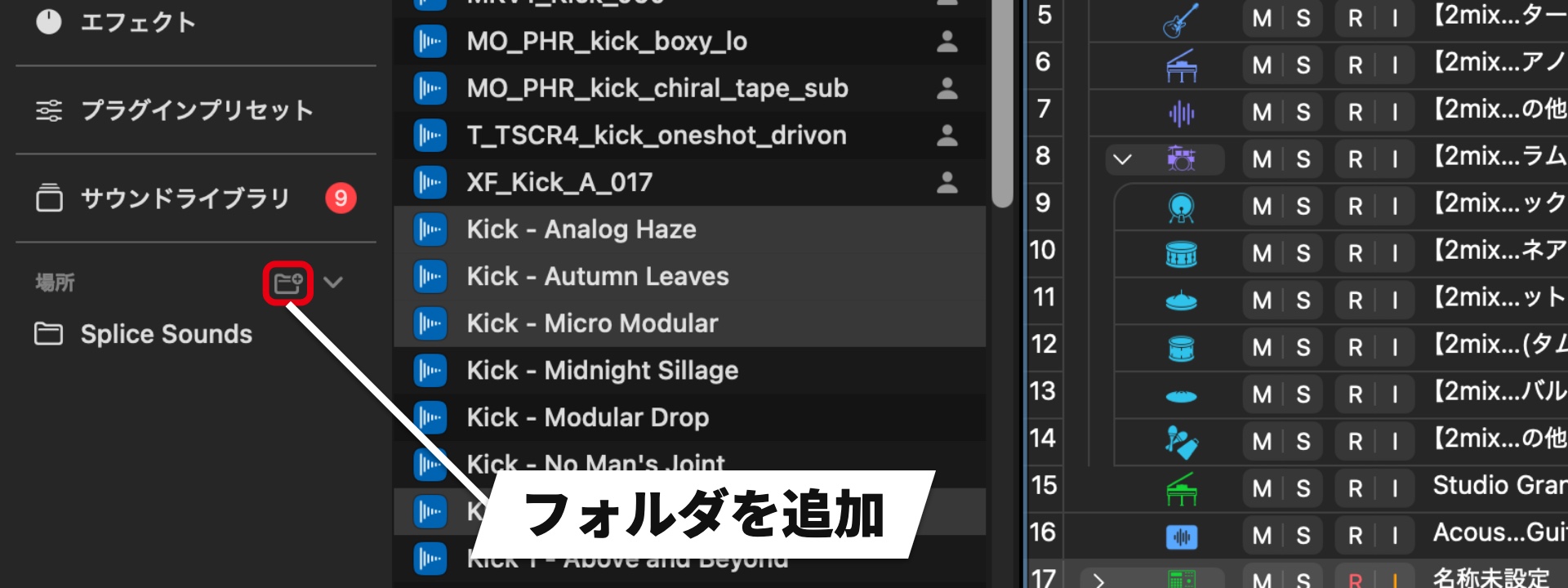
The contents of the added folder are analyzed automatically, distinguishing loops from one-shots and assigning tempo, key, and tags.
This lets you search your own samples in the same way as Apple Loops.
You can also drag regions you created or Live Loops cells into the browser to save them.
Saved loops and one-shots are analyzed too, so you can find them later with search.
Combine multiple samples into one track
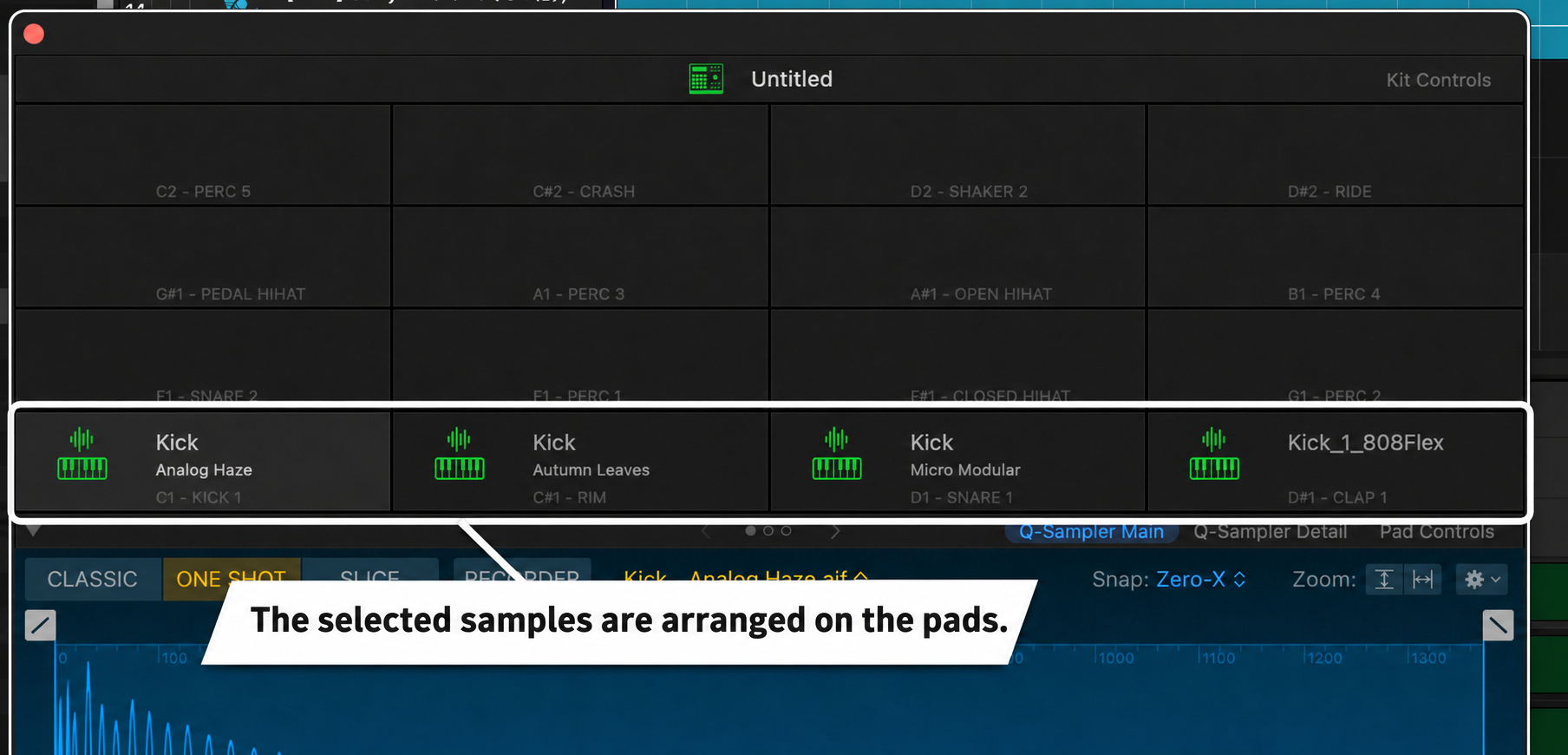
You can add selected samples as a single track loaded into Drum Machine Designer or another instrument.
In Loops & One-Shots, choose one-shot samples, identified by a waveform icon.
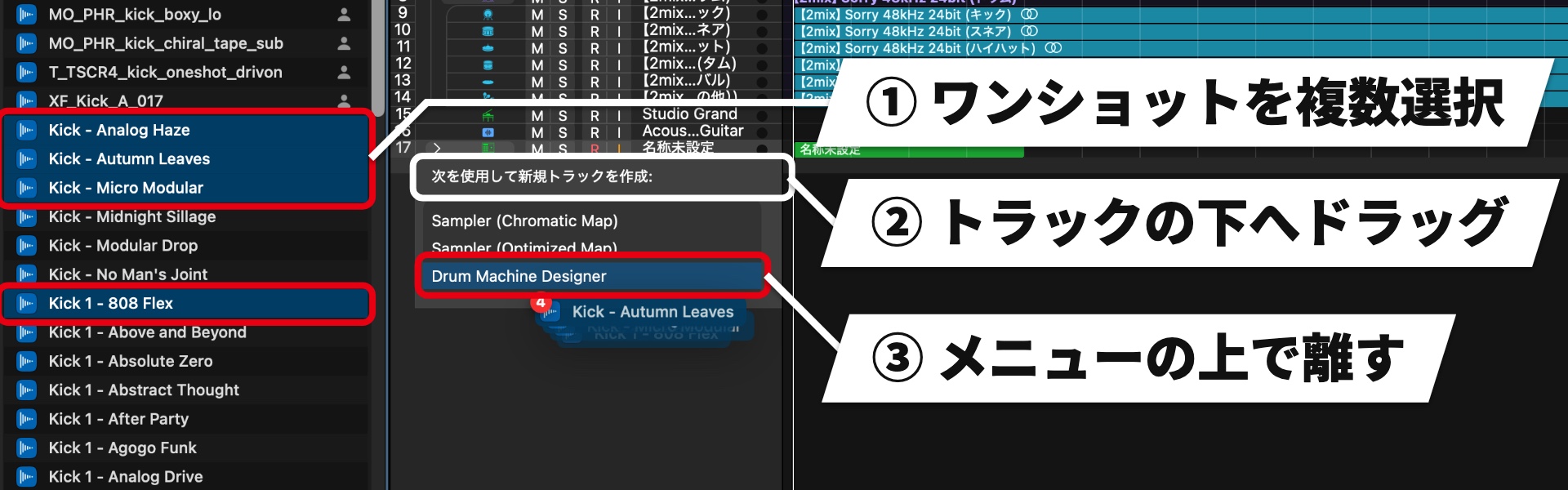
The menu also offers Sampler (Chromatic Map) and Sampler (Optimized Map), so you can load them into Sampler instead.
A new Liquid Glass design
Logic Pro 13 also refreshes its interface.
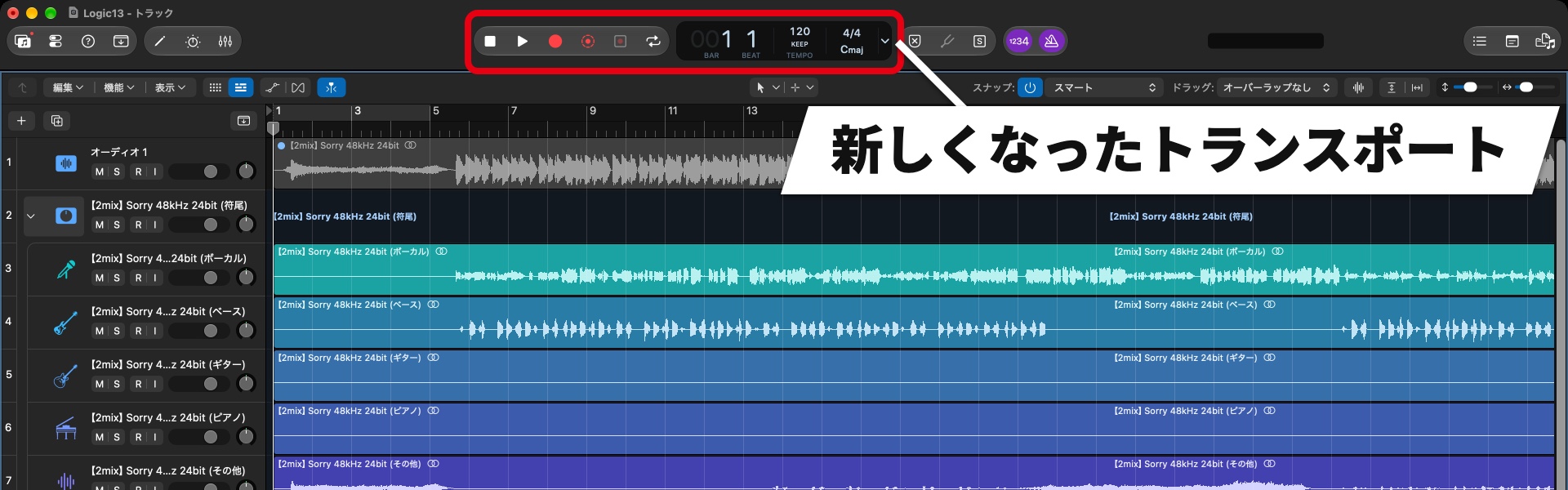
Liquid Glass is used for windows, toolbars, and menus; its translucent appearance and contrast make waveforms and tracks easier to see.
Play onscreen with Play Surface
Play Surface builds on the ability to play instruments from the Mac keyboard.
It offers a keyboard and chord pads view and a drum pads view, playable with a Mac keyboard, mouse, or touch (touch is supported on a MacBook Pro with a PROLED XDR display or an iPad using Sidecar).
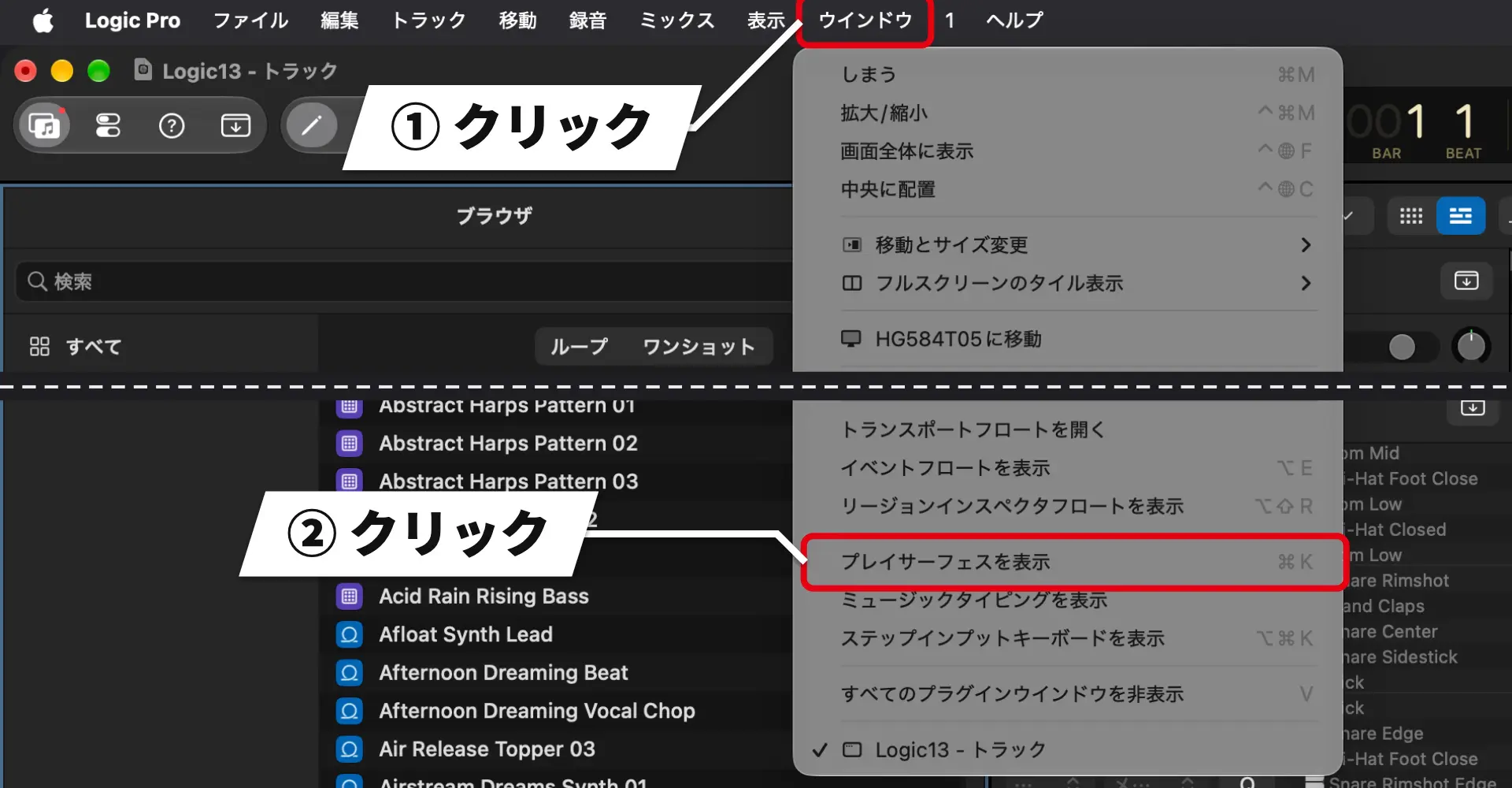
Command + K also opens it.
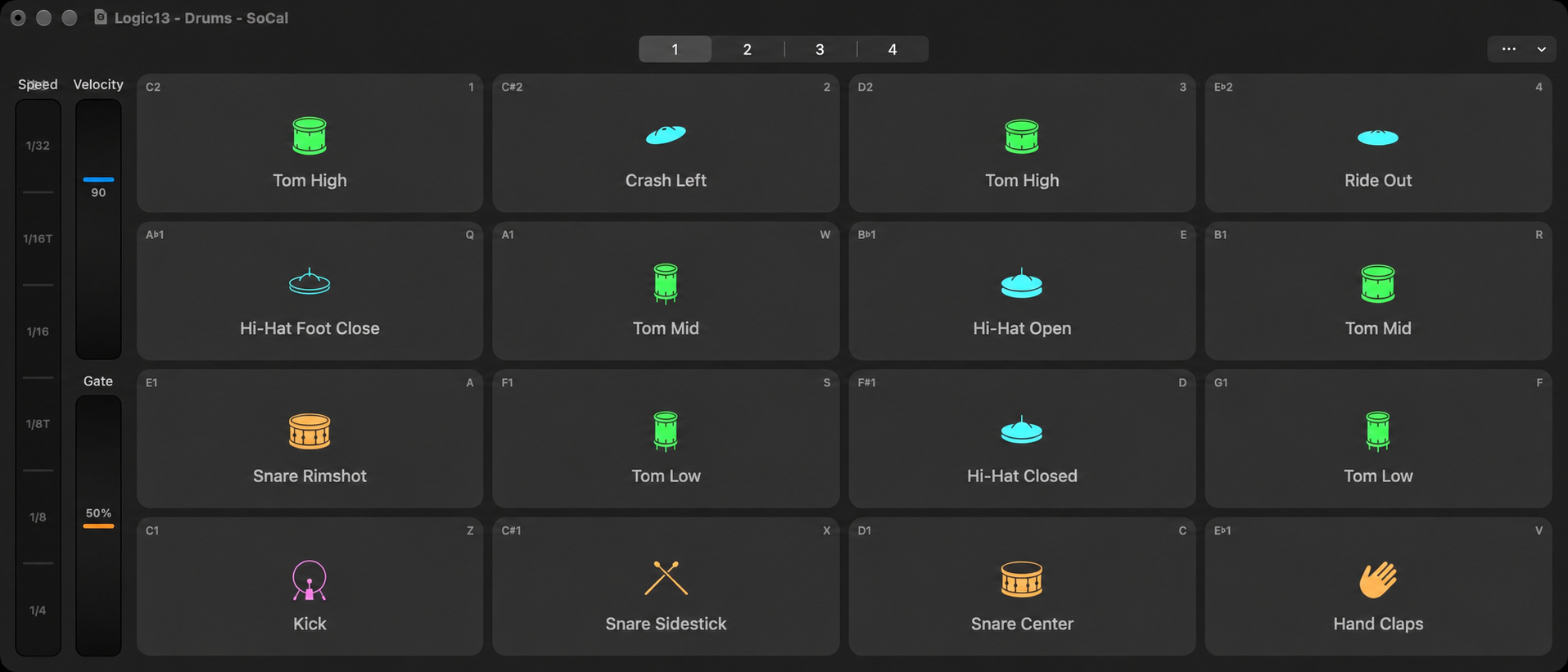
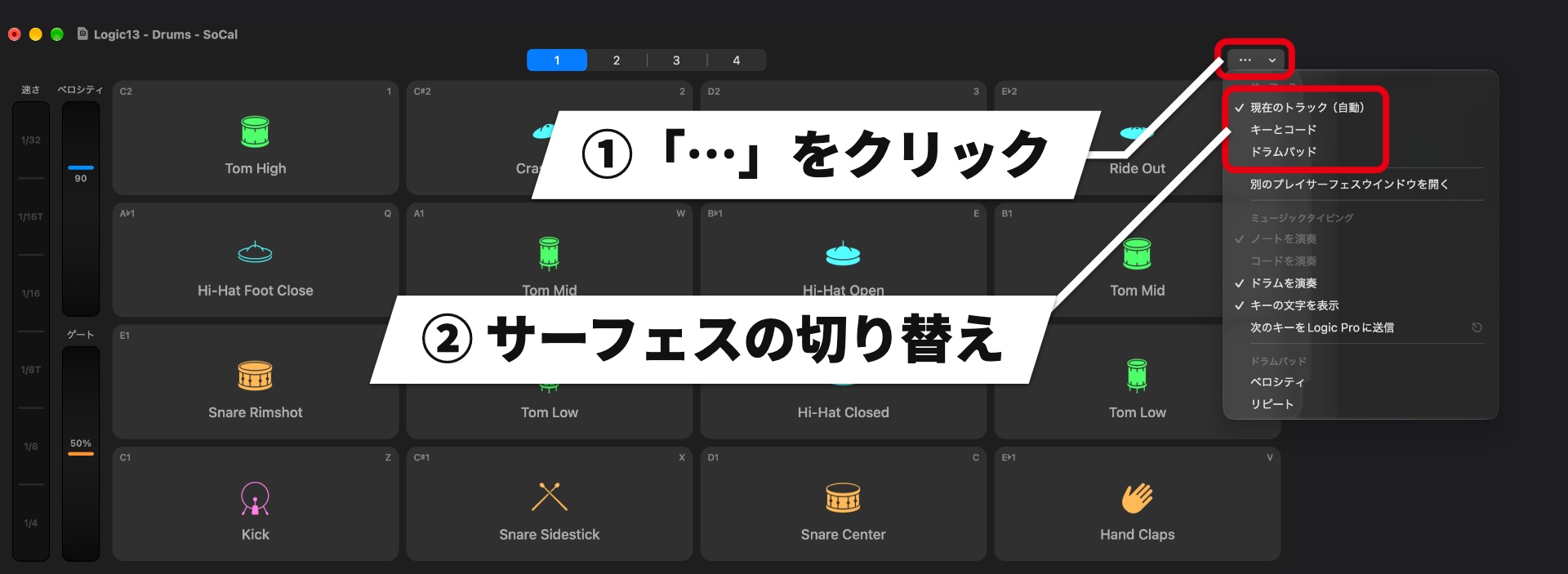
The view changes to suit the selected track’s patch; a drum patch displays drum pads.
You can open up to four Play Surfaces at once.
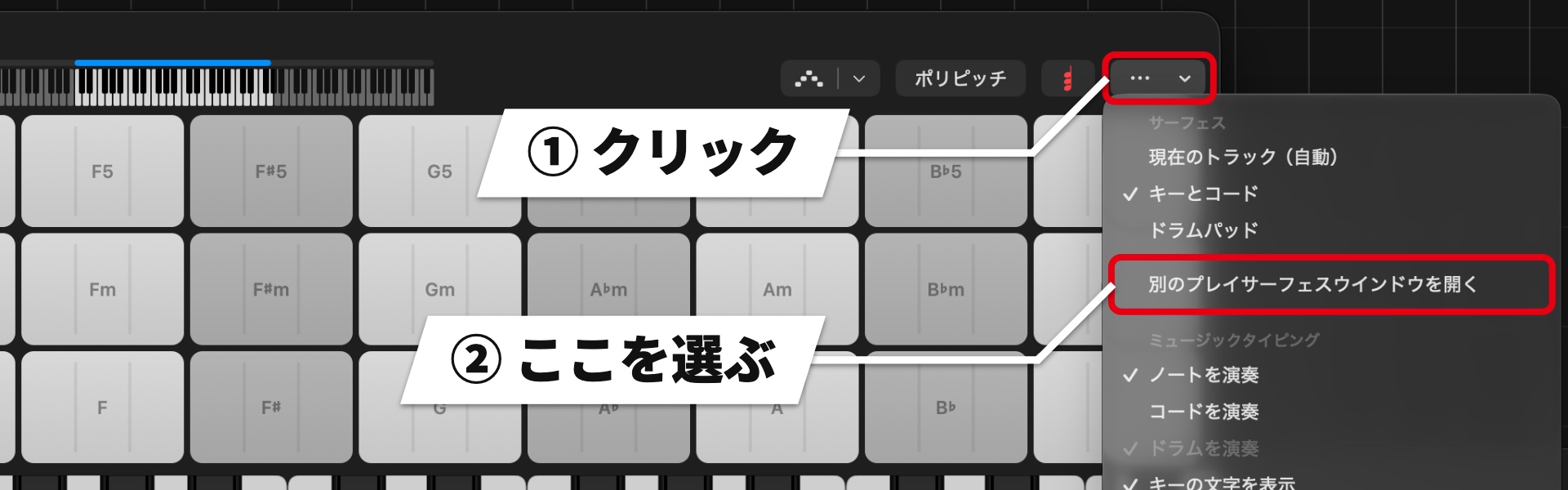
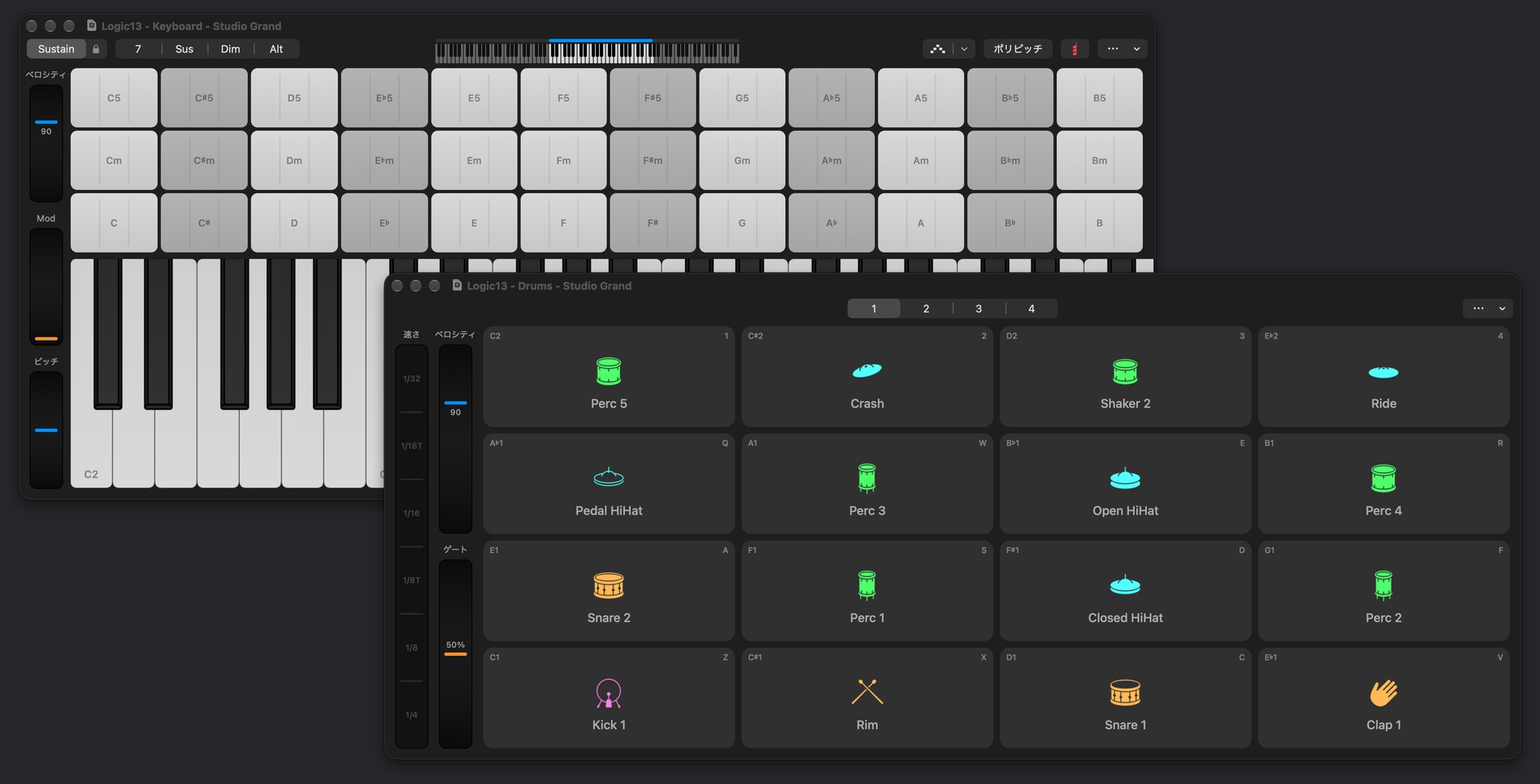
You can also switch the surface type yourself.
Keyboard and chord pads
In Keys & Chords, chord pads are arranged above the keyboard.
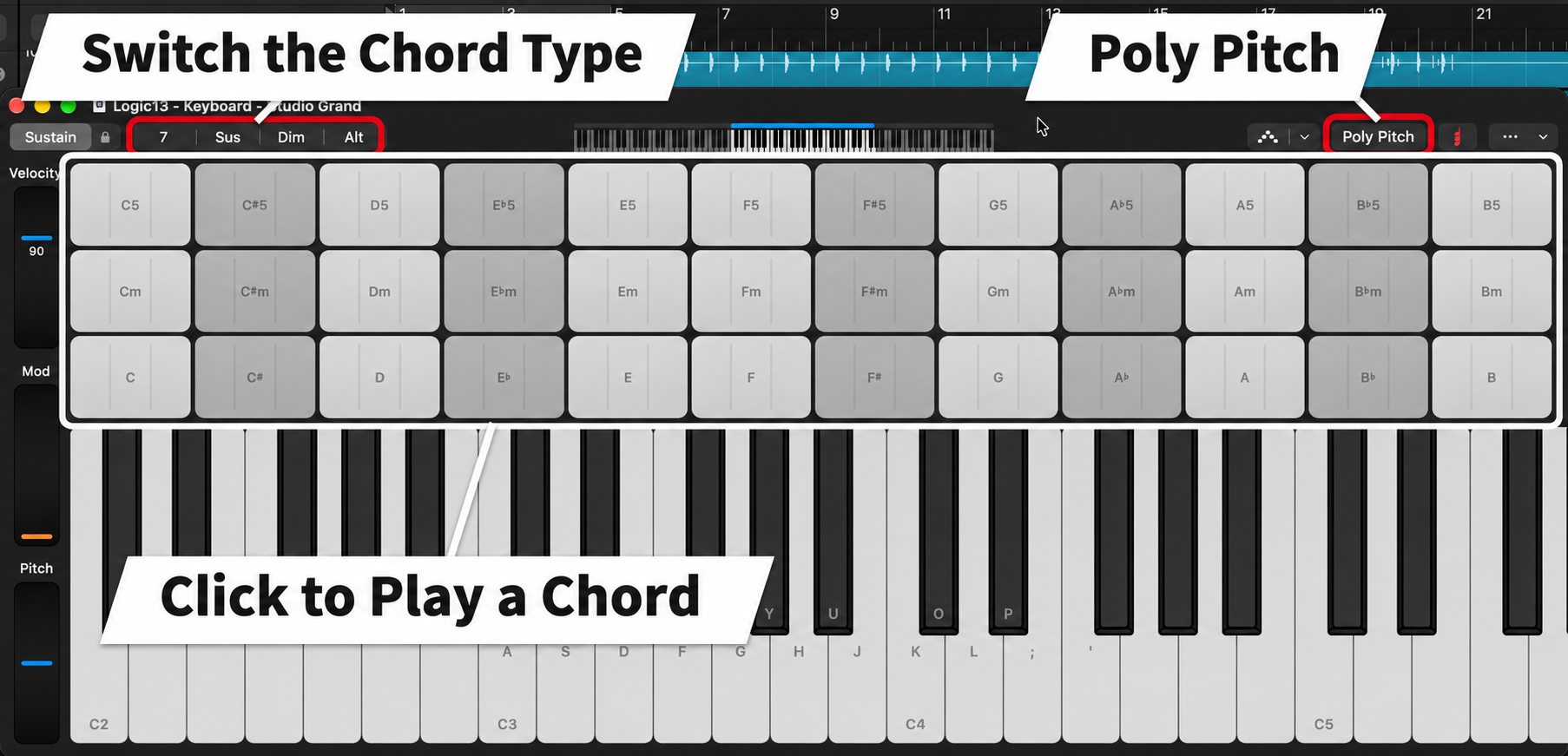
Use 7, Sus, Dim, and Alt to change chord types.
Drag horizontally across a chord pad for a strummed effect, or click its left or right side to move down or up one inversion.
Chord pads can also follow the song’s key.
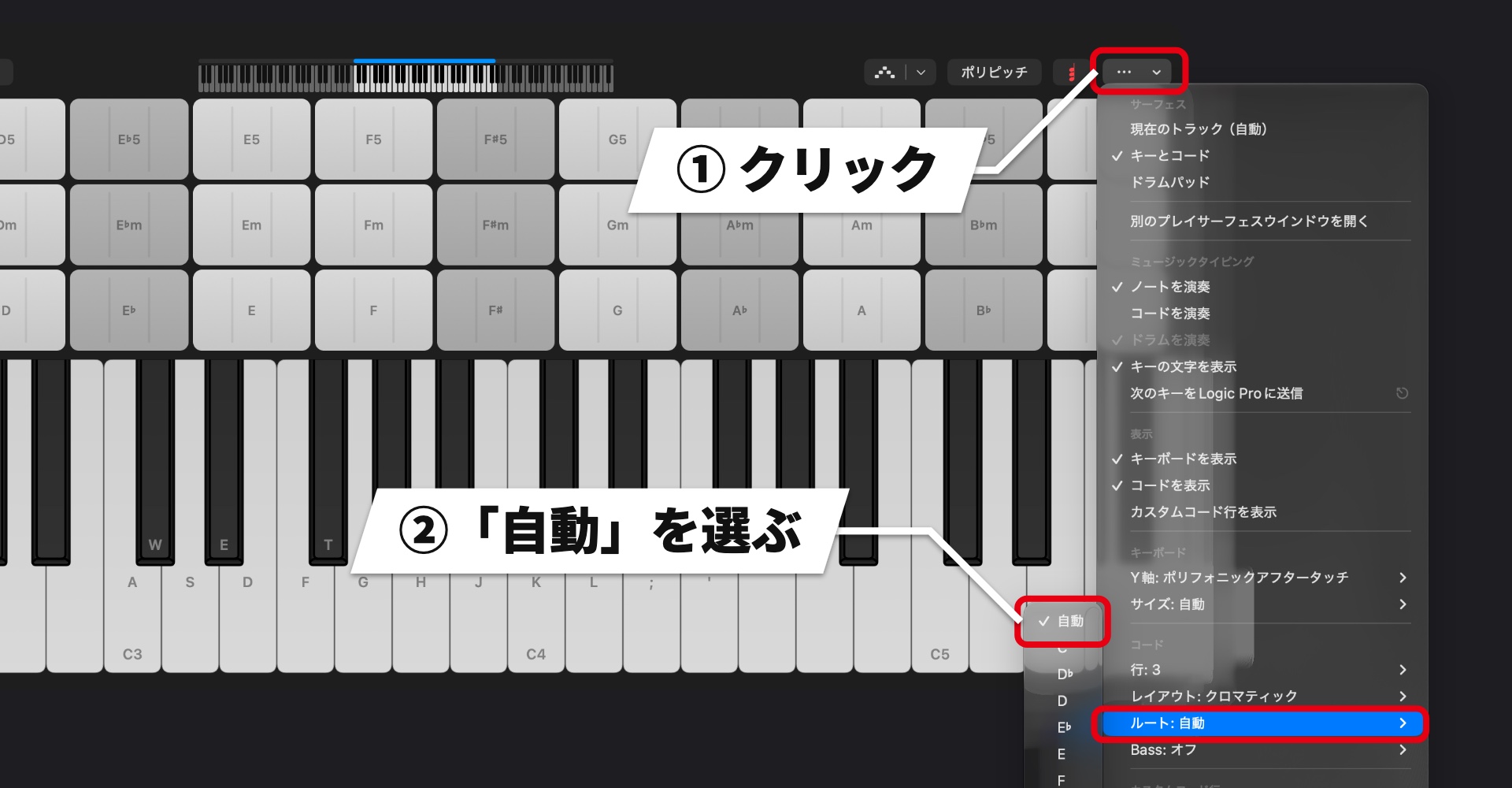
The chords follow the key at the playhead, so you can explore chords in the song’s key.
The pads can display chords matching the project key or the Chord Track. You can also enter played chords into the Chord Track and have other tracks follow them.
On the keyboard, enable Poly Pitch and drag across the keys to glide smoothly between notes.
An arpeggiator is also included, and you can record its output to a track as MIDI.
Drum pads
The drum pads offer Note Repeat for playing repeated notes while making beats.
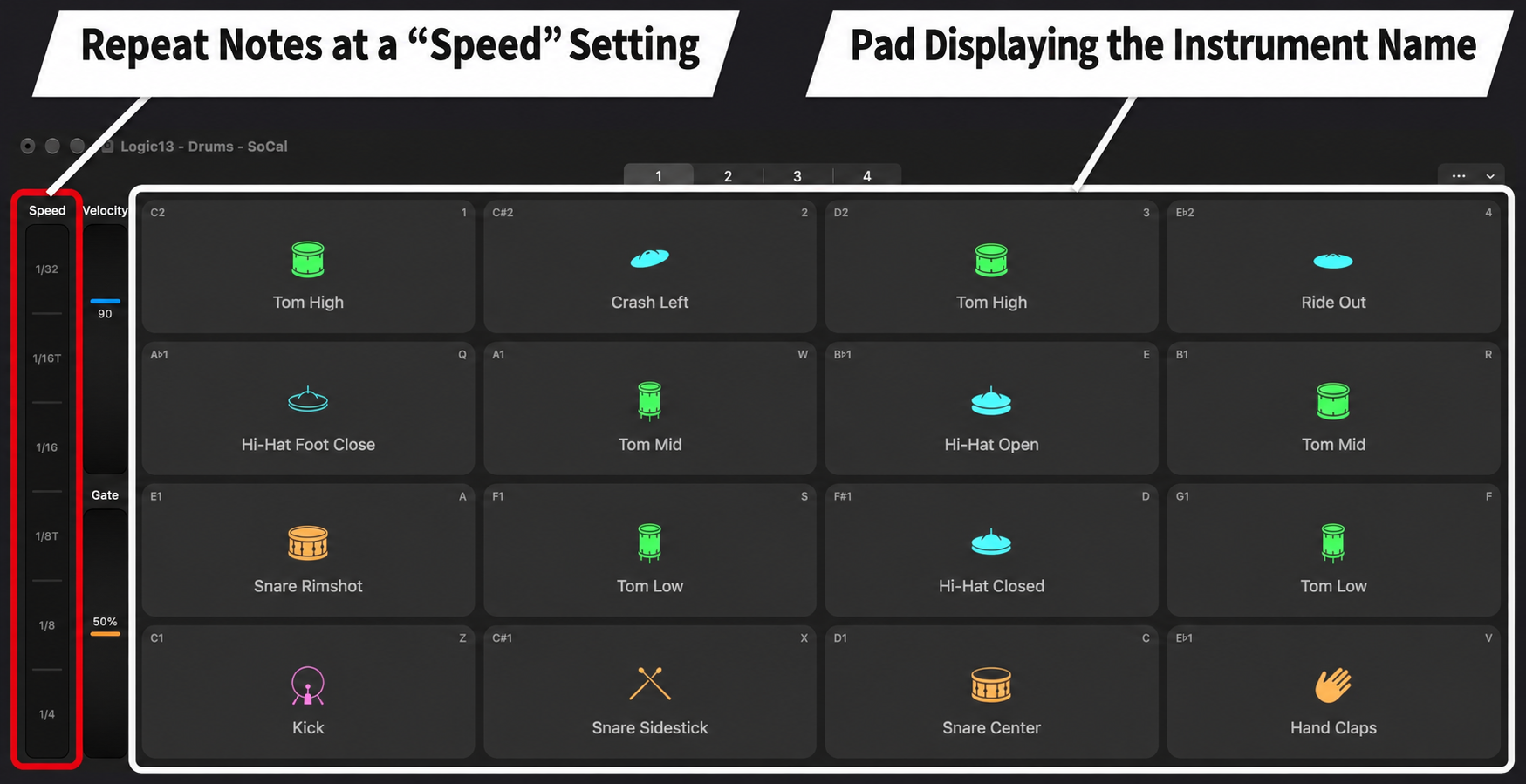
Rates range from 1/32 to 1/4 notes, making it easy to play rapid repeats such as trap hi-hats by holding a pad.
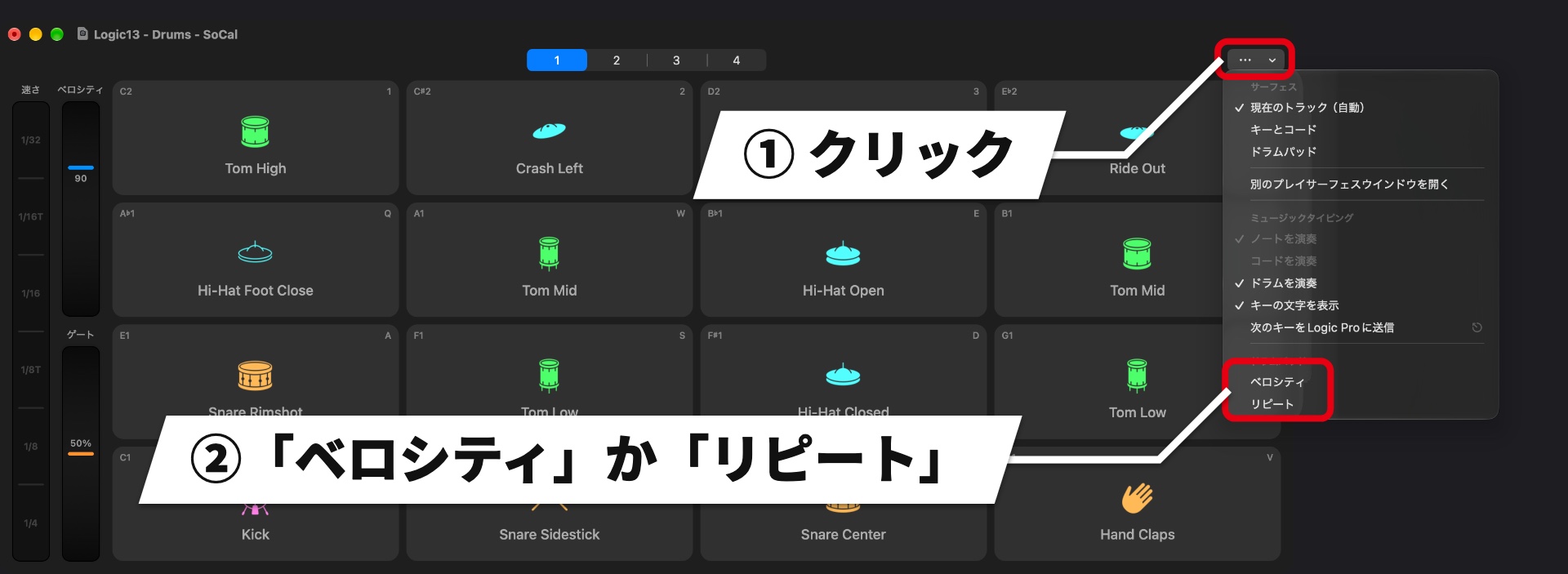
In the ellipsis menu, choose Velocity or Repeat to change velocity or repeat rate according to where you click the pad.
Other new features
Smaller workflow improvements include changes to the Step Sequencer.
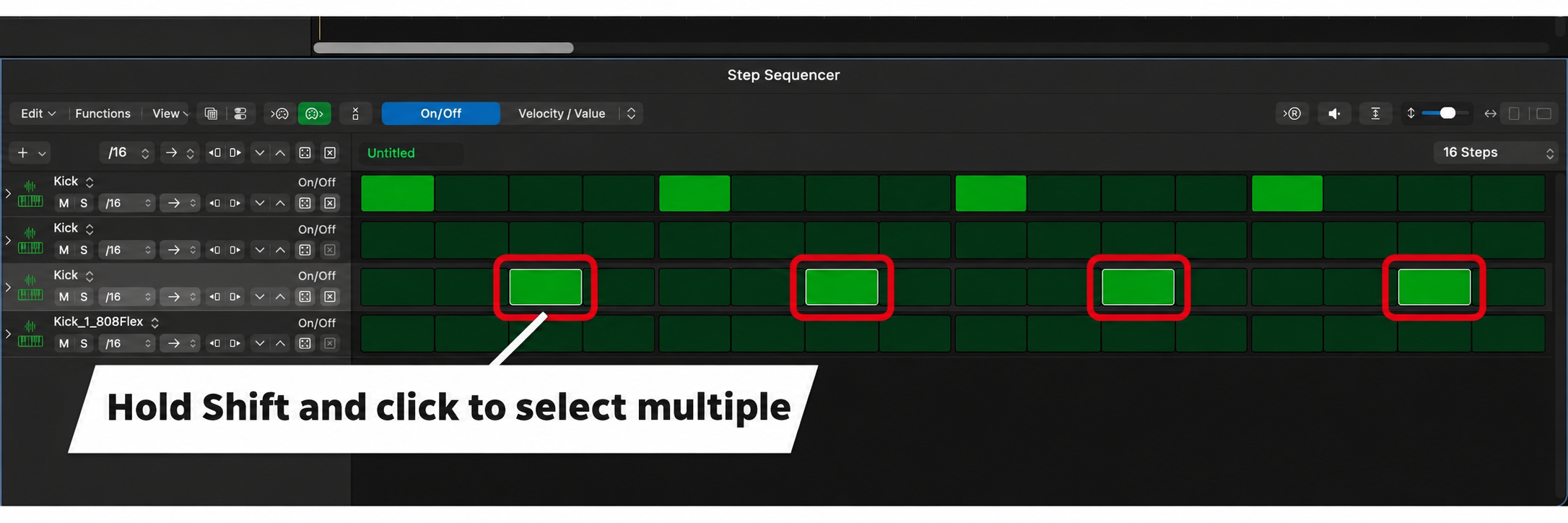
You can select multiple steps or rows and adjust parameters such as velocity together.
Other additions and improvements include:
- Audio Quick Look: preview audio from a Logic Pro 13 project in Finder after opening and playing it in Logic Pro, without opening Logic Pro again
- Touch controls: adjust multiple faders and knobs simultaneously on a new MacBook Pro with PROLED XDR display or an iPad connected with Sidecar
- Unified Inspector: view region and track parameters together, including region position and length
- Mixer Track Stack display: show or hide subtracks independently of the Tracks area
- Mixer: remove bypassed sends from selected channel strips together
- Export: export selected tracks as a MainStage patch or set
- Browser: choose whether loops preview and add at the project key and tempo, and save tracks as patches from browser or track-header menus
- New sound pack: Sergio George Producer Pack
System requirements

Mac
OS: macOS 26.1 or later
App size: 4.1 GB
Intelligent Assistant (beta): Apple Creator Studio subscription, an Apple Intelligence-compatible Apple silicon Mac with macOS 27 or later, and an Apple Account configured with iCloud; English (US) is the supported language
Stem Splitter: a Mac with M1 or later Apple silicon
Natural-language and similar-sound search and automatic sample analysis in the browser: an Apple silicon Mac
Touch: a new MacBook Pro with PROLED XDR display or an iPad using Sidecar
Pricing
Logic Pro 13 is available in Japan as a one-time purchase on the Mac App Store (¥30,000) or as part of an Apple Creator Studio subscription, which also includes Final Cut Pro and Pixelmator Pro (¥1,780 per month or ¥17,800 per year).
Existing owners of the one-time-purchase version also receive version 13.0 as an update.

Apple Creator Studio offers a one-month free trial. After the trial, students and educators can subscribe in Japan for ¥480 per month or ¥4,800 per year.
The Intelligent Assistant is exclusive to the subscription version, so the free trial is a way to try AI-assisted operation.
This update makes it easier to find, separate, and play sounds, so give it a try.
Prices are as of November 2026 and refer to Japan.
Check the seller’s website for current prices.
NEW ARTICLES
Latest English Articles