A New AI-Powered DAW That Lets You Search Splice Samples While Layering Them into Your Track
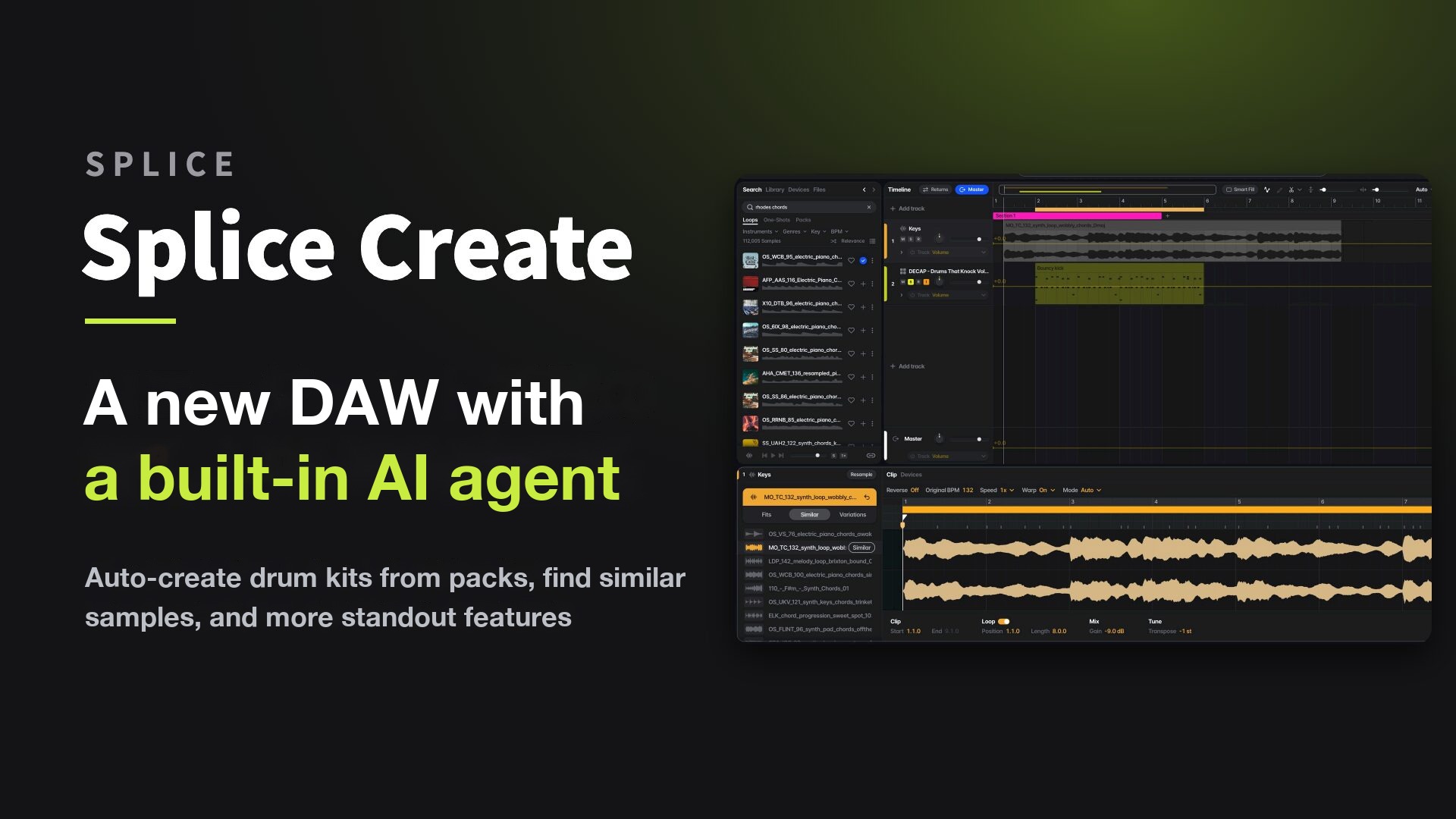
Splice, well known for its sample service, has released a DAW: "Splice Create".
You can search for and try Splice samples directly inside your track, and the AI agent "Rheo" helps with sound design, building phrases and even guiding you through operations.
These are the three main points of Splice Create.
- Search for and try Splice samples inside your track as if they were your own material
- The AI agent "Rheo", which helps with sound design, phrase building and guidance on operations
- A streamlined workflow that lets you turn ideas into sound right away
It is currently in beta, and a Mac version is available.
Video
A Simple Screen Made Up of Four Areas
The screen is divided into four areas: the browser, the timeline, the editor and Rheo.
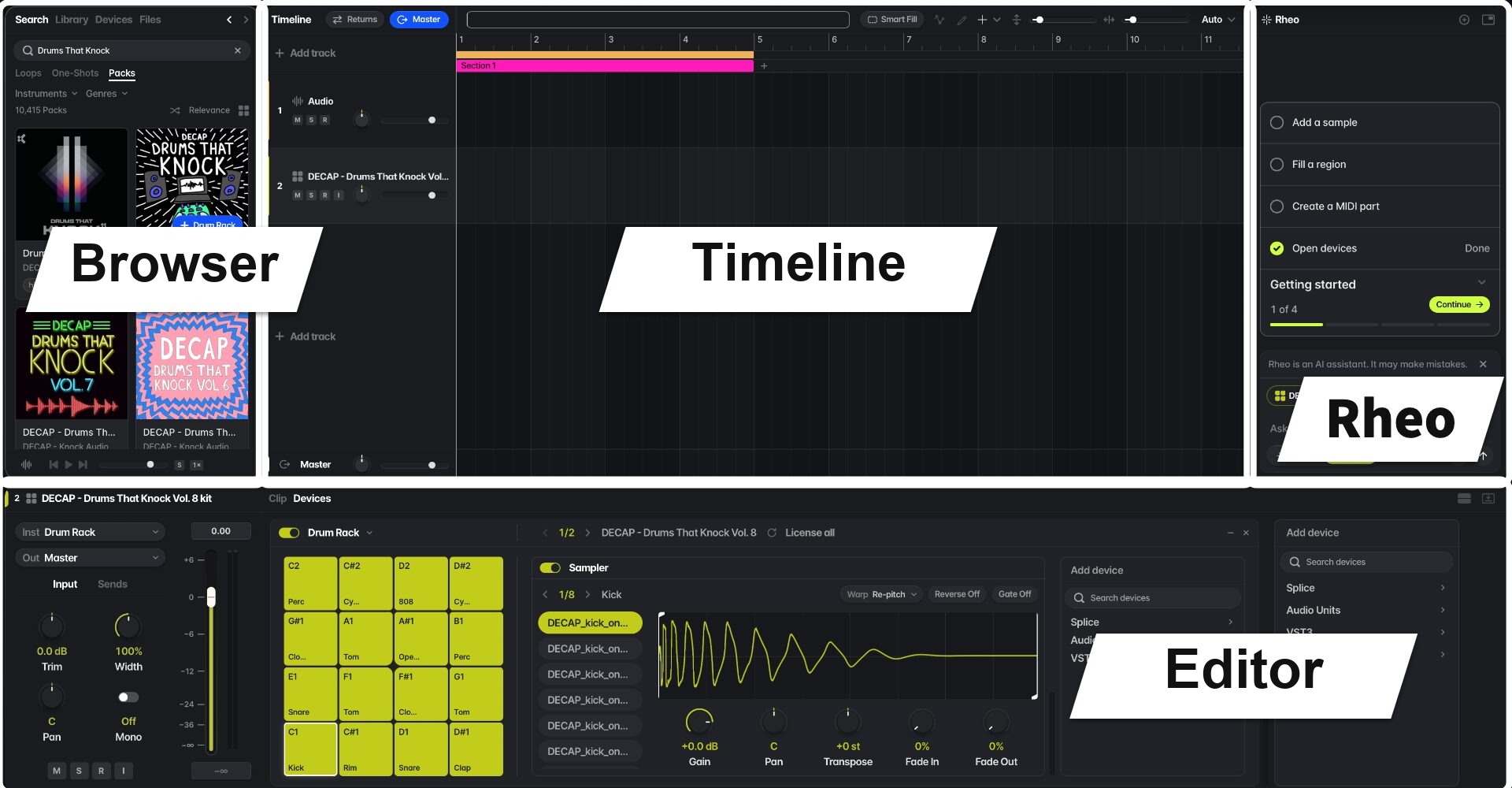
The browser on the left is where you search Splice loops, one-shots and sample packs.
Rheo on the right takes requests in text like a chat, and also supports voice input using a microphone.
In our hands-on impression, it's simple enough to learn intuitively without reading a manual, and anyone who uses a DAW regularly will find their way around easily.
It also supports VST3 and Audio Units (AU) plug-ins, so you can load the synths and effects you already own.
Build a Drum Kit from a Pack in One Click
One especially handy feature of the Splice integration is building drum kits.
It automatically assembles a kit from the drum samples in a pack.
Turn a Pack into a Kit with "+ Drum Rack"
Until now, you had to pick kicks and snares one by one from a pack and load them into a sampler.
In Splice Create, you just press "+ Drum Rack" on a pack.
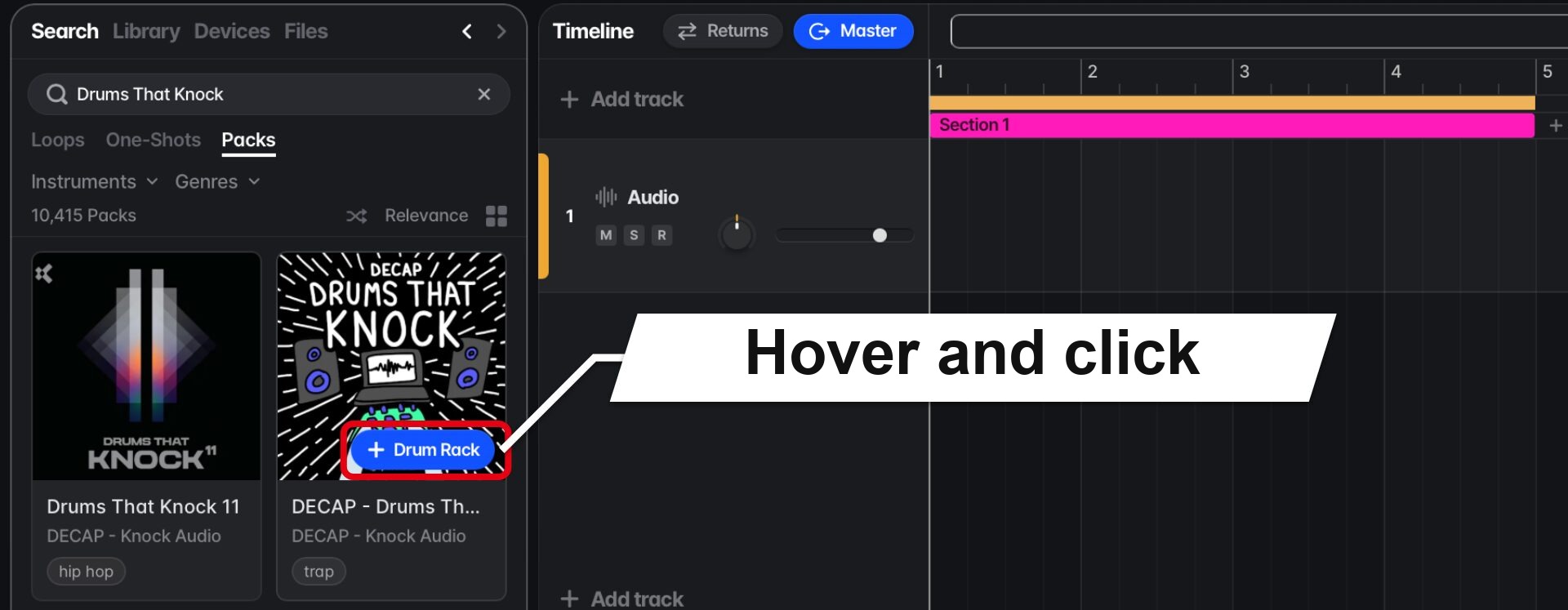
From the pack's drum samples, kicks, snares, hi-hats and more are automatically placed on each pad of the Drum Rack.
The tedious work of building a kit disappears, so you can get straight to making beats.
Swap Sounds from Within the Pack
If an automatically chosen sound isn't to your taste, you can easily switch to another sound of the same type in the pack.
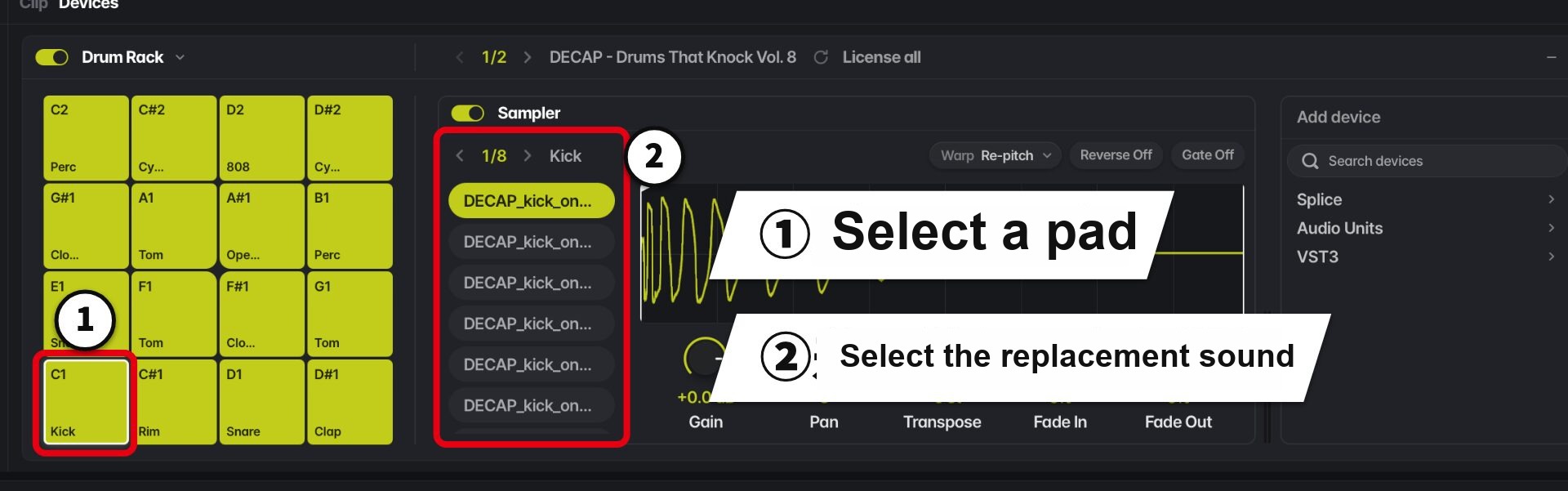
For example, for the kick pad, the kick variations in the pack are shown in a list.
You can freely swap sounds after the kit is built, so you can start by playing the suggested combination and replace only the sounds you're not happy with.
Each pad also lets you adjust reverse playback, time-stretch mode, gain, pan and pitch, so the basic sampler functions are all there.
Apply Effects to Each Pad
Effects can be applied to each pad individually.
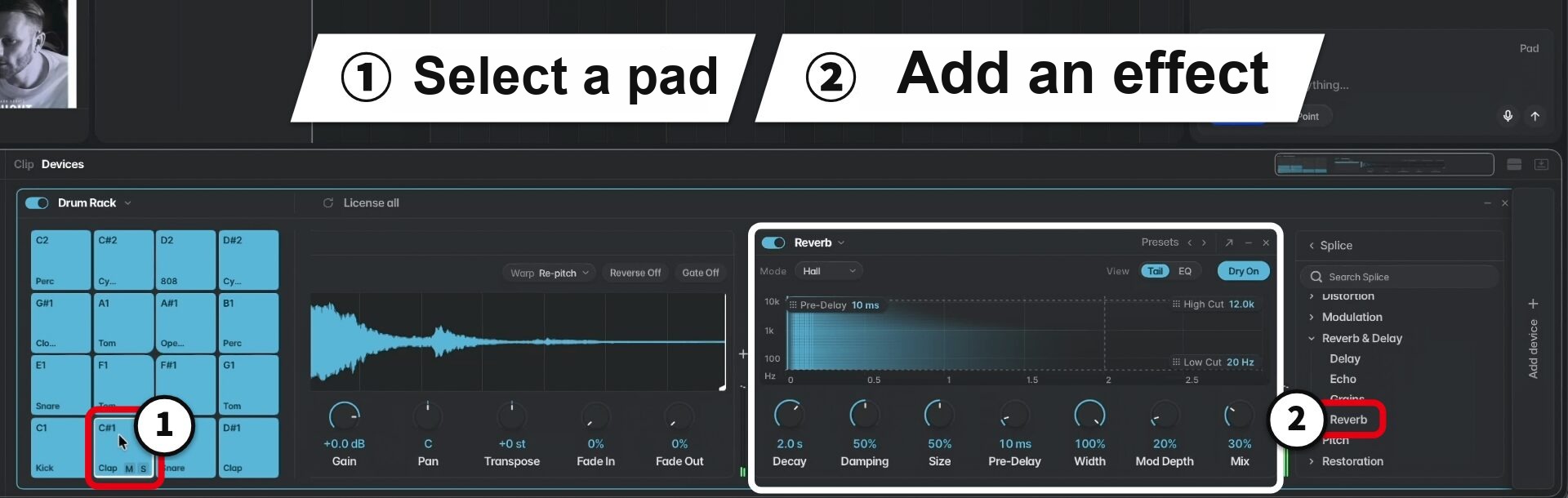
For example, adding reverb only to the clap while leaving the kick dry can be done entirely within the Drum Rack screen.
You can choose effects from either Splice's own effects or plug-ins.
Create Drum Patterns with AI
Once your kit is ready, the next step is the pattern.
Besides programming in the piano roll, you can have patterns created by describing them in words or choosing a genre.
Select a Range and Request a Pattern
You can request a pattern by specifying a range on the timeline.
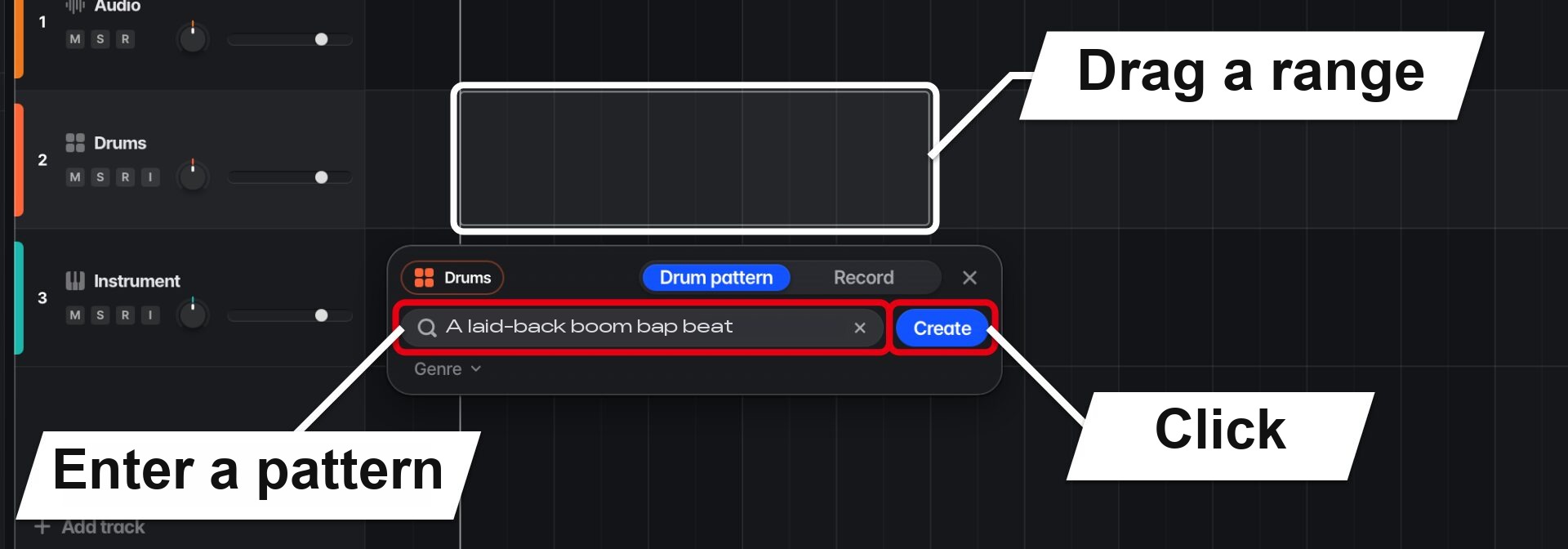
In addition to choosing a genre in "Genre", you can describe the pattern you want in a sentence, such as "a laid-back boom bap beat" (it also understands Japanese).
If you'd rather play it in yourself, you can also record in real time with "Record".
Switch Between Multiple Candidates with a Click
When you generate, multiple patterns are shown as candidates.
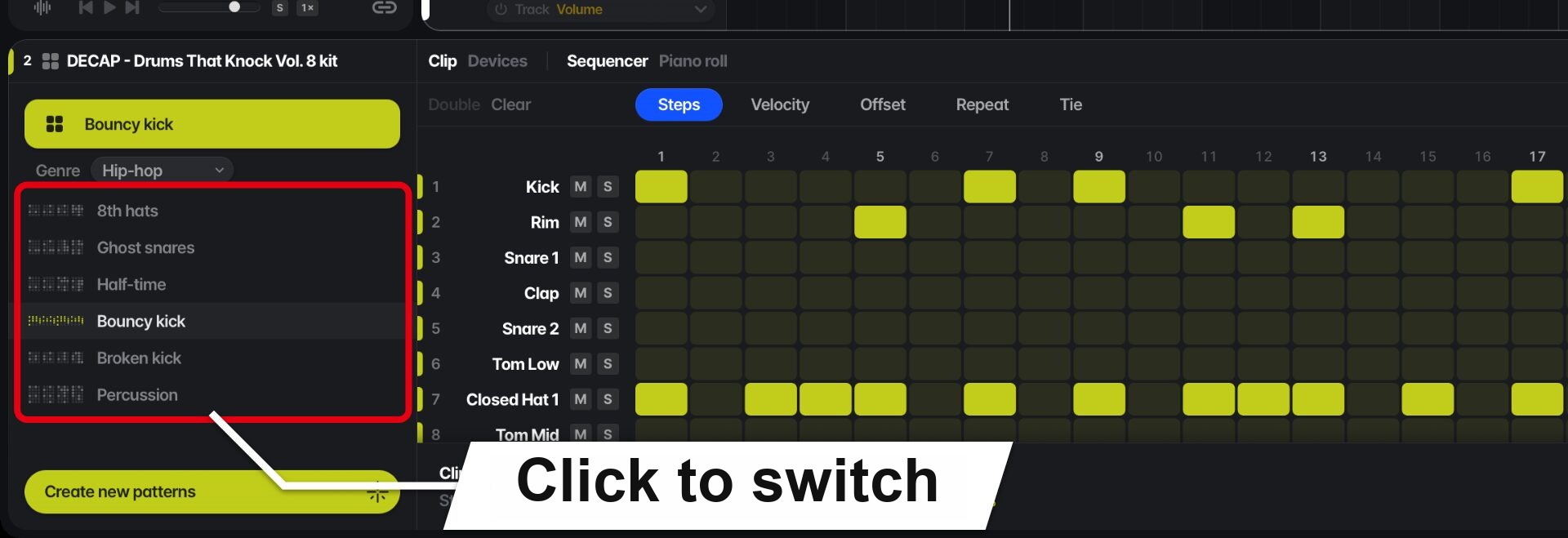
Since candidates switch instantly with just a click, you can compare which fits while the track plays.
You can also drag a candidate you like to other bars to line them up.
It also comes up with patterns you might not have thought of yourself, which is helpful for generating ideas.
Fine-Tune with the Step Sequencer
Generated patterns can be edited quickly in the step sequencer.
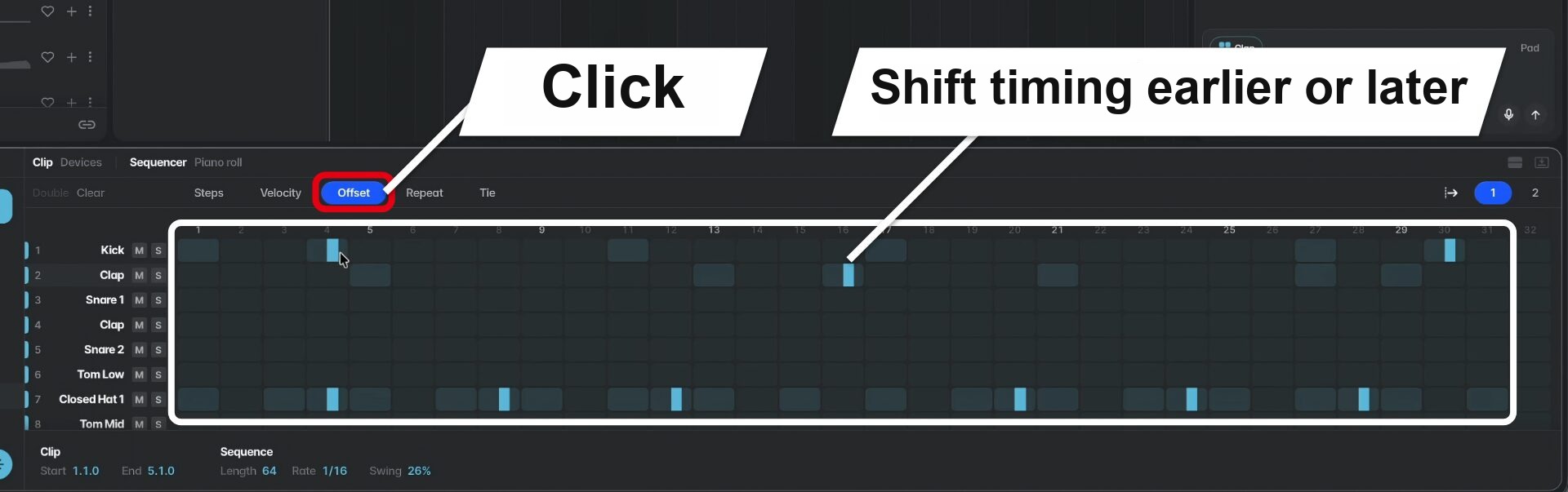
In addition to turning steps on and off, you can make fine adjustments in the "Velocity", "Offset", "Repeat" and "Tie" tabs.
"Offset" lets you shift the timing of each hit earlier or later, which is the key to expressing a loose, off-the-grid groove.
Features such as AI pattern generation use "Rheo units".
Splice also has "credits", which are used when acquiring samples, but these are separate from Rheo units.
You can check your remaining Rheo units under "Usage" in the settings.
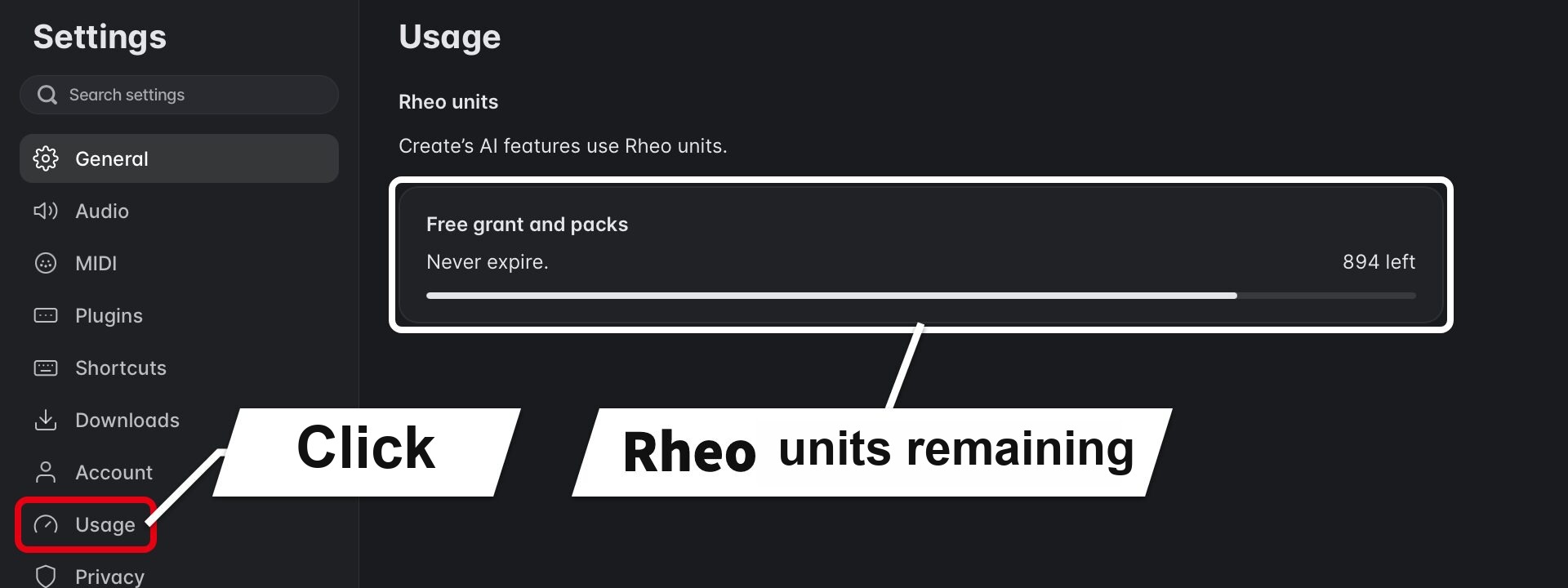
Acquiring samples uses sample credits (none are used with Create Pro), while requests to the AI use Rheo units.
The differences between plans are summarized in the "Price" section later.
The amount used varies with the request, so it's a good idea to keep an eye on what's left.
Three Features for Finding Samples That Fit Your Track
Besides drums, you can also search Splice's library for loops and bring them into your track.
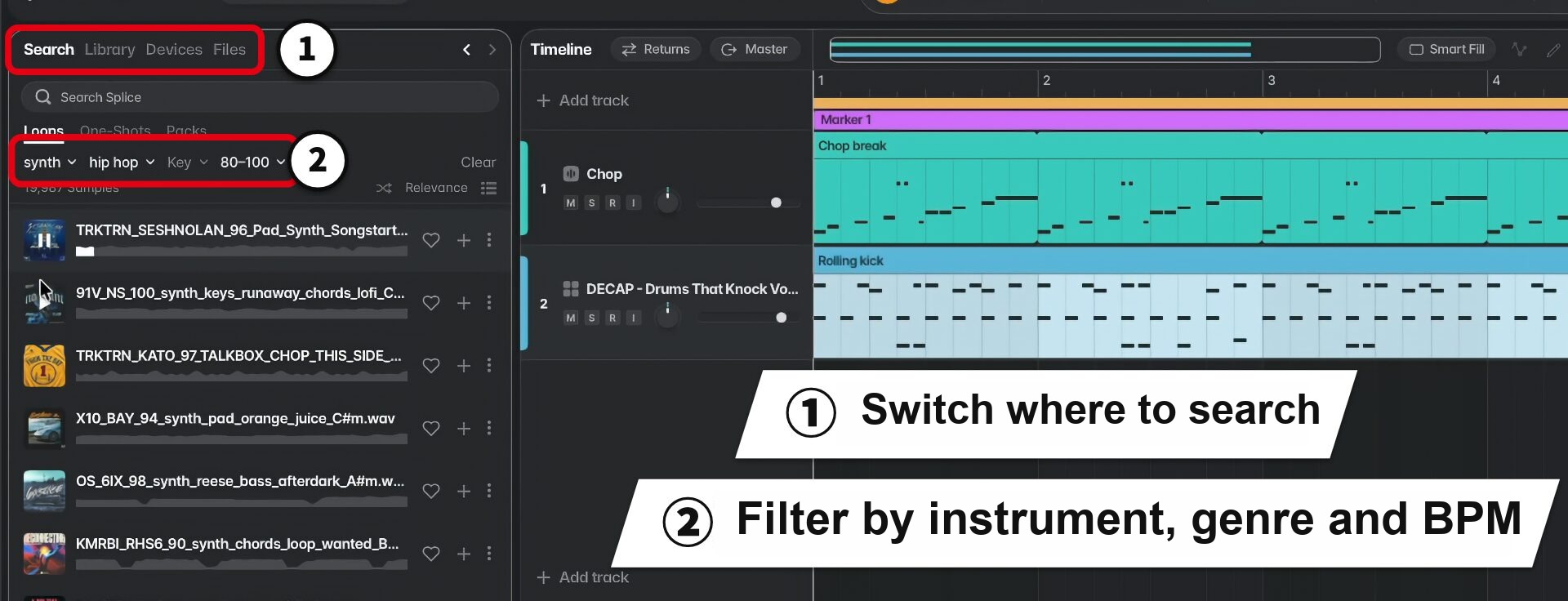
The tabs at the top of the browser switch where you search: "Search" covers all Splice samples, and "Library" covers samples you've already licensed.
You can also load your own samples by opening a folder from "Files".
BPM can be specified as a range such as "80–100", and loops you find can be brought in just by dragging them onto the timeline.
It often happens that a loop you like doesn't quite work with the other parts.
That's where three features come in handy: "Similar", "Fits" and "Variations".
"Similar" for Finding Similar Samples
"Similar" searches Splice's samples for material similar to the sample you've selected.
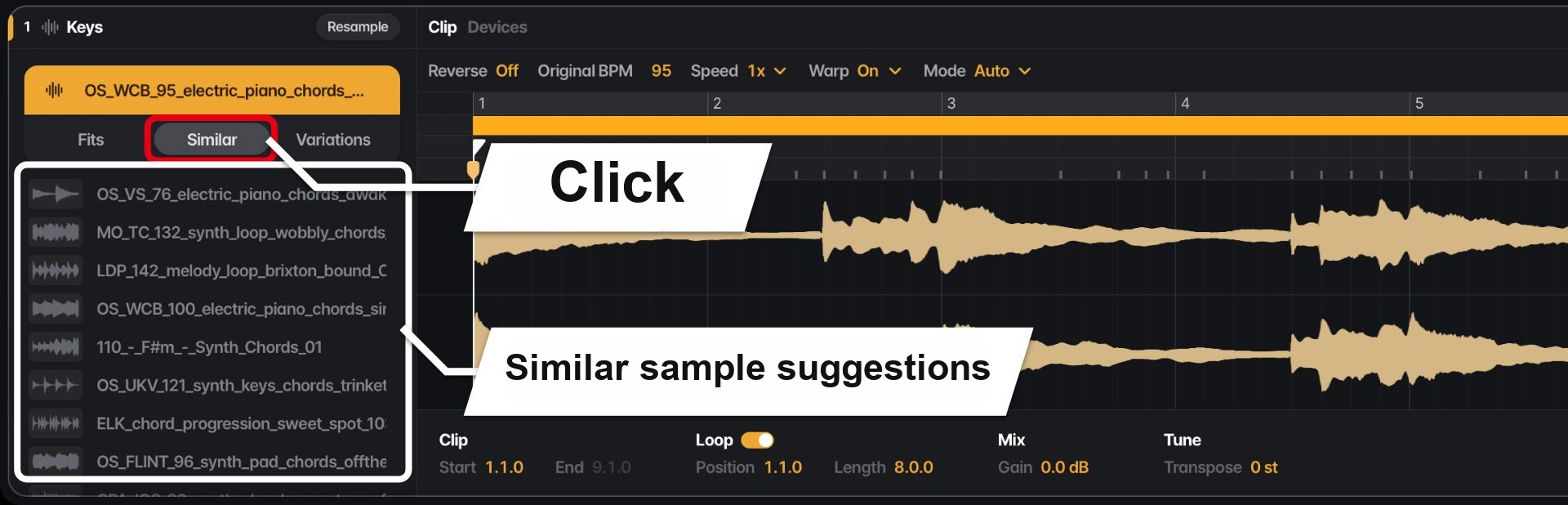
When you choose a candidate, the sample in your track is swapped on the spot.
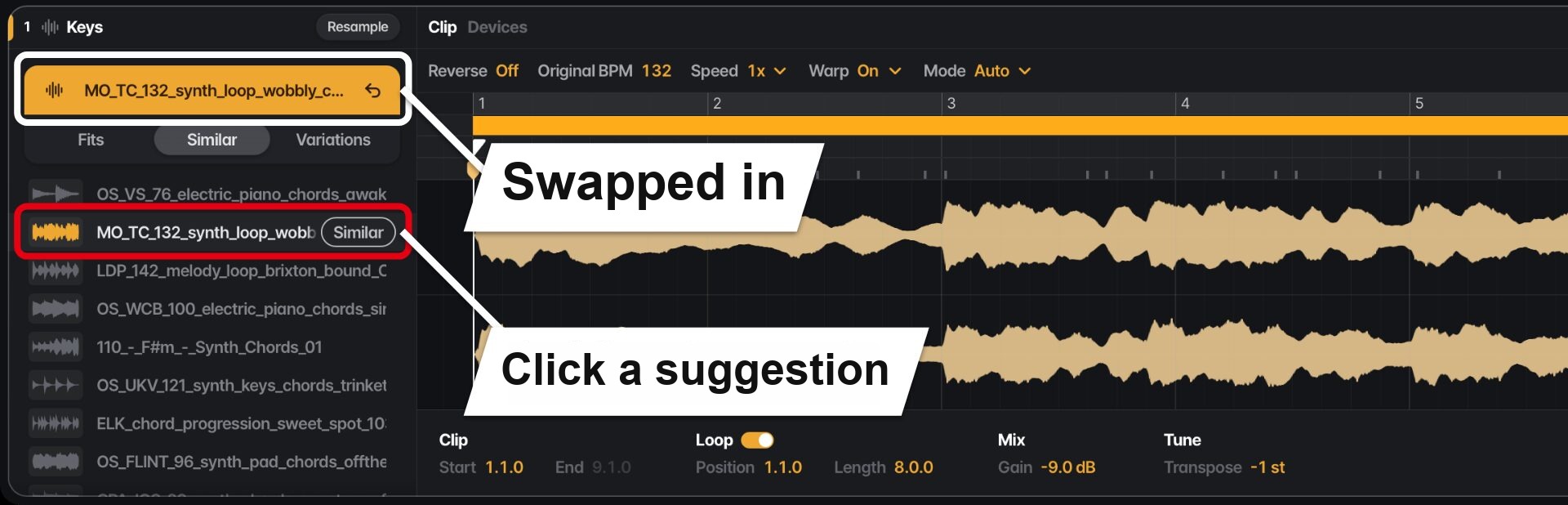
You can try one after another while the track keeps playing, so there's no hassle of "paste, listen, paste again".
Material with a different original tempo also plays in time with your track, so you can compare as is.
While searching, you may also find material that's different from the original but interesting.
In that case, press "Similar" on that candidate, and you can search for even more similar material starting from it.
You can also quickly trace which pack a sample you like comes from.
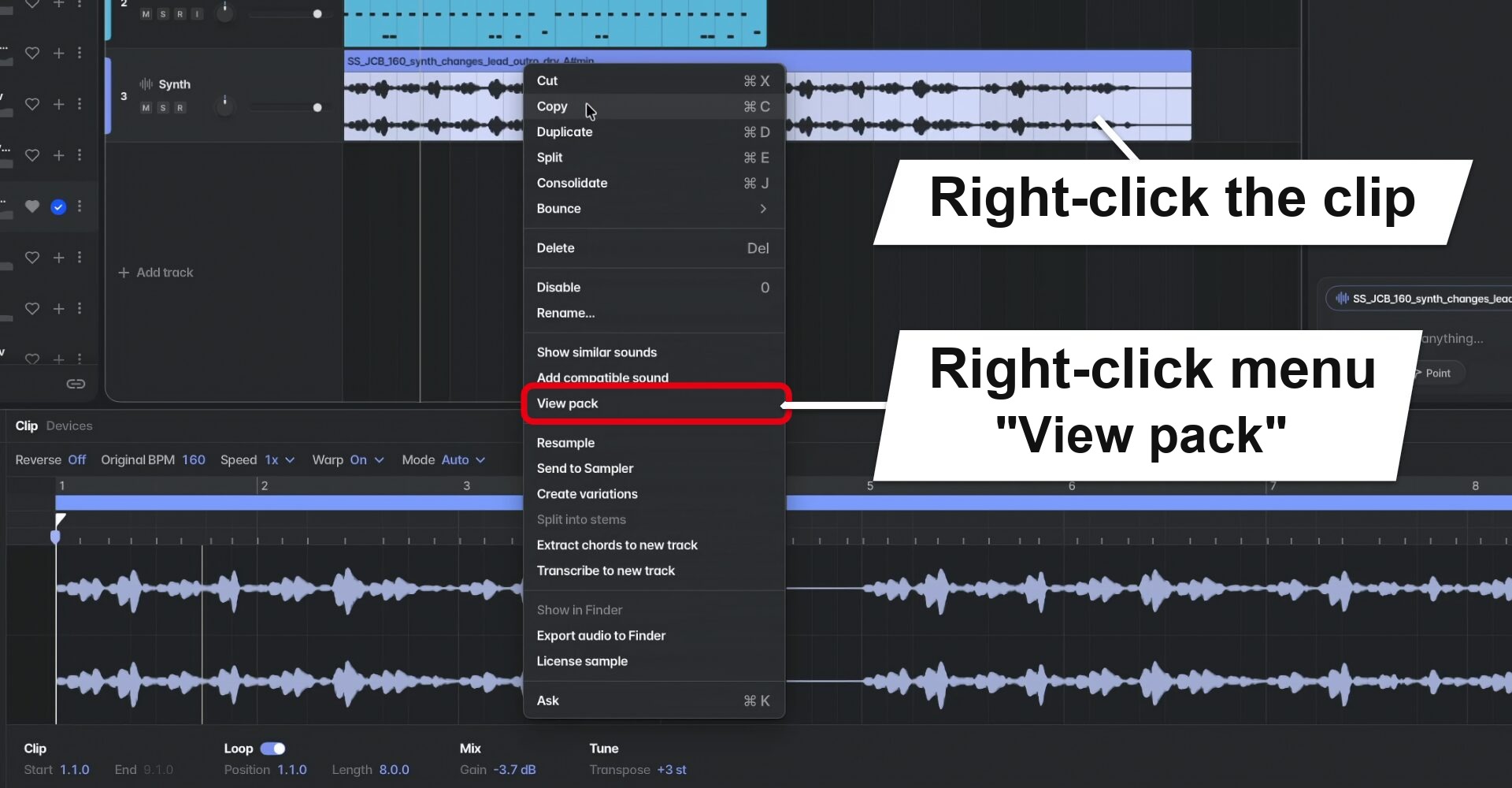
"Variations" for Creating Similar Phrases
When you want a slightly different phrase based on the current sample rather than different material, use "Variations".
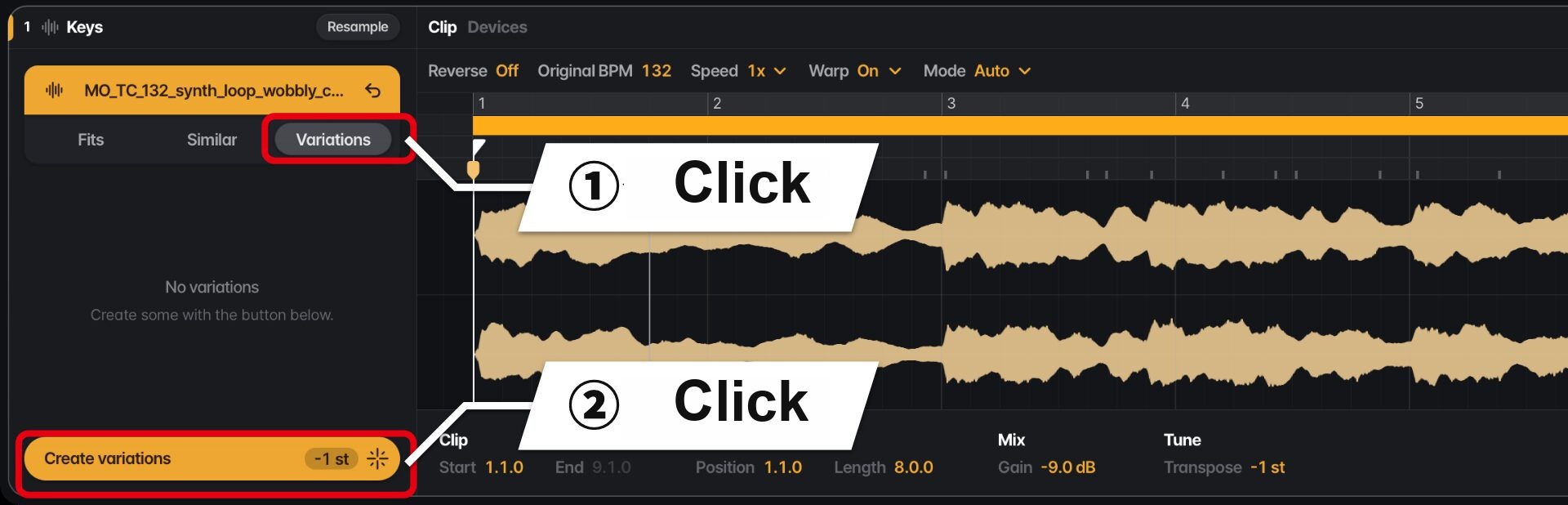
Multiple variations based on the original sample are generated.
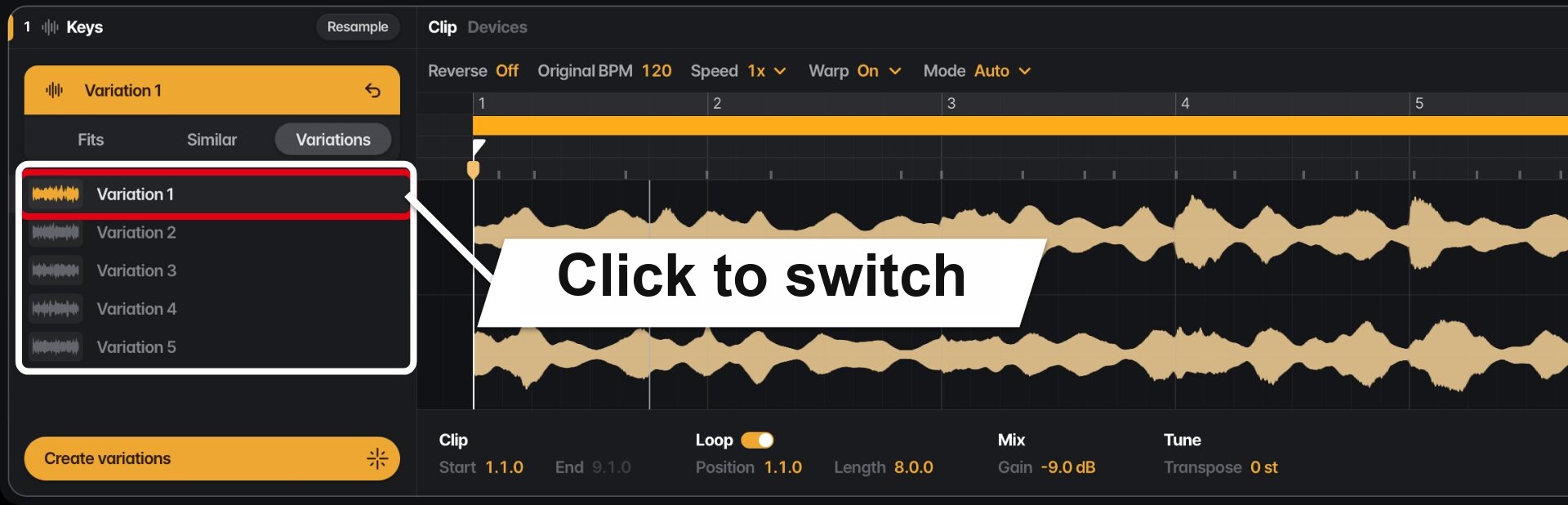
You can generate as many times as you like, which is handy for creating phrases for the next section, such as a pre-chorus or chorus.
"Fits" for Suggesting Samples That Fit Your Track
"Fits" suggests samples that fit your current track, taking its state (key, tempo and so on) into account.
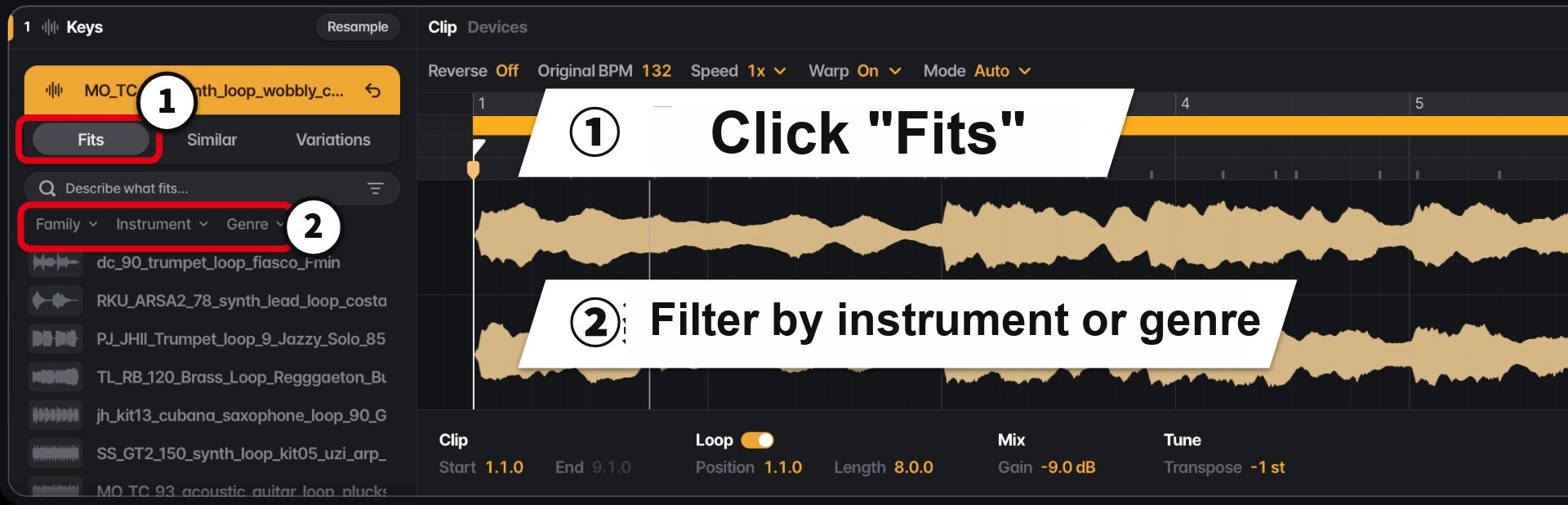
Sometimes it suggests instruments or phrases completely different from the original idea, and the track actually turned out better, which led to new discoveries.
You can also narrow down the candidates by switching instrument types or genres, or by searching with text.
Built-in Instruments and Splice INSTRUMENT
For software instruments, you can choose from those included with Splice Create or plug-ins.
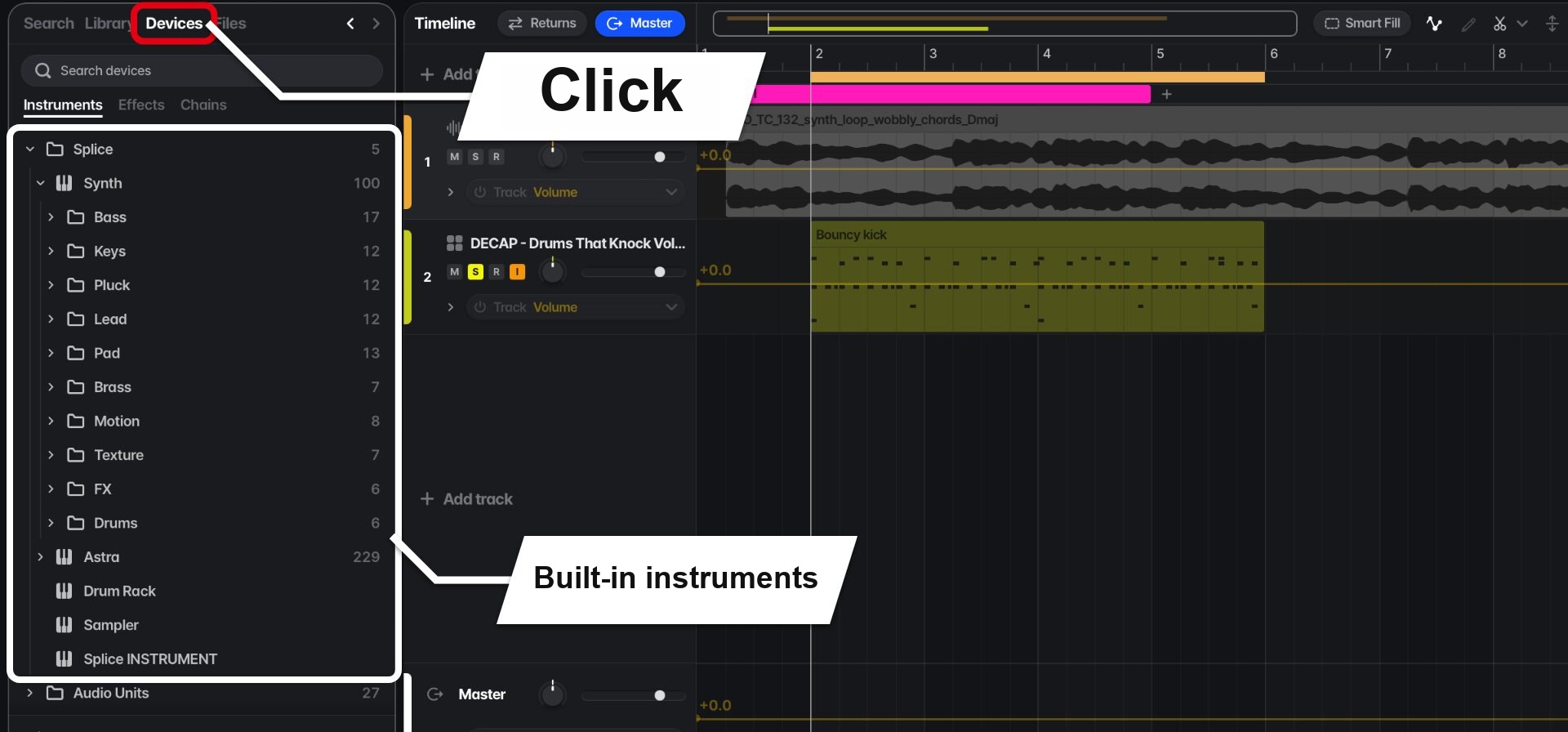
In addition to the built-in synths "Synth" and "Astra", the "Sampler" for loading and playing samples, and the "Drum Rack" mentioned earlier, Splice's own instrument "Splice INSTRUMENT" is also available.
The presets available in Splice INSTRUMENT depend on your plan.
Ask the AI Agent "Rheo" to Guide You or Do the Work
Rheo, on the right of the screen, has two modes: "Point" and "Assist".
The interface is in English, but it also responds to requests in other languages such as Japanese.
"Point" Shows You Where to Click
"Point" is a mode that teaches you the steps for what you want to do.
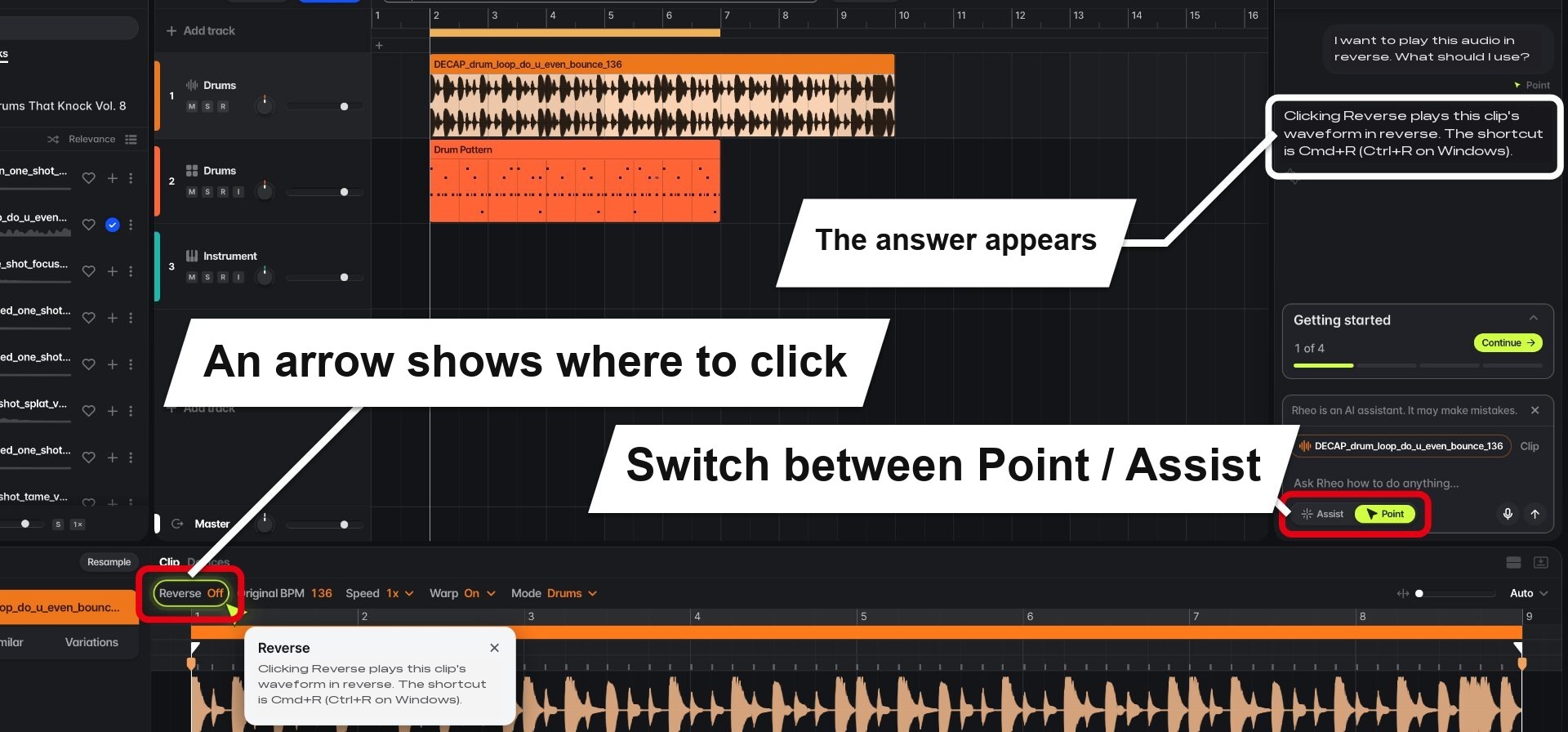
For example, if you ask "I want to play this audio in reverse. What should I use?", the answer is displayed and an arrow shows you where to click.
When there are multiple steps, the arrow moves to the next place to click as you follow the guidance.
When you're unsure how to do something, asking Rheo is probably faster than searching the manual.
"Assist" Does the Work for You
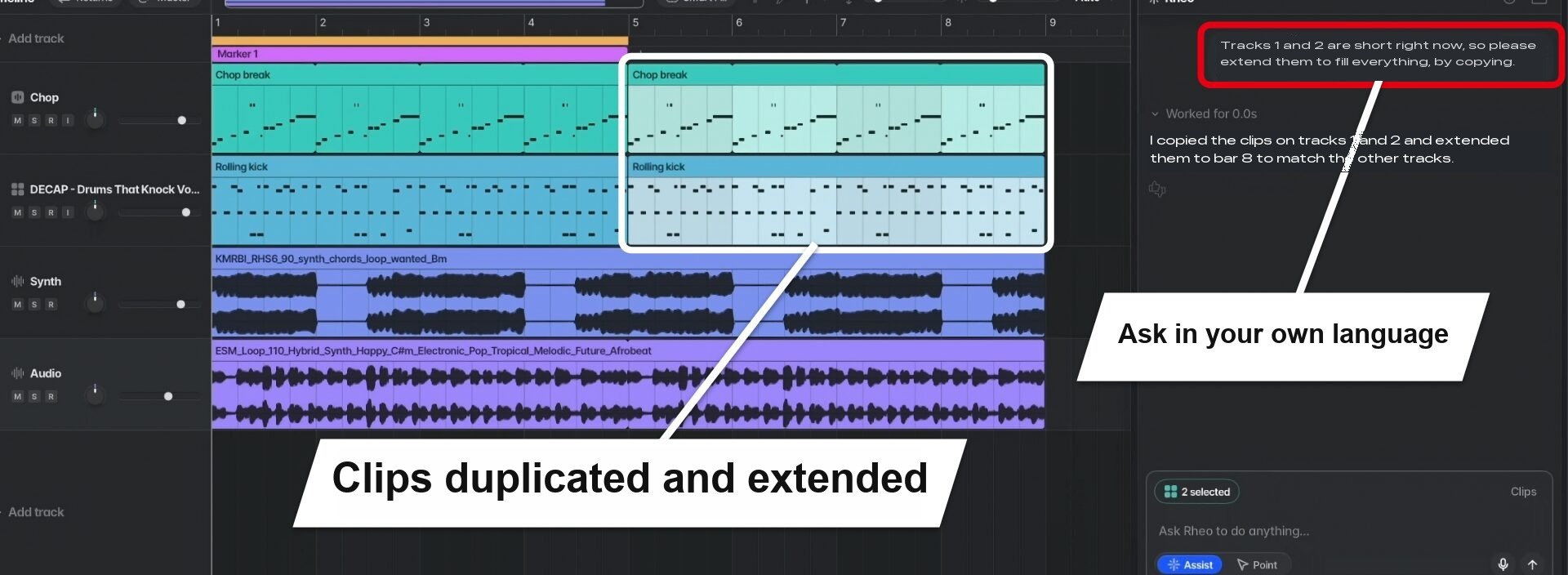
"Assist" is a mode that actually performs the work you request.
For example, if you ask "Tracks 1 and 2 are short, so please extend them to fill everything, by copying," it duplicates the clips and extends them to the length of the track.
You can also have it analyze the chord progression of a loop.
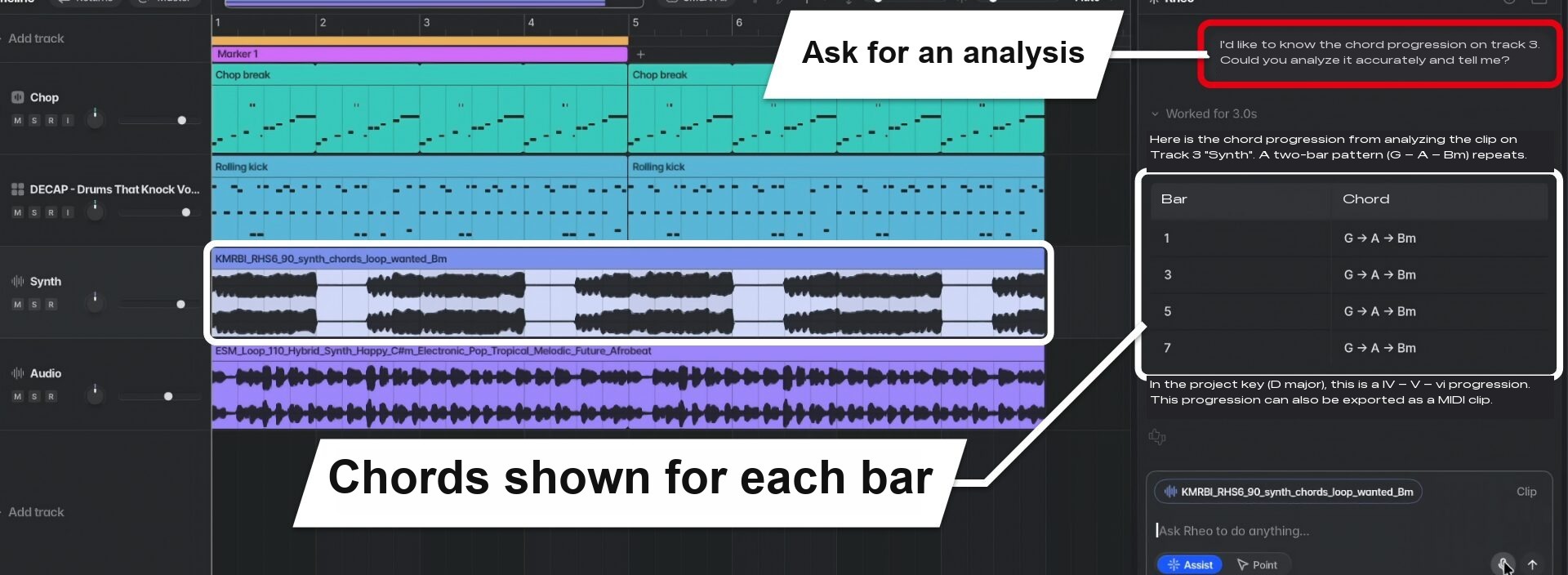
It answers with the chords for every two bars, summarized in a table.
Once you know the chords, it's easy to layer other parts on top.
You Can Also Request Phrases and Sounds
You can also have it create an arpeggio phrase that follows the analyzed chord progression.
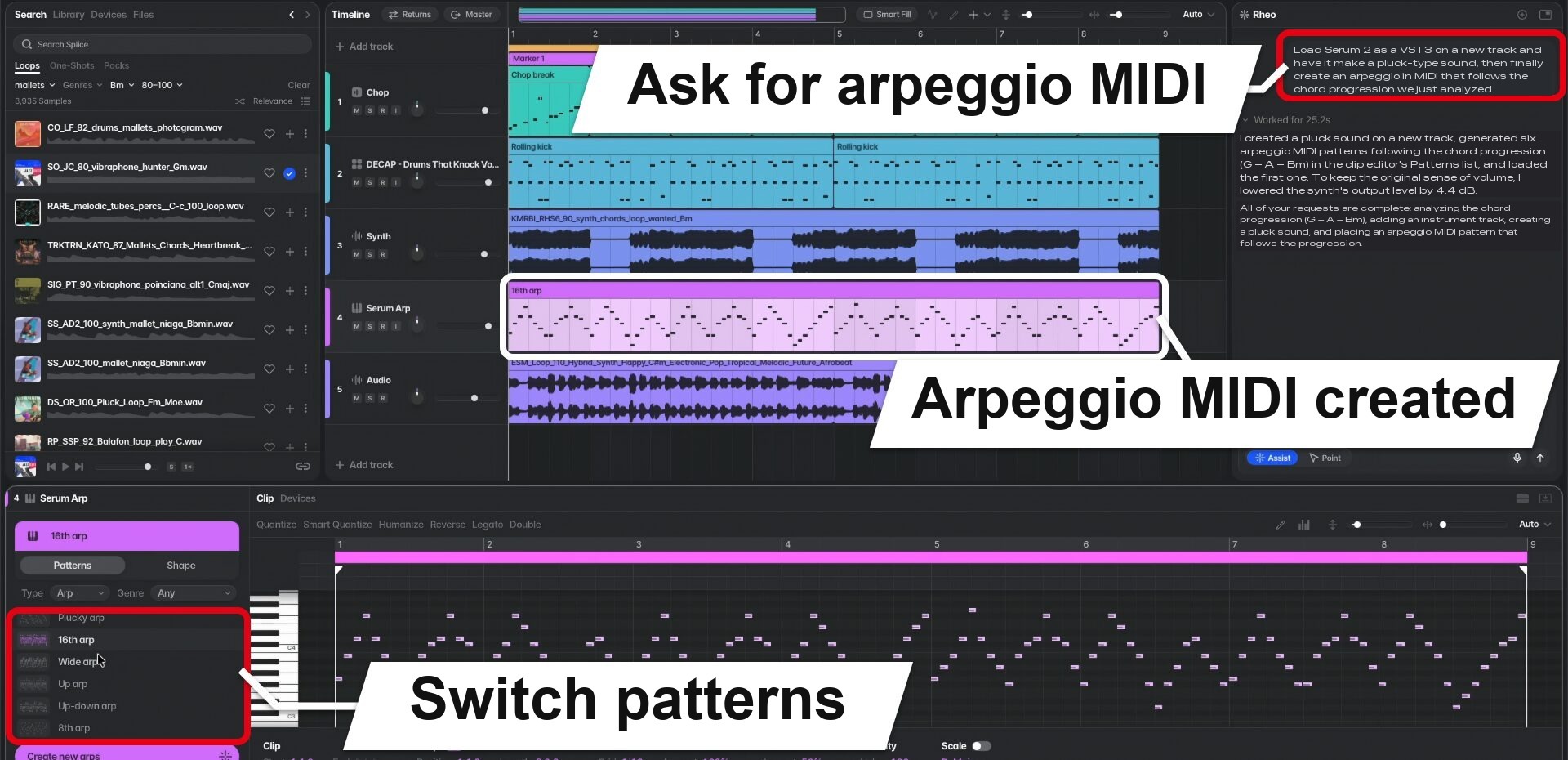
Phrases are created in multiple patterns, and you can switch between them and compare, just like with drums.
In this request we also asked it to load Serum 2, but in practice it used a synth included with Splice Create.
You can also ask it to design sounds.
For example, if you load the synth "Serum 2" yourself, Rheo will adjust its parameters.
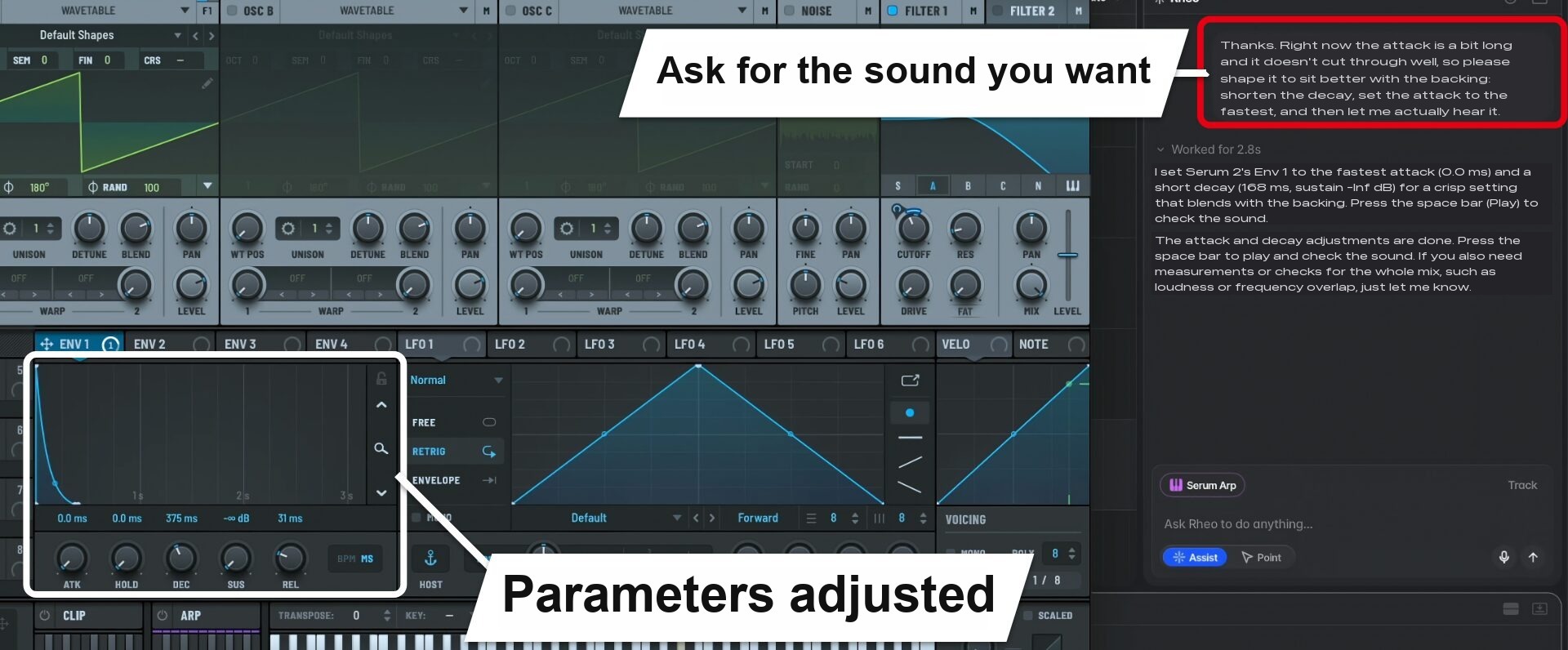
However, with rough requests like "a pluck-like sound", the result sometimes differed from what we were aiming for.
Being specific, such as "set the attack to the fastest and keep the decay short", improved things, but getting the sound we wanted required layering on even more detailed instructions.
Other Features
It also offers standard features found in other DAWs, as well as integration with other DAWs.
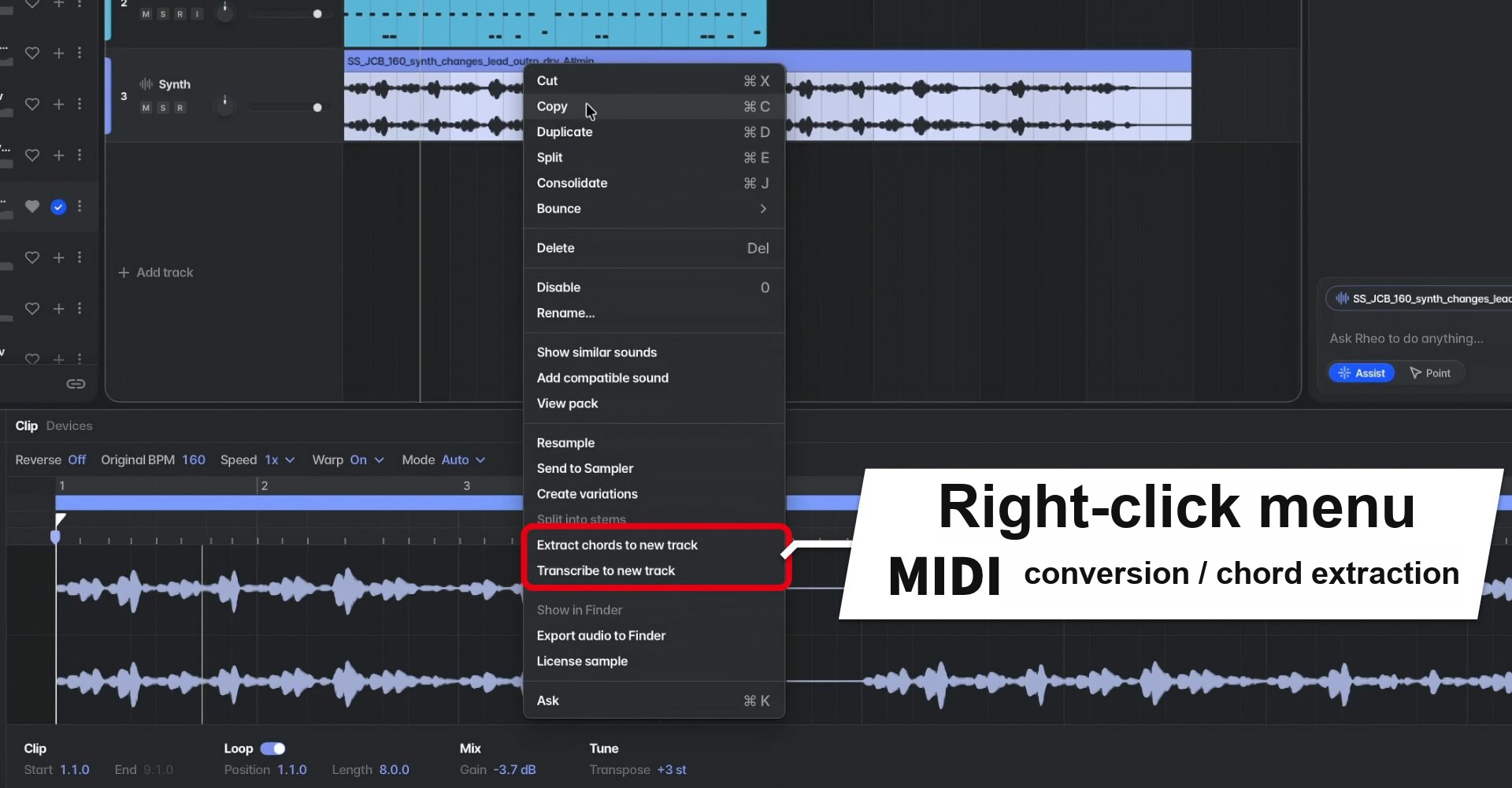
The main features are as follows.
- Stem separation ("Split into stems"): Separates mixed audio into vocals, drums, bass and melodic instruments
- Conversion to MIDI ("Transcribe to new track"): Converts audio such as melodies and bass lines into MIDI notes
- Chord extraction ("Extract chords to new track"): Extracts a loop's chords to a new track
- Shortcut presets: During initial setup, you can choose Ableton Live, Logic, Bitwig or Pro Tools shortcuts
- Ableton Live integration: The "File" menu has "Import Ableton Live Set…" for loading Ableton Live projects and "Export Project for Ableton Live…" for exporting to Ableton Live
System Requirements

Mac
- OS: macOS 12 or later (currently only available for Mac)
- Plug-ins: VST3, Audio Units
Other
- Windows and browser versions are coming soon
Price
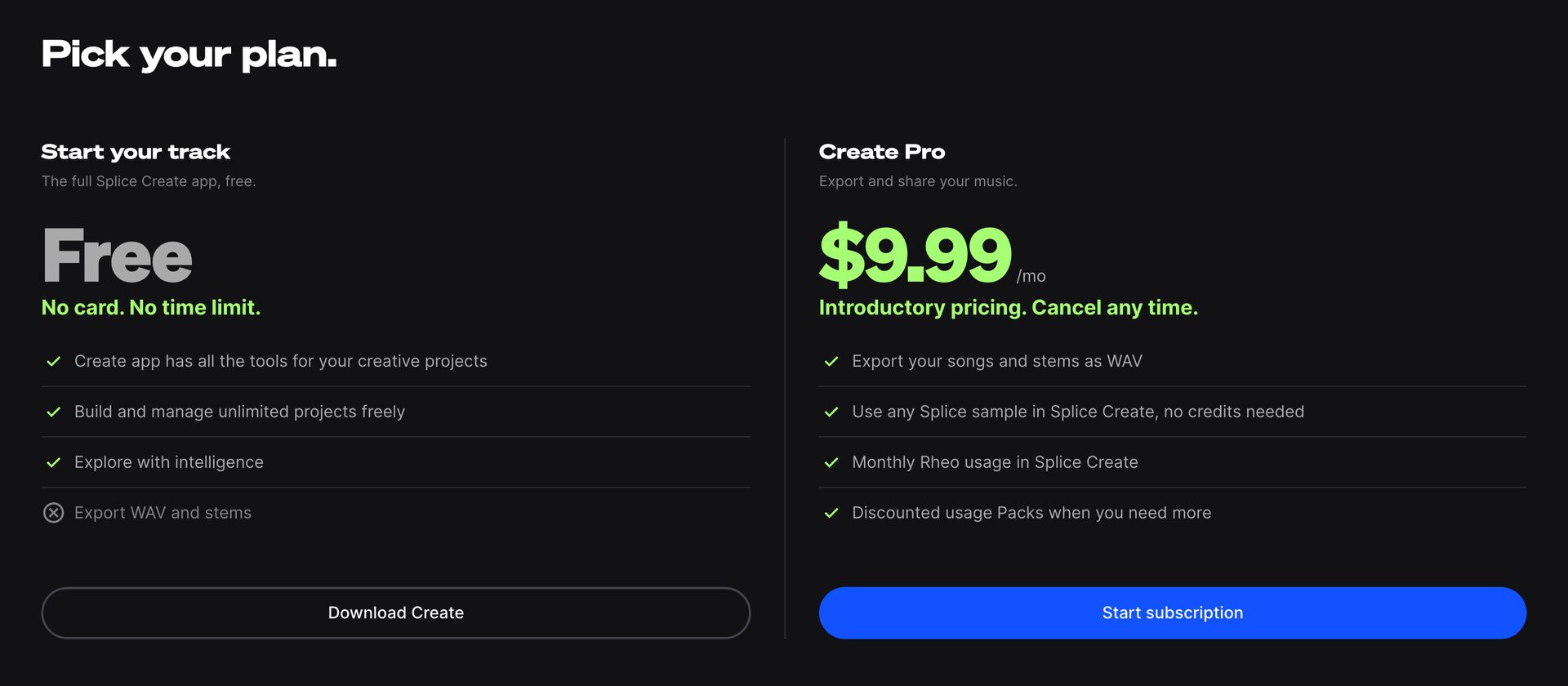
Splice Create can be used for free with no time limit.
However, exporting songs and licensing Splice samples require an eligible paid plan.
The main plans are as follows (in US dollars, billed monthly).
| Plan | Monthly price | Export from Create | Acquiring samples in Create | Monthly Rheo units |
|---|---|---|---|---|
| Create Pro | $9.99 (introductory price) | Yes | No credits used | 1,000 units |
| Creator | $19.99 ($4.99 for the first month) | Yes | Credit-based | No refills |
| Creator+ | $39.99 | Yes | Credit-based | No refills |
| Sounds+ | $12.99 | No | Not available | No refills |
| Free | $0 | No | Not available | No refills |
With Create Pro, acquiring samples in Create uses no credits.
Rheo units can be purchased in blocks of 1,000 (Create Pro: $4.99; Creator and Creator+: $9.99), and they never expire.
Even free users get 100 units at the start, so you can try Rheo.
Samples you haven't licensed are silent when exported, so be sure to acquire them before exporting.
If you already subscribe to a Splice plan, you currently can't switch directly to Create Pro.
Either sign up after your current plan period ends, or ask through the official support chat.
Press a pack and the drums are ready to play; choose a sample and it's reflected in your track right away. The appeal of Splice Create is that your ideas always become sound immediately.
Rheo is still a work in progress in some areas, but the ease of choosing samples alone makes it well worth it, and it's a reassuring DAW especially for beatmakers.
If you're interested, be sure to try it for free.
* Prices are as of November 2026.
Please check the sales site for the latest prices.
NEW ARTICLES
Latest English Articles