Native Instruments' "KOMPLETE KONTROL Ver.1.9.3" is the latest version with DAW control. With host integration, you can operate major DAWs such as Logic Pro X, Cubase and Ableton Live directly from the KOMPLETE KONTROL unit. Being able to perform transport operations such as play, record and loop, as well as track fader operations, from the hardware controller greatly improves production efficiency. The setup differs for each DAW, but initial setup is relatively easy, and if you update the firmware properly, you can achieve a comfortable production environment.
Comfortably control DAWs such as Cubase, Logic and Live
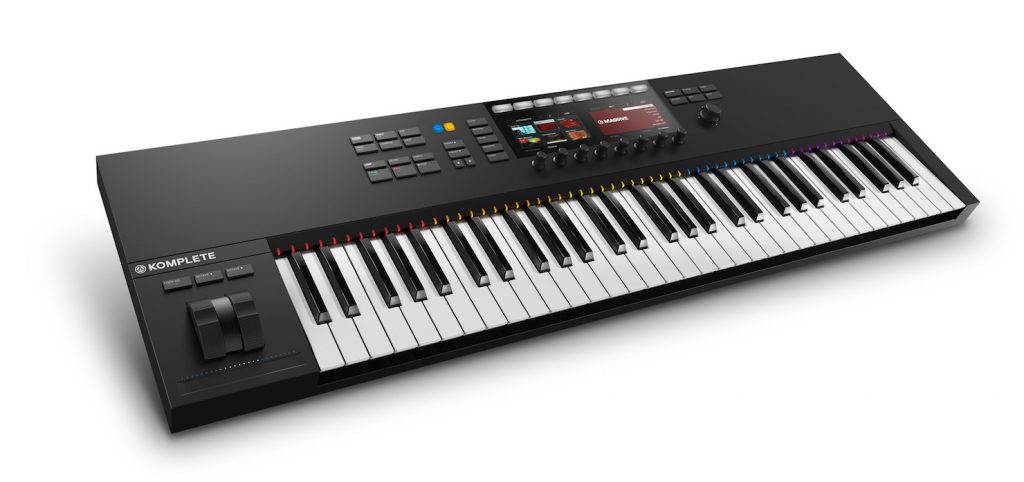
Version 1.9.3 of Native Instruments' "KOMPLETE KONTROL" has been released.
The headline feature this time is "integration with and control of your DAW".
Called "host integration," it's a very handy feature that lets you operate DAW transport functions such as play, record and loop, as well as track faders, from KOMPLETE KONTROL.
Host integration supports the following DAWs.
- Apple Logic Pro X
- Apple GarageBand
- Ableton Live 9
- Steinberg Cubase Artist 8.5/9/9.5
- Steinberg Cubase Pro 8.5/9/9.5
- Steinberg Nuendo 7/8
With handling that makes it feel like a dedicated DAW controller, you can control supported DAWs very comfortably.
Here we'll explain the flow from setting it up to work with your DAW to using it.
All KOMPLETE KONTROL articles
- 1Product overview
- 2Browse function
- 3Light Guide and Clear-View display
- 4Scale function
- 5Chord function
- 6Arpeggiator function
- 7Automation and MIDI mode
- 8Komplete Kontrol 1.1 new features
- 9KOMPLETE KONTROL Ver1.5 new features explained
- 10KOMPLETE KONTROL Ver1.6.2 new features explained
- 11KOMPLETE KONTROL Ver.1.9.3: Build a Comfortable Production Environment with "DAW Control"
- 12Komplete Kontrol Ver.1.9.3 "Host Integration": Cubase
- 13KOMPLETE KONTROL Ver 2.0 new feature: NKS FX
- 14Maschine / Komplete Kontrol favorites function
Updating the software and KOMPLETE KONTROL to the latest version
To use the new features, you need to update the software to the latest version using "NATIVE ACCESS."

Also, if a firmware message like the one below appears when you launch the software,

click "UPGRADE" to download the firmware, then install it on the unit.
Controller settings for each DAW
After updating the products, let's set them up to work with your DAW.
The setup differs for each DAW.
- For Logic
- For Cubase
- For Live
Setting up Logic is very easy.
Connect KOMPLETE KONTROL to your computer and launch Logic with it powered on.

A dialog like this appears, so select "OK."
You can now control Logic from KOMPLETE KONTROL.
Let's check that KOMPLETE KONTROL is recognized.
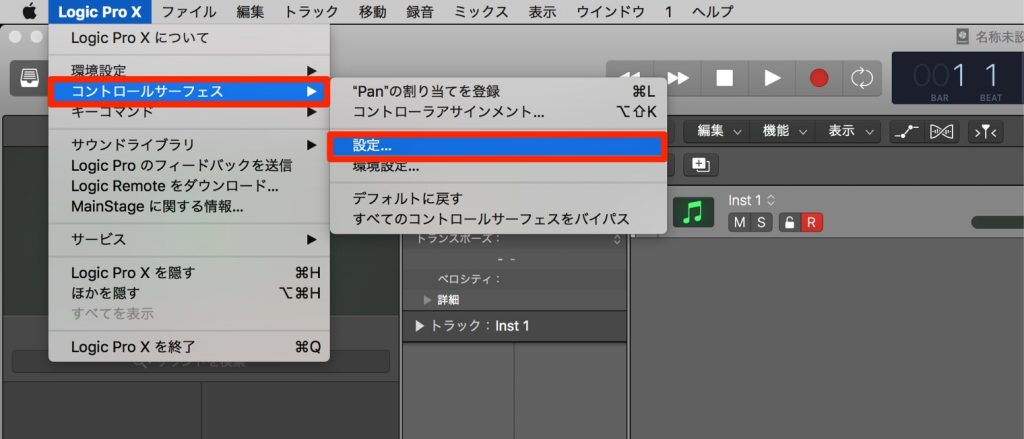
From the top menu, select "Logic Pro X" → "Control Surfaces" → "Setup."
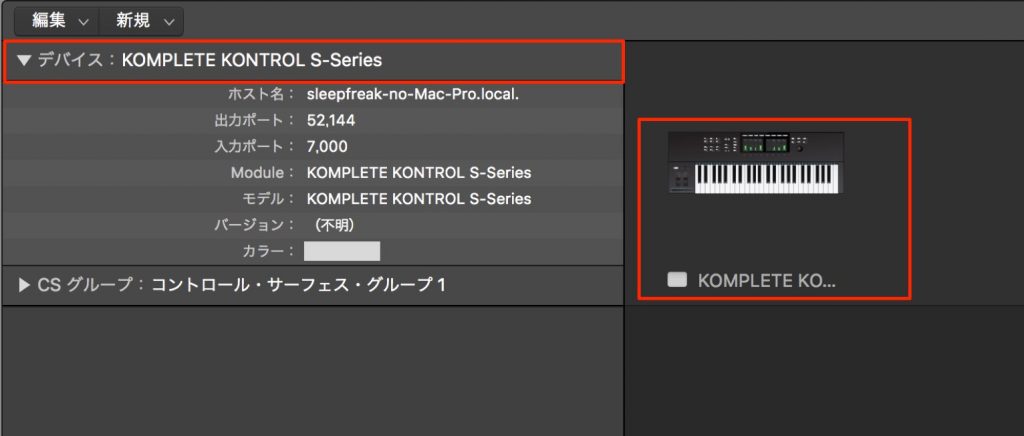
If it's shown like this, KOMPLETE KONTROL is recognized correctly.
If KOMPLETE KONTROL doesn't appear in this setup,
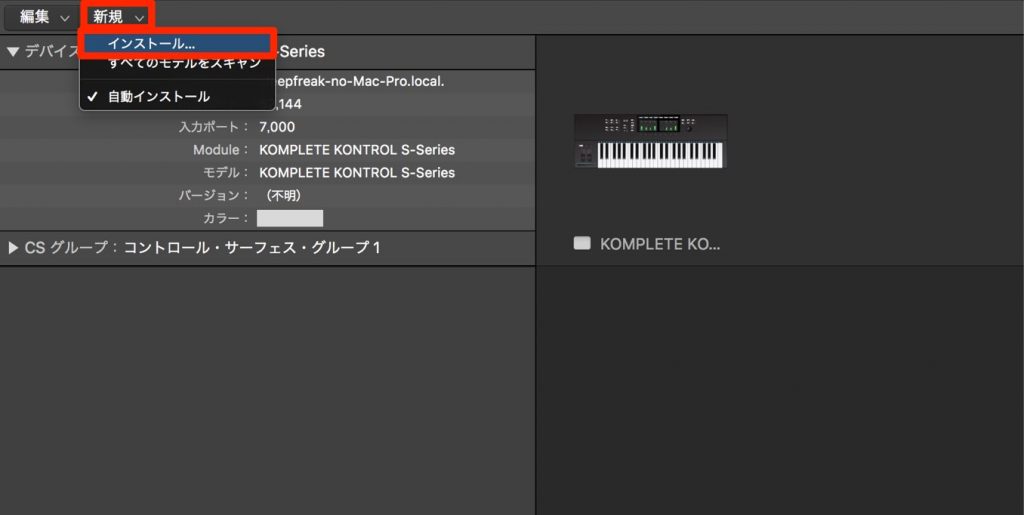
select "Install" from "New."
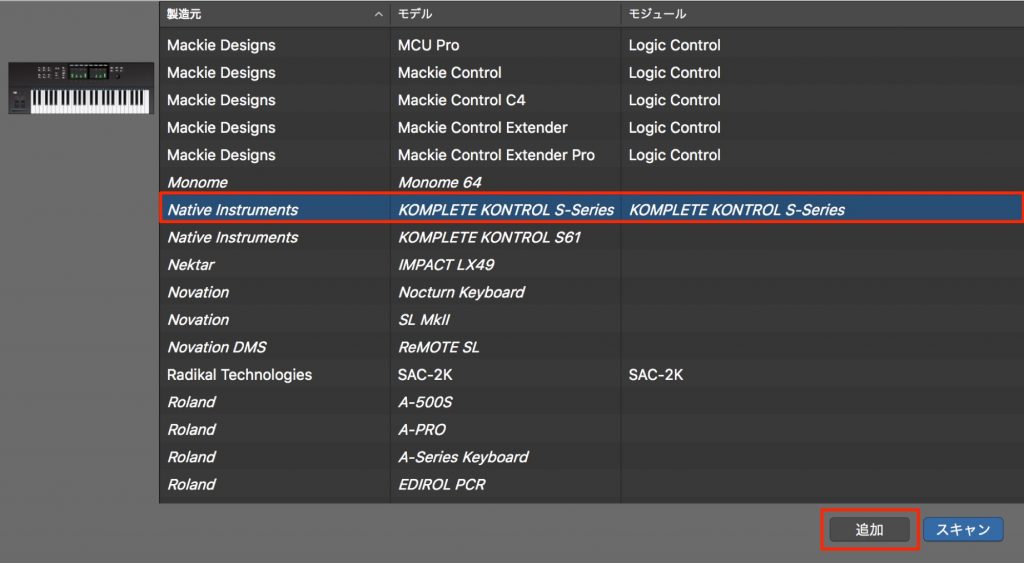
Select "KOMPLETE KONTROL S-Series" from the product list and press "Add."
Connect KOMPLETE KONTROL to your computer and launch Cubase with it powered on.
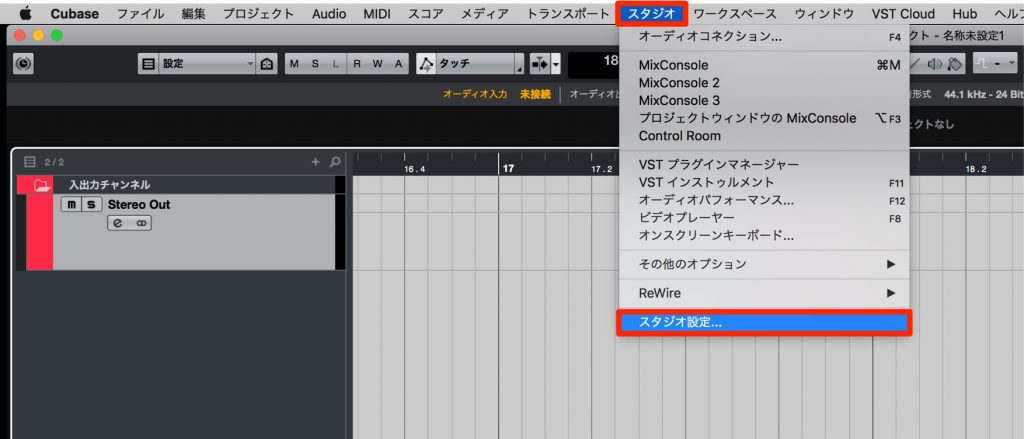
From the top menu, select "Studio" → "Studio Setup."
*In Cubase 9 and earlier, it's labeled "Devices."
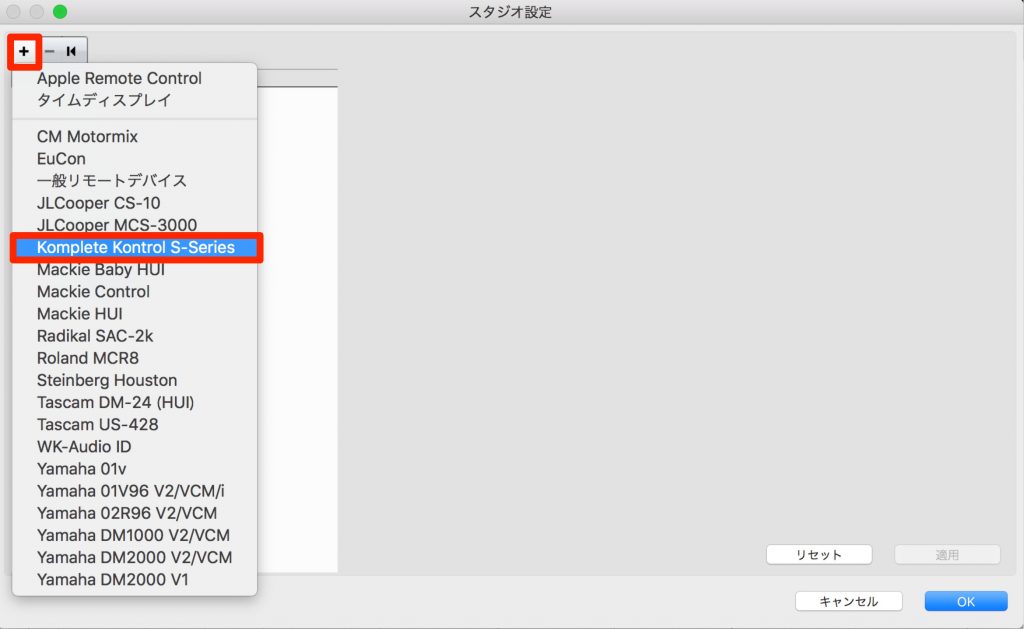
Click the "+" button and select "KOMPLETE KONTROL S-Series."
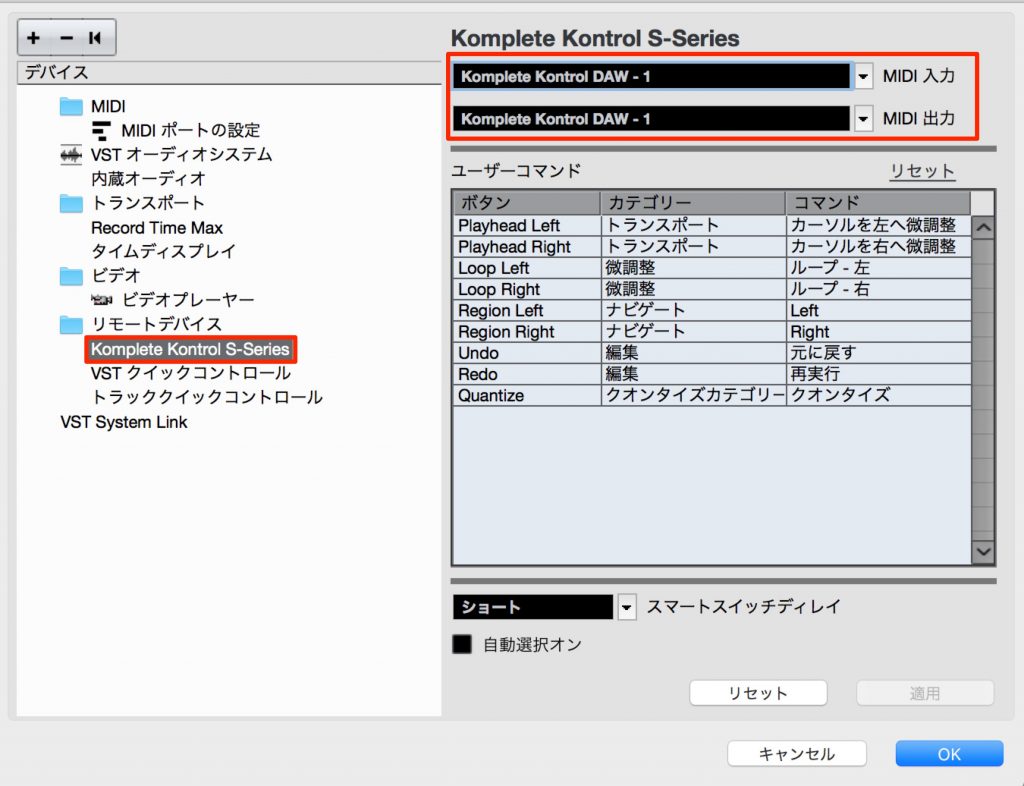
"KOMPLETE KONTROL S-Series" is added like this.
Confirm that "MIDI Input/Output" is set to "KOMPLETE KONTROL" and press "OK."
For Live, use a "MIDI Remote Script."
The setup differs between Mac and Windows, so we'll describe them separately.
For Mac
Do this without launching Live.
First, go to the following folder.
- Macintosh HD/Library/Application Support/Native Instruments/ Host Integration/Ableton Live/
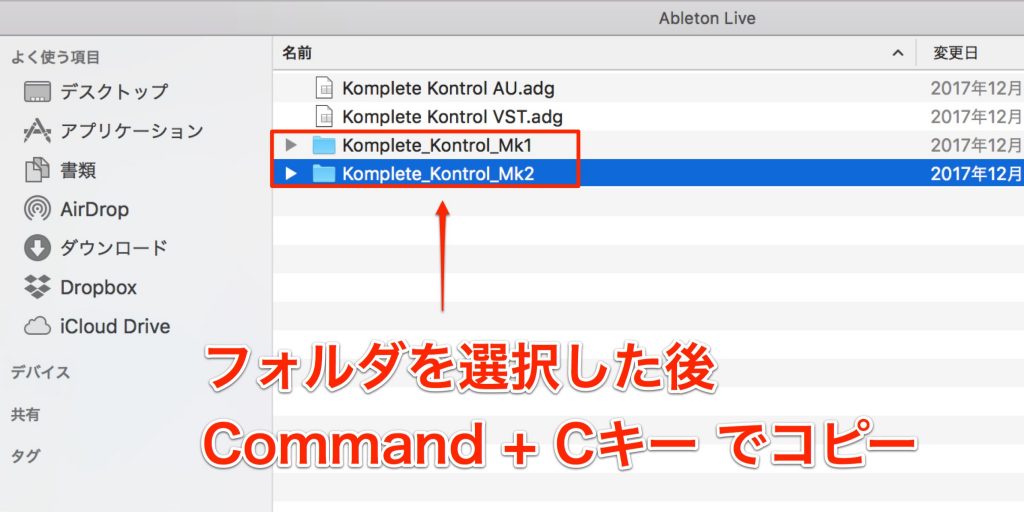
Select the folder for the "KOMPLETE KONTROL" you use and copy it with "Command + C."
Nothing visibly changes at this point.
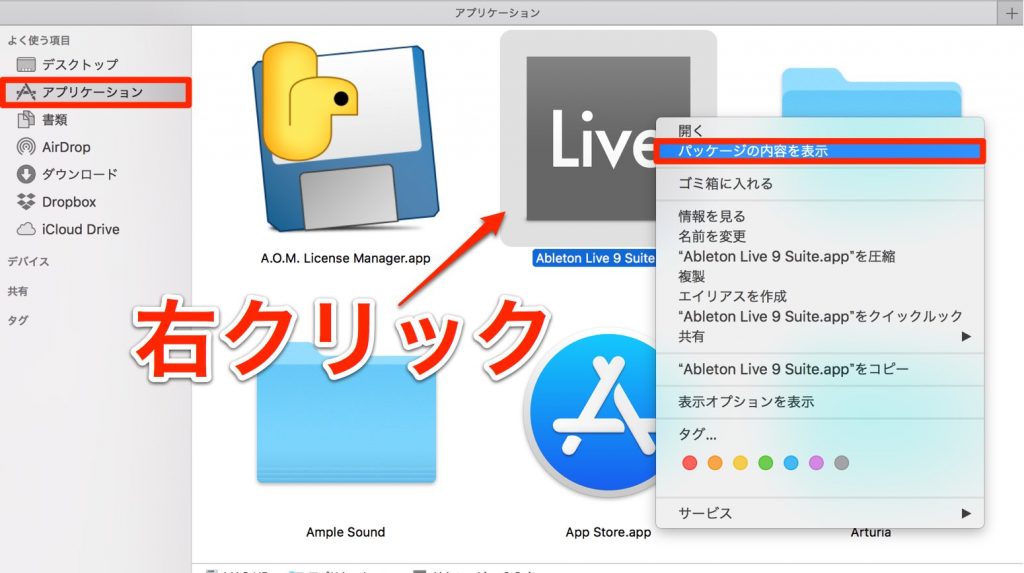
Go to the Applications folder and right-click (Control + click) "Ableton Live."
From the menu that appears, select "Show Package Contents" and go to the following folder.
- Contents/App-Resources/MIDI Remote Scripts
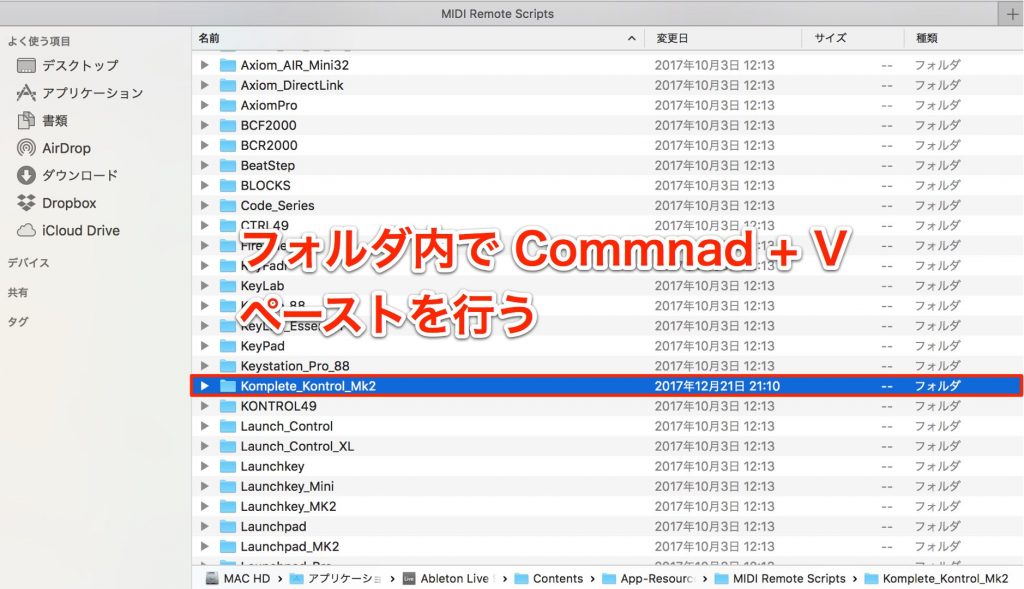
Pressing "Command + V" inside this "MIDI Remote Scripts" folder copies in the "KOMPLETE KONTROL" folder you copied above.
Next, install the "KOMPLETE KONTROL Instrument Rack."
Go to the same folder as above.
- Macintosh HD/Library/Application Support/Native Instruments/ Host Integration/Ableton Live/
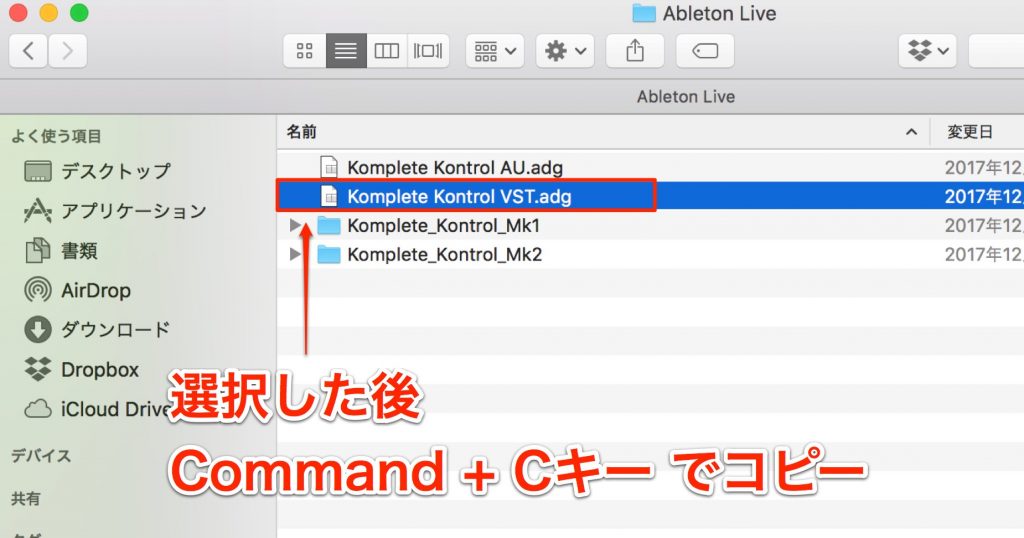
Select "Komplete Kontrol VST.adg" and copy it with "Command + C."
Nothing visibly changes at this point.
Go to the following folder.
- Macintosh HD/Users/[username (your computer's name)]/Music/Ableton/User Library/Presets/Instruments/Instrument Rack/
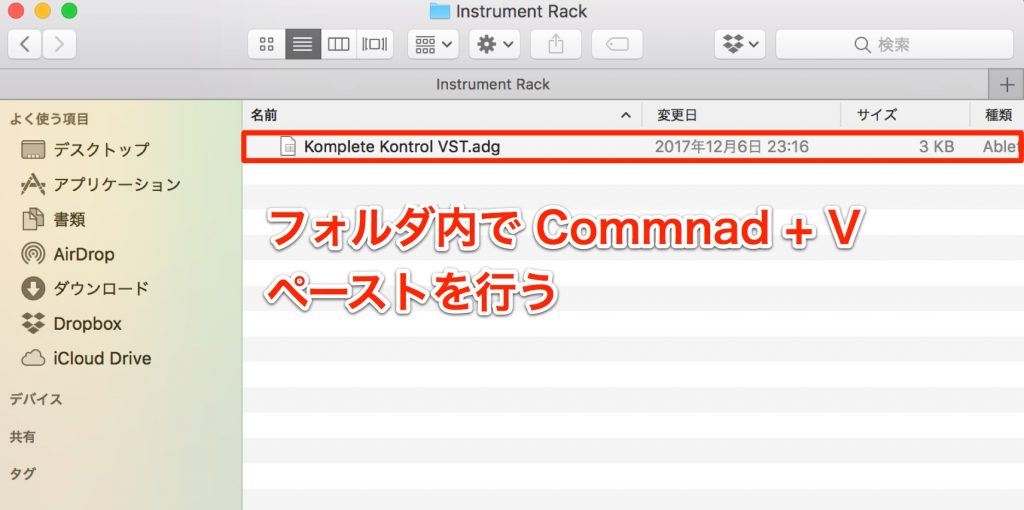
Pressing "Command + V" inside this "Instrument Rack" folder creates the "Komplete Kontrol VST.adg" you copied above.
That completes the setup.
For Windows
Do this without launching Live.
First, go to the following folder.
- C:\Program Files\Common Files\Native Instruments\Host Integration\Ableton Live\
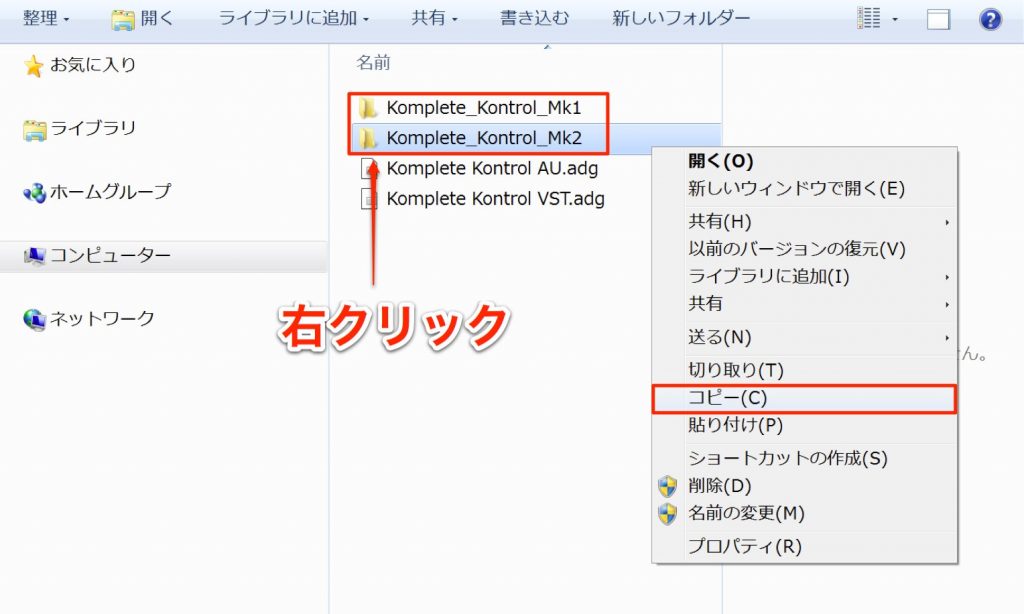
Select the folder for the "KOMPLETE KONTROL" you use and choose "Copy" from the right-click menu.
Nothing visibly changes at this point.
Next, go to the following folder.
- C:\ProgramData\Ableton\Live 9\Resources\MIDI Remote Scripts
*If "ProgramData" isn't shown, see this article.
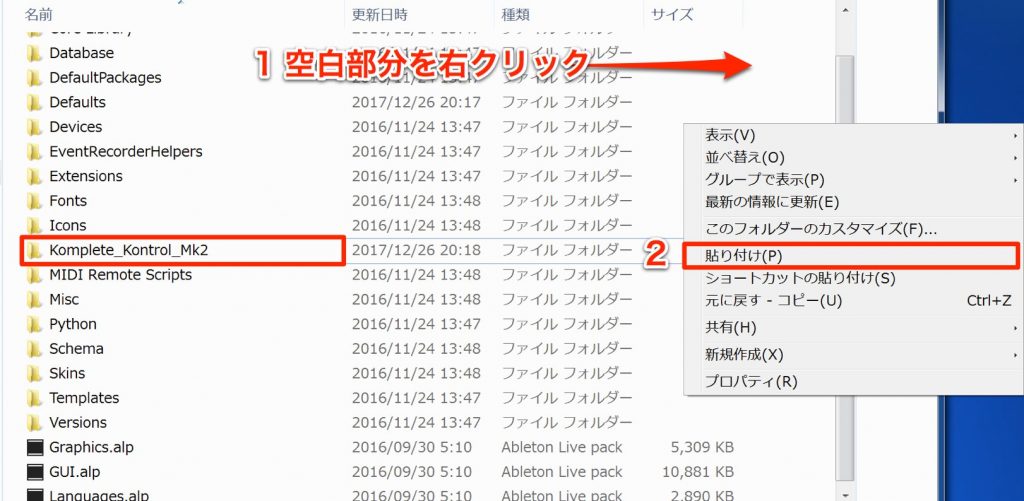
Right-click an empty area in this "MIDI Remote Scripts" folder and "Paste" to copy in the "KOMPLETE KONTROL" folder you copied above.
Next, install the "KOMPLETE KONTROL Instrument Rack."
First, go to the same folder as above.
- C:\Program Files\Common Files\Native Instruments\Host Integration\Ableton Live\
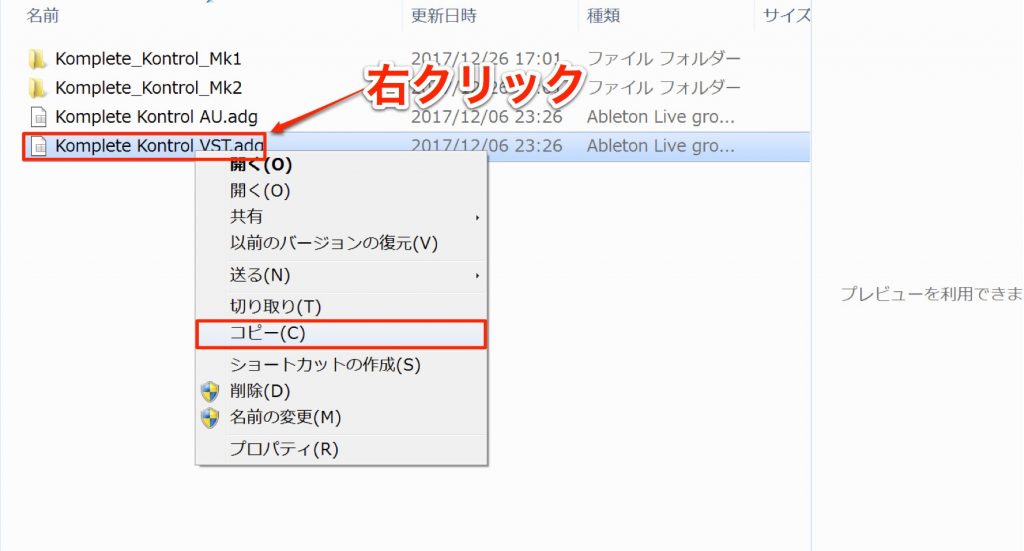
Select "Komplete Kontrol VST.adg" and choose "Copy" from the right-click menu.
Nothing visibly changes at this point.
Go to the following folder.
- C:\Users\[username (your computer's name)]\My Documents\Ableton\User Library\Presets\Instruments\Instrument Rack\
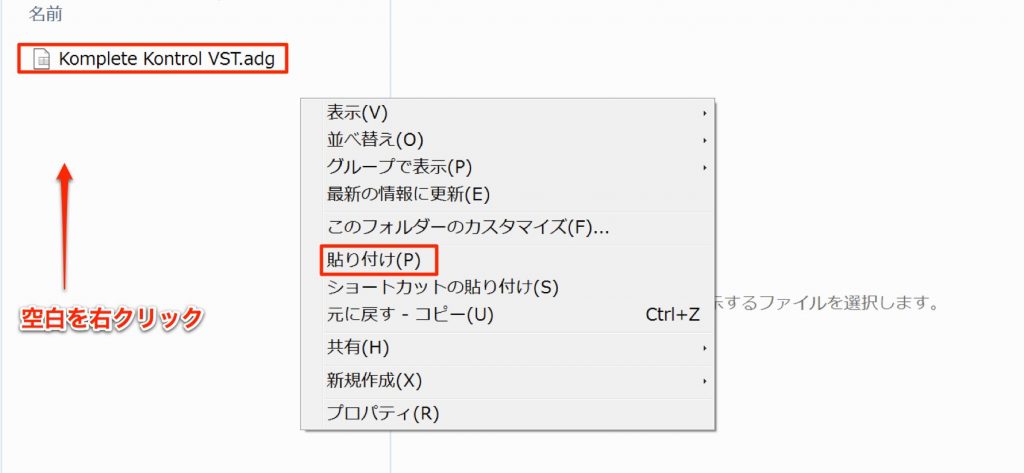
Right-click an empty area in this "Instrument Rack" folder and "Paste" to create the "Komplete Kontrol VST.adg" you copied above.
Live settings for both Mac and Windows
Make sure Komplete Kontrol is powered on, then launch Live.
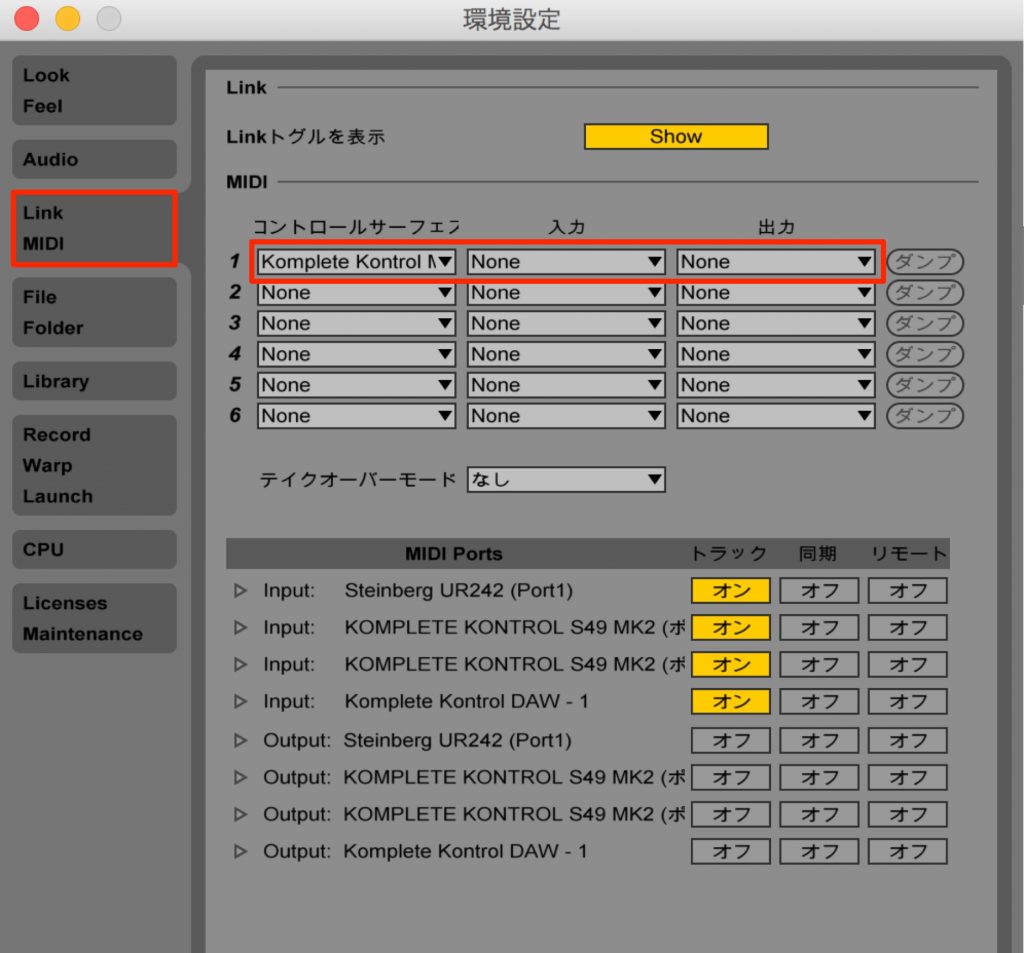
Go to Preferences and select the "Link MIDI" tab.
Under "Control Surface" here, select "KOMPLETE KONTROL."
You can leave "Input/Output" set to "None."
That completes the setup.
- For Logic
- For Cubase
- For Live
With these settings, you can control your DAW from the buttons on KOMPLETE KONTROL.
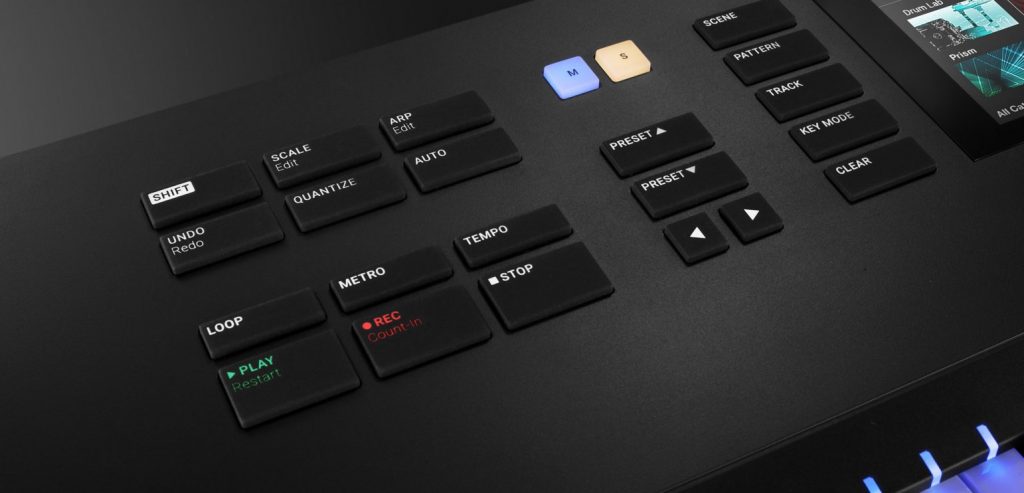
- Play/stop
- Recording
- Mute/solo
- Loop on/off
- Metronome on/off
- Showing the mixer to control track volumes, and more
It greatly improves your efficiency, so be sure to make use of it.
We explain concretely what kinds of control you can do with this host integration feature, using Cubase.

Frequently asked questions
Q1. What do I need beforehand to control a DAW with KOMPLETE KONTROL?
First, update KOMPLETE KONTROL to the latest version using NATIVE ACCESS, and upgrade the firmware too. Then do the initial setup for the DAW you use.
Q2. What should I do if Logic Pro doesn't recognize KOMPLETE KONTROL?
In Logic Pro X → Control Surfaces → Setup, select "New" → "Install," then select KOMPLETE KONTROL S-Series from the product list and add it to have it recognized.
Q3. When setting up the MIDI Remote Script in Ableton Live, do the steps differ between Mac and Windows?
Yes, they differ. On Mac you copy folders using the Command key, while on Windows you choose Copy from the right-click menu in Explorer. You need to place the files in the folder paths for each OS.
NEW ARTICLES
Latest English Articles