
Orchestral Instruments from the Developer of Synthesizer V
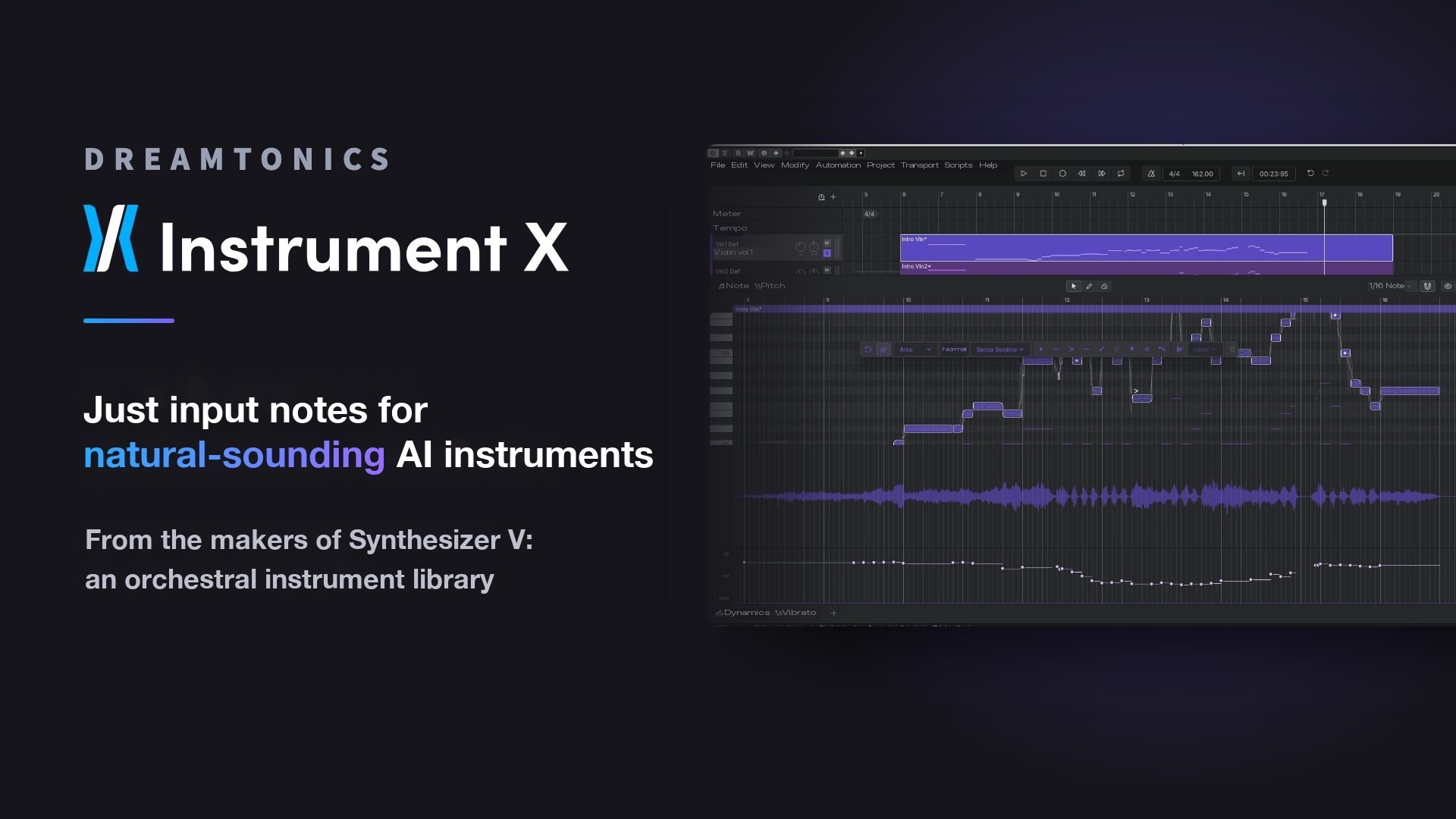
Dreamtonics, known for the vocal synthesis software Synthesizer V, has introduced Instrument X.
Its AI reads the phrases you program and generates a performance tailored to each phrase.
Here, we explore what it can do and how to use it, focusing on strings for pop music.
How to use it in an orchestral setup combining strings, woodwinds and brass is covered in this article.
Instrument X has three main strengths:
- It generates performances from sequences of notes, creating natural transitions even from basic MIDI programming.
- AI automatically adds articulations and dynamics to suit the phrase.
- You can fine-tune articulations, dynamics and vibrato, right down to individual notes.
Video
What Is Instrument X?
Instrument X offers the main orchestral instruments along with jazz saxophones.
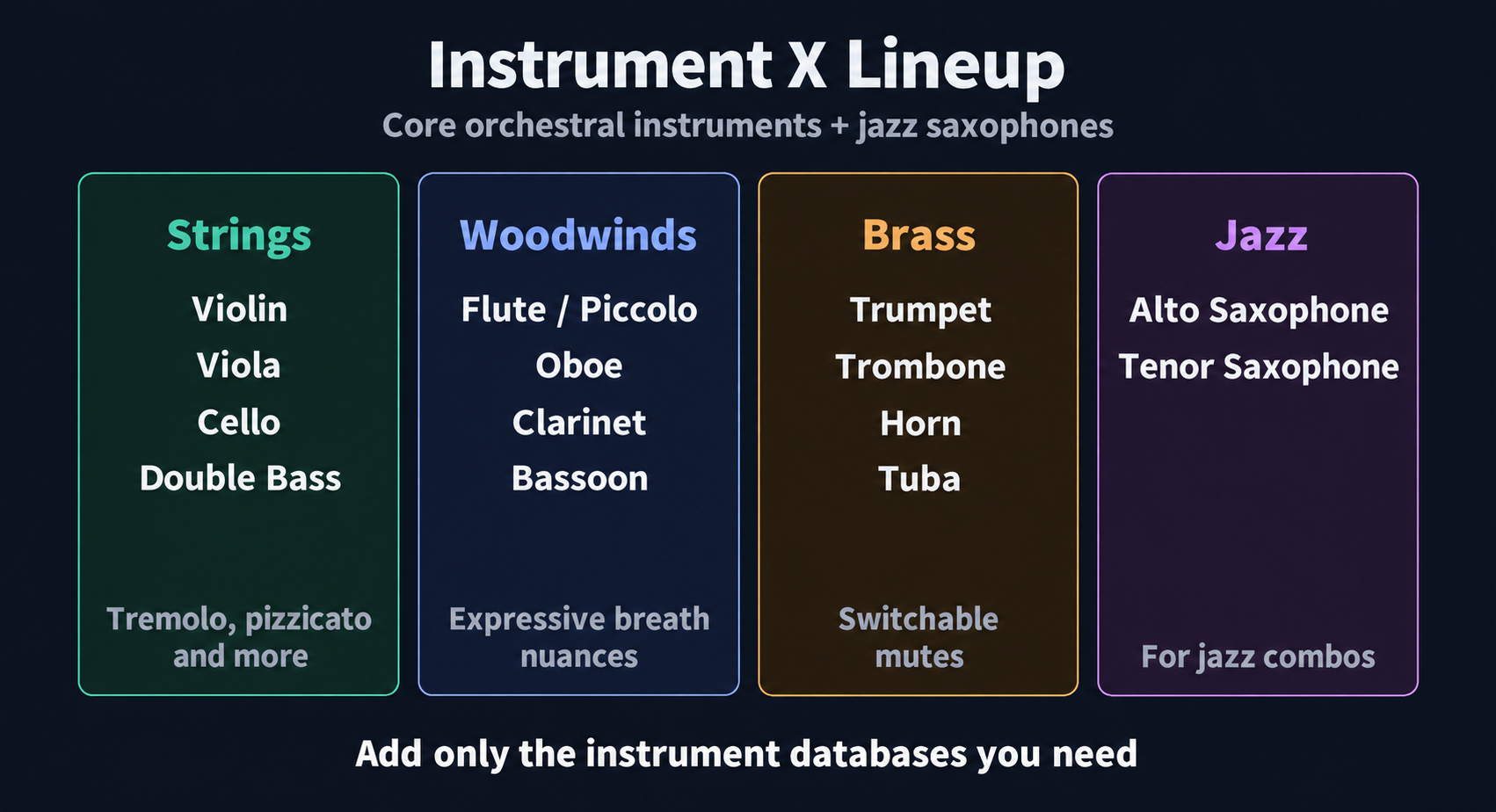
The lineup consists of 15 instruments: strings, woodwinds and brass, plus alto and tenor saxophones for jazz combos.
Generating Performances to Match the Phrase
The secret to Instrument X's sound lies in how it produces it.
Conventional sample-based instruments play back recordings of individual notes, joining them together.
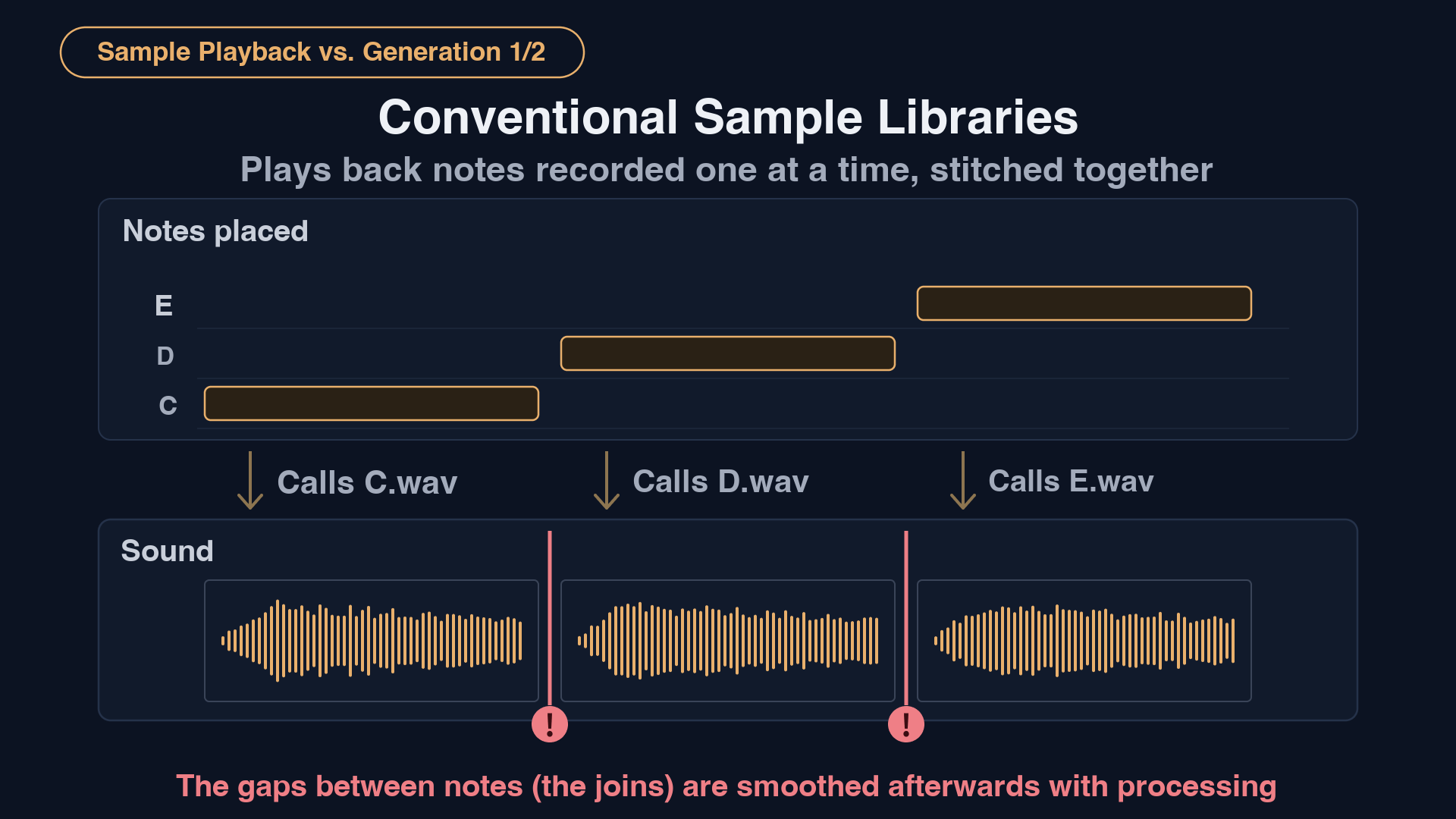
The transitions between notes are then handled by additional techniques.
Instrument X, by contrast, examines the sequence of notes and generates a performance of the entire phrase.
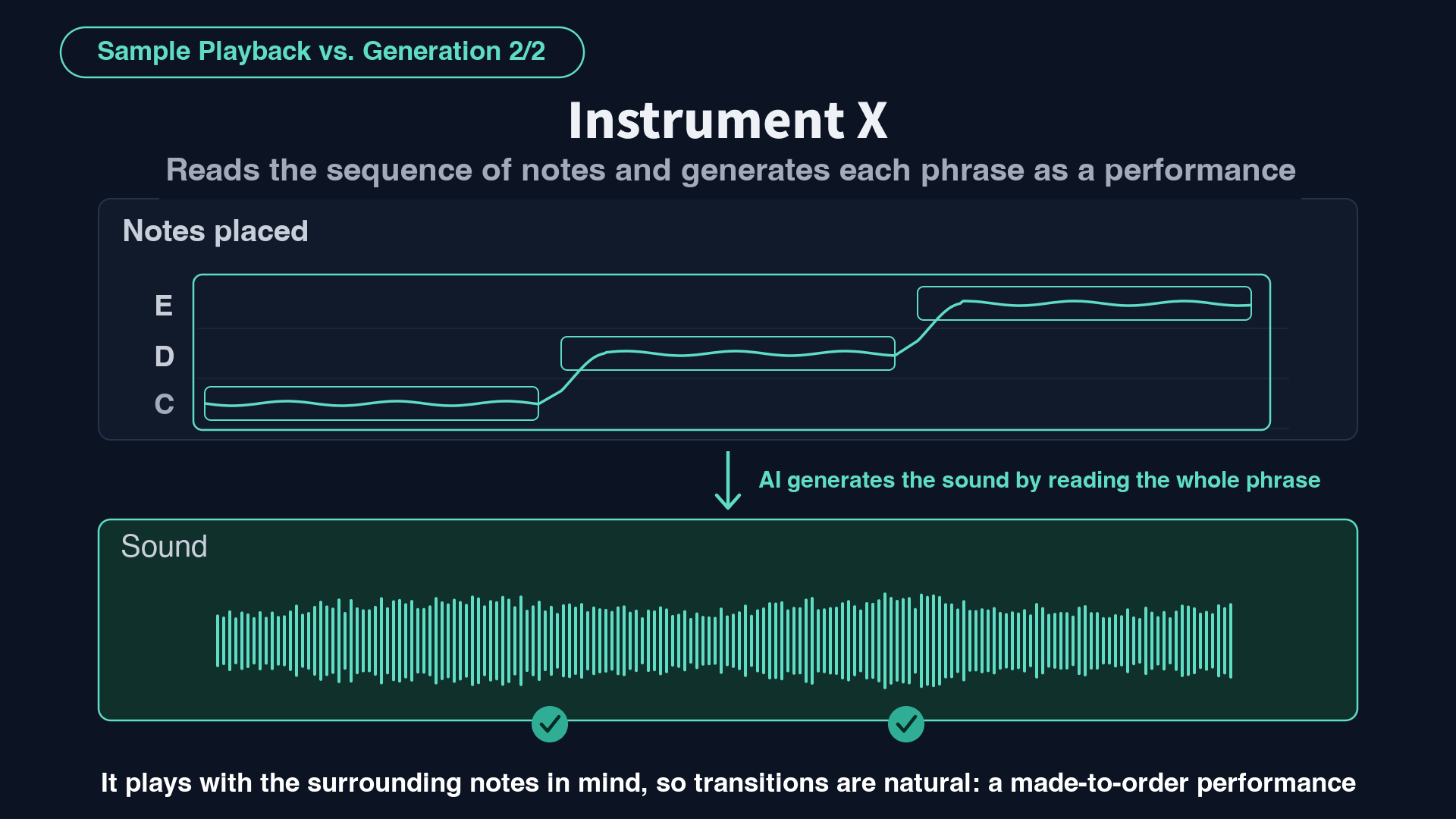
By taking the surrounding notes into account, it creates natural transitions between notes.
Think of it as a custom performance created for each phrase.
A Small Footprint and Adjustable Ensemble Size
Because it generates its sound, each instrument requires 200 MB or less, keeping installation sizes small.
Another feature is the ability to change the number of players within the same instrument.
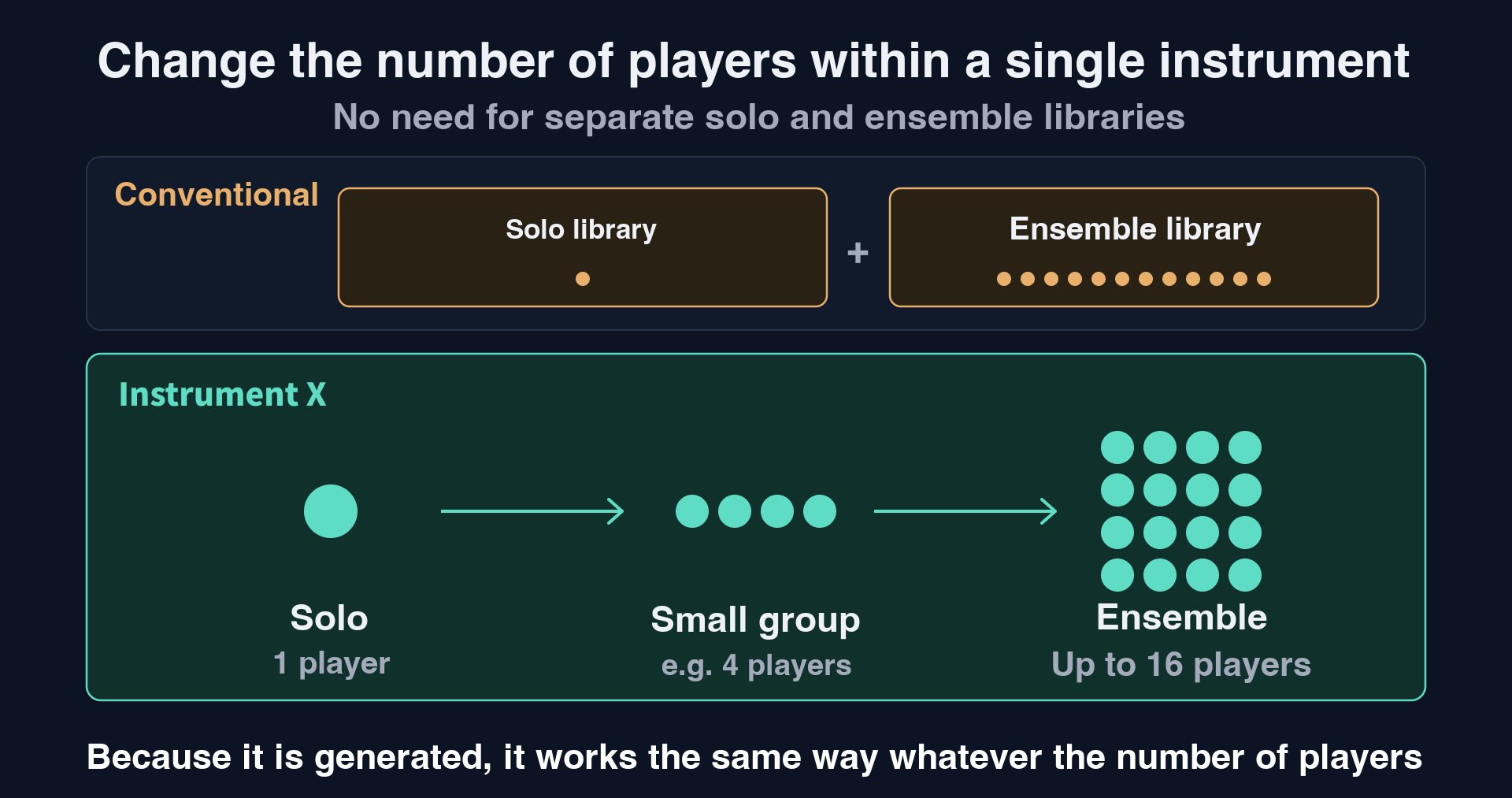
Conventional libraries often separate solo and ensemble instruments, but Instrument X can cover a solo player through to an ensemble of up to 16 players using the same instrument.
Getting Ready to Use It in Your DAW
Instrument X supports ARA, a system that allows close integration between a DAW and a plug-in.
We will use Cubase to show how to get started.
ARA plug-ins are typically applied to audio events.
We therefore begin by creating some dummy audio.
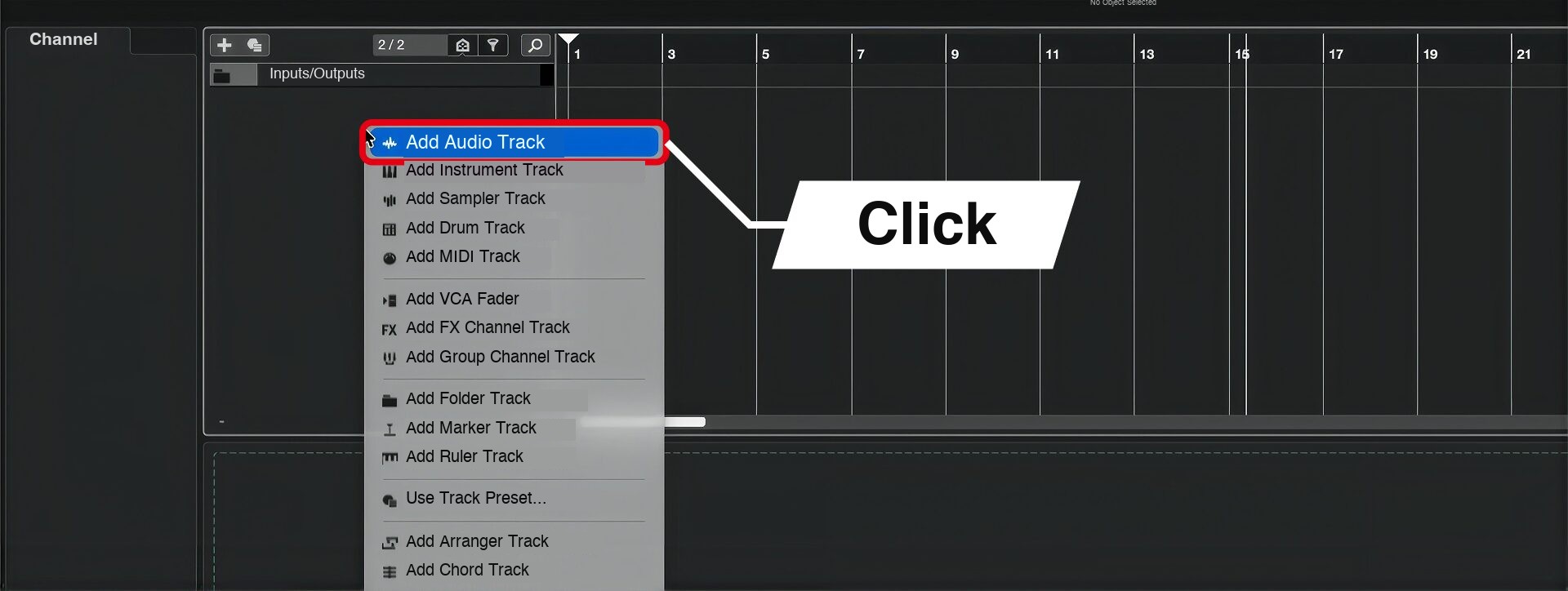
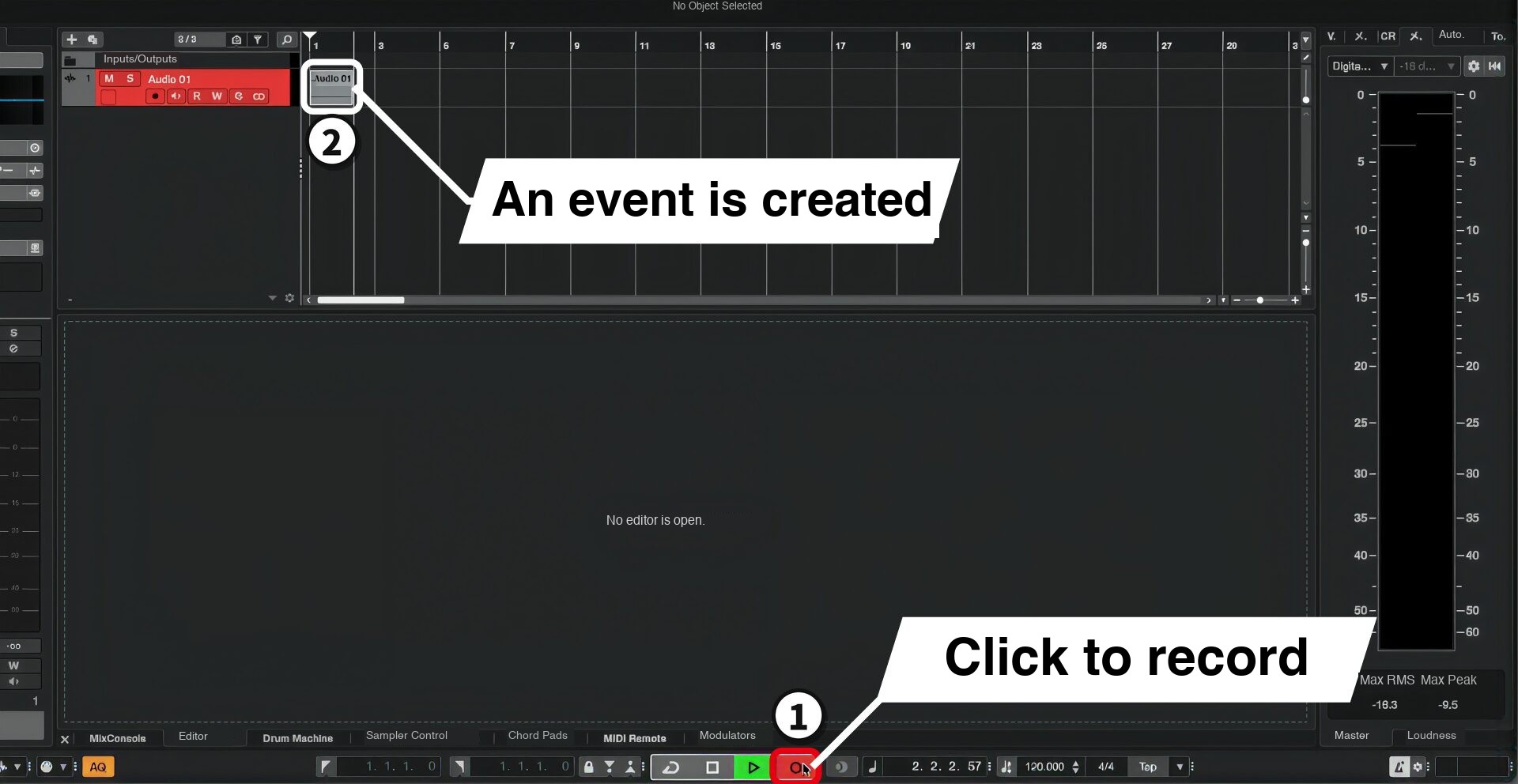
It does not matter what you record.
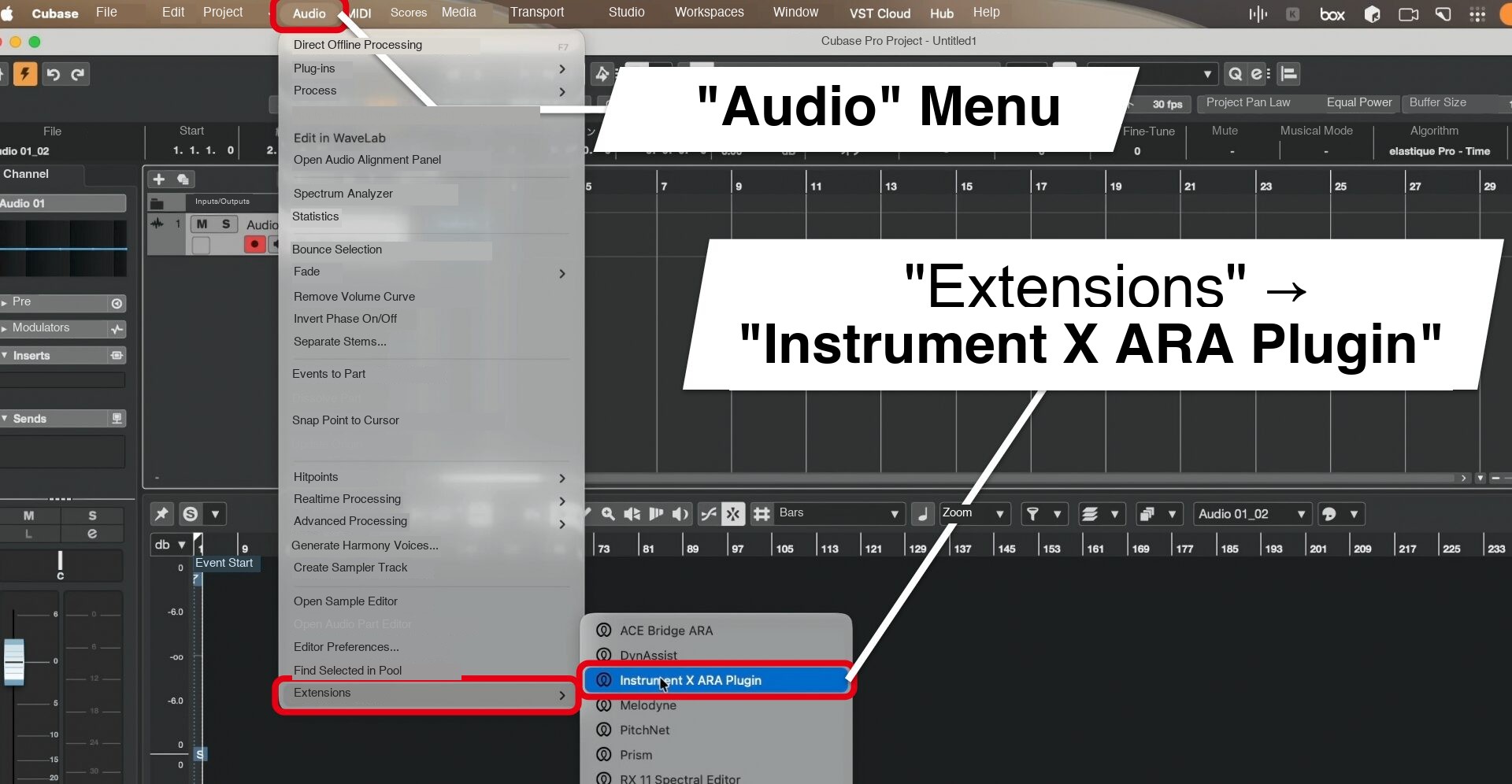
Next, set up the main Instrument X plug-in, which produces the sound.
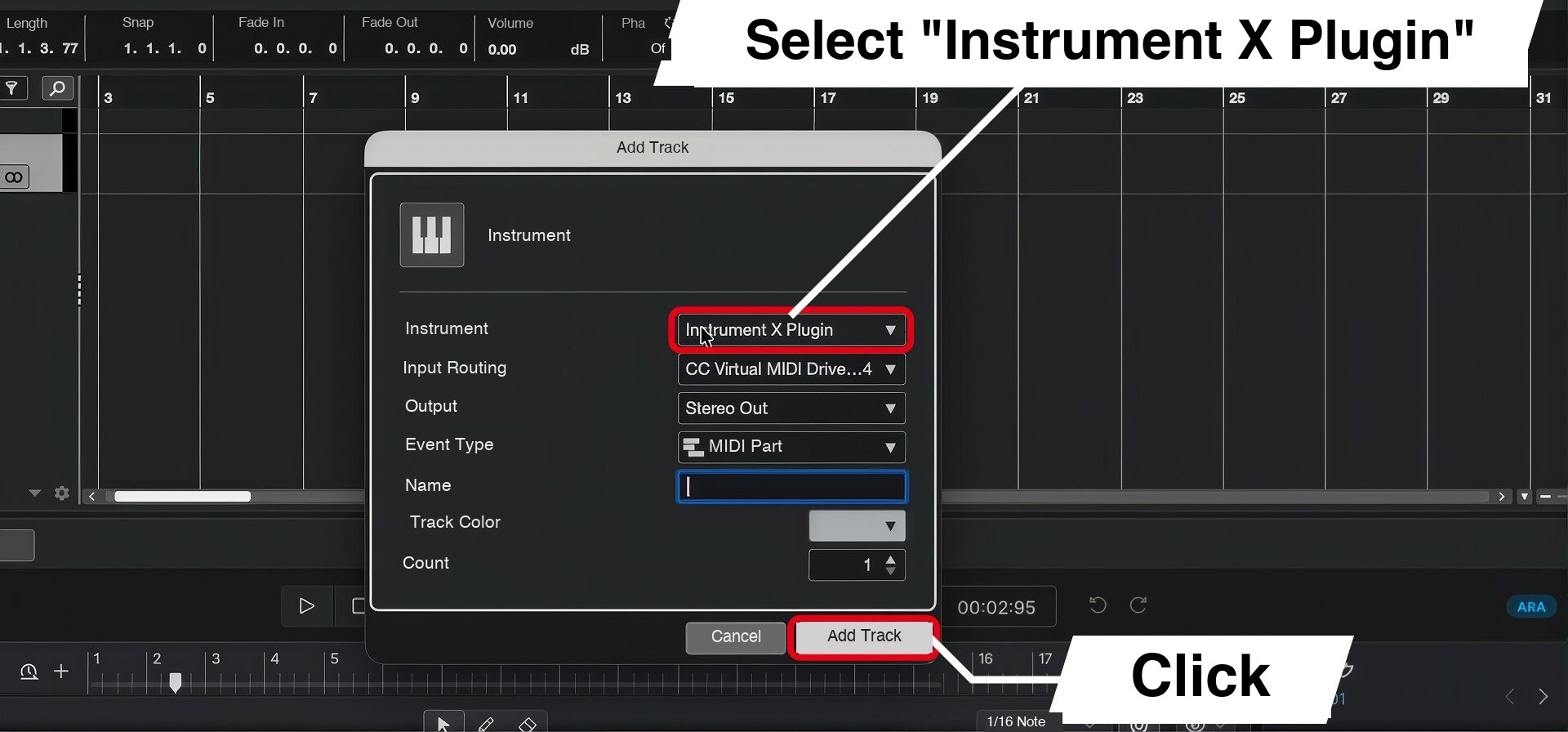
Finally, start and stop playback in Cubase. If ARA Bridge Link at the upper right of Instrument X is on, you are ready.
Instrument X will now follow Cubase's transport.
Loading an Instrument and Entering Notes
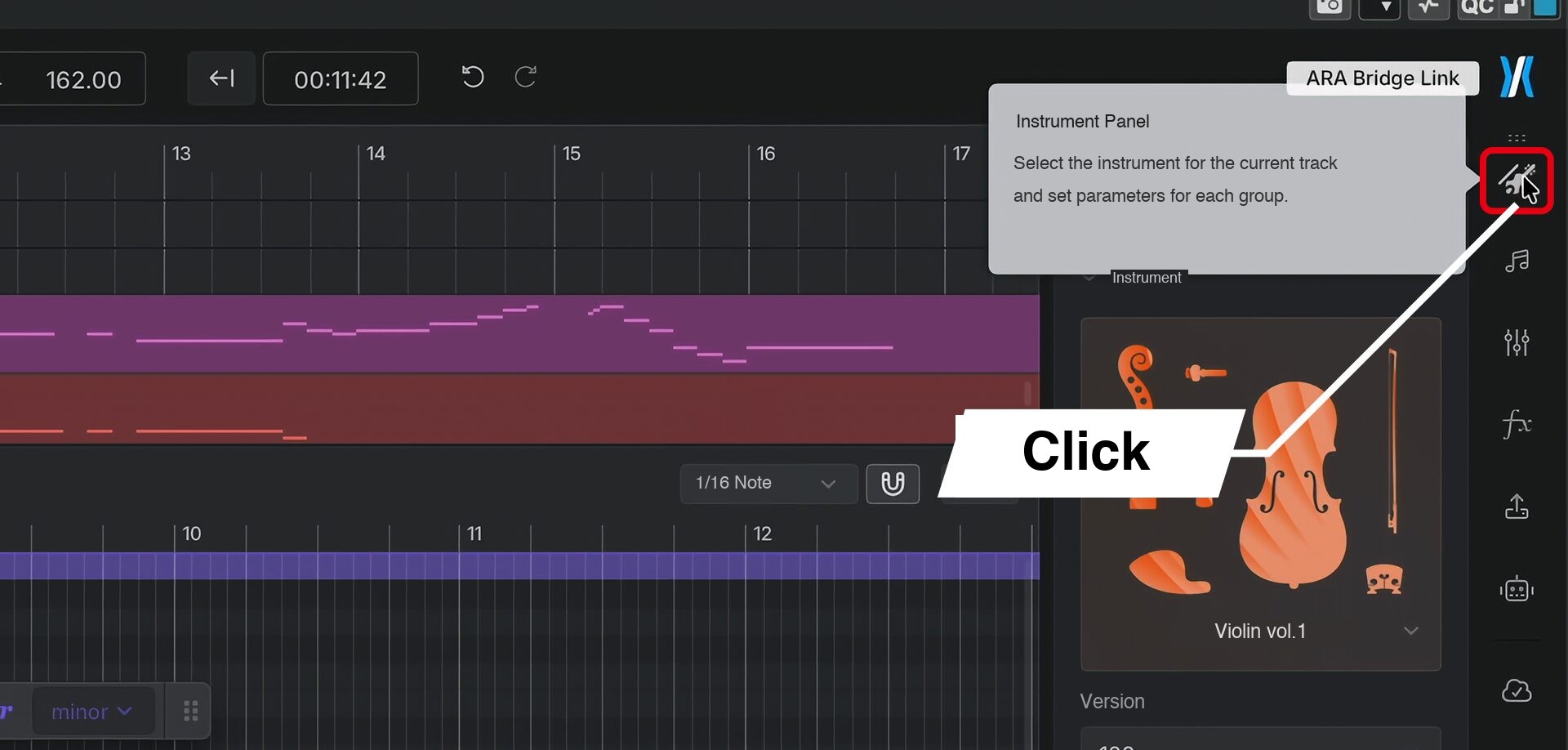
Instrument X has a DAW-like layout, with tracks and a piano roll.
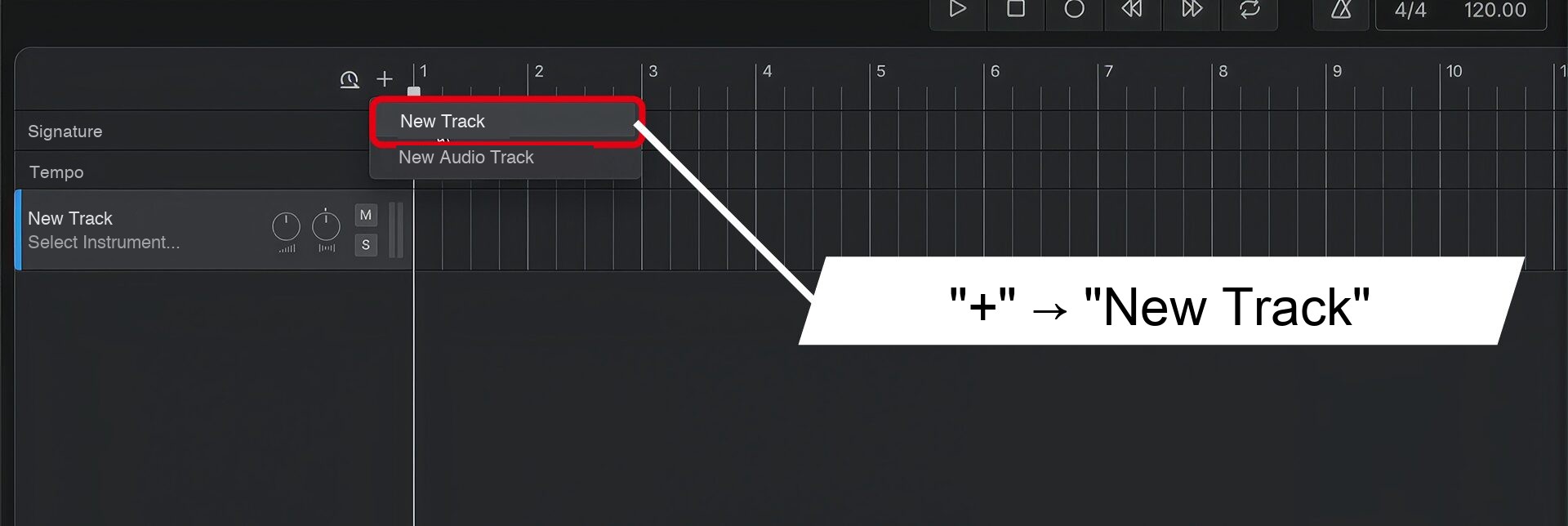
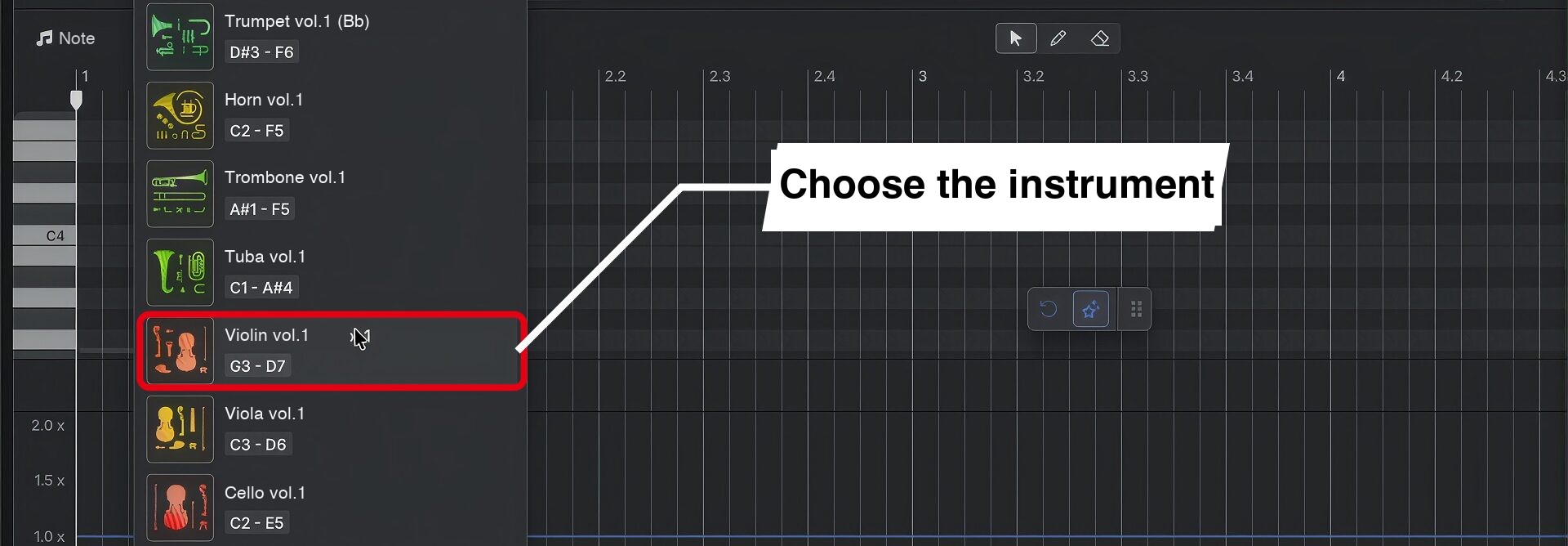
Then simply enter your phrase in the piano roll below.
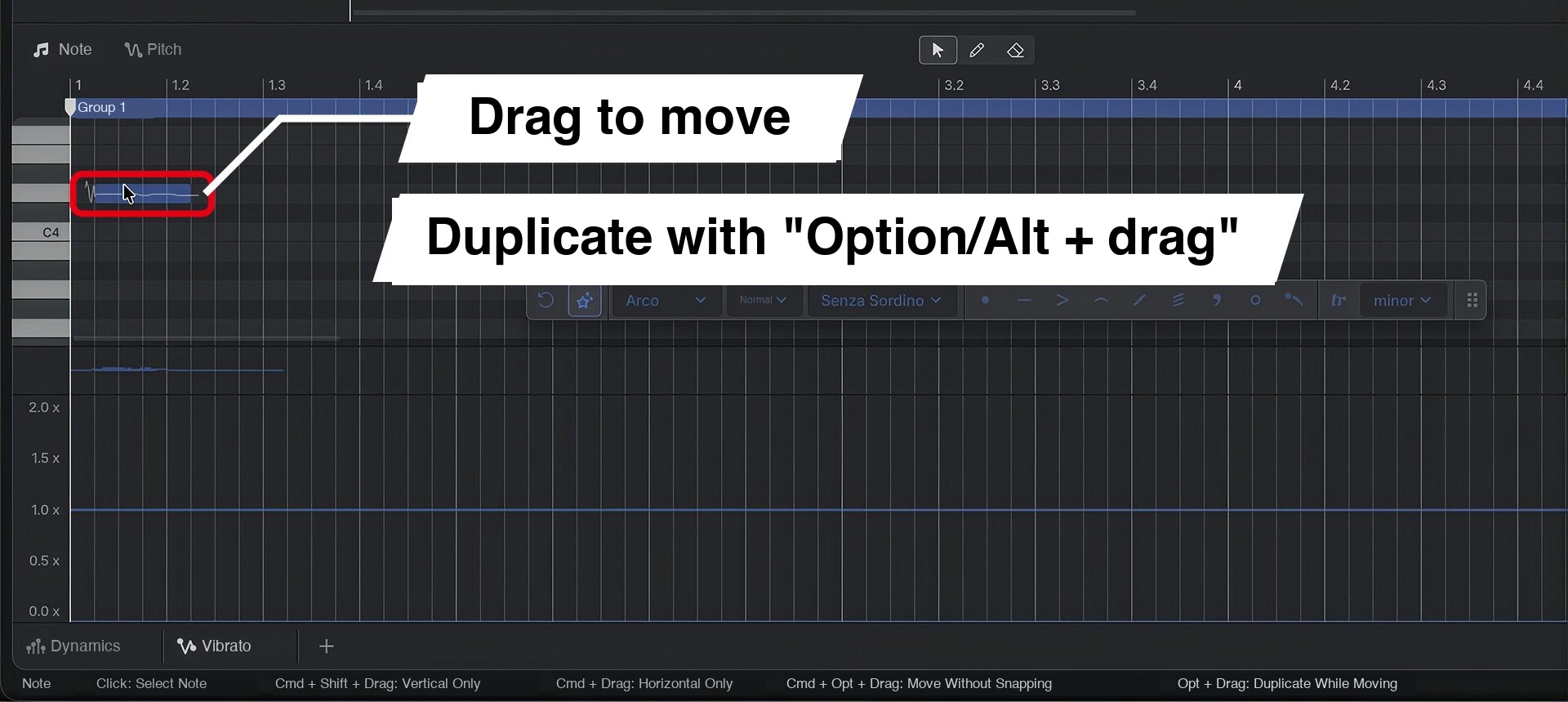
Even with basic notes and no additional editing, AI generates an expressive performance suited to the phrase.
You can also see this in the waveform of the generated audio.
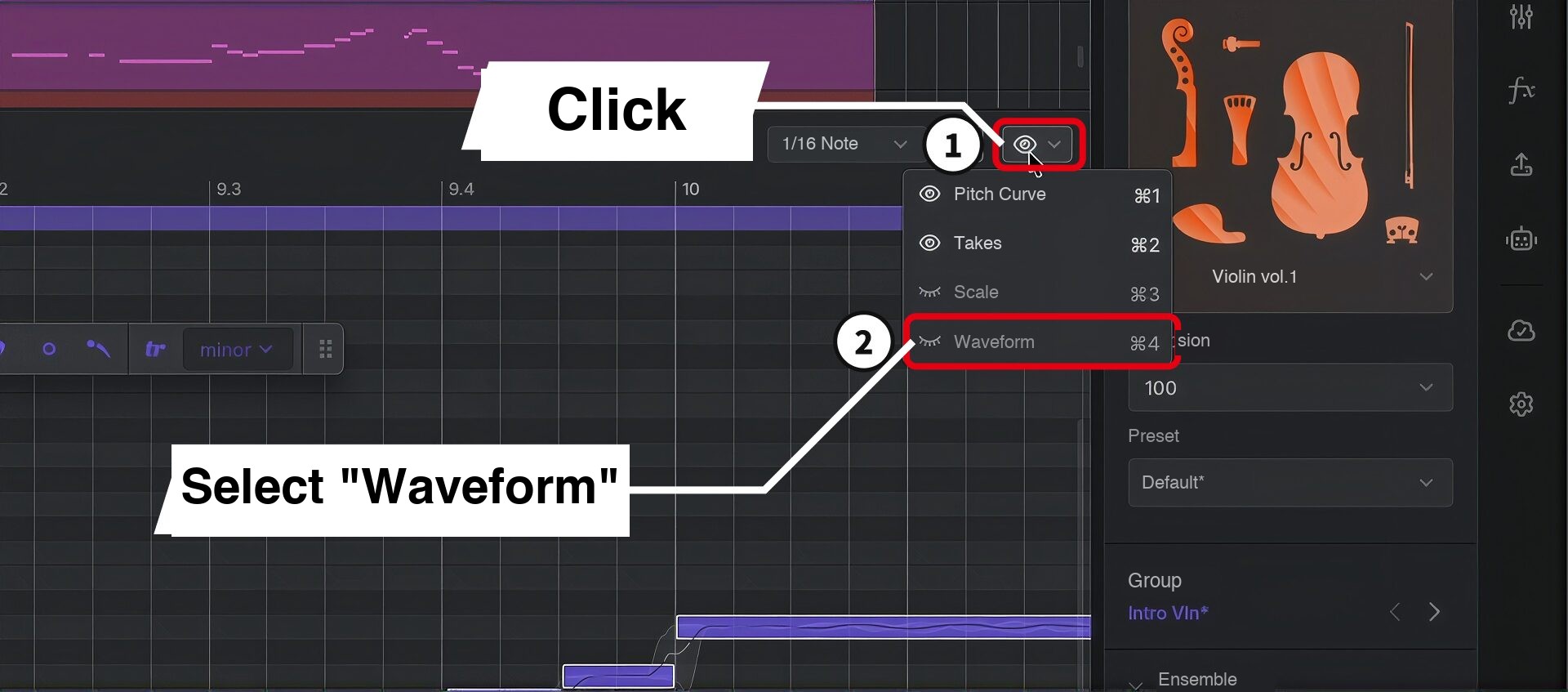
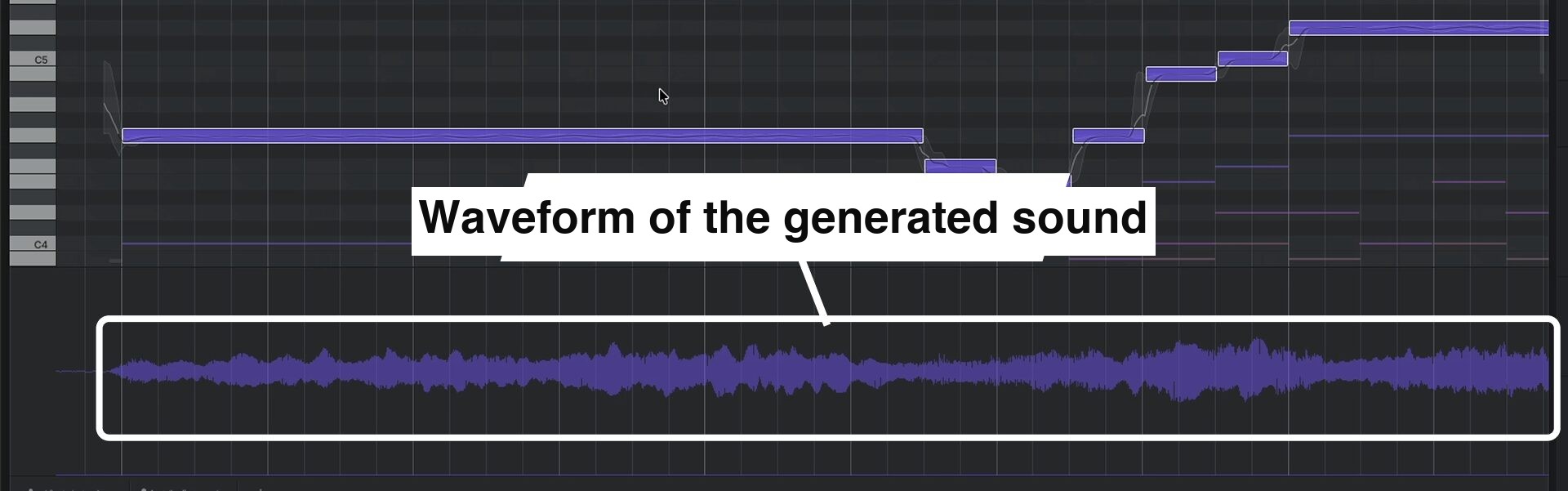
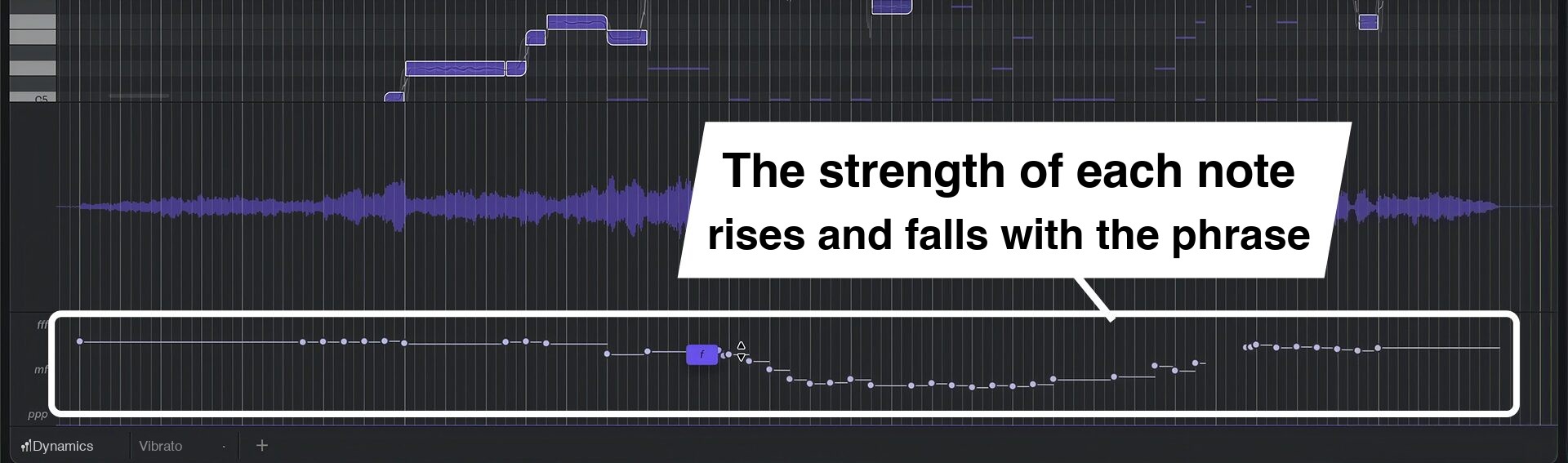
You can see the volume rise and fall with the phrase, much as it would in a live performance.
Adding Articulations and Dynamics with AI
There are several ways to refine a basic programmed part. Smart Articulation is a useful place to start.
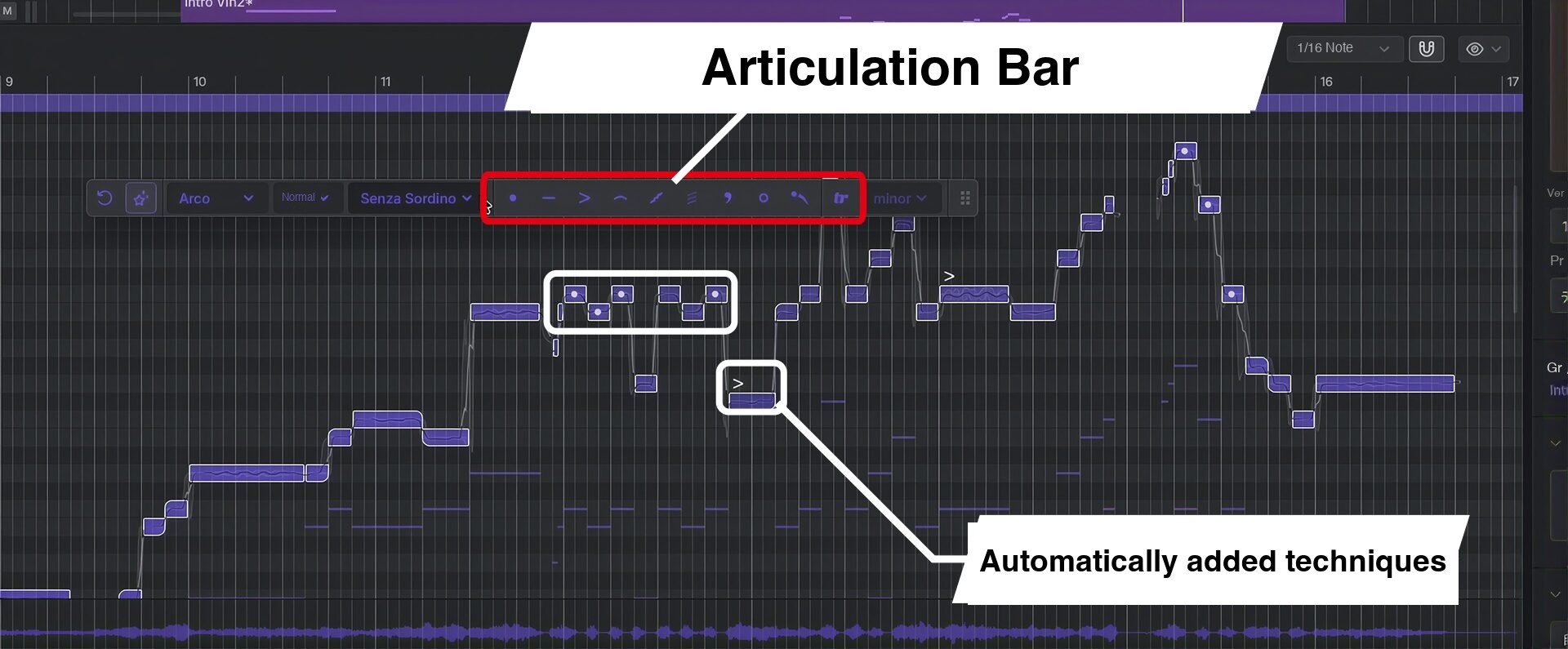
The AI reads the phrase and automatically adds articulations and dynamics.
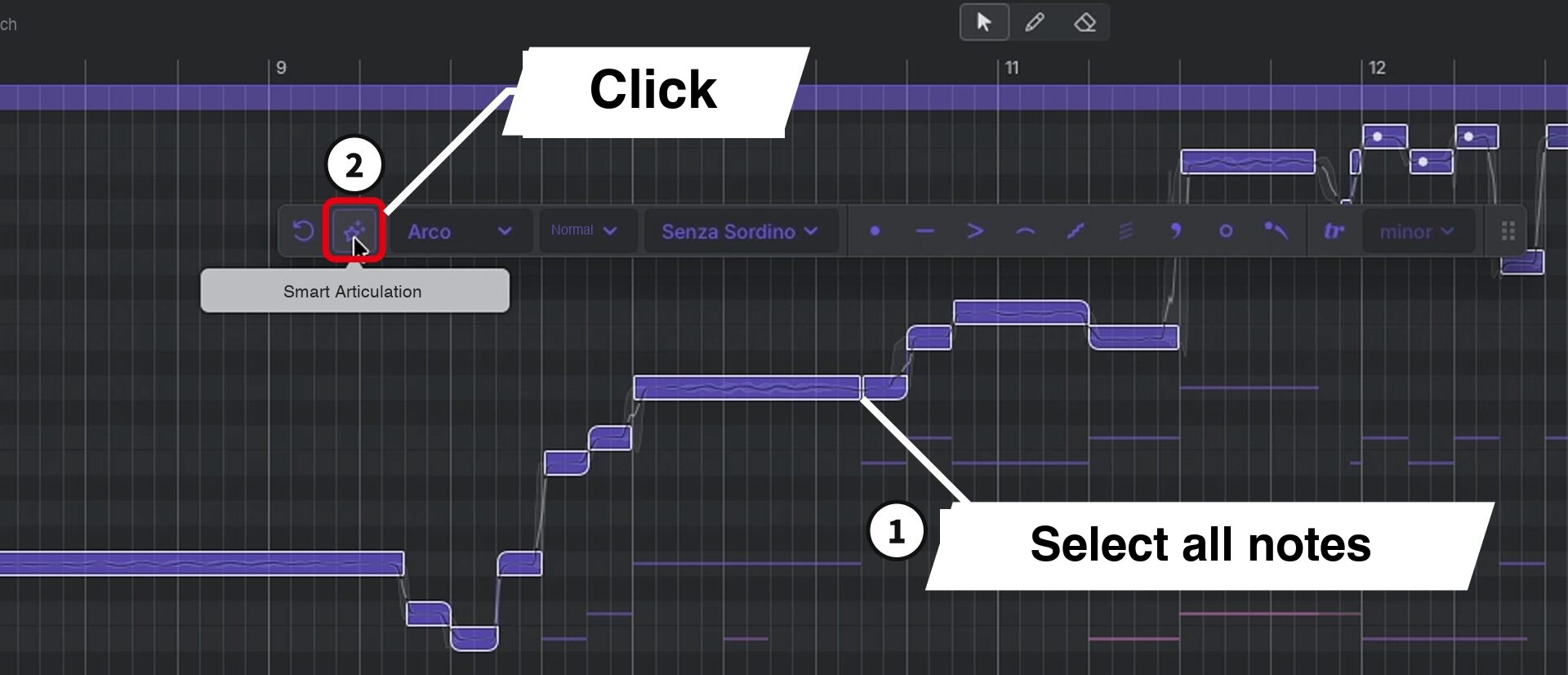
Processing finishes quickly, and the performance sounds more natural than before.
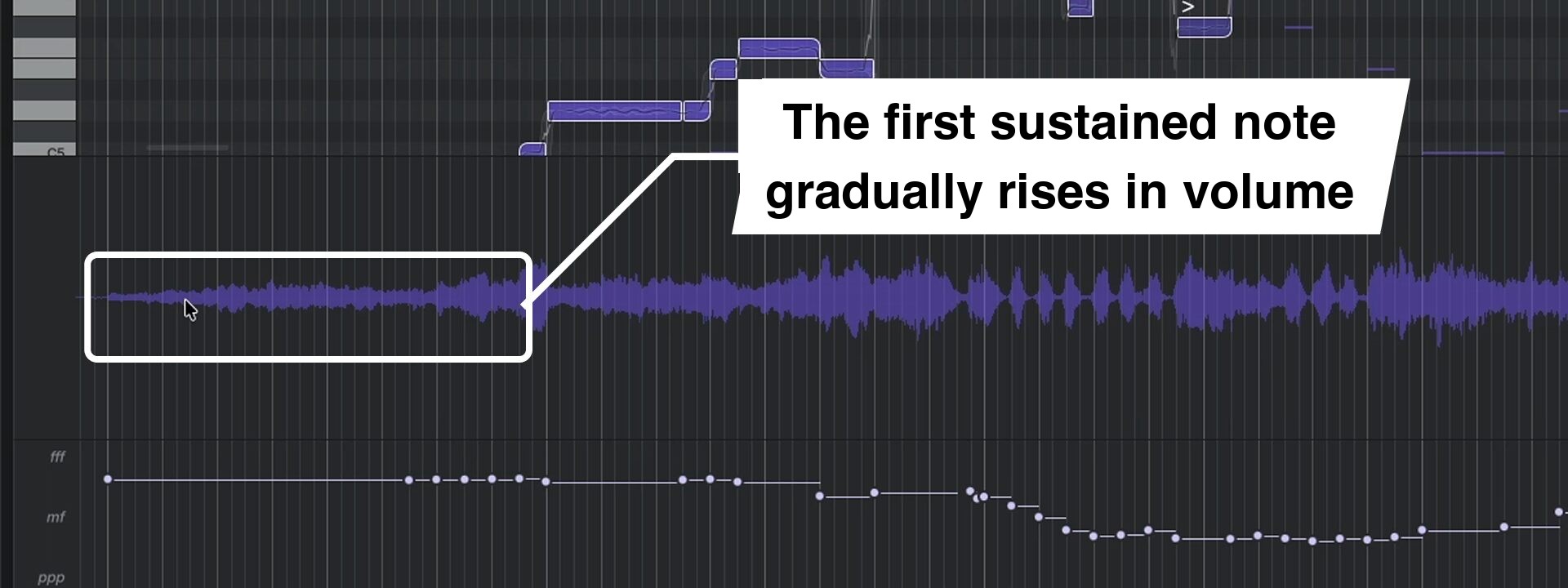
In addition to changes in volume, the intensity of each note—roughly equivalent to velocity in a conventional instrument—is automatically adjusted to suit the phrase.
Articulations, which you can switch using the articulation bar in the middle of the piano roll, are also assigned automatically to individual notes.
Refining the Performance Manually
You can then make manual adjustments to individual notes in the generated performance.
Instrument X's strength is that it sounds convincing from the outset, while still letting you shape the result to your taste.
Choosing an Articulation
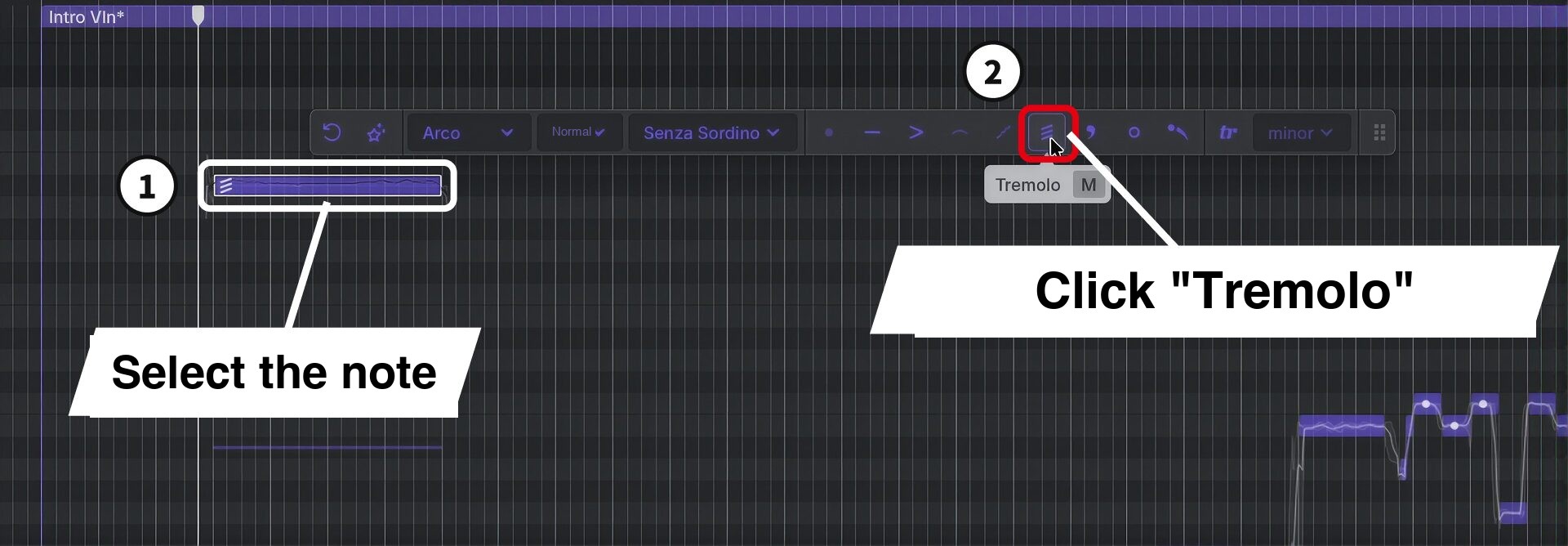
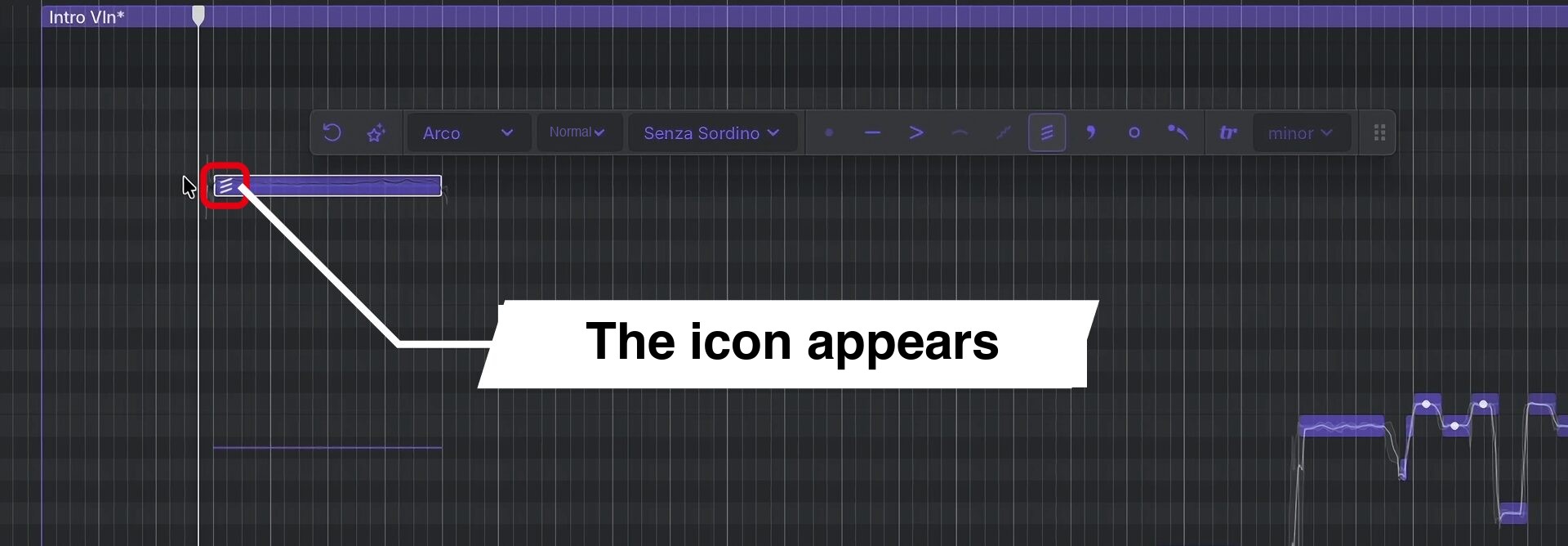
You can specify a particular articulation yourself—for example, tremolo at the beginning of a song.
Drawing a Dynamics Curve
Dynamics—the changes in loudness and intensity—can also vary within a note.
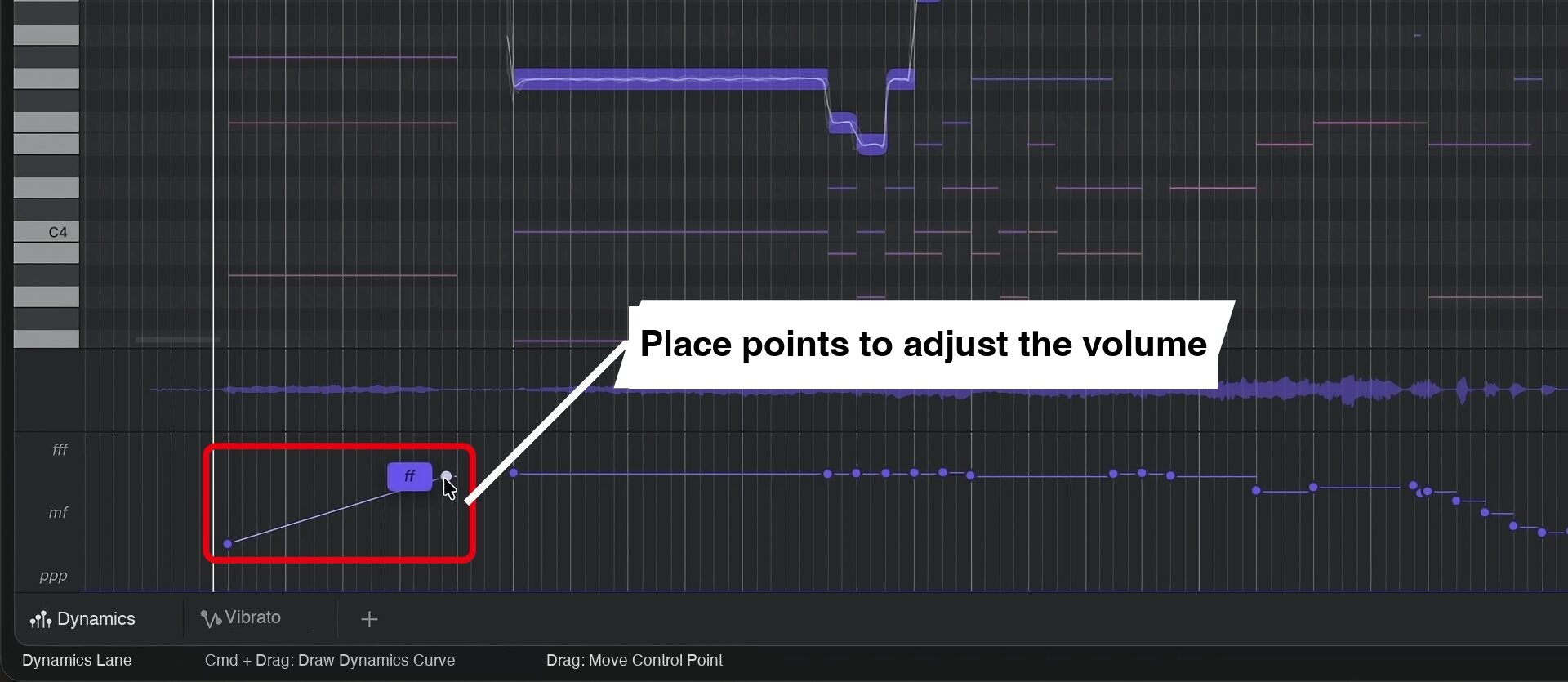
Conventional velocity determines the intensity at the onset of a note. Instrument X's dynamics instead work something like velocity and expression combined.
For example, you can create a crescendo followed by a decrescendo within a single sustained note simply by drawing a curve.
Adding Vibrato
Vibrato can also be adjusted for individual notes.
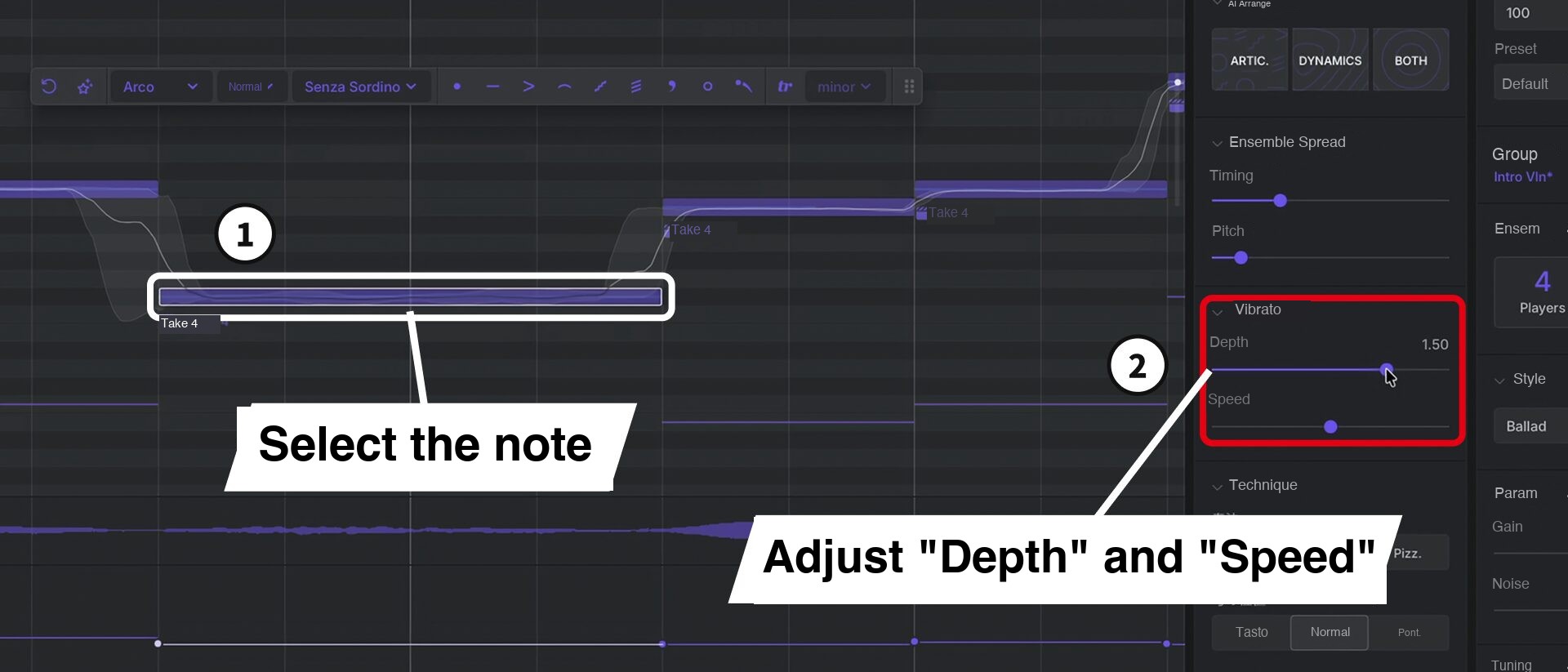
Depth controls the width of the pitch variation; Speed controls how fast it oscillates.
The waveform updates in real time as you adjust the settings, so you can also see the changes.
Vibrato applied continuously at a fixed depth can sometimes sound mechanical.
In that case, draw a curve to vary the amount of vibrato.
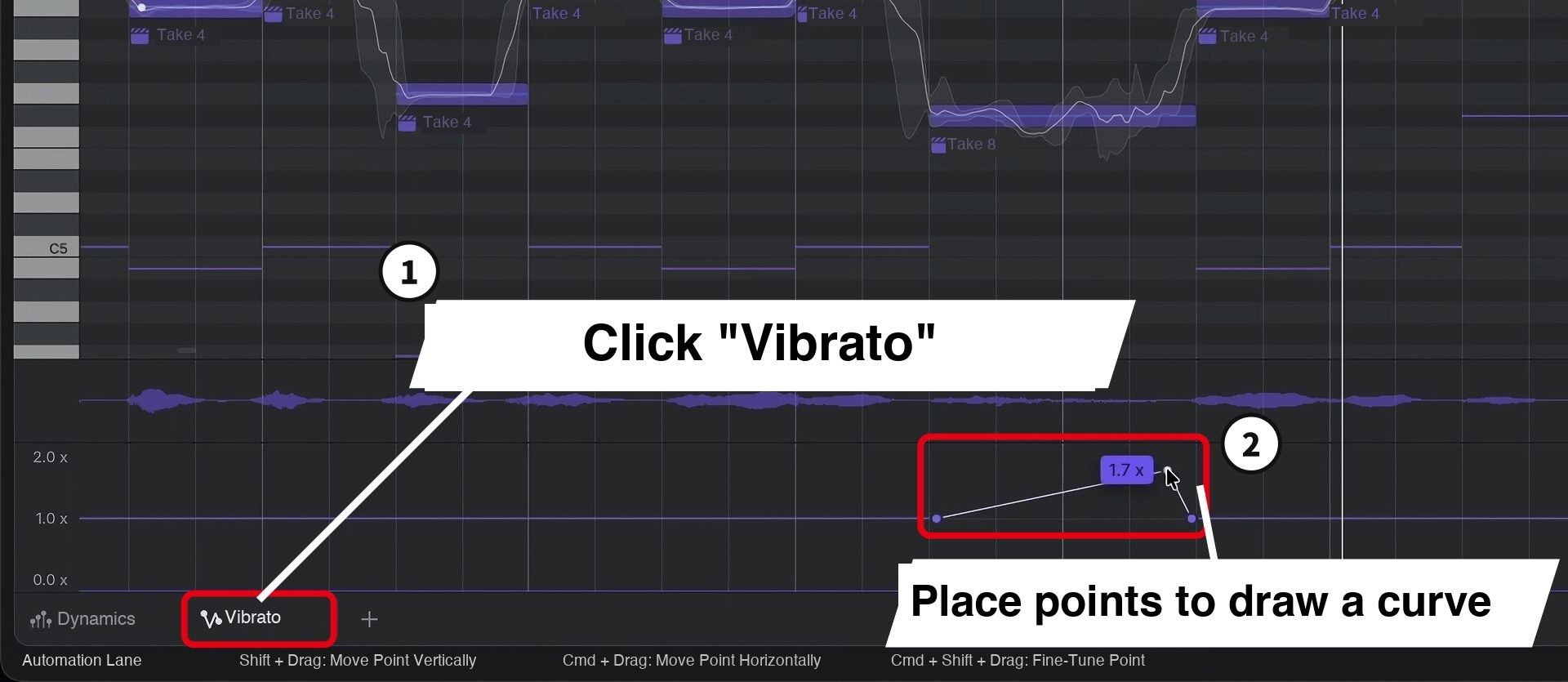
As in a live performance, you can bring out the vibrato at just the right moment.
Matching the Music with Performance Styles
The performance style setting changes the automatically generated playing to suit the character of the music.
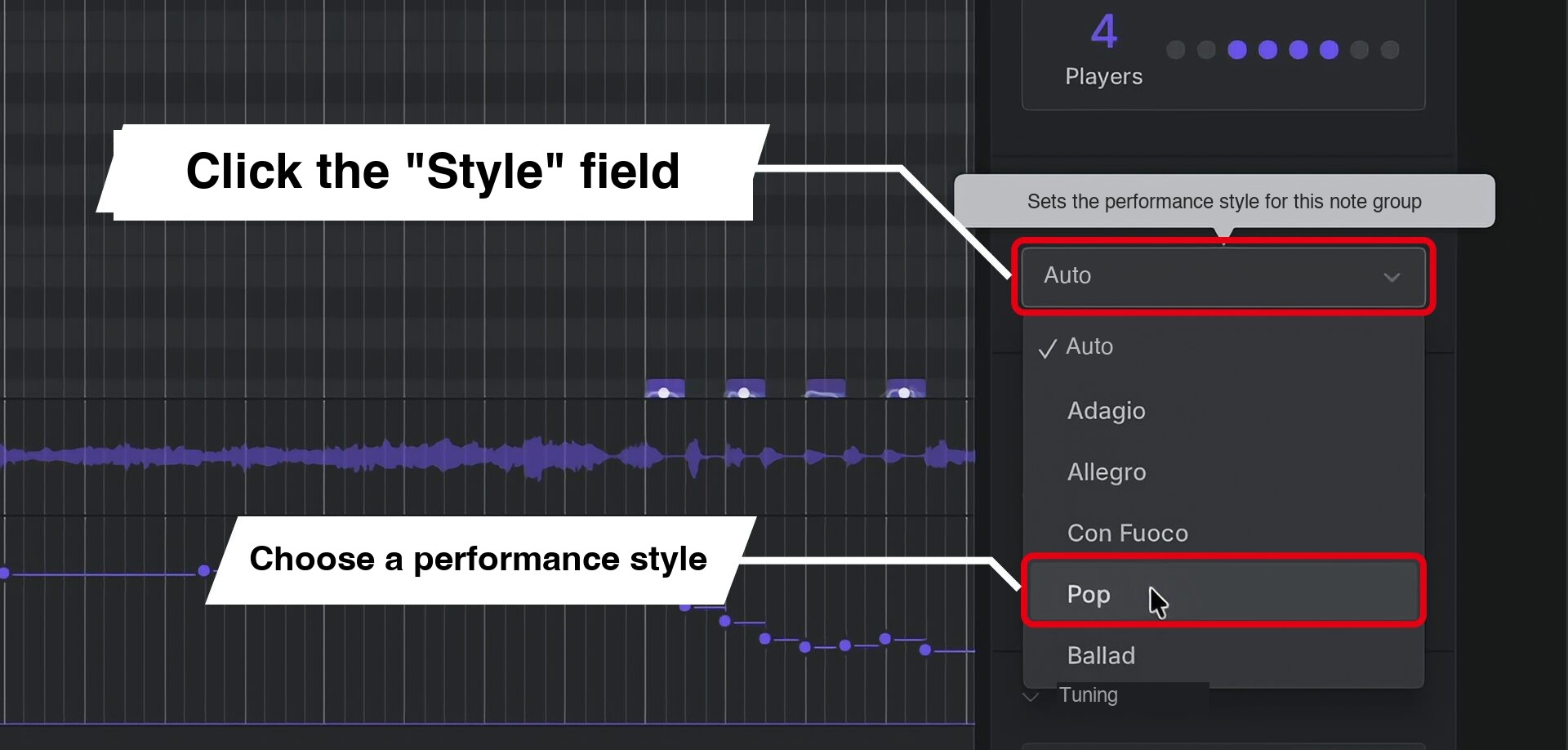
There are five options: Adagio, Allegro, Con Fuoco, Pop and Ballad.
Pop suits lively pop arrangements, while Ballad provides a calmer, softer accompaniment.
For example, Pop produces a clear, light rhythmic feel, while Ballad smooths the transitions between notes for a more flowing performance.
Programming these nuances note by note would be time-consuming. With performance styles, you can compare them simply by switching the setting.
AI Retakes and Ensemble Adjustments
Instrument X also includes AI Retakes, a familiar feature from Synthesizer V.
It lets you regenerate just the selected section as a different take.
AI Retakes
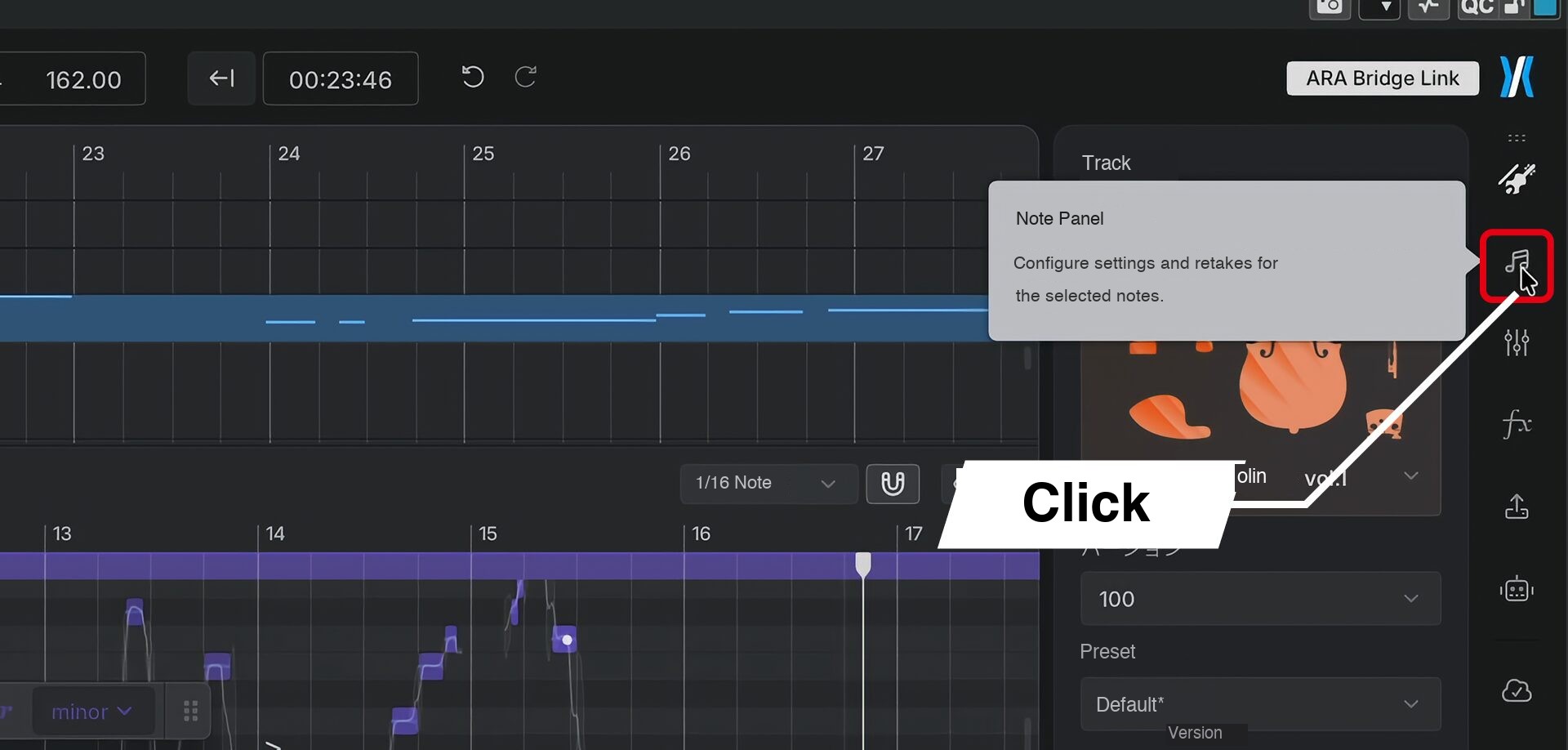
AI Retakes is in the Note Panel, alongside the vibrato controls.
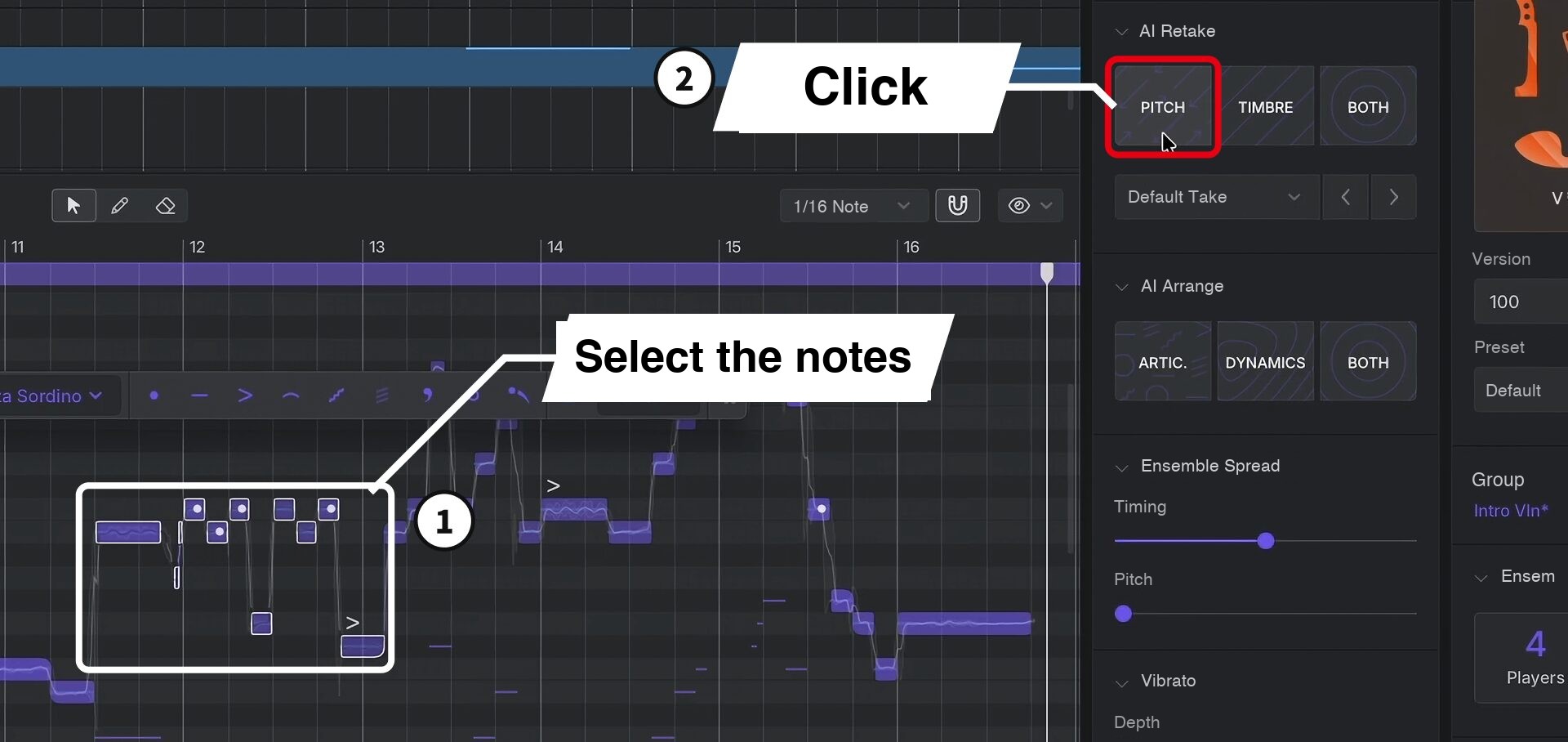
PITCH changes the fine nuances of intonation, rather than the pitches of the written notes.
The phrase stays the same, while the generated takes sound as if the same player had performed it several times.
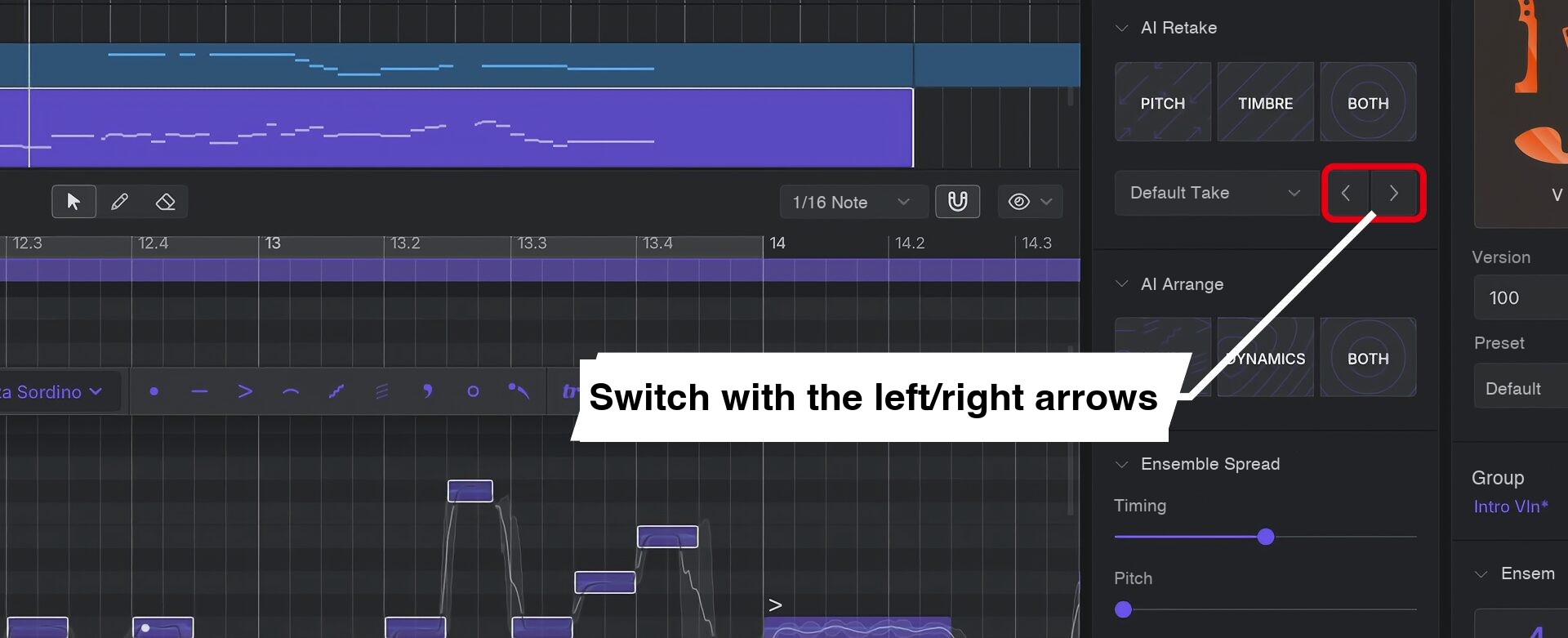
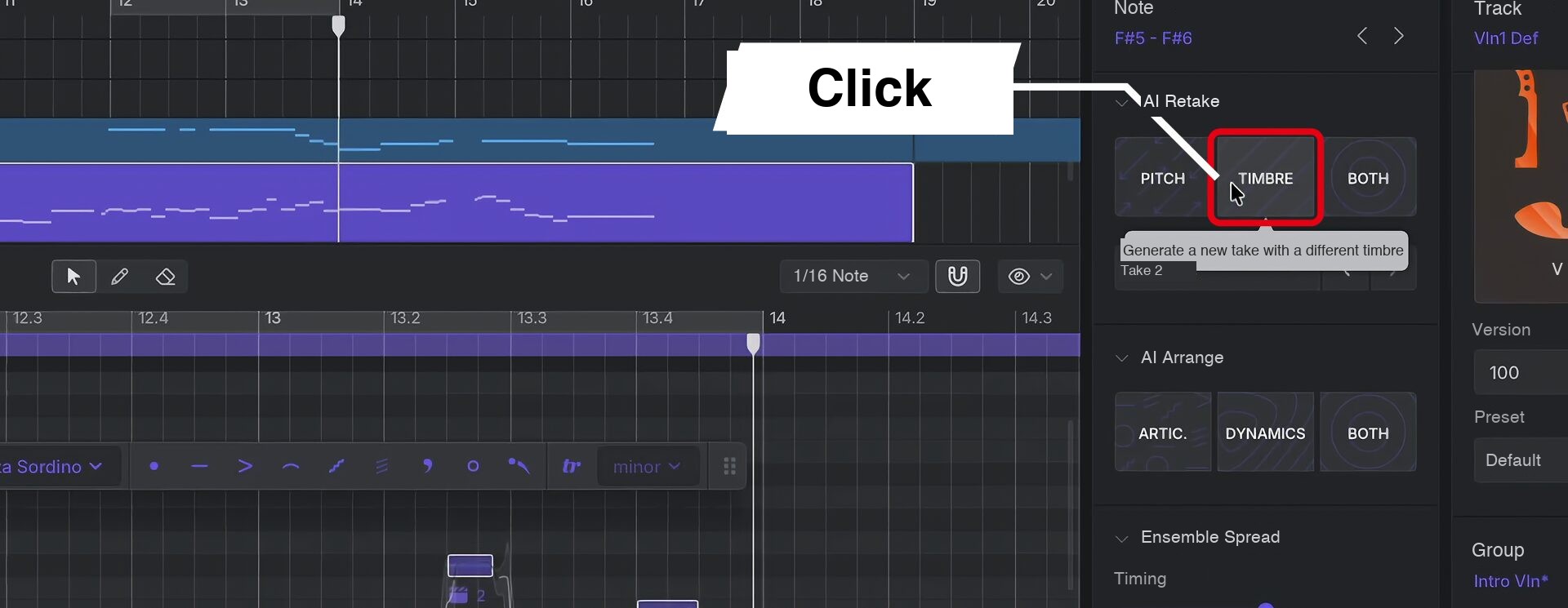
Many of the takes sound natural, so you can work by simply choosing the ones you prefer.
Player Count and Ensemble Spread
The Note Panel also lets you set the number of ensemble players and the amount of variation between them.
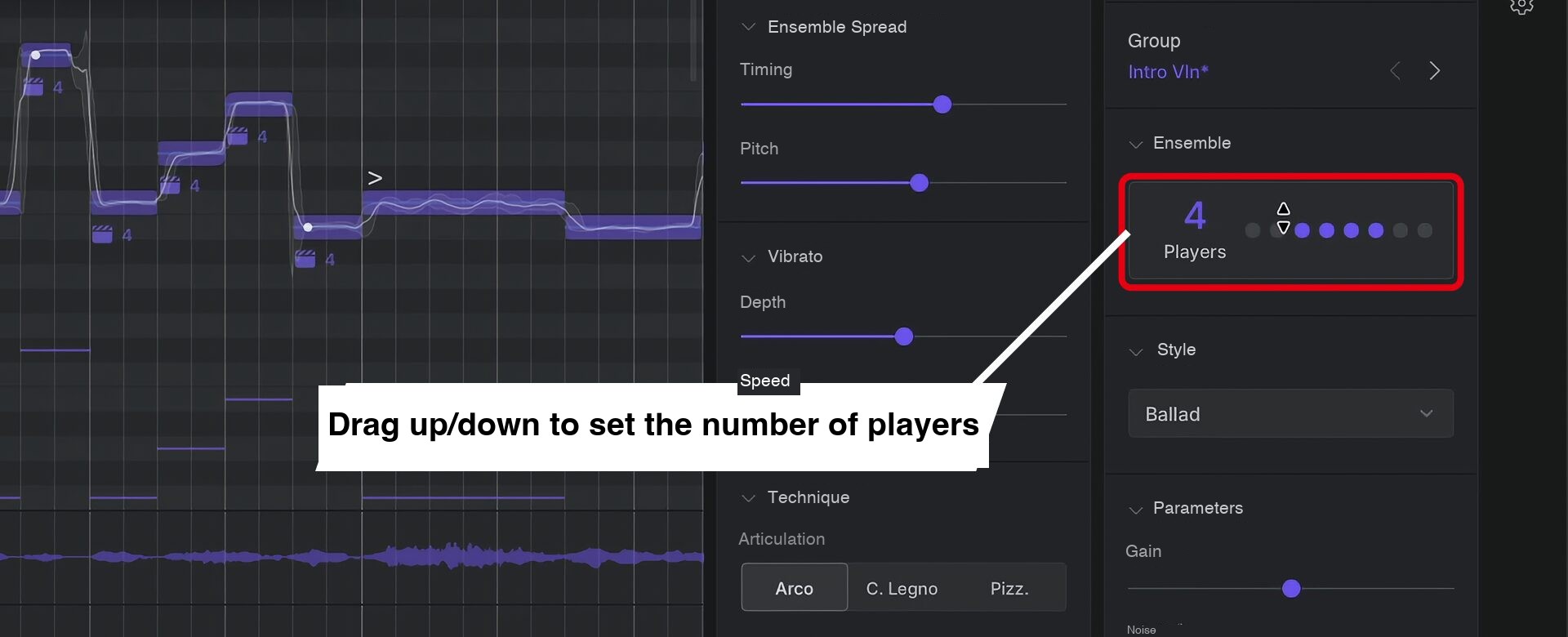
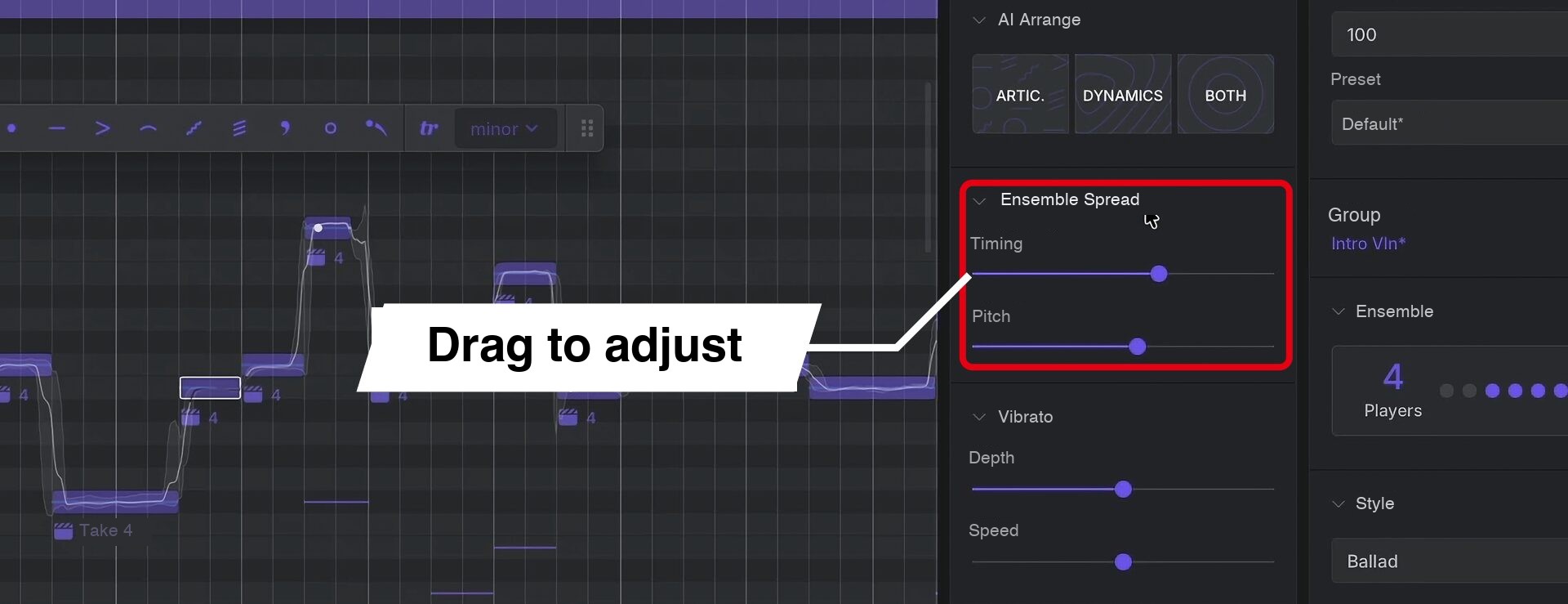
Small differences between individual players are an important part of an ensemble's character.
Increasing the variation makes the individual players more distinct and adds fullness.
Microphone Placement and Ambience
Instrument X also lets you adjust microphone placement and combinations.
You can choose a close sound for pop arrangements or a spacious sound for orchestral music, for example.
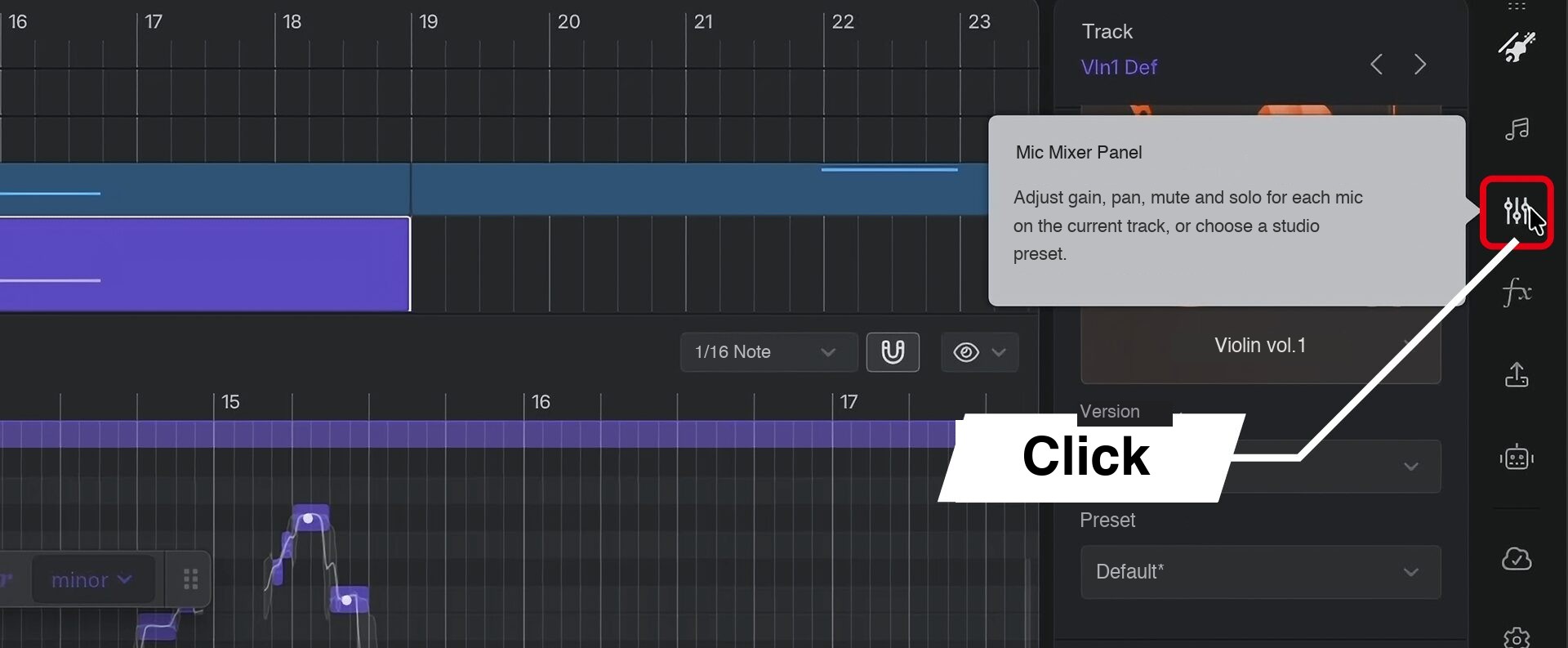
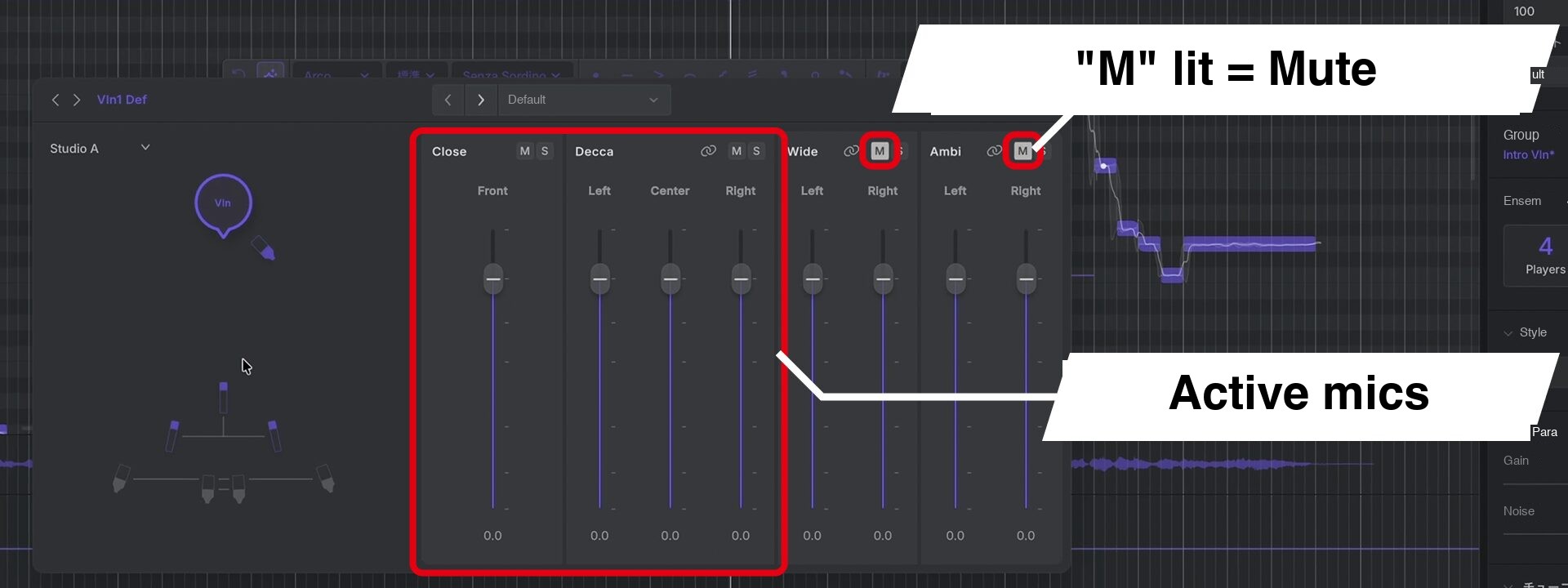
For the violin, there are eight microphones in four groups: Close, Decca, Wide and Ambi.
The ambience is based on acoustic measurements of real studios.
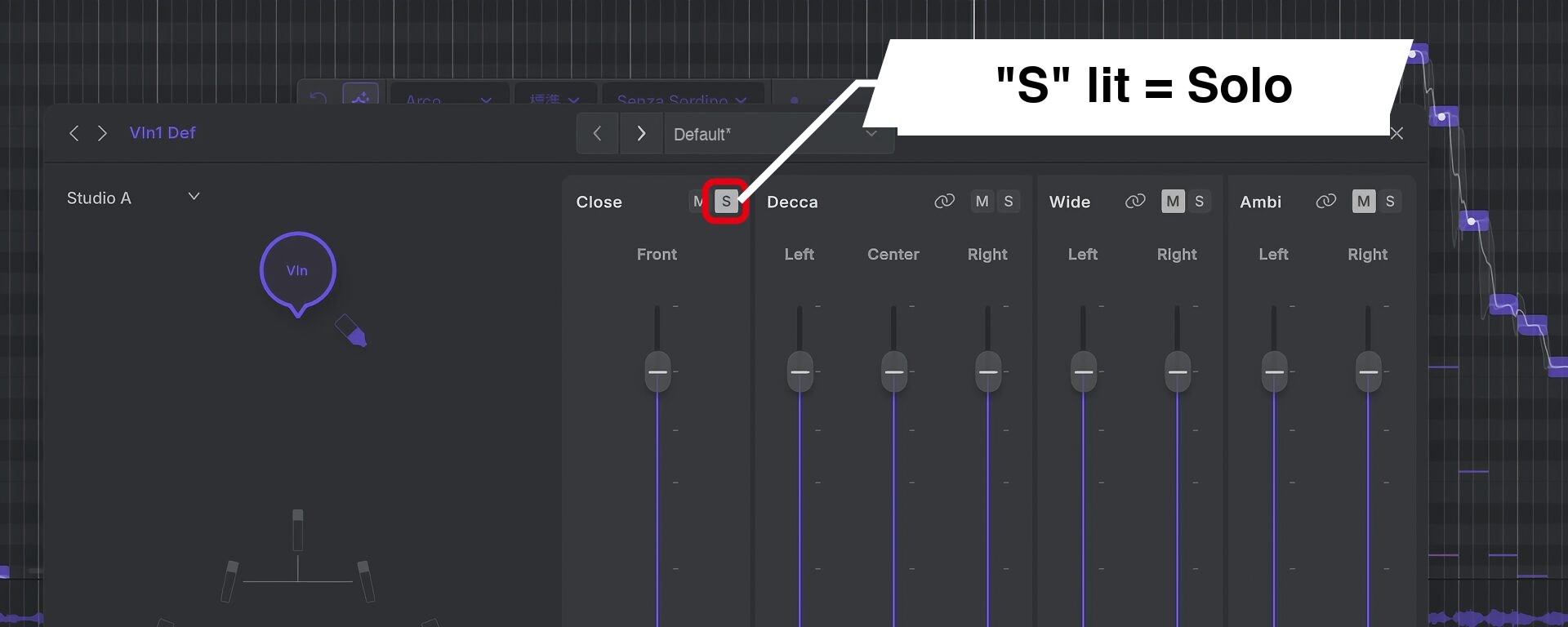
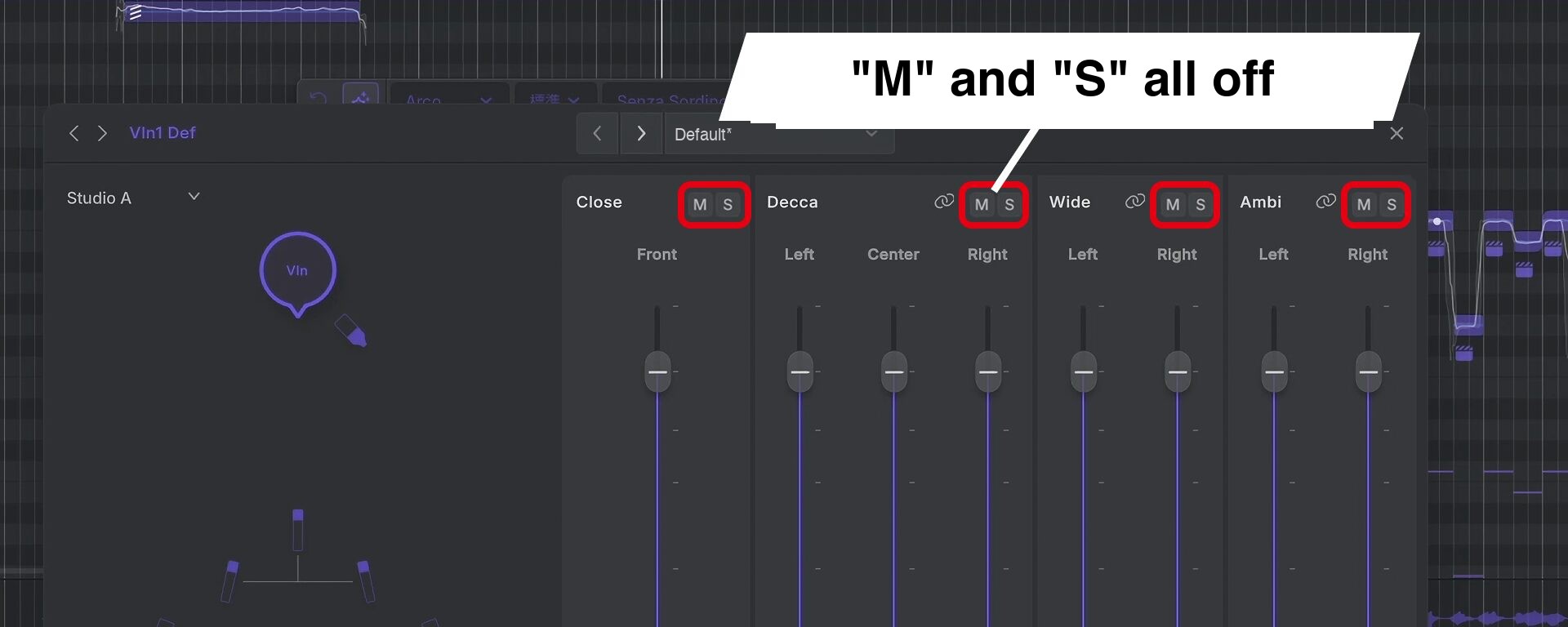
We also found it easy to make subtle adjustments, such as adding just a little ambience.
Choosing a Room
As well as microphone positions, you can choose the room ambience.
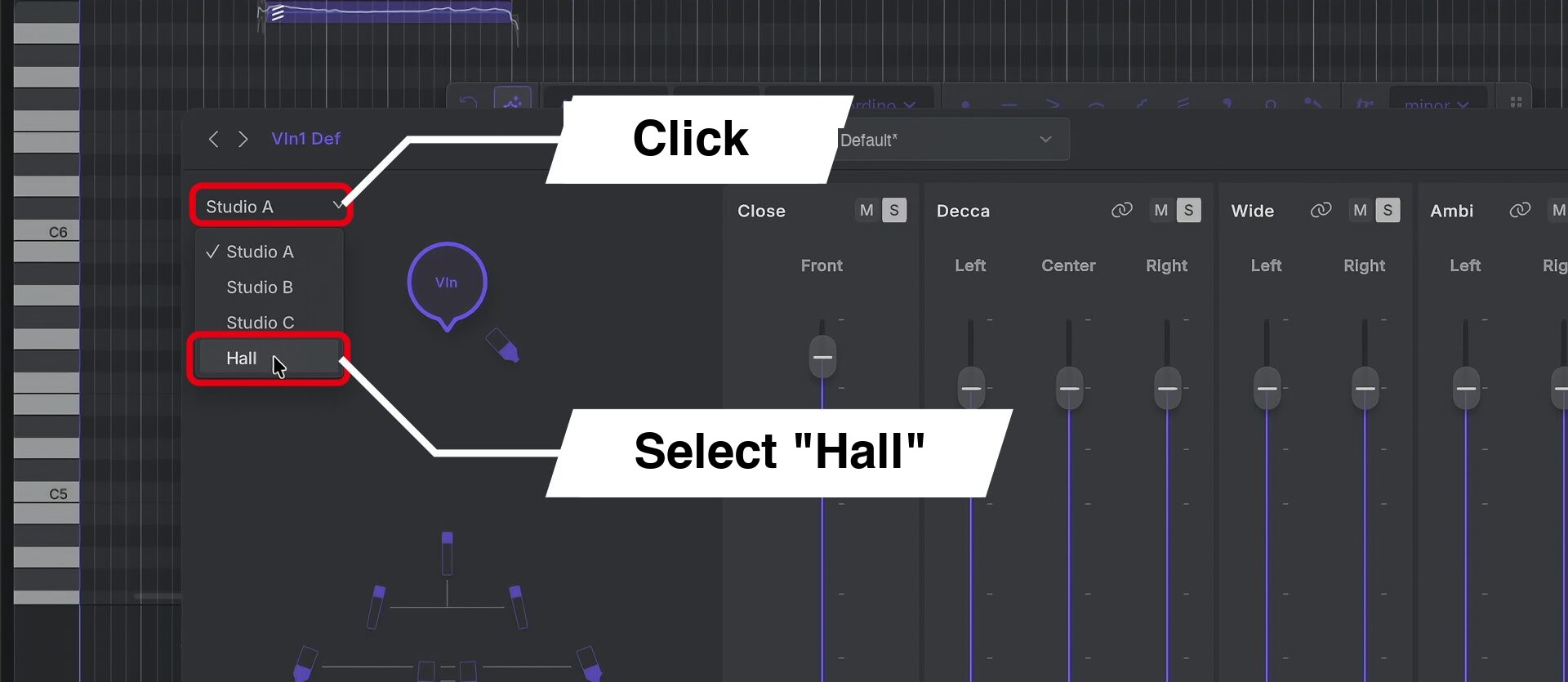
Hall produces a realistic concert-hall ambience.
It sounds less artificial than simply adding reverb afterward, with an ambience we would be happy to use as it is.
System Requirements

Windows
• OS: Windows 11 or later (64-bit)
Mac
• OS: macOS 11.0 or later
Shared Requirements
• CPU: Intel Core i3-8100 or better, AMD Ryzen 5 1600 or better, or Apple Silicon (M1 or later)
• Memory: 8 GB or more
• Storage: At least 300 MB free for the editor and one instrument database; additional space is required for each additional database.
• Other: An audio device, internet connection and an email address that can send and receive messages. A Dreamtonics account is required to use the product.
Pricing
The Instrument X editor, used to edit performance data, is included free when you purchase an instrument database.
Alongside individual instruments, there are collections grouped by instrument family and a complete set containing all 15 instruments.
| Product | Contents | Japan Price (Tax Included) |
|---|---|---|
| Instrument Database | One instrument of your choice | JPY 17,600 |
| Orchestral Strings Collection | Violin, viola, cello and double bass | JPY 47,300 |
| Orchestral Woodwinds Collection | Piccolo, flute, oboe, clarinet and bassoon | JPY 52,800 |
| Orchestral Brass Collection | Horn, trumpet, trombone and tuba | JPY 47,300 |
| Jazz Combo Collection | Alto saxophone (jazz) and tenor saxophone (jazz) | JPY 26,400 |
| The Complete Collection | All 15 instrument databases | JPY 114,400 |
Retailer: AHS Download Store
A 14-day free trial is also available, so you can try it before buying.
Prices shown are the Japanese prices reported in the original article as of October 2026.
Check the retailer's website for current prices.
In our hands-on experience, we noticed very little of the distinctive texture sometimes associated with AI-generated audio, and felt confident editing it without the sound falling apart.
The ability to switch nuances through performance styles was particularly useful when creating strings for pop music.
Instrument X delivers natural performances that follow your phrases, simply from the notes you enter.
Try playing it for yourself.
NEW ARTICLES
Latest English Articles











