
Cubase is the most used DAW software in Japan and is offered in five editions, PRO, ARTIST, ELEMENTS, AI and LE, with major differences in features and the number of included instruments between editions. This article explains in detail the feature differences that matter when choosing an edition, such as the number of tracks, maximum inputs and outputs, and VST instruments, so that everyone from beginners to advanced users can choose the best edition for their production style. All editions support a 64-bit audio engine and a 192 kHz sampling rate, so whichever you choose, you can produce high-quality music.
Comparing the Feature Differences Between Editions
The most used DAW software in Japan, "Cubase 11"
Official website: https://new.steinberg.net/ja/cubase/new-features/
Cubase is available in five editions with different features.

- PRO/ARTIST/ELEMENTS: available from music stores and the online store.
- AI/LE: editions bundled free of charge when you buy music-related products.
The AI edition comes with Yamaha products, and the LE edition comes with non-Yamaha products.
You can check the differences between these editions on the comparison page here, but there are so many items that even intermediate and advanced producers may find it confusing.
Here, we pick out the items that seem especially important among all the features and aim to provide guidance for choosing an edition.
Even if you already use a higher edition, you may discover features you did not know about, so please take a look.
Cubase 11 Edition Comparison Video
Computer Requirements for Using Cubase
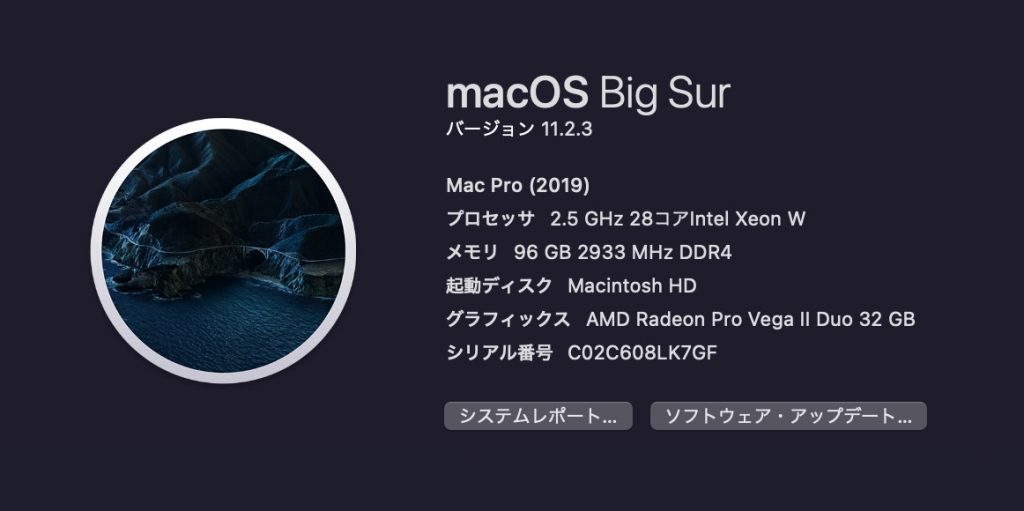
Most of the required computer specs are common to all editions.
- Supported OS
Mac: Mojave / Catalina / Big Sur (M1 Macs not supported at this time)
Windows: Windows 10 (64-bit)
- Computer specs
CPU: Intel i5 or higher
Memory: 4 GB (required), 8 GB or more recommended
Graphics: graphics card supporting DirectX 10 / WDDM 2.0 (Windows only)
Display resolution: 1440 x 900 (required), 1920 x 1080 or higher recommended
The required storage space differs slightly depending on the included instruments and effects.
- Required storage space
PRO/ARTIST: 35 GB or more
ELEMENTS/AI/LE: 25 GB or more
Considering that your songs and additional instruments and effects will increase, we recommend leaving plenty of free space.
Also, only the PRO/ARTIST editions require a USB key (eLicenser) to be connected.
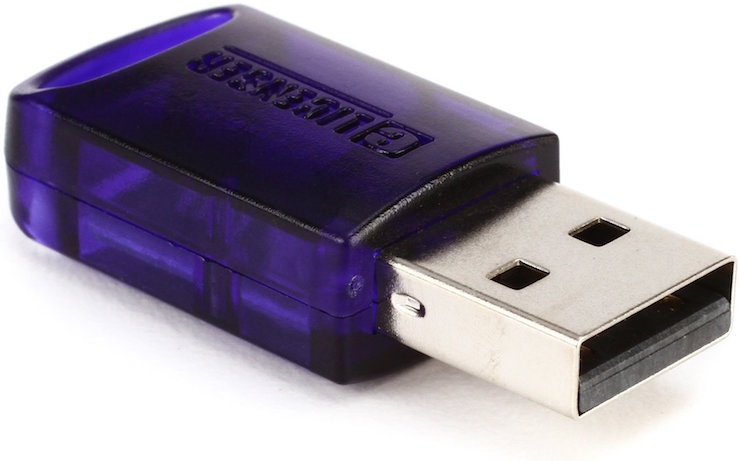
Please also note that this means one USB port is needed.
(It can be recognized and used via a USB hub.)
It has been announced that this key will be discontinued for convenience in the future, but at this point (April 2021) it is required.
Adding Third-Party VST Plug-ins
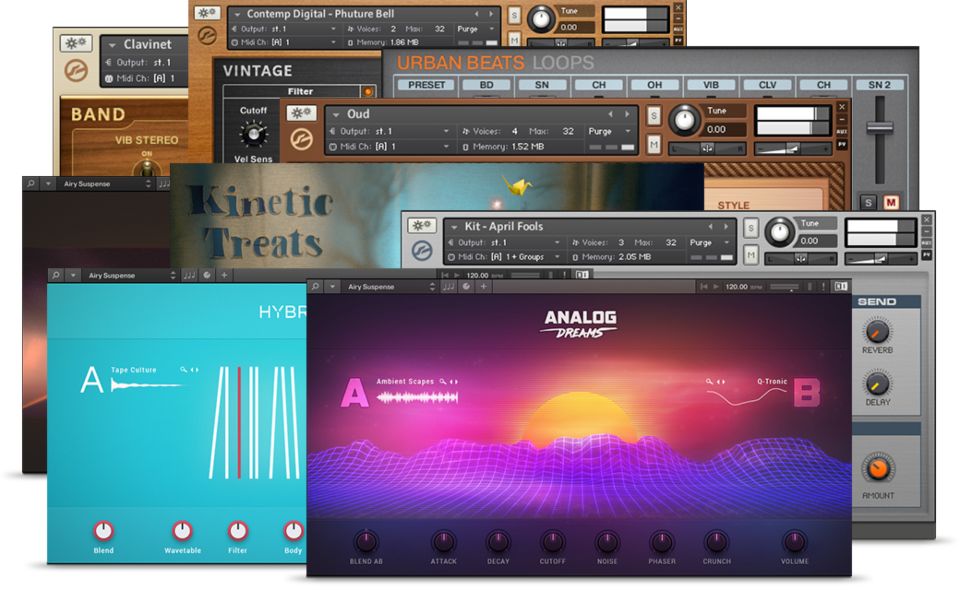
In Cubase, you can use separately purchased instrument and effect VST plug-ins (64-bit).
Loading these VST plug-ins is supported in all editions.
Even if you use the AI/LE editions, which include fewer instruments and effects, you can cover this by adding VST plug-ins.
Sound Quality of the Editions
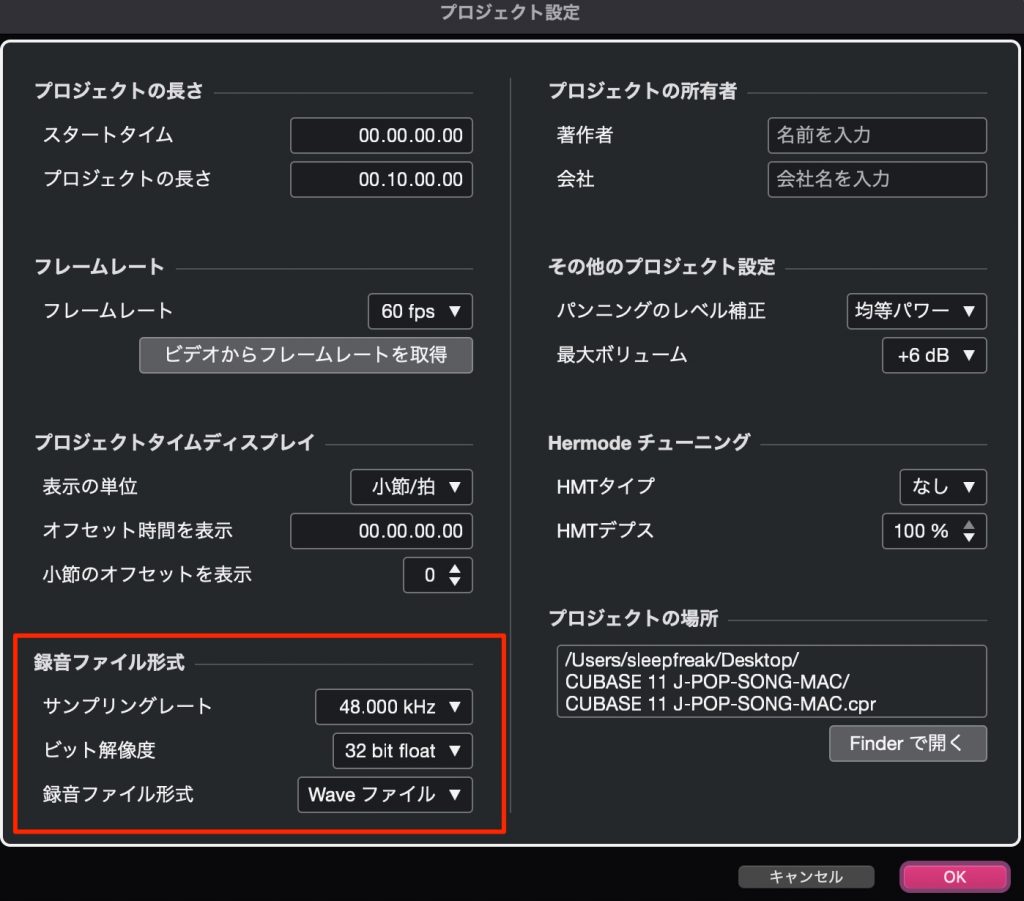
Sound quality is the same in all editions.
- Audio engine: 64-bit
- Maximum sampling rate: 192 kHz
This means you can produce high-quality music with any edition.

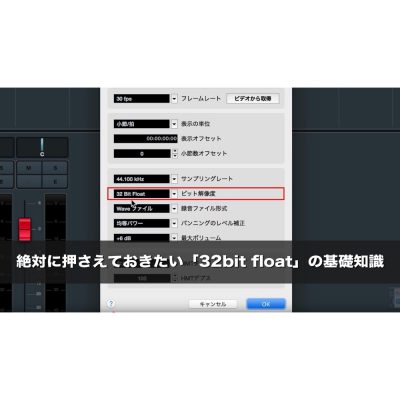
Essential Basics of "32-bit Float"
In music production, "32-bit float" is not simply a higher bit resolution; it plays an important role as a DAW's internal processing method. With 32-bit float internal processing, each track...
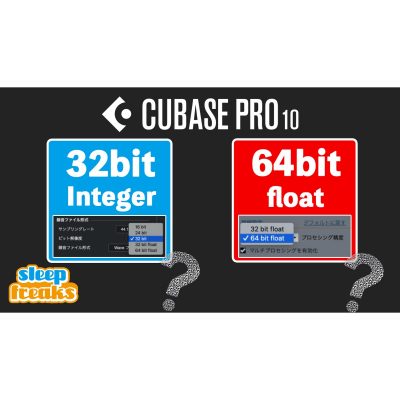
What Are 32-bit (Integer) Audio and the 64-bit Float Audio Engine? | How to Use Cubase 10
This explains the 32-bit integer audio and 64-bit float audio engine newly supported in Cubase 10. 32-bit can express about 4.3 billion steps of dynamics, 2 to the 32nd power...
Track Counts and Feature Limits
One difference between the editions is the number of tracks you can use.
Audio tracks
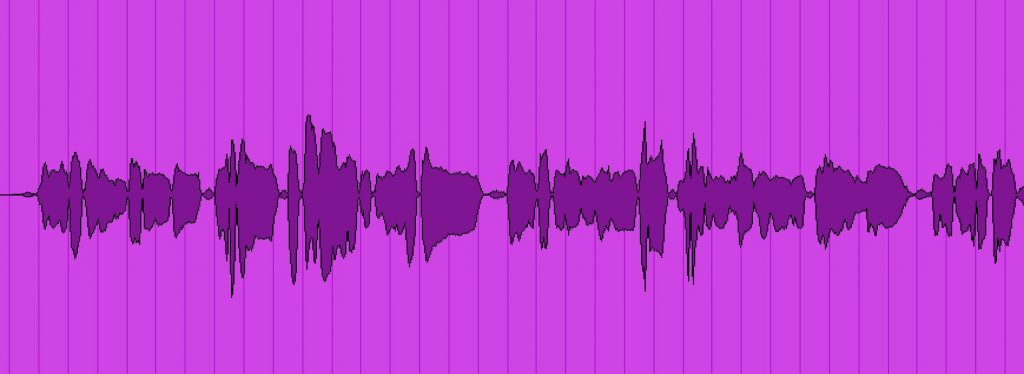
Tracks for editing and handling audio material such as vocals and guitar.
- PRO/ARTIST: unlimited
- ELEMENTS: 48 tracks
- AI: 32 tracks
- LE: 16 tracks
If you want to build band-style songs, considering each drum kit piece, vocals, backing vocals, overdubbed guitars and so on, the LE edition's 16 tracks may not be enough.
The same applies to EDM tracks, which involve a lot of waveform editing.
For singing with acoustic guitar or for voice editing, I felt that LE is perfectly adequate.
Maximum inputs and outputs
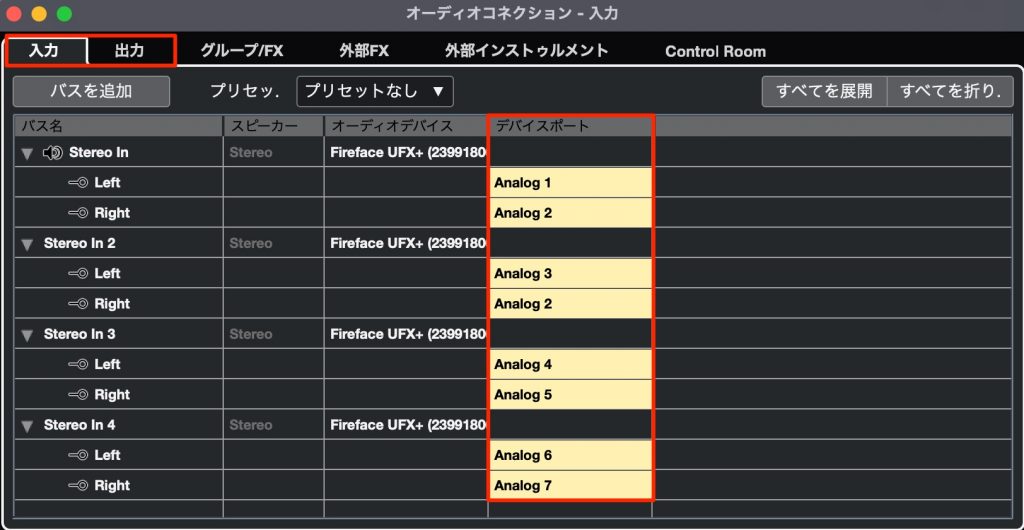
There are also differences in the number of inputs that can be recorded at the same time.
- PRO : 256
- ARTIST : 32
- ELEMENTS : 24
- AI : 16
- LE : 8
This also depends on the number of inputs on your audio interface, but even the LE edition lets you use eight microphones for recording drums, so I don't think it will be much of a problem.
Number of VST instruments
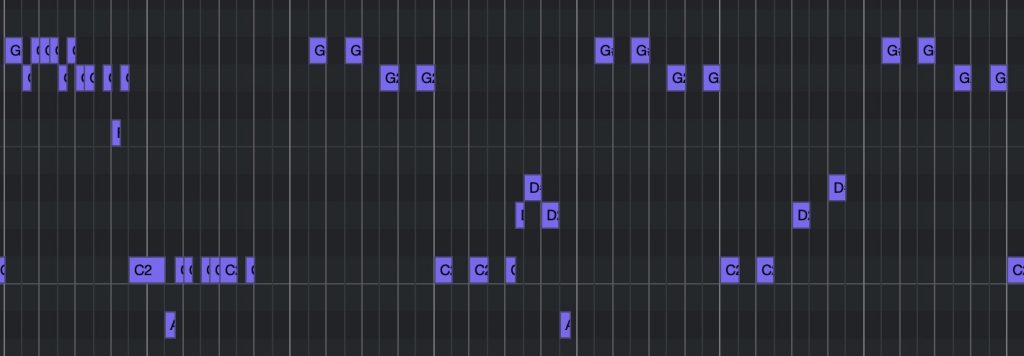
Next is the number of instrument tracks for programming with soft synths.
- PRO/ARTIST: unlimited
- ELEMENTS: 24 tracks
- AI: 16 tracks
- LE: 8 tracks
For those who want to produce mainly with programmed parts, even the ELEMENTS edition's 24 tracks may become tight.
You can save instrument tracks by converting finished instrument tracks to audio, but as mentioned above, the number of audio tracks is also limited, so you need to be aware of this.
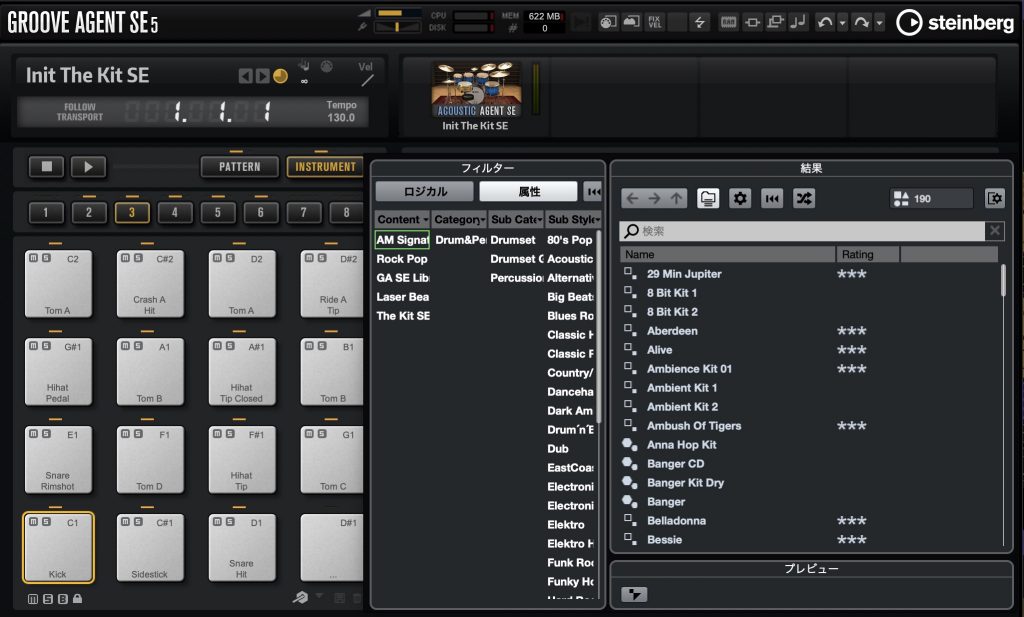
There is also a big difference in the number of instruments and presets included with each edition.
- PRO: 3,000 or more
- ARTIST: 2,600 or more
- ELEMENTS: 1,000 or more
- AI/LE: 185 or more
If you want to produce with Cubase's included instruments and presets without using third-party VST plug-ins, I recommend choosing the ARTIST edition or higher.
You can check the details of the included instruments under "Virtual Instruments" here.
Sampler Track (PRO/ARTIST/ELEMENTS)
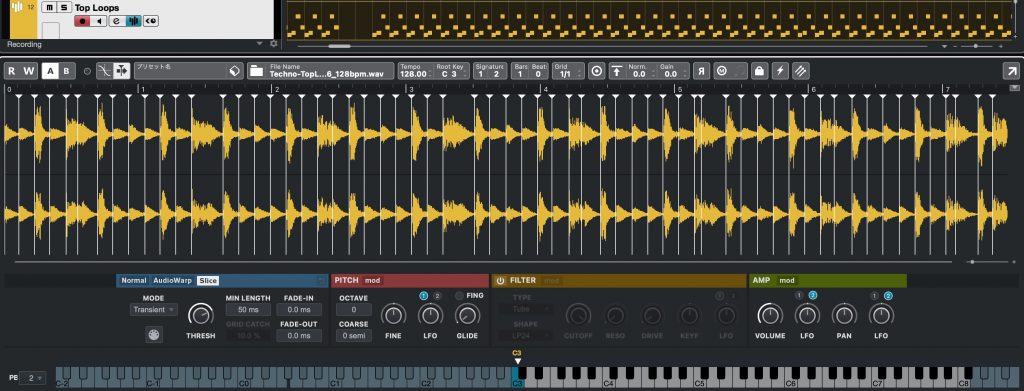
The Sampler Track is a very convenient track that imports audio material and rebuilds it to fit your song, and it is a feature used frequently in electronic music, especially EDM.
Cubase Pro 10 Latest Music Production Seminar 2: Trap Bass Sounds and Phrase Creation
Learn how to create Trap bass sounds with Cubase Pro 10. This article covers the technique of sampling a TR-808 kick sound to create a bass, the Sampler Track...

Cubase Pro 10 Latest Music Production Seminar 3: How to Make Upper Sounds That Color the Song, and Tips
This article explains the latest music production techniques using Cubase Pro 10, focusing on how to build upper sounds in Hip Hop/Trap songs. Loop sa...
Recording Features
There is no major difference between the editions, and all can do basic recording.
Let's look at the recording-related features that differ.
Metronome Customization (PRO/ARTIST)
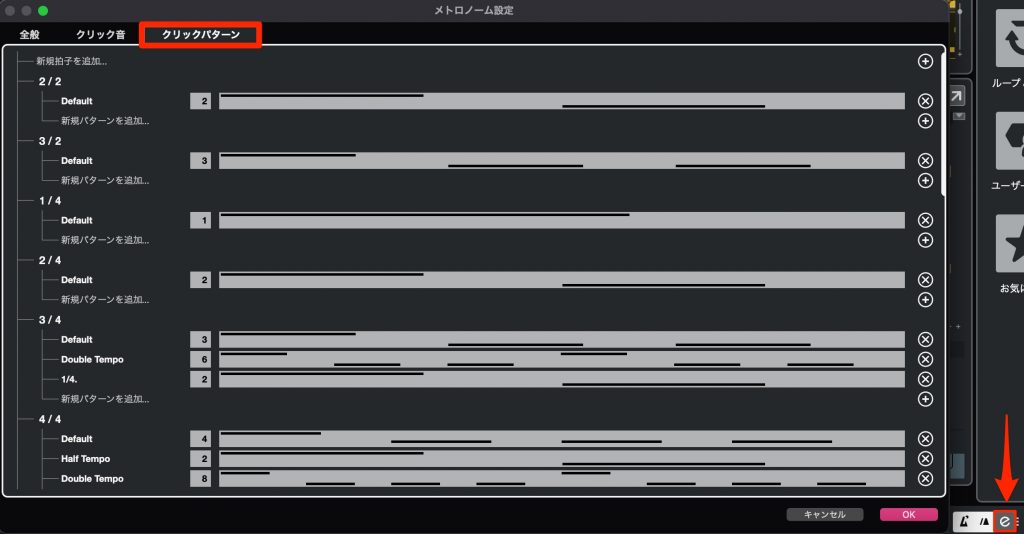
A "Click Pattern" tab has been added to the metronome customization, letting you finely customize count patterns.
Starting with the volume and mute of each beat, there are many variations such as half and double tempo.
It is a useful feature not only for recording but also for practicing instruments.
Take Comping (PRO/ARTIST)
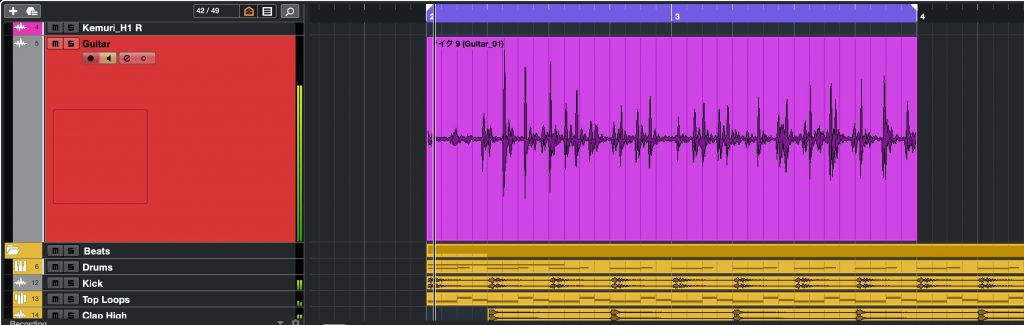
When you record over an existing event on a track, the original take can be kept.
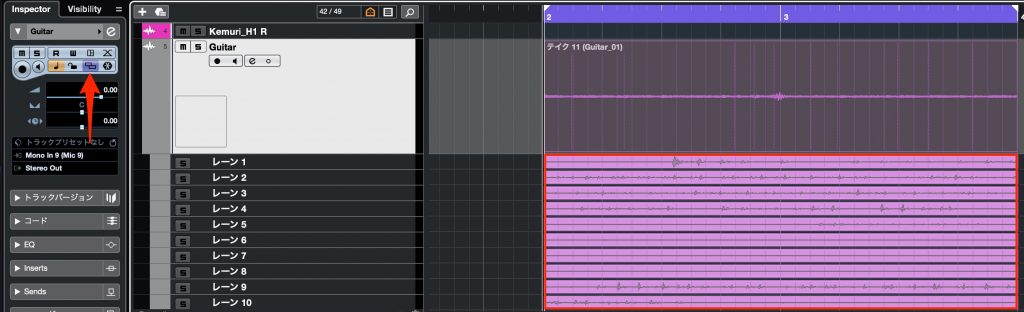
You can view the saved takes in lanes.
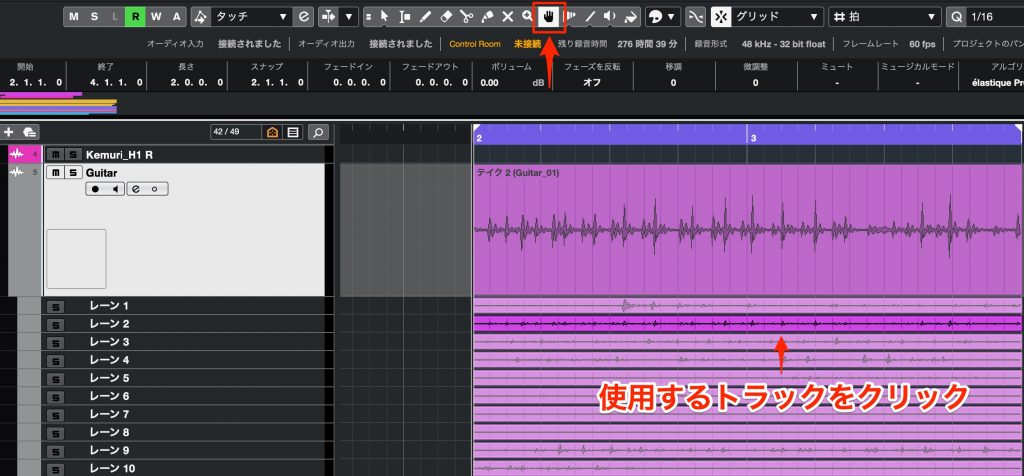
With the Comp tool, you can choose the takes you like.
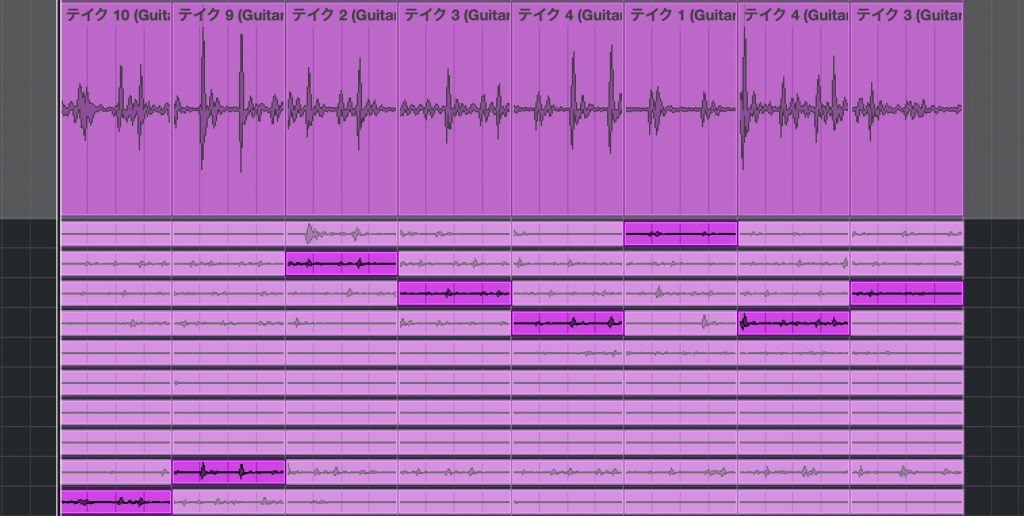
You can also cut events to create a best take that joins parts of each take.
Track Versions (PRO/ARTIST)
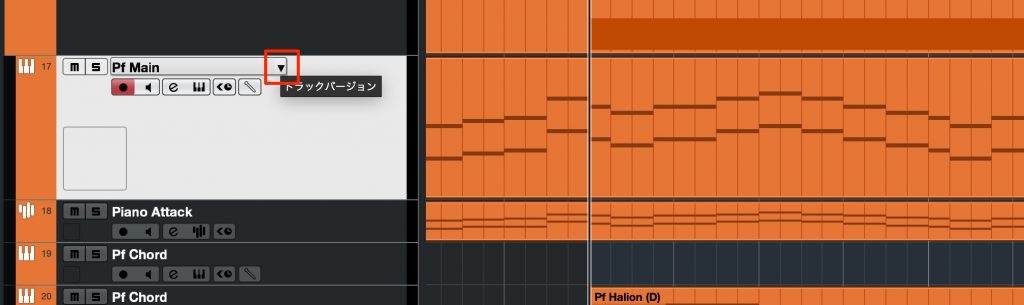
This saves the state of the events on a track and lets you swap between multiple saved versions.
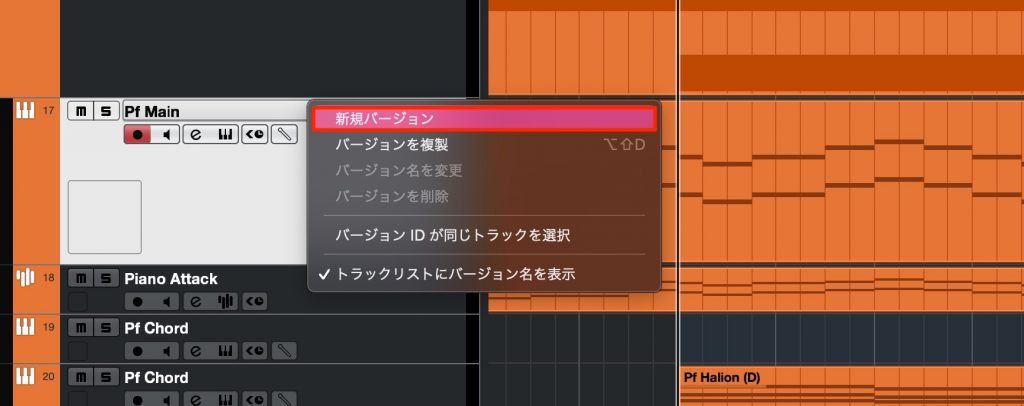
Select "New Version."

You can now play or program new events like this.
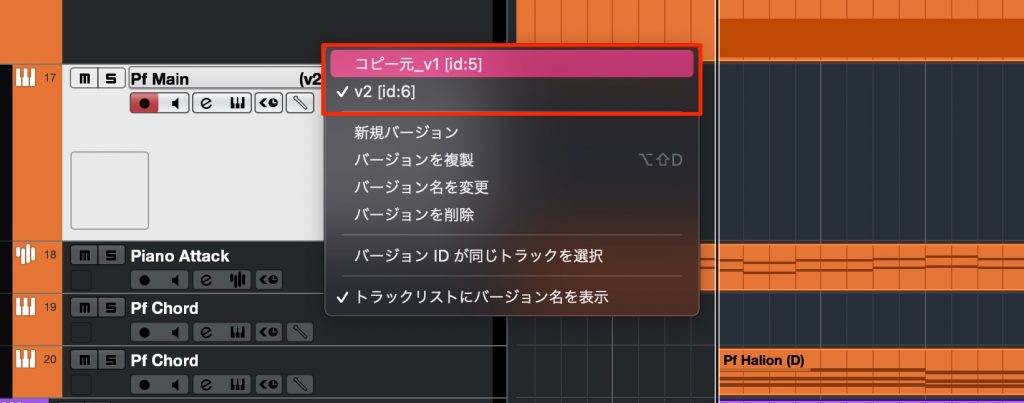
Because you can switch between saved events instantly, it is also convenient when you want to try different combinations of phrases or structures in a song.
Control Room (PRO only)
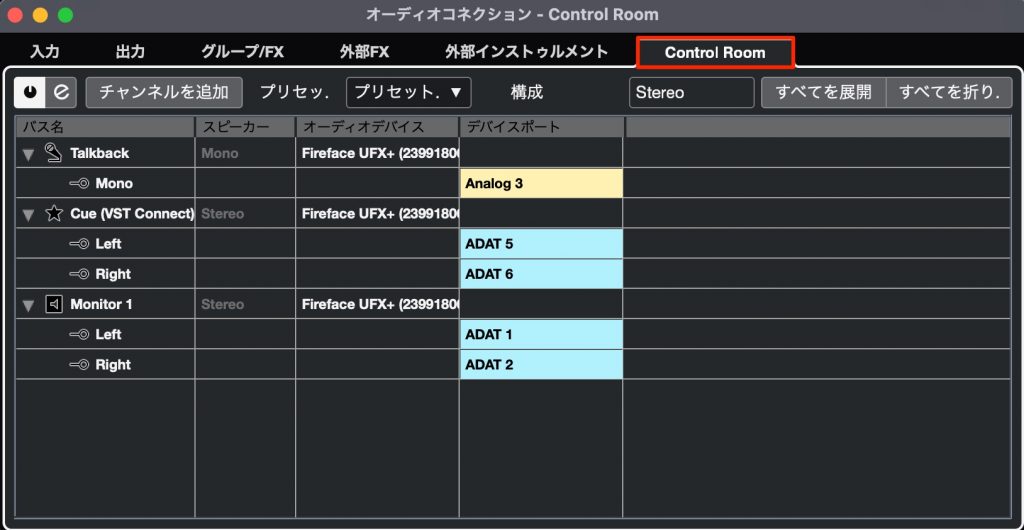
For example, when you want to set up a vocal booth and build a talkback system to communicate with the booth.
It is a feature that lets you flexibly design and build audio routing inside Cubase.
Audio Editing
Next, let's check the features for audio, such as waveform editing.
Audio Quantize (PRO/ARTIST)
"Quantize," which corrects the rhythm of MIDI phrases, is available in all editions.
In addition, the PRO/ARTIST editions can apply quantize to audio material.
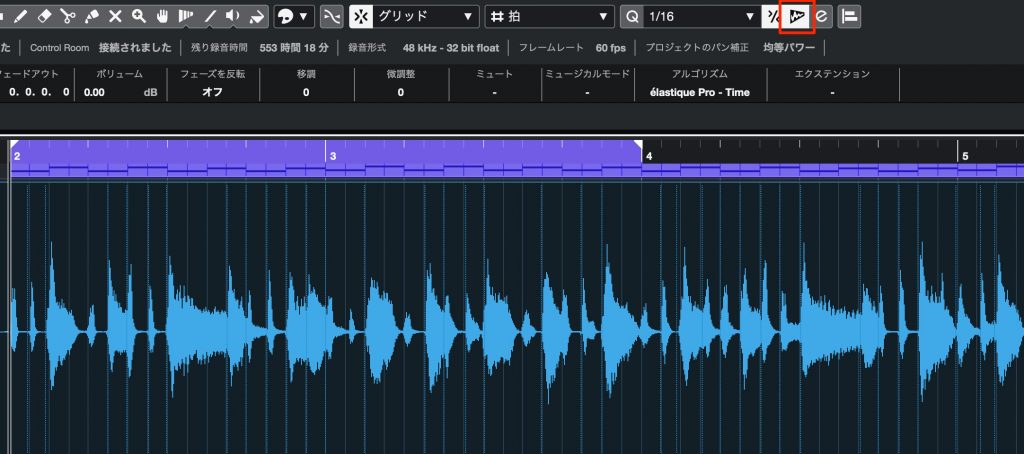
Specify the quantize note value and turn on "AudioWarp Quantize."
Then just select the target event and press the "Q" button.
It is a very convenient feature when you like the performance but the rhythm is a little loose.
VariAudio (PRO/ARTIST)
"VariAudio," Cubase's flagship vocal pitch correction feature, is included in the ARTIST edition from Cubase 11.
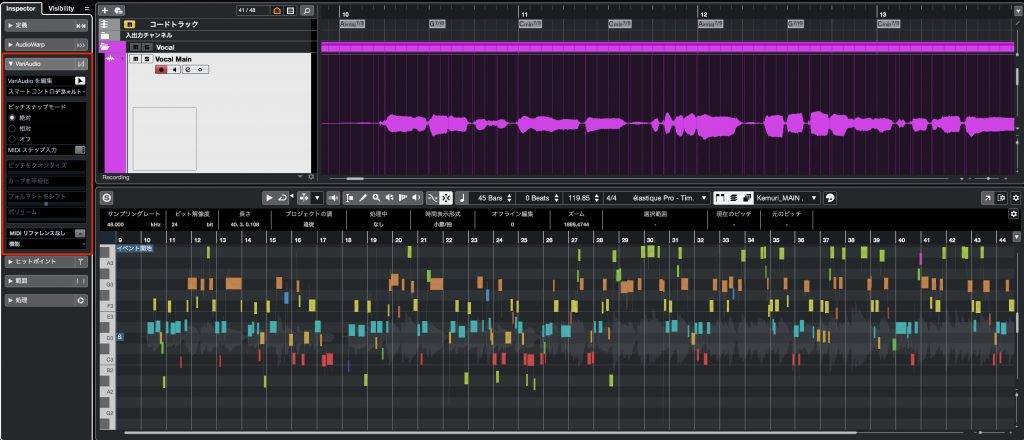
It can flexibly correct not only pitch but also timing, making it essential for vocal music.
"VariAudio" 1_ Pitch Correction
"VariAudio," included with Cubase, is a powerful feature for quickly and easily correcting the pitch of recorded vocals. Fine adjustment with Shift + drag, the Quantize slider...

Cubase Pro 10 Latest Music Production Seminar 4: Polishing the Vocal Track with VariAudio 3
VariAudio 3 in Cubase Pro 10 is a feature that revolutionizes vocal track editing. With the newly added MIDI reference function, MIDI tracks...
Render in Place (PRO/ARTIST)
This feature instantly converts specified events into audio events.
It is especially effective in EDM genres with a lot of waveform editing, and you can also use it to reduce load by converting tracks with CPU-heavy instruments or effects into audio.
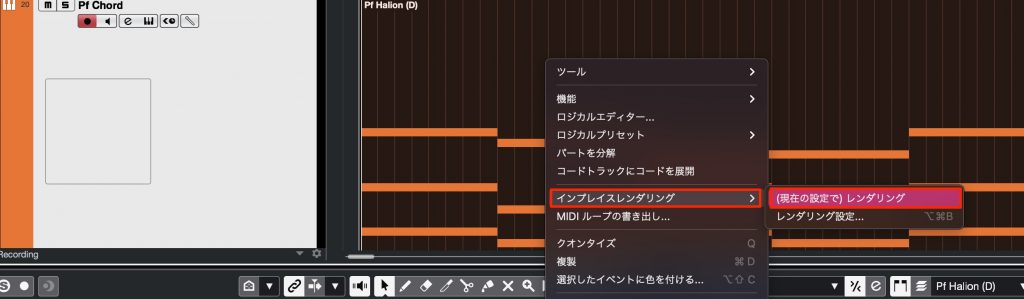
Select the events you want to convert to audio events and right-click.
Select "Render in Place" from the menu that appears.
MIDI Editing
Scale Assistant (PRO/ARTIST/ELEMENTS)
By specifying the song's key and scale, this feature limits the keys of the piano roll window (displaying them optimally for the key/scale).
It is convenient for those not used to playing a keyboard, for those who want to unify the song's mood by being aware of scale tones, and for checking pitch clashes and wrong notes.
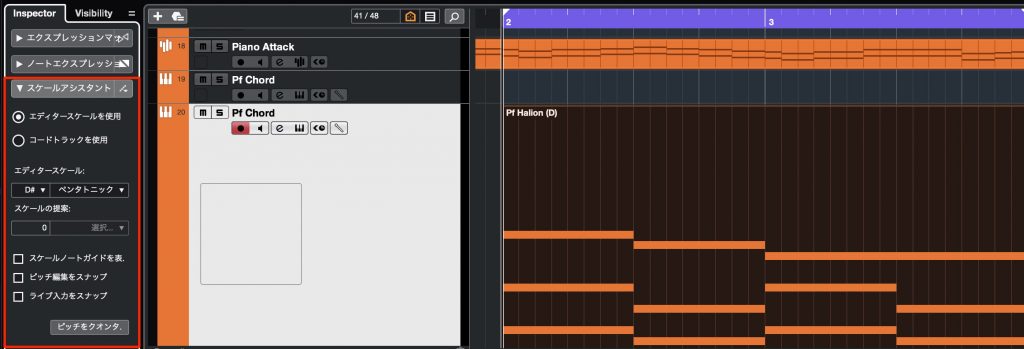
Double-click a MIDI event and specify the song's key and scale in the Scale Assistant in the Inspector.
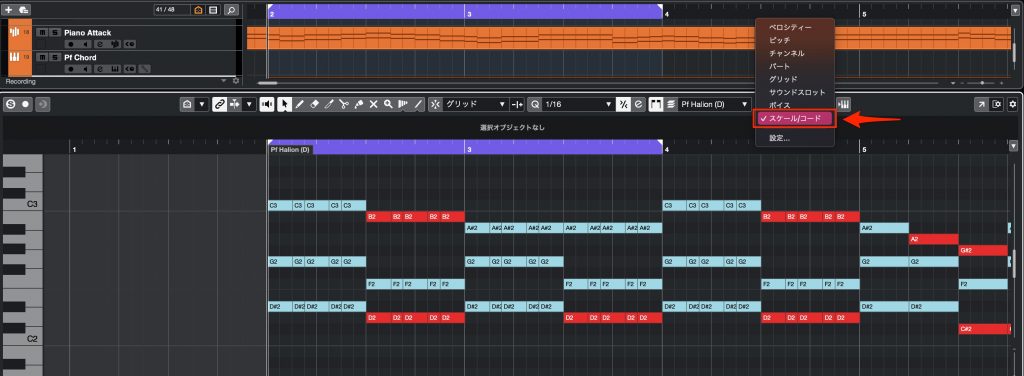
Changing the piano roll's coloring to "Scale/Chord" color-codes notes based on the specified key/scale tones.
Chord Track Proximity Mode (PRO/ARTIST)
The Chord Track, which lets you enter and display a song's chords, is available in all editions.
Only PRO/ARTIST have a "Proximity" tab in the Chord Assistant that appears when you double-click a chord.
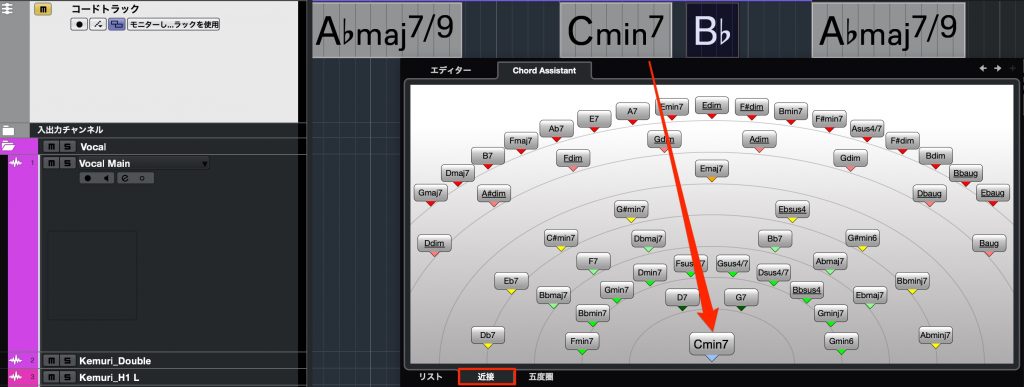
It suggests the next chord based on the previous one.
It is handy when you are stuck on a chord progression or want to explore new possibilities.
MIDI Effects (PRO/ARTIST)
Instrument and MIDI tracks have MIDI effects.
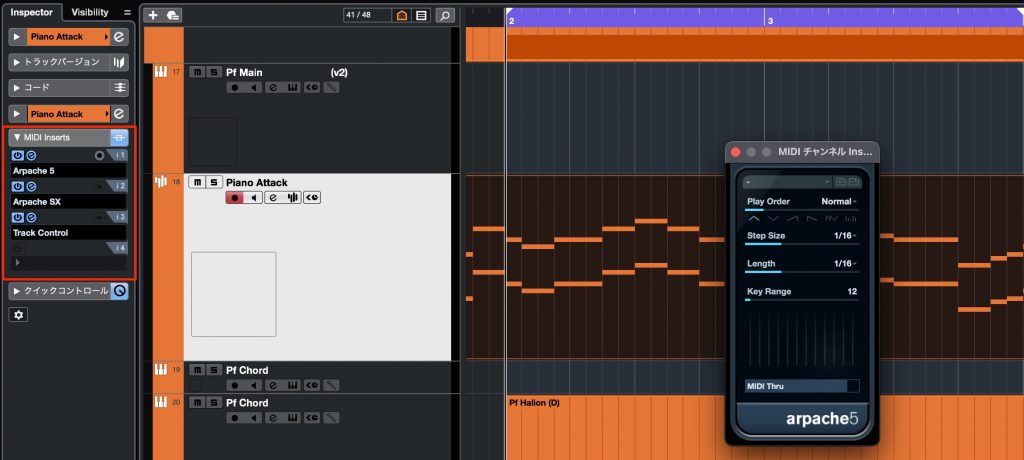
They can be accessed from the Inspector in the left zone, and up to four MIDI effects can be applied.
You can control a variety of MIDI performance, such as the synthesizer staple arpeggiator, gate and step.
List Editor (PRO/ARTIST)
An editor for managing and editing the contents of MIDI events as numbers.
The List Editor is used less often these days, but it is often used for MIDI deliveries in jobs that handle MIDI data (such as karaoke).
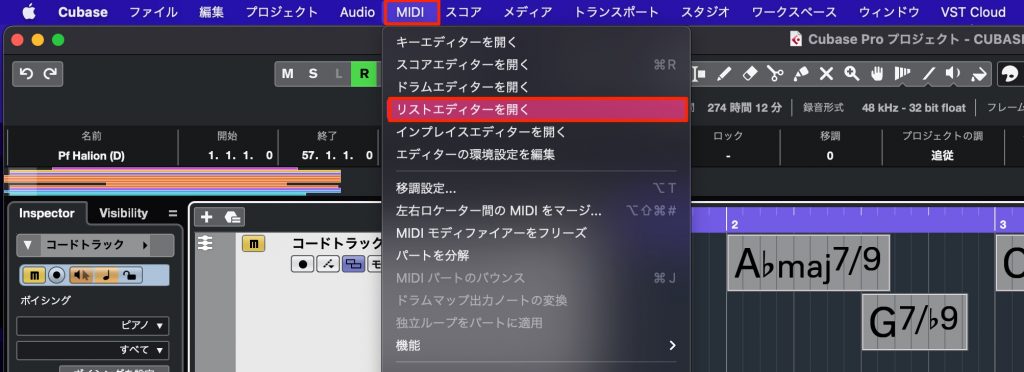
Specify the target event and open the window from the top menu > "MIDI" > "Open List Editor."
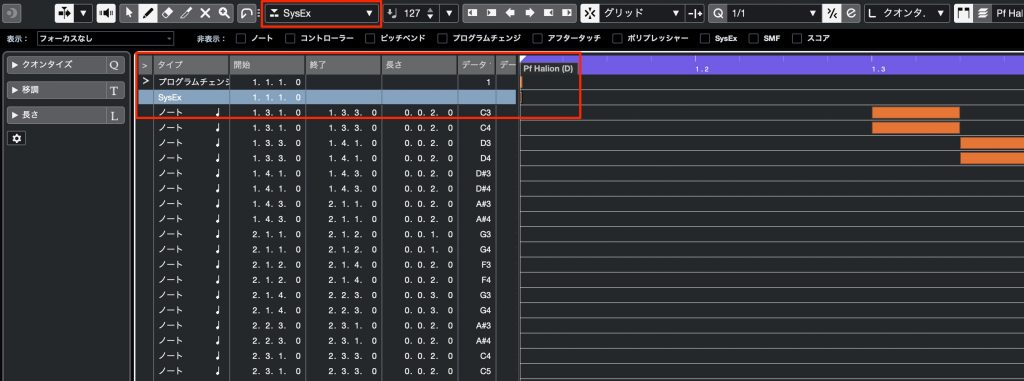
It is especially convenient for managing MIDI CC and System Exclusive data within events.
Expression Maps (PRO only)
Acoustic instruments have various playing techniques that make use of each instrument's characteristics.
Incorporating these into programmed phrases enables more realistic performance and expression.
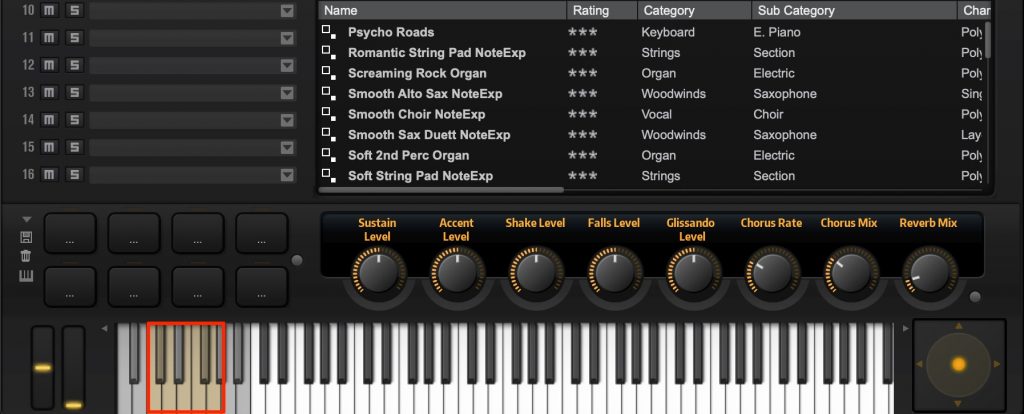
These days, these techniques are commonly included in a single preset, with key switches that change the technique with specific keys.
You can switch techniques by pressing the specified keys, but the keys differ between instruments, and you need to know and check which key switches to which technique, which often feels like a hassle.
Expression maps solve this.
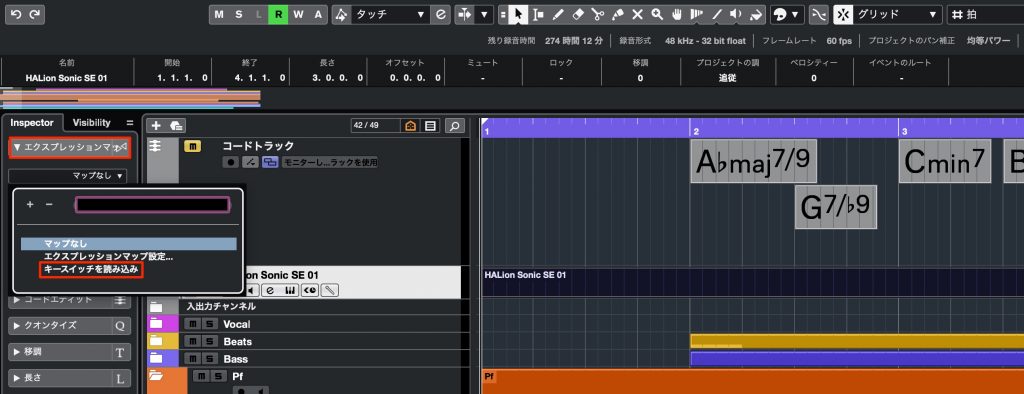
Select an event and, in the Inspector, specify the "Expression Map" that matches the instrument.
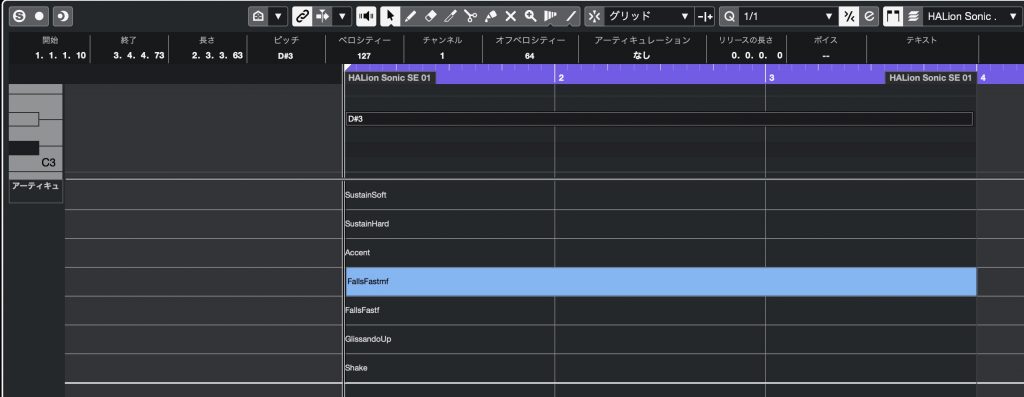
Showing "Articulations/Dynamics" (key switches) in the controller lane of the piano roll makes switching and managing techniques very easy to understand.
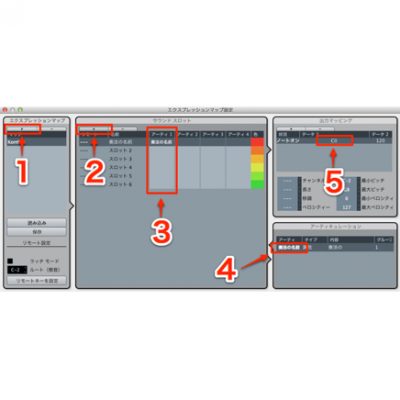
You can also create maps for separately purchased third-party instruments.
For details, see the article below.
Note Expression (PRO/ARTIST)
A feature that records and manages MIDI CC and other data for each MIDI note within an event.
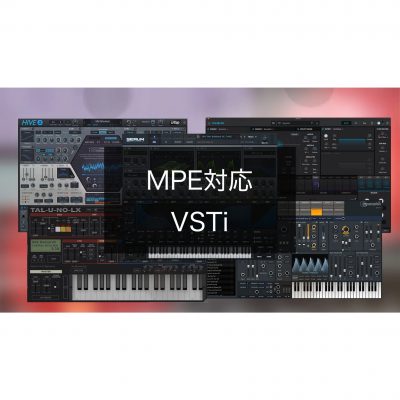
To play with individual values specified for each note, the instrument you use must support the MPE standard.
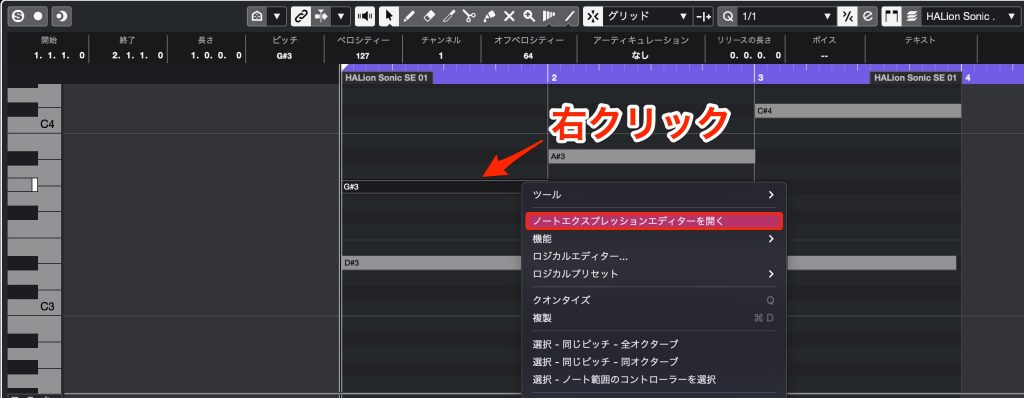
In the Inspector's Note Expression, right-click the note you want to edit and display "Note Expression."
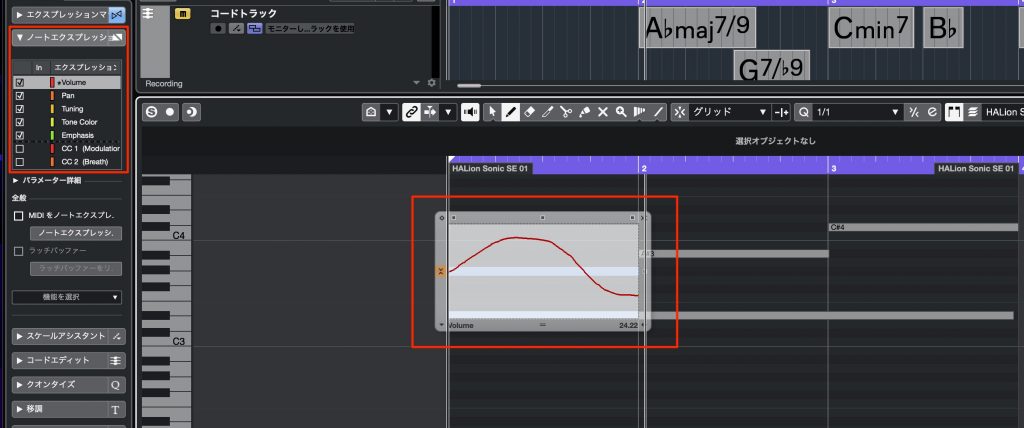
Select the item to record from "Note Expression" in the Inspector.
You can record individual values for notes in the same way as writing automation.
Because the expression is recorded on the note itself, the expression values follow when you move the note.
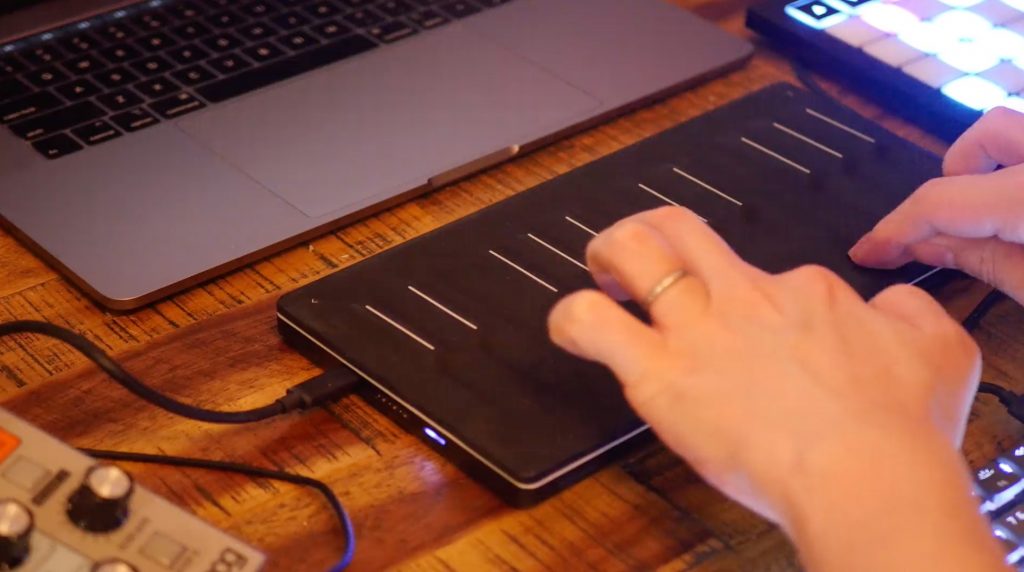
Recording an MPE-compatible product in real time records different MIDI information for each note.
Especially if you use MPE-compatible MIDI products (such as ROLI keyboards), I recommend the ARTIST edition or higher to take advantage of these capabilities.
Score Editor Advanced (PRO only)
All editions have a Score Editor, but only the PRO edition has items for building scores in more detail.
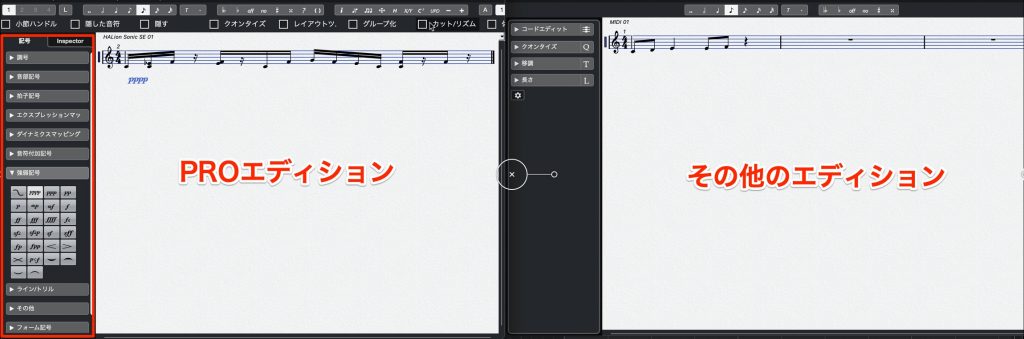
If you want to produce music centered on Cubase's Score Editor, or need to deliver scores, I recommend the PRO edition.
General Editing Operations
Combined Object/Range Selection Tools (PRO/ARTIST)
All editions have a "Range Selection tool" among the editing tools.
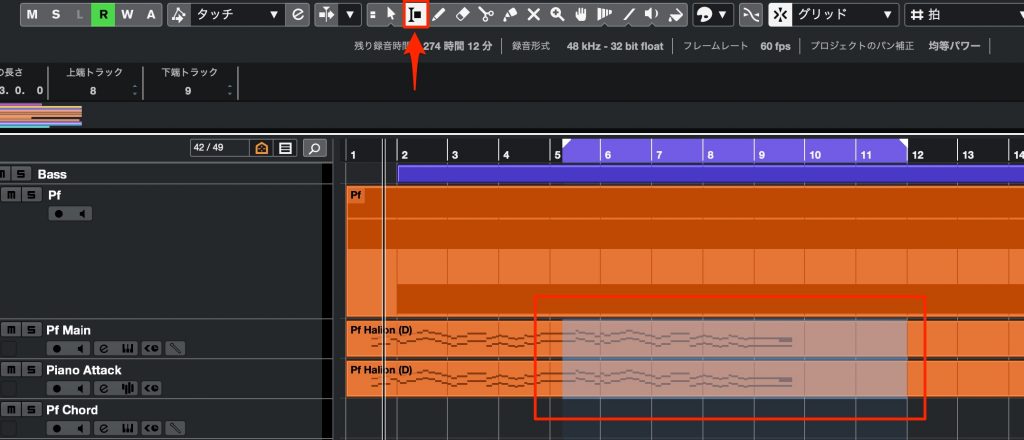
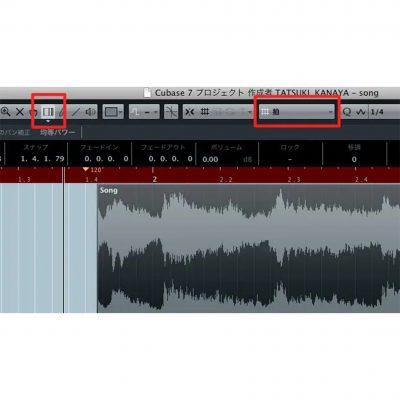
It is a tool that lets you edit, for example delete, independently of event boundaries.
It lets you edit with a feel similar to the DAW software "Pro Tools," so it should be especially useful for those who have moved from Pro Tools to Cubase.

In the PRO/ARTIST editions, this "Range Selection tool" can be combined with the "Object Selection tool," which edits whole events.
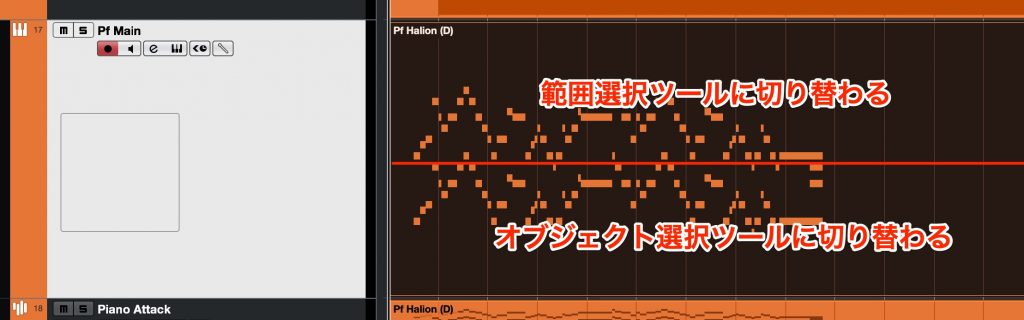
Above the middle of an event it becomes the "Range Selection tool," and below it becomes the "Object Selection tool."
This combination can make editing more efficient.
Tempo/Signature/Transpose Tracks (PRO/ARTIST)
You can show "Tempo/Signature/Transpose tracks" on the song's timeline and edit them.
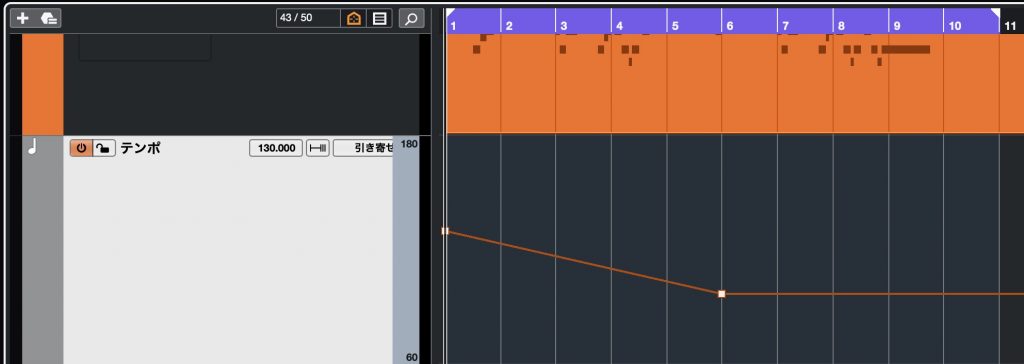
The Tempo Track controls the song's tempo in bars/beats

The Signature Track changes time signatures
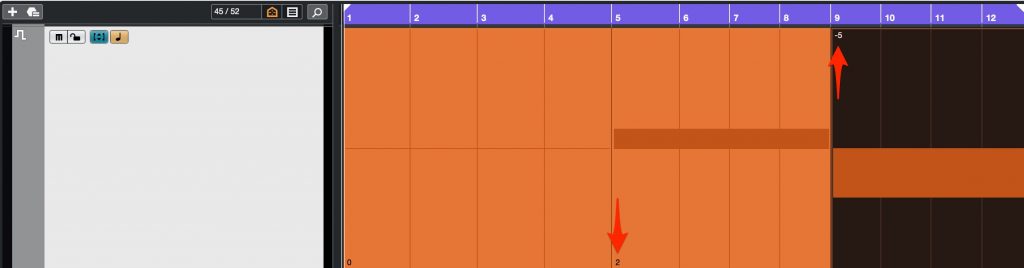
The Transpose Track is a convenient track that lets you change key without changing the contents of events.
Time Warp (PRO only)
MIDI and audio material are generally matched to the tempo of the song you are producing.
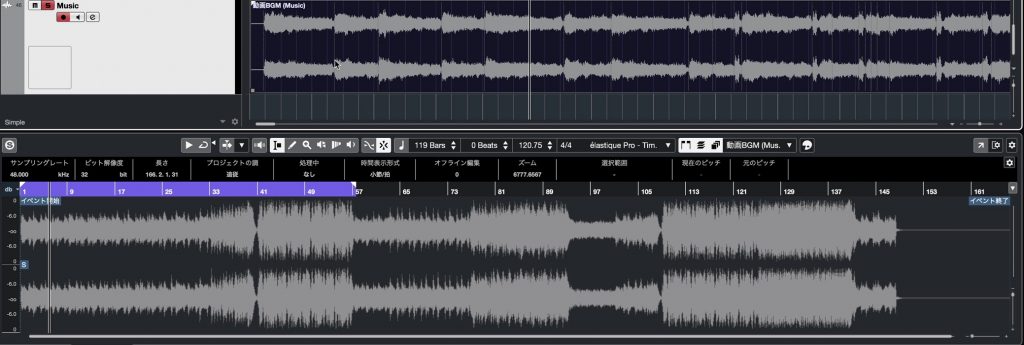
Time Warp works the other way around: it lets you match Cubase's own tempo to audio recorded without a metronome.
It is convenient when you want to program or record new parts against an audio file.

Select Time Warp from the tools.
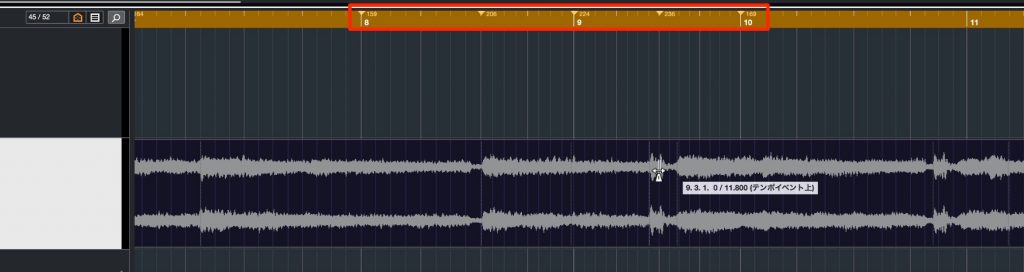
By moving the beats to match while checking the target event, Cubase's (the song's) tempo is automatically adjusted to the content of the audio event.
Logical/Project Logical Editor (PRO only)
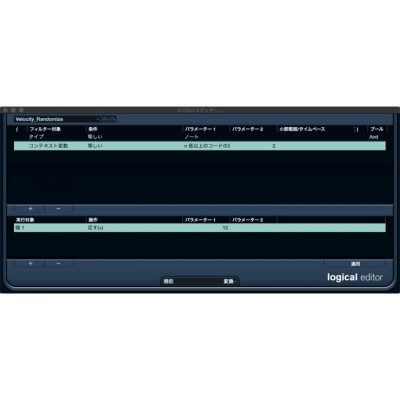
The Logical Editor is an editing aid that lets you specify conditions for the contents of MIDI events and perform specific operations on them all at once.
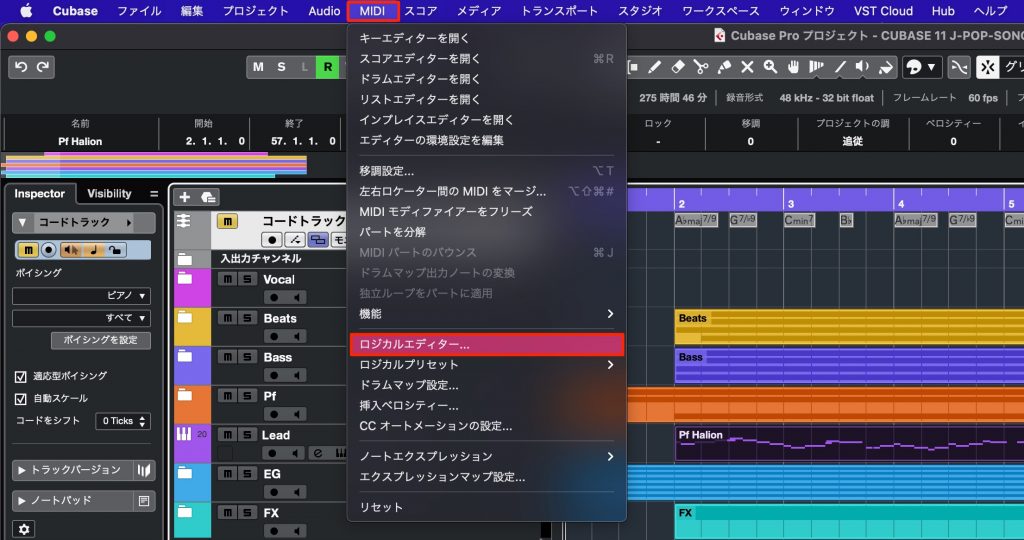
Select the target event and open the Logical Editor.
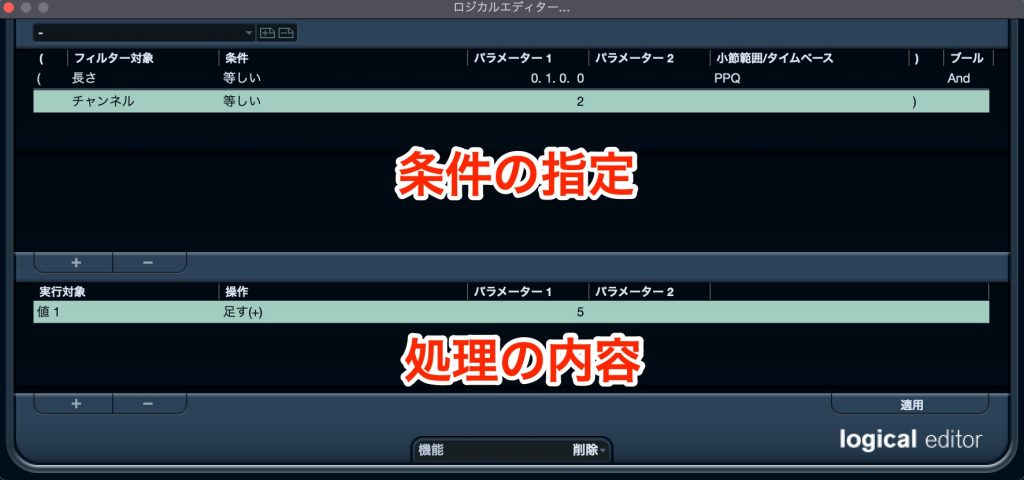
Specify the conditions in the upper window, and the operations specified in the lower window are applied to the MIDI notes and CCs that match.
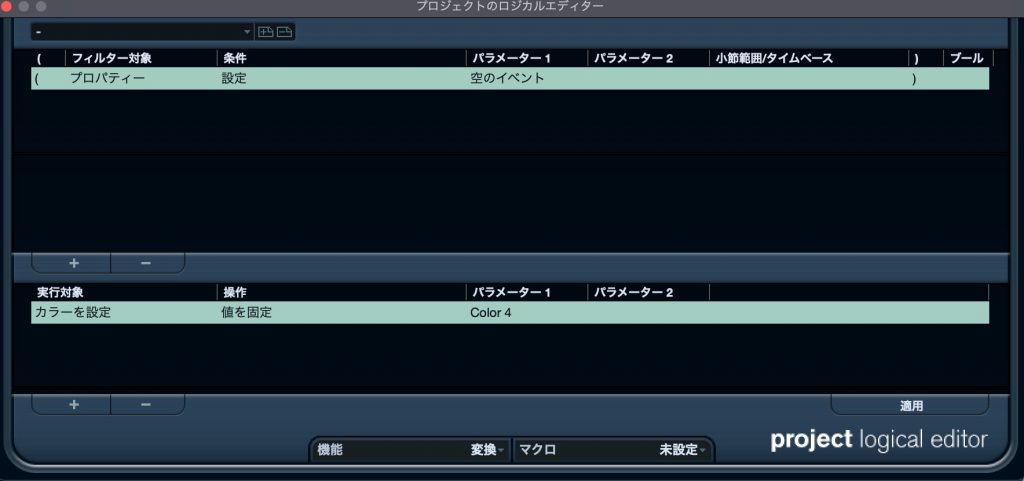
The Project Logical Editor is not limited to MIDI events; it works on the tracks and events of the whole song.
As with the Logical Editor, specify the conditions in the upper window, and the operations specified in the lower window are applied to the matching items.
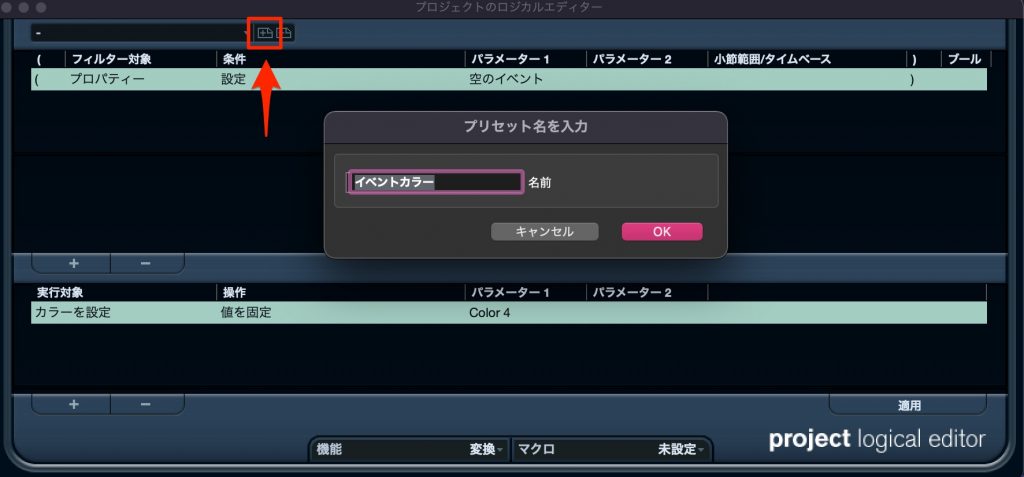
These can be saved as presets.
It is very convenient because frequently used operations can be done with a single button or shortcut.
Mixing
Next, let's check the mixing features for adjusting each track's effects and volume balance.
Multiple MixConsole Windows (PRO only)
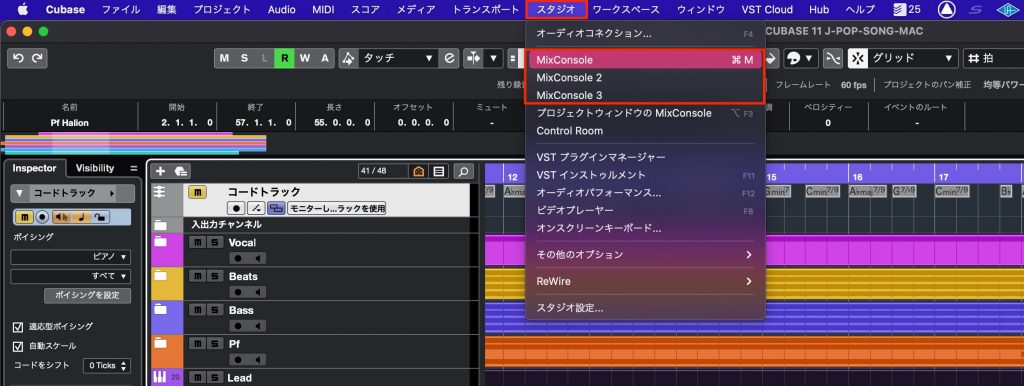
Only the PRO edition can use three MixConsoles, and you can customize the display of each.
Insert effect limits
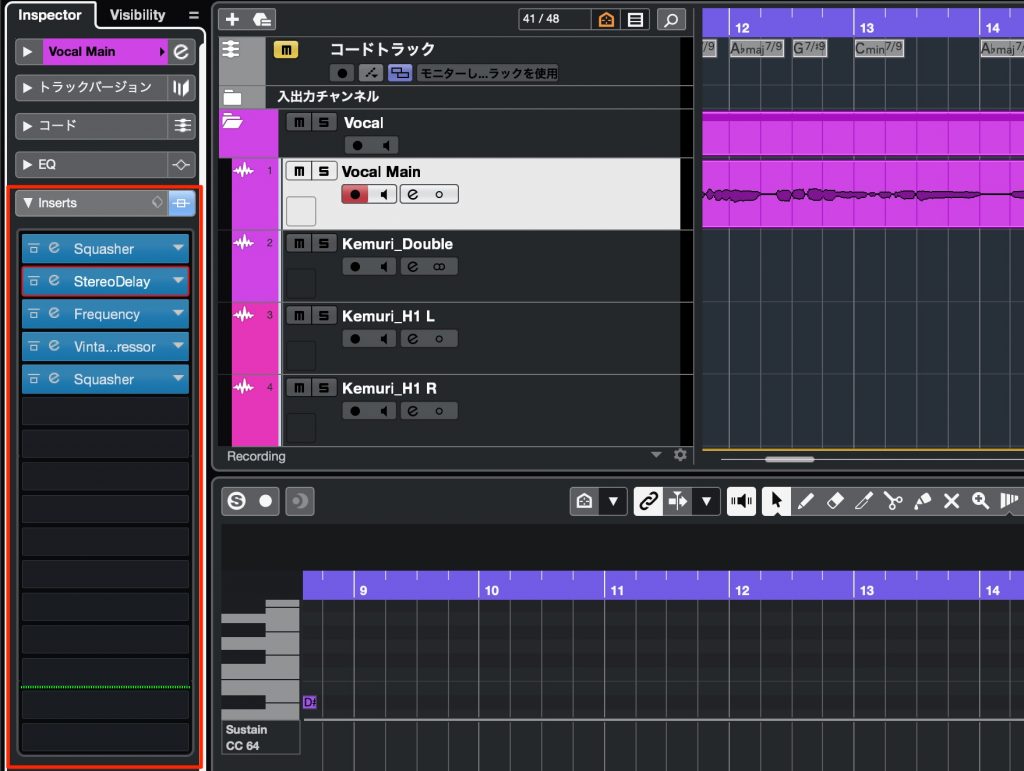
There is also a limit on the number of insert effects that can be applied to one track.
- PRO/ARTIST : 16
- ELEMENTS : 8
- AI/LE : 4
The number of effects included with each edition is as follows.
There is quite a difference.
- PRO : 79
- ARTIST : 60
- ELEMENTS : 47
- AI : 28
- LE : 23
You can check the included plug-ins under "Audio Effects" here.
If you want to complete everything with only the effects included with Cubase, without additional third-party products, ARTIST or higher is recommended.
You can complete the whole process up to mastering in Cubase alone.
FX track limits
There are also differences in the number of FX tracks used for processing such as "send/return," where one effect is shared by multiple tracks.
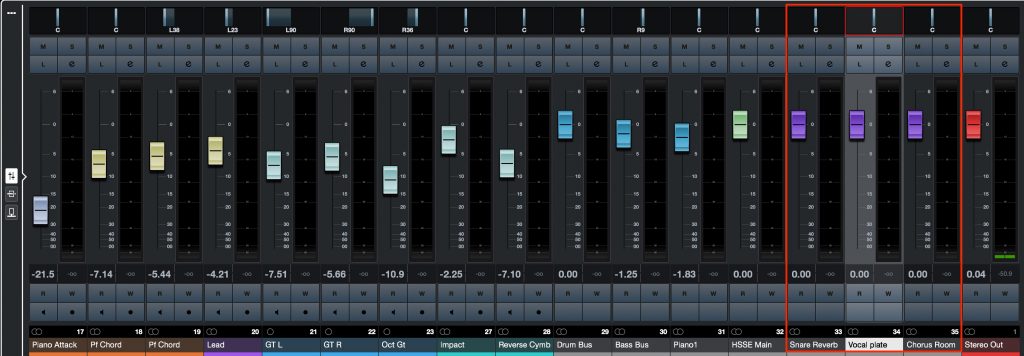
- PRO/ARTIST: 64 tracks
- ELEMENTS: 8 tracks
- AI/LE: 4 tracks
If you want to use multiple delays/reverbs, create sound gimmicks with FX tracks or do other special processing, you will want the 8 tracks of ELEMENTS or higher.
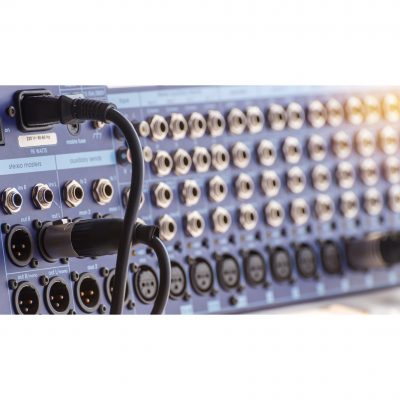
Using send/return requires send slots on the track, and the maximum number is as follows.
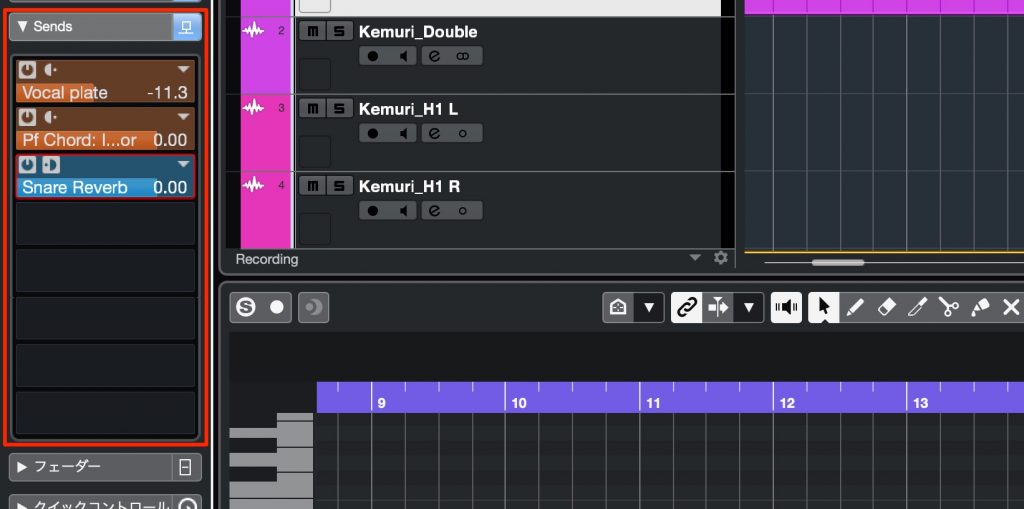
- PRO/ARTIST/ELEMENTS : 8
- AI/LE : 4
These send slots are also needed for the sidechaining described next.
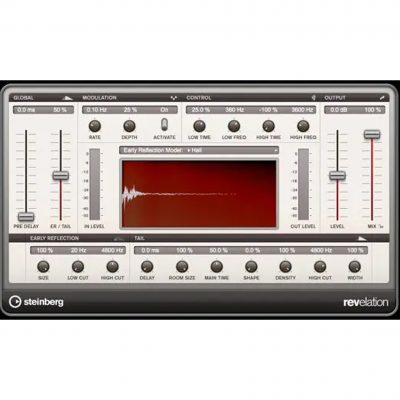
Sidechain (PRO/ARTIST/ELEMENTS)
The effect sidechain feature, frequently used in electronic genres.
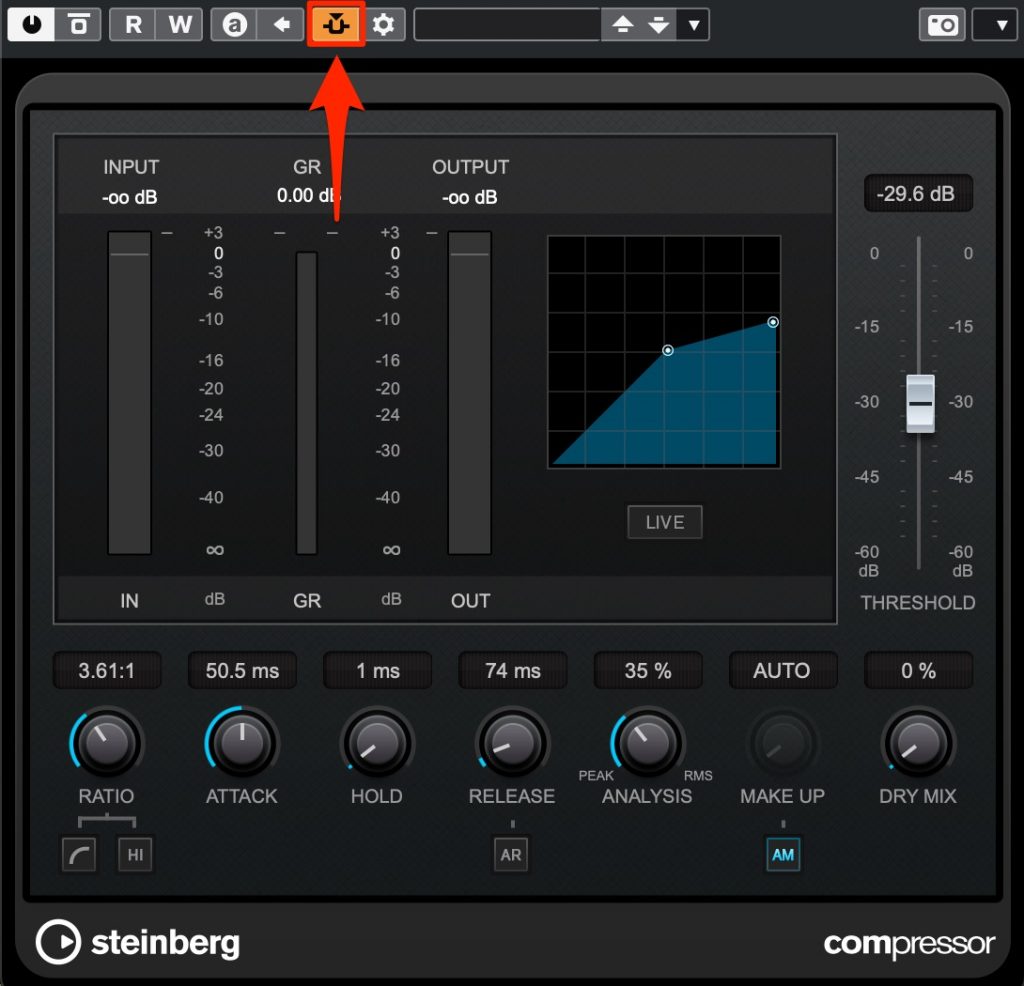
Enable sidechain in the effect.
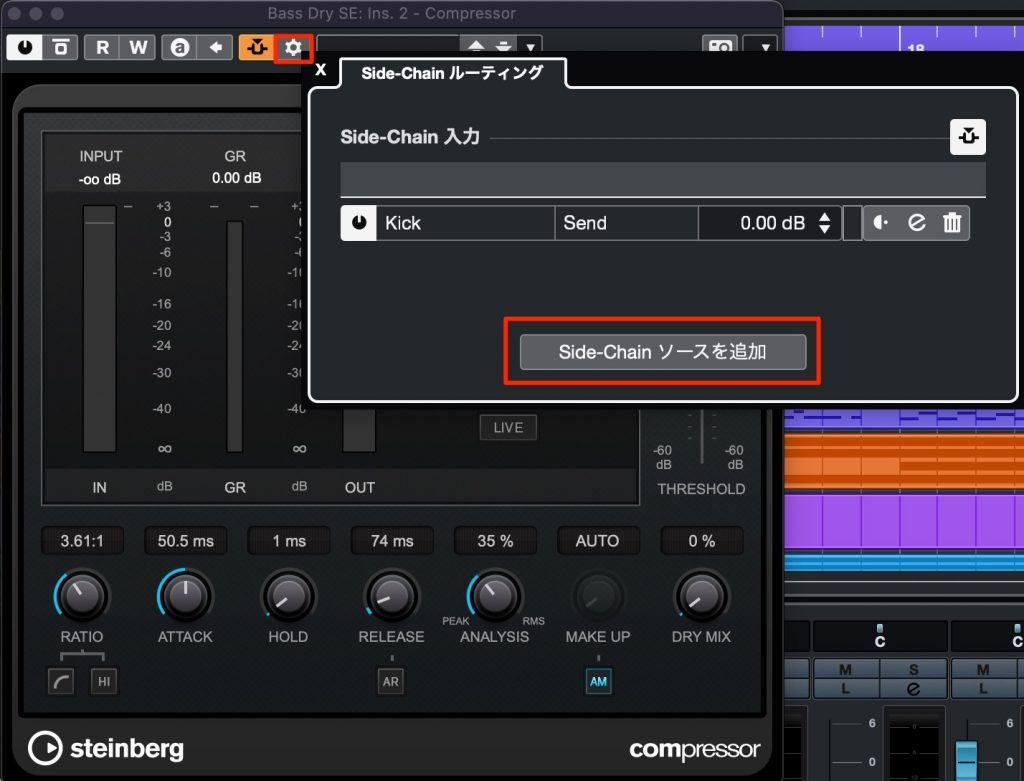
Select the track to use as the trigger.
The sidechain is now enabled, and the sound of the track with the effect changes according to the source sound.
Group track limits
Tracks for combining multiple (similar) track sounds into one track.
They are used often, especially when mixing, for applying effects and adjusting volume.
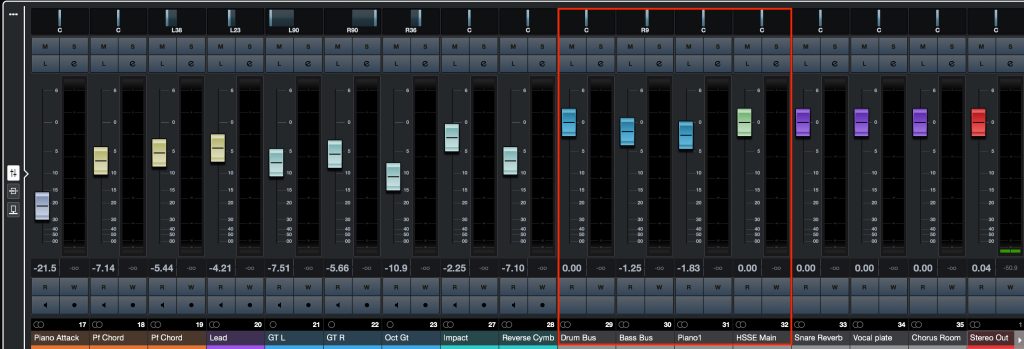
The differences in the maximum number of tracks are as follows.
- PRO: 256 tracks
- ARTIST: 32 tracks
- ELEMENTS: 16 tracks
- AI/LE: 8 tracks
Applying effects after combining multiple tracks increases the cohesion of the sound and also saves effects.
Link Groups (PRO only)
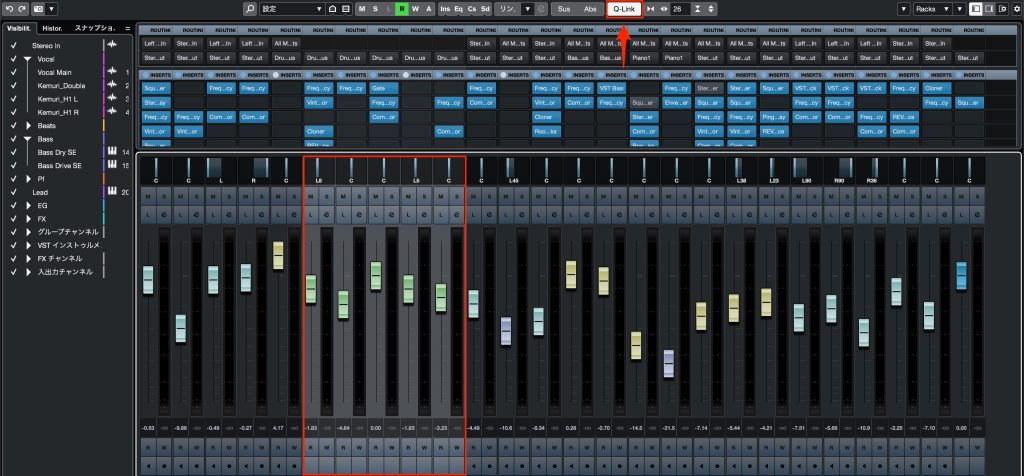
"Q-Link" is a feature that links multiple tracks so the same processing can be done all at once.
It is available in all editions.
Link groups, available only in the PRO edition, take this feature further.
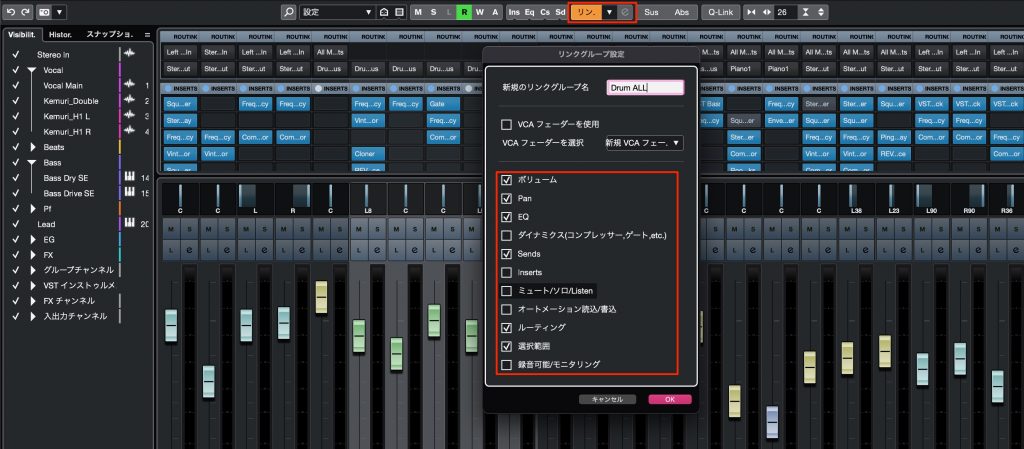
Select the tracks you want to link and click the link area.
As shown, you can give it a name and specify in detail which items to edit together.
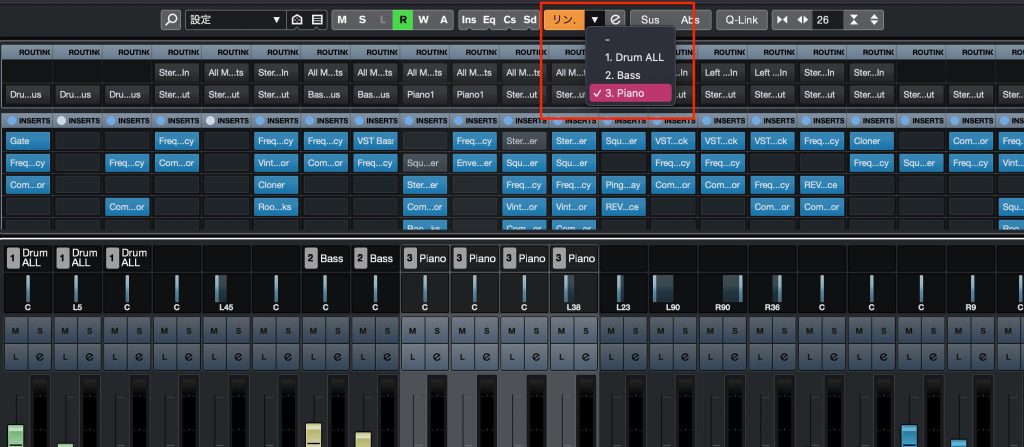
You can also set up multiple links and switch between them quickly.
Stereo Combined Panner (PRO only)
You use pan to control a track's position in the stereo field.
The Stereo Combined Panner mode allows finer adjustment of the width and position of the sound.
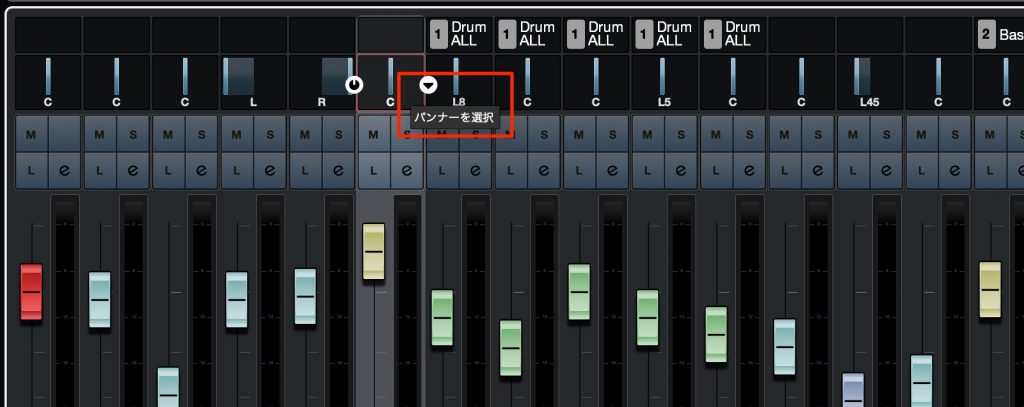
Click the right part of the panner (triangle) and select "Stereo Combined Panner."
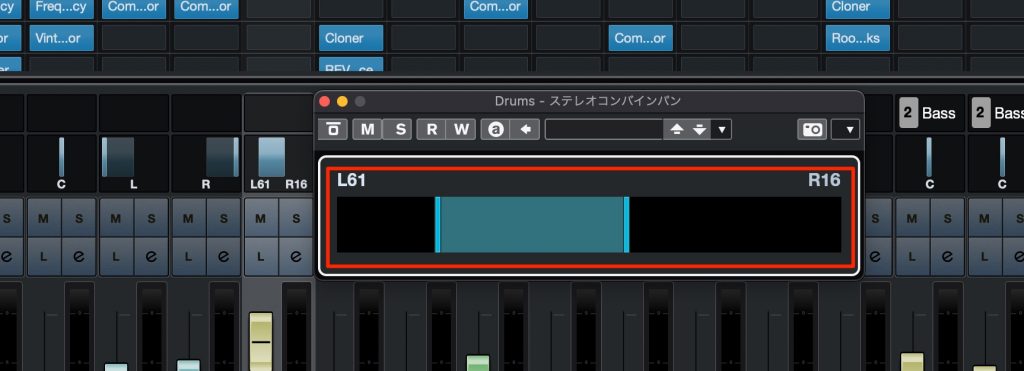
Drag to specify the range and position of the sound.
Double-clicking the panner while holding Option (Mac) / Alt (Windows) enlarges it.
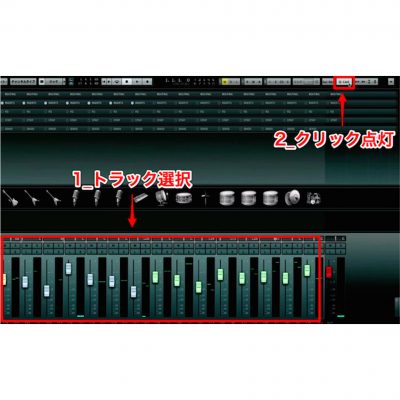
MixConsole Undo/Redo (PRO/ARTIST)
Canceling a mistaken operation to return to the previous state (Undo)
and canceling an undone operation (Redo) are commands used very often when editing.
However, these operations are separate from the MixConsole.
The PRO/ARTIST editions can also Undo/Redo in the MixConsole.
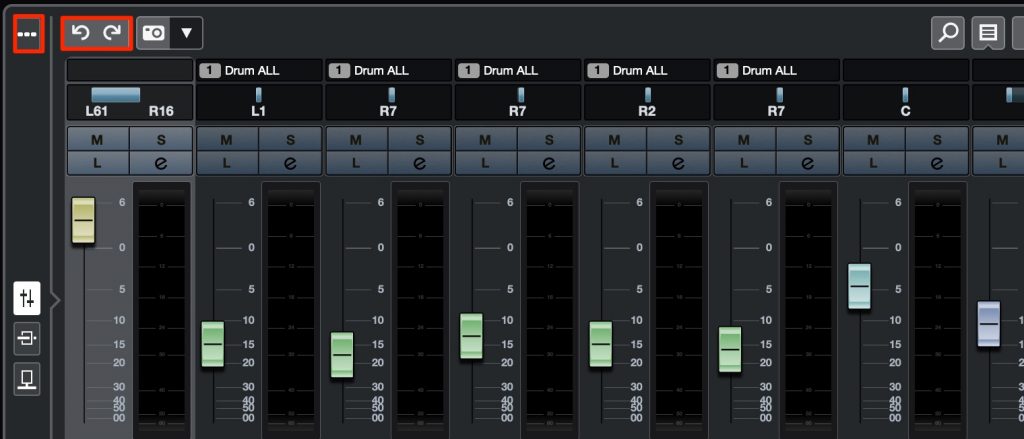
Just press the buttons on the MixConsole.
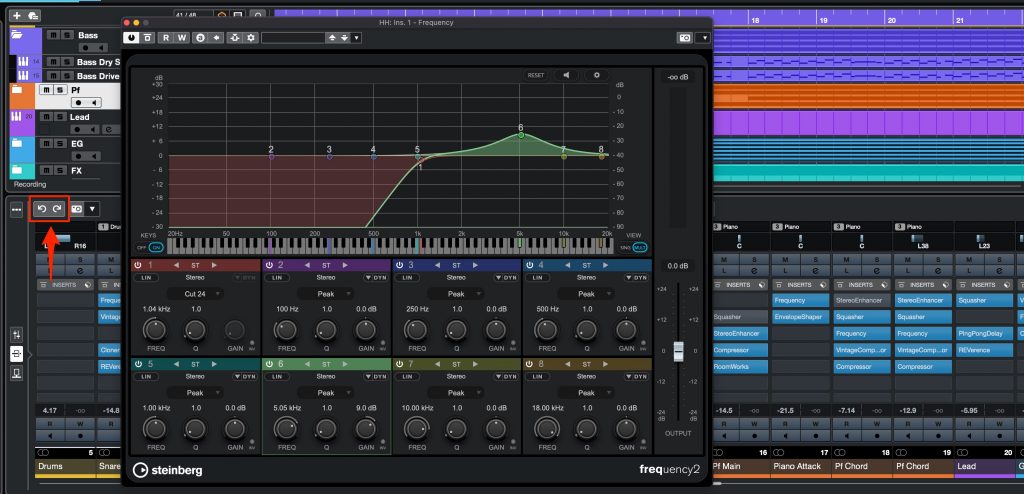
It also works for deleting and setting effects.

Snapshots (PRO only)
A feature that saves every state of the MixConsole (volume/pan/effect contents/sends, etc.) so you can recall it instantly.
For example, it is convenient for saving completely different mixing patterns and comparing them.
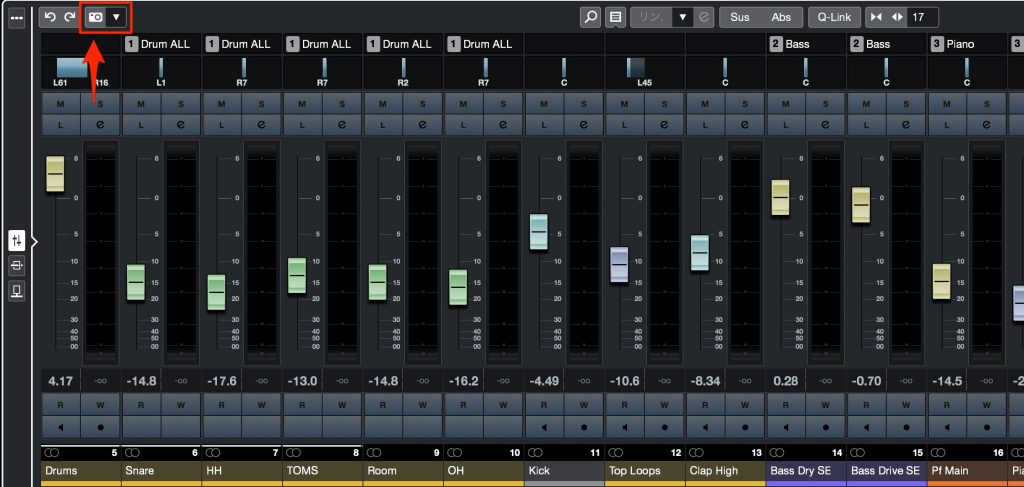
After setting up the mix you want to save, just press the Snapshot button (camera icon).
After making a different mix, save it in the same way.
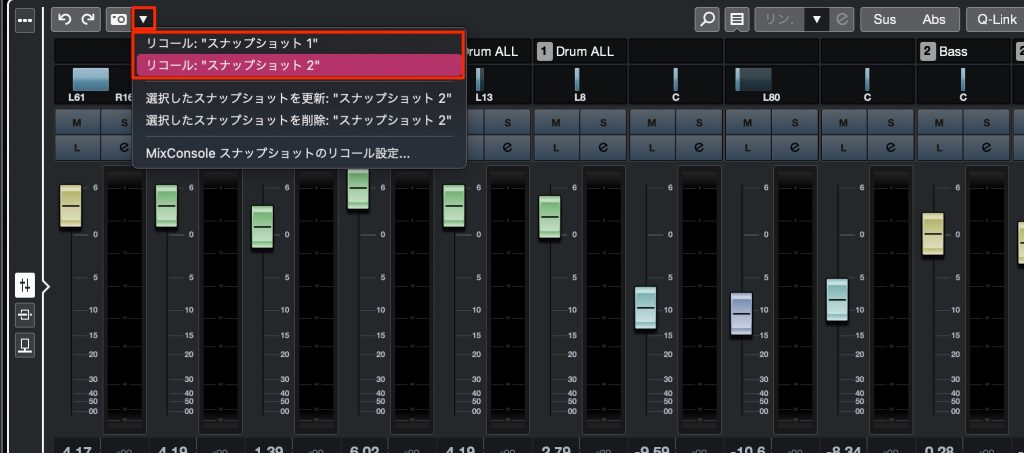
You can then recall the saved MixConsole states like this.

SpectraLayers One (PRO/ARTIST)
A feature that visualizes audio material and allows thorough treatment such as noise processing.
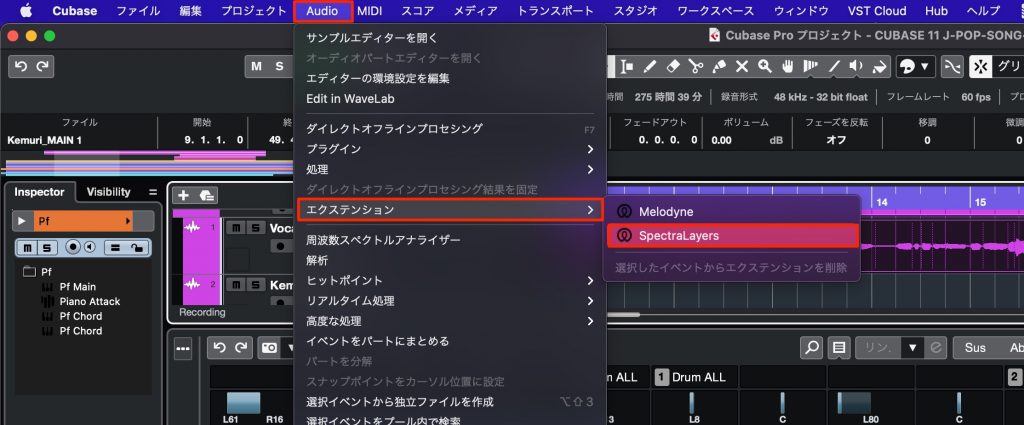
Select the audio event to edit and open "Audio" > "Extensions" > "SpectraLayers One" from the top menu.
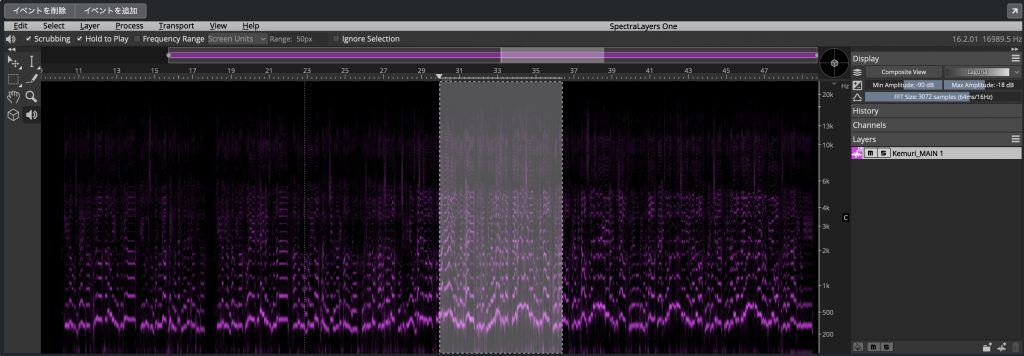
You can perform various audio processing with the editing tools provided.
SuperVision (PRO/ARTIST)
In "mastering," the final step of music production, volume/frequency control suited to the playback device and purpose is essential.
SuperVision is a powerful tool that lets you check all of this on one screen.
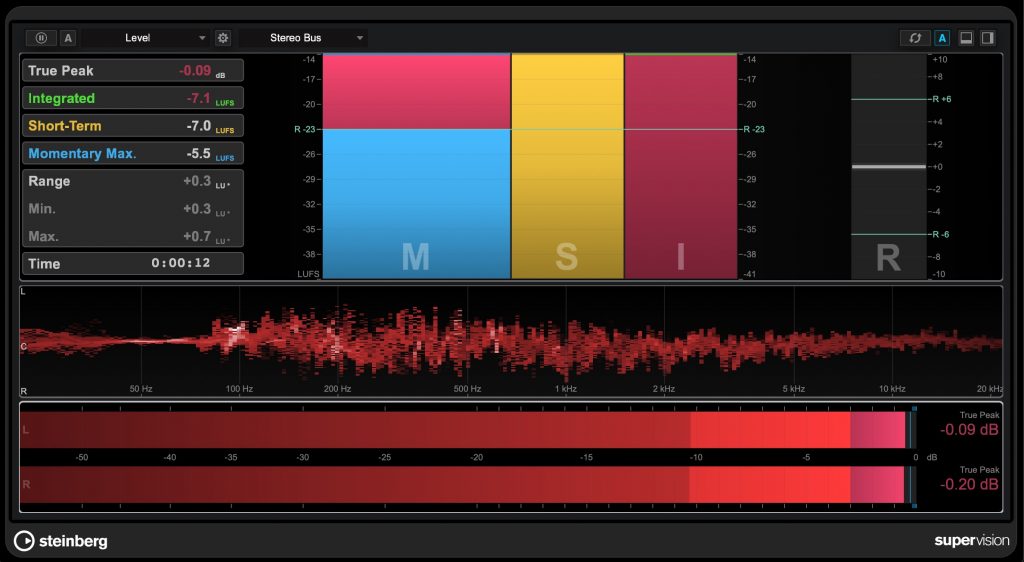
As shown, you can monitor loudness, peak, RMS, frequency and stereo image with beautiful meters.
The meters shown can also be flexibly customized.
Loudness Meter (PRO only)
You can also check loudness values with SuperVision above, but the PRO edition lets you keep this loudness meter displayed in the right zone at all times.
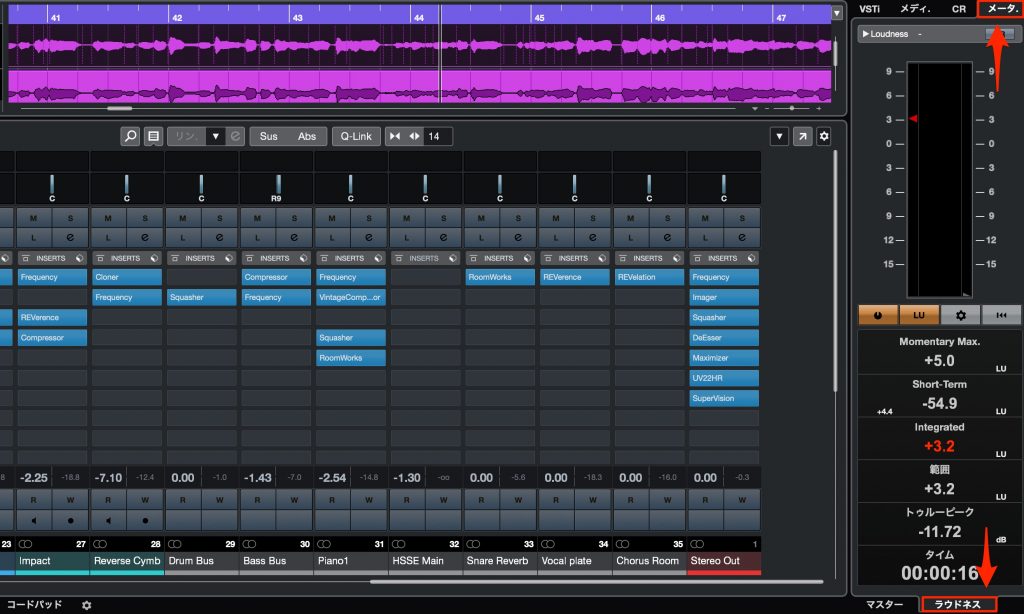
Show the right zone and select Loudness from the meters.
This means you no longer need to launch a plug-in (SuperVision or a third-party plug-in) from an insert slot.
Exporting
Mainly in the PRO edition, there are extensive export features that are useful for delivering your work.
Audio Export Features (PRO only)
Not only can you export each track individually, but you can also register export file formats and quality settings and switch between them.

Select "Audio Mixdown" from the top menu.
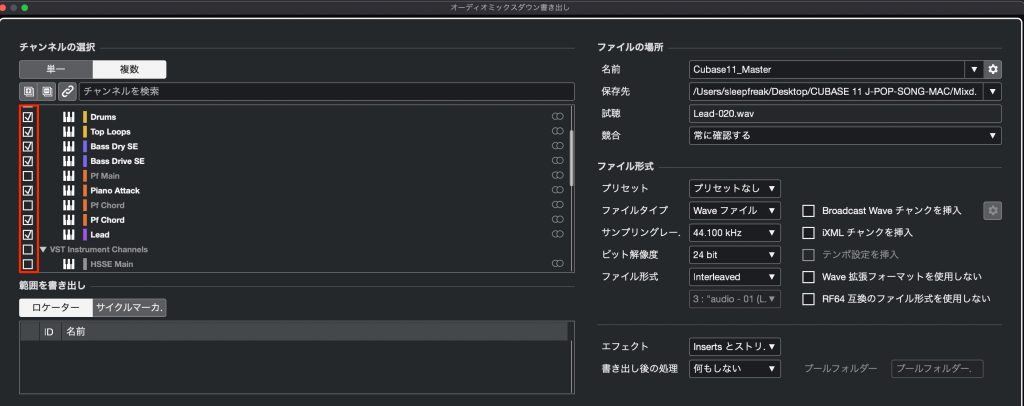
You can specify which tracks to export like this, which is very useful when delivering tracks individually.
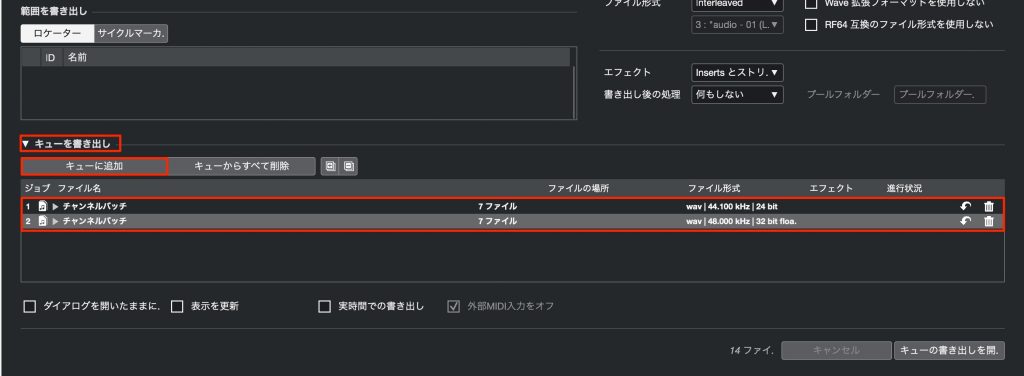
A Cue can save not only the tracks to export but also quality settings such as the sampling rate.
Exporting MusicXML Files (PRO only)
"MusicXML" export, which exports the state of the score, is also included.
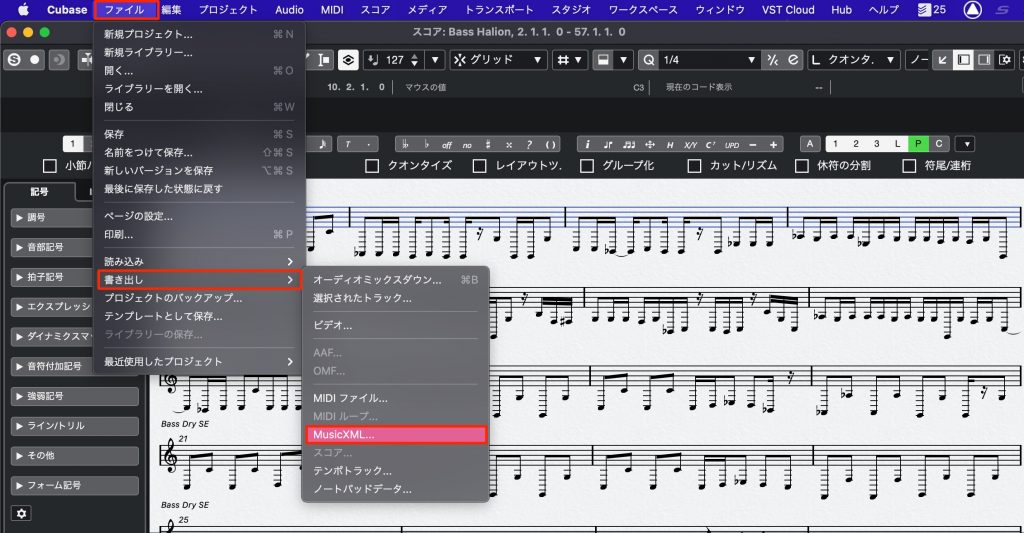
With the score open, select "File" > "Export" > "MusicXML."
Exporting AAF/OMF Files (PRO only)
You can export AAF/OMF files, which can include audio positions and automation states.
They are convenient for compatibility when you want to move audio files to a different DAW.
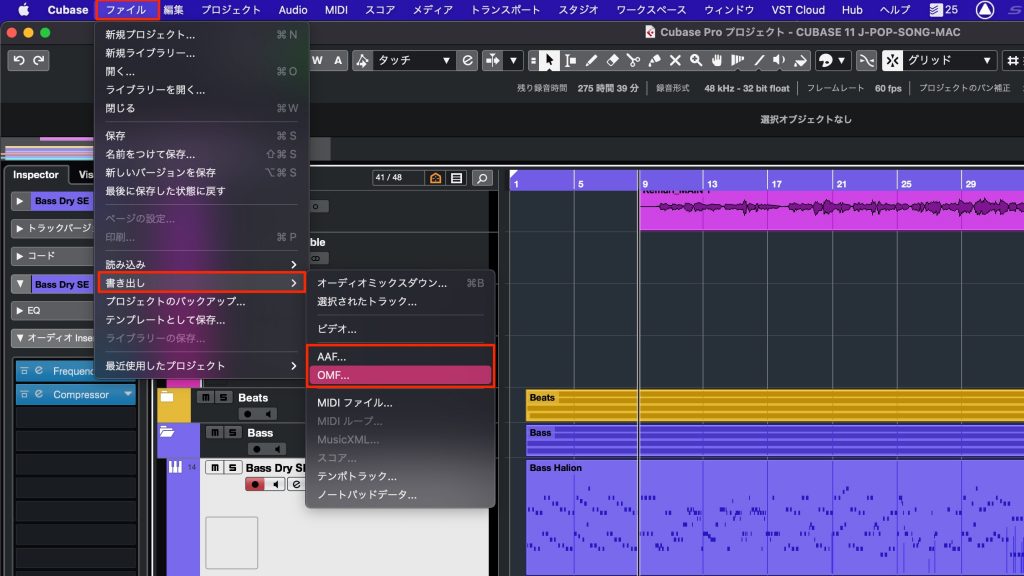
You can create the file by specifying the tracks to export individually.
Other Features
There are also many features that greatly expand the scope of music production, and these differ as well.
VST Transit (PRO/ARTIST)
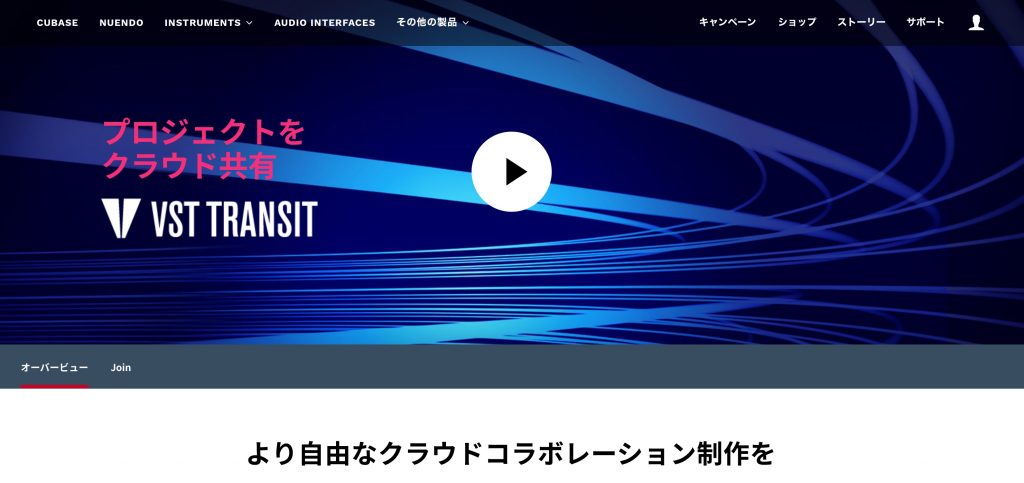
As its tagline "freer cloud collaboration" suggests, it is a feature that lets Cubase users produce together over the internet.
URL : https://new.steinberg.net/ja/vst-transit/
VST Connect SE 5 (PRO only)
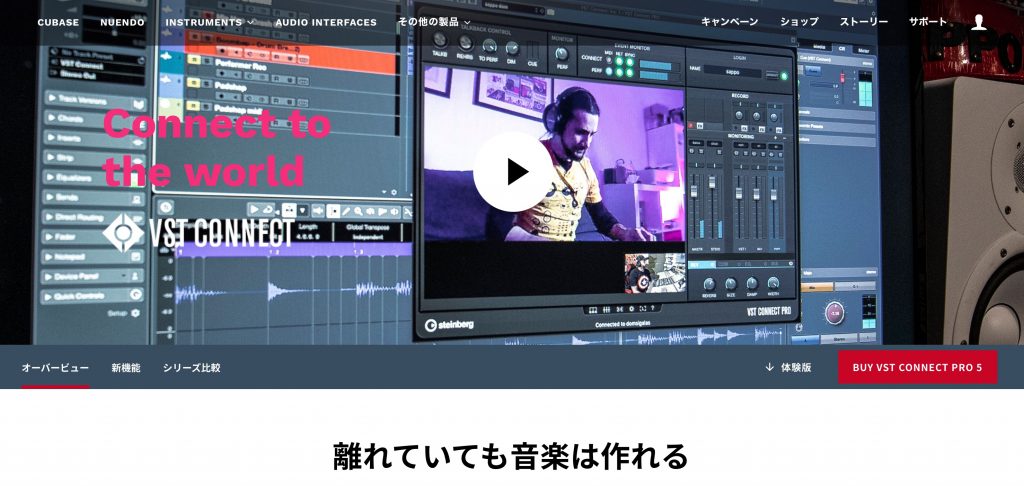
A feature that provides a remote recording system over the internet.
URL : https://new.steinberg.net/ja/vst-connect/compare-editions/
Video Rendering (PRO/ARTIST/ELEMENTS)
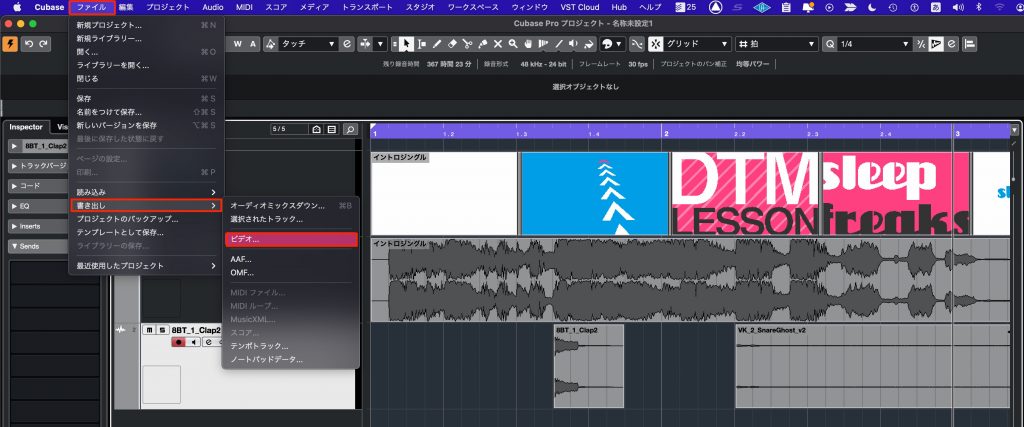
All editions can load video files.
In addition, the PRO/ARTIST/ELEMENTS editions can export video including the sounds you added and edited in Cubase.
VR Toolset (PRO only)
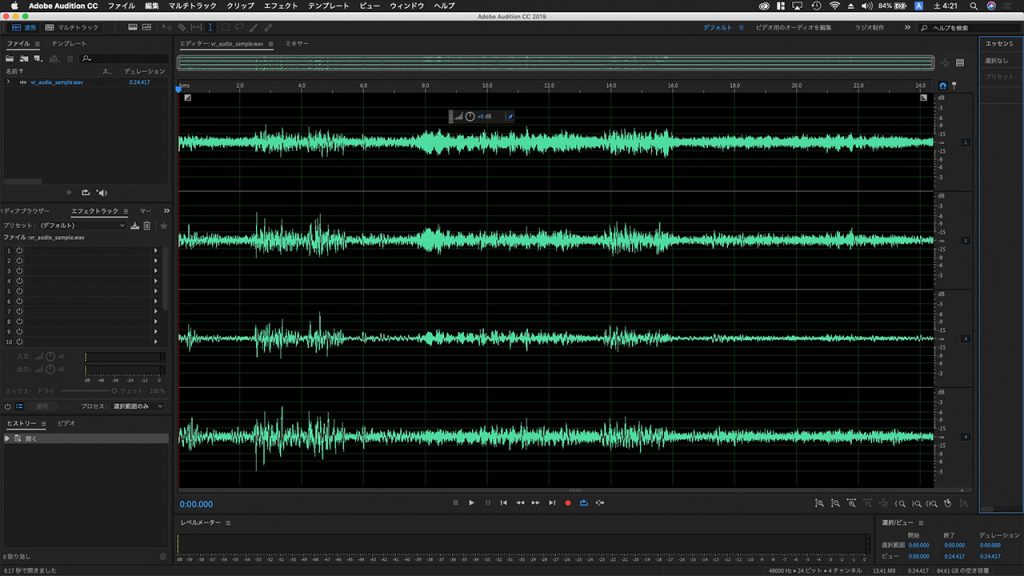
You can edit sound with the VR toolset, which supports immersive audio.

What did you think?
As the name suggests, you can see that the PRO edition is designed not only for features but also with professional music work (compatibility and exchange of work) in mind.
Cubase's flagship pitch correction feature "VariAudio" is included as standard in the ARTIST edition from Cubase 11.
This has made it a very well-balanced edition in terms of features, editing and price.
If you do not particularly need the features available only in the PRO edition, the ARTIST edition lets you produce music without any problems.
The AI/LE editions may be held back by their track limits, but I think they are reliable editions for those just starting music production or creating songs with small arrangements.
They are also sufficient for those who want to do simple audio editing (waveform editing).
Finally, the ELEMENTS edition: since half of Cubase's selling-point features are PRO/ARTIST only, I got the impression that it occupies a somewhat awkward position if you are paying for it.
Therefore, if you are going to buy Cubase, I recommend the ARTIST edition or higher.
You can also upgrade from each edition to a higher edition, with a reduced price based on the edition you use.
If there is a feature you are interested in, be sure to check the upgrade prices!

How to Use Cubase: Beginner
A collection of beginner content for Cubase. You can check basic usage and operations in videos. Also supports the latest version, Cubase 9. Whether you use Pro, Artist or Elements, if you are composing with a DAW for the first time, please make use of this introductory course.
How to Use Cubase: Beginner
A collection of beginner content for Cubase. You can check basic usage and operations in videos. Also supports the latest version, Cubase 9. Whether you use Pro, Artist or Elements, if you are composing with a DAW for the first time, please make use of this introductory course.
Cubase Pro 11 Beginner Course Video Navigation
We have prepared a beginner course on "Cubase Pro 11" for those about to take on music production. Even production beginners can study comfortably...
[Choosing Cubase] Which Edition Should You Choose? A Video to Watch When You Can't Decide
The popular DAW software "Cubase" is available in five editions with different features.
Here, we aim to provide guidance for choosing a product, even for music production beginners.
Details here: https://t.co/FUQE5vjTkM#DTM pic.twitter.com/bMVPAxJBaw— SLEEP FREAKS (@SLEEPFREAKS_DTM) April 29, 2021
Frequently Asked Questions
Q1. What should I check first when choosing a Cubase edition?
The number of audio tracks, VST instruments and included instruments are important. For band sounds or production centered on programming, choose ELEMENTS or higher; for simple production, the LE edition can work. Also consider that third-party plug-ins can supplement features.
Q2. What is the difference between Cubase's LE and AI editions?
Both are free bundled versions: the AI edition comes with Yamaha products, and the LE edition comes with other music products. The AI version has more maximum inputs/outputs (16) than LE (8), and the number of audio tracks also differs, at 32 and 16.
Q3. Which edition should I choose for serious programming-based production in Cubase?
We recommend the PRO or ARTIST edition. Even ELEMENTS' 24 tracks may not be enough, and with ARTIST or higher, which includes over 2,600 sounds, you can produce without relying on external plug-ins.
Q4. Is there any difference in sound quality between Cubase editions?
No. All editions share a 64-bit audio engine and support sampling rates up to 192 kHz, so there is no difference in sound quality. You can produce high-quality music with any edition.
Q5. Can VST plug-ins be used in any Cubase edition?
Yes. 64-bit VST plug-ins are supported in all editions, so even the AI and LE editions, which include fewer instruments, can be supplemented with additional plug-ins.
NEW ARTICLES
Latest English Articles











