
Setting up a software synth for multiple outputs in Cubase lets you route several instruments or drum pieces from one instrument to independent audio outputs. Even though they use the same synth, you can then control the volume, pan, insert effects, and send effects of each instrument individually. It is especially effective with drum instruments and multitimbral instruments such as Groove Agent ONE and HALion Sonic SE, letting you shape each drum piece, such as the kick, snare, and hi-hat, in detail and greatly increasing your freedom when mixing.
Effective for Multitimbral and Drum Instruments!
In the previous article, "Using Multiple Sounds in One Software Synth,"
we introduced how to assign MIDI channels to multiple instruments.
It is a very handy method, but because multiple instruments share the same software synth,
some drawbacks arise.
- Controlling volume and pan per instrument
- Insert and send effects per instrument
- Solo and mute per instrument
These are the drawbacks.
As long as the instruments are played by the same software synth,
it may seem unavoidable.
But there is a solution!
It's a method called "multi-output" (parallel out).
Not only for each instrument loaded in the same software synth, but
for each drum piece in a drum instrument, such as the kick and snare,
you can set volume, pan, inserts, and sends individually,
greatly expanding your sound design.
How to Set Up Multiple Outputs in Cubase
- Cubase 7 and earlier
- Cubase 7.5 and later
Here, we use the included drum instrument Groove Agent ONE as an example.
*You can set up other software synths in the same way.
Article: https://sleepfreaks-dtm.com/softsynth/grooveagentone-4/
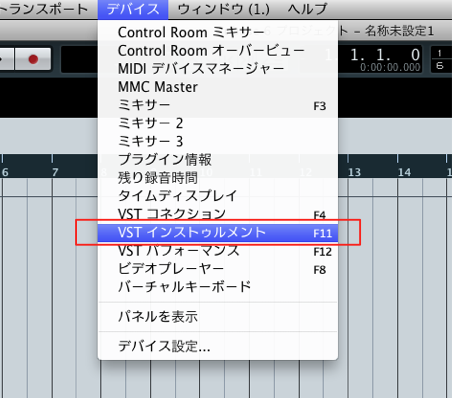
↑ From the menu bar, select "Devices" → "VST Instruments."
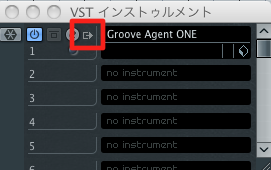
↑ Load Groove Agent ONE and press the button outlined in red.
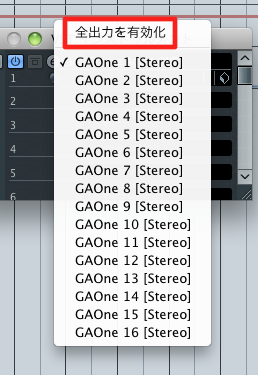
↑ From the menu that appears, select "Activate All Outputs."
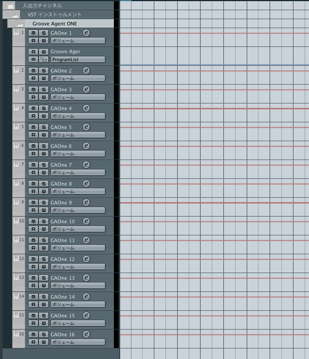
↑ The available output tracks are lined up like this.
Next, configure Groove Agent ONE.
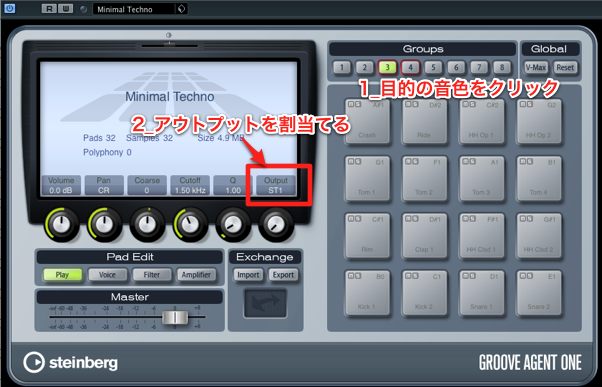
- 1_Click the pad you want, such as the kick or snare
- 2_Change the output outlined in red
*Set a different channel for each drum piece.
Here, we assigned
the kick → "Out_2,"
the snare → "Out_3,"
and the hi-hat → "Out_4."
That completes the setup.
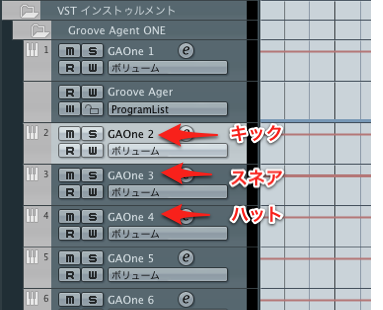
↑ Now just program as usual,
and each drum piece plays from the output channel you set.
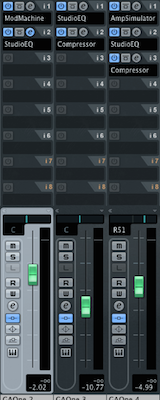
↑ Even though you are using a single software synth,
you can set inserts, sends, volume, pan, and so on for each drum piece.
Here, we use HALion Sonic SE as an example.
*You can set up other software synths in the same way.
First, set up the MIDI tracks as described in the previous article.
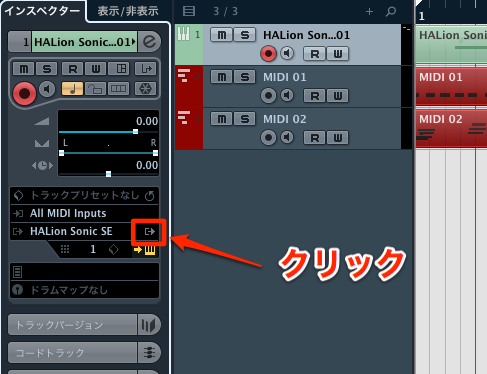
Select the original instrument track
and click the area outlined in red in the Inspector.
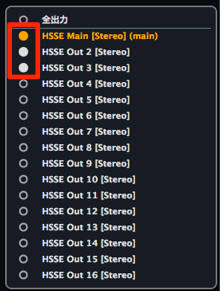
Activate as many outputs as there are instruments.
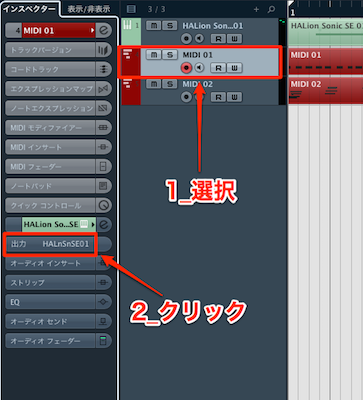
Select a MIDI track and click the area outlined in red in the Inspector.
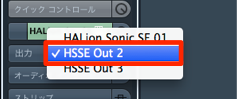
Choose a different output for each MIDI track.
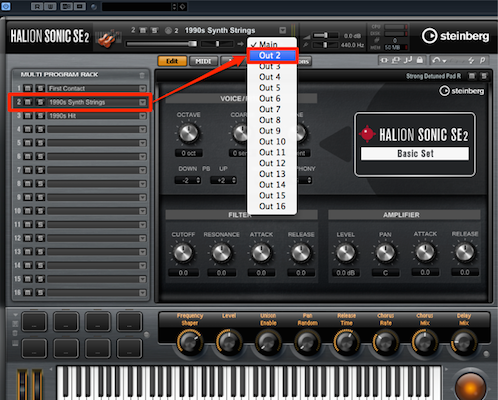
Set the instrument's outputs to different outputs.
That completes the setup.
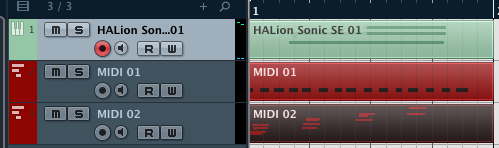
↑ Now just program as usual,
and each part plays from the output channel you set.
- Cubase 7 and earlier
- Cubase 7.5 and later
Frequently asked questions
Q1. What is multi-output (parallel out)?
Multi-output routes instruments or drum pieces from one software synth to multiple independent audio outputs. Each output can then be processed on a separate track, allowing individual volume adjustments and effect settings.
Q2. Does the setup differ depending on the Cubase version?
Yes, the steps differ between Cubase 7 and earlier and Cubase 7.5 and later. It is important to follow the correct steps for your version. The article explains the setup for both in detail.
Q3. Can multi-output be used with instruments other than drums?
Yes, it works with multitimbral instruments in general. The article uses Groove Agent ONE as an example, but other software synths can be set up the same way, letting you control multiple instrument sounds individually.
Q4. After setting up multiple outputs, can I apply different effects to each drum piece?
Yes. Each output works as its own track, so you can set different insert and send effects for each drum piece, greatly expanding your freedom in sound design.
NEW ARTICLES
Latest English Articles











