
When using software synths or drum instruments you have purchased for FL Studio, setting up multiple outputs lets you route each sound to its own track for finer volume adjustment and effect processing. Using Addictive Drums 2 as an example, this article explains how mixer tracks are assigned automatically just by selecting "Auto map output" on the "Processing" tab of the plug-in settings, so even beginners can easily handle complex mixing. This method can also be applied to other software instruments such as multi-timbral instruments, greatly increasing the freedom of your music production with professional sound quality.
Fine-tune multi-timbral and drum instruments with multiple outputs
FL Studio has a very flexible mixer.
You can route each instrument in the Channel rack to a track and set items such as the following individually.
- Volume and pan control
- Insert effects and send effects
- Solo and mute
- Routing to other tracks
However, the setup is a little different when using third-party drum instruments or multi-timbral instruments you have purchased.
This section explains how to set up multiple outputs from a software instrument and adjust each on its own track.
Setting up multiple outputs for additional instruments
Here we use "Addictive Drums 2" as an example,
but the steps are the same for other software instruments.
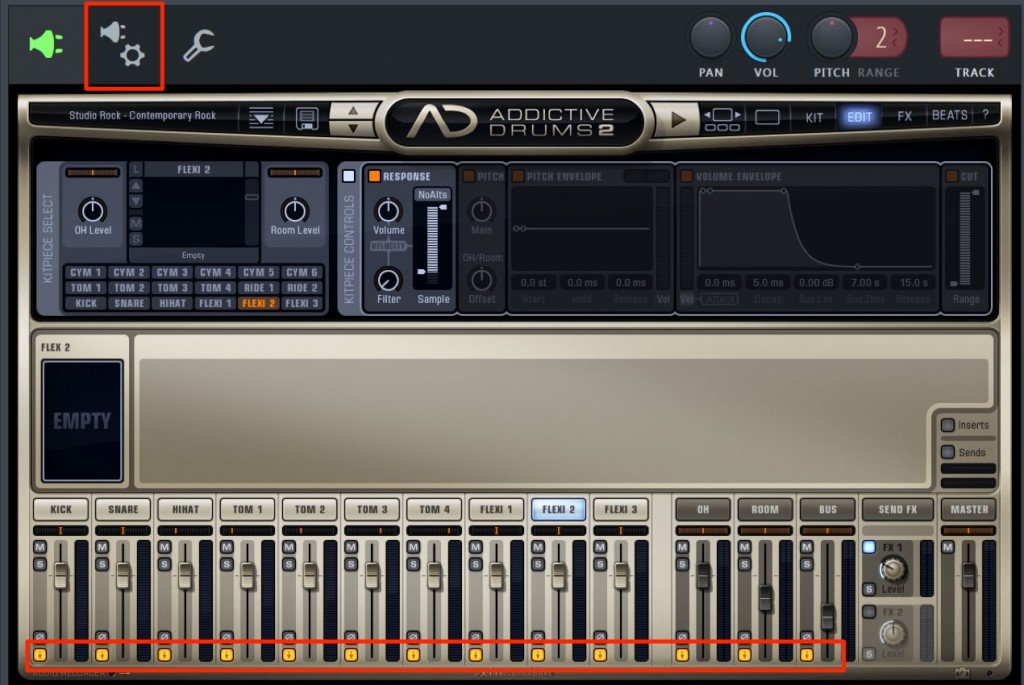
First, set the software instrument to a state where multiple outputs are available.
Then click the "plug-in + gear" icon at the top.
*The settings on the instrument side differ for each product.
For multiple-output settings for major instruments, please refer to the URL below.
https://sleepfreaks-dtm.com/how-to-softsynth/
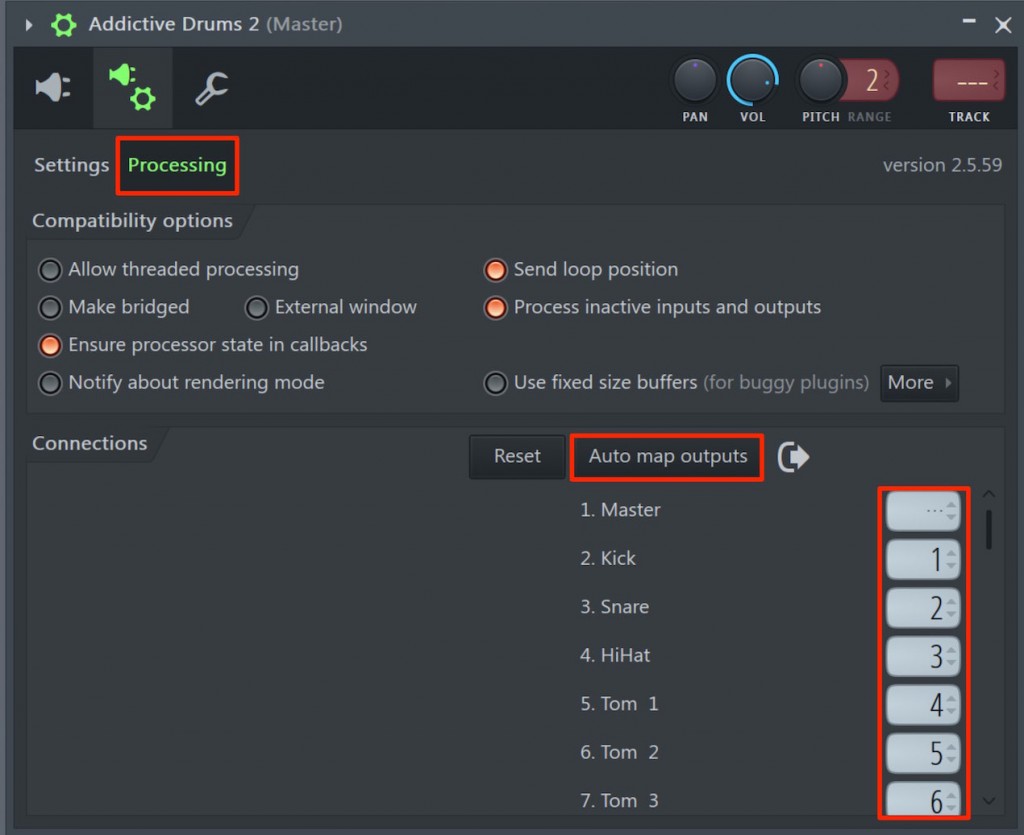
When you select the "Processing" tab, the outputs for each kit piece are listed at the bottom left.
Press "Auto map output" and mixer tracks are assigned automatically.
Of course, you can also assign each track manually as you like.
That completes the setup.
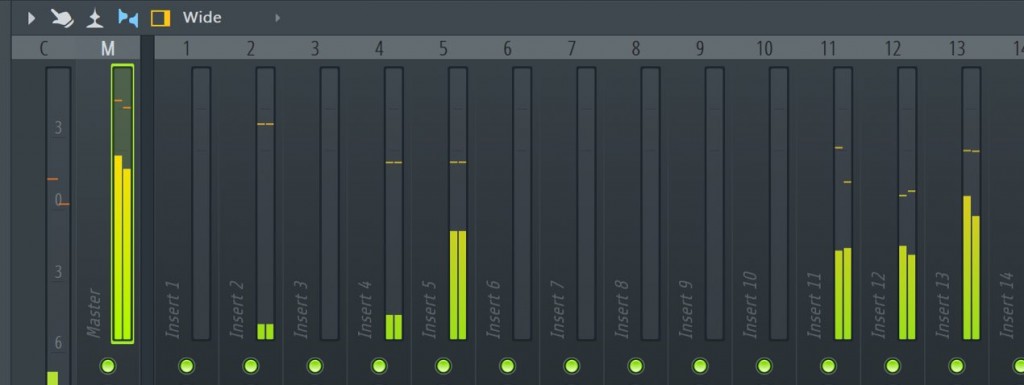
If you check the mixer window, you will see that each kit piece's output is routed to a different track.
After setting this up, you can freely adjust the volume, pan, effects and so on.

Frequently Asked Questions
Q1. What are the benefits of using multiple outputs for a drum instrument in FL Studio?
Multiple outputs let you manage each drum part (kick, snare, hi-hat and so on) on its own track and adjust volume, panning and effects individually, so you can achieve a more precise, higher-quality mixdown.
Q2. Can I set up instruments other than Addictive Drums 2 with the same steps?
Yes, the basic steps are the same, but the location and method of the multiple-output settings differ for each software instrument, so it is important to check each instrument's manual beforehand.
Q3. Can I change the track assignments manually after setting up multiple outputs?
Yes, even after automatic assignment with "Auto map output", you can manually reassign each kit piece's output to any track.
Q4. What is a multi-timbral instrument?
It is a plug-in that can load several different instrument sounds in one software instrument, letting you use multiple sounds such as bass, synth and drums at the same time.
NEW ARTICLES
Latest English Articles











