
This beginner's guide covers the basic operations of Melodyne Editor 2, from transferring audio and zooming to adjusting pitch and undoing edits. It includes Mac and Windows shortcuts for editing recorded vocals in a DAW. The video demonstrates an older version of Melodyne, so controls, shortcuts and transfer workflows may differ in later versions or with ARA integration.
Melodyne: A Popular Pitch-Editing Tool
In this video, we introduce the intuitive basics of
Melodyne Editor, a tool beginners can learn to use.
Melodyne Editor Video Tutorials
- 1Basic Operations (this article)
- 2Amplitude and Note Separation Tools
- 3Modulation and Formants
- 4Timing Correction
- 5DNA
- 6Convert Audio to MIDI
- 1Melodyne 4 essential: Overview and Tutorial
- 2Melodyne 4 assistant: Overview and Tutorial
- 3Melodyne 4 editor and studio: Overview and Tutorial
- 4Melodyne 5: New Features in the Popular Pitch Editor
- Manufacturer's website: http://urx.space/Rgab
- Purchase here (affiliate link): http://urx.space/Rgab
Video Highlight: Transferring a Track

To transfer audio into Melodyne in the demonstrated workflow, activate Transfer and play the DAW.
The section played back is transferred.
Video Highlight: Zooming

- Mac: Command + Option
- Windows: Control + Alt
Hold the appropriate keys and drag in the display to adjust the zoom.
Video Highlight: Editing Pitch

Select the arrow tool and drag a note up or down to change its pitch.
For finer adjustment, hold:
- Mac: Option
- Windows: Alt
while dragging the note.
Video Highlight: Undoing an Edit
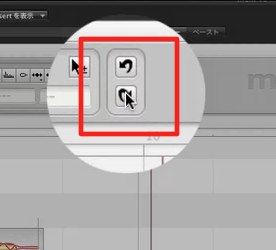
Use these buttons to undo an edit or redo an edit that was undone.
Undo
- Mac: Command + Z
- Windows: Control + Z
Redo
- Mac: Command + Shift + Z
- Windows: Control + Shift + Z
Buy the product here
View the product at Plugin Boutique

Plugin Boutique is an international music-production plug-in store with a wide range of products. The guide covers the process from account creation through downloading.
Frequently Asked Questions
Q1. How do I load audio into Melodyne Editor?
In the transfer workflow shown in the video, activate the Transfer button and play the relevant section in your DAW. The played audio is transferred into Melodyne. Later versions and ARA-enabled hosts can use different workflows.
Q2. How do I make fine pitch adjustments in Melodyne Editor?
Select the arrow tool and drag a note up or down. For finer movements, hold Option on Mac or Alt on Windows while dragging.
Q3. What are the keyboard shortcuts for undoing an edit?
NEW ARTICLES
Latest English Articles











