
In DTM, audio files such as sample libraries and drum loops often do not match the tempo of your song. Time stretching solves this problem. With Studio One's time stretch, you can choose the best processing mode for your material from four modes, Drums, Sound, Solo, and Tape, and fit audio to any tempo while keeping quality loss to a minimum. Understanding the simple operation on Mac and Windows lets you use existing material freely for advanced arrangements.
Fitting Audio Files That Don't Match the Song's Tempo
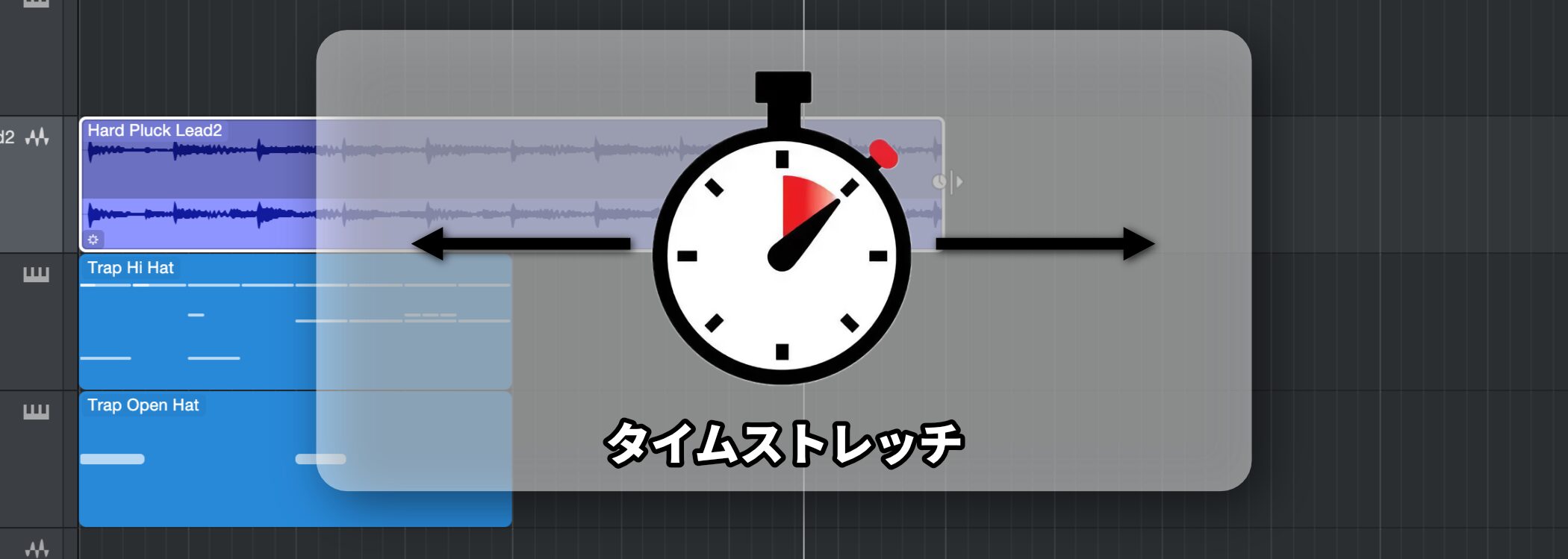
For example, you may find a cool two-bar drum loop and import it into your DAW, only to find that its tempo doesn't match the song and it drifts.
This is where the time stretch function comes in.
Time stretching is a function that lets you lengthen or shorten audio or MIDI performances.
It is very useful when you want to fit samples or existing material to your song's tempo.
Time Stretch Video
Arrangement Techniques Using Time Stretch
*This uses Cubase, but the concept is exactly the same.
How to Use Time Stretch
When using time stretch, you can choose the best processing mode for the kind of audio material you are working with.
This lets you keep quality loss to a minimum and get more natural results.
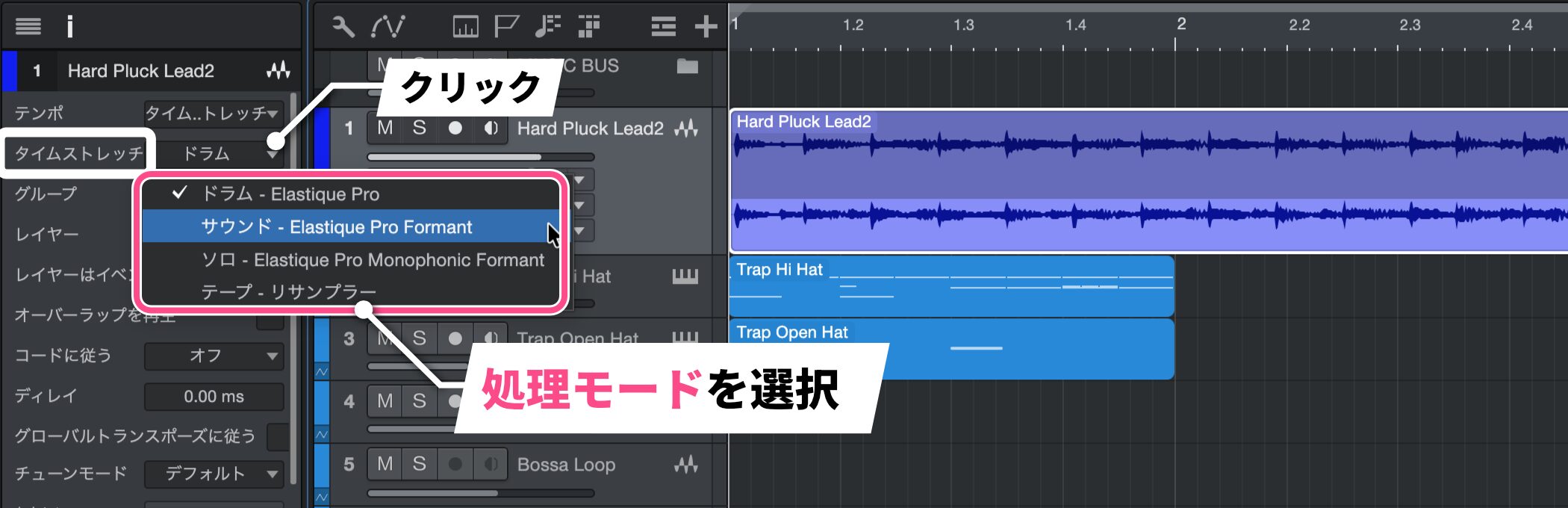
First, select the event you want to time-stretch and choose the appropriate mode under "Timestretch" in the Inspector.
- Drums: The best mode for stretching material where the attack matters, such as drums and percussion
- Sound: The most standard mode, suited to a wide range of audio material other than drums and solo instruments
- Solo: The mode that gives the most natural results for solo material, such as vocals and single-note melody instruments
- Tape: A mode in which the pitch follows the tempo change, giving an effect like analog tape or a sampler
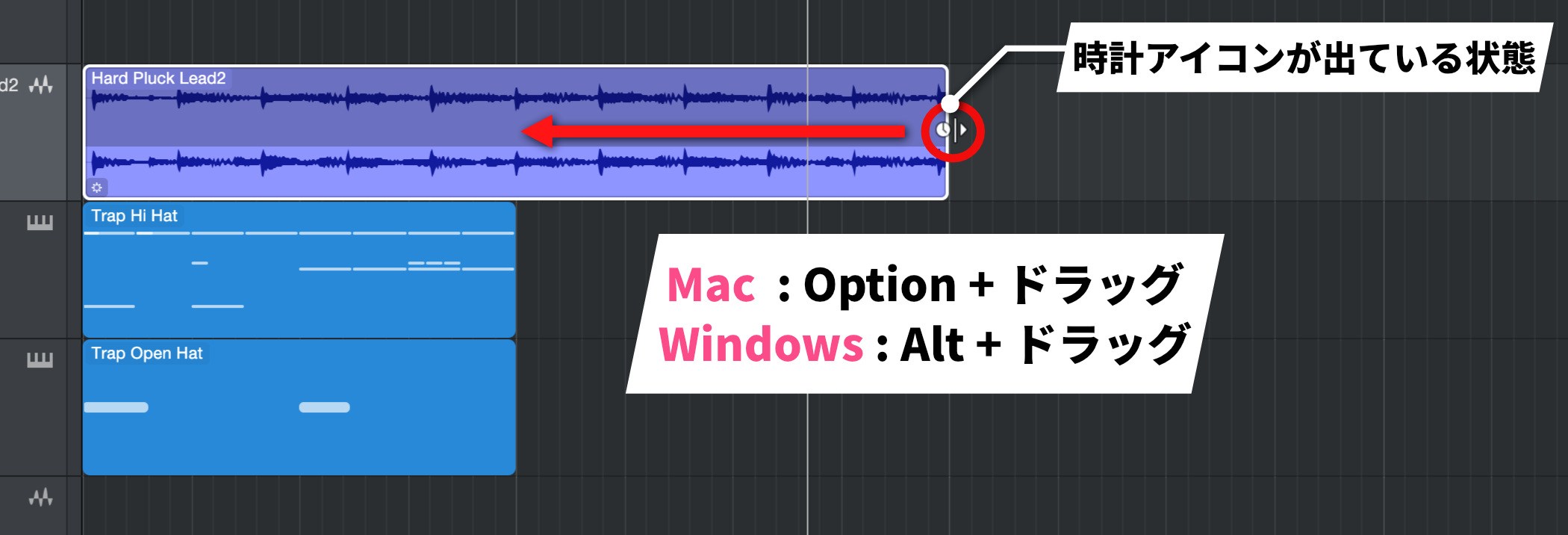
Next, to fit the event's length to the bars you want, place the cursor at the edge of the event and drag while holding the following key.
- Mac: Option + drag
- Windows: Alt + drag
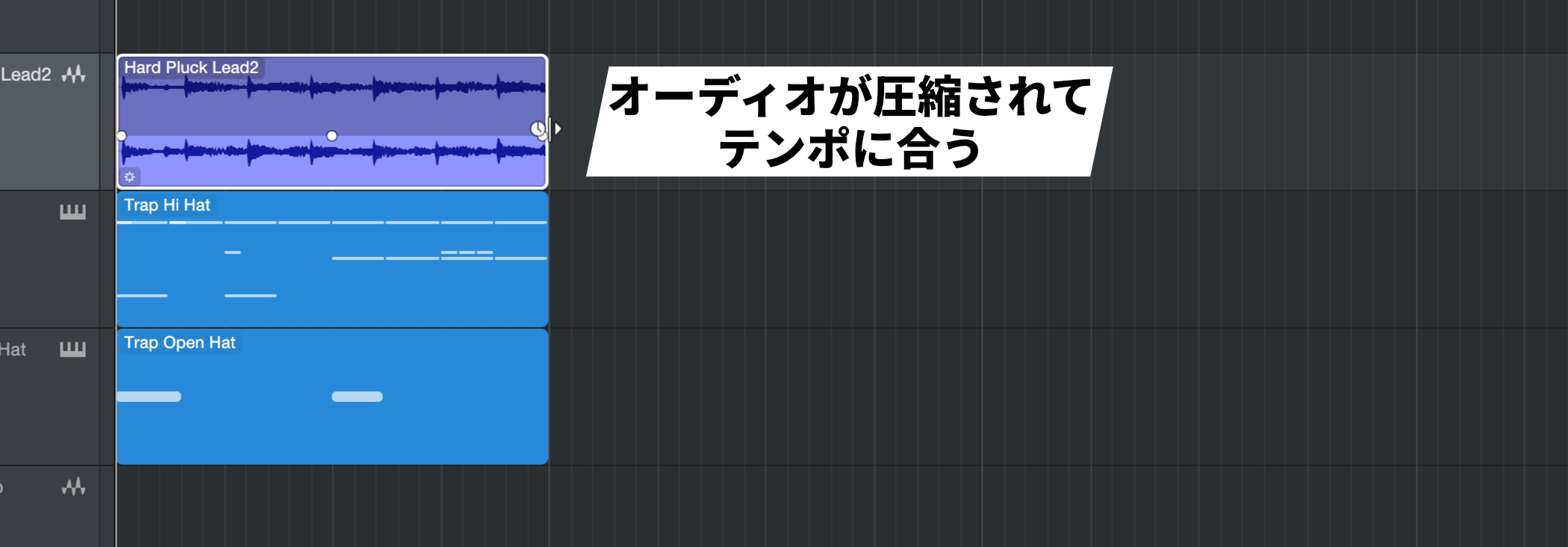
The contents of the event are then automatically compressed to fit the tempo exactly.
This time we shortened the audio to fit the tempo, but of course you can also lengthen it.
You can also use this method to change sound effects to any length you like.
There are many ways to use it, so be sure to make it part of your production and use audio freely.

Frequently asked questions
Q1. Why does my drum loop sound distorted when I time-stretch it to fit the tempo?
The mode you are using may not suit the material. For drum loops, choose "Drums" mode. This mode prioritizes the attack and preserves the character of drums and percussion, giving more natural results.
Q2. Can time stretch be used on MIDI?
Yes. Time stretching can lengthen or shorten MIDI performances as well as audio. It is also useful when you want to fit an existing MIDI pattern to a different tempo.
Q3. I want to fit vocal audio to the tempo. Which mode should I use?
For vocals, choose "Solo" mode. This mode is optimized to give the most natural results for solo material such as vocals and single-note melody instruments.
Q4. Can I use time stretch to change the length of sound effects?
Yes, you can freely change the length of sound effects with time stretch. This lets you customize existing sound effects to the length you want and work them into your production.

NEW ARTICLES
Latest English Articles











