Melodyne 4.2 and Logic Pro 10.4.2 are now fully integrated via ARA (Audio Random Access), greatly simplifying the audio editing workflow. The manual "Transfer" step that was previously required is no longer needed, and track edits in Logic are automatically reflected in Melodyne in real time. Just by updating, you can edit pitch and timing seamlessly, dramatically improving your efficiency. However, MIDI tracks, compressed files such as MP3s and tracks with Flex enabled are not supported, so you'll need to bounce them to audio files as necessary.
Melodyne Editing in Logic Becomes More Convenient and Seamless
Recently, "Melodyne 4", which we introduced in an earlier article, and "Logic Pro 10.4.2" are now fully integrated via ARA.
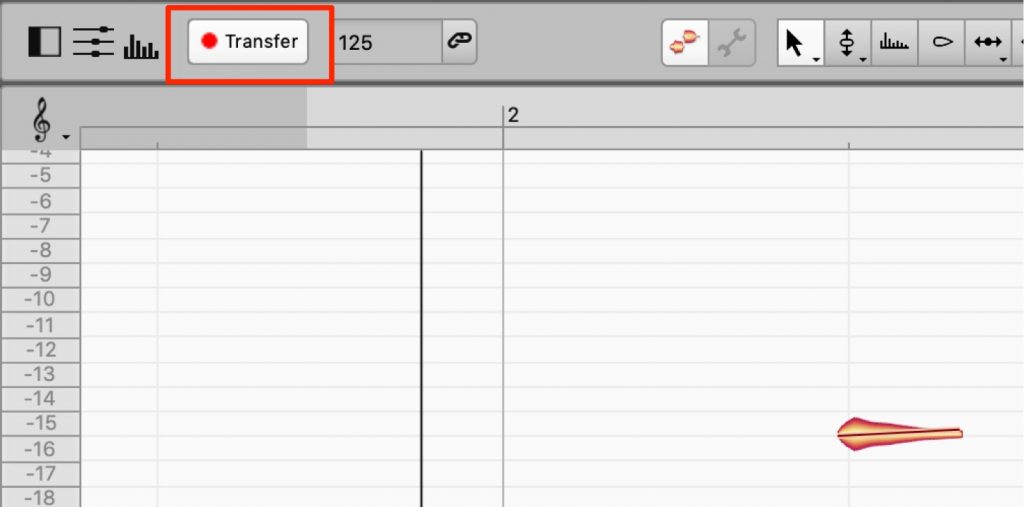
The "Transfer" step that was previously required is no longer needed, and the sound of tracks in Logic is reflected in Melodyne immediately.
You can see an overview of ARA in the video below (from 7:41).
Normally, after doing a "Transfer," even if you edited the track's sound in Logic, the edits weren't reflected in the sound and you had to "Transfer" again. That step is now completely unnecessary.
It's also very easy to use, so let's go through it together.
Updating the Software to the Latest Version
To use the ARA feature, both programs need to be updated to the latest version.
Logic Pro 10.4.2

Launch "App Store" from the Applications folder.
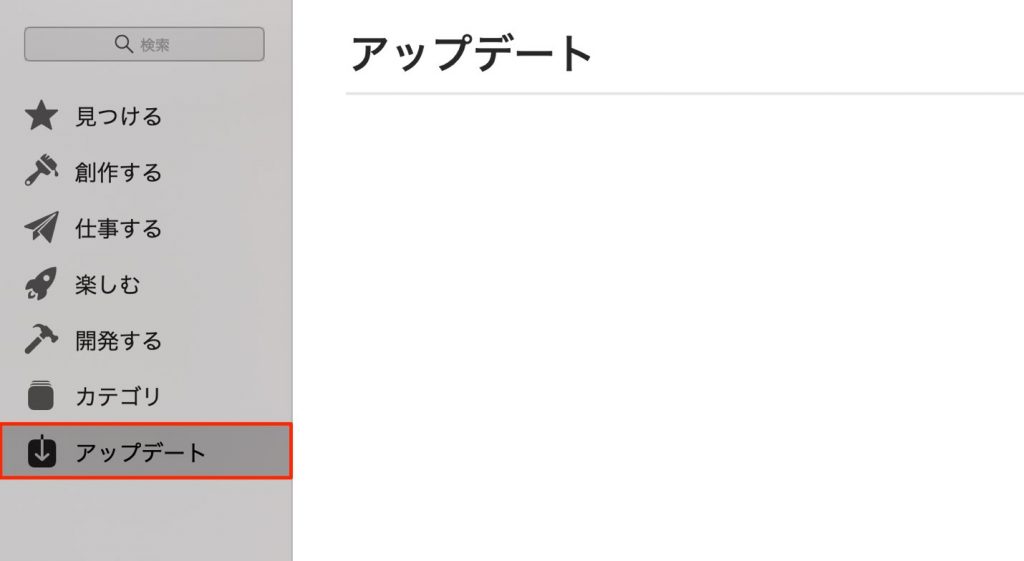
If you haven't updated yet, Logic Pro X will be displayed.
Click "Update" to update to the latest version.
Melodyne 4.2
Go to the Celemony website.
https://www.celemony.com/ja/melodyne/what-is-melodyne

Click "Log In" at the top right to sign in to your account.

Click "Download."
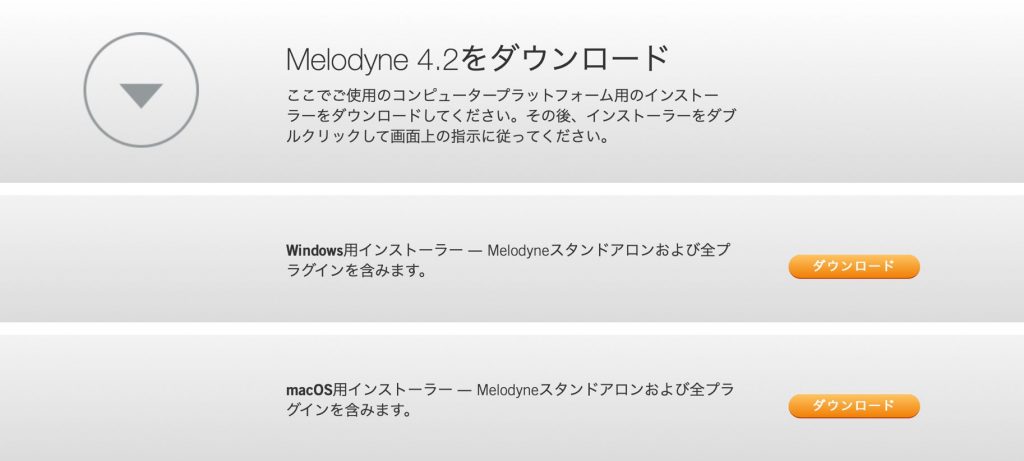
Click the Mac version and install the product.
Using Melodyne ARA
Now let's apply Melodyne ARA.
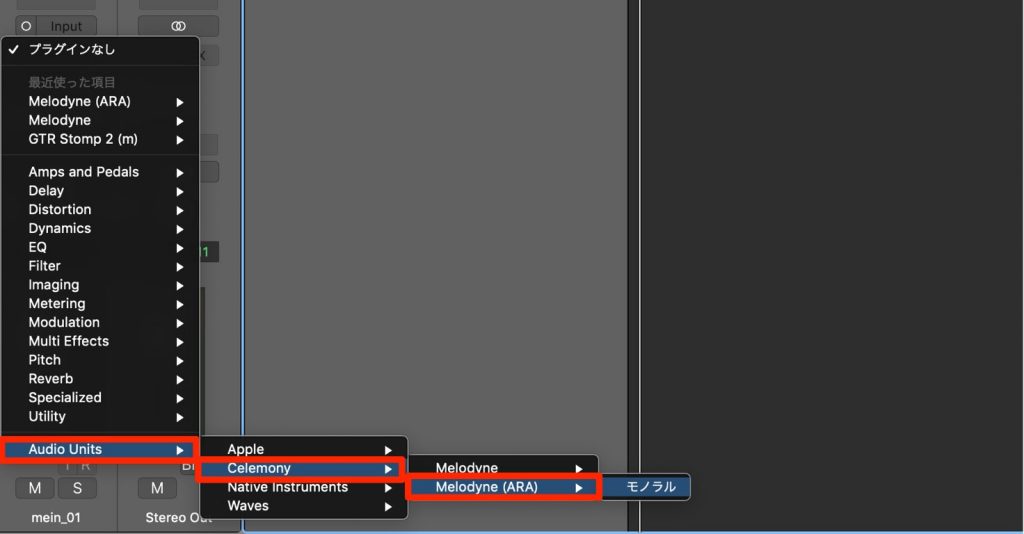
Select "Melodyne ARA" from the plug-ins.

As you can see, the "Transfer" display is gone.
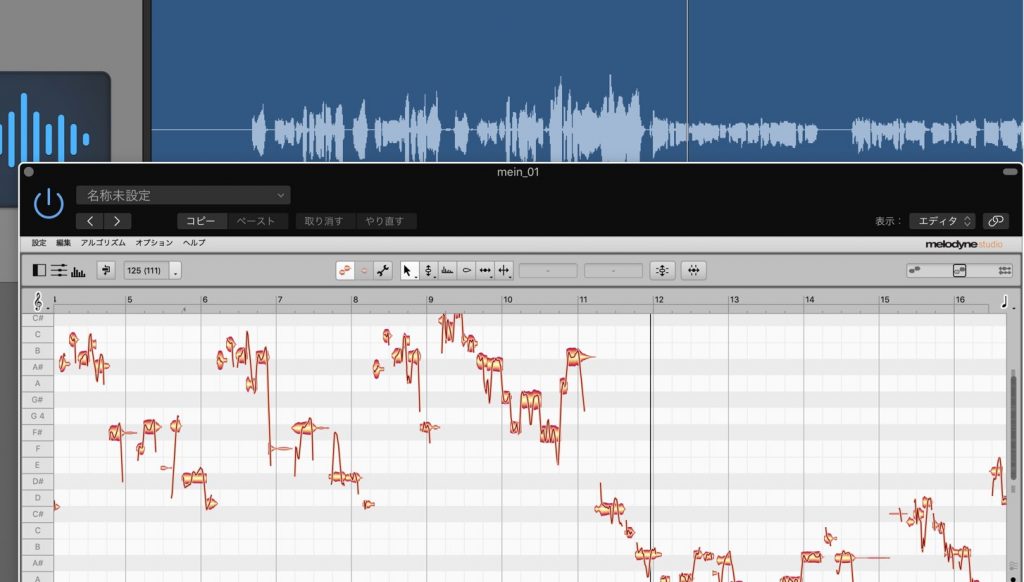
All you have to do is play back Logic in this state.
The audio is analyzed automatically and displayed in Melodyne.
After that, edit in Melodyne as usual.
Your Melodyne edits follow the region reliably.
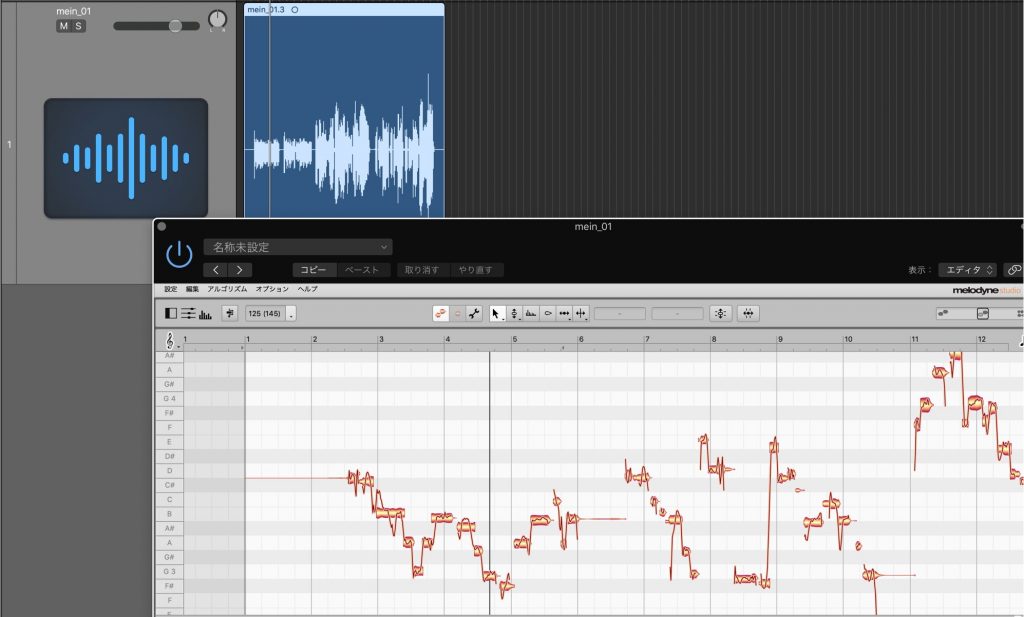
Suppose you move the region after editing.
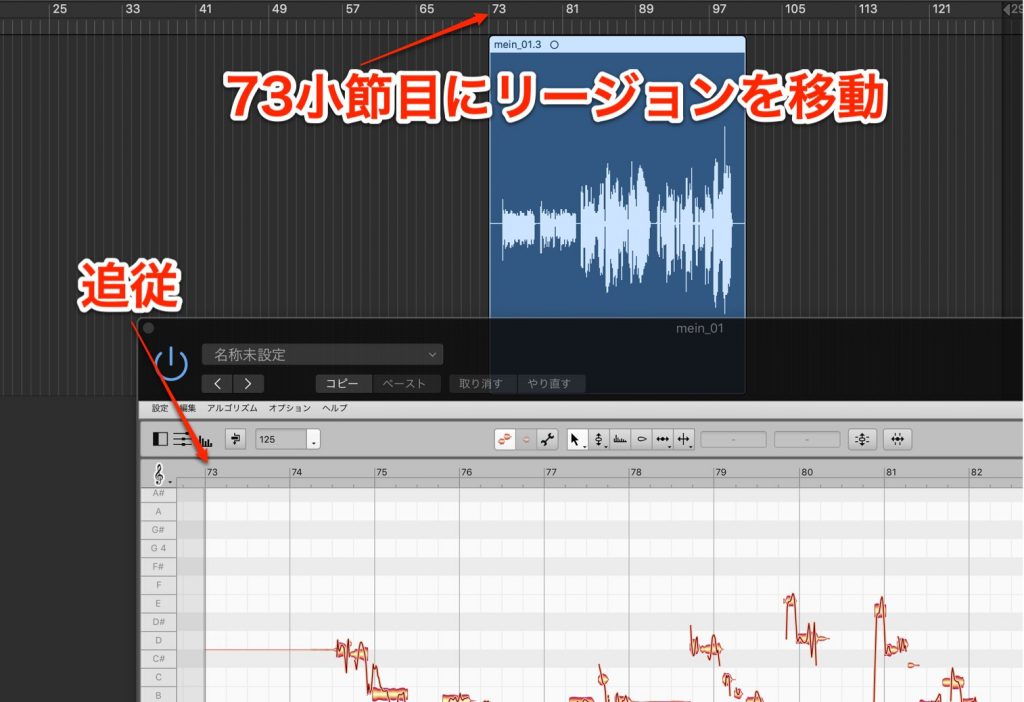
As you can see, Melodyne follows along reliably.
The region moves with your pitch edits still applied.
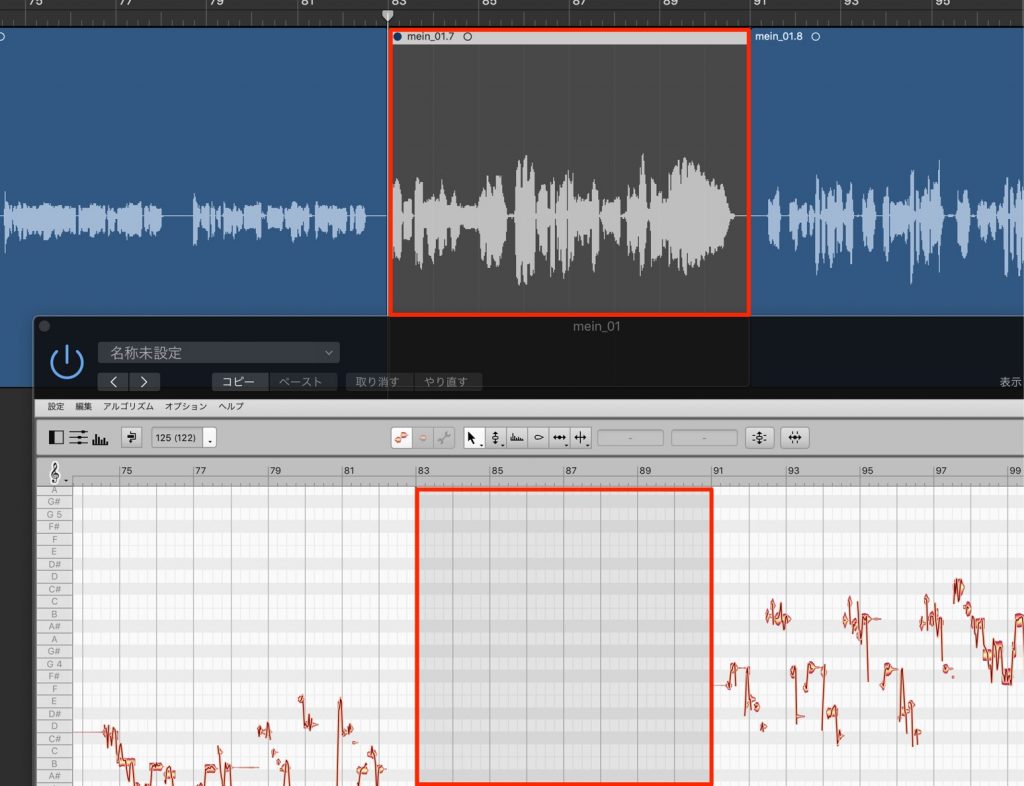
Region mutes are also reflected immediately.
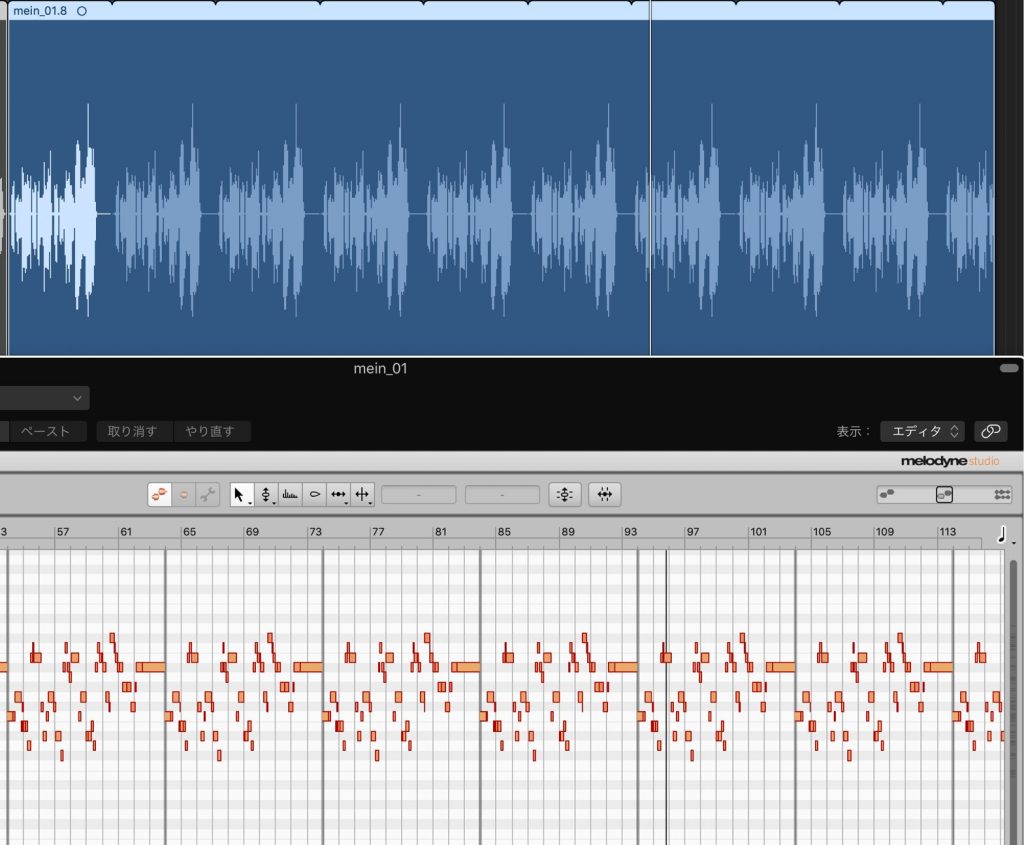
It also follows and reflects changes when you use the Loop function.
Notes on ARA
The ARA feature can't be used in the following cases.
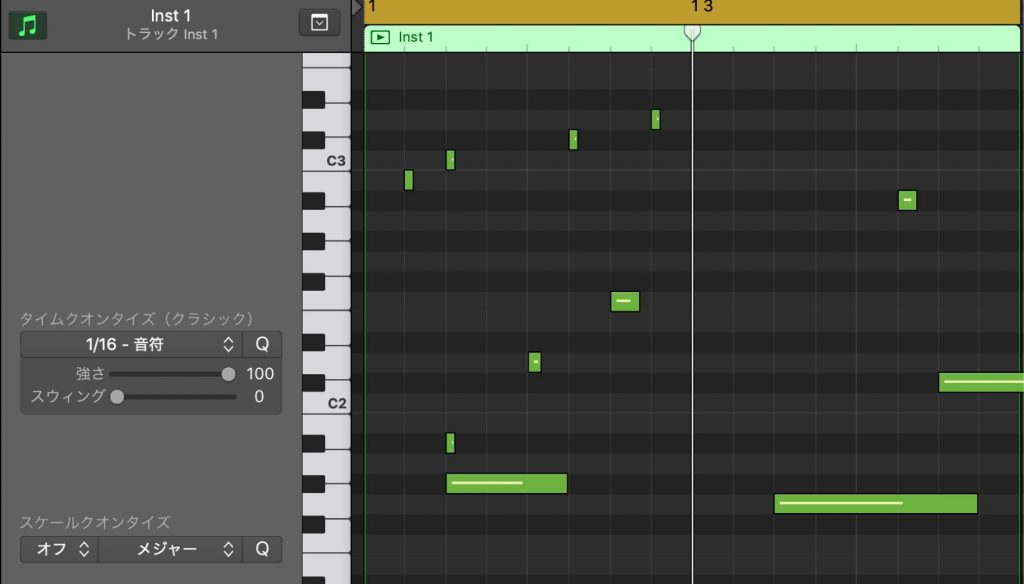
It can't be used on tracks that handle MIDI.
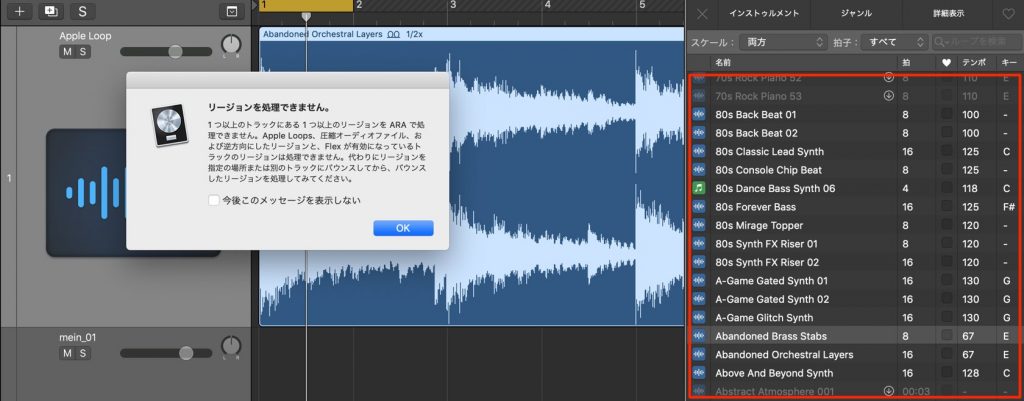
- Apple Loops
- Compressed audio files such as MP3s
- Reversed regions
- Tracks with Flex enabled
also can't be handled.
To work around this, you can bounce them to a new audio file.
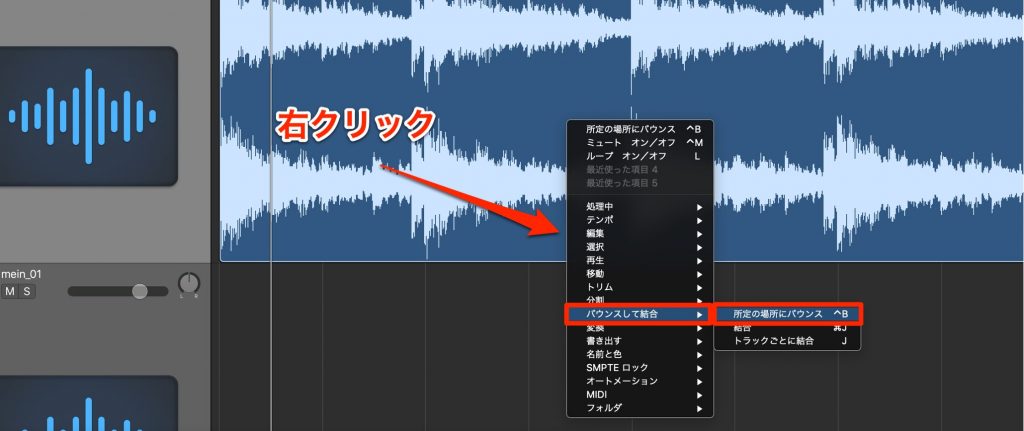
Right-click the region, choose "Bounce and Join" → "Bounce in Place," convert it to a new audio file, and then apply Melodyne ARA.
Melodyne Tutorial Content
- 1Overview and Use of Melodyne 4 essential
- 2Overview and Use of Melodyne 4 assistant
- 3Overview and Use of Melodyne 4 editor/studio
- 4New Features in Melodyne 5, the Standard Pitch Editing Software
- ◆ Manufacturer site: http://urx.space/Rgab
- ◆ Buy here (affiliate link): http://urx.space/Rgab
Frequently Asked Questions
Q1. How do I use ARA integration between Melodyne and Logic Pro?
Updating both programs to the latest version is essential. After updating to Logic Pro 10.4.2 and Melodyne 4.2 or later, simply select "Melodyne ARA" when choosing a plug-in.
Q2. Are there file types that the ARA feature can't be used with?
Yes. MIDI tracks, compressed audio files such as MP3s, reversed regions and tracks with Flex enabled are not supported. Bounce these to a new audio file before using them.
Q3. Are there cases where Melodyne edits aren't reflected in Logic?
With ARA integration, edits are reflected automatically, so the conventional "Transfer" operation is unnecessary. When you move or mute a region or use the Loop function, Melodyne follows immediately and your pitch edits are preserved.
NEW ARTICLES
Latest English Articles