This article explains how to create drum patterns using the step sequencer in Ultrabeat, Logic Pro's drum plug-in. By learning three approaches, turning on the step sequencer, loading preset patterns and creating original patterns, everyone from beginners to advanced users can build drum rhythms efficiently. You will gain the skills to unlock Ultrabeat's many possibilities, from saving time with presets to pursuing originality through fine velocity and timing adjustments.
Expand your drum pattern production even further
Once the kit is decided, next comes the rhythm pattern.
Here we explain how to create rhythm patterns using the "step sequencer".
Build patterns from scratch, use presets, or rely on chance:
we hope you get a better feel for the possibilities of "Ultrabeat".
Ultrabeat video index
- 1Loading and saving kits
- 2Step sequencer 1 *This article
- 3Step sequencer 2
- 4Creating a kick
- 5Creating a snare and hi-hat
- 6Using side-chaining and samples
Video point: Turning the step sequencer ON
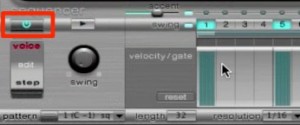
To use the step sequencer, turn on the power button outlined in red.
Everything starts here.
Video point: Using preset patterns
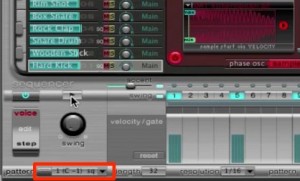
Click the area outlined in red to load a pattern.
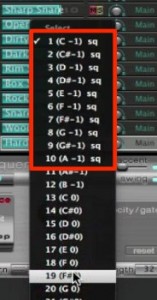
The ones marked "sq" on the right are presets.
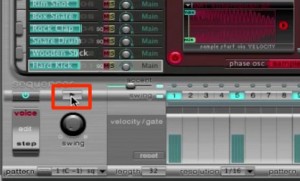
You can audition a pattern with the Play button.
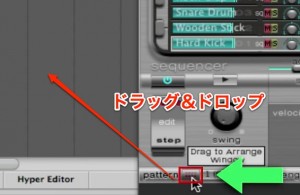
When you find a pattern you like,
drag and drop the area outlined in red onto a track to place it as a MIDI region.
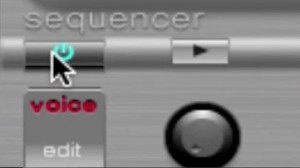
After placing the pattern, to prevent the pattern from playing at the same time,
turn the "step sequencer" off.
Video point: Creating an original pattern
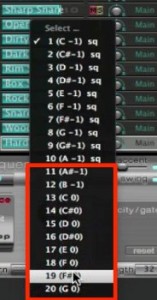
Click the pattern area as above,
and select a slot that is not marked "sq".
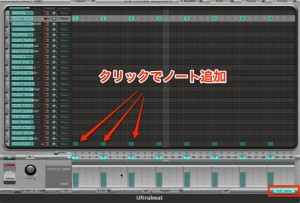
Lighting up "Full View" lets you edit rhythms on a large screen.
Then click the grid squares for each kit piece where you want to enter notes.
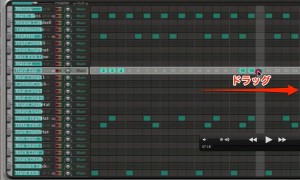
You can also drag to enter notes continuously.

- 1_Adjust the swing of the rhythm
- 2_Adjust the velocity (dynamics) of the sounds
Frequently Asked Questions
Q1. What do I need to do to start using Ultrabeat's step sequencer?
First, turn ON the step sequencer's power button (outlined in red). This is the first step in using the step sequencer, and all pattern creation starts here.
Q2. Can I change from a preset pattern to an original pattern?
Yes. Click the pattern area, select an empty slot not marked "sq" and light up Full View, and you can enter notes freely on the grid to create an original pattern.
Q3. How do I adjust the dynamics of the drum sounds?
Use velocity. By adjusting the dynamics (velocity) of each note, you can achieve a natural and expressive drum sound.
NEW ARTICLES
Latest English Articles