
iZotope Stutter Edit is an essential plug-in for electronic music production that lets you apply complex special effects such as stutters, arpeggios, delays, and distortion with continuous changes. It works on any track, including vocals, synths, and guitars, and depending on your DAW, you control it via MIDI or via sidechain. Presets let even beginners apply advanced effects easily, and you can save settings you like to reuse them in other songs.
Add complex effects to tracks with Stutter Edit
Frequently used in electronic music: "iZotope Stutter Edit"

"Stutters," "arpeggios," "delays," "distortion," and more:
you can apply various special effects with continuous changes.
It can be applied not only to rhythm parts but also to vocals, synths, guitars,
and any other track.
In this first lesson, we focus on how to apply it and the concept of controlling it.
Stutter Edit tutorial video
Excerpts of questions and answers from the YouTube video

I bought it recently, and when I install it with the iZotope Portal app, an error occurs when it shows /Document~... But for some reason, when I launch Logic, the plug-in is recognized. However, there are no presets, only the default. I looked up fixes and tried them many times, but nothing worked. Do you know of any solution? *I thought it might be a Portal problem, so I downloaded the installer directly from the iZotope website, but I still got the error...

We haven't experienced this symptom ourselves, but presets are basically installed to the Documents folder. There may be a problem with access permissions for the Documents folder. Please check whether read and write permissions are enabled using the method in this article. If they aren't, change them and try installing again. https://support.apple.com/ja-jp/guide/mac-help/mchlp1203/mac
I always watch your videos. Is this plug-in equivalent to Native Instruments' The Finger?
Yes, its concept is similar to "The Finger." Of course, each has its own character, so be sure to try the demo version.
Is there a demo version of this too?
It appears you can try it free for 10 days. https://www.izotope.com/support/download/stutter-edit/ Thank you for your continued support!
*The control concept differs depending on the DAW. Please refer to the text explanation below.
- 1Applying and controlling it
- 2The concept of gestures
- 3Pitch control gestures
- 4Controlling each parameter
Purchase the product here

How to apply it
The method differs depending on the DAW software.
- Control via MIDI
- Control via SC
Cubase uses this method.

Load "Stutter Edit" in the "track insert" where you want the effect.

Create a "MIDI track" to control "Stutter Edit."

Change the MIDI track's output to "Stutter Edit" to complete the setup.
Control it using SC (sidechain).
Logic uses this method.
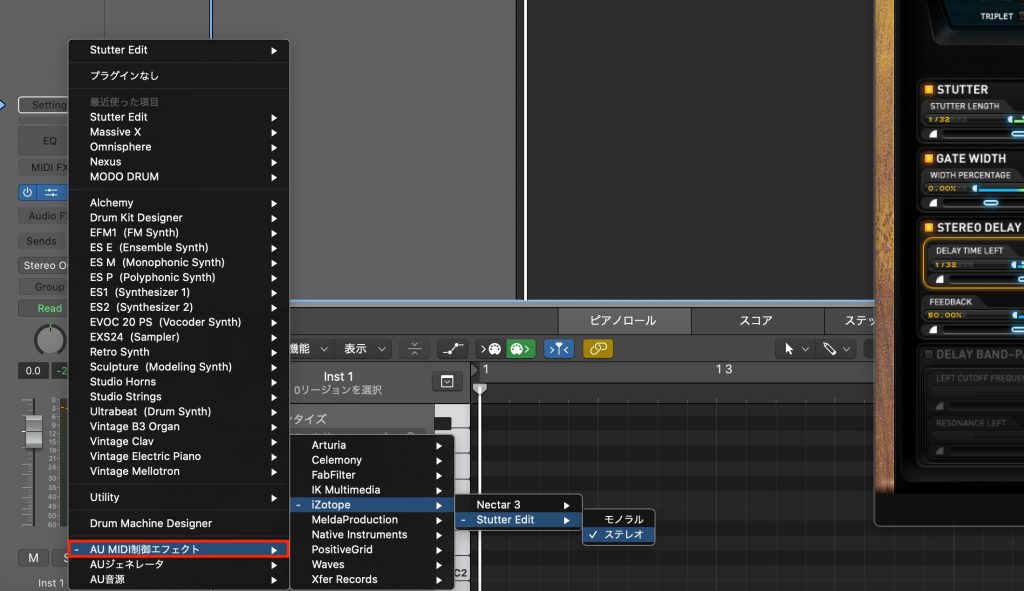
Prepare a "Software Instrument" track
and load "Stutter Edit" just like a regular soft synth.
*It's under "AU MIDI-controlled Effects."

On the track you want to affect, set a "Send" to an unused "Bus".
Here we use "Bus 1." Then raise the send amount.

Click (and hold) "Sends" and change it to "Pre Fader".
Lower the volume of the "track" and "Bus 1" to silence.
Otherwise, the track's sound will play twice.
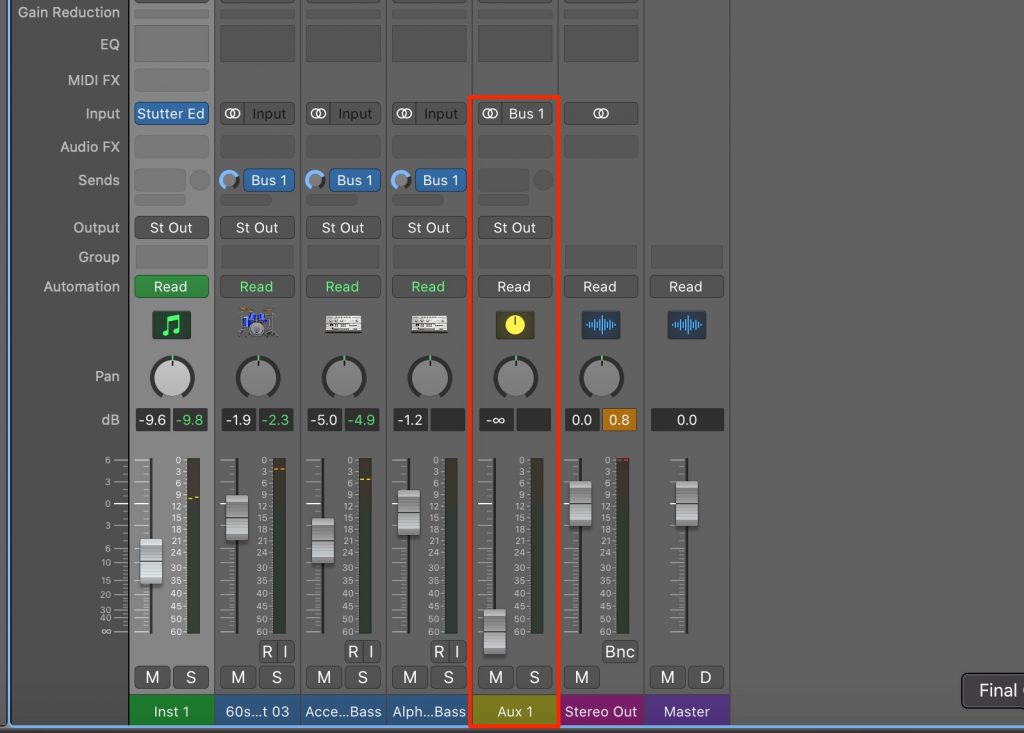
Also lower the volume of the AUX track created when sending to the bus.

Finally, set the "sidechain section" of "Stutter Edit" to the "Bus" above.
That completes the setup.
- Control via MIDI
- Control via SC
Applying presets
Click the area outlined in red to load a preset.
A variety of effects are provided in advance.
Each of these effects is called a "Gesture".

Click "PRESET MANAGER."

Click an item in the categories outlined in red,
and its effects are shown on the keyboard on the right.
This is linked to the DAW's MIDI track.

Then just enter "MIDI notes" where you want each effect.
Saving presets
When you've made an effect you like, save it
to use it in other songs.

Click "SAVE" and give it a name.

From next time, it appears in the "PRESET MANAGER."
Purchase the product here
Frequently asked questions
Q1. Which DAWs can iZotope Stutter Edit be used with?
It supports major DAWs such as Cubase and Logic. In Cubase it's controlled via MIDI, and in Logic it's loaded as an AU MIDI-controlled effect, with a setup method for each DAW.
Q2. When I use Stutter Edit, I hear the track twice.
When using the sidechain method, you need to change the send to pre-fader and lower the volume of the track and the AUX track to silence. This prevents the doubled sound.
Q3. Can I save effect settings I've created?
Yes. When you've made an effect you like, you can name and save it with the "SAVE" button. Saved presets appear in the PRESET MANAGER from then on.
Q4. What instruments can Stutter Edit be applied to?
It can be applied to almost any track, including rhythm parts, vocals, synths, and guitars. It is used especially often in electronic music.
NEW ARTICLES
Latest English Articles











