
M/S processing is a mastering technique in Logic Pro that separates the left/right (L/R) channels from the center signal and applies EQ and compression to each independently, efficiently increasing loudness and width. This article explains in detail the process of splitting, inverting, and recombining stereo audio. The steps are complex, but following them reliably improves your sound. In particular, because you can adjust the loudness of only the L/R components without affecting the center, you can achieve more precise mixdowns and masters.
Comparing the Effect of M/S Processing
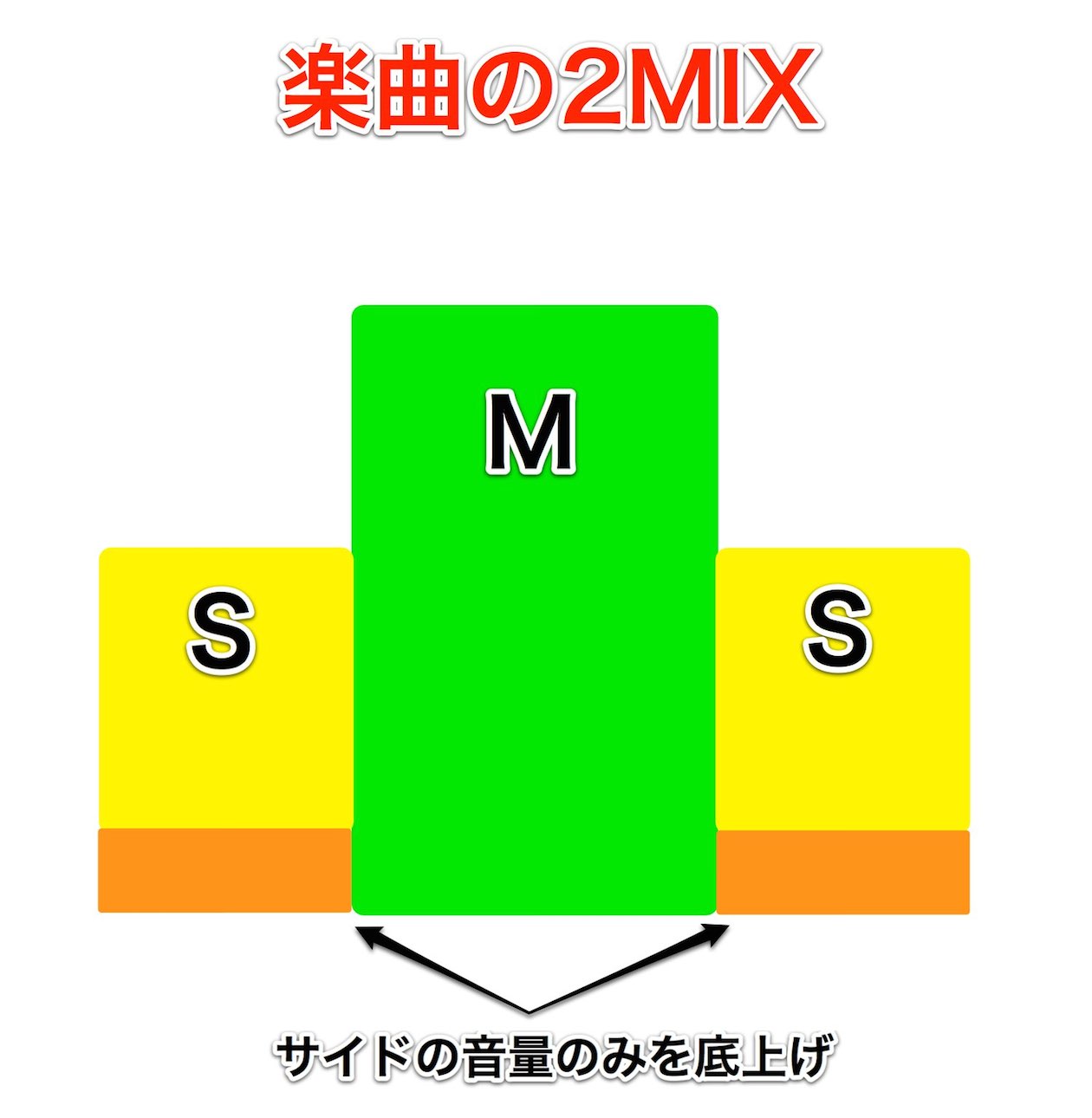
This continues from "Boosting Loudness and Width with M/S Processing" in the Mixing and Mastering category.
The procedure is a little complicated, but we will explain it step by step, so don't worry.
First, listen to the effect.
Before M/S processing
After M/S processing
- Logic X
- Logic 8/9
How to Do M/S Processing in Logic X
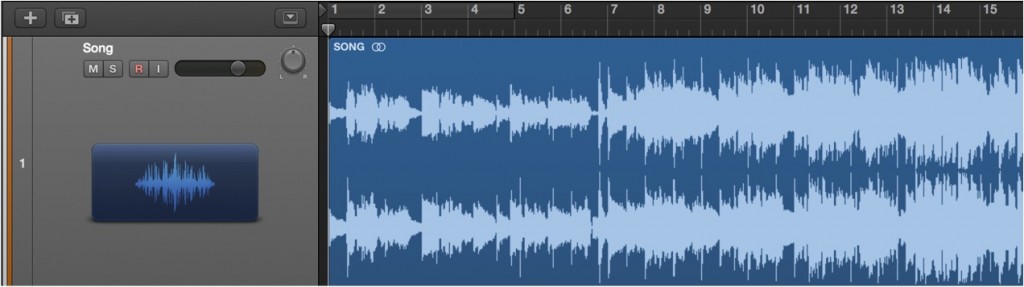
First, open the piece (2-mix) you want to M/S process.
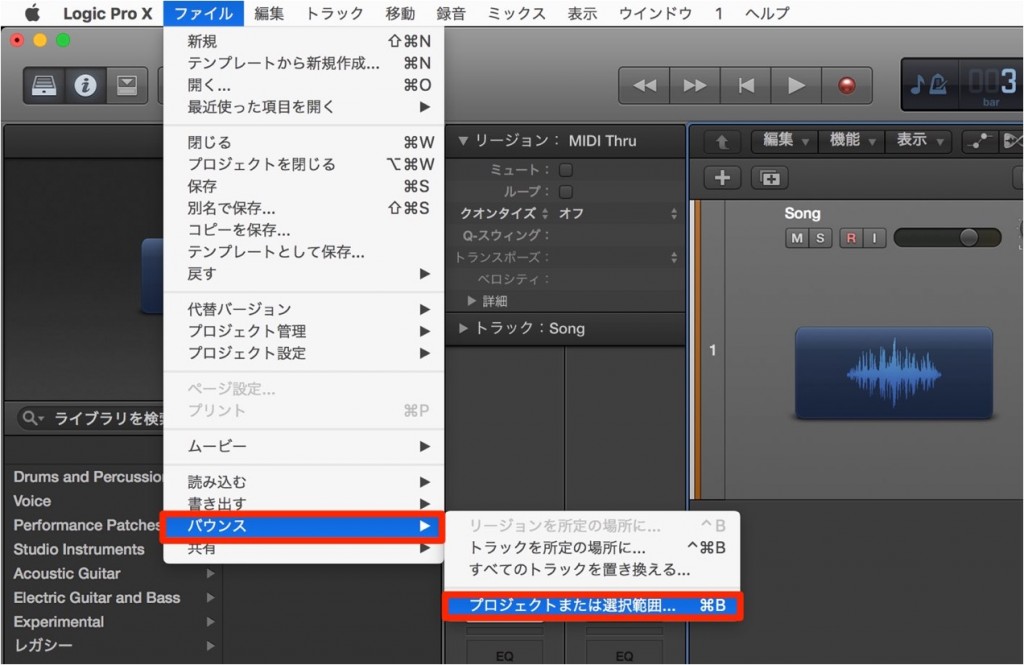
Set the song range and open the Bounce window.
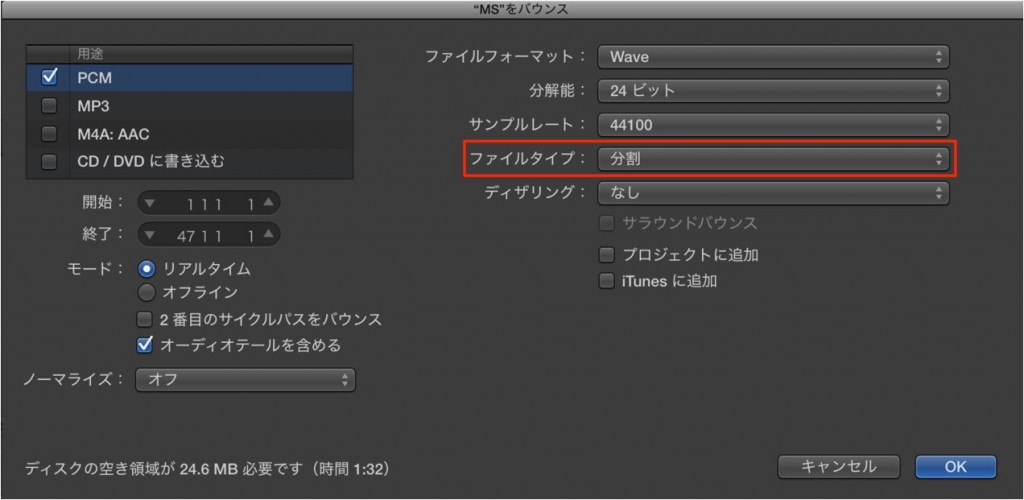
At this point, set it to "Split" and export.
This mode exports L and R as separate files.
*Turn off Normalize.
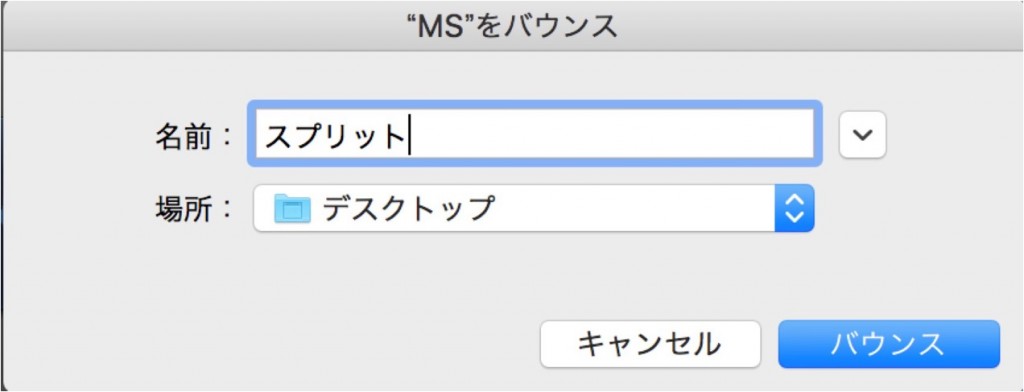
Also, rename the files "Split_R" and "Split_L" so they are easy to identify.
Add them to the Logic project.
But here a problem arises.
When you import the split files, L and R become linked,
which gets in the way of the inversion step later.

Rename one of the files (to anything you like) and bring it into Logic.
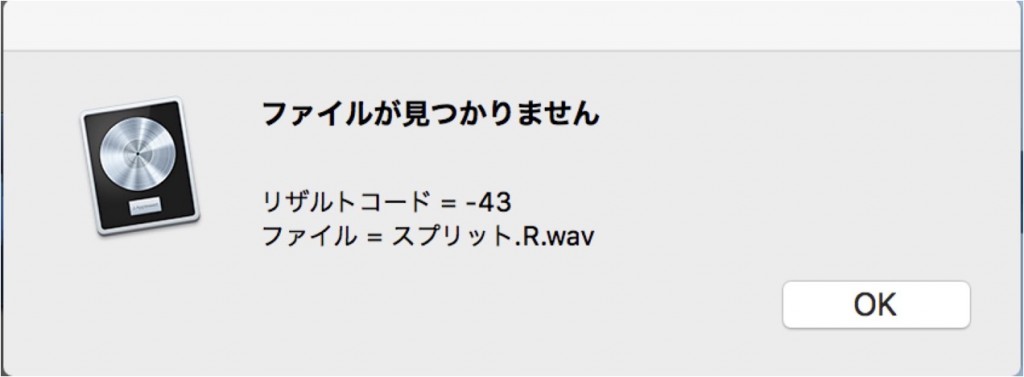
A warning like this appears, but don't worry; just press "OK."

L and R are now in Logic as separate files.
The top track is the original 2-mix.
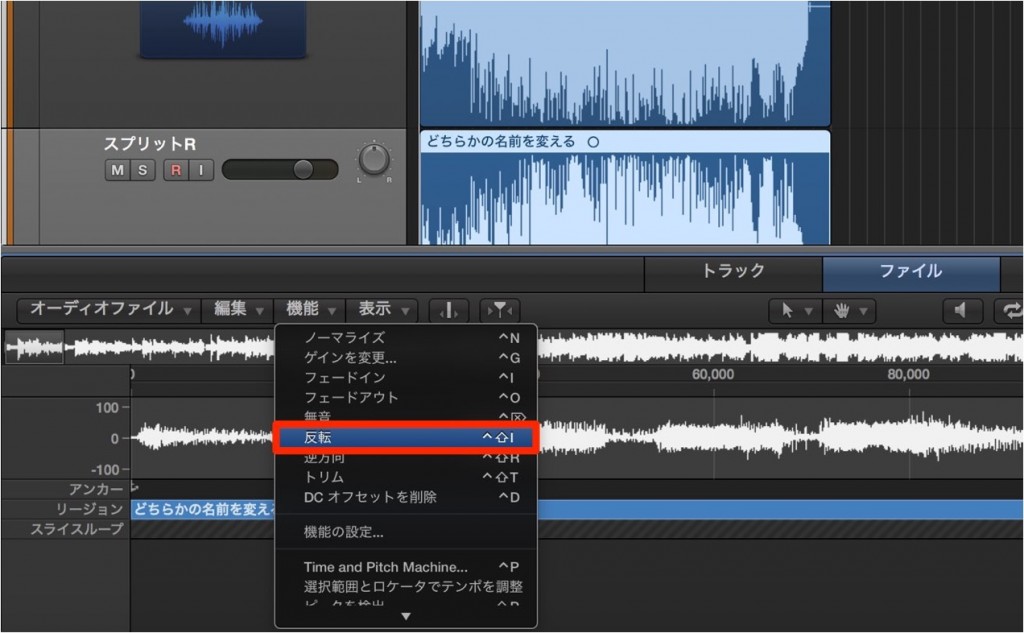
Select the "Split_R" track (with the name changed back)
and "invert" it in the sample editor.
*If the audio editing tab does not appear, you can solve it with the following URL.
https://sleepfreaks-dtm.com/dtm-trouble/sample-editor/
At this stage, it sounds like this.
*Solo the L and R tracks.
The center is removed.
We will use this later as the "L" audio.
In this state, bounce again, but this step is also a little unusual.

Click the area of the mixer output outlined in red and change it to mono.
As shown, a single circle indicates mono.
Press "Bnc" below it.
Name the track "L only."

After exporting, set the area of the mixer output outlined in red back to stereo.
The split L and R tracks are no longer needed, so deleting them makes things clearer.
Bring the "L only" track you exported above back into the Logic project.
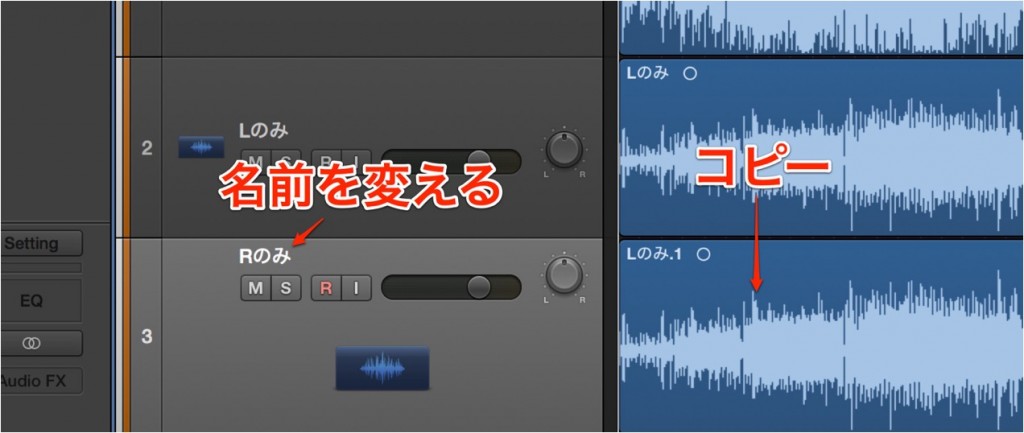
Create a new mono audio track and copy the "L only" region to it.
Name the new track "R only."
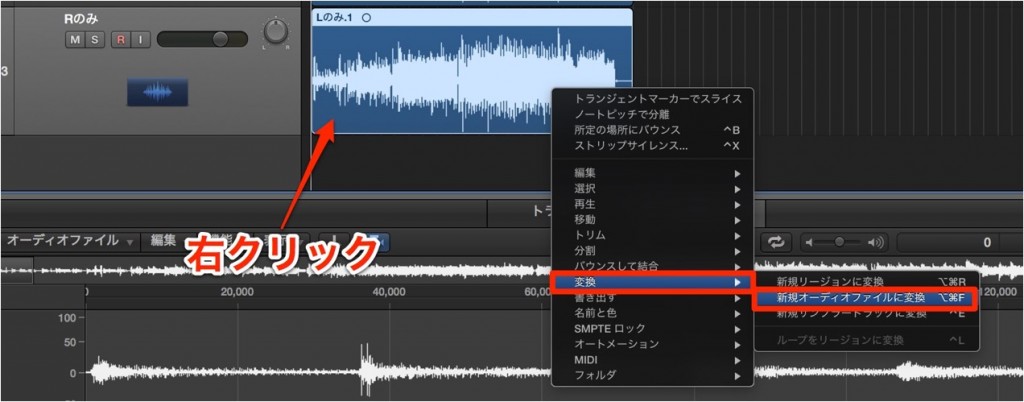
Right-click the copied region
and choose "Convert" → "Convert to New Audio File" from the menu.

Name it "R only."
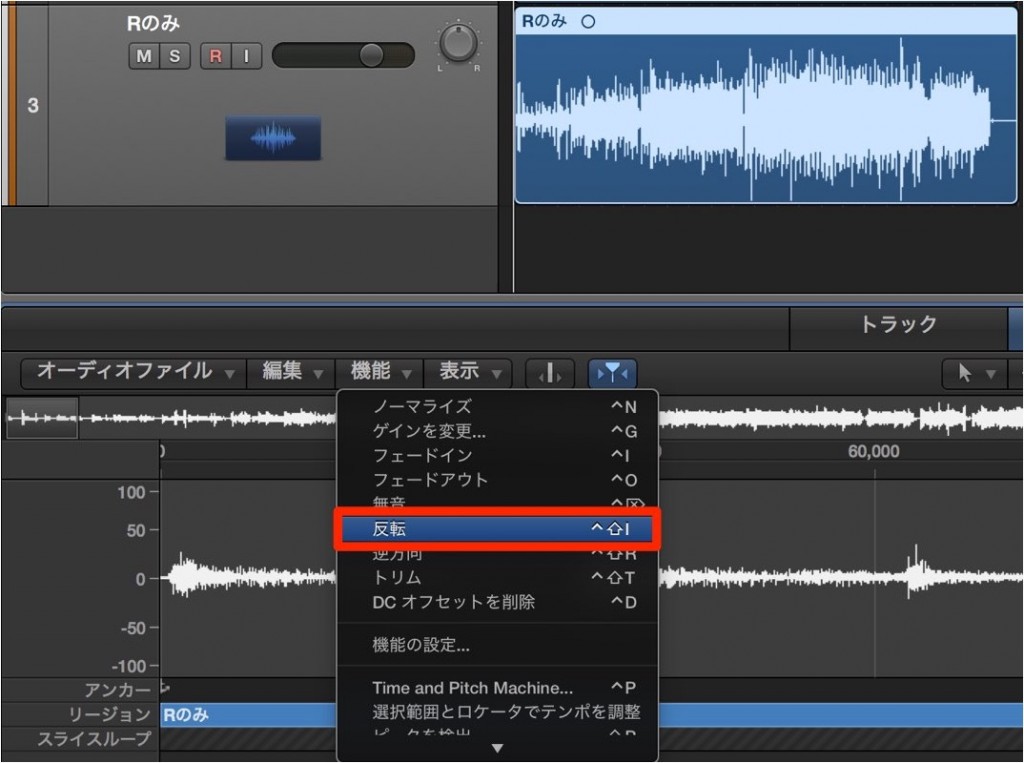
Invert the converted region.
This completes the extraction of L and R.
Let's go to the Mixer.

Check these three points:
- Set the original track to mono
- Pan the L and R tracks hard left and right
- The output is set back to stereo
When you listen, it sounds the same as the original 2-mix.
This means L, R, and center have been separated into three tracks.

By applying EQ and compression to L and R,
you can adjust the loudness of the L/R components only, without affecting the center.
*Apply the same plugins to all three tracks.
Otherwise, plugin latency may upset the relationship between them.
How was that?
The procedure is a little complex, but the results are worth it.
Be sure to try it.
How to Do M/S Processing in Logic 8/9

↑ First, import the piece (2-mix) you want to M/S process into Logic.
Here, we name it "Original."
Open the Bounce window with "File" → "Bounce" from the menu bar.

↑ In the window that appears, as outlined in red, set it to "Split" and export.
This mode exports L and R as separate files.
*Turn off Normalize.
Also, rename the files "Split_R" and "Split_L" so they are easy to identify.
Add them to the Logic project.
But here a problem arises!
If you import the files now, L and R become linked,
which gets in the way of the inversion step later.

Rename one of the files (to anything you like) and bring it into Logic.

↑ A warning like this appears, but don't worry; just press "OK."

↑ L and R are now in Logic as separate files.
The top track is the original 2-mix.

↑ Select the "Split_R" track (with the name changed back)
and "invert" it.
It then sounds like this.
*Solo the L and R tracks.
The center is removed.
We will use this later as the "L" audio.
In this state, bounce again, but this step is also a little unusual.

↑ Click the area of the mixer output outlined in red and change it to mono export.
As shown, a single circle indicates mono.
Press "Bnce" just to its right.
Name the track "L only."

↑ After exporting, set the area of the mixer output outlined in red back to stereo.

↑ Bring the "L only" track you exported above back into the Logic session.
The split L and R tracks are no longer needed, so deleting them makes things clearer.

↑ Create a new mono audio track and copy the "L only" region to it.
Name the new track "R only."

↑ Right-click the copied region
and choose Convert → "Convert to New Audio File" from the menu.
Name it "R only."

↑ Invert the converted region.
This completes the extraction of L and R.
Let's go to the Mixer.

↑ Check these three points:
- Set the original track to mono
- Pan the L and R tracks hard left and right
- The output is set back to stereo
When you listen, it sounds the same as the original 2-mix.
This means L, R, and center have been separated into three tracks.

↑ By applying a limiter or maximizer to L and R,
you can adjust the loudness of the L/R components only, without affecting the center.
*Apply the same plugins to all three tracks.
Otherwise, plugin latency may upset the relationship between them.
How was that?
The procedure is a little complex, but the results are worth it.
Be sure to try it.
- Logic X
- Logic 8/9
Plugins That Make M/S Processing Easy
Does the M/S method above feel a bit daunting?
If so, here is a plugin we recommend that makes M/S processing easy.
Waves Center
Buy the product: https://bit.ly/2XpJWgj
Waves MS Matrix
Buy the product here

Frequently asked questions
Q1. What is M/S processing in Logic Pro?
M/S processing is a technique that separates stereo audio into mid (center) and side (left-right difference) and applies different effects to each. Because you can adjust the center and side components independently, it allows finer control of loudness.
Q2. Why turn off Normalize when splitting files for M/S processing?
If Normalize is on, the levels are adjusted automatically when splitting, which can upset the relationship between the signals during the later inversion and recombination, so you need to turn it off to preserve the levels.
Q3. How do I solve the problem of the L and R tracks becoming linked?
Rename one of the files before importing, and Logic Pro recognizes them as separate files, preventing them from linking.
Q4. What should I watch out for when applying plugins (EQ, compression) after M/S processing?
Apply the same plugins to all three tracks (L, R, and center). Using different plugins creates latency differences that can upset the relationship between the signals.
NEW ARTICLES
Latest English Articles











