"ORB COMPOSER," AI composition assistant software, is a tool that lets you finely control the automatic generation of songs and phrases. By using its five buttons (Structure, Melody, Instrument, Chord and Note), you can generate new songs while specifying which elements to keep. And by adjusting performance expression with the three Curves parameters, Intensity, Momentum and Space, you can bring the song closer to what you intend, with effects such as crescendos and changes in the number of instruments. It lets everyone from DTM beginners to experienced users compose efficiently at high quality, helping save production time and boost creativity.
Customize song and phrase creation for the best results
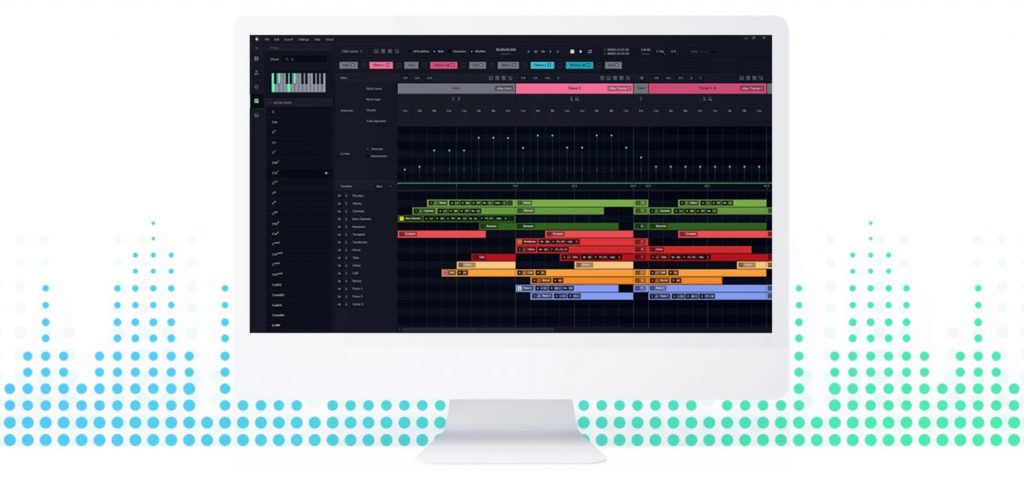
ORB COMPOSER, AI composition assistant software.
Following the overview and setup in the previous article, we'll explain settings for controlling the automatic generation of songs and phrases to bring them closer to what you intend.
Website: https://www.orb-composer.com
How to use Orb Composer, AI composition assistant software
Understanding the key buttons for building songs and phrases
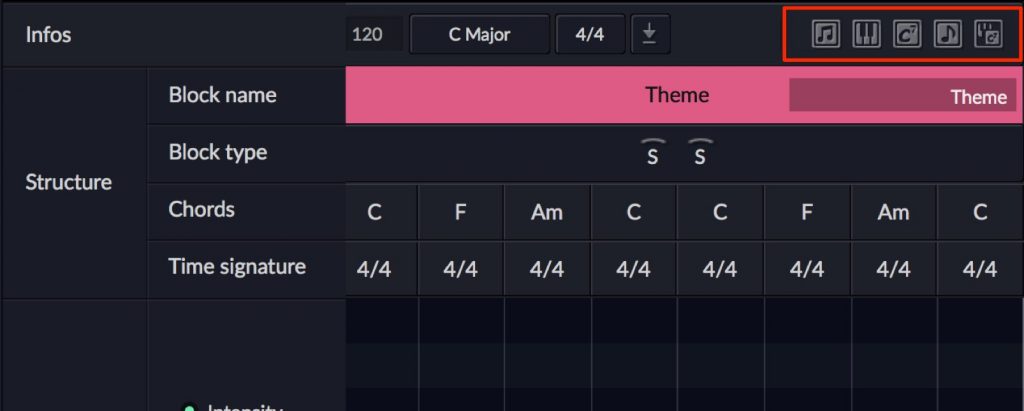
Songs and phrases are created from this area.
Each time you press these auto-generate buttons, new chords and phrases are generated.
By clicking again and again, you can get closer to the image you want to create.
Song structure: the Structure button
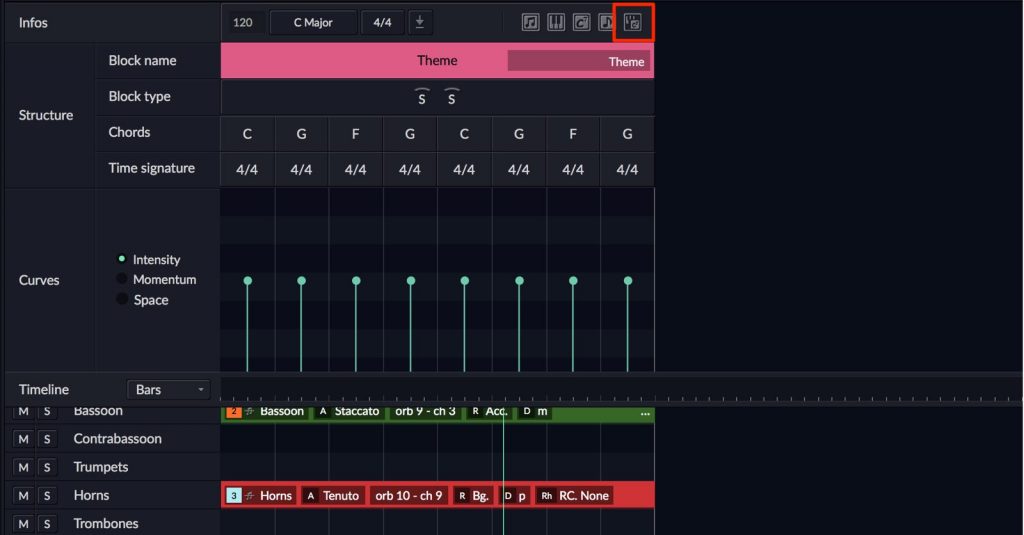
The first one to use is the "Structure button," which we also used in the previous article.
Everything about the performance, such as [chords], [instrumentation], [each part's role] and [melody], is changed all at once.
Melody button
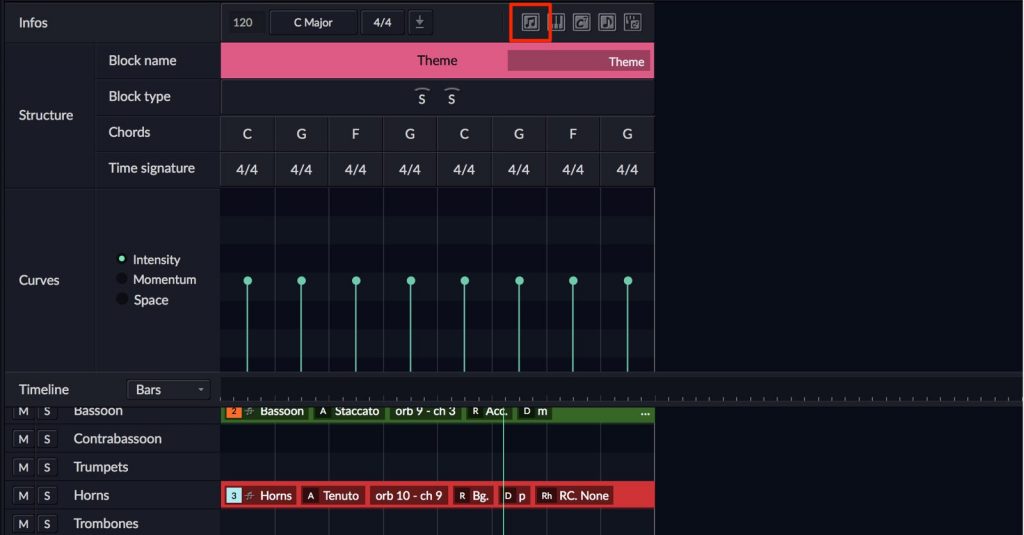
This changes only the melody line of clips already created; [instrumentation] and [each part's role] are not changed.
Each part's role refers to the role assigned to it, such as bass, chords or melody.
It's effective when you like the current feel of the song but want to try a new melody line.
Instrument button
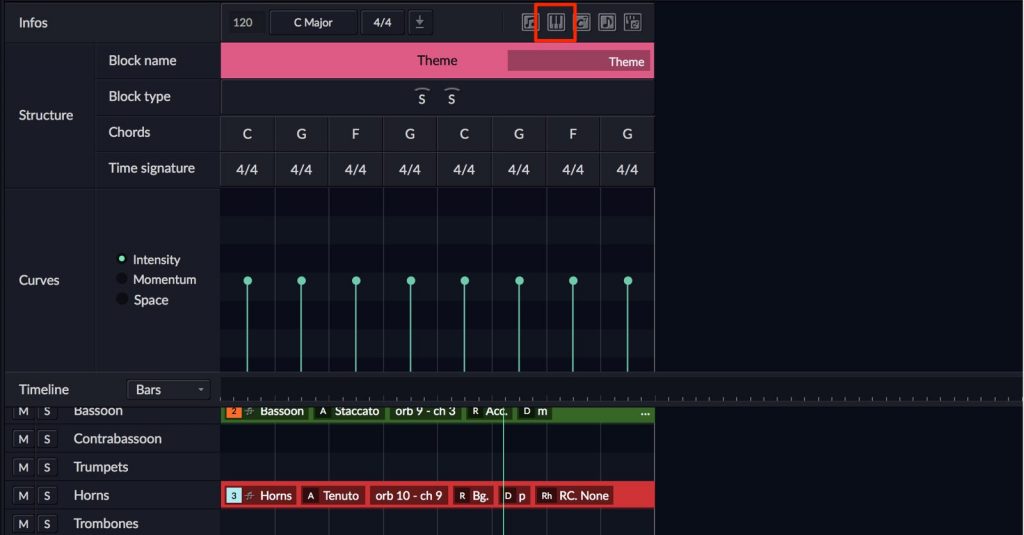
[Instrumentation], [each part's role] and [the performance] are changed, while [chords] are not.
It's good to use when only the chord progression is decided and you'd like to give everything else a different feel.
Chord button
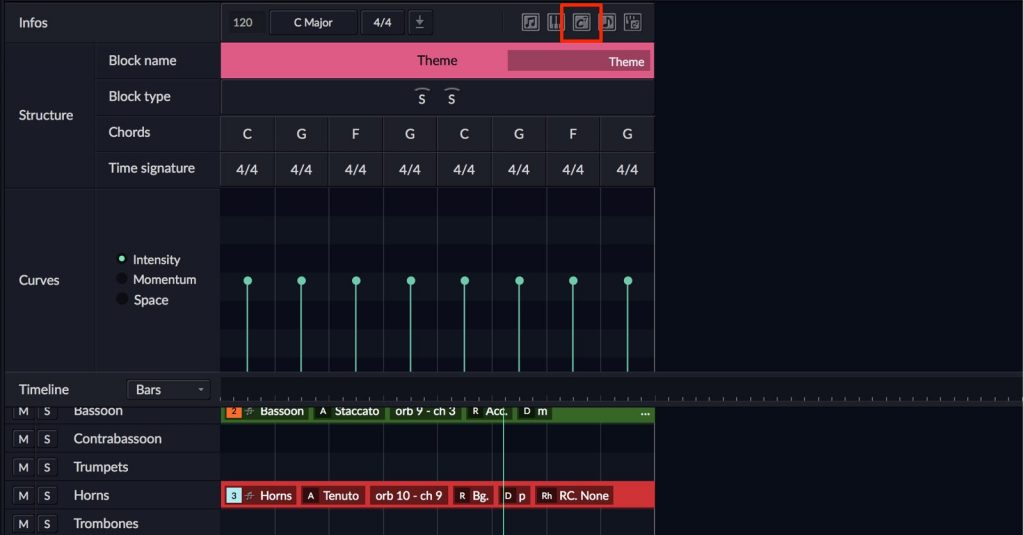
The currently set [chords] are changed.
[Instrumentation] and [each part's role] stay the same, but because the chords change, the pitches of the [melody] and [accompaniment] change to fit the chords.
The nuance of each rhythm carries over, so it's effective when "the song's feel is mostly decided and you want to try a different chord progression."
Note button
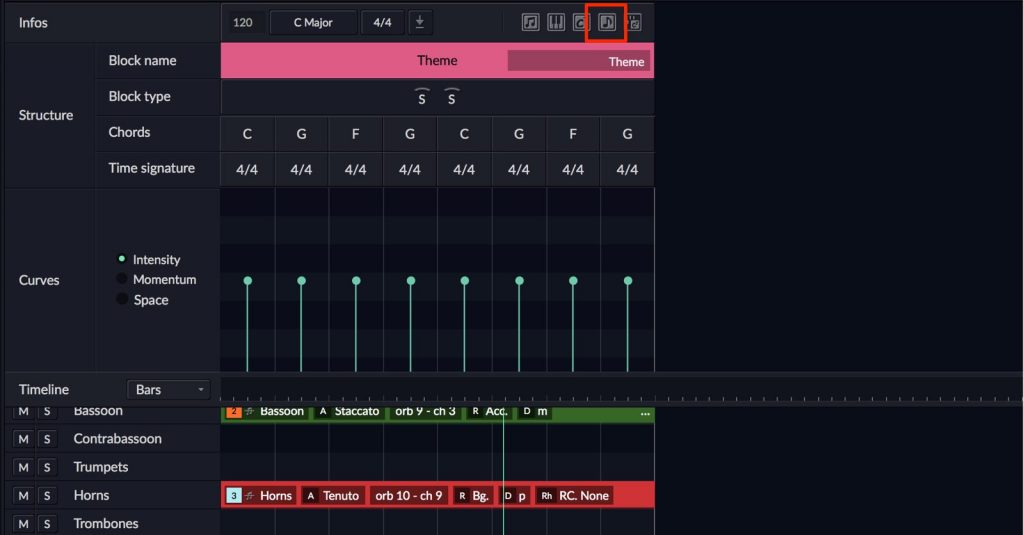
This changes [only the content of the phrases]; [chord progression], [instrumentation] and [each part's role] are carried over unchanged.
It's effective when you like the feel of the chords and instrumentation but want to change the content of the melody and accompaniment parts too.
Next, let's look at the area labeled Curves.
Using Curves to control performance expression
Next, let's check the area labeled Curves.
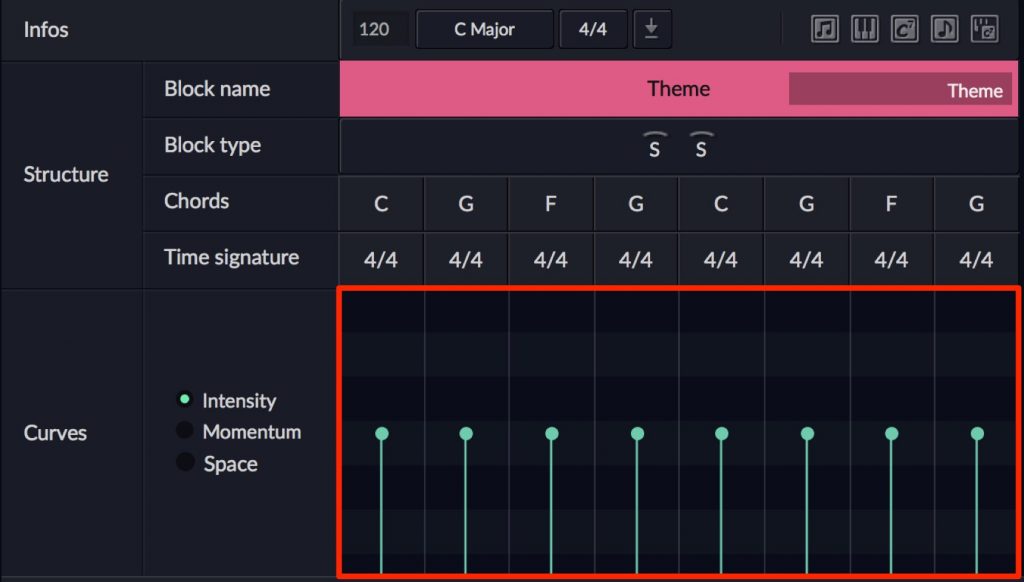
There are three items: Intensity, Momentum and Space, and switching between them changes the display of the bars on the right.
You can draw by dragging each line up or down, and holding the Control key switches the mouse cursor to a pen tool for editing.
*Changes to each Curve are not applied in real time; they're applied when you generate the phrases again.
Intensity mode
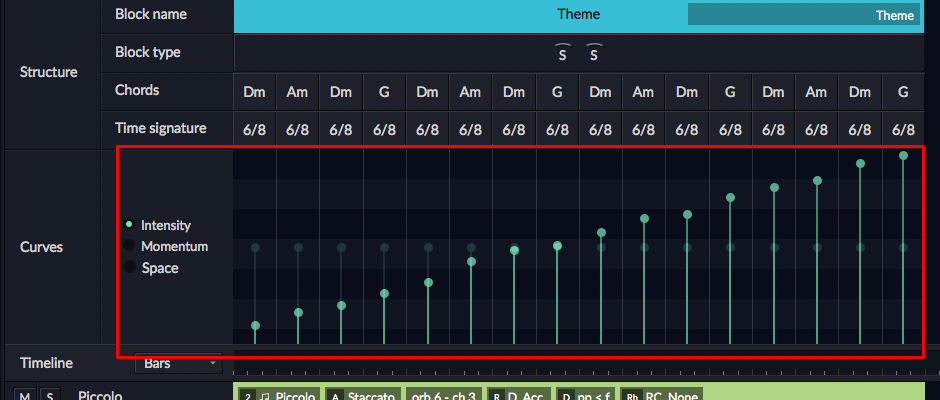
You can adjust the loudness of the sound over time.
If you gradually raise Intensity, you get a crescendo effect across the whole song, as in the audio below.
Momentum mode
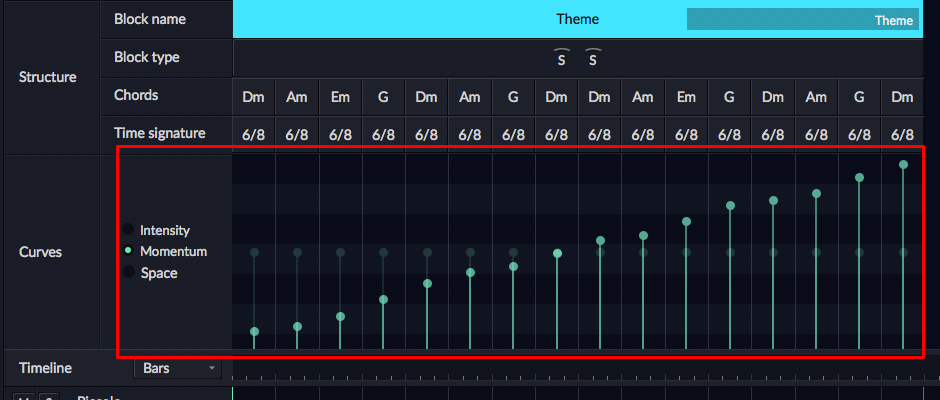
You can adjust the number of notes in the accompaniment parts' phrases.
If you gradually raise the value as in the image, the accompaniment parts change to have more and more notes.
Space mode
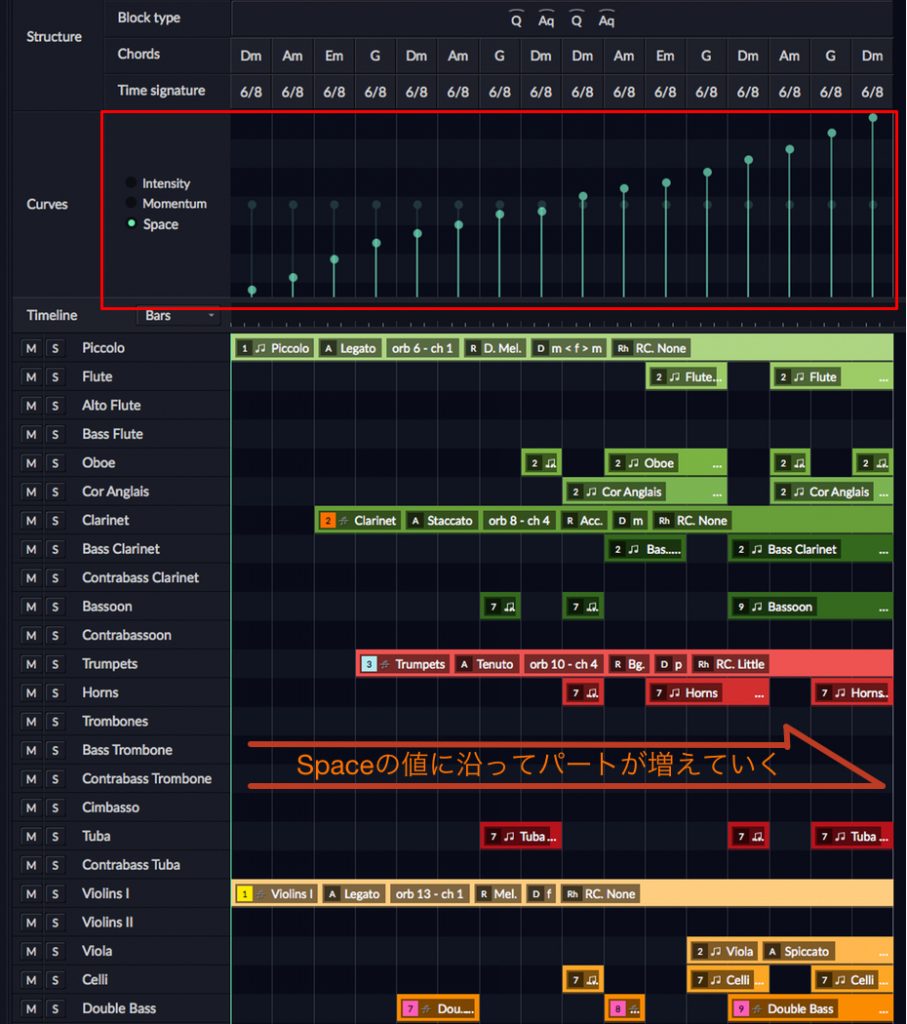
You can adjust the number of instruments used.
For example, if you raise this gradually, there are few instruments at the start of the block, and more and more toward the end.
What did you think?
We explained controlling dynamics with Curves and how to auto-generate phrases.
Next time, I'd like to introduce techniques for modifying the auto-generated phrases to bring them even closer to what you intend.
Frequently asked questions
Q1. What's the difference between ORB COMPOSER's Melody button and Note button?
The Melody button changes only the melody line and keeps the instrumentation and each part's role. The Note button, on the other hand, changes both the melody and the accompaniment parts, while keeping the chord progression and instrumentation.
Q2. When are Curves settings applied to the song?
Curves settings aren't applied in real time; they're applied only when you generate the phrases again after making changes. Following this step applies the expression you set to the song.
Q3. Which button should I use to change other elements while keeping the chord progression fixed?
Use the Instrument button. It changes the instrumentation and performance while keeping the chord progression, so it's suited to making a song with a different feel built on the framework of the chord progression.
NEW ARTICLES
Latest English Articles