
Waves V13 has been released with full support for Apple M1 Macs and Windows 11. This update delivers stable operation on the latest operating systems and enhances the graphics of plug-ins such as Omni Channel and Abbey Road RS124. Users within one year of purchase or on the Waves Update Plan can update for free, while other users need a paid renewal. With simple installation steps using Waves Central, music producers can use high-quality plug-ins in the latest environments.
Support for the Latest OS Versions and Specs on Both Mac and Windows

Waves, whose plug-ins are used by a large share of music producers, has released plug-in version V13.
The highlights of this update are:
- Full support for Apple M1 Macs
- Full support for Windows 11
In other words, the system environment side in particular has been strengthened. Detailed system requirements are here.
In addition, the graphics of "Omni Channel," "Abbey Road RS124" and "Kaleidoscopes" have been enhanced, and a number of bug fixes and performance improvements have been made.
Updating to V13 for Free
If less than a year has passed since you bought the product, or you are on the "Waves Update Plan," you can update to V13 for free.
First, let's check this procedure.
Go to the page below (login required).
https://www.waves.com/account/get-latest-version
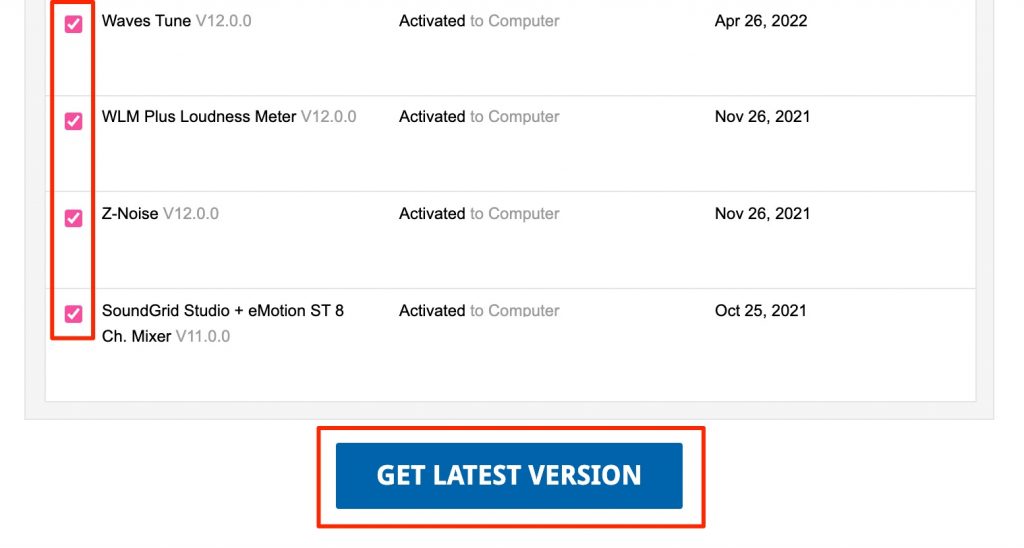
Check the products you want and click "GET LATEST VERSION."
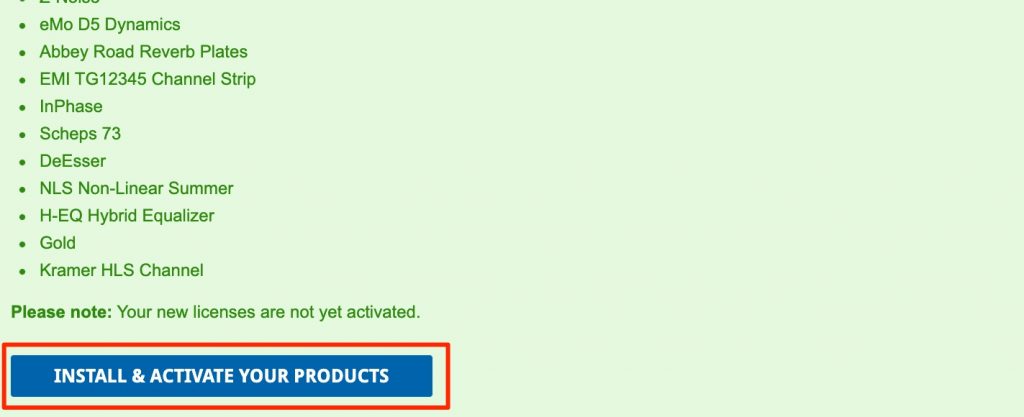
After the update is complete, click "INSTALL & ACTIVATE YOUR PRODUCTS" to proceed to updating the plug-ins. (Continued in "Installing V13" below.)
Updating to V13 with a Paid Update
If more than a year has passed since you bought the product and you are not on the "Waves Update Plan," you need to pay to update to V13.
Open the "Renew the Waves Update Plan" page (login required).
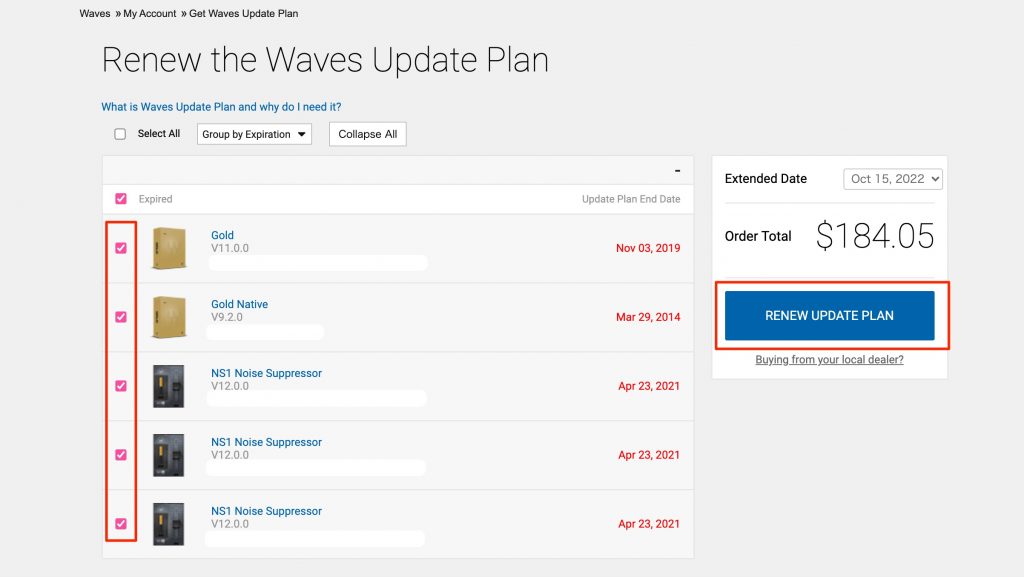
Check the products to update and select "RENEW UPDATE PLAN."
The page changes, so complete the payment.
After the payment is complete, go to the update page and update the products to the latest version.
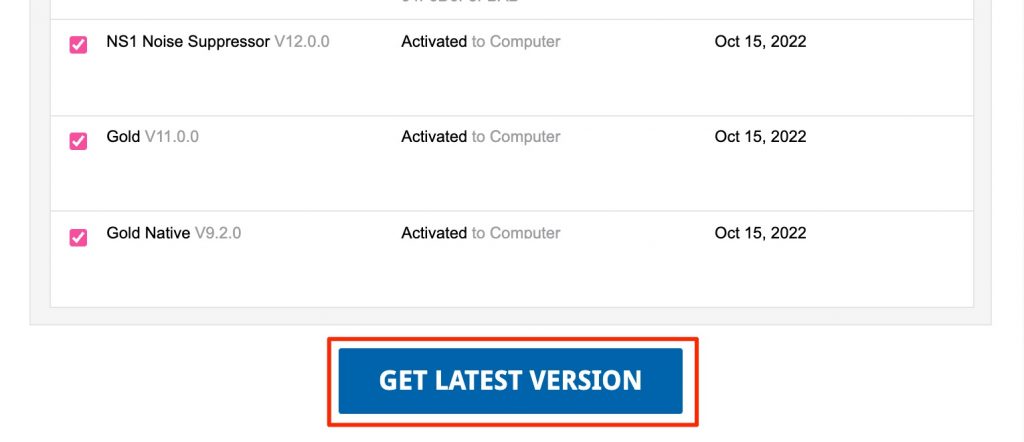
Check the products and click "GET LATEST VERSION."
Installing V13
After registering the V13 licenses above, install the plug-ins on your computer.
Open the Waves Central download page.

Select your OS and download it.

Waves Central is explained in detail in the article above, so check it if you get stuck.
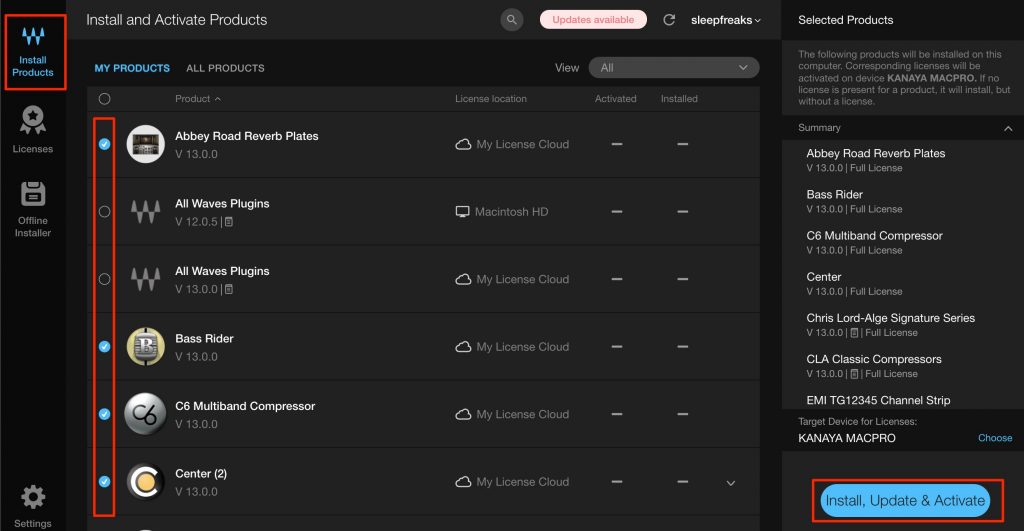
Launch Waves Central, log in and select "Install Products."
Check the products shown and press "Install, Update & Activate."
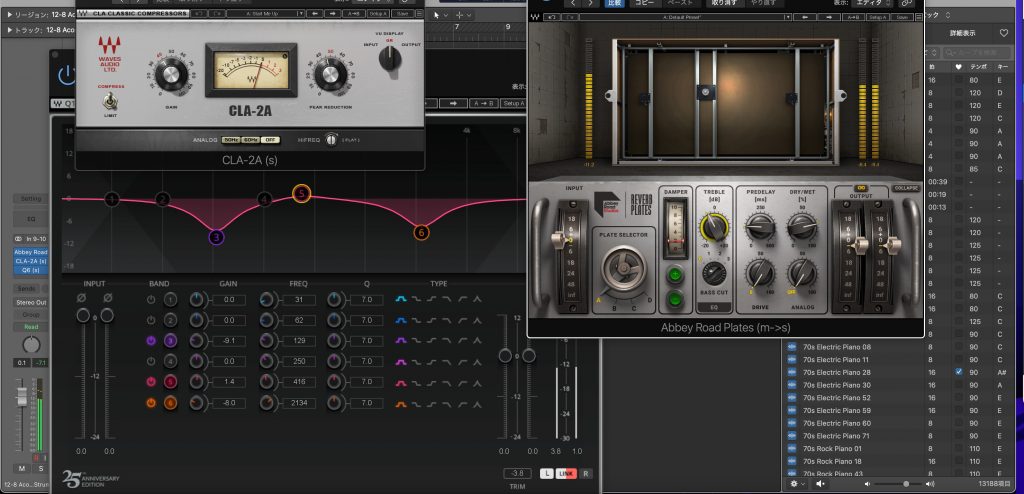
Once these installations are complete, you can use V13 in your DAW.
When you add new plug-ins, it is convenient to enable the second license below.

There was a problem where Waves V13 stopped appearing in DAWs on Mac OS 11.6.
It is not guaranteed to work in every case, but here is the solution that succeeded after trying various things.

Frequently Asked Questions
Q1. Can I update to Waves V13 for free?
If it is within one year of purchasing the product, or you are on the Waves Update Plan, you can update for free. If more than a year has passed since purchase and you are not on the plan, you need to renew the Update Plan for a fee.
Q2. Does Waves V13 fully work on Apple M1 Macs?
Yes. Waves V13 fully supports Apple M1 Macs and is optimized to run stably on the latest Mac models.
Q3. I use Windows 11. How do I install V13?
Just select the Windows version on the Waves Central download page, launch the Waves Central application, log in, and install and activate the plug-ins from "Install Products."
Q4. What should I do if V13 does not appear in my DAW after installation?
A problem where it does not appear has been reported on Mac OS 11.6. The linked article introduces a solution, so we recommend trying it.
NEW ARTICLES
Latest English Articles











