
If Waves V13 does not appear in your DAW even though you installed it on your Mac, you can solve it by resetting the settings files in the Library folder. Specifically, just delete the Waves-related files in the Application Support folder and the settings file in the Preferences folder, then install again from Waves Central. This clears plug-in recognition errors so you can use Waves plug-ins normally in your DAW.
None of the Installed Waves Plug-ins Appear
The recently released Waves V13
We encountered trouble where these plug-ins did not appear in the DAW at all, even though they had been installed.
Here is how to solve it.
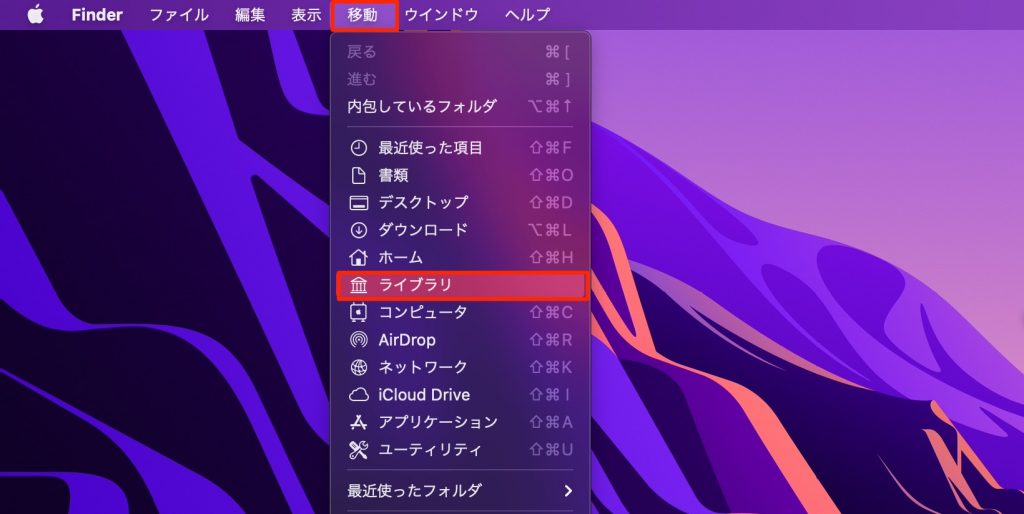
Open "Go" in the top menu and hold down the Option key.
Open "Library," which appears at this point.
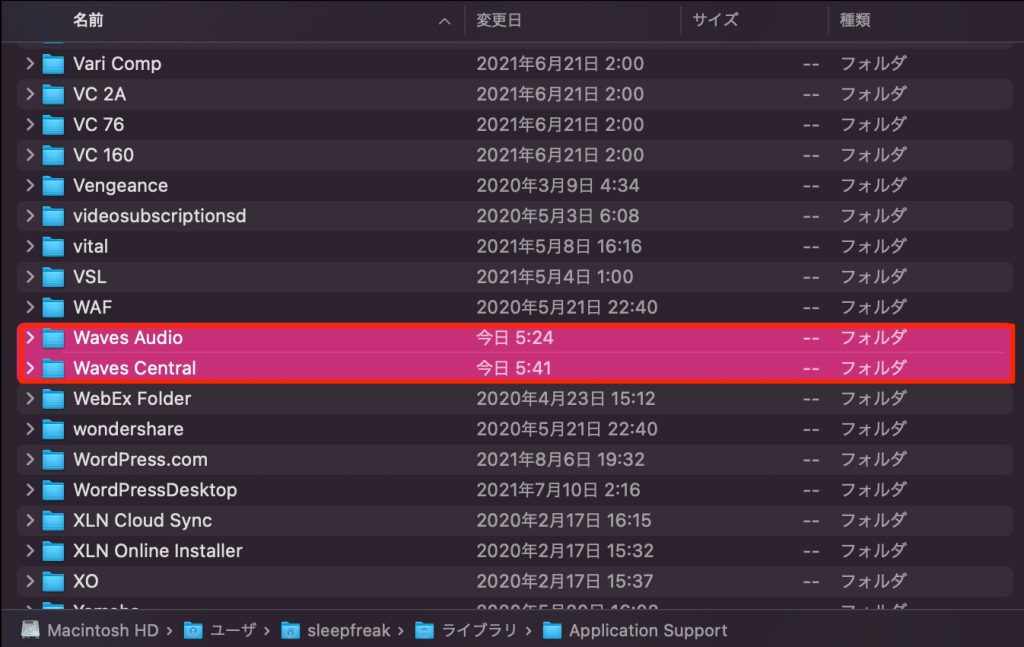
In Library > "Application Support," delete "Waves Audio" and "Waves Central."
*If you want to keep a backup just in case, move them to the desktop or elsewhere instead of deleting them.
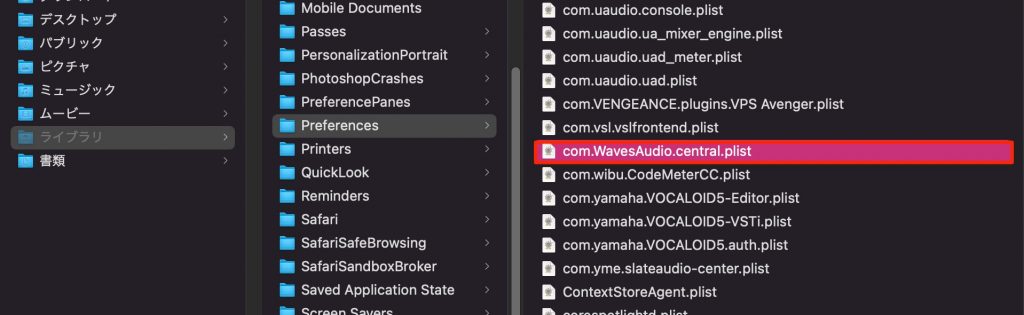
Go back to Library and open the "Preferences" folder.
Delete "com.WavesAudio.central.plist" in it.
*If you want to keep a backup just in case, move it to the desktop or elsewhere instead of deleting it.
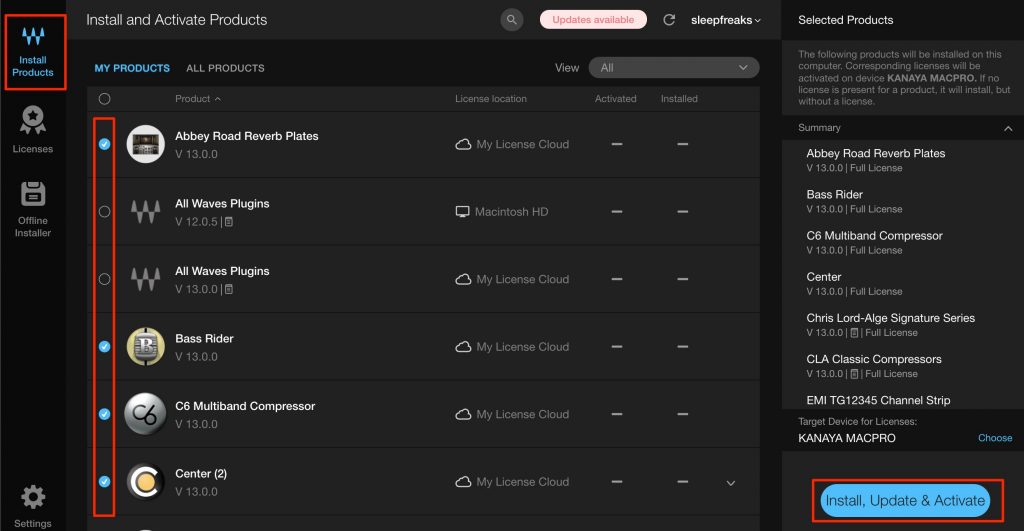
Launch Waves Central and install the products from "Install Products."
After that, launching the DAW, the products were recognized.
Frequently Asked Questions
Q1. Why doesn't Waves V13 appear in my DAW after installation?
The settings files from the installation may be corrupted. Resetting the files in the Library folder, where Waves Central stores its settings, solves it.
Q2. How do I make a backup before deleting?
Instead of deleting, move the relevant folders to another location such as the desktop as a backup. If the problem is not solved, you can put them back.
Q3. Which files need to be deleted?
Delete the "Waves Audio" and "Waves Central" folders and the "com.WavesAudio.central.plist" file. After deleting them, relaunch Waves Central and reinstall.
NEW ARTICLES
Latest English Articles











