To use Soundtheory's intelligent auto EQ "Gullfoss" on Windows or macOS, authorization through iLok License Manager (latest ver. 5.0.2) is required. This article explains in detail every step music producers need to actually install the product, from creating an iLok account to downloading Gullfoss and authorizing it. The Windows version is offered as an Early Access version at a price lower than usual, and a version for both Mac and Windows is also available, so you can choose according to your environment and budget. It also explains how to deal with errors during setup, making it a practical guide that even beginners can follow with confidence.
The Steps Up to Using Gullfoss
Soundtheory recently released the Windows version of its intelligent auto EQ "Gullfoss". The Mac version had already been released, and an intro sale is also underway.
A demo version that can be used for two weeks is also available, but iLok License Manager (latest ver. 5.0.2) is required for license management. Note that an iLok key is not required.
The very unusual sales model and the iLok authorization method may confuse some music producers, so we'll explain those as well.
If an error occurs after launching Gullfoss in your DAW, please check the following two points.
- Update iLok License Manager to the latest version
- Update Gullfoss to the latest version
Mac users who were using the Gullfoss demo before the Windows version was released may still get errors even after updating iLok License Manager. Please double-check that Gullfoss is also the latest version.
If errors occur even though both iLok License Manager and Gullfoss are up to date, we suggest contacting the company's support.
Contents
- 1About the Windows Version and the macOS & Windows Version
- 2iLok License Manager (latest ver. 5.0.2)
- 3Creating an iLok Account
- 4Downloading Gullfoss
- 5How to Buy Gullfoss
- 6Registering Gullfoss to Your iLok Account
- 7How to Authorize Gullfoss
- 8Mastering Gullfoss
About the Windows Version and the macOS & Windows Version
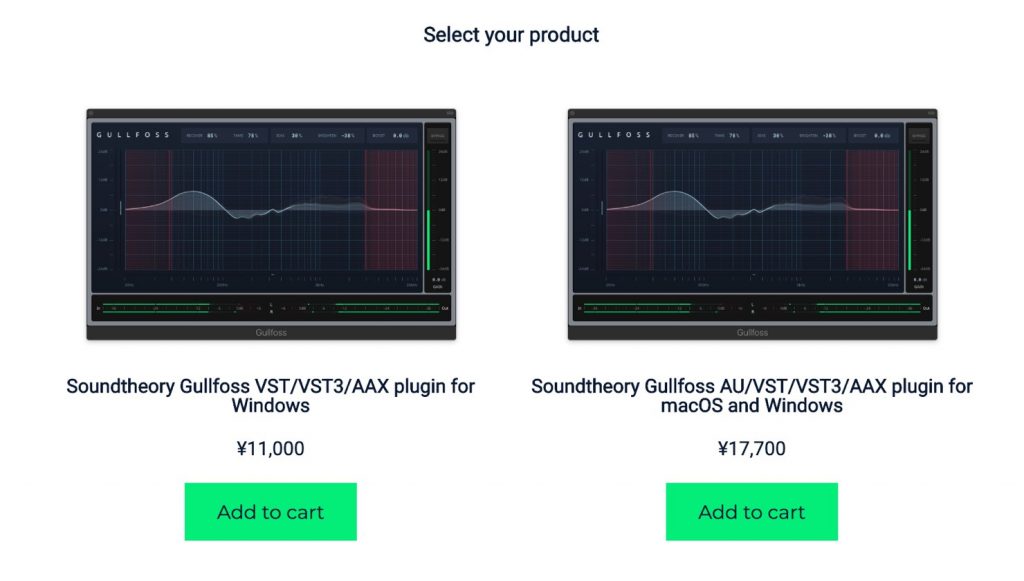
The regular price is $199, but currently (March 16, 2019) there are two options: the Windows version ($99 / ¥11,000) and the macOS & Windows version ($159 / ¥17,700).
According to the company's newsletter and website, it is positioned as a "Windows early access version", and there may be problems with certain computers and DAWs. This is the main reason the price was halved.
The Windows version is scheduled to receive regular updates to fix bugs, and once those issues are resolved, the price apparently returns to the regular $199.
The company also recommended contacting its support if problems occur during setup.
Incidentally, Mac users can apparently also buy a license for $99 (¥11,000), but since it can't be used on a Mac until the "early access version" returns to the regular version, a Mac user who buys the $99 (¥11,000) license may have to wait several months before actually being able to use it...
So it seems the sales model is that the macOS & Windows version ($159 / ¥17,700) is offered for Mac users who want to buy at the sale price and use it right away.
iLok License Manager (latest ver. 5.0.2)
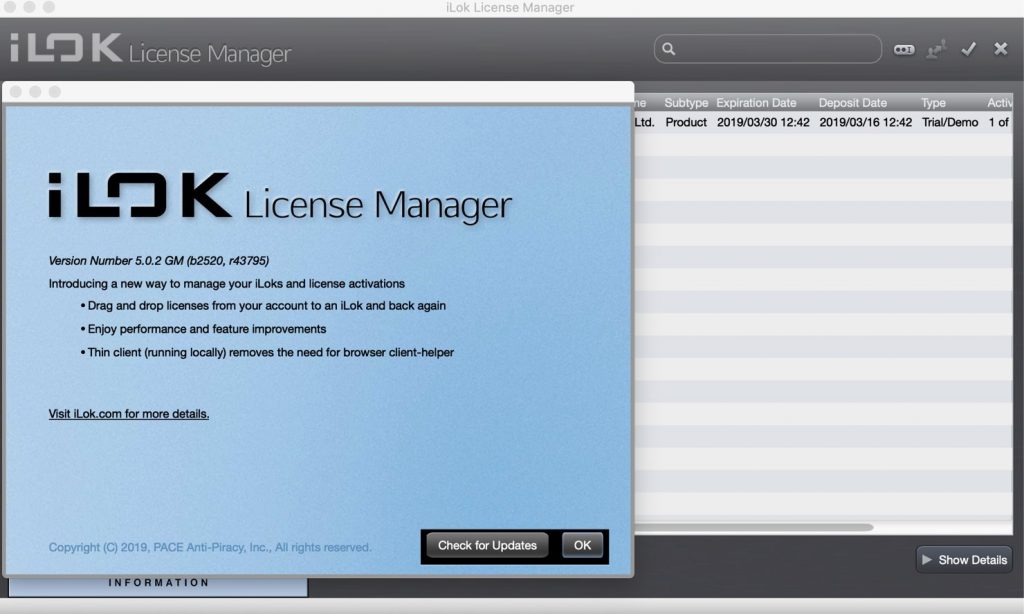
To use Gullfoss, you need the latest version of iLok License Manager (version 5.0.2). (An iLok key is not required)
The newsletter also clearly stated that users who bought the Mac version before the Windows version was released can switch from online authorization to iLok, and that they should contact the company's support in this case too.
Creating an iLok Account
To use the product, you need to create an "iLok account".
If you don't have one yet, create one using the steps below.

Go to the iLok website and click "Create Free Account".
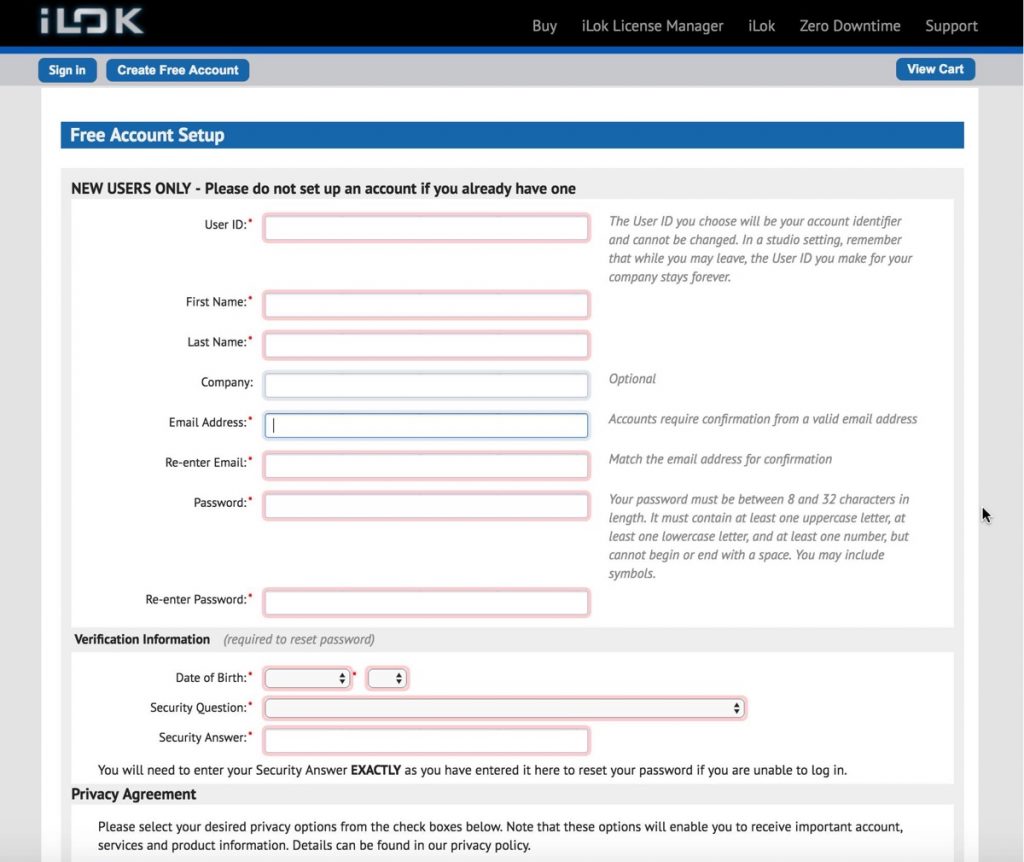
We'll explain from the top.
- User ID: This will be your iLok account name. It can't duplicate another user's
You'll use it often when registering software, so be sure to write it down - First Name: Your first name
- Last Name: Your last name
- Company: Your company or organization name. It can be left blank
- Email Address: Your email address. Be careful not to make a mistake
- Confirm Email: The address for confirmation. Enter the same one as above
- Password: Used when logging in. Be sure to write it down (8–32 characters, mixing letters and numbers, and you must use both uppercase and lowercase letters.)
- Verify Password: The password for confirmation. Enter the same one as above
(The following is verification information needed if you forget your user ID or password)
- Date of Birth: Your date of birth
- Security Question: Choose a question
- Security Answer: Enter the answer
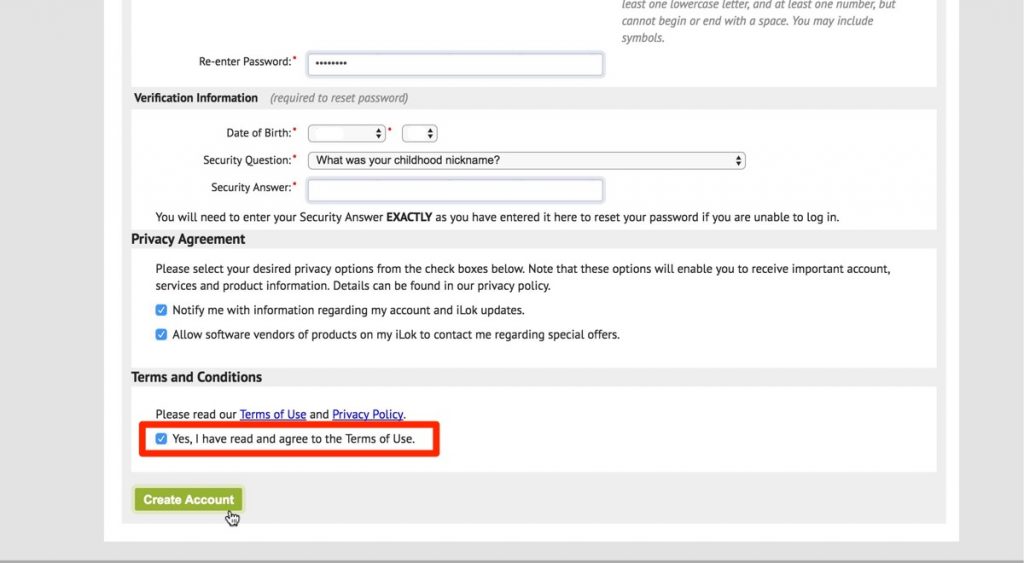
Check the box and click "Create Account".
After submitting the form, a confirmation email is sent to the email address above.
* It may take a little while
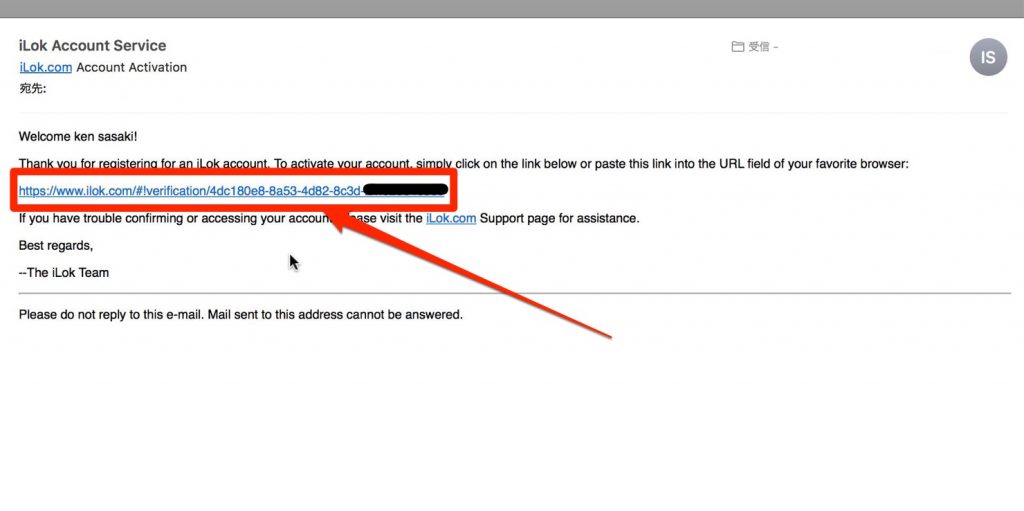
Click the link in the email.

Enter the iLok "User ID" and "Password" you just set and click "Sign in".
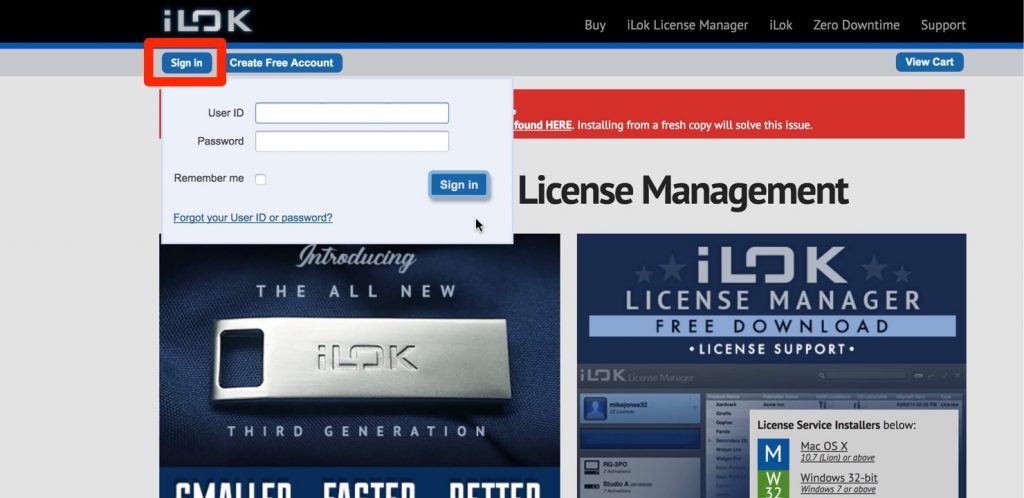
Normal sign-in to iLok can also be done from the top left of the home screen of the iLok website.
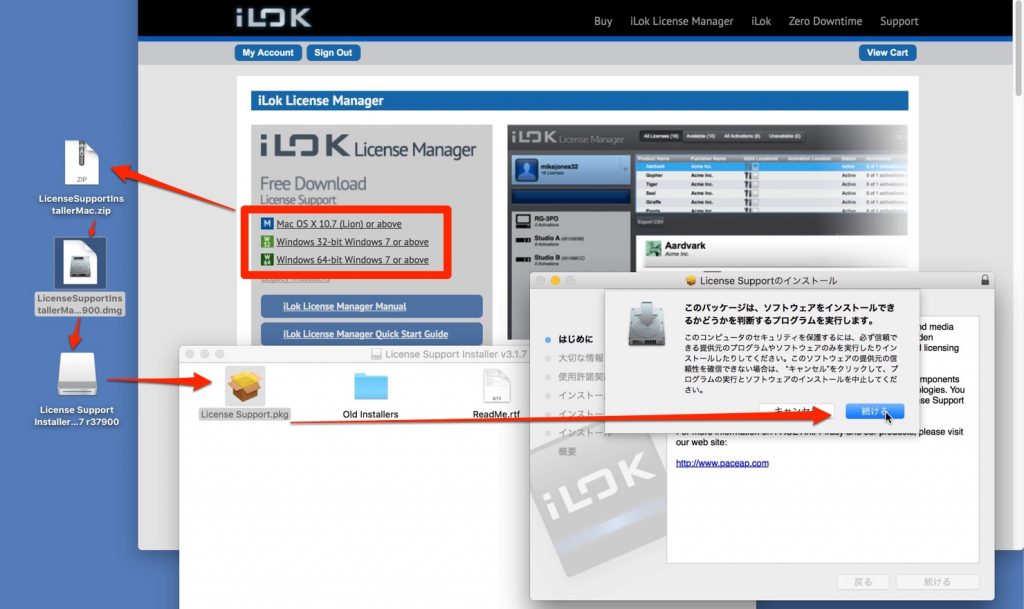
Download and install iLok License Manager.
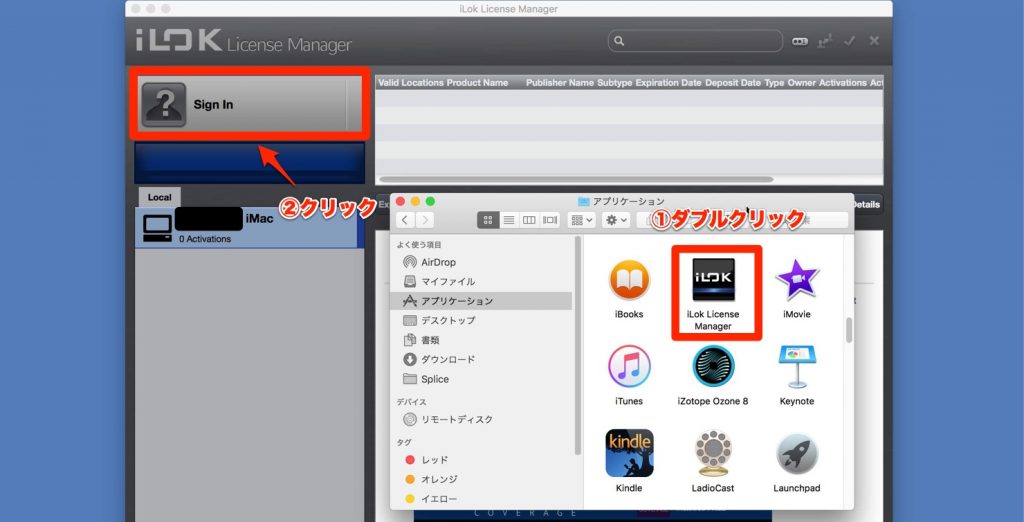
Launch "iLok License Manager" from Applications.
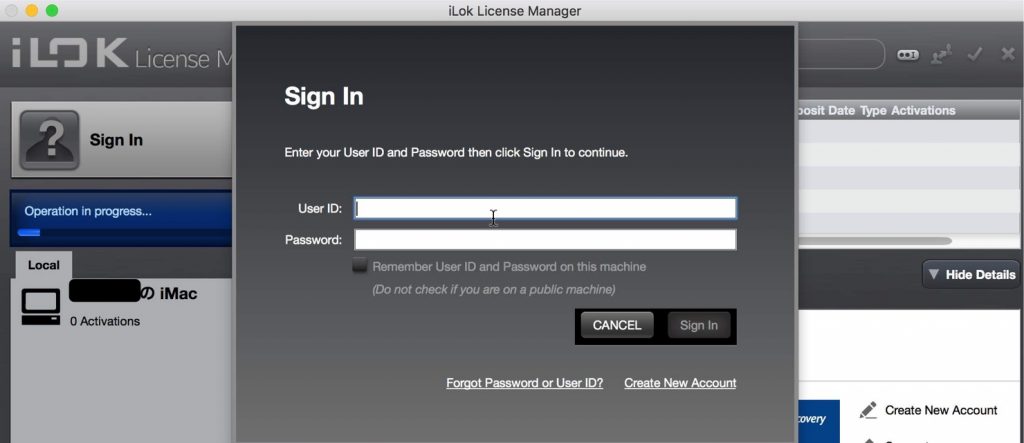
Then click "Sign In", enter your iLok "User ID" and "Password", and click "Sign In".
Downloading Gullfoss

From the product download page, download the iLok version of Gullfoss.
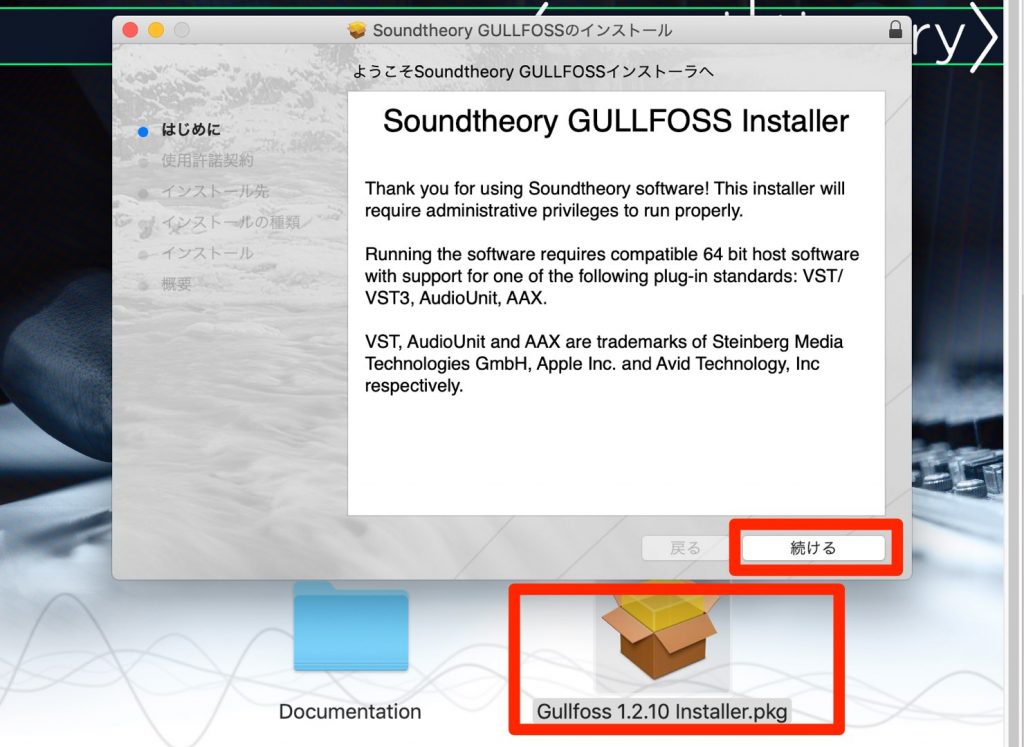
Install it.
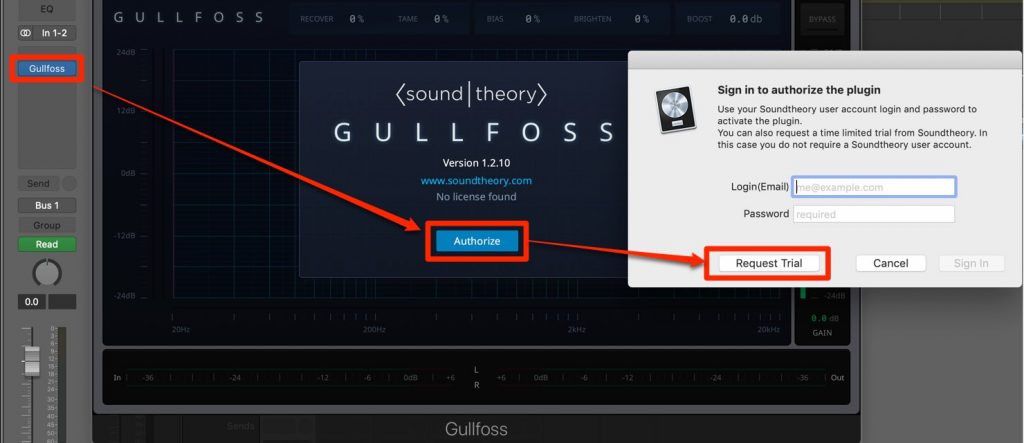
If you'll use it as a demo, launch your DAW, open Gullfoss from your plug-in effects and select "Authorize" → "Request Trial".
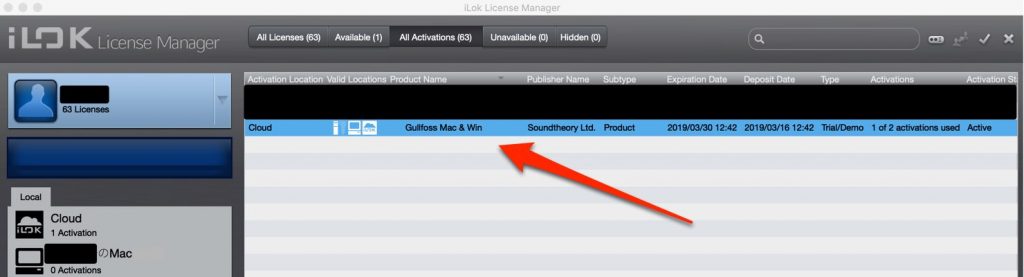
When you open iLok License Manager, you should see the Gullfoss demo assigned to iLok Cloud. The demo can be used for two weeks.
How to Buy Gullfoss
Soundtheory's top page has a "Buy Now" button; click it.
Windows users will probably choose the left option.
Mac users who want to buy and use it right away should choose the right option.
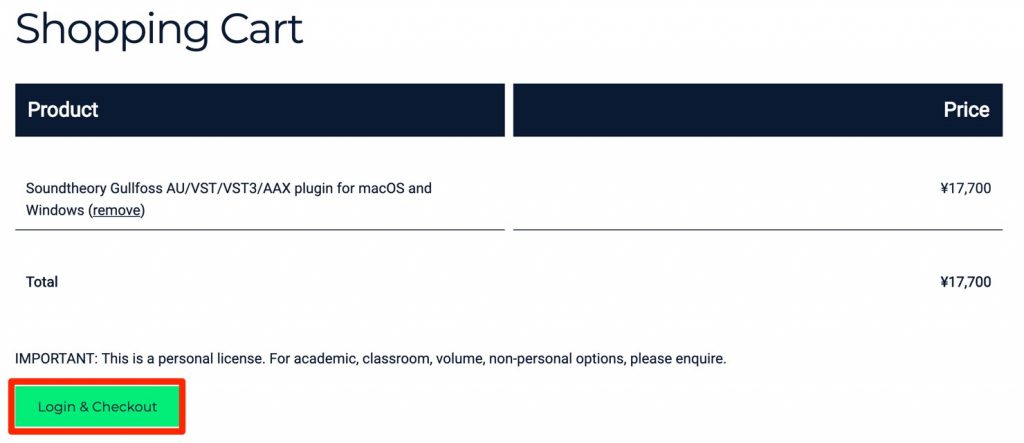
When buying the product, you need to sign in to a Soundtheory account or create a new one.
Registering Gullfoss to Your iLok Account
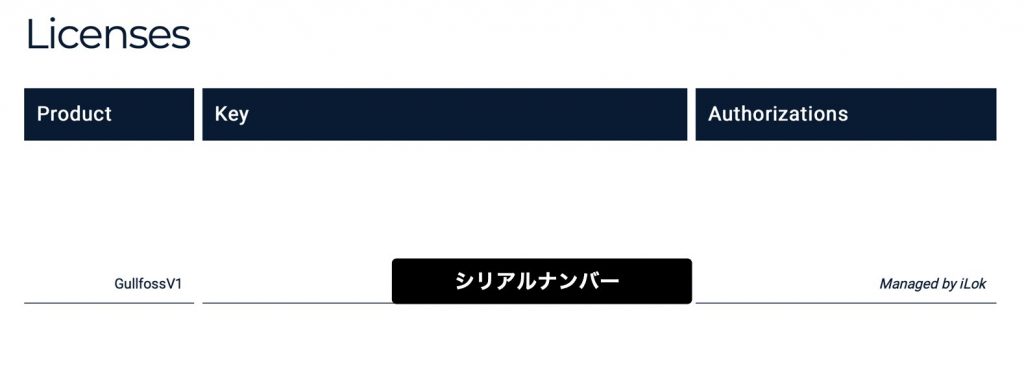
Log in to Soundtheory's account page and copy the serial number.
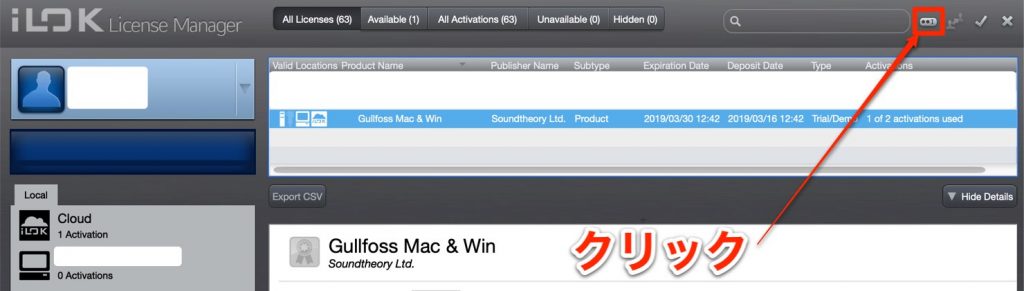
Click the item shown as "○○I" in "iLok License Manager".
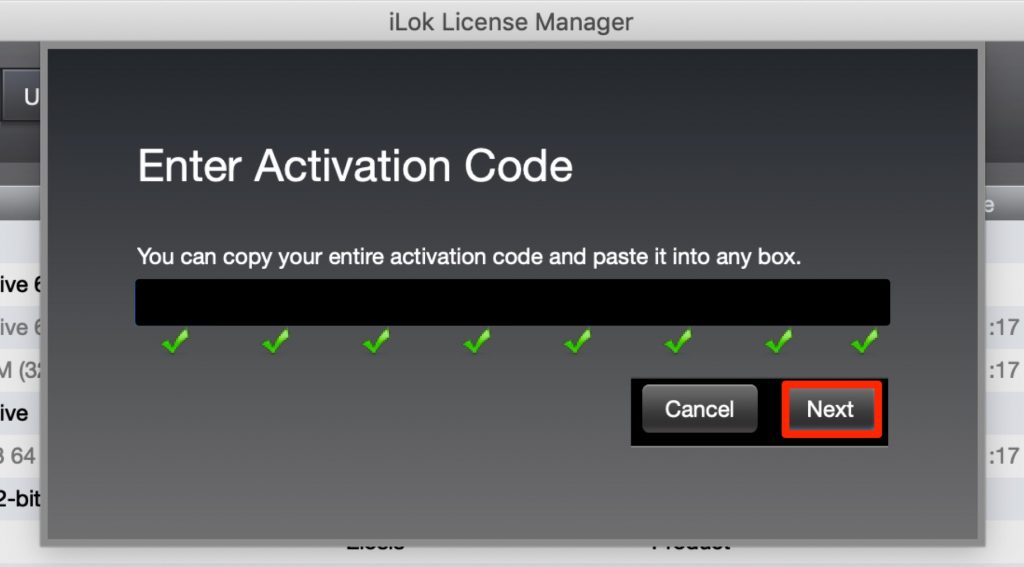
Enter (paste) the product serial number you copied above and go to "Next".

Specify where to transfer the license and click "Activate".
If you don't have an iLok, you can also transfer the license to the computer itself.
While the license is being transferred, be careful not to turn off your computer or remove the iLok.
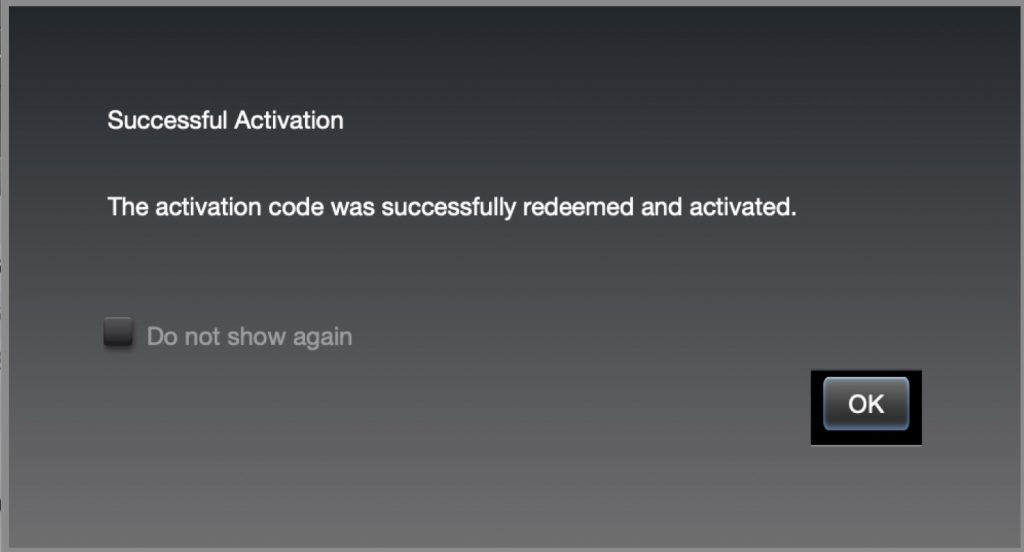
When a window like this appears, the license transfer is complete.
How to Authorize Gullfoss
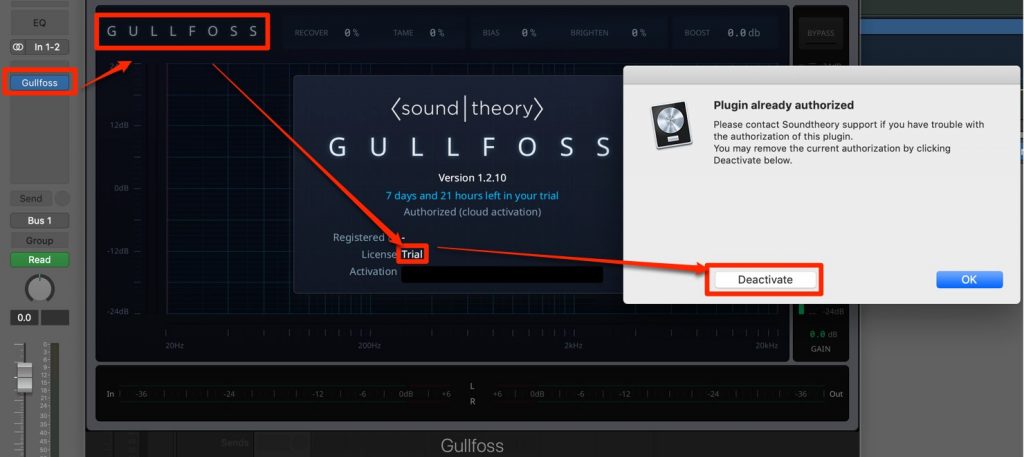
Launch your DAW and select Gullfoss from your effects. If you were using the demo, click the logo, the License information link (Trial), and then Deactivate.
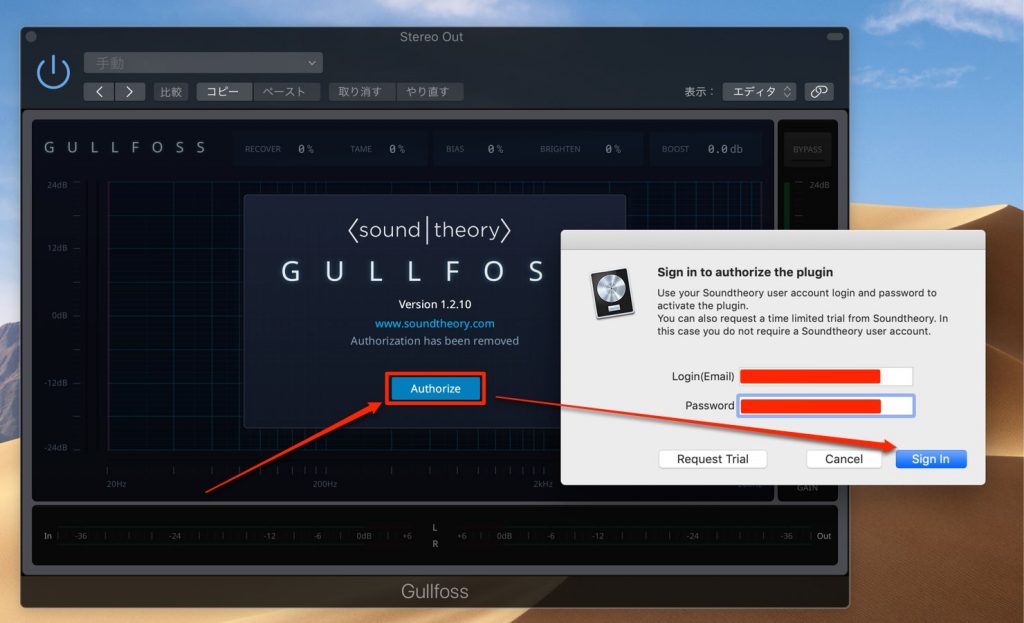
Click the "Authorize" button and enter your Soundtheory login ID and password.
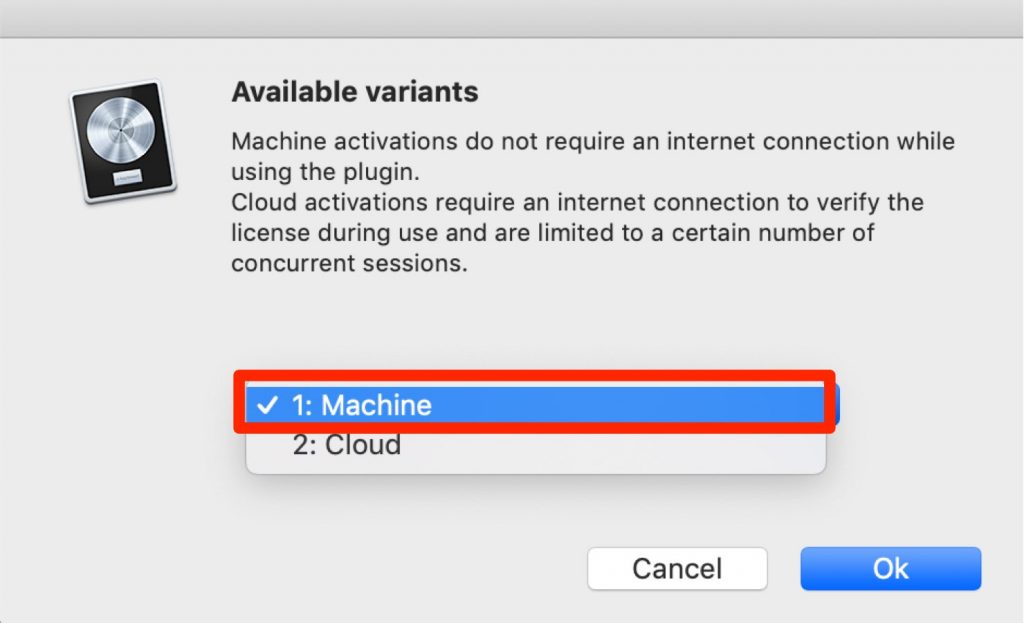
On the Machine/Cloud selection screen, "Machine" is recommended.
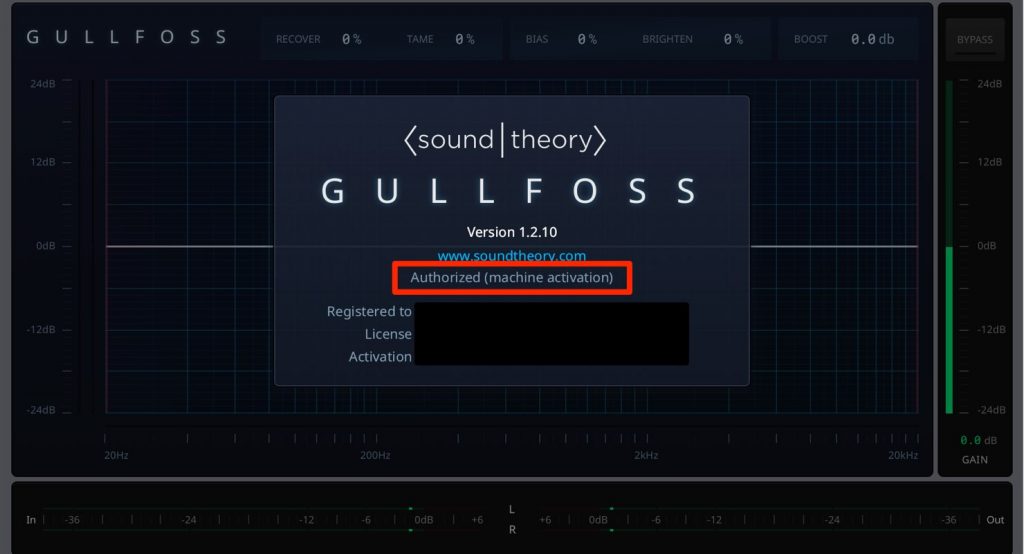
Authorization is completed like this.
If you bought the Mac version before the Windows release and it shows Authorized (cloud activation), Authorized (machine activation) is recommended, so please try the steps above.
Mastering Gullfoss
Finally, how to use Gullfoss is also explained in our articles and videos, so please make use of them.
Soundtheory "Gullfoss" 1. Overview and Applying the Plug-in

Soundtheory "Gullfoss" 2. Each Parameter and Sound Design

Product link: Soundtheory
[50% OFF] Soundtheory "Gullfoss" Windows version intro sale! How to authorize with iLok
If you get an error, try the following two points.
✅ Update iLok License Manager to the latest version
✅ Update Gullfoss to the latest versionDetails here: https://t.co/sAC9TgfaZ9 pic.twitter.com/GZHvsJtfzJ
- Sleepfreaks DTM Sale Info (@DTM_SALE) March 16, 2019
Frequently Asked Questions
Q1. Can't I use Gullfoss without an iLok key?
No, an iLok key is not required. With iLok License Manager (latest ver. 5.0.2), you can use Gullfoss through online authorization. As long as you have an iLok account, there's no problem.
Q2. What should I do if a launch error appears in my DAW when using Gullfoss?
First, update both iLok License Manager and Gullfoss to the latest versions. If that doesn't solve it, we recommend contacting Soundtheory's support.
Q3. What is the difference between the Windows version and the macOS & Windows version?
The Windows version ($99) is an Early Access version with regular updates planned. The macOS & Windows version ($159), on the other hand, supports both operating systems and is suited to Mac users who want to use it right away.
Q4. How many days can the demo be used?
The Gullfoss demo can be used for two weeks. After launching your DAW, you can activate it by selecting "Authorize" → "Request Trial" from the plug-in.
Q5. Are there requirements for the iLok account password?
Yes, the password must be 8–32 characters, mix letters and numbers, and use both uppercase and lowercase letters. For security, be sure to keep a note of it after creating it.
NEW ARTICLES
Latest English Articles