
This article explains how to match the tempos of multiple songs in Studio One. Using a concrete example, unifying a 120 BPM song and a 105 BPM song, it explains how to bring songs at different tempos in line with a reference song. You will learn how to sync tempos for remixes and DJ mixes by setting the song tempo, bouncing events, and using time stretching. This technique makes working across multiple songs far more efficient and enables smooth dance mixes and syncing with live performance.
Matching Other Material to the Tempo of a Reference Song
In the previous article, we introduced "Working Out a Song's Tempo".
This time, we apply that to show you how to match the tempos of two or more songs.
- Matching remix material to the current song's tempo
- Bringing material from sample CDs and the like into a song
- Playing two songs with matched tempos, for example as a DJ
It is useful in situations like these.
Video: Matching the Tempos of Multiple Songs

How to Set It Up
Let's match the tempos of two songs.
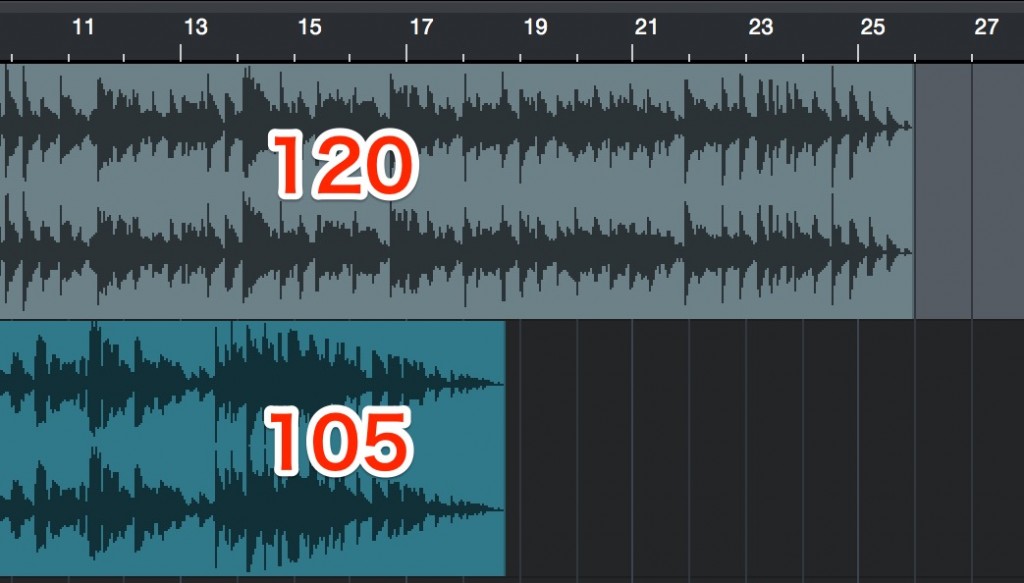
First, find the tempo of both songs using the method from the previous article.
They turned out to be 120 and 105.
Decide which one will be the reference and which one you will change.
Here, we will match the upper event at 120.
That means we will adjust the lower event.
From here on, we will look only at the 105 event.

First, set the song tempo to 105.

You can see that it is about 18 bars long.

At this point, cut the silent part at a clean bar line.
We cut it to exactly 18 bars.
Make a note of this number.

Also, the event must include any silence so that the song starts from bar 1.
If there is silence because of the tempo matching,

use the Range tool to select the whole event, including the silence.
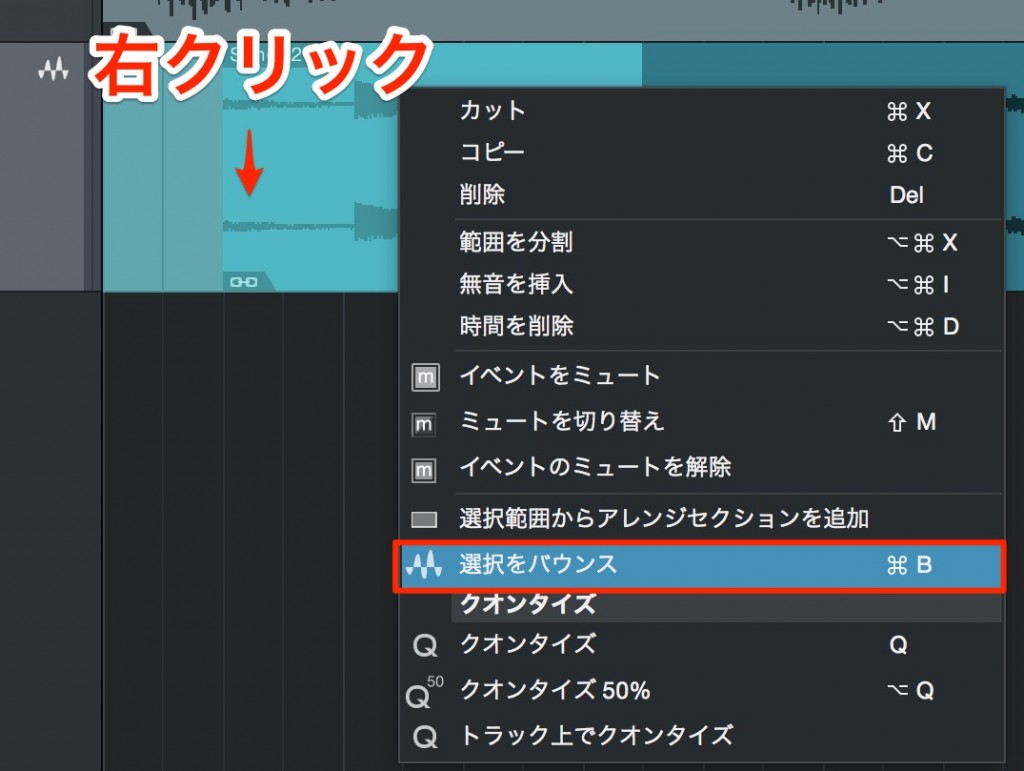
Right-click the event and click "Bounce Selection".
This creates an event that includes the silence at the start.
Set the tempo back to the reference song's 120.
Then,

the event that used to be 18 bars is now about 20 bars long.
This is because the tempo changed.
That means if you compress this event back to its original 18 bars, the tempo will match.

- Mac: Option + drag
- Windows: Alt + drag
This performs a time stretch,
so you can compress the event to 18 bars.
It is now perfectly synced at a tempo of 120.
This makes working across songs dramatically easier!

Frequently asked questions
Q1. What is the purpose of matching the tempos of multiple songs in Studio One?
It is useful for unifying material to the song's tempo when remixing, connecting songs seamlessly in a DJ mix, and bringing in material from sample CDs. Unifying the tempo makes music production smoother.
Q2. What is the basic workflow for matching tempos?
First, find the tempo of both songs and decide on the reference tempo. Next, set the song tempo to that of the song you are adjusting, cut it to a whole number of bars, and note the bar count. Then set the tempo back to the reference and compress the event with time stretching, and the tempos are synced.
Q3. What is the difference between time stretching and bouncing?
Bouncing creates a new event covering the whole selection, including the silence at the start. Time stretching lengthens or shortens an event to adjust its tempo, using a different modifier-drag on Mac and Windows.
NEW ARTICLES
Latest English Articles











