
Logic Pro's vector fader combines two controls, an X axis and a Y axis, enabling complex and advanced automation. By assigning different parameters vertically and horizontally, or assigning the same control to multiple MIDI channels, you can control several effects such as EQ and delay at the same time. You can also record it into a project by drag and drop, and it can automatically apply movements you make by hand to the song. It is a powerful tool that allows endless sonic expression depending on your ideas.
Logic's vector fader for even more complex control

Using a vector fader enables complex control
combining the "X axis" and "Y axis".
It is a fader with a lot of potential depending on your ideas.
*To use this "vector fader" in Logic 9, we recommend "32-bit mode".
In Logic X, it can be used without problems.

Video Tutorial
Video point: Creating and setting up a vector fader

You can create one from "New" → "Fader" → "Vector".

You can assign two controls, "vertical and horizontal".
For details on how to assign them, see the following URL:
"Fader Objects 2"
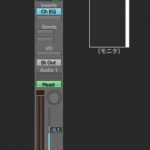

While checking the monitor,
set the controls you want to assign to the vertical and horizontal axes.
Video point: Applying the vector fader

By assigning the same control vertically and horizontally,
you can change multiple "MIDI channels".
This technique makes use of that.
Reading "Transformer Objects 1" at the following URL will deepen your understanding.


By using a "Transformer",
you can assign the multiple "MIDI channels" generated to any items you like.
In the video, we control "EQ" + "Delay".
Video point: Recording the vector fader

You can record the movement of the "vector fader" into the project.
The method is simple: "drag and drop" it into the project.

Select the created track, light up "R",
and move it along with the song.
This records all of its movements.

Frequently Asked Questions
Q1. When should I use Logic Pro's vector fader?
It is effective when you need complex control using two axes, X and Y. It is ideal when you want to control several effect parameters at once, or for sound design that changes in complex ways over time.
Q2. How do I save the vector fader's movement to the project?
It is very easy. Just drag and drop the vector fader you created into the project, light up the track's R button and move it along with the song, and its movements are recorded.
Q3. What should I watch out for when using vector faders in Logic 9?
In Logic 9, using "32-bit mode" is recommended. In Logic X, on the other hand, there are no issues with vector faders and they can be used without problems.
Q4. How do I change multiple MIDI channels with a vector fader?
This is possible by assigning the same control vertically and horizontally. If you also use a transformer, you can assign the generated MIDI channels to any items you like.
NEW ARTICLES
Latest English Articles











