
Logic Pro X has a greatly changed screen layout, with a redesigned transport and button placement. This article explains these changes in detail, so you can learn the basic features that beginners and existing users alike should know, such as the Library on the right, how to choose software instruments, the newly added Record menu and choosing the project save format. In particular, packaging project assets prevents trouble when sending files and enables an efficient workflow, which is a major advantage.
A greatly changed screen layout

Logic Pro X has a new look,
and the locations of the transport and various buttons have also changed.
Here we focus on explaining these changes.
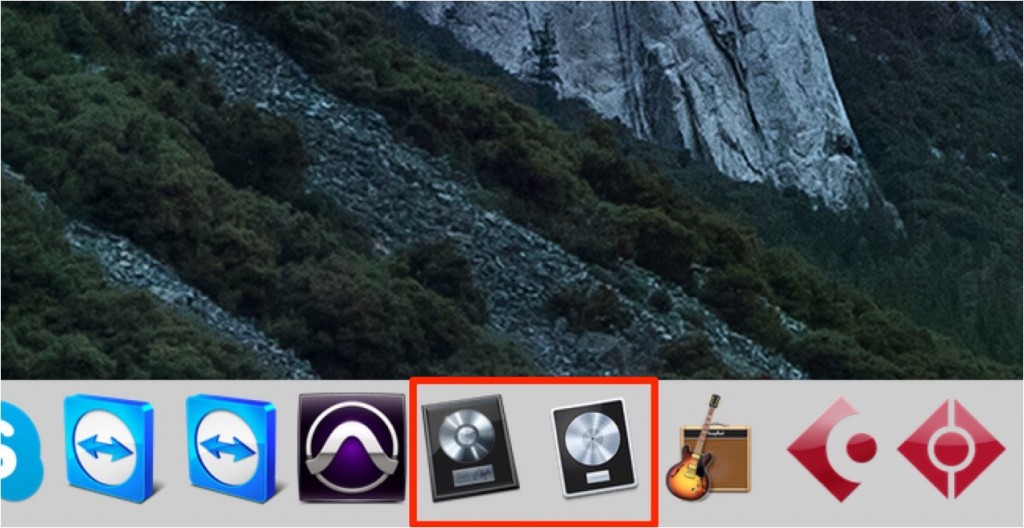
Logic "9" and "X" can also coexist on the same computer.
Logic Pro X new features: article index
0_How to download
1_Overview and settings *This article
2_Drummer
3_Flex Pitch
4_Track Stack
5_Smart Control
6_Arrangement Marker
7_How to download Logic Remote
8_Logic Remote in practice
Selected Questions and Answers from the YouTube Video

I saved my Logic file, but when I opened it next time it was saved on the Drum Kit Designer screen, and I can't get back to the original editing screen. Please tell me how to get back!

Thank you for your message. How about opening the editing window from "Window" in the top menu?
Can I fast-forward the video?
On iOS, you can fast-forward by double-tapping the left or right side of the video. With a mouse, drag the timeline below the video. You can also click the gear icon at the bottom right of the video and set double speed and so on from "Playback speed".
At 2:42 you were doing punch in/punch out. Is it possible to set it so that a new region is layered on top of an existing region?
Yes, it is. From the top menu "Record" → "Recording Settings", you can change "If recording overlaps" to the recording method you prefer. Also, from this part shown in the photo http://d.pr/i/ydDK you can specify whether the existing region is kept or deleted when they overlap. Keep: Overlap; Delete: No Overlap. Thank you for your continued support.
Video point: The Library

The Library is placed on the right side.
Click the button outlined in red to show the Library.
Just click the instrument you like to load it easily.
Video point: Choosing a software instrument

The place where you choose a software synth instrument has changed.
Click the area outlined in red to choose an instrument.
Video point: Choosing the recording mode
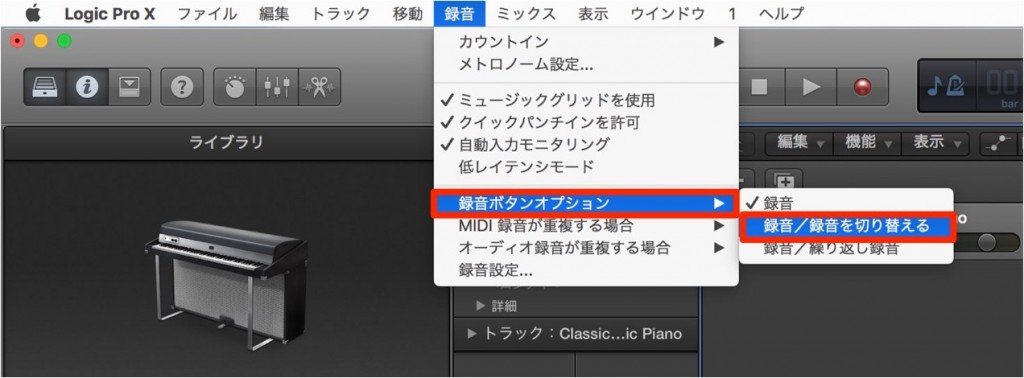
A new menu called "Record" has been added.
In it, under "Record Button Options" → "Record/Record Toggle",
checking this lets you do "punch in/out" as before.
Video point: Consolidating project assets
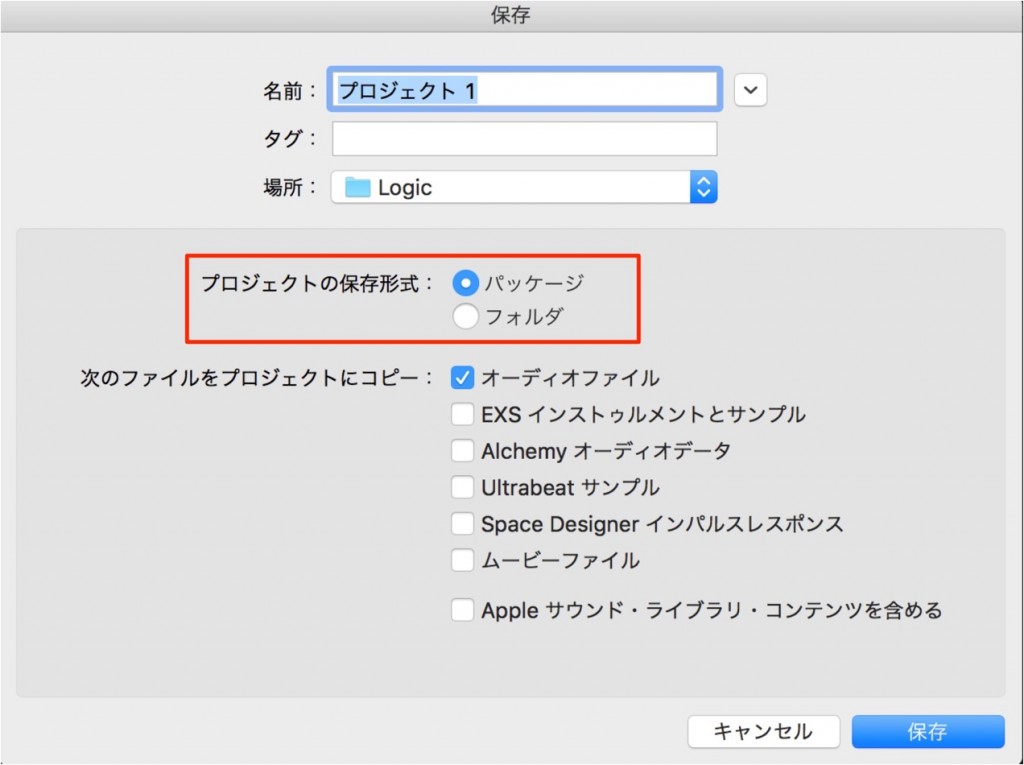
You can now set the "project save format" when saving for the first time.
"Folder" is the conventional save method, but by selecting "Package"

you can package the necessary assets such as "audio files" inside the project.
This is convenient because mistakes do not happen when you send files to others.

Frequently Asked Questions
Q1. Can Logic Pro X and Logic 9 be installed together on the same computer?
Yes, they can coexist on the same computer. Because you can use both versions, you can try the new features of Logic Pro X while keeping your existing workflow.
Q2. How do I use punch in/out in Logic Pro X?
Check "Record Button Options" → "Record/Record Toggle" in the "Record" menu, and you can use the same punch in/out function as before.
Q3. What are the benefits of the "Package" format when saving a project?
When you select the package format, the assets the project needs, such as audio files, are automatically gathered together, so no files go missing when you send them to others, and you can share projects smoothly without trouble.
NEW ARTICLES
Latest English Articles











