
The "Smart Controls" feature in Logic Pro X is a tool that centralizes plug-in and channel strip parameters for efficient sound adjustment. Not only can you change parameters intuitively with the mouse, but by assigning an external MIDI controller you get a hardware-like feel. You can also save customized settings as user patches and reuse the same settings on multiple tracks, greatly improving production efficiency.
Works with MIDI controllers too! [Smart Controls]
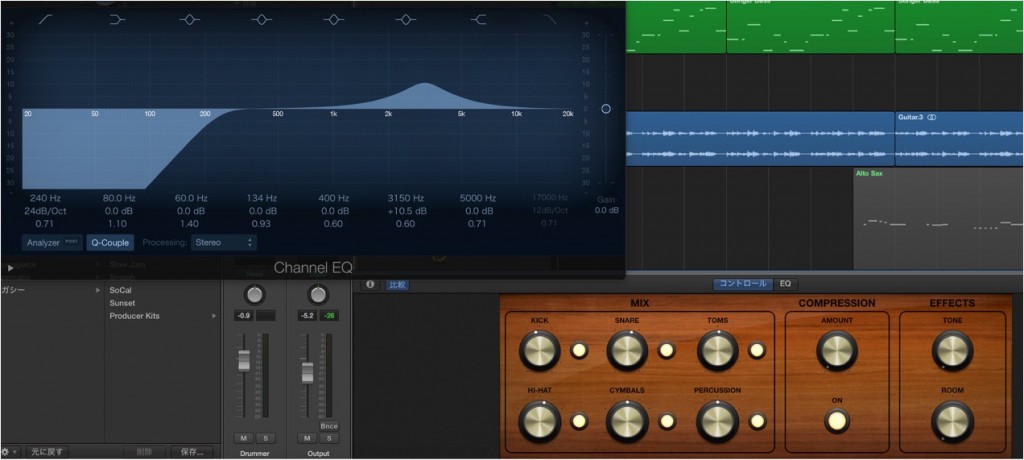
With Smart Controls, rather than opening plug-in windows and adjusting individual parameters,
you can adjust the sound quickly.
You can also map channel strip and plug-in parameters to the screen controls
and operate them from a MIDI controller.
Logic Pro X new features: article index
0_How to download
1_Overview and settings
2_Drummer
3_Flex Pitch
4_Track Stack
5_Smart Control *This article
6_Arrangement Marker
7_How to download Logic Remote
8_Logic Remote in practice
Selected Questions and Answers from the YouTube Video

I have a MIDI keyboard connected via USB, but when I use Learn for external assignment, the input on the interface side responds. How can I stop it from responding?

Is your keyboard shown under Control Surfaces in the preferences? https://app.box.com/s/9ulpeeuxymvqz2tyw9cbk272m0m7hmo4 If it is shown and you do not use it for anything other than external assignment learning, try selecting the device's icon and deleting it with the Delete key.
Video point: Opening Smart Controls
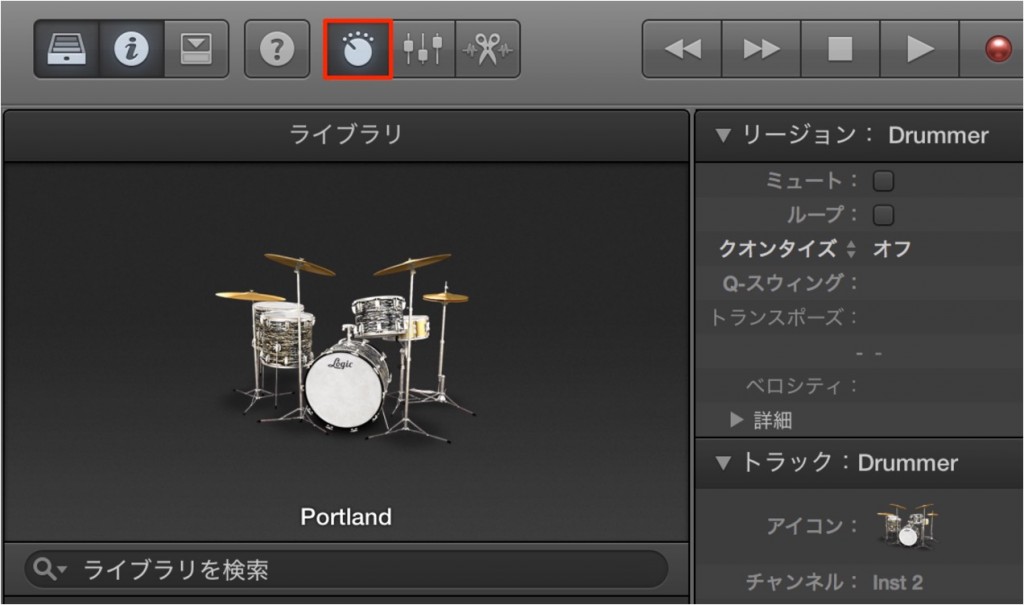
Select the track you want to use "Smart Controls" on,
and click the "Smart Controls" button in the "control bar".
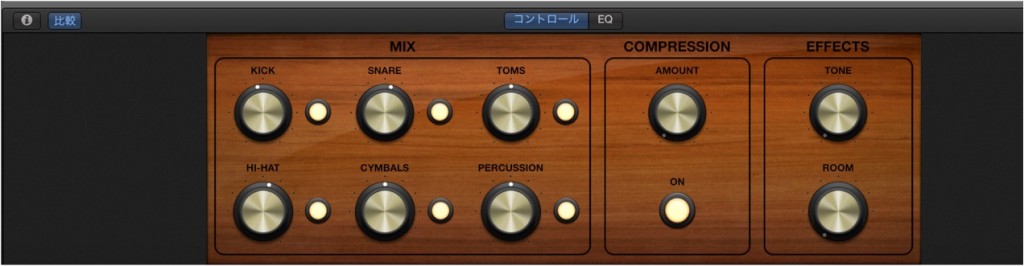
The "screen controls" are then displayed.
Parameters from the selected track's channel strip and plug-ins are assigned to them.
You can adjust the sound just by moving these with the mouse.
Video point: Assigning to a MIDI controller
By assigning an external MIDI controller to the screen controls,
you can move parameters intuitively.
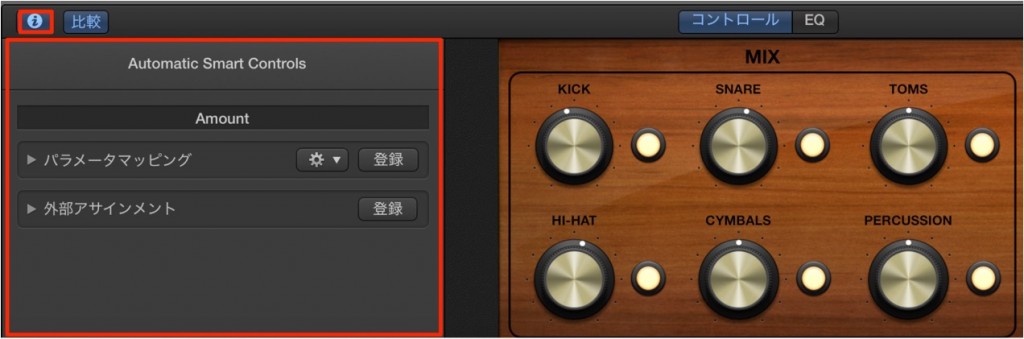
Click the "Inspector" button in the menu bar of the Smart Controls pane.
Click "External Assignment" → "Learn" to turn it ON.
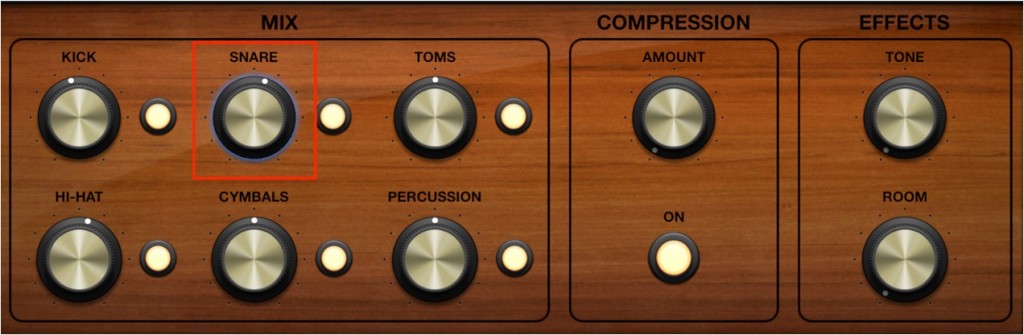
Next, click a "screen control".
If the MIDI controller is recognized, just turn a knob on the controller
to control the parameter.
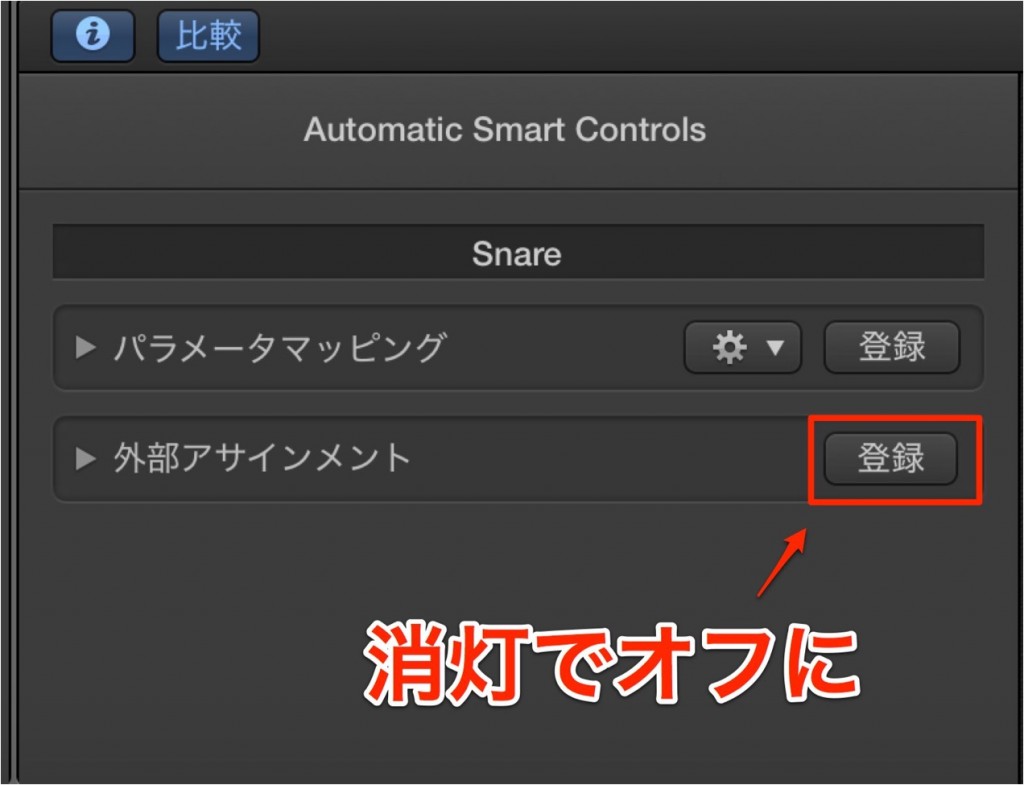
When you have finished assigning to the MIDI controller,
click "External Assignment" → "Learn" to turn it OFF.
Video point: Saving the settings as your own patch
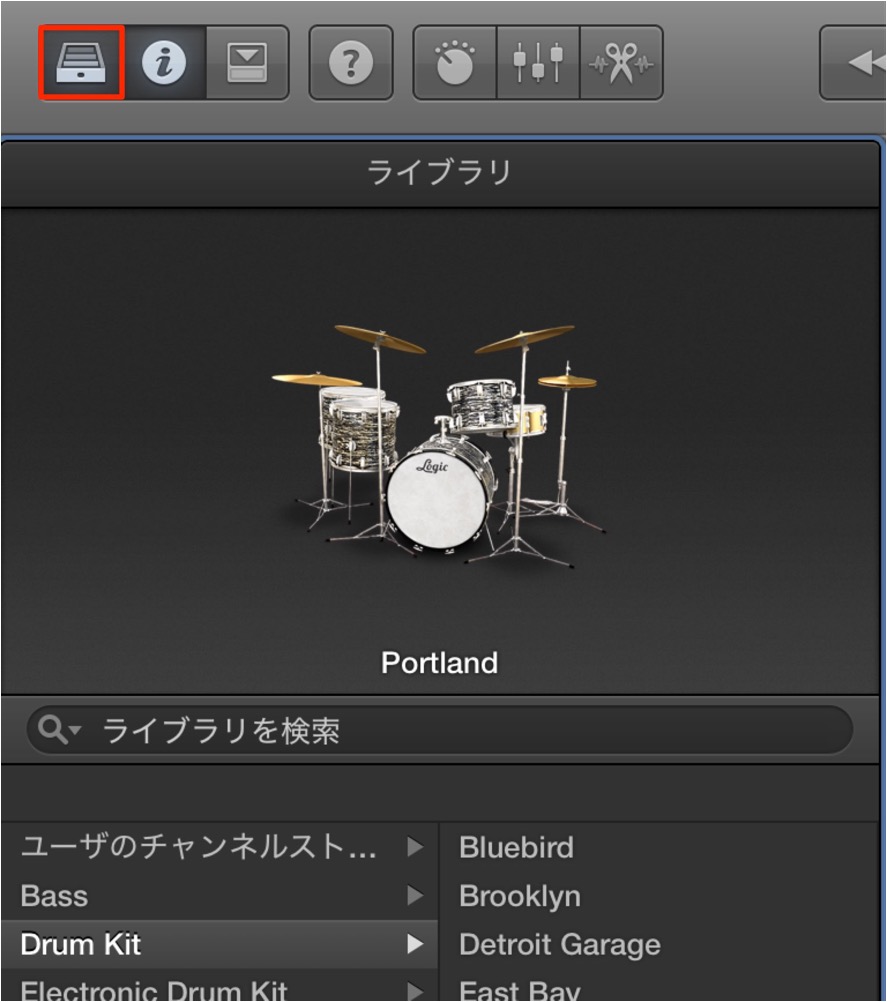
Click the "Library" button in the "control bar".
Click "Save..." at the bottom of the Library.
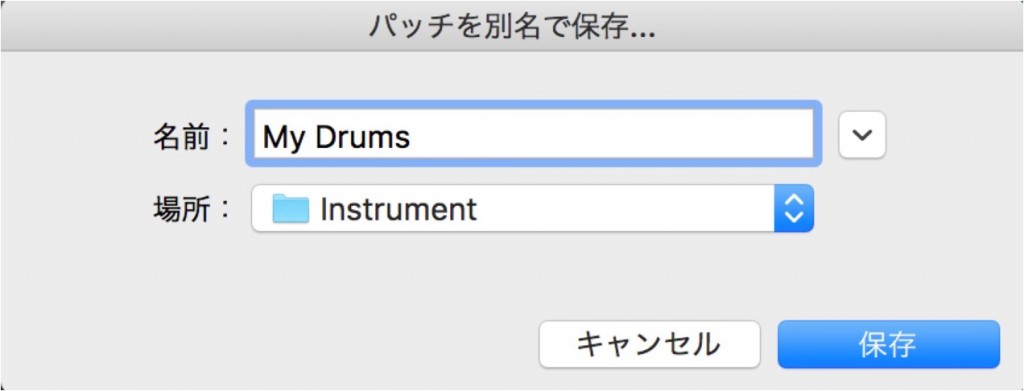
Give the patch a name and save it.
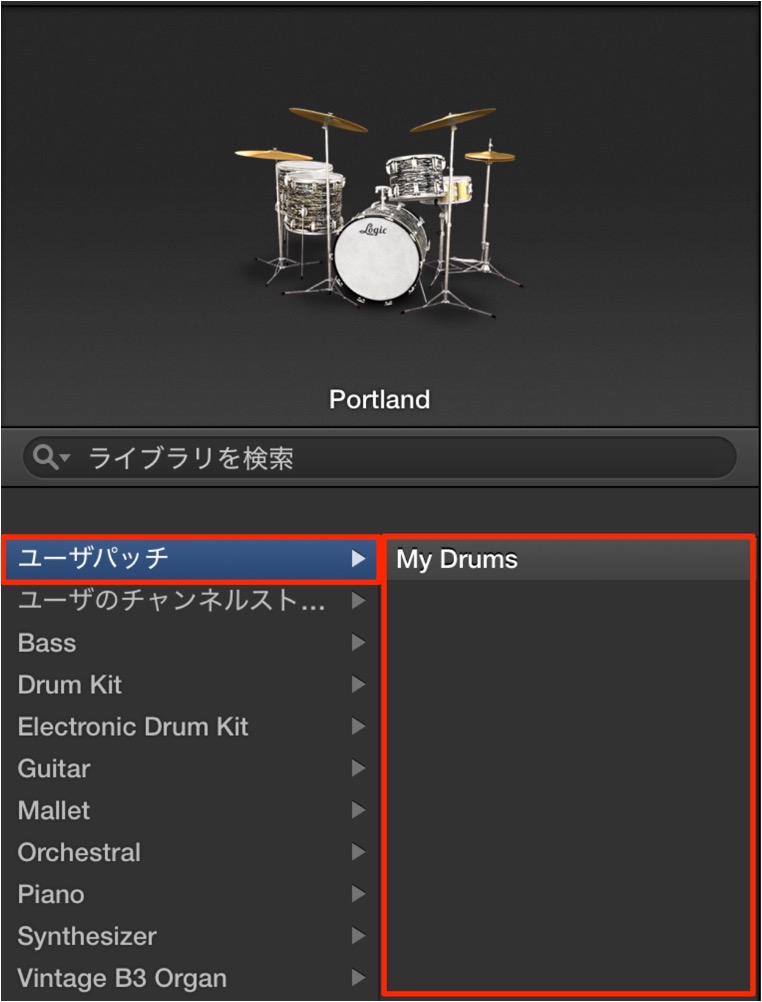
It now appears under "User Patches" like this,
and you can use your favorite settings on other tracks too.
Please give it a try!

Frequently Asked Questions
Q1. In what situations are Logic Pro X's Smart Controls useful?
They are effective when you want to adjust several plug-in parameters quickly, or edit sounds in real time during a live performance. Working with a MIDI controller makes intuitive and efficient sound control possible.
Q2. What steps are needed to assign a MIDI controller?
Turn on "Learn" for "External Assignment" in the Smart Controls pane's Inspector to enter assignment mode. Then click a screen control and move a knob or key on your MIDI controller, and the parameter is recognized automatically.
Q3. Can I use the Smart Controls settings I created in other projects?
Yes. By saving the settings as a user patch, you can reuse them on other tracks and projects. Give them a name and save them with the Library's "Save" function.
NEW ARTICLES
Latest English Articles











