
This article explains how to make audio files follow tempo changes in Logic Pro. Normally, when you change a song's tempo, MIDI follows automatically, but the playback speed of audio files doesn't change. This article shows how to use the Flex function and the Polyphonic setting so that audio tracks respond to tempo changes just like MIDI. It can be set up in three simple steps, and later tempo changes are automatically applied to the audio, making it a very practical technique when tempo adjustments are needed in production.
Treat tempo changes for audio files like MIDI

When you change the song's tempo, MIDI follows the change,
but the playback speed of audio files doesn't change.
Here, we explain how to make audio files follow the song's tempo
just like "MIDI tracks."
How to set it up
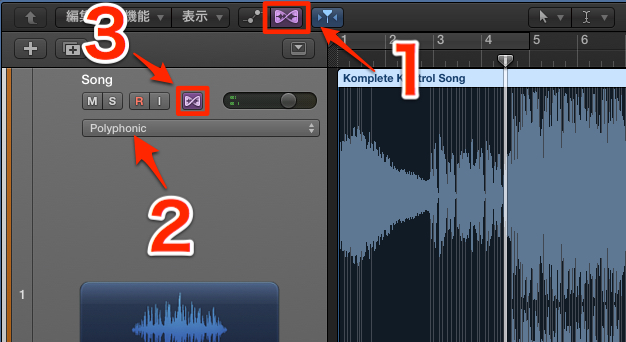
- 1: Turn on Flex
- 2: Select Polyphonic
- 3: Turn on Flex
That completes the setup.
From now on, this audio track will also follow tempo changes.

Frequently asked questions
Q1. How do I make audio follow the tempo in Logic Pro?
Just turn on Flex and select Polyphonic mode. With this setting, later tempo changes are automatically applied to the audio file. No complicated operations are needed, so even beginners can do it easily.
Q2. Why does MIDI follow tempo changes while audio doesn't?
MIDI is a record of performance information rather than audio data, so it is recalculated when the tempo changes. Audio, on the other hand, is fixed sample data and doesn't respond to tempo changes by default, so you need to set it explicitly with the Flex function.
Q3. Are there options other than Polyphonic mode?
Logic Pro has several Flex modes that you can choose between depending on the material. Polyphonic is the most versatile and common, but other modes may be better suited to different material such as vocals or drums.
NEW ARTICLES
Latest English Articles











