
When performing live with Logic Pro, sync settings are essential for reproducing songs made in a DAW in real time. This article explains in detail how to set up a practical synced live rig, from the equipment you need, such as an audio interface, headphones, and a headphone amp, to track routing. By setting separate outputs for the audience and the performers and letting only the performers hear the metronome, you can manage your sound professionally. It also covers handling multiple songs and tempo changes, and through troubleshooting tips you will gain the knowledge for stable live performances.
Using Logic Live

A DAW broadens the instruments and techniques you can use.
The problem, however, is that you cannot reproduce it live.
The solution is to bring a laptop and sync with it.
Tracks that cannot be covered by live performers or your lineup are sent to the PA and played directly.
Here, we will explain how to set up a synced live performance.
Equipment Needed for Syncing
First, let's check the equipment you need for syncing.
Audio Interface
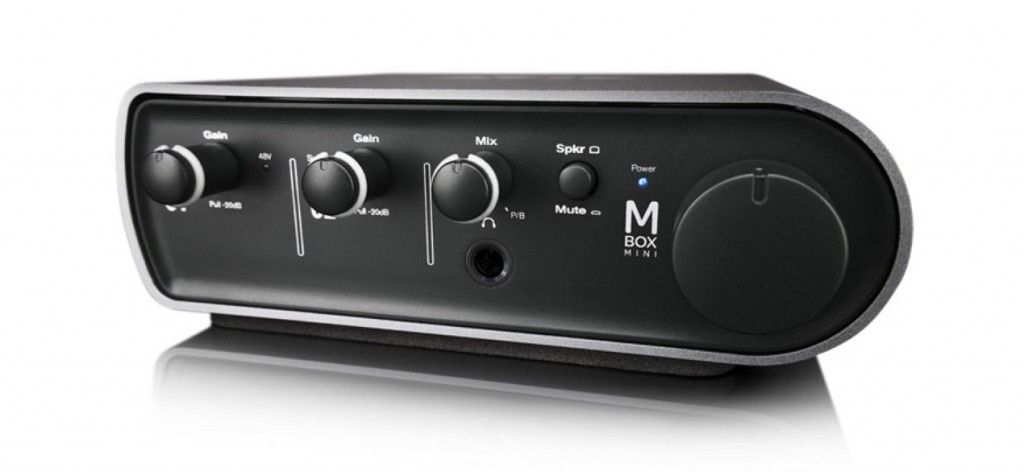
You need two stereo outputs.
In this explanation, we use "Output 1-2" and "Output 3-4."
About Choosing an Audio Interface

Headphones
Performers need these to hear the backing track and metronome.
Headphone Amp
This device sits between the audio interface and the headphones.
It lets you control the monitor volume to suit the situation.
Buy one that matches the number of people who need to monitor.
Track Routing for Syncing
So that the live performance stays in time with the backing track,
whoever handles the rhythm listens to the metronome.
However, if you just play the metronome normally, the audience will hear it (lol).
So we set things up to get around this.
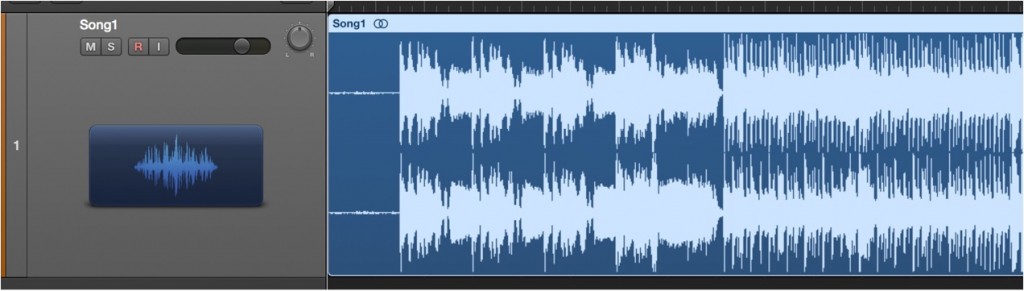
First, import the 2-mix backing track you will use live.
It is also fine if the backing track is split into separate tracks.

Create a "New Aux" from the Mixer window.
Create two stereo tracks.

Assign the backing track's output to an unused bus (Bus 1 here).
Set the input of both Aux tracks to "Bus 1".
Now the backing track feeds both Aux tracks.

Set their outputs to "Output 1-2" and "Output 3-4" respectively.
Let's name them too.

We named them "Audience (Output 1-2)" and "Performers (Output 3-4)."
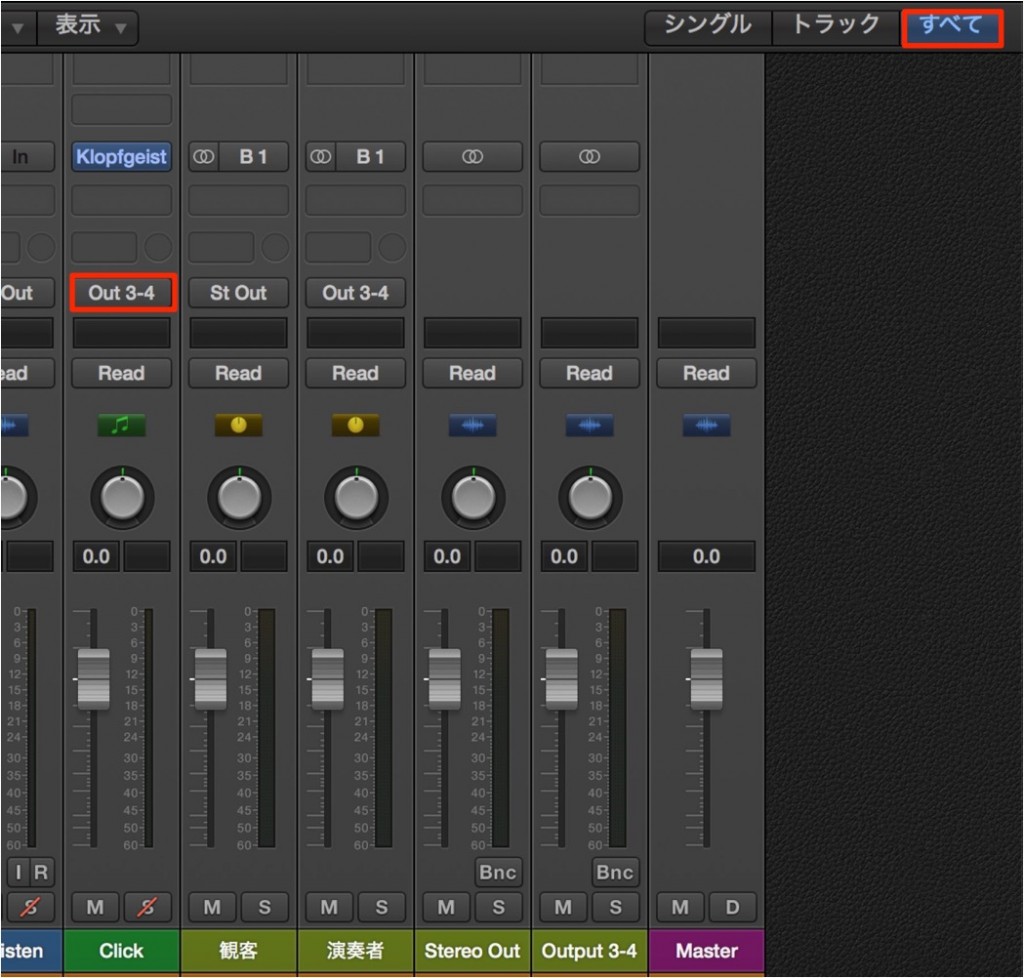
Send the click track's output to "Output 3-4".
That's it.
Connect the audio interface's "Out 1-2" to the PA (audience) and
"Out 3-4" to the headphone amp so the performers can monitor.
Adjust the volume balance with the Aux tracks and the click track.

To prevent distortion,
applying a limiter to the master fader is also a good idea.
Possible Problems
Here are possible problems with the setup above and ways to improve it.
I want to adjust individual tracks rather than a 2-mix

It is easy.
Change the output of every track to "Bus 1 (or any bus)".
What about playing multiple songs?

Line up the songs on the timeline.
Also, if you are allowing time for talking between songs (MC),
it is best for one band member to handle play and stop.
The tricky part is the metronome,
because each song has a different tempo.
Set the tempo using the settings in the following article.

Alternatively, you could bounce the metronome sound to audio and paste it in.
(Percussion from a software synth also works.)
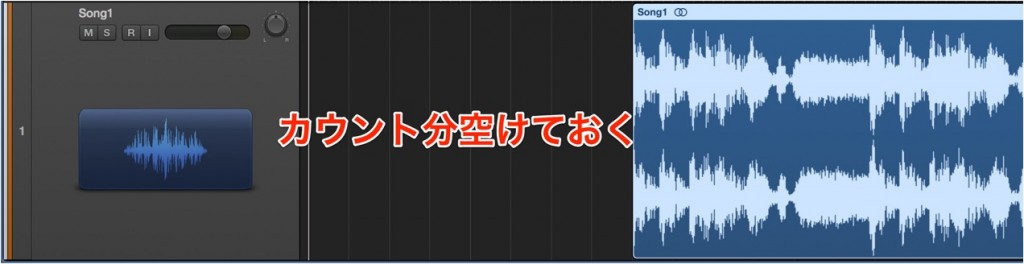
What about the count-in?
Performers can monitor the metronome at all times,
so to allow for this, move the region later and the problem is solved.
I want several people to monitor the click
Upgrade the headphone amp that receives the sound from "Out 3-4."
I'm afraid the computer might stop
I completely understand. Honestly, you can't focus on playing (lol).
It is impossible to guarantee 100% that it will never stop,
but setting the buffer size to a higher value reduces the CPU load and lowers the chance of it stopping.

Frequently asked questions
Q1. How many audio interface outputs do I need to use Logic Pro live?
You need at least two stereo outputs. Use one as the PA output for the audience (Output 1-2) and the other for performer monitoring (Output 3-4), so the metronome and the song are managed on separate routes.
Q2. How do I keep the audience from hearing the metronome?
Create separate routes for the backing track with Aux tracks, and send the metronome's output to Output 3-4 (connected to the headphone amp), so only the performers can monitor it.
Q3. When playing multiple songs at different tempos, how do I make the metronome follow?
Either set each song's tempo in advance, or bounce the metronome sound to audio and paste it into each song. You can also use a percussion instrument.
Q4. How can I reduce the chance of the computer stopping during a show?
Setting a higher buffer size reduces the CPU load and lowers the chance of the system stopping. Testing beforehand is also important.
Q5. What if several people want to monitor the click?
Upgrade the headphone amp that receives the sound from Output 3-4 to one that supports several listeners.
NEW ARTICLES
Latest English Articles











