
Markers in Cubase greatly streamline your DAW work. By placing marks at any position in a song, you can jump instantly to the spot you want and manage the song's structure easily. Registering song sections such as the verse and chorus as markers is the usual approach, but leaving notes for places that need fixing is also effective. After creating a marker track, you just click the bar with the Draw tool to set a marker, and naming, coloring, and repositioning are easy too. This lets you grasp the structure of even complex songs at a glance and reduces hesitation when editing, helping producers and beatmakers work more efficiently.
Find the Spot You Want Quickly

The marker feature places a mark at a position in the song.
Registering markers
lets you play instantly from a marker position and makes it easier to locate spots to edit
, making your work easier.
The usual way to use them is to register sections such as the verse and chorus as markers,
but they are also handy for leaving notes, such as places you want to fix.
Marker Feature Video
*The explanation starts at 5:30.
How to Add Markers in Cubase
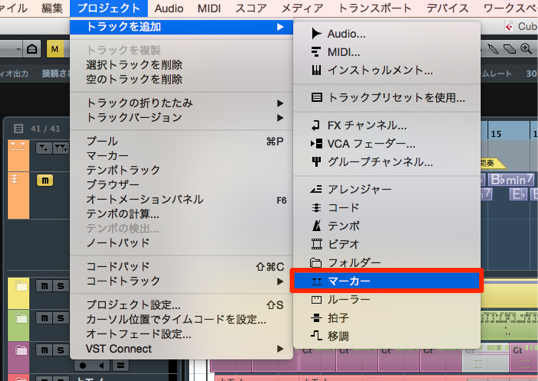
↑ From the menu bar, select "Project" → "Add Track" → "Marker."
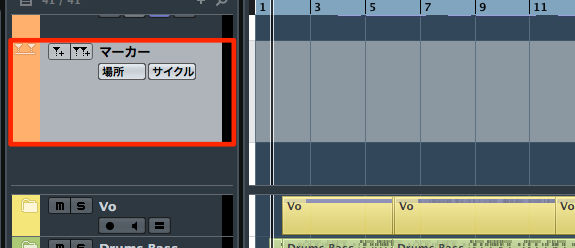
↑ A marker track has been created.
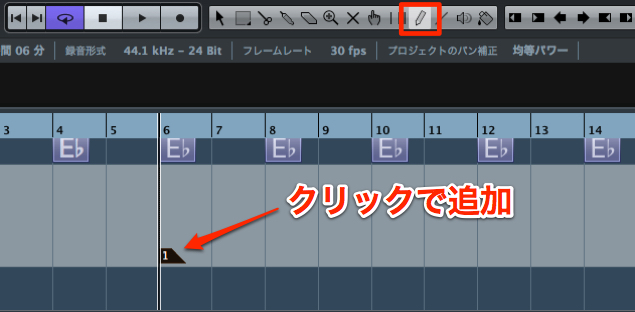
↑ Switch to the Draw tool
and click the bar where you want a marker to create it.
Do this to match the song's structure.
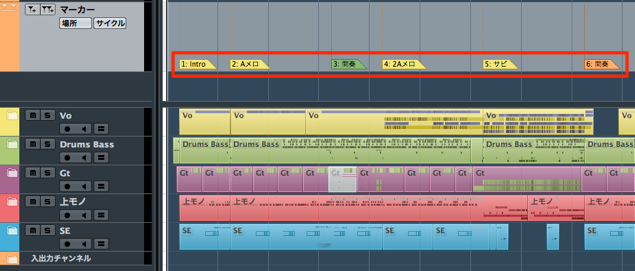
↑ You can see the structure at a glance without zooming in.
How to Use Markers
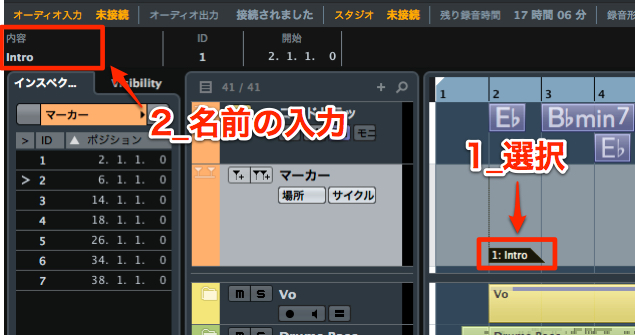
↑ Select a marker and enter text in the info line to name it.
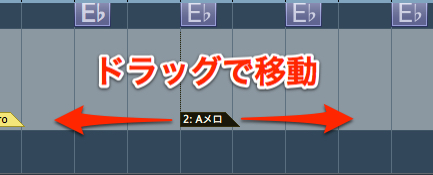
↑ Drag a marker left or right to change its position.
You can also delete a marker by selecting it and pressing Delete or Backspace.
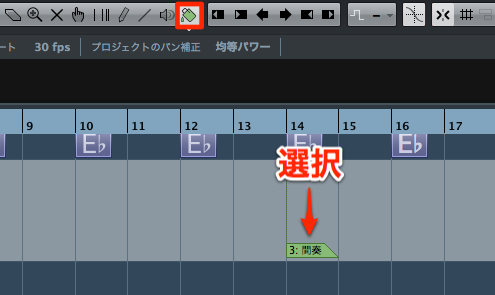
↑ Select a marker and use the color palette to color it.
Frequently asked questions
Q1. What are the steps for creating markers in Cubase?
From the menu bar, select "Project" → "Add Track" → "Marker" to create a marker track. Then switch to the Draw tool and simply click the bar where you want a marker.
Q2. Can I name markers?
Yes. Select a marker and enter a name in the info line to give each marker an easy-to-identify label. You can name them freely, for example after song sections or the fixes needed.
Q3. How do I delete or move a marker?
To change a marker's position, drag it left or right. To delete it, select the marker and press Delete or Backspace. You can color markers with the color palette.
NEW ARTICLES
Latest English Articles











