
Assigning software synth knobs to a MIDI controller in Cubase lets you design sounds intuitively and efficiently without relying on the mouse. This article explains the specific steps, from Device Setup and assigning Quick Controls to using automation. You will learn techniques that greatly improve the workflow of DTM production for beginners and advanced users alike.
Assign Controls to a MIDI Controller for Intuitive Operation in Cubase
Software synths are essential for DTM,
but some people find them hard to use because every setting is done with the mouse.
In that case, assign the software synth's knobs to a MIDI controller.
This lets you set the software synth's knobs from your MIDI controller,
for even more intuitive sound design.
For Software Synths Included with Cubase

↑ First, set up the control device.
Click "Devices" → "Device Setup" from the menu bar.
- 1_Select the Quick Controls tab
- 2_Select the MIDI device you will control with
- 3_Quick Controls can register a total of 8 knobs.
Select the control number (1 to 8) you want to assign - 4_Check "Learn" and actually move a knob on your hardware MIDI controller.
The MIDI controller's knob is assigned to the control number you selected in step 3. - 5_Click "Apply," then press "OK."
That completes the setup.
Next, assign the instrument's knobs to the Quick Controls.
- Steinberg's own instruments
- Instruments you added separately

Depending on your version of Cubase,
many instruments are already assigned when you load them.
If you want to assign different parameters
or start the assignments from scratch, follow these steps.

↑ Right-click the knob you want to assign
and add it to Quick Control 1 to 8.
When you move the knob on the hardware MIDI controller you set up above,
the Quick Control value changes along with it.

- 1_Light up "L"
- 2_Select which control to assign it to
- 3_Move the knob you actually want to assign
The Quick Control and the software synth's knob are now linked.
Then, when you move the knob on the hardware MIDI controller you set up above,
the Quick Control value changes along with it.
- Steinberg's own instruments
- Instruments you added separately
Removing an Assignment

↑ Click the control you want to remove
and select "No Parameter" from the menu that appears.
Using Automation
You can also record the MIDI controller's movements with automation.
For details, see the following.
Automating Plugin Knobs
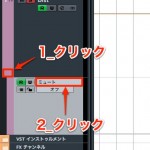
Using Automation

Frequently asked questions
Q1. How do I assign MIDI controller knobs to a software synth in Cubase?
In Device Setup, select the Quick Controls tab and specify the MIDI device. Check "Learn" and move the controller's knob to map it to the control number you want. Then right-click the software synth's knob and add it to Quick Control 1 to 8, and you're done.
Q2. How many knobs can be registered in Quick Controls?
Quick Controls can register up to 8 knobs or faders, letting you efficiently control 8 parameters from one panel.
Q3. Can I change a knob I have assigned to a different parameter?
Yes. Just click the control you want to remove and select "No Parameter" from the menu that appears to remove it easily, then assign a new knob.
Q4. Can I record the MIDI controller's movements in a song?
Yes. Using automation, you can record your MIDI controller moves as automation. This lets you apply complex changes in sound across the whole song.
NEW ARTICLES
Latest English Articles











