
This article explains every step from buying Waves V11 plug-ins to starting to use them. It covers in detail how to create a Waves account, the difference between buying from the online store and registering a purchase from the Japanese distributor, and the process of installing and authorizing licenses with Waves Central. It also introduces practical tips such as managing licenses on a USB flash drive and what to do when you change computers, making it a useful reference for everyone from music production beginners to existing users.
Every Step from Buying Waves Products to Using Them!
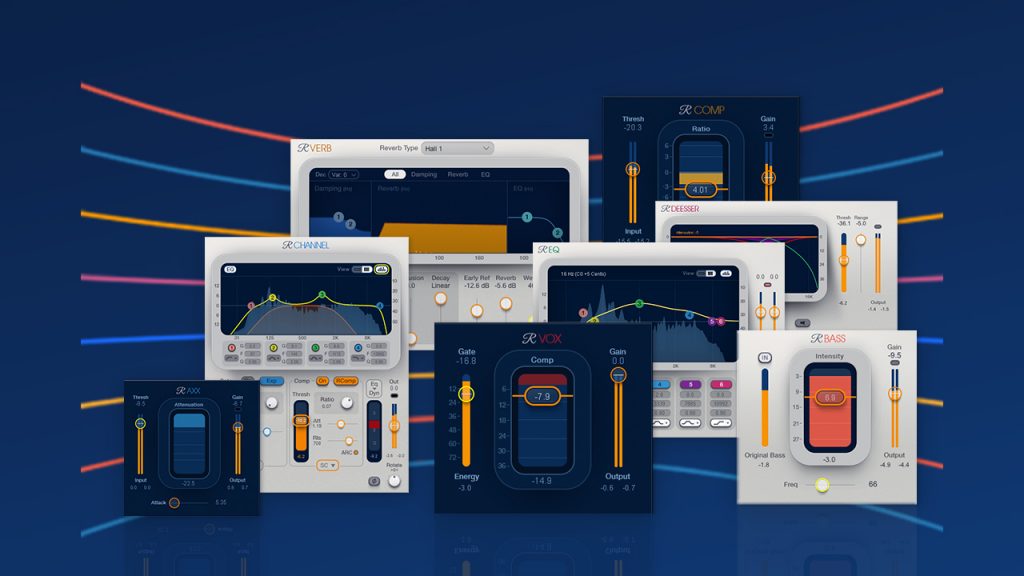
Products from "Waves Audio" are indispensable for mixing and mastering on a computer.
The plug-in version is now "V11", and the way you use "Waves Central", which manages the plug-ins, has also changed from the previous "V10".
Here we explain every step from buying Waves products to using them.
For those who already use Waves products, "What's new in V11, how to upgrade and an overview" is explained in a separate article. Please check the link below.

Creating a Waves Account
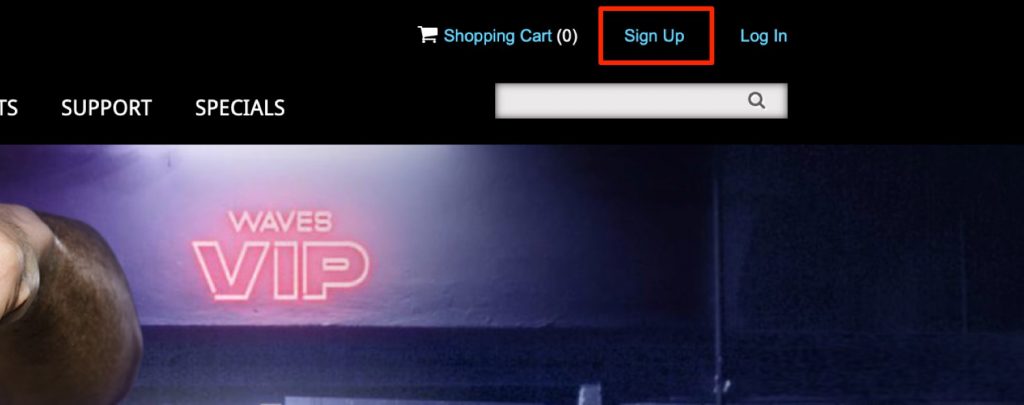
Go to the Waves official website and click "Sign Up" at the top right.
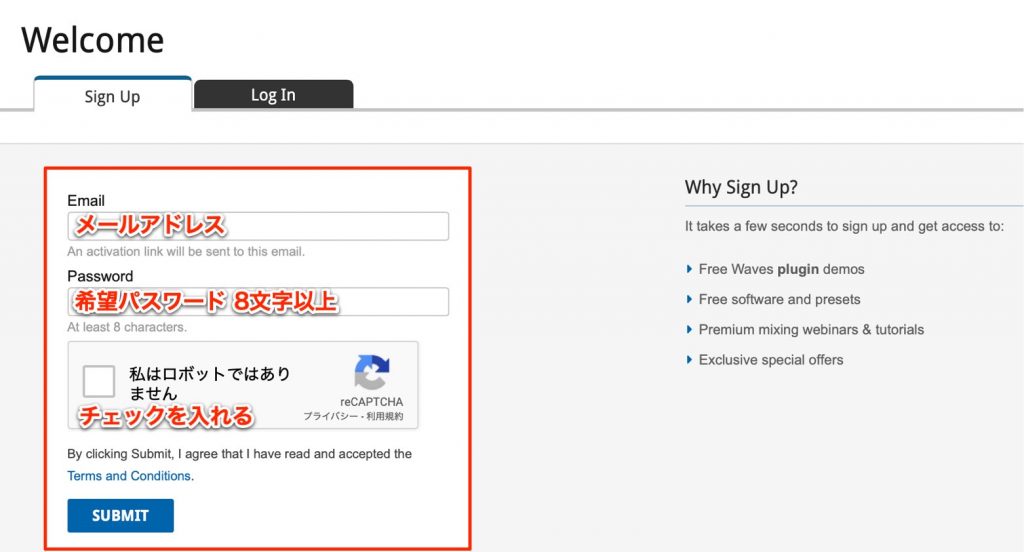
Enter the email address to register, a password of your choice with at least 8 characters (including uppercase and lowercase letters and numbers) and the spam prevention check, then click "SUBMIT".
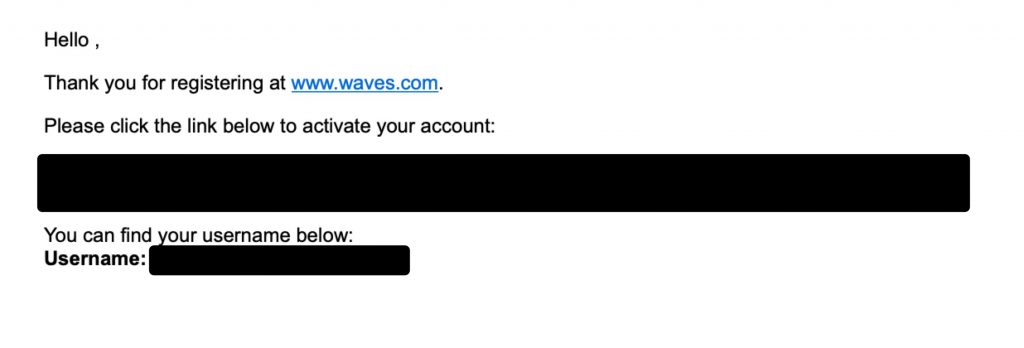
A confirmation email is sent to the email address you entered in the form.
Click the link in the email to complete account registration.
Log in to the site using the information you registered.
Buying and Registering Waves Products
There are two main ways to buy Waves products.
- Buy from the Waves online store
- Buy from a store that sells Waves products, such as the Japanese distributor
Product registration differs depending on how you buy.
Buying from the Waves Online Store
After logging in, you can buy plug-ins from the store on the site.
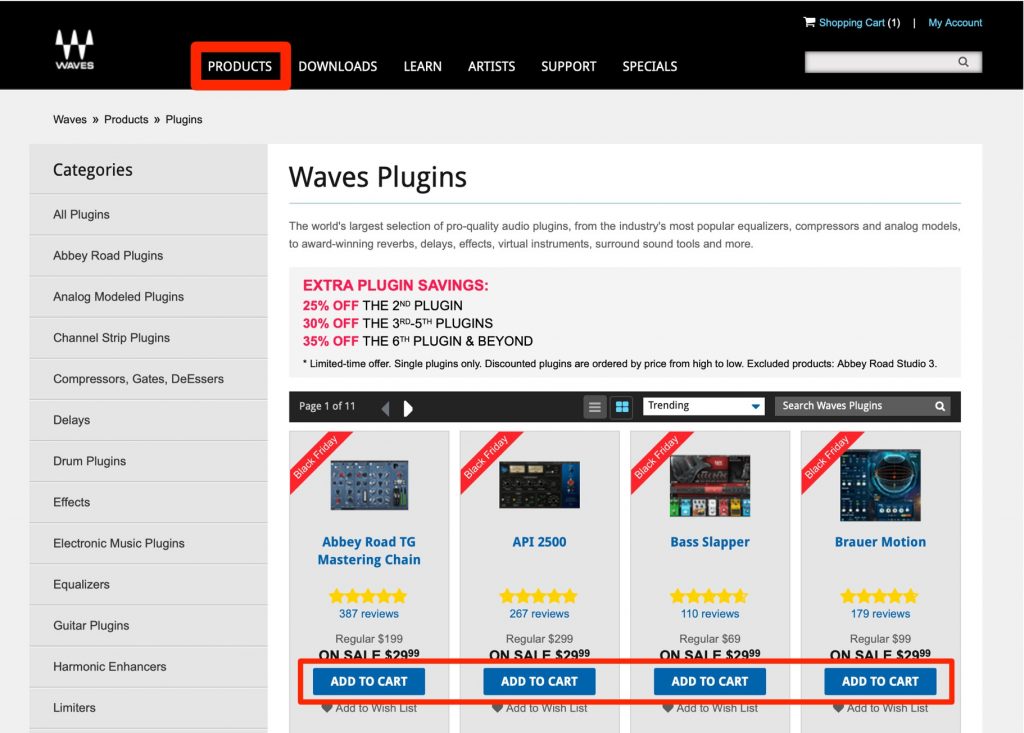
Check the product you want and press "ADD TO CART".
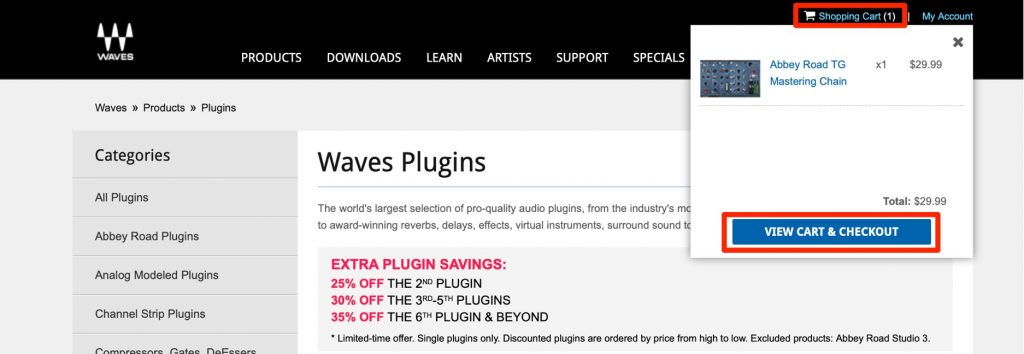
Click "Shopping Cart" and select "VIEW CART & CHECKOUT".
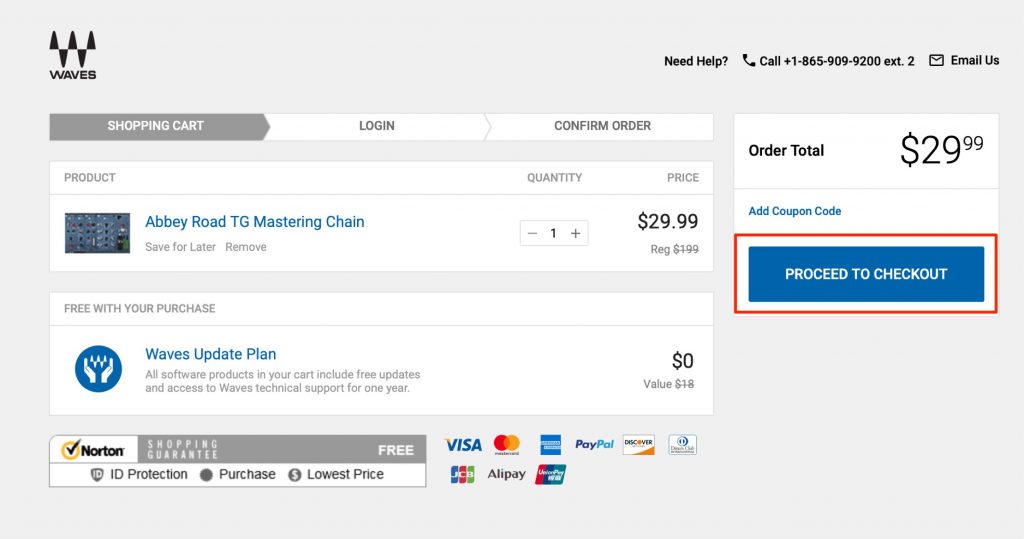
Check the products and prices and click "PROCEED TO CHECKOUT".
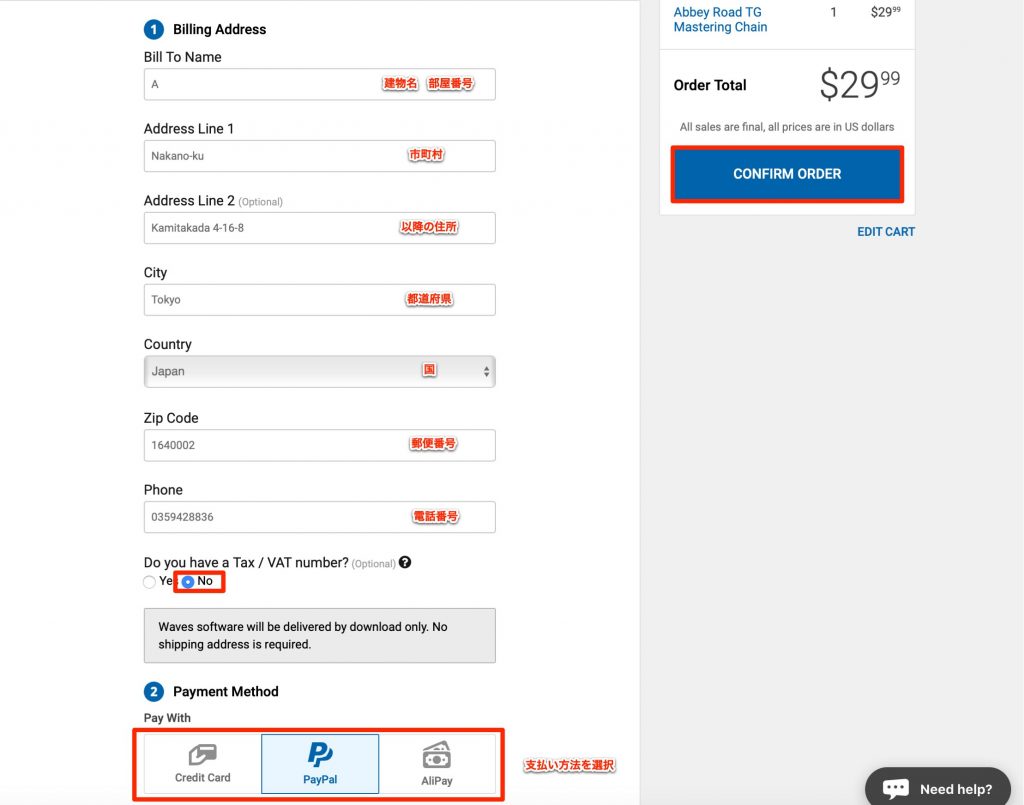
Enter the required information and select "CONFIRM ORDER".
Then complete the payment with the method you chose, and the purchase is complete.
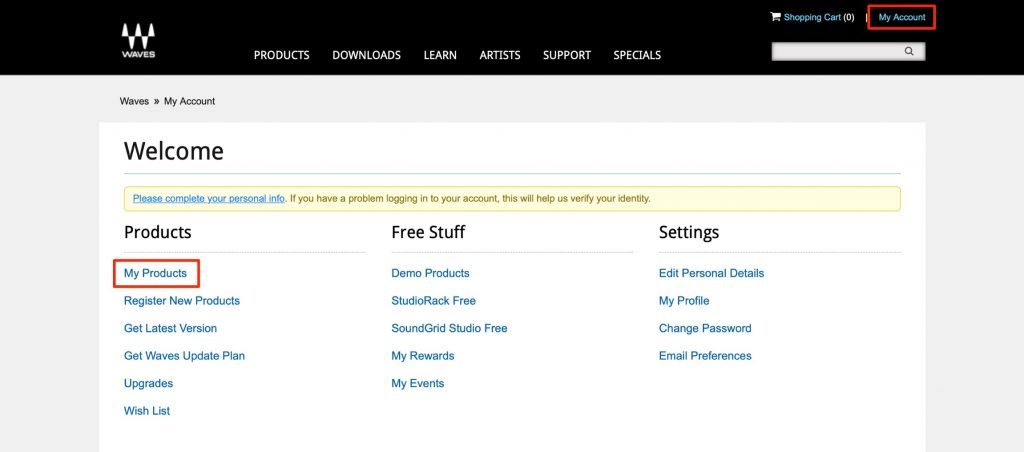
You can check the products you bought in "My Products" under "My Account".
The plug-ins displayed in "My Products" are the products you can use.
Buying from a Store That Sells Waves Products, Such as the Japanese Distributor
Media Integration or another Japanese distributor: if you bought your product from one of these, register it as follows.
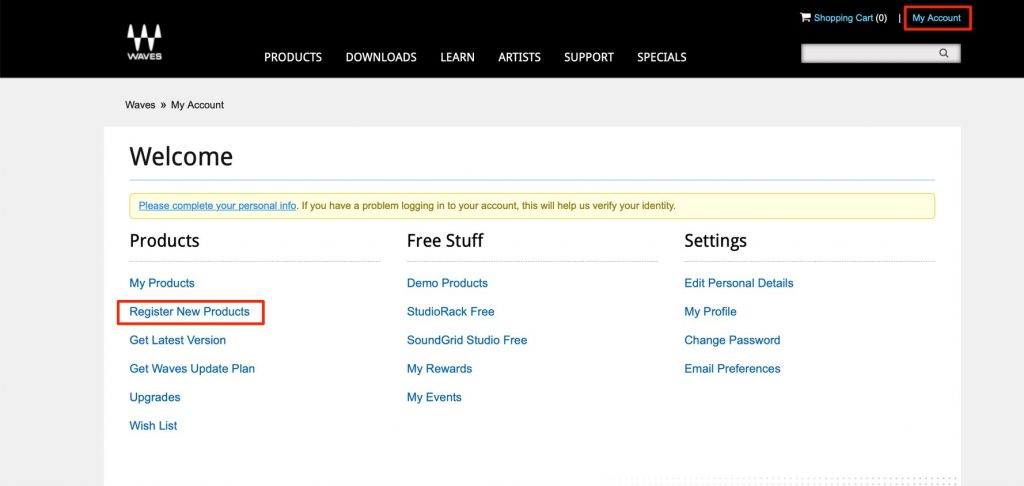
When you buy a product, a serial number is issued. (The serial is sent to you by email)
Select "Register New Products" in "My Account",
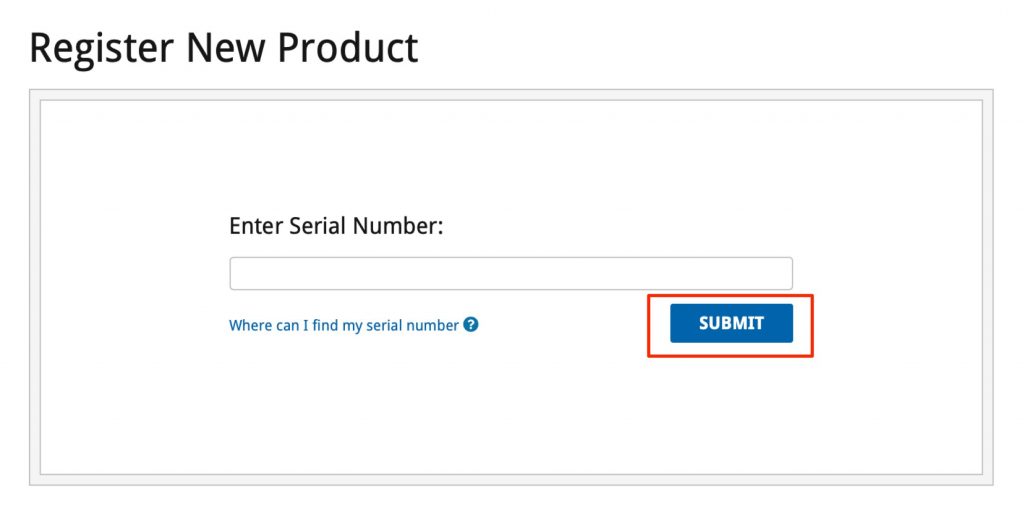
enter (copy and paste) the issued serial number and click "SUBMIT" to add the product to your account.
You can check the products you added in "My Products" under "My Account".
The plug-ins displayed in "My Products" are the products you can use.
Installing Waves Products
After buying and registering products, install the plug-ins on your computer.
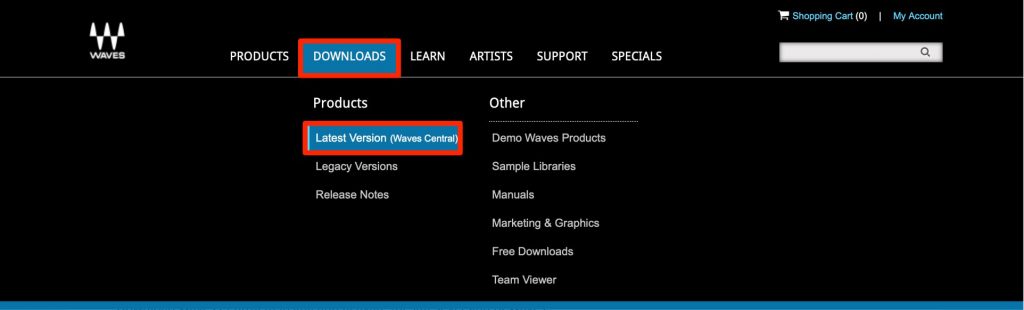
Click "DOWNLOADS" and select "Latest Version".
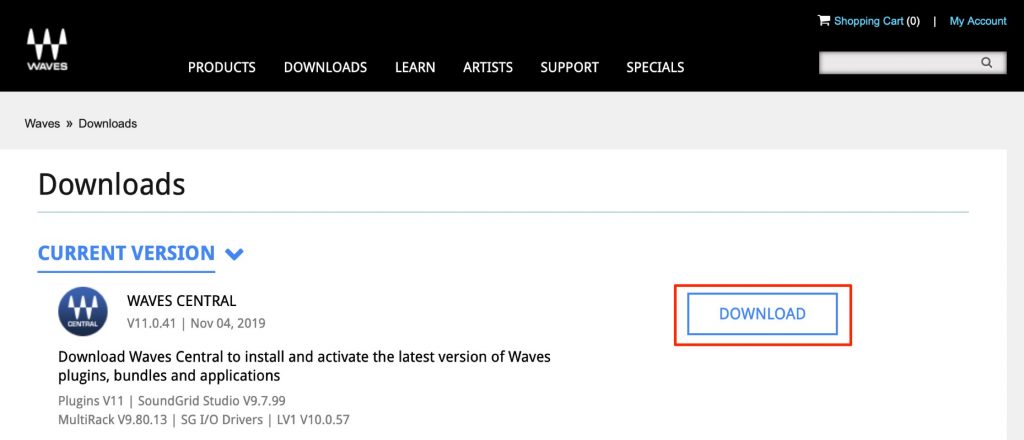
Click "DOWNLOAD" under "WAVES CENTRAL".

Download "MAC/WINDOWS" according to your computer's OS.
After downloading Waves Central, install it.
- Mac: Applications folder → Waves Central
- Windows: C drive → Program Files → Waves Central
It is installed in the location above, so launch Waves Central.

Log in with the Waves account you created above.
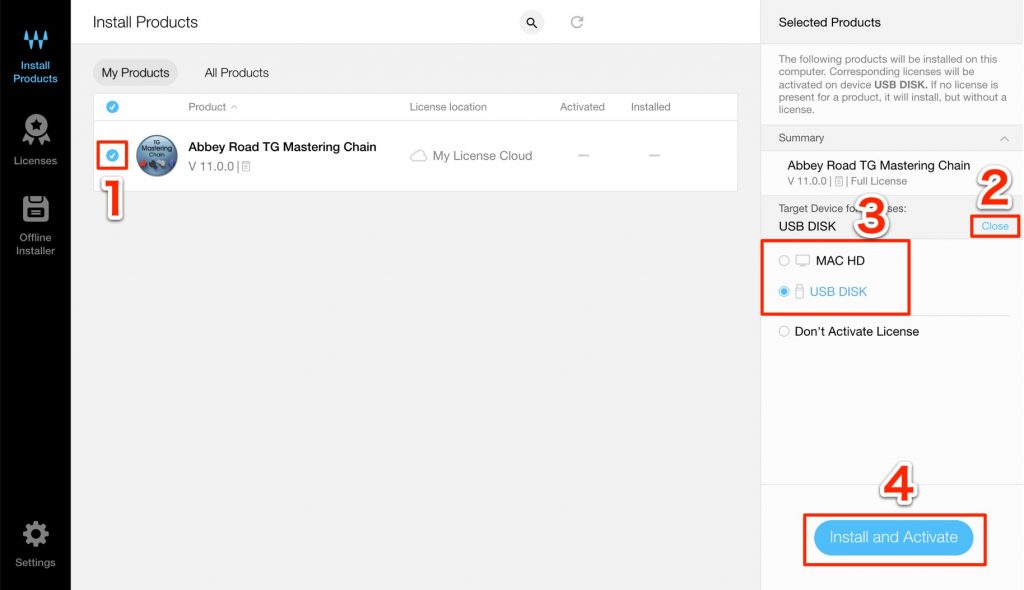
The products you bought are displayed like this.
- 1. Click a product to check it
- 2. By clicking this area, you can also put the product license on a USB flash drive.
This is useful if you install the same products on multiple computers and use them by moving the USB flash drive between them. - 3. Specify whether to put the license on the computer itself or on a USB flash drive.
- 4. After checking these, click "Install and Activate".
Be careful never to turn off your computer or remove the USB flash drive during installation and activation.
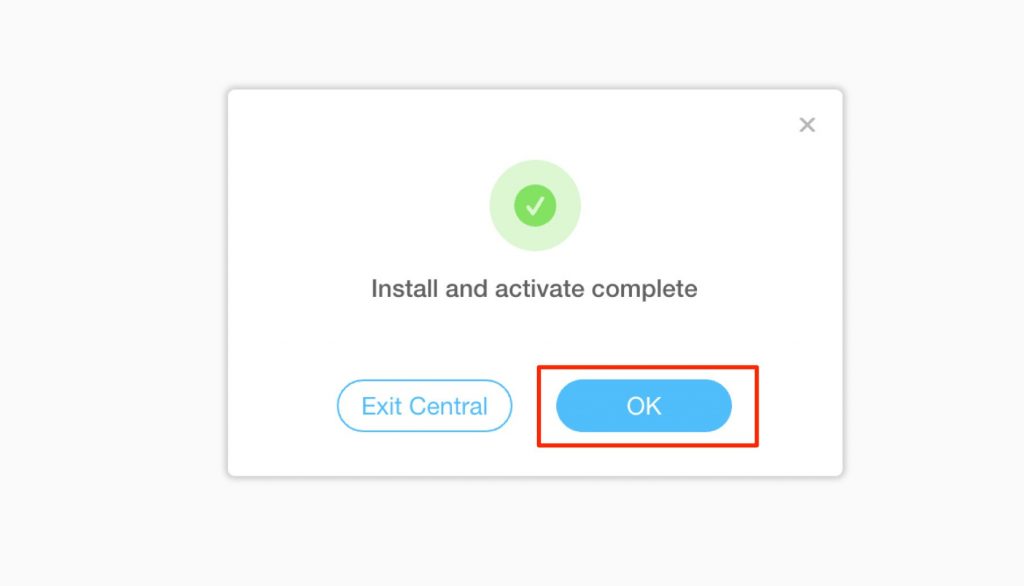
Installation is complete when a window like this appears.

You can now launch and use the products in your DAW.
Changing the License Disk
If you store the plug-in licenses on a USB flash drive, even after a clean install of your computer, you can use the products just by reinstalling the plug-ins and inserting the license USB flash drive.
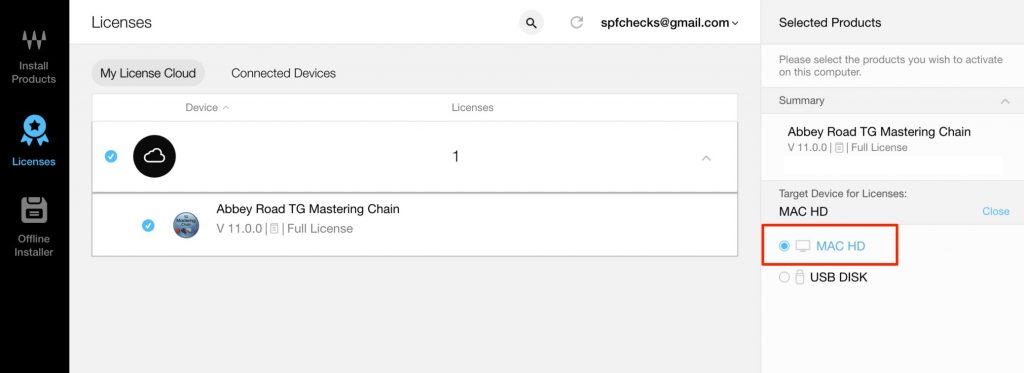
However, if you store the licenses on the computer itself, you need to deactivate the licenses before doing a clean install of the computer.
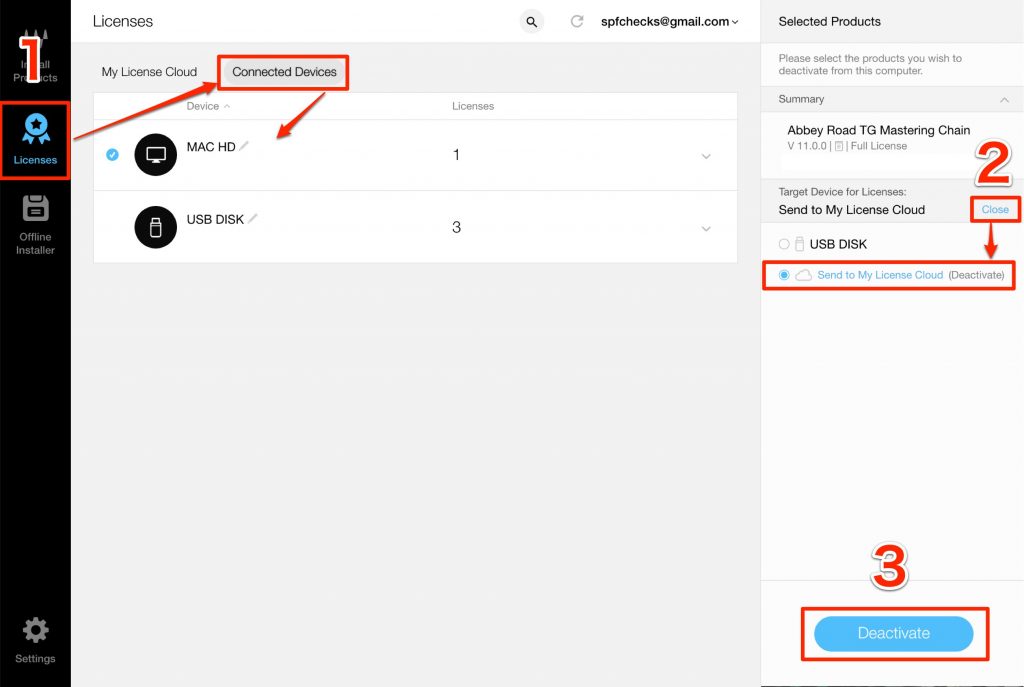
- 1. Select "Licenses" and select the hard drive that holds the licenses.
- 2. Select "Send to My License Cloud", or select a USB flash drive.
- 3. Click "Deactivate" to move the licenses.
You can now launch Waves Central on the new computer and activate the licenses again.
Of course, you can also move licenses on one USB flash drive to another USB flash drive with the same steps.
We Also Recommend This Article

Frequently Asked Questions
Q1. What are the main differences between Waves Central V11 and V10?
In V11, the plug-in management system has changed significantly. The details of the changes and how to upgrade are explained in a separate article, so we recommend checking it.
Q2. What are the benefits of saving Waves product licenses to a USB flash drive?
You can install plug-ins on multiple computers and switch between them by moving the USB flash drive. Even if you do a clean install of your computer, you won't need to go through authorization again as long as you have the USB flash drive.
Q3. If I saved the licenses on the computer itself, what should I do when moving to a new computer?
You need to release the licenses on the old computer using "Send to My License Cloud" or "Deactivate", then authorize them again on the new computer. If you don't do this beforehand, you won't be able to use them on the new computer.
NEW ARTICLES
Latest English Articles











