
Waves V11 is the latest version with major enhancements, including a redesigned interface for the Renaissance series, more than 1,400 added artist presets and new plug-ins. Products purchased within the past year can be upgraded free of charge, and you can install and activate them easily with Waves Central. This article explains how to upgrade from V10 or earlier and how to use Waves Central in detail, making it a complete guide for music producers moving smoothly to the latest version.
Waves V11: What's New, How to Upgrade and an Overview
Waves Audio has released "V11".
Here we explain what's new in Waves V11, how to upgrade and give an overview.
If you are buying Waves products for the first time, this is explained in detail in a separate article. Please check the link below.

First, let's look at what's new in Waves V11.
The Reborn Renaissance Series
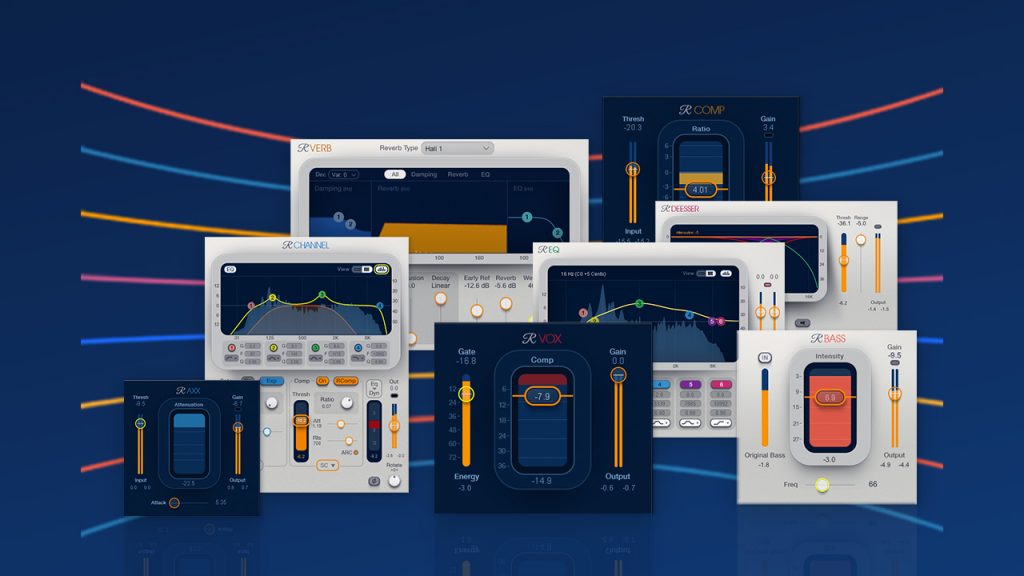
The interface of the "Renaissance series", one of the most popular Waves product lines, has been redesigned, and new features have been added.
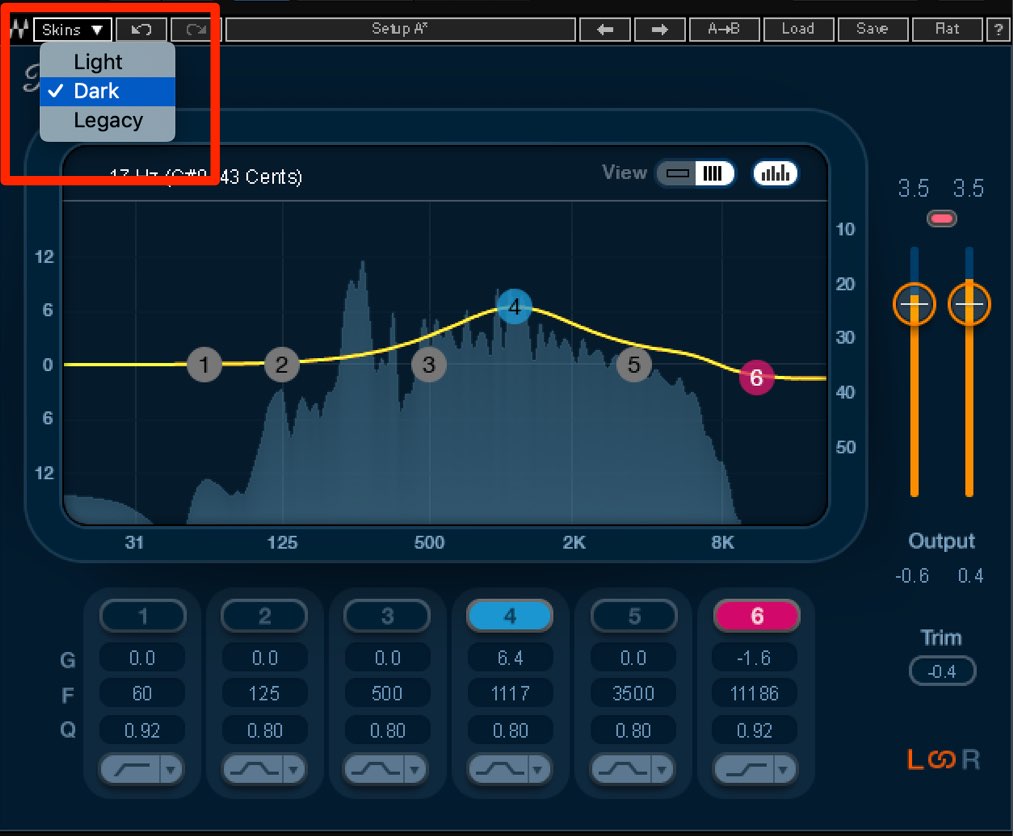
You can now choose from three appearances (skins) for the Renaissance series.
You can also return to the appearance used up to "V10" by selecting "Legacy".
The R-EQ/R-Channel equalizers display the track's frequencies in real time.
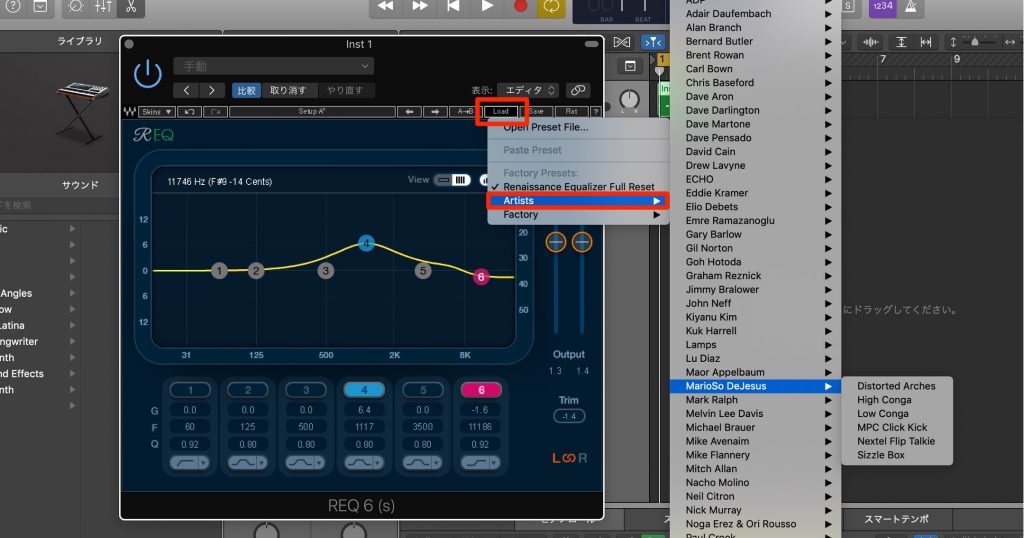
More than 700 artist presets have been added to the Renaissance series, letting you quickly apply a variety of settings to your tracks.
New Plug-ins Added to Each Bundle

New plug-ins have been added to the following bundles.
- Platinum: OneKnob Pumper/MetaFilter/Greg Wells/ToneCentric
- Diamond: OneKnob Pumper/MetaFilter/Greg Wells ToneCentric/Cobalt Saphira
- Horizon: OneKnob Pumper/ MetaFilter/Greg Wells ToneCentric/WLM Plus Loudness Meter
- Mercury: Pro Show/SD7 Pro Show/Infected Mushroom Pusher
We have previously explained Waves OneKnob Pumper as well, so please make use of it.
How to Use Waves OneKnob Pumper

Bug Fixes and Improved Performance
V11 also fixes bugs that the plug-ins had.
You can use the products more stably.
For details, please see the page at the link below.
https://www.waves.com/downloads/release-notes
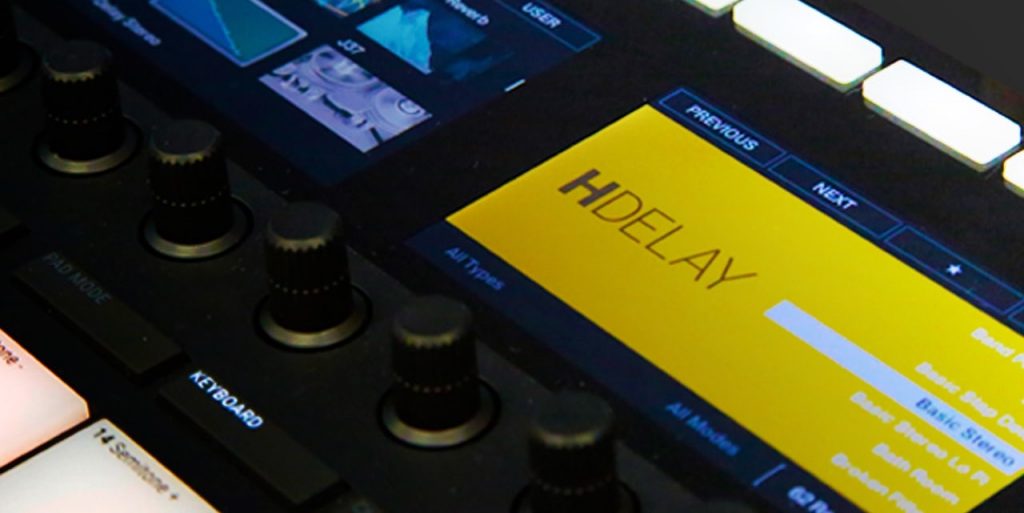
Many plug-ins also support the "NKS format", which can be used with Native Instruments' "Komplete Kontrol" and "Maschine".

More Than 1,400 Artist Presets Added

As mentioned for the Renaissance series above, a total of more than 1,400 artist presets have been added across the plug-ins.
This should help you work quickly.
You can check the added presets in the PDF below.
https://www.waves.com/1lib/pdf/presets/V11-presets-automatically-added-to-plugins.pdf
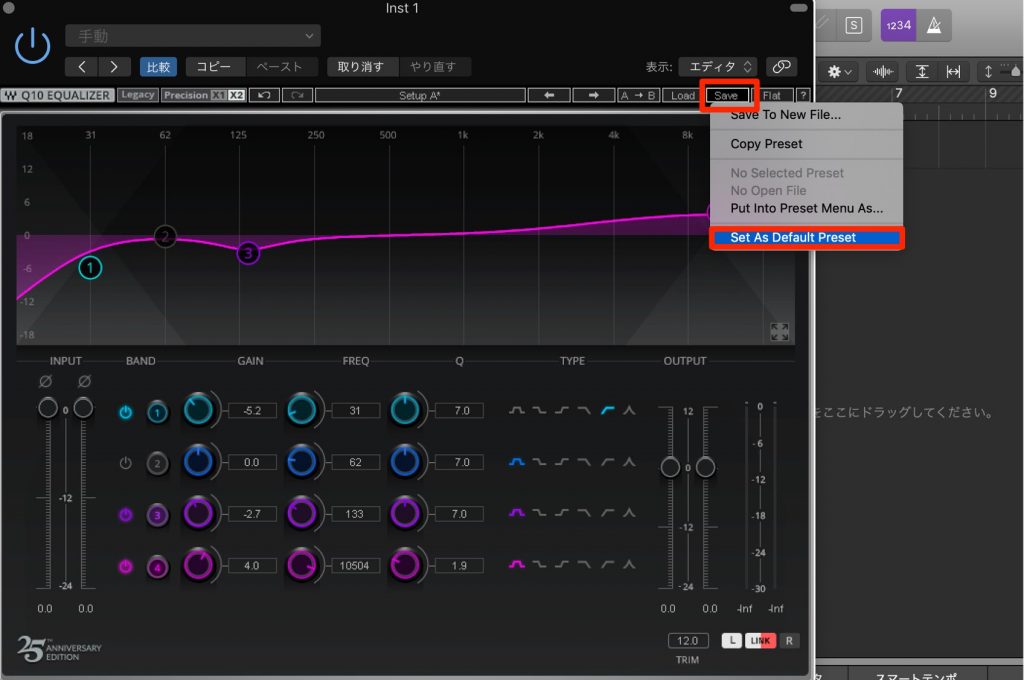
You can now specify the initial state of a plug-in when it is opened.
Just set up the plug-in the way you like and select "Set As Default Preset".
From the next time, it will open in the state you specified.
Upgrading V10 or Earlier Products to V11
For plug-ins, if it is within one year of purchase, or if you are subscribed to the annually renewed "Waves Update Plan", you can upgrade to V11 free of charge.
You can check whether your plug-ins are eligible as follows.
Checking and Running a Free Upgrade
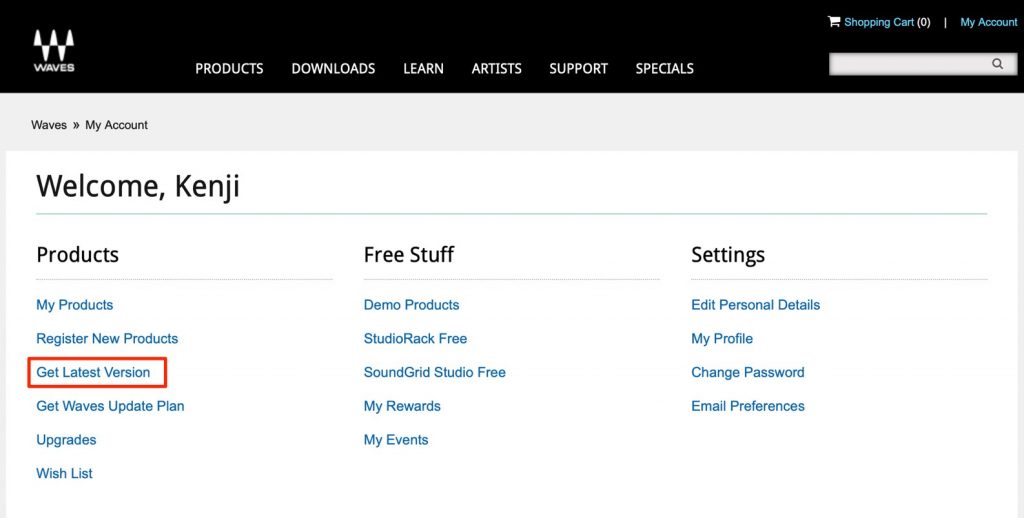
Log in to your Waves account page and select "Get Latest Version".
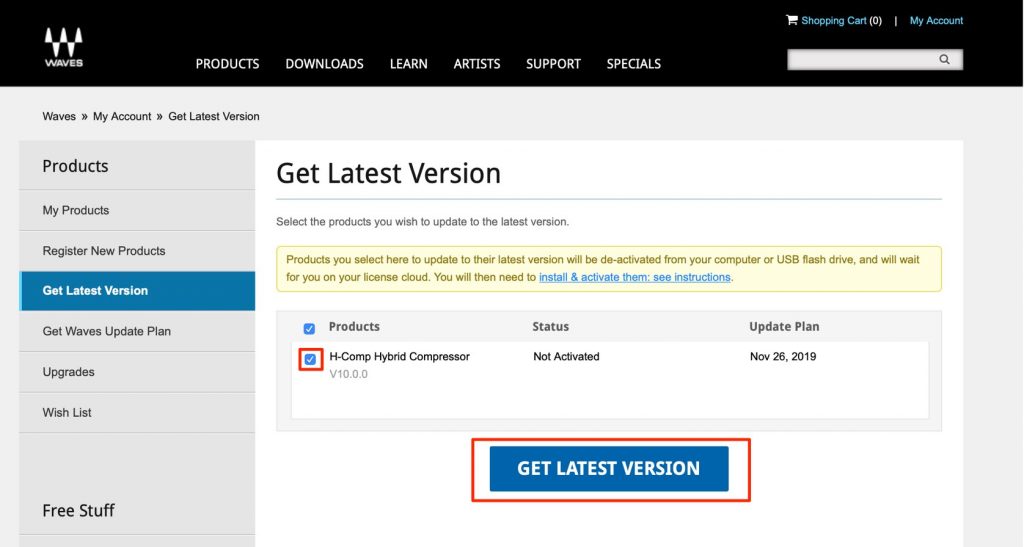
The products that can currently be upgraded for free are displayed.
Check them and click "Get Latest Version".
Your plug-ins can now be used as V11.
Checking and Running a Paid Upgrade
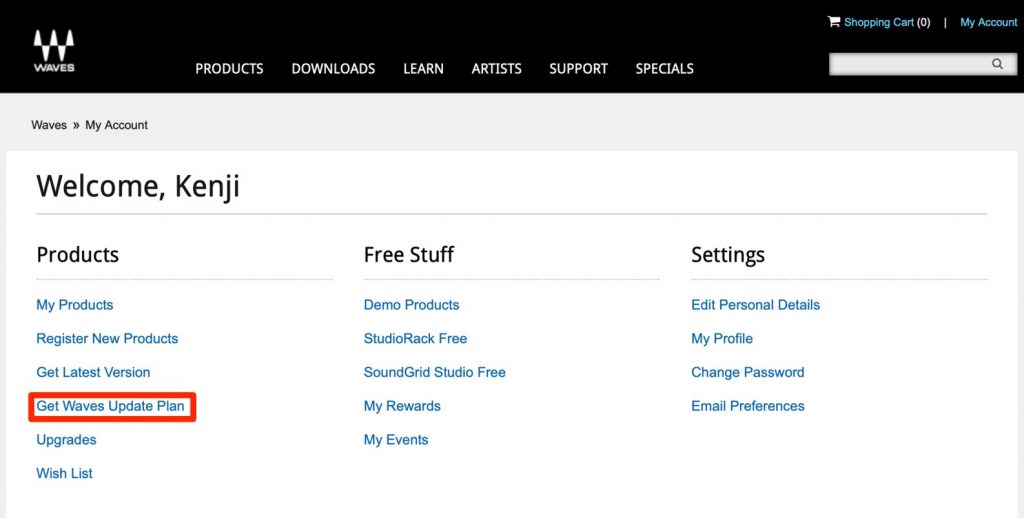
Log in to your Waves account page and select "Get Waves Update Plan".

When you check the products you want to upgrade to V11, an estimated price is displayed.
The upgrade price is capped at a maximum of $240 and will not go higher.
If everything looks fine, select "RENEW UPDATE PLAN".
Once you complete the payment, the selected plug-ins are upgraded to V11.
Next, log in to your Waves account page and select "Get Latest Version".
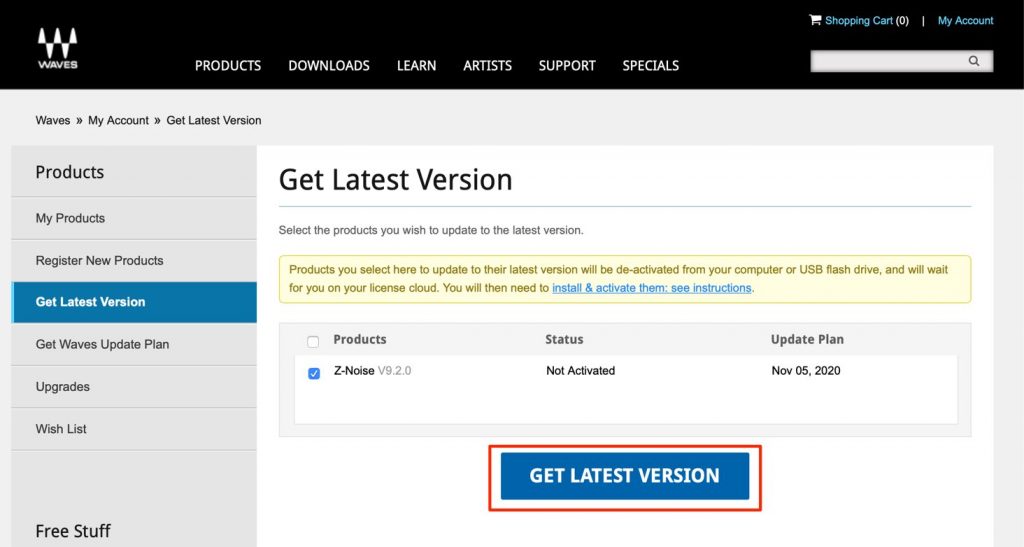
The products you upgraded are displayed.
Check them and click "Get Latest Version".
Your plug-ins can now be used as V11.
All that remains is to install and activate the products with "Waves Central", described below.
Installing and Activating Waves V11
After upgrading your product licenses to V11, install the V11 plug-ins on your computer and activate them.
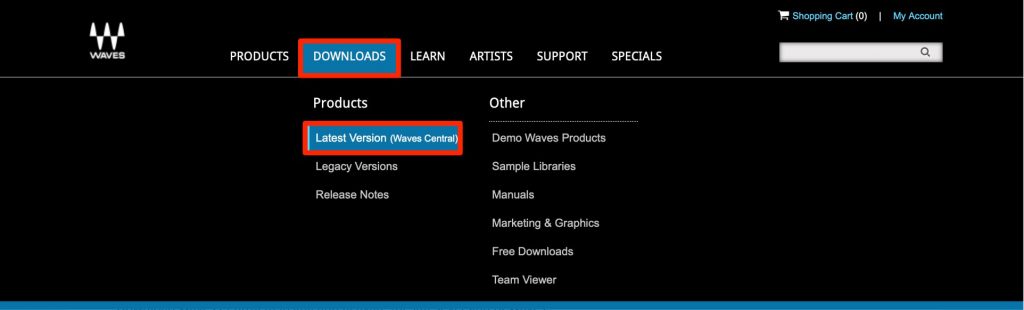
On the Waves website, click "DOWNLOADS" and select "Latest Version".
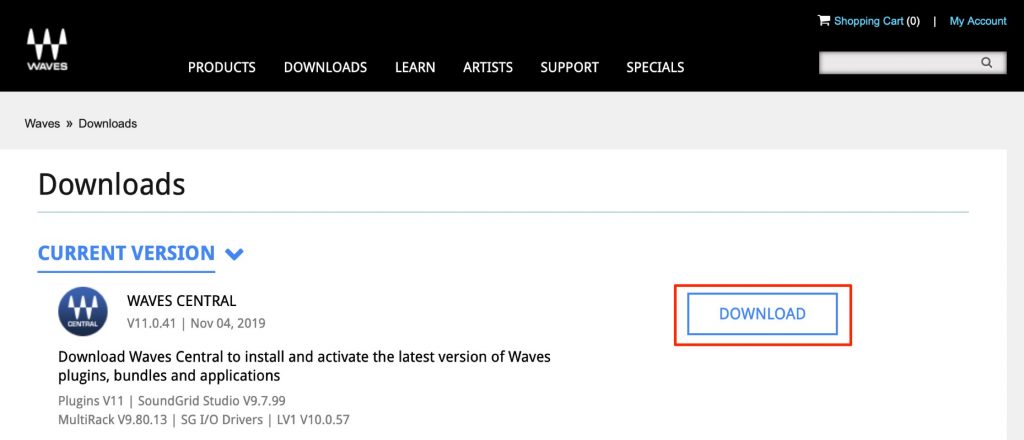
Click "DOWNLOAD" under "WAVES CENTRAL".

Download "MAC/WINDOWS" according to your computer's OS.
After downloading Waves Central, install it.
- Mac: Applications folder → Waves Central
- Windows: C drive → Program Files → Waves Central
It is installed in the location above, so launch Waves Central.

Log in to your Waves account.
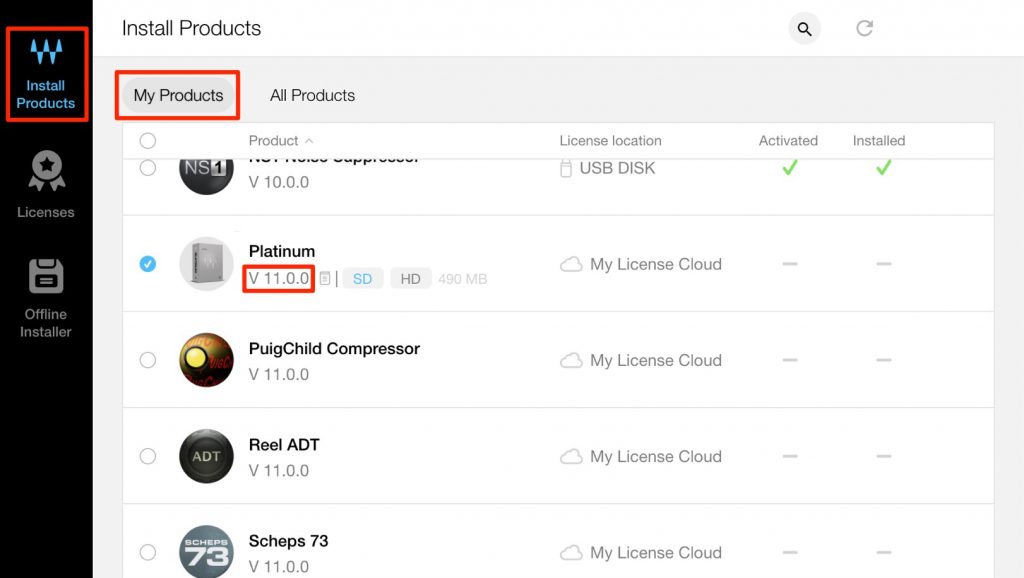
Select "Install Products" to display a list of the products you own.
Confirm that the products you want show "V11" and check them.
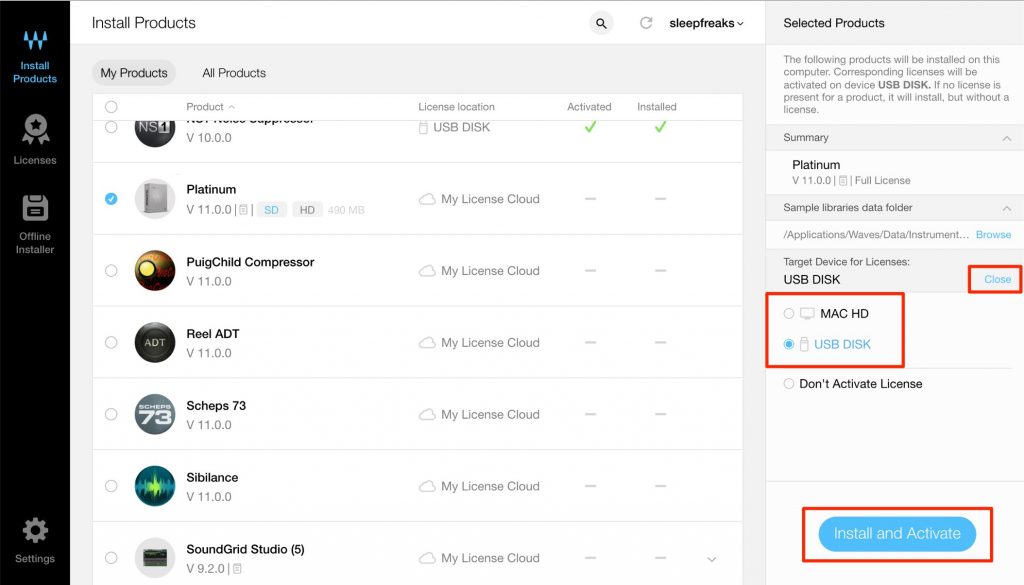
By clicking this area, you can also put the product licenses on a USB flash drive.
This is useful if you install the same products on multiple computers and use them by moving the USB flash drive between them.
After checking these, click "Install and Activate".
Be careful never to turn off your computer or remove the USB flash drive during installation and activation.
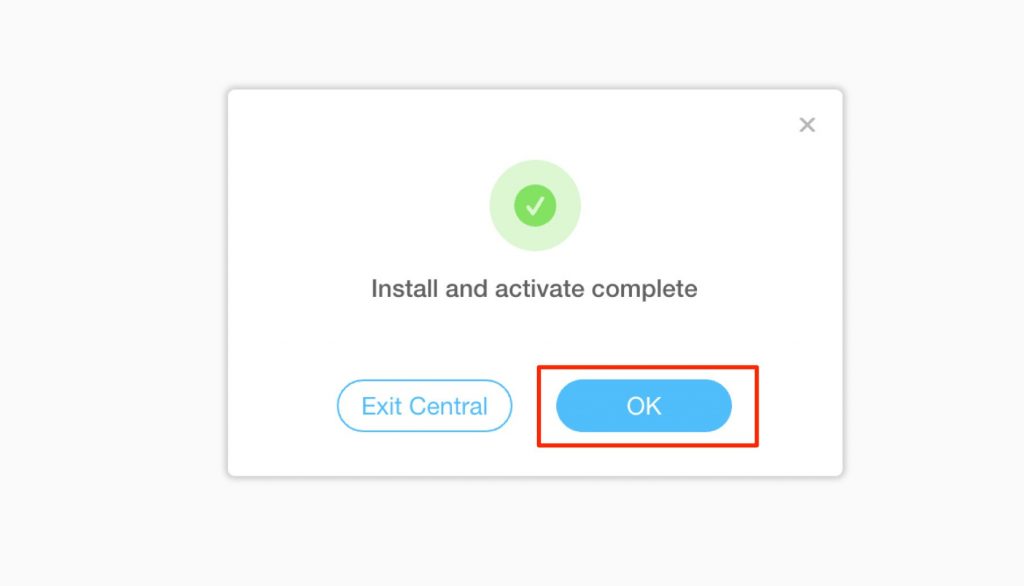
Installation is complete when a window like this appears.

You can now launch and use the V11 products in your DAW.
Changing the License Disk
If you store the plug-in licenses on a USB flash drive, even after a clean install of your computer, you can use the products just by reinstalling the plug-ins and inserting the license USB flash drive.
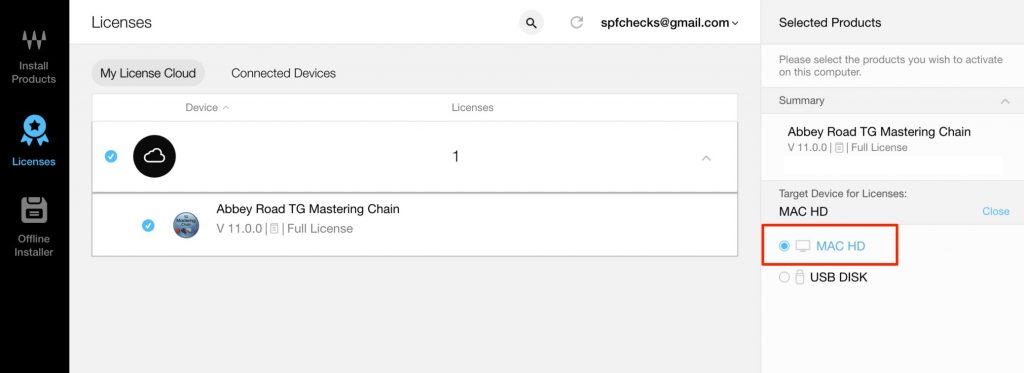
However, if you store the licenses on the computer itself, you need to deactivate the licenses before doing a clean install of the computer.
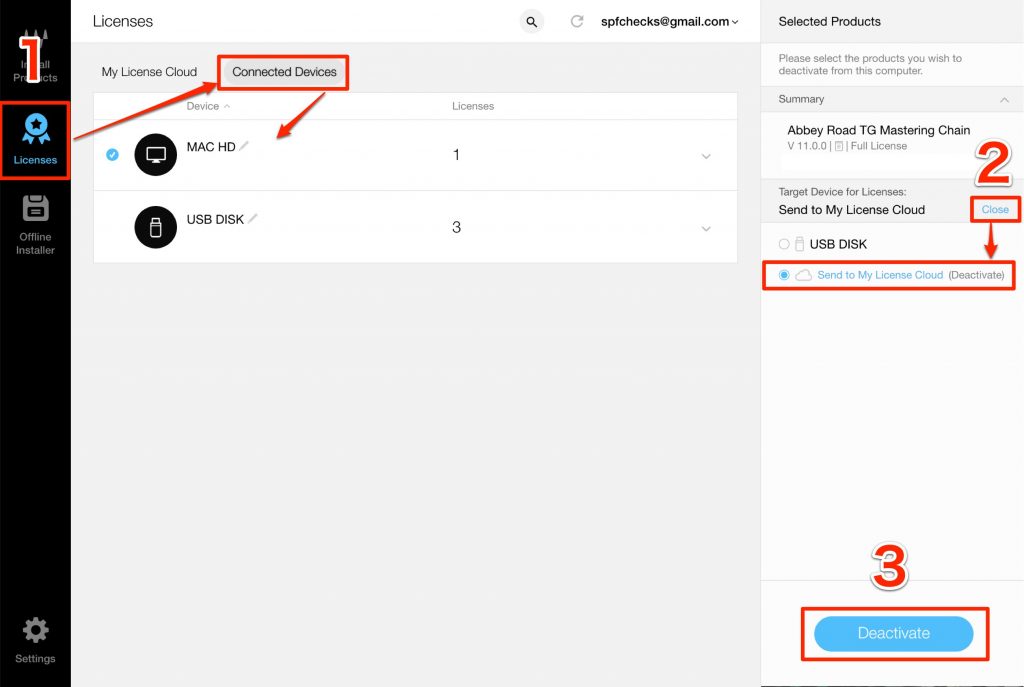
- 1. Select "Licenses", then select "Connected Devices".
Select the device that holds the licenses (here, the licenses are on a USB flash drive). - 2. Select "Send to My License Cloud" from the menu on the right.
- 3. Click "Deactivate" to move the licenses.
You can now launch Waves Central on the new computer and activate the licenses again.
With this method, you can also move licenses on one USB flash drive to another USB flash drive.
We Also Recommend This Article

Frequently Asked Questions
Q1. What are the conditions for a free upgrade to Waves V11?
It applies if it is within one year of purchasing the plug-in, or if you are subscribed to the annually renewed "Waves Update Plan". You can check which products can be upgraded for free by logging in to your Waves account page and selecting "Get Latest Version".
Q2. How much does a paid upgrade cost?
A paid upgrade with the Waves Update Plan is capped at a maximum of $240 and will not go higher. When you check the products to upgrade, an estimated price is displayed.
Q3. What are the benefits of saving licenses to a USB flash drive in Waves Central?
By storing licenses on a USB flash drive, you can install the same products on multiple computers and use them by moving the USB flash drive between them. Even after a clean install of your computer, you can use the products just by reinstalling the plug-ins and inserting the USB flash drive.
Q4. What should I watch out for during installation and activation?
During installation and activation, it is important never to turn off your computer or remove the USB flash drive. Please wait until the process is complete.
NEW ARTICLES
Latest English Articles











