
From Waves 9.6 onward, plug-in authorization was greatly simplified with a tool called "Waves Central." This article explains step by step, so that even music production beginners won't get lost, everything from downloading and installing Waves Central to initial setup, product registration, and license management. It also covers practical license management such as registering serial numbers, moving licenses between computers, and storing them on a USB drive, giving you the essential knowledge to use Waves plug-ins with confidence.
For installing and registering Waves V11, released in November 2019, see the articles below.

Installing and Registering Waves V11 Plug-ins (New Account Edition): How to Use Waves Central
This article explains every step from purchasing Waves V11 plug-ins to starting to use them: how to create a Waves account, the difference between registering purchases from the online store and from the Japanese distributor, Waves Cen...

Installing and Registering Waves V11 Plug-ins (Product Upgrade Edition): How to Use Waves Central
Waves V11 is a major update with a redesigned interface for the Renaissance series, more than 1,400 added artist presets, new plug-ins, and more. Purchase...
Waves Central: authorize plug-ins quickly

From Waves Ver 9.6, the way plug-ins are installed and authorized has changed.
Here, we explain this "Waves Central."
Downloading and installing Waves Central
First, go to the following URL.
http://www.waves.com/downloads/central
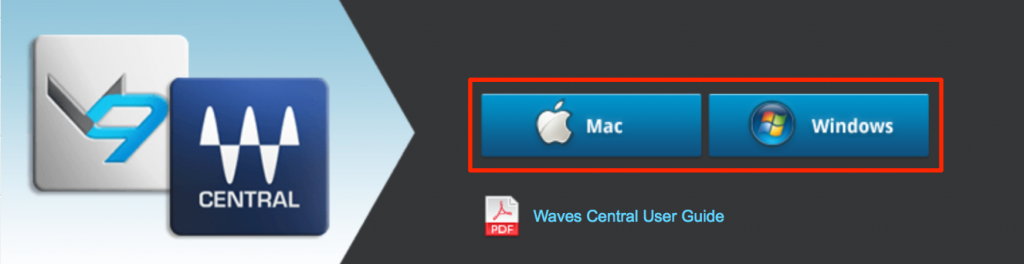
Download "Waves Central."
Select your computer's operating system to start the download.
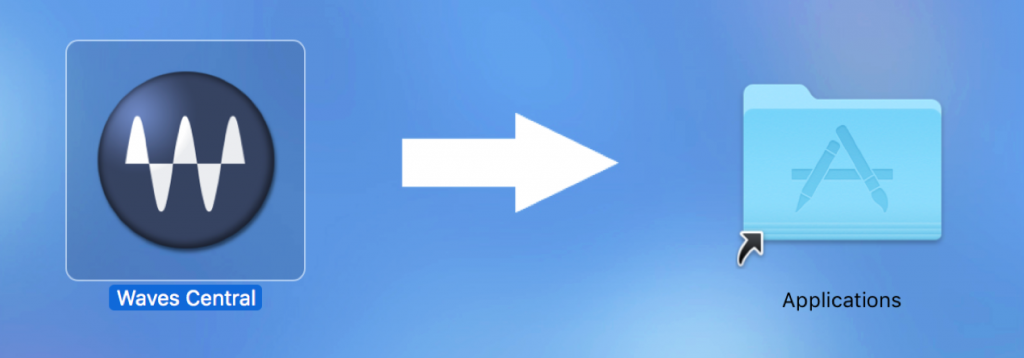
After downloading, install it.
On a Mac, drag and drop it into the Applications folder to complete the installation.
Using Waves Central
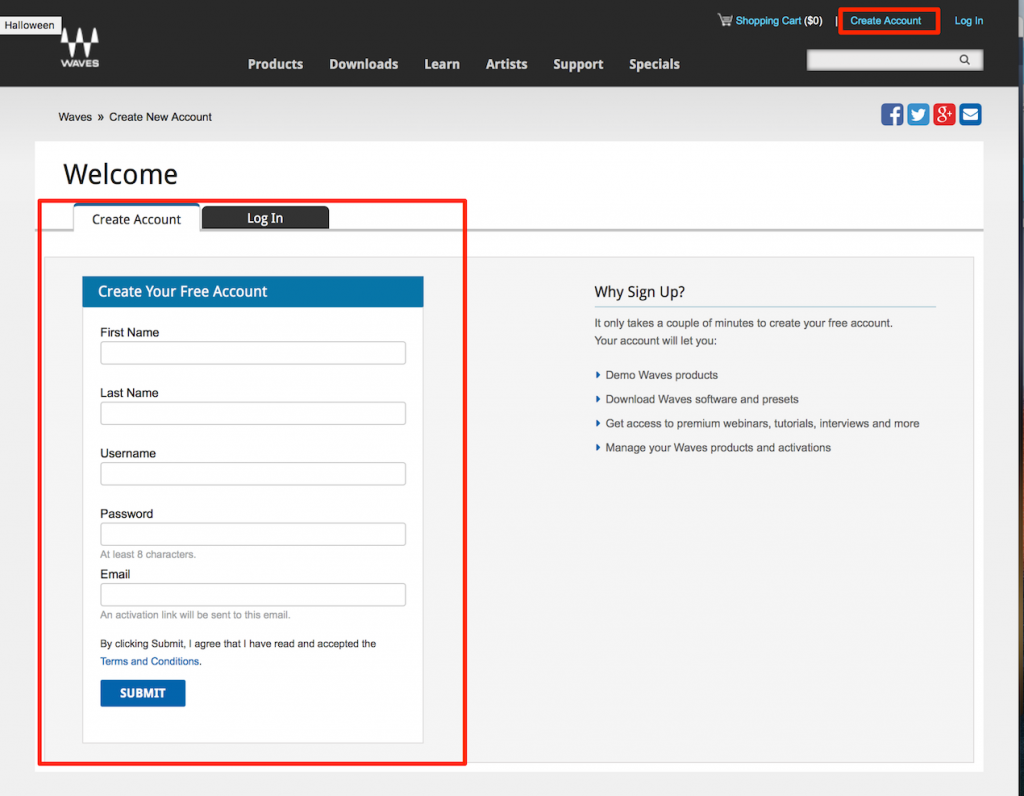
To perform the operations below, you need to create a Waves account.
If you don't have an account, please register using the link below.
What about products with a serial number?
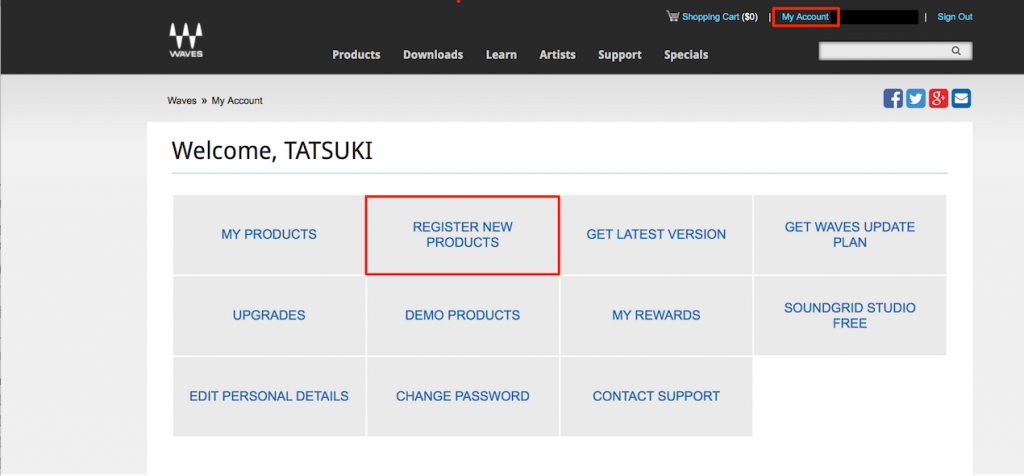
Products issued with a serial number, such as boxed versions, must be registered in advance.
http://www.waves.com
After logging in to your account, click "My Account" and select "REGISTER NEW PRODUCTS."
Enter the "serial number" on the screen that appears to complete registration.
When you launch "Waves Central," a dialog like this appears.
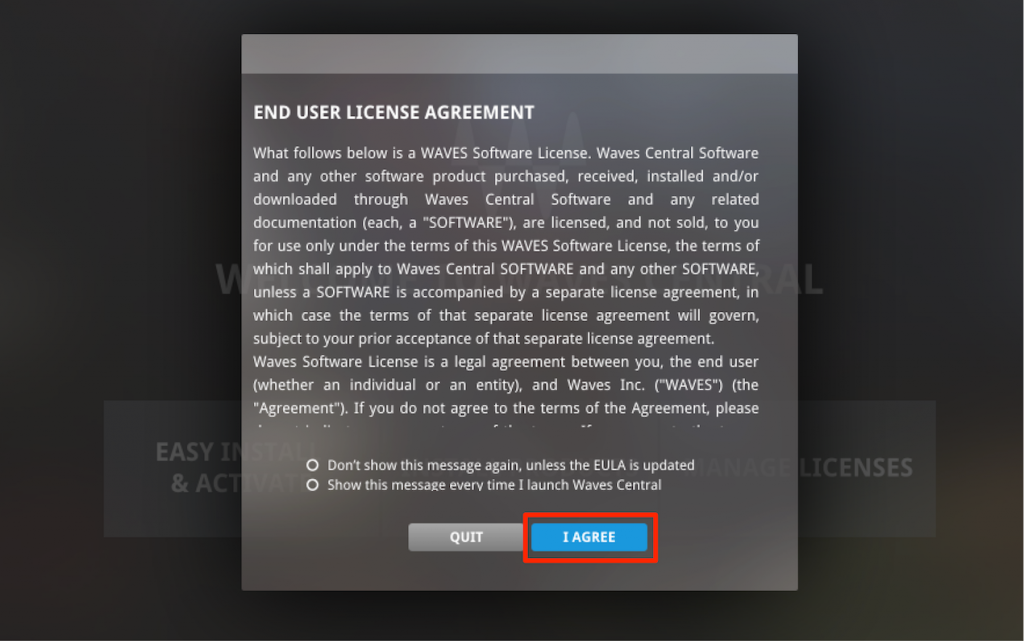
Review the terms and select "I Agree."
If the installer won't launch, try the following.
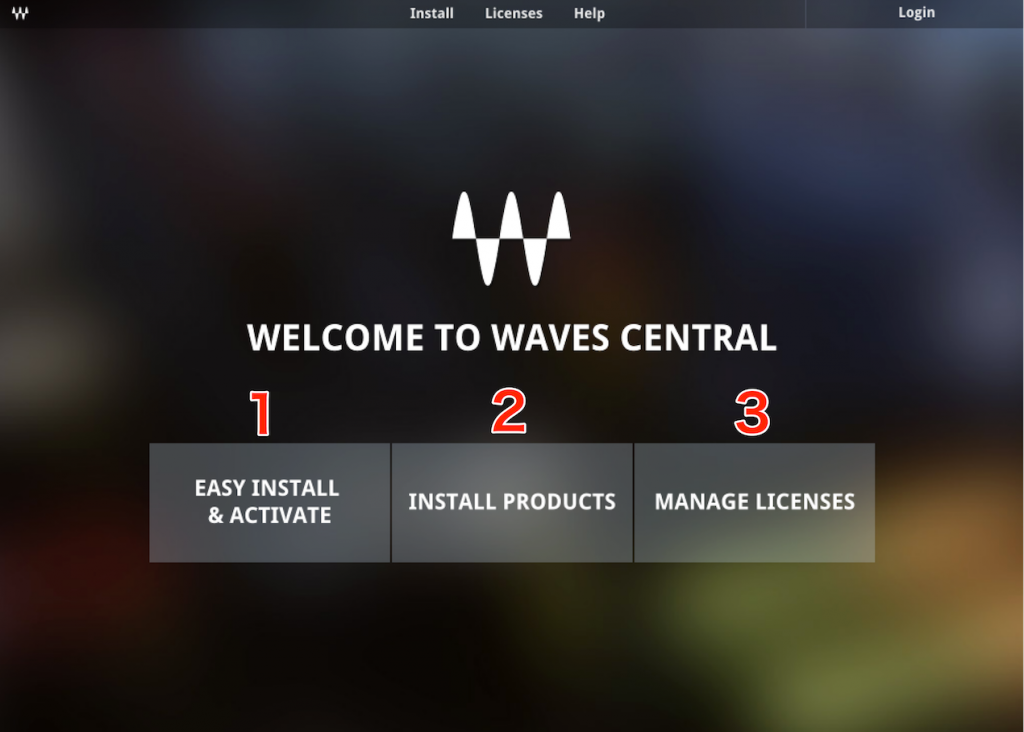
- 1. When you have purchased Waves products for the first time / purchased new products
- 2. When you have already registered and installed products and want to bring them up to date
- 3. When you want to move the license of a registered product to another computer or a USB drive
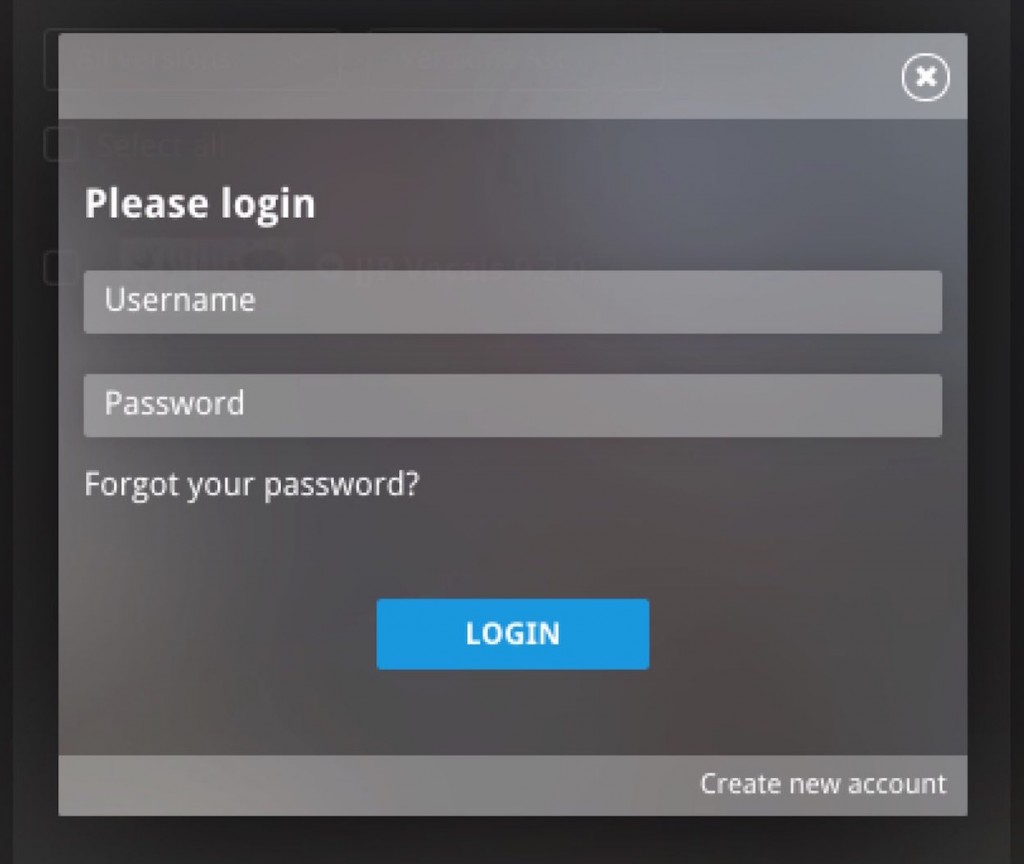
All of the following operations require you to log in.
Log in using the account you created above.
- EASY INSTALL
- INSTALL PRODUCTS
- MANAGE LICENSES
You can activate and install products at the same time.
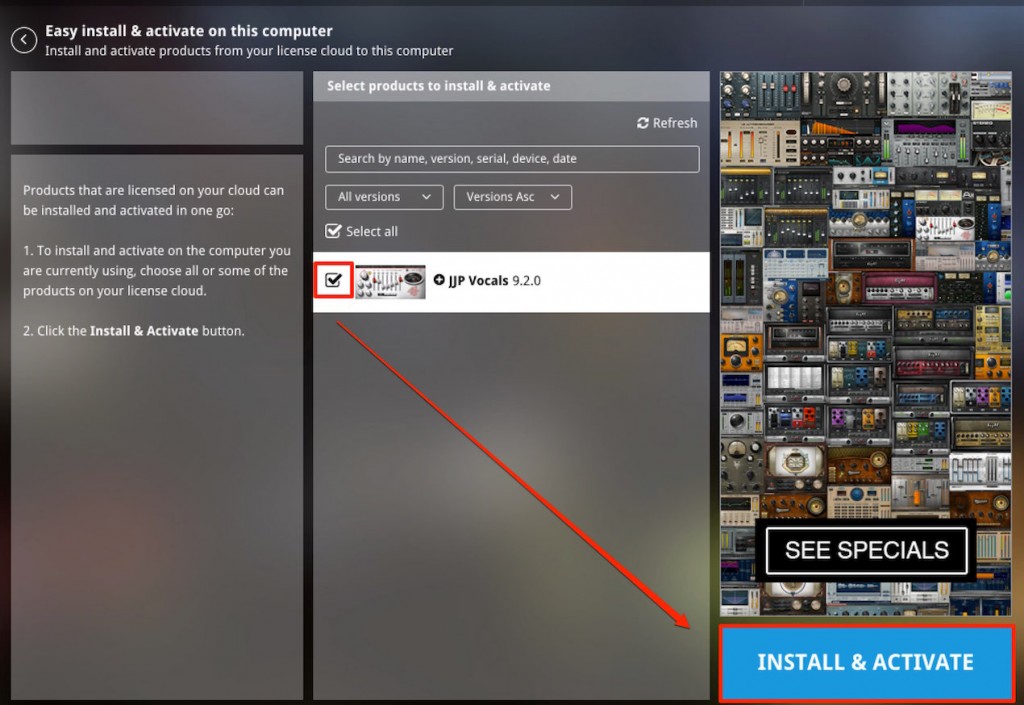
Products purchased online, or products whose serial numbers you entered above, are displayed.
Check them, then click "INSTALL & ACTIVE."
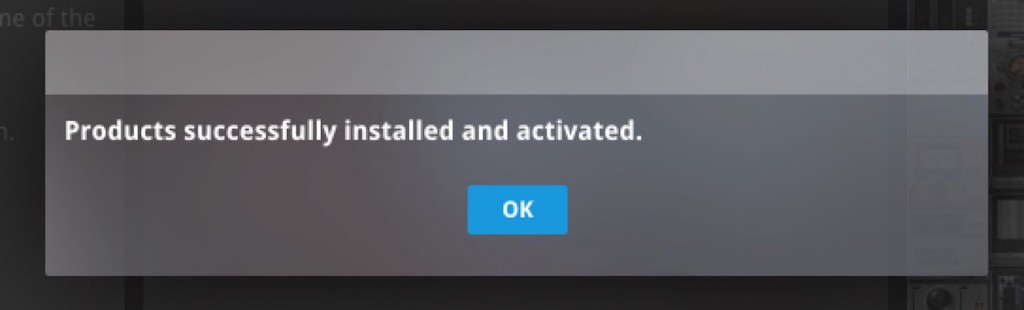
The screen above appears.
Activation and installation are now complete, and you can use the products in your DAW.
From this section, you can update products to the latest version.
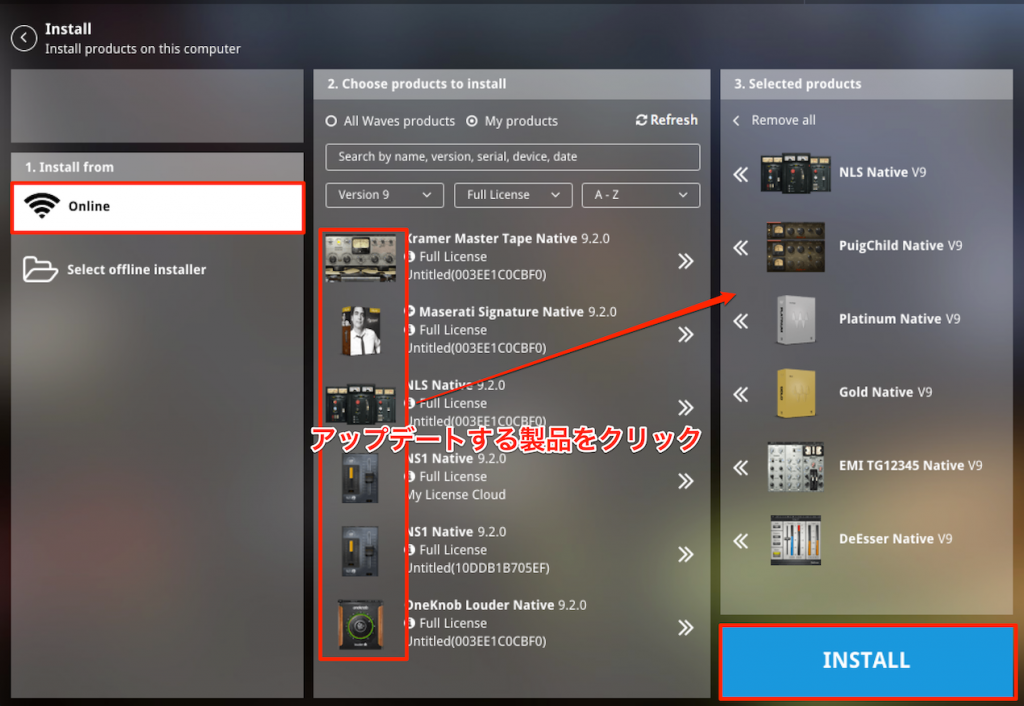
Select "Online" to see a list of your registered products.
Click a product you want to update, and it moves to the window on the right.
Then click "INSTALL."
Your products are now up to date.
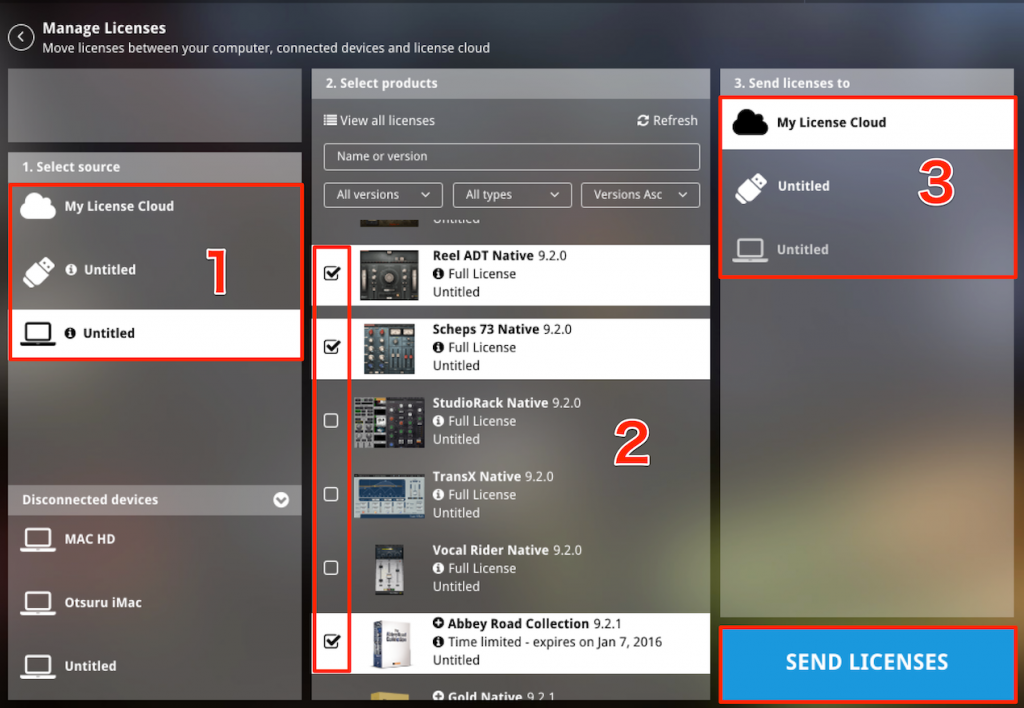
1. Select the location that currently holds the license.
- My License Cloud: shows products not yet assigned to a computer or USB drive.
- USB drive: shows products whose licenses are on a USB drive.
By plugging the USB drive into a different computer, you can use Waves products on that computer as well. - PC: shows products whose licenses are on the current computer.
2. Select the products whose licenses you want to move.
3. Select the destination for the licenses and click "SEND LICENSES."
The licenses are now moved to the location you chose.
*If a license is on a computer and you are going to dispose of that computer or do a clean install,
we strongly recommend moving the license to "My License Cloud" or a "USB drive" first.
- EASY INSTALL
- INSTALL PRODUCTS
- MANAGE LICENSES
Update: troubleshooting the Waves V9 legacy version
For example, if you installed V10 but your product licenses are for V9,
you may want to uninstall V10.
We have also compiled troubleshooting for issues such as Waves V9 not appearing in Logic Pro X (plug-ins not being scanned) at the link below.
Please refer to it.

Frequently asked questions
Q1. What is Waves Central?
It is a plug-in management tool introduced from Waves 9.6. It lets you install plug-ins, authorize licenses, update, and manage licenses all in one application.
Q2. How do I register a product issued with a serial number?
After logging in to your Waves account, select "REGISTER NEW PRODUCTS" from "My Account," enter the serial number, and complete registration. Then use "EASY INSTALL" in Waves Central to authorize and install at the same time.
Q3. Can I move a license to another computer or a USB drive?
Yes, from the "MANAGE LICENSES" tab. Simply select the source and destination and click "SEND LICENSES" to move licenses freely between "My License Cloud," a "USB drive," and a "PC."
Q4. Is there anything I should be careful about with licenses when disposing of a computer?
Before disposing of a computer or doing a clean install, it is strongly recommended to move your licenses to "My License Cloud" or a USB drive. This lets you assign them again on your new computer.
NEW ARTICLES
Latest English Articles











