
If you get noise, audio dropouts, or playback stopping while producing in Logic Pro, the main cause is high CPU usage. This article explains how to reduce the CPU load and improve the symptoms by setting a higher "I/O Buffer Size" via "Logic Pro" → "Audio" → "Devices" in the top menu. You need to watch out for latency, but alternatives such as converting MIDI tracks to audio and the Freeze function are also available, so it's important to choose the solution that suits your production environment.
Errors caused by CPU usage
During production, you may run into symptoms such as "noise," "audio dropouts," or "playback not working."
This is typical behavior that occurs when "CPU usage" gets high.
Here we'll explain how to solve it.
Solution
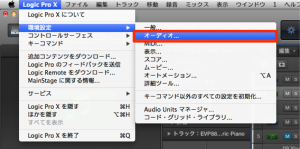
From the top menu, select "Logic Pro" → "Audio."
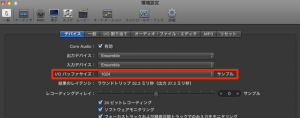
Under "Devices," set the "I/O Buffer Size" to a higher number.
This keeps "CPU usage" down and should improve the symptoms.
*A higher number causes "latency" (audio delay) when recording.
Other solutions
Convert MIDI tracks to audio
https://sleepfreaks-dtm.com/for-advance-logic/lesson1-5/
Use the Freeze function
https://sleepfreaks-dtm.com/for-advance-logic/lesson2-5/
Frequently asked questions
Q1. Why do I get crackling noise in Logic Pro?
When CPU usage gets high, audio processing can't keep up, causing noise and dropouts. You can improve this by increasing the I/O buffer size to reduce the CPU load.
Q2. Are there downsides to a higher I/O buffer size?
A higher number causes latency (audio delay), so playing may feel awkward, especially when recording with MIDI input.
Q3. What else can I do besides adjusting the I/O buffer size?
You can reduce CPU usage by converting MIDI tracks to audio or using the Freeze function. Combining several methods is also effective.
NEW ARTICLES
Latest English Articles











