
In DTM mixing, a clipping master track is a common problem that greatly reduces the efficiency of your sound shaping. This article explains how to lower the level of each track step by step to prevent the clipping caused by level changes when converting MIDI to audio and by many tracks stacking up. By using the group features of major DAWs such as Pro Tools, Logic, and Cubase to manage all the tracks at once, processing such as EQ and compression works effectively and the final loudness adjustment goes smoothly.
Keep an Eye on the Master Track
When mixing,
it is common to convert all MIDI tracks to audio tracks first.
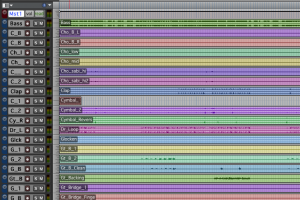
↑ Convert everything to waveforms like this.
What you need to watch out for at this point is
the overall level.
Because the level changes when converting from MIDI tracks and many tracks stack up,
the overall output, the master track, often clips.

If the sound stays clipped,
- it is hard to shape sounds with EQ, compression, and so on
- raising the overall loudness does not go well
- levels keep creeping up (inflating) during the mix
and various other problems arise.
The Best Way to Set Levels When Mixing
The solution is very simple:
lower the level of each track.
Of course, you can lower the level one track at a time,
but it is better to use a function that changes all tracks at once.
See the following for details.
Group Functions in Each DAW

 Logic
 Cubase
 Studio One
 FL Studio
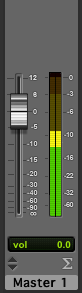
↑ Check the loudest part of the song and adjust so that the master track meter goes slightly past the middle.
Lowering the track levels also lowers your monitoring level,
but you can solve this by raising the volume of your audio interface or speakers.
Frequently asked questions
Q1. Why does the master track clip when mixing?
Because of the level change when converting MIDI tracks to audio and because many tracks stacking up increase the output signal. To prevent it, it is important to lower each track's level so the master meter goes slightly past the middle.
Q2. Lowering the track levels makes my monitoring quieter.
You can solve this by raising the volume of your audio interface or speakers. The level inside the DAW and the playback volume are independent, so combine adjustments in the DAW with adjustments on your external equipment.
Q3. Can the same method be used in DAWs other than Pro Tools?
Yes. Major DAWs such as Logic, Cubase, Studio One, and FL Studio all have group functions that let you adjust the level of multiple tracks together. We recommend checking the details in your DAW's manual.
NEW ARTICLES
Latest English Articles











