
Studio One's group feature is a handy way to manage multiple tracks together: by linking their volume, solo, and mute settings, it makes music production more efficient. Grouping related tracks, such as the kick drum and bass or several backing vocals, lets you adjust their overall level while keeping their balance, or temporarily adjust them individually. It is easy to set up and remove from the track's right-click menu, making it a basic yet important feature for beginners and advanced users alike.
Handy for Changing Multiple Tracks Together

You can combine tracks into a group to work more comfortably.
Volume, editing, solo, mute, and more can be linked as a group.
It has many uses, such as the kick drum and bass, or many backing vocal tracks.
How to Set Up a Group in Studio One
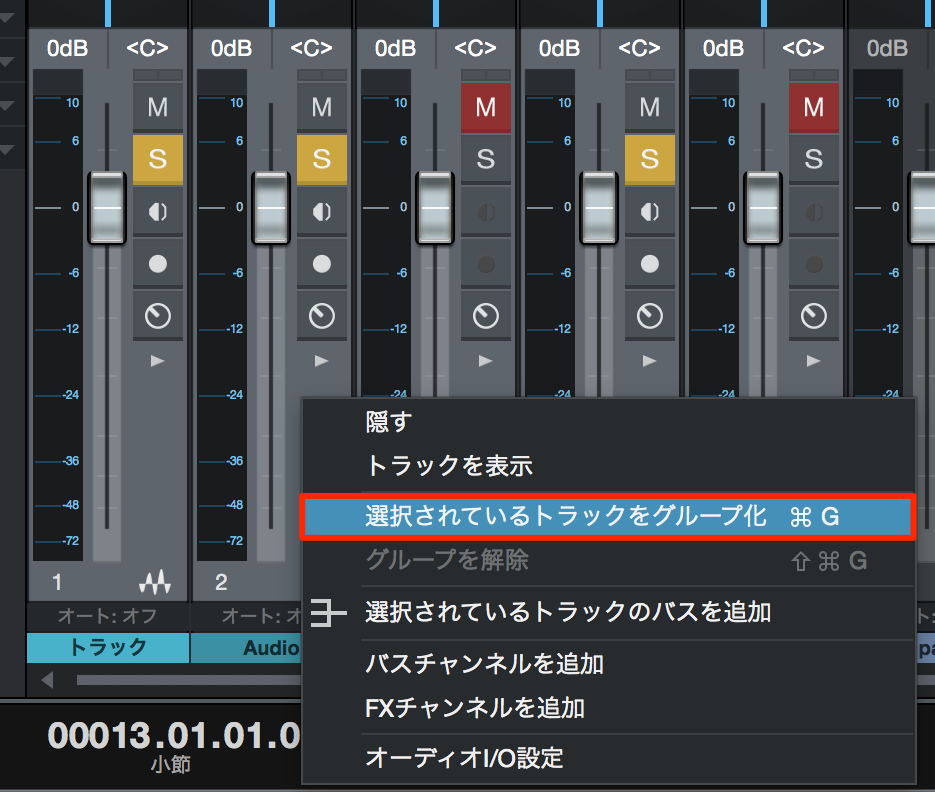
↑ Select all the tracks you want to group.
Right-click on a track and select "Group Selected Tracks."
The group is now active.
It is also very useful when you want to raise or lower the whole set
without upsetting the balance between tracks you have already leveled.
Removing a Group
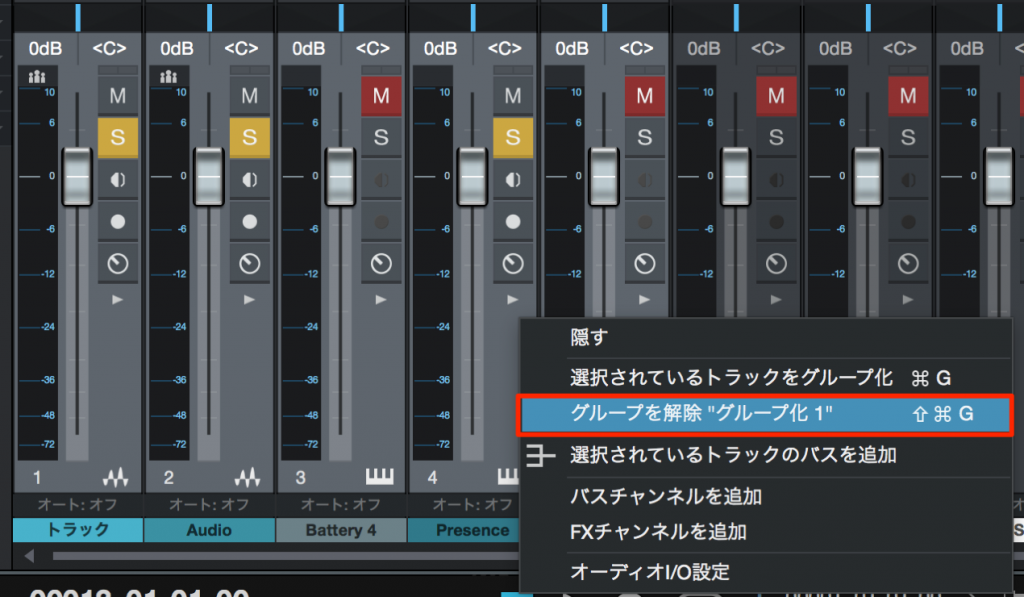
↑ Right-click the track again and select "Dissolve Group."
Temporarily Bypassing a Group
This is handy when, for example, you want to lower the volume of just one track
in a group.
- Mac: Option
- Windows: Alt
Hold this key while operating the track.
The grouping is temporarily bypassed,
so the other tracks do not move with it.

Frequently asked questions
Q1. How do I change the volume of grouped tracks all at once in Studio One?
Move the fader of any track in the group, and all the tracks are adjusted together while keeping their balance. This lets you change the overall level without upsetting the volume relationships you have already set.
Q2. Is there a way to adjust just one track individually while it is grouped?
Hold Option on Mac or Alt on Windows while operating the track. The grouping is temporarily bypassed so you can adjust that one track independently.
Q3. How do I delete a group I no longer need in Studio One?
Just right-click a grouped track and select "Dissolve Group" to remove the grouping easily. After that, each track can be operated independently.
NEW ARTICLES
Latest English Articles











