
KONTAKT 7, released by Native Instruments, is the top-tier sampler software for DTM production. The new version adds a lavish 36.68 GB sound library and a greatly enhanced Content Browser. In the Content Browser, you can narrow searches by instrument and character and quickly find the preset you want across multiple instruments. In addition to these new features, this article explains practical usage in detail, such as Quick Access, parallel output settings, sample editing, effects and modulation, so that a wide range of DTM producers, from beginners to advanced users, can make effective use of KONTAKT 7.
KONTAKT, the Most Famous Sampler in the DTM World, Reaches Version 7
Native Instruments has released "KOMPLETE 14"!
This time too, it includes many attractive products, and the software sampler "KONTAKT," which loads these products, has also evolved to version 7.
The highlights of KONTAKT 7 are as follows.
- A newly provided, lavish sound library
- Enhanced searching for sound presets
While touching on these items, we bring you a selection of functions and editing techniques from past videos that you can also use in the new KONTAKT 7.
A Newly Provided, Excellent Sound Library
The library that had been included for a long time has been completely reborn.
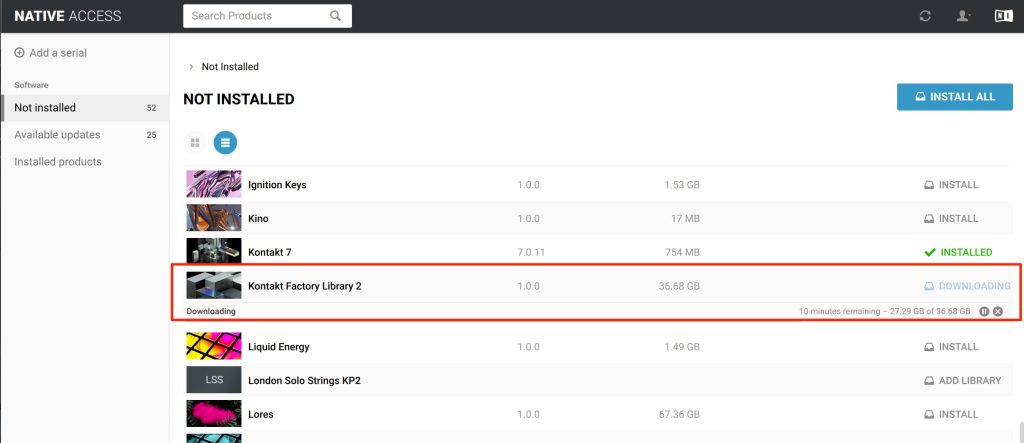
As before, the library is installed using Native Access.
The total size of the preset files is 36.68 GB, which is large, and every kind of instrument is included, from electronic and acoustic to ethnic instruments.

We loaded a preset right away.
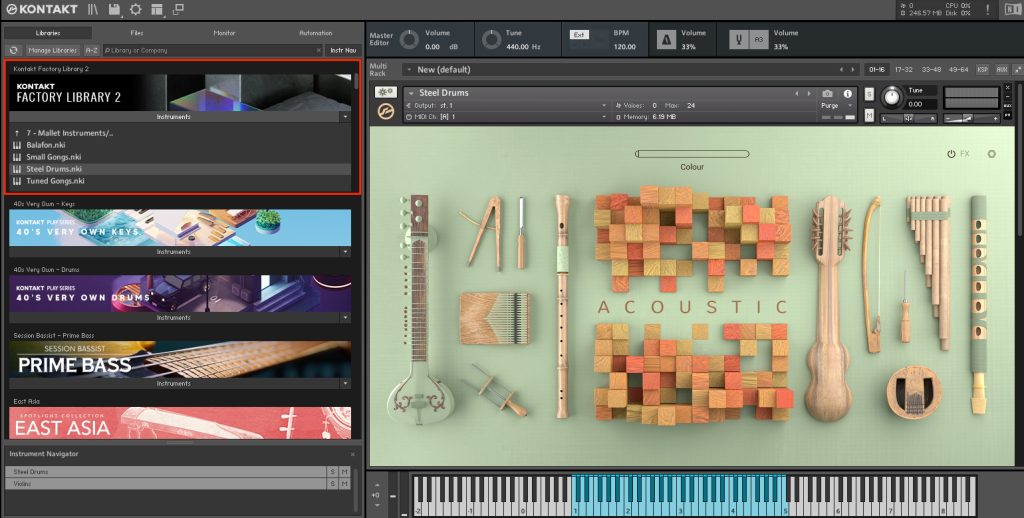
Each preset has a stylish interface, and opening them is fun in itself.
Unnecessary buttons and knobs have been eliminated as much as possible, and I got the impression that it is designed to be very easy to understand.
The Content Browser, with Greatly Improved Searchability
It is nice that products and presets increase with every update, but on the other hand, managing and keeping track of them inevitably becomes difficult.
The feature added to avoid this is the "Content Browser".
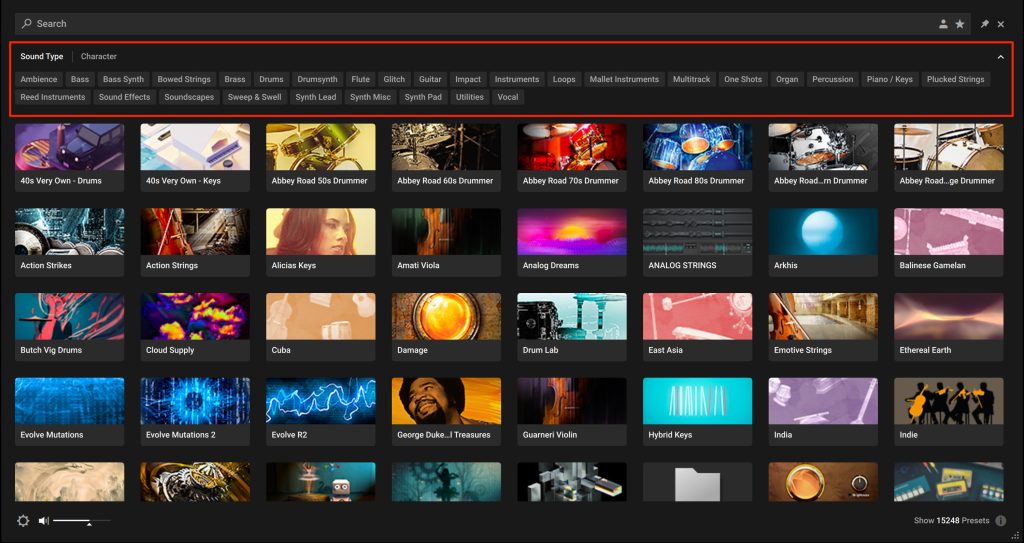
It is a browser that lets you specify an instrument or character and find the sound you want right away.
Its biggest selling point is that you can search for the sound you want across multiple instruments.
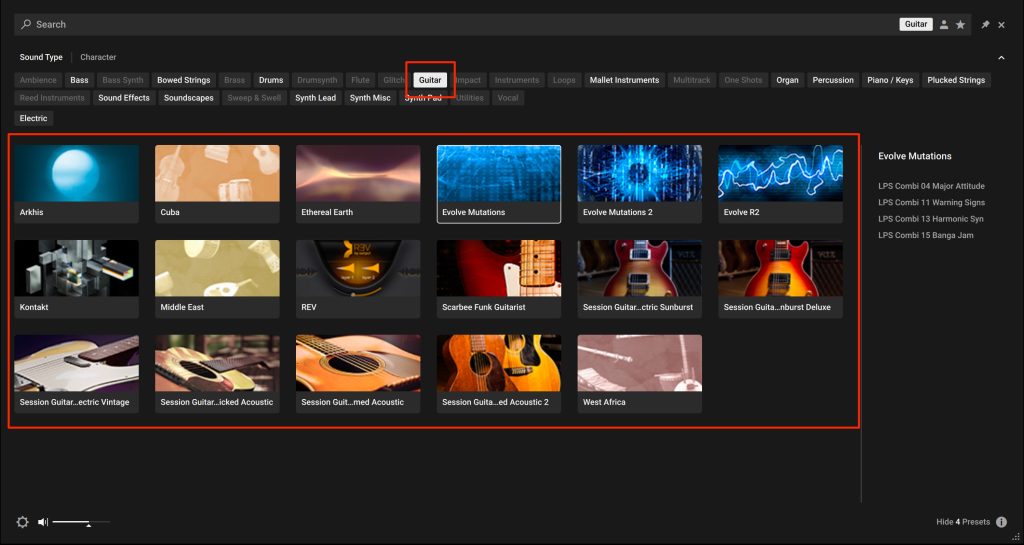
Selecting "Guitar" shows the instruments that contain guitar presets, like this.
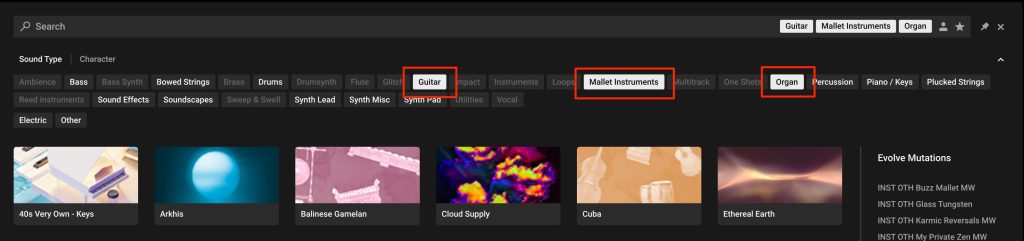
At this point, holding
- Mac: the Command key
- Windows: the Control key
lets you select multiple items.
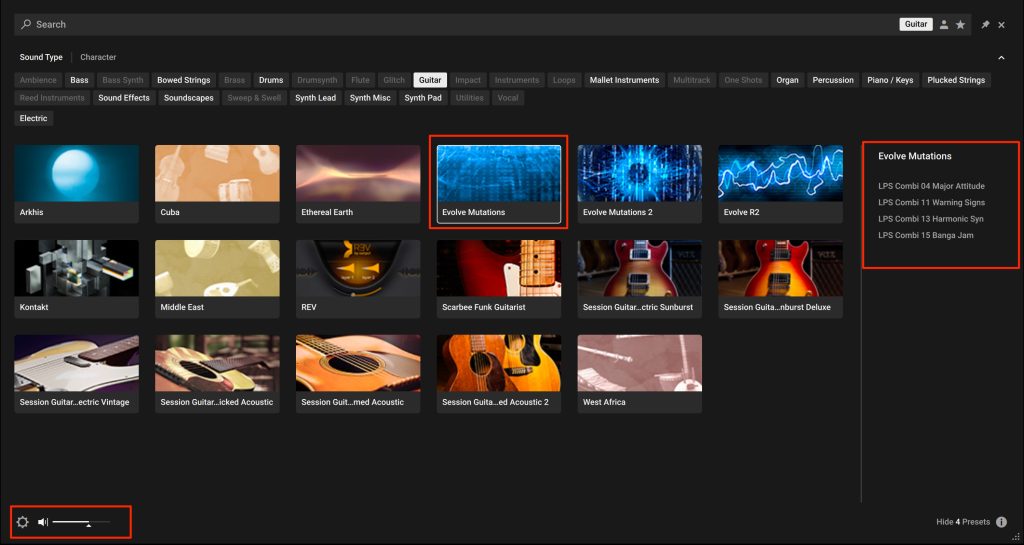
Clicking an instrument shows its preset list on the right.
Many presets support sound previews, so you can check a preset's sound with a click.
You do not need to load presets while searching for sounds, which is very welcome.
You can set the preview volume at the bottom left.
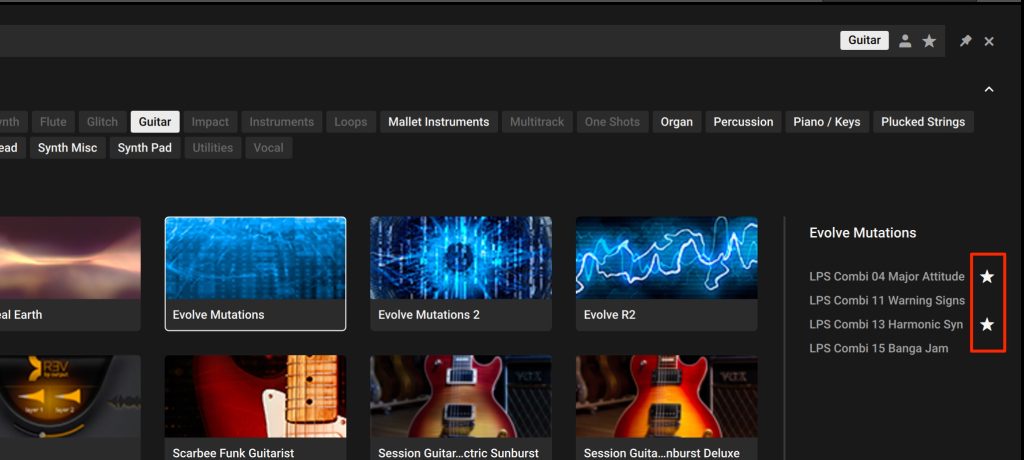
If you click the star (favorite) to the right of a preset name to light it up,
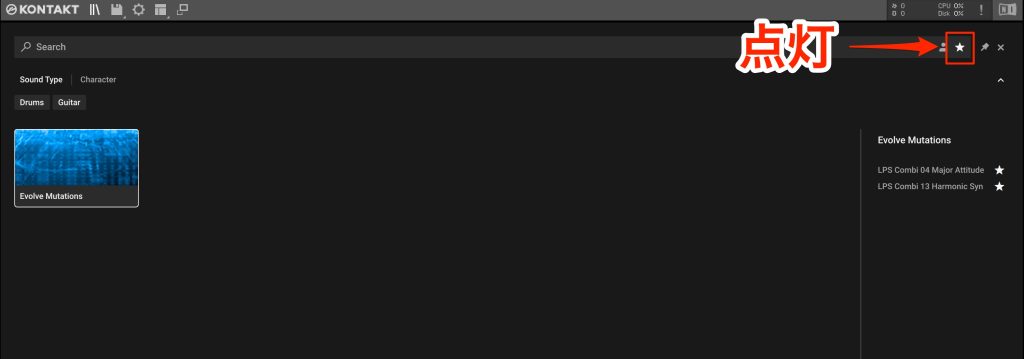
the star icon at the top lets you show only your favorite presets.
What If an Instrument's Presets Are Not Displayed?
If no presets are displayed when you search...
please check the following.
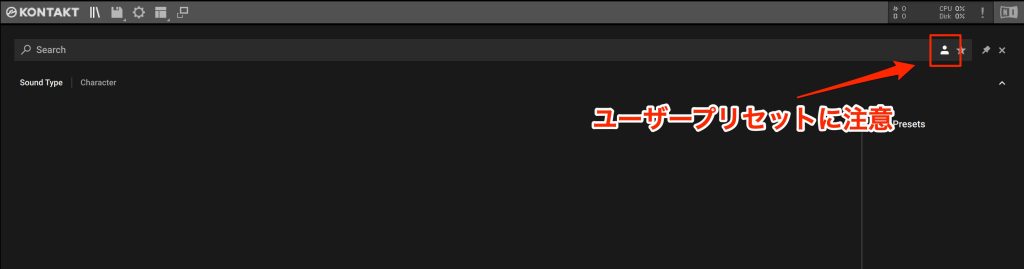
While the user icon is lit, only presets you saved yourself are shown, and the manufacturer presets are hidden.
If you want to show the default presets, turn off the user icon.
How Do I Show the Previous Rack View?
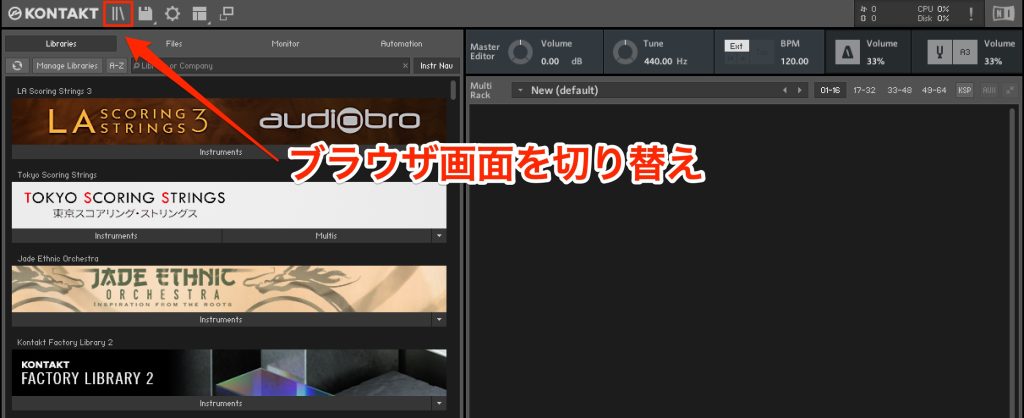
There is a button for switching the browser.
Those are KONTAKT 7's headline features.
Next, we introduce functions and items from past videos that make KONTAKT fun and convenient to use.
KONTAKT Basics and Handy Features Worth Remembering
The Handy Quick Access Feature
Including the basics of loading presets, we explain the customization feature for quickly accessing the presets you want.
There are many items that form the basics of KONTAKT, so please check them.
Parallel Output Settings, Where Many Get Lost
KONTAKT can load multiple instruments, and you can assign each instrument's sound to a separate track.
This setup is quite unusual, so please follow along with the video. (You only need to do this setup the first time.)
Creating Original Sounds
Mapping and Editing Samples
KONTAKT lets you load and process sound files you prepared yourself and map them to keys (use them as a MIDI instrument).
This is the function called a sampler, and it enables various techniques used widely, especially in electronic music.
Using Effects
We explain the process of polishing sounds using the effects provided in KONTAKT.
Sound Control with Modulation
We explain modulation, such as envelopes and LFOs, which gives sounds all kinds of movement.
You can also achieve synthesizer-like control freely.
Creating a Jingle Using KONTAKT's Features
Using the features explained so far and a bit more, we create a YouTube jingle.
I think you will feel the high degree of freedom and potential that KONTAKT has.
How did you find the new "KONTAKT 7"?
The browser for managing and using the product presets that increase with each version is especially welcome.
If you have KONTAKT 7, please make active use of it!
Frequently Asked Questions
Q1. What is the most useful new feature in KONTAKT 7?
The enhanced Content Browser is the biggest improvement. You can search the vastly increased presets by instrument and character and preview sounds before loading presets. Selecting multiple items at once and the favorites feature let you find the sound you want quickly.
Q2. What should I do if instruments are not displayed when I load presets?
Check whether the user icon is lit. While the user icon is lit, only presets you saved yourself are shown, and the manufacturer presets are hidden. To see the default presets, turn the icon off.
Q3. Can I create original sounds with KONTAKT 7?
Yes. KONTAKT 7 has sampler functions, letting you load and process sound files you prepared yourself and map them to keys. With comprehensive effects and modulation, you can create original sounds with synthesizer-like control.
NEW ARTICLES
Latest English Articles











